
Note: The comparison covers Sales Tax and VAT configurations. It does not cover every country-specific requirement within Europe or every state-specific requirement within the US.
Part 1:
Check the tax setup in Business Central
Step 1: For companies using US Sales Tax:
If the company is using sales tax, POS365 retrieves the settings for tax setup below and uses the percentages configured in Business Central. Therefore, check that the following BC cards have been configured:
- Tax Groups.
- Tax Areas.
- Tax Jurisdictions.
- Tax Details.
Step 2: For companies using VAT:
- Search for VAT Posting Setup in Business Central.
- Find the required combination of VAT Bus. Posting Group and VAT Prod. Posting Group.
- Check the VAT % for the combination.
Note: VAT is determined by the combination of the business and product posting groups.
For more information, see VAT setup in Business Central and Admin Center.
Part 2:
Select the tax calculation mode in Admin Center
Step 1: Open company settings
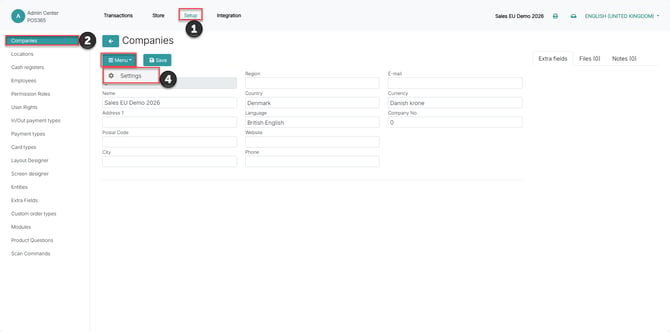
- Open Setup.
- Open Comapnies
- Select your Company
- Go to Menu -> Settings
Step 2: Check the tax calculation mode
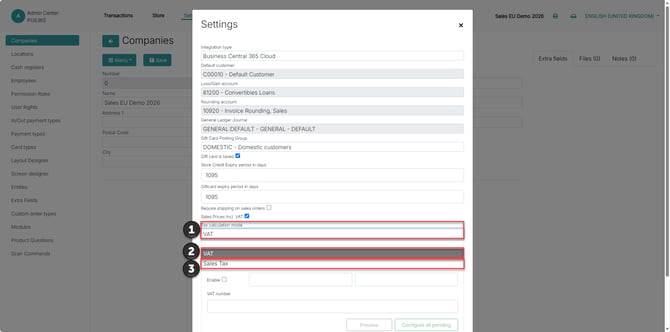
- Locate Tax calculation mode.
- For a US Sales Tax configuration, select Sales Tax.
- For a VAT configuration, confirm that the selected mode is VAT.
Note: The selected mode must correspond to the company’s tax setup in Business Central. Selecting Sales Tax does not create the required Business Central tax configuration.
For more information, see Setup US Sales Tax.
Part 3:
Select and configure the default customer
The default customer is used when a sale is completed without another customer being selected.
Step 1: Find the company setup
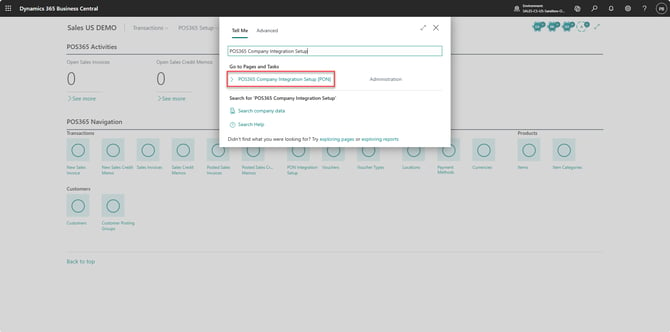
Search for and open POS365 Company Integration Setup
Step 2: Select the default customer
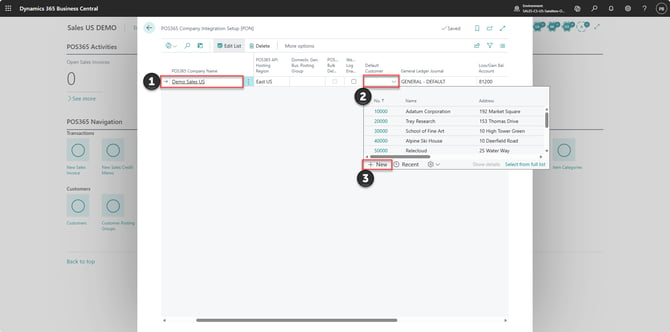
- Locate the company
- Open the selection in Default Customer.
- Select the customer intended for walk-in sales, or choose +New to create one.
- Complete the required posting details on the customer card.
- Leave Payment Method Code blank.
- Enable On POS365 [PON].
- Return to the selection and assign the customer.
Note: The company must have been synchronized from Admin Center before it appears on this page.
Step 3: Review the customer’s tax configuration
Sales Tax:
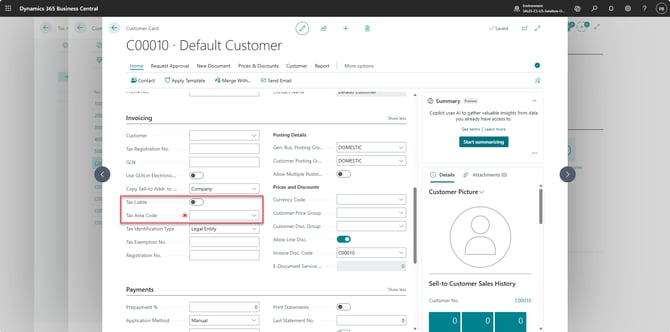
For a company using US Sales Tax, check the customer’s Tax Area and whether the customer is taxable. These settings affect tax calculation on ordinary sales where this customer is used.
VAT
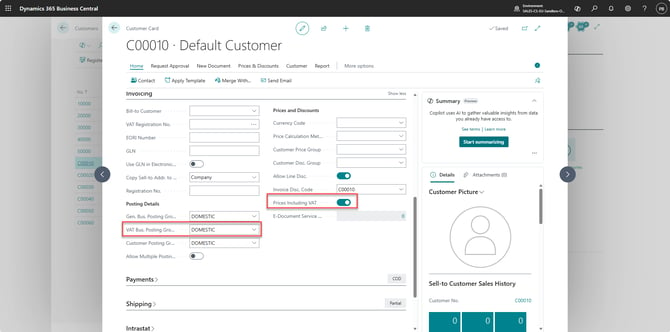
For a company using VAT, review the customer’s VAT posting configuration and Prices Including VAT setting.
Step 4: Confirm the selection
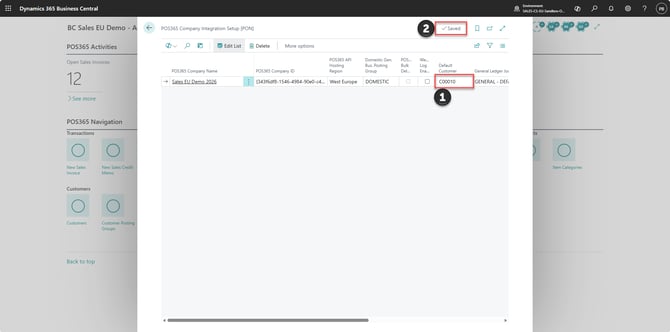
- Check that Default Customer displays the intended customer on the correct company row.
- Confirm that the page shows Saved.
Part 4:
Review prices including or excluding tax
For companies using VAT
Review the customer’s Prices Including VAT setting and the relevant item price settings.
Note: Customer and item settings affect whether prices on POS365 sales lines include VAT.
For more information, see Prices including VAT for specific customers.
For companies using Sales Tax
Review the intended price basis for the company’s items.
Note: In Sales Tax mode, POS365 treats item prices as excluding tax on the receipt. Review the price configuration when adapting an existing VAT setup for Sales Tax.