
How to solve:
Part 1:
Check the Base Unit of Measure on the Item Card in Business Central
Step 1:
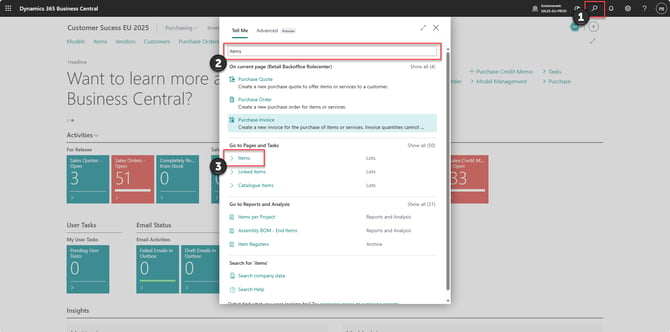
1) Press search
2) Type in 'items'
3) Open the 'Items' page
Step 2:
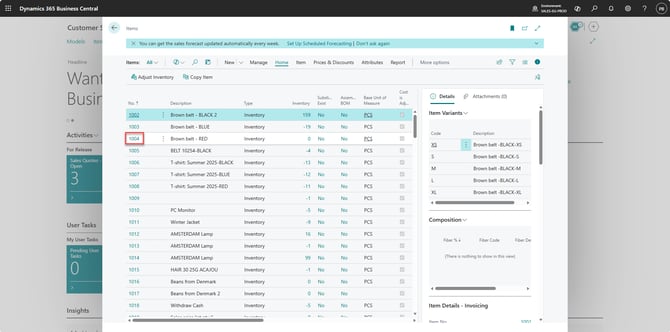
Locate and open the Item Card of the item that caused the BC error message.
Step 3:
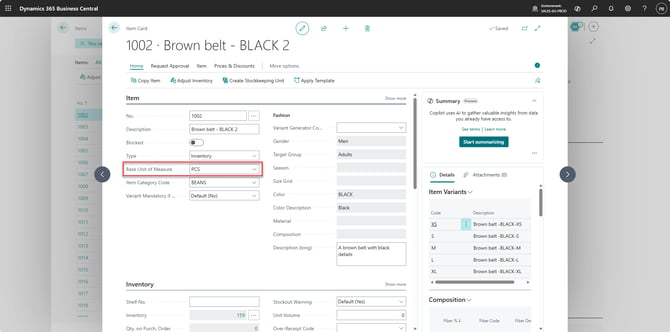
Check the 'Base Unit of Measure' field and ensure that the correct Unit of Measure has been selected for the item.
Part 2:
Check the Unit of Measure connected to the barcode
Step 1:
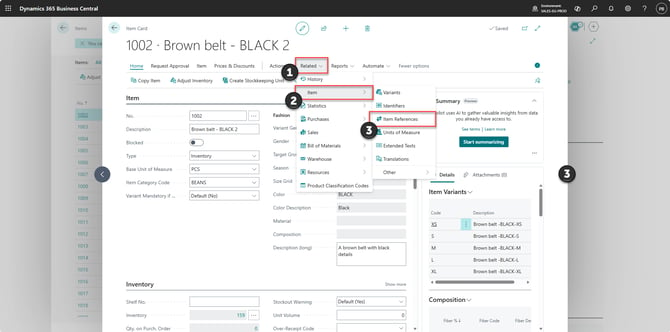
From the Item Card:
- Click 'More options'
- Click 'Related'
- Click 'Item'
- Click 'Item References'
Step 2:
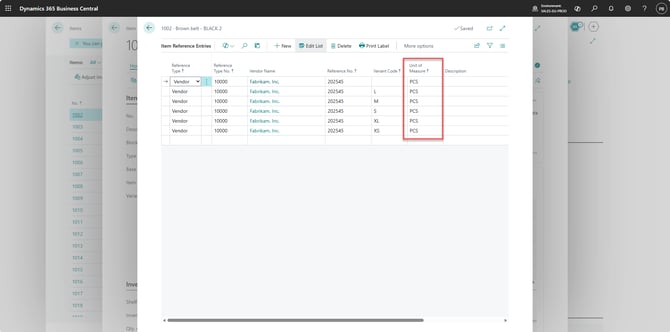
Find the relevant barcode in the Item References. The barcode can be located by the Unit of Measure related to the BC error message.
Ensure that it matches the 'Base Unit of Measure' on the Item Card.
If the values do not match, correct the setup so that the same Unit of Measure is used on both the Item Card and the barcode.
For example, if the 'Base Unit of Measure' on the Item Card is PCS, the barcode should also have PCS as its Unit of Measure.
Part 3:
Retry the affected sales
Step 1:
Once the changes in Business Central have been saved, future sales using the same barcode should use the correct Unit of Measure.
The change will not resolve existing sales that are currently showing the BC error.
Step 2:
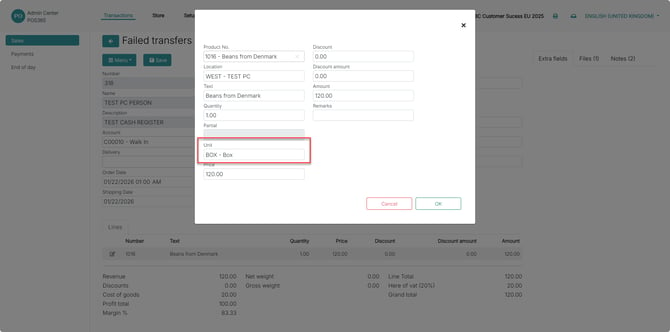
To fix the existing sale, open the affected sale in the Admin Center and change the Unit of Measure so that it matches the Base Unit of Measure, on the Item Card in Business Central, located through Part 1 of this guide.
In the example above, the Unit of Measure in the Admin Center should match the Base Unit of Measure shown on the Item Card in Business Central.