
This guide explains what accounts need to be set when setting up a company for POS365 to ensure correct reconciliation. Make sure to follow the guide thoroughly.
Account setup:
Payment types:
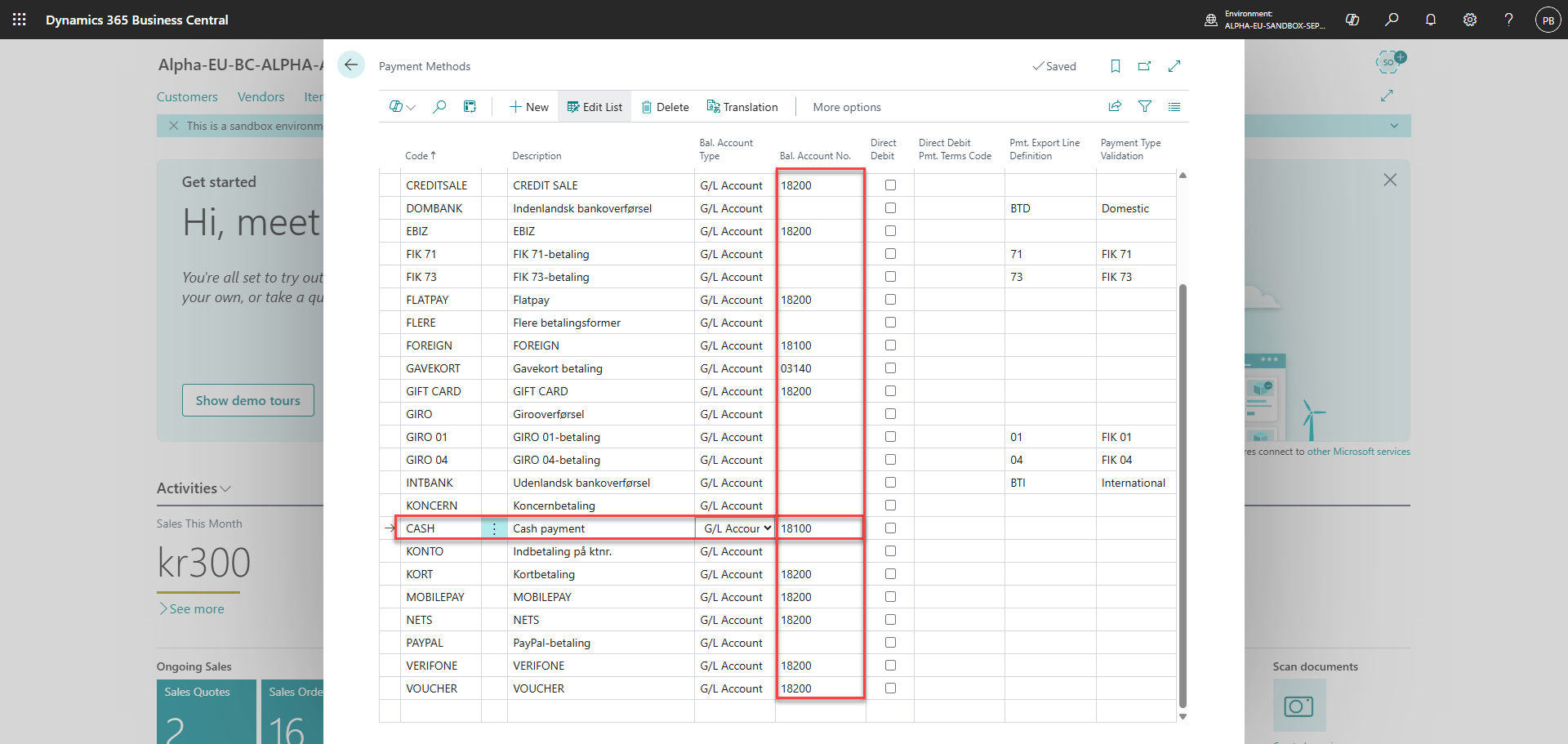
Account setup
Payment methods
- Open Payment Methods in Business Central.
- Select the payment method used in POS365.
- Set the Bal. Account No.
Bal. Account No.
The account on which payments made with this payment method are recorded in Business Central.
Currencies:
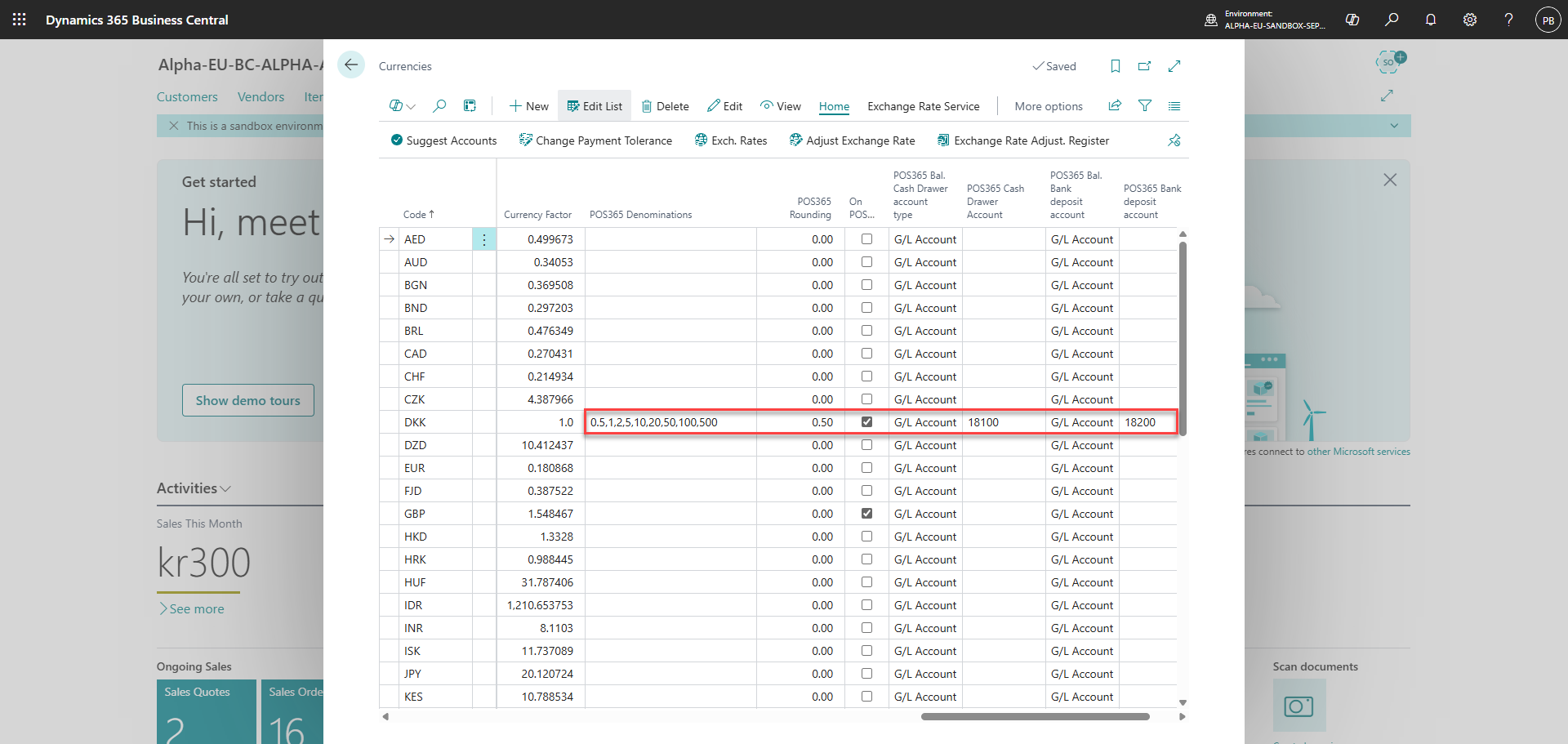
- Open Currencies in Business Central.
- Select the currency used in POS365.
- Configure its denominations, cash drawer account, and bank deposit account.
Denominations
All available cash denominations for the currency.
Cash drawer account
The account corresponding to where cash received through POS365 is recorded.
Bank deposit account
The account to which money is transferred when it is removed from the cash register. Depending on the physical cash-handling process, this may be a bank account or an account representing a safe.
Company:
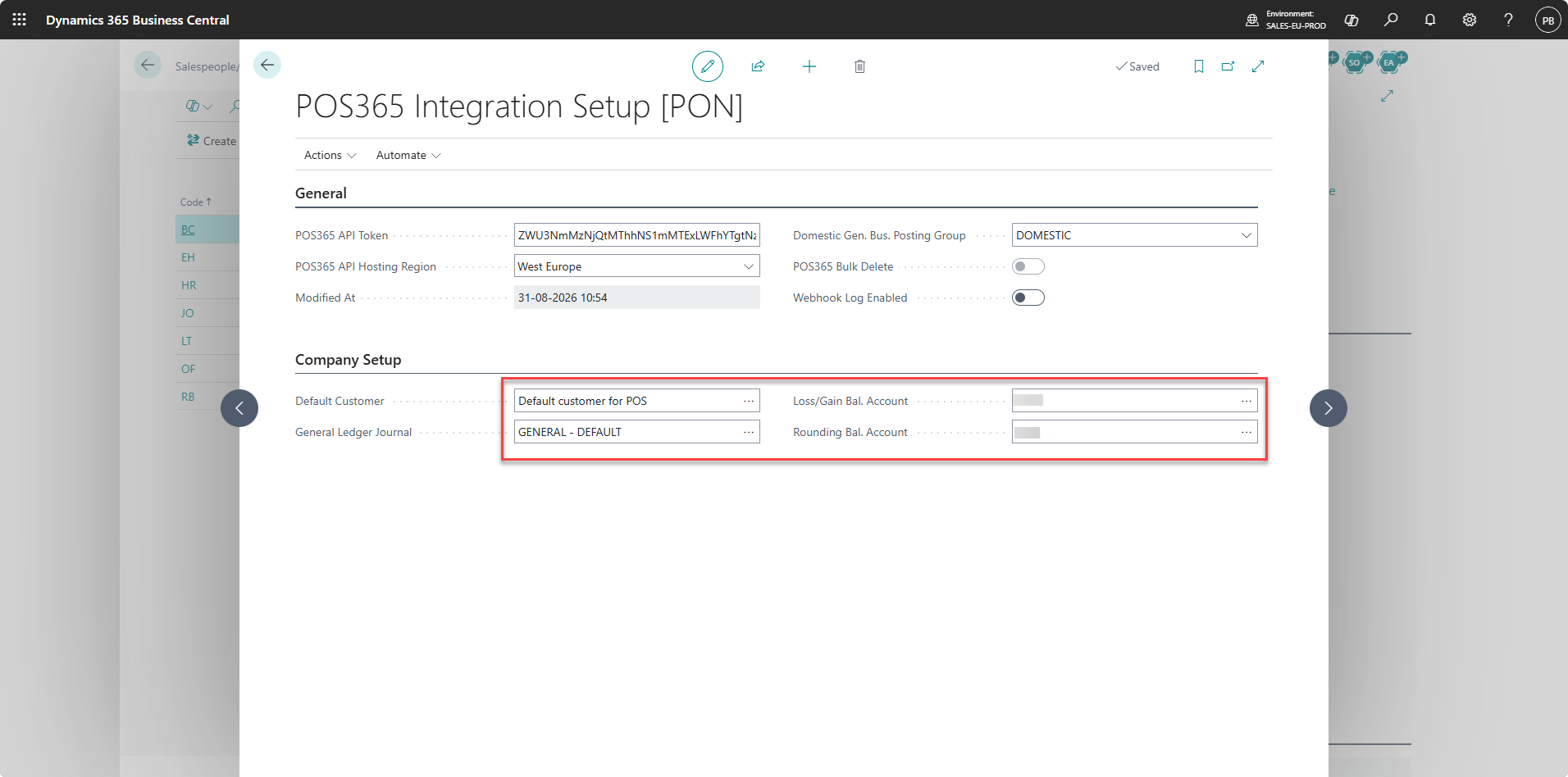
- Open Business Central.
- Search for and open POS365 Integration Setup [PON].
- Under Company Setup, configure the following fields:
- General Ledger Journal
- Loss/Gain Bal. Account
- Rounding Bal. Account
General Ledger Journal
The general journal template and batch used for POS365 payments and End of Day entries.
Loss/Gain Bal. Account
The account on which losses and gains from POS365 are recorded.
Rounding Bal. Account
The account on which cash-payment rounding amounts are recorded.
Posting:
Sales invoices and sales orders, as well as payments and End of Day entries, are transferred to Business Central as open. They must therefore be posted manually or processed using the relevant job queue entries.
The required POS365 job queue entries are created automatically when the POS365 Business Central integration extension is installed. They are initially created with the status On Hold, allowing the data flow to be verified before automatic processing is enabled.
Once the setup has been verified, open Job Queue Entries in Business Central and set the relevant POS365 entries to Ready.
For more information, see Job queue entries.
Sales invoices:
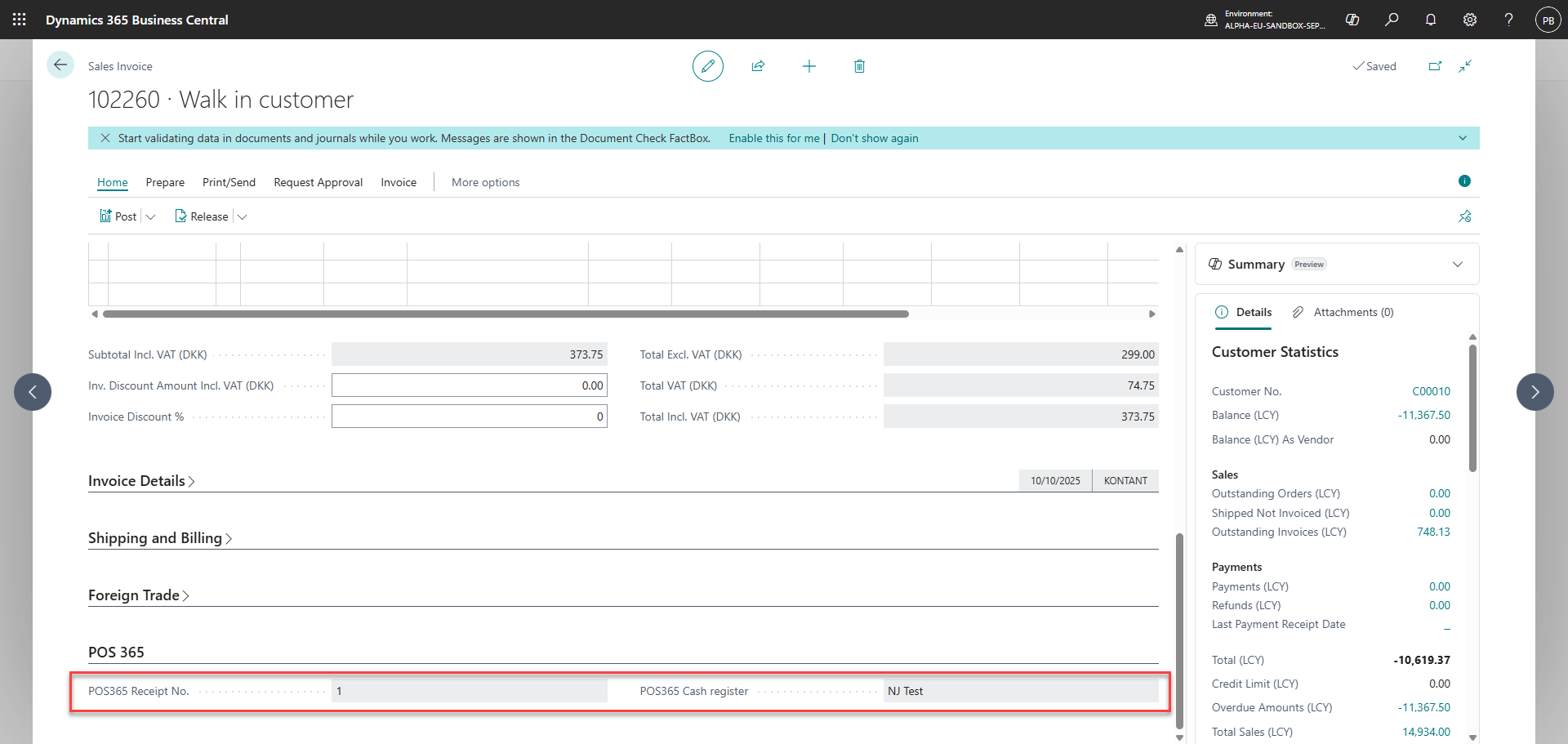
At the bottom of a sales invoice made on POS365, information regarding the sale is stated. This allows you to connect sales between the Admin Center and Business Central
Sales orders:
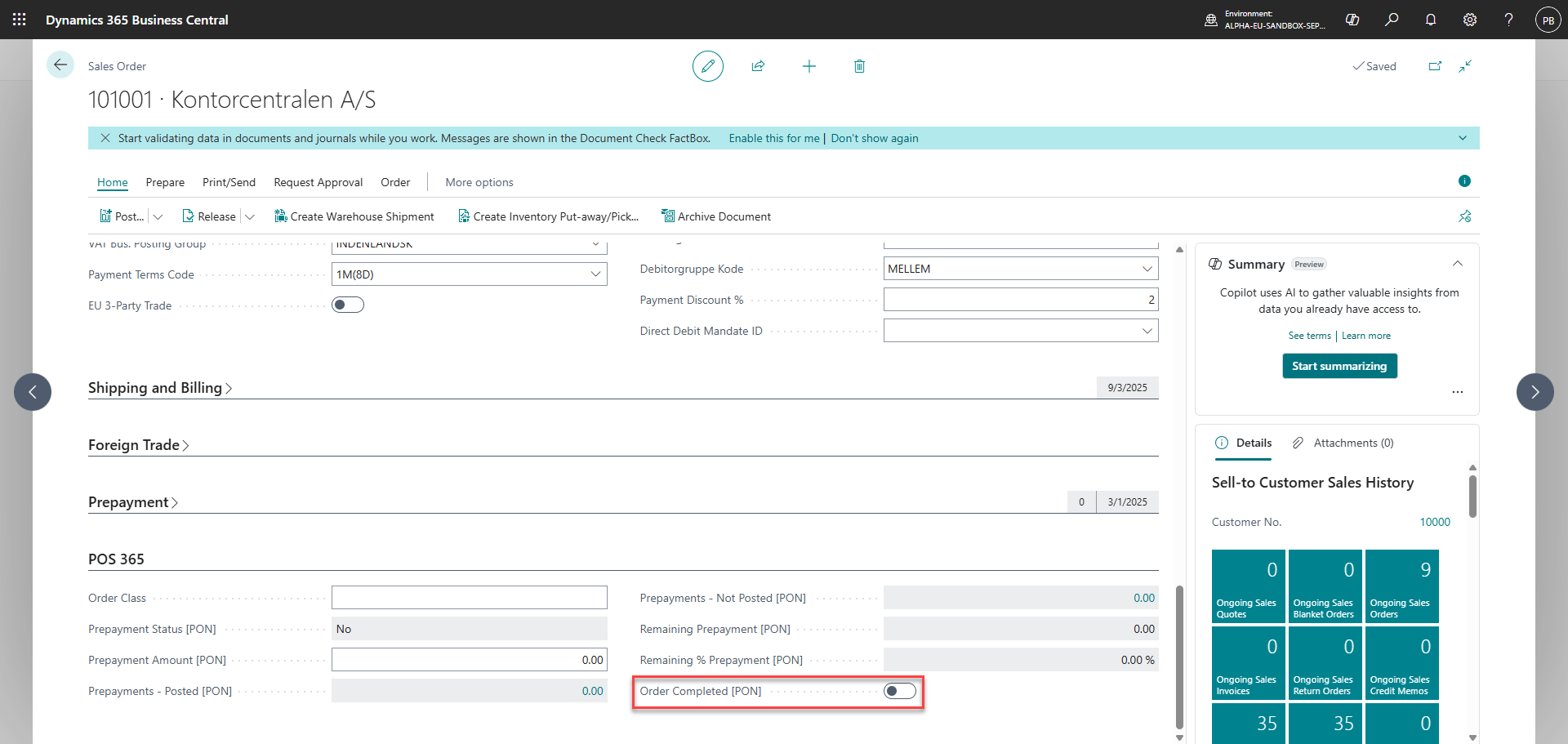
At the bottom of a sales order, a checkbox called 'Order Completed [PON]' is shown. This will be checked, if the order has been paid in full AND the employee has said yes to this on the POS. See more in this guide.
Journals:
The value selected in General Ledger Journal under POS365 Integration Setup [PON] → Company Setup determines which journal template and batch receive POS365 payments and End of Day entries.
These entries are transferred to Business Central as open and must be posted manually or through the relevant job queue entry.
We recommend creating a dedicated general journal for POS365. This makes it easier to distinguish POS365 transactions from entries created by other sources.