
The scan command tells POS365 which part of the barcode identifies the product and which part contains the price or weight.
Step 1:
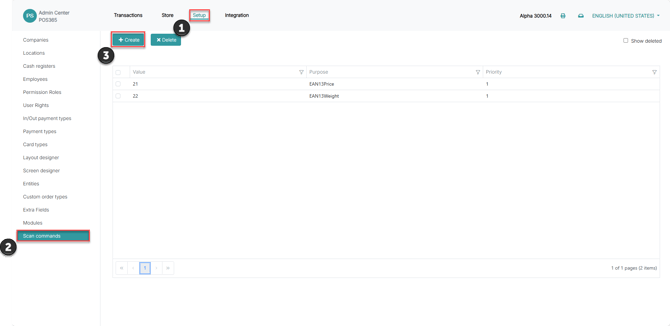
1) Open the Admin Center and go to 'Setup'
2) Click on 'Scan commands'
3) Click 'Create'
Step 2:
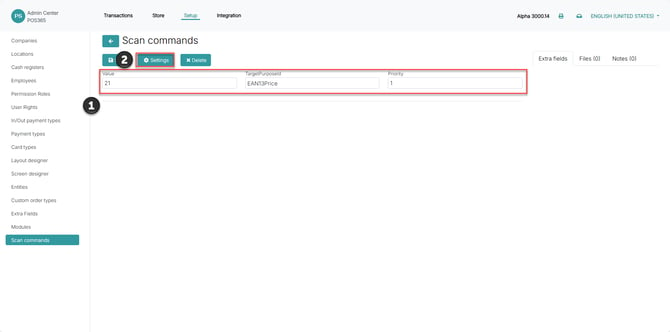
Value: The prefix used at the beginning of the barcode. The value must match the prefix configured in the scale or barcode system.
TargetPurposeId: Defines how POS365 should interpret the variable value contained in the barcode.
Select the purpose that matches the barcode:
- EAN13Price: Use this when the barcode contains a price.
- EAN13Weight: Use this when the barcode contains a weight or quantity.
Priority: Determines the order in which POS365 evaluates scan commands. This is relevant when multiple scan commands could match the same barcode.
2) Click 'Settings'
Step 3:
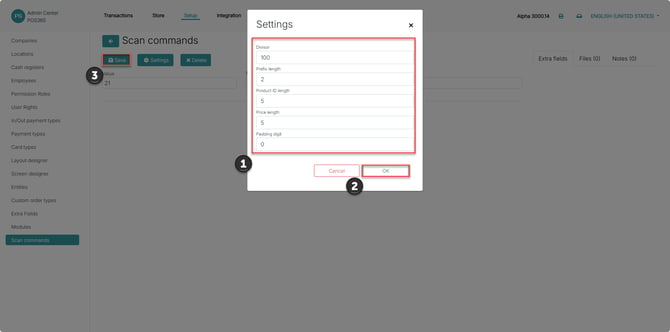
1) Configure the fields so they match the structure of the barcode:
Divisor: Determines how the encoded price or weight is converted into a decimal value. For example, with a divisor of '100', an encoded value of '01199' is interpreted as '11.99'. The divisor must match the number of decimals used by the scale or barcode system.
Prefix length: Defines how many digits at the beginning of the barcode belong to the prefix. The length must correspond to the prefix entered in the 'Value' field.
Product ID length: Defines how many digits in the barcode are used to identify the product. The configured length must match the product section generated by the scale or barcode system.
Price length: Defines how many digits contain the variable price or weight. Although the field is named 'Price length', it is used for both EAN13Price and EAN13Weight.
Padding digit: Defines the digit used to fill empty positions when a product identifier is shorter than the configured Product ID length. For example, a padding digit can be added in front of a shorter item number so it matches the required barcode length.
2) Click 'OK' when the settings have been entered
3) Click 'Save'
Example:
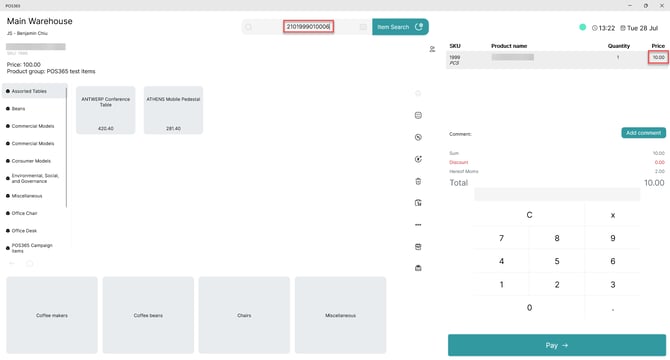
With the above settings, this EAN13 will give a price of 10
21 01999 01000 6
21, describes that this is a price barcode
01999, defines the item
01000, Defines the price, divided with the divisor (100)
6, Check digit