
For example, you can ask the cashier to enter an engraving text for a product.
Step 1: Create the Product Question
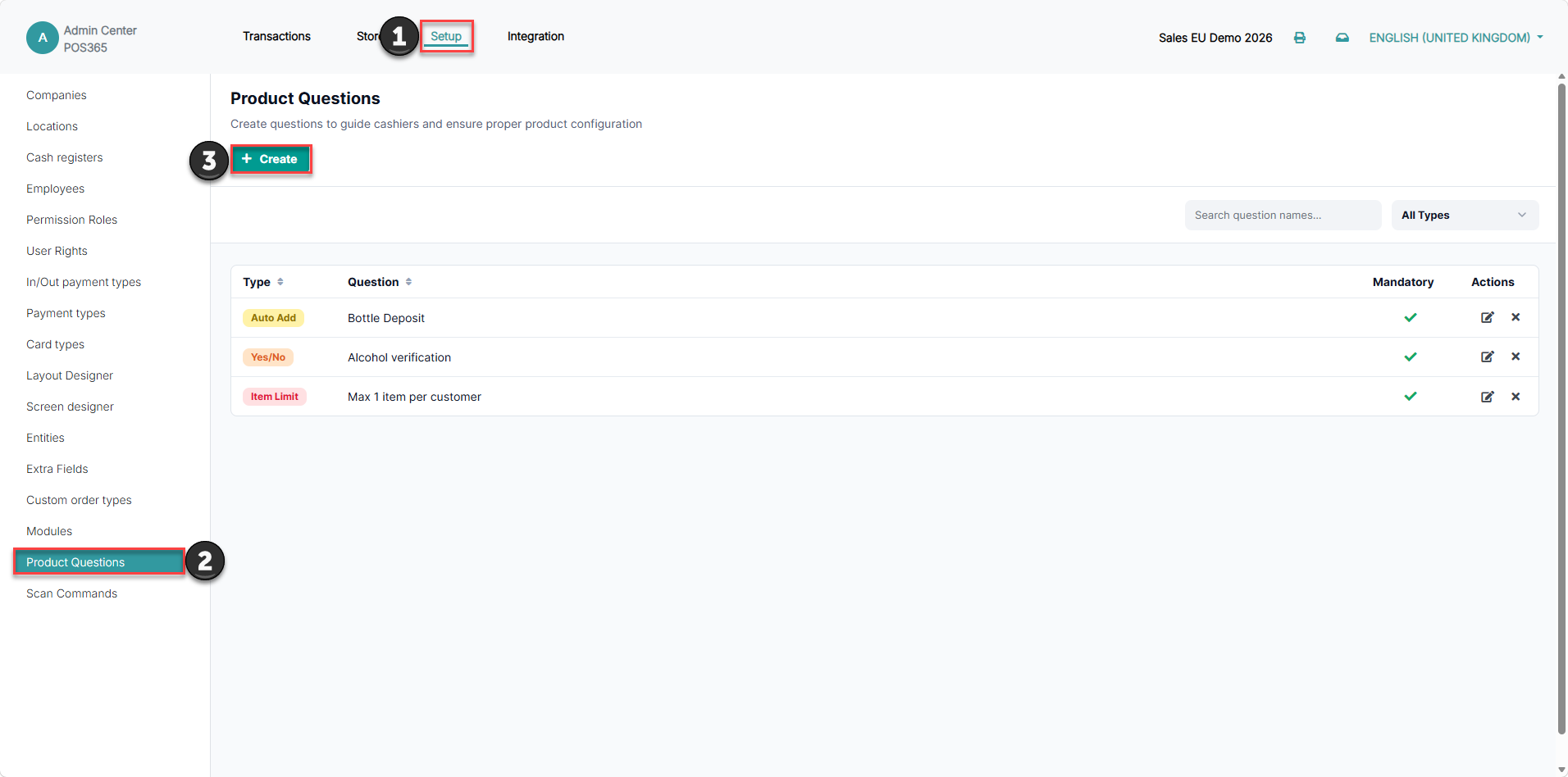
- In Admin Center, go to 'Setup'.
- Open 'Product Questions'.
- Click 'Create'.
Step 2: Select the question type
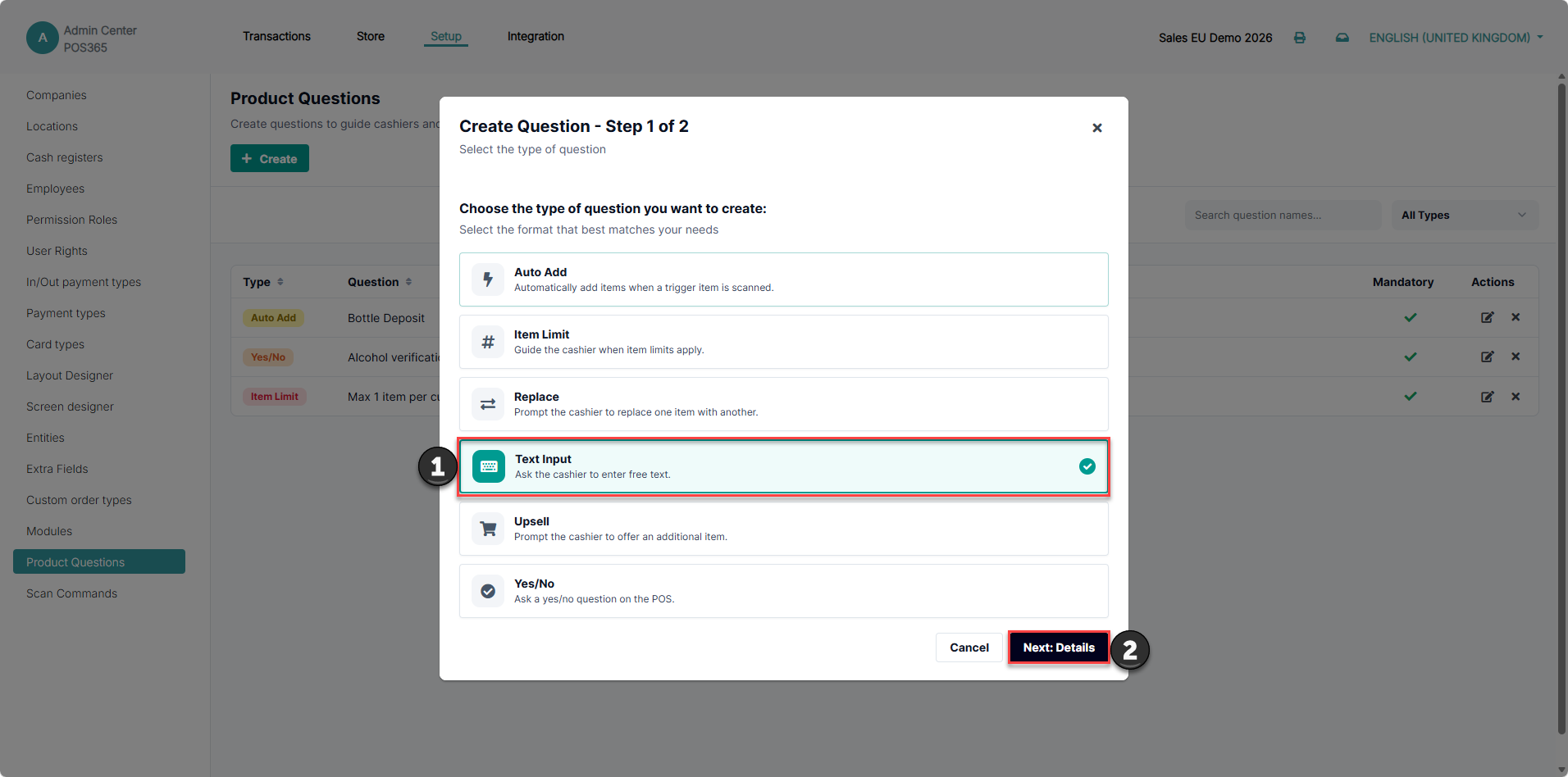
- Select 'Text Input'.
- Click 'Next: Details'.
Step 3: Add the trigger items
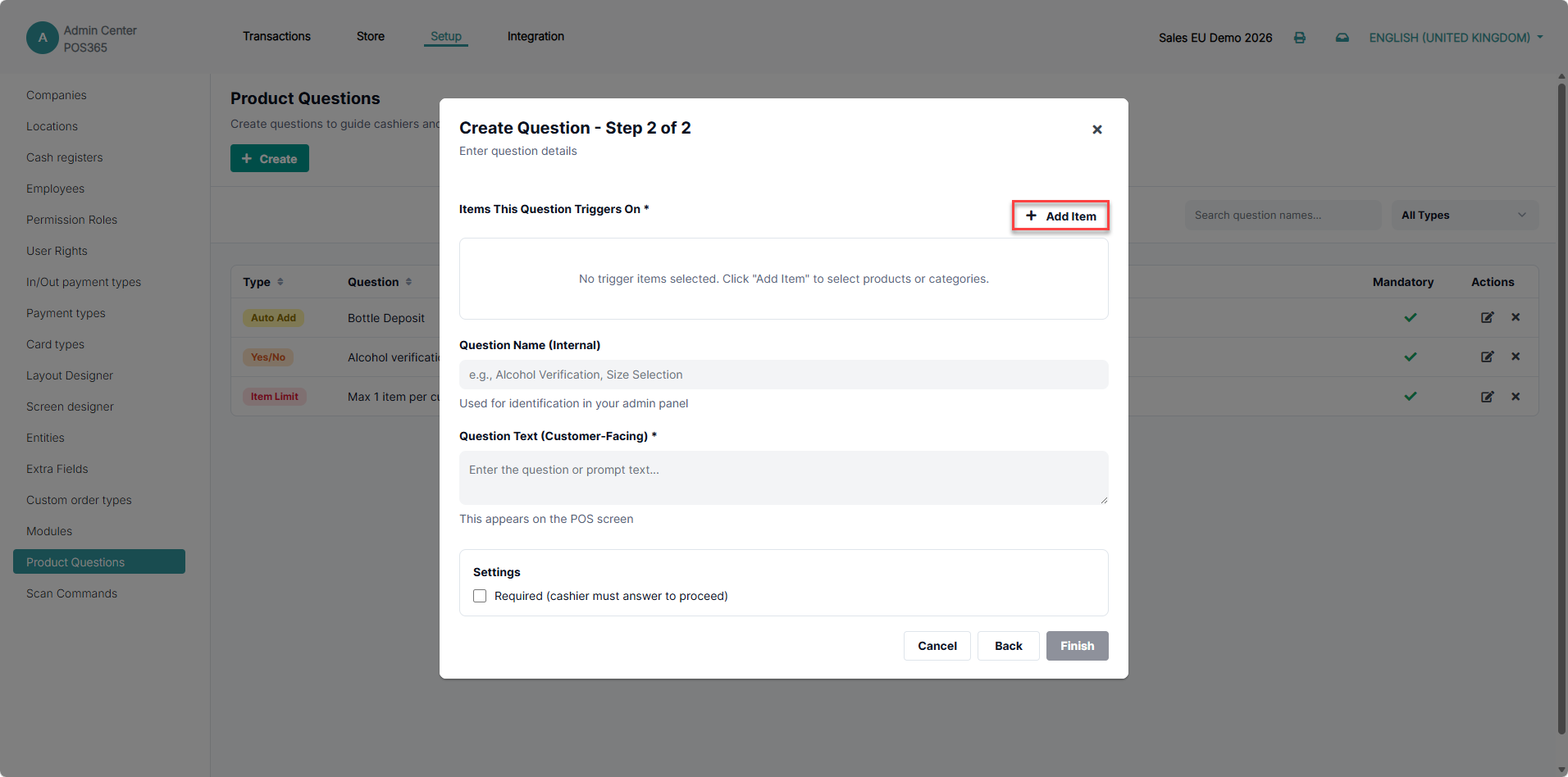
- Click 'Add Item' in the trigger section.
Step 4: Select the products or categories
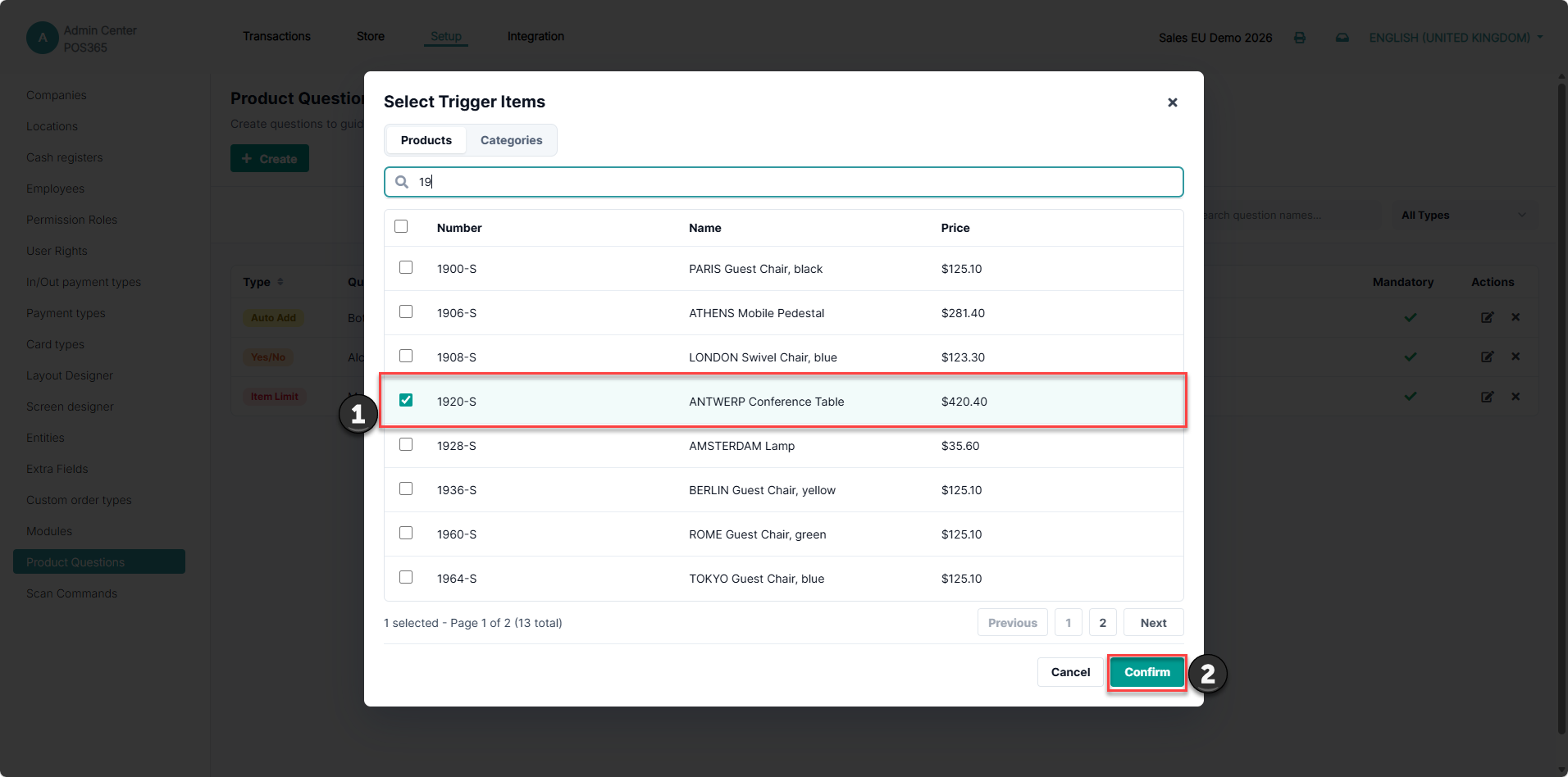
- Use 'Products' or 'Categories', where available, to select the items that should trigger the question.
- Click 'Confirm'.
Step 5: Configure and save the question
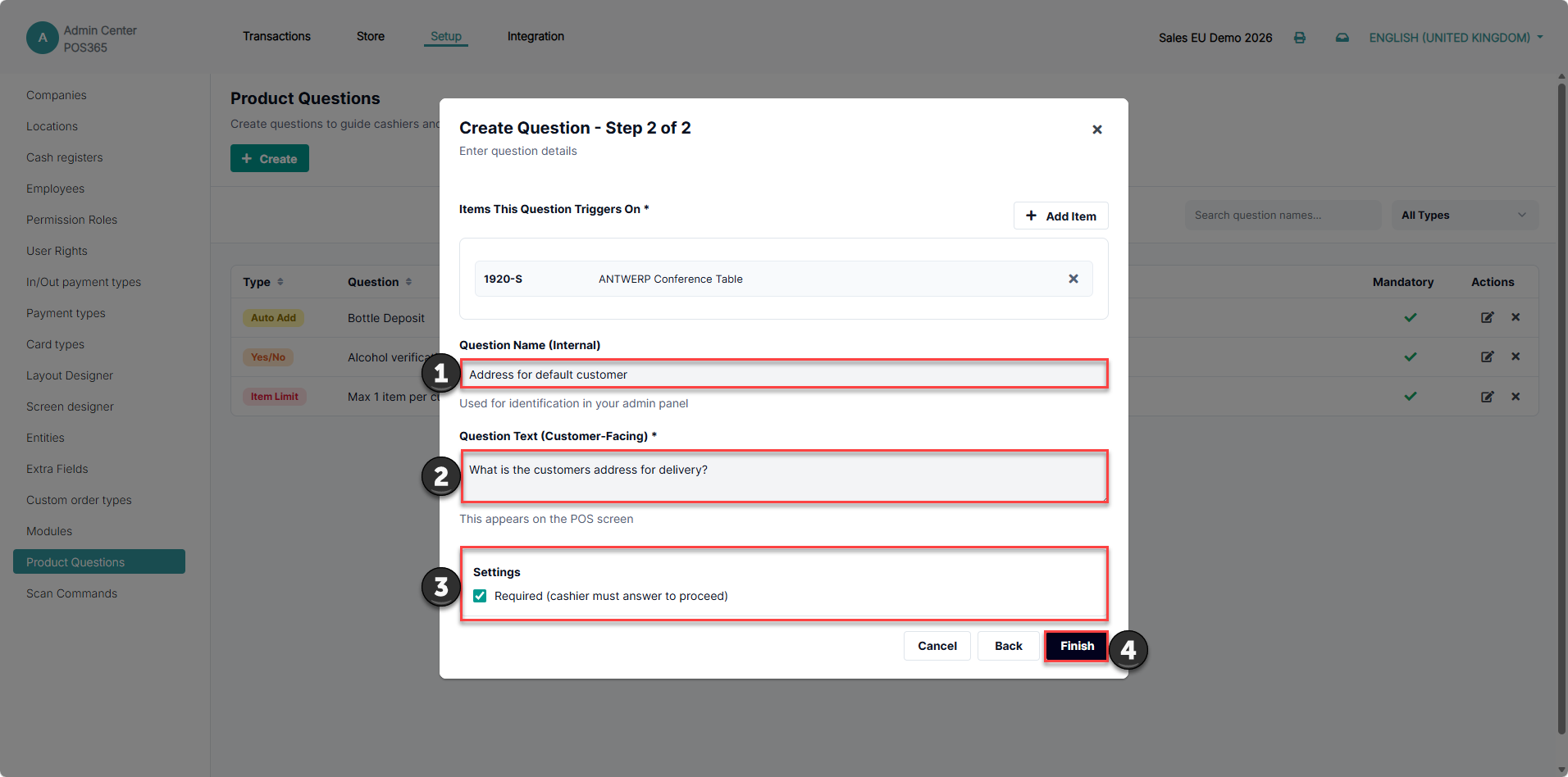
- Enter 'Question Name (Internal)' to identify the question in Admin Center.
- Enter 'Question Text (Customer-Facing)' for the prompt displayed in POS365.
- Enable 'Required (cashier must answer to proceed)' if the cashier must enter a response.
- Click 'Finish' to create the question. When editing an existing question, click 'Save'.
Example:
| Field | Example |
|---|---|
| Question Name (Internal) | Engraving text |
| Question Text (Customer-Facing) | Enter the text to be engraved. |
Note: Although the field is named 'Question Text (Customer-Facing)', the prompt is displayed to the cashier in POS365.
How it works in POS365
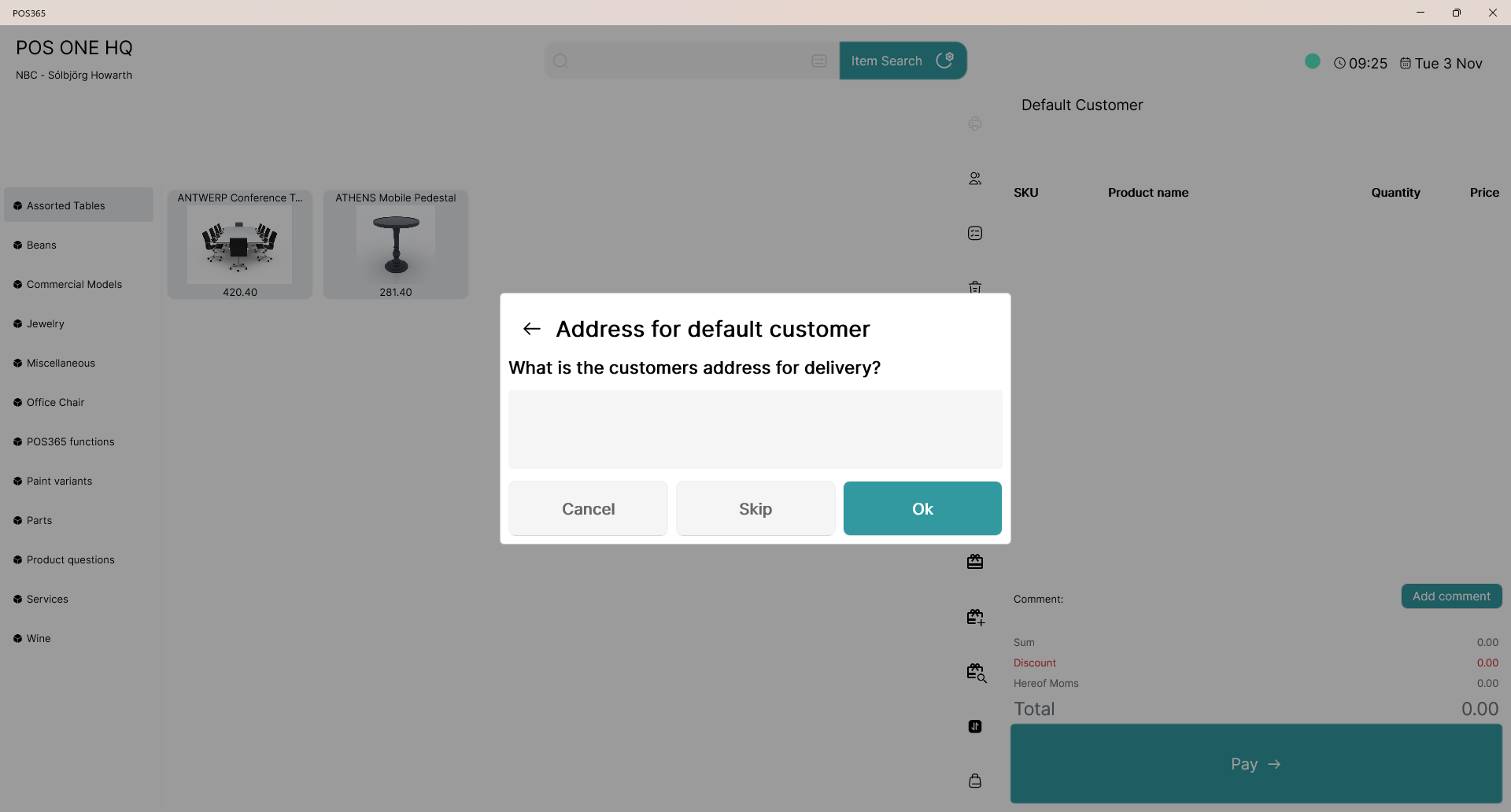
When a configured trigger product is added to a transaction, POS365 displays the text prompt to the cashier.
If 'Required' is enabled, the cashier must enter a response before proceeding.