This guide explains how to print a return label that can be used to return an item later.
This can be done in 2 ways:
- Without autoprint
- With autoprint
To change the autoprint function, follow this guide: How to - Enable/disable auto print of receipts
Both ways of printing a return label will be explained in this guide
Without autoprint
Step 1:
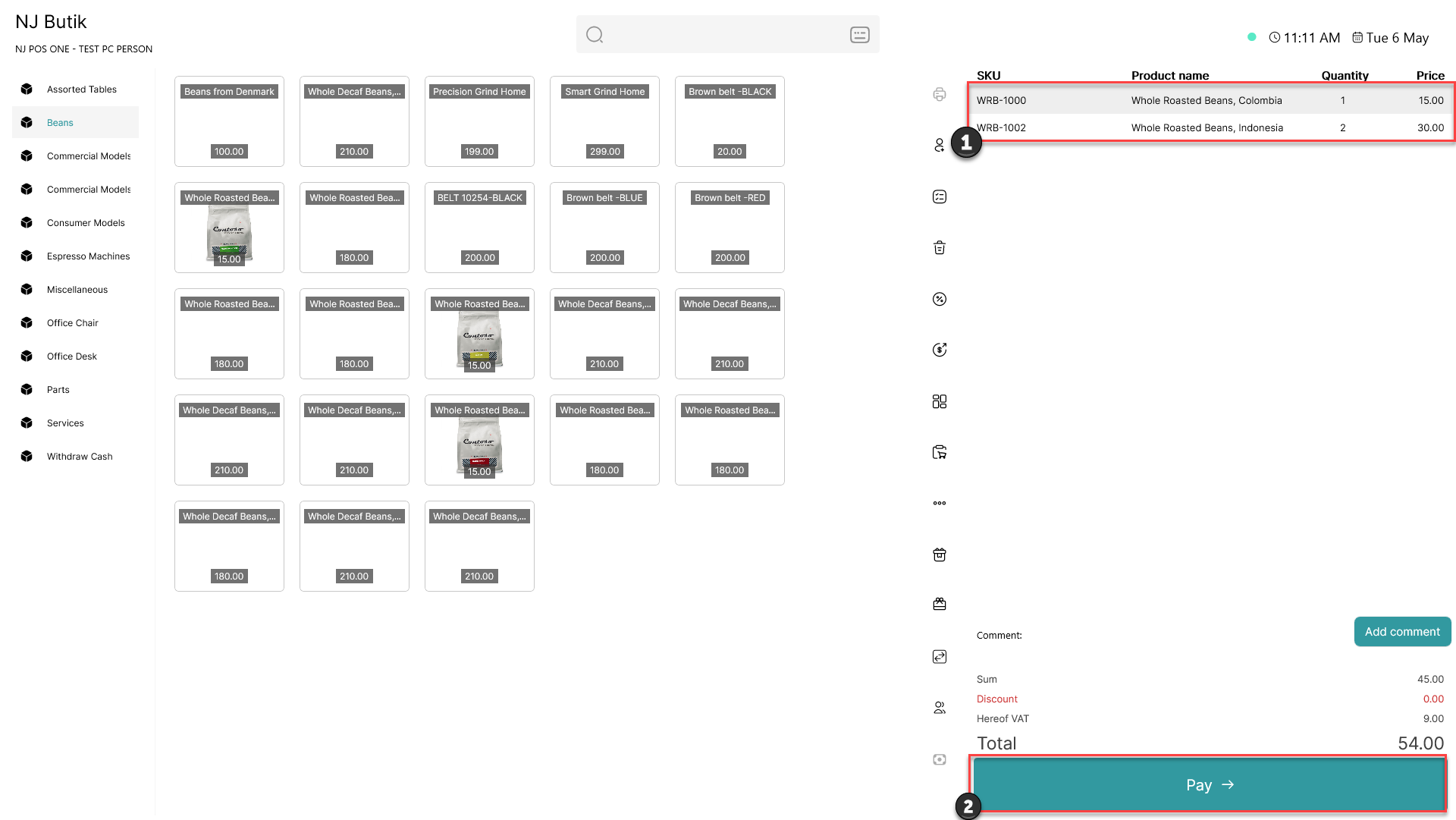
1) Add items to the basket
2) Click 'Pay'
Step 2:
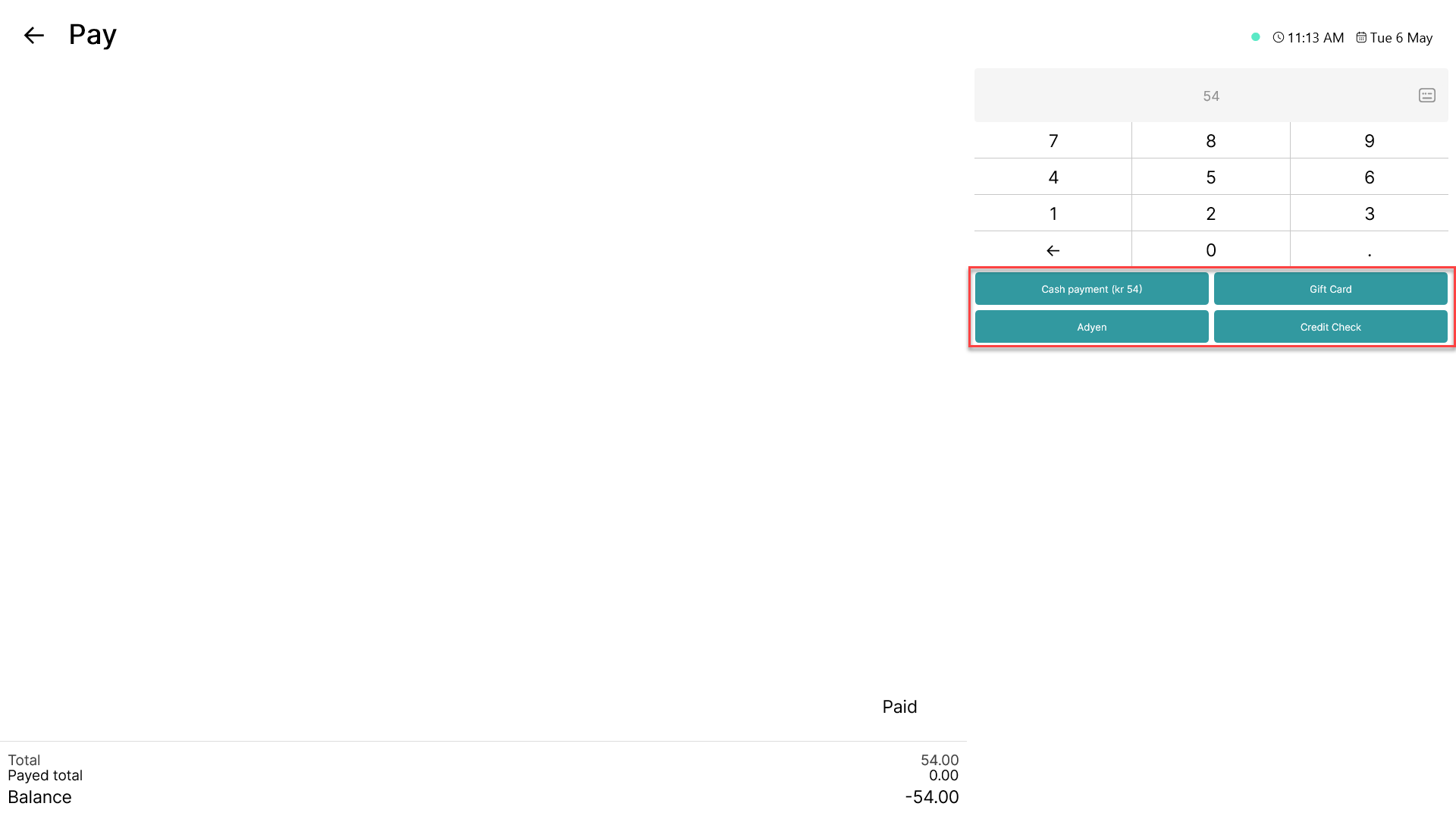
Choose your preferred payment method
Step 3:
Once the transaction has been completed, this window will appear.
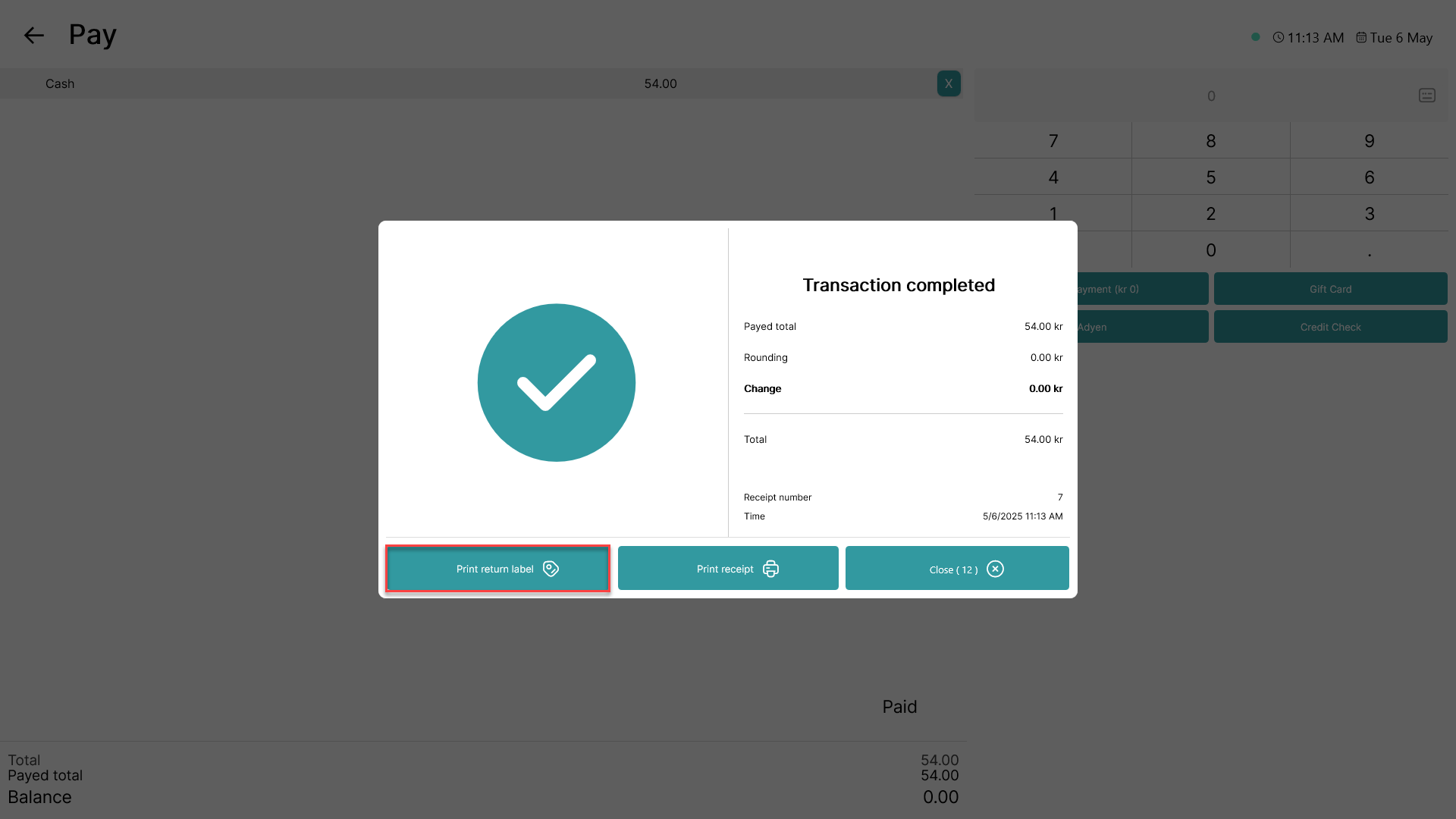
Click 'Print return label'
Once that is done, the return labels of all items in the basket will be printed to the selected printer.
To change printer, follow this guide: How to - Select printer for labels
With autoprint
Step 1:
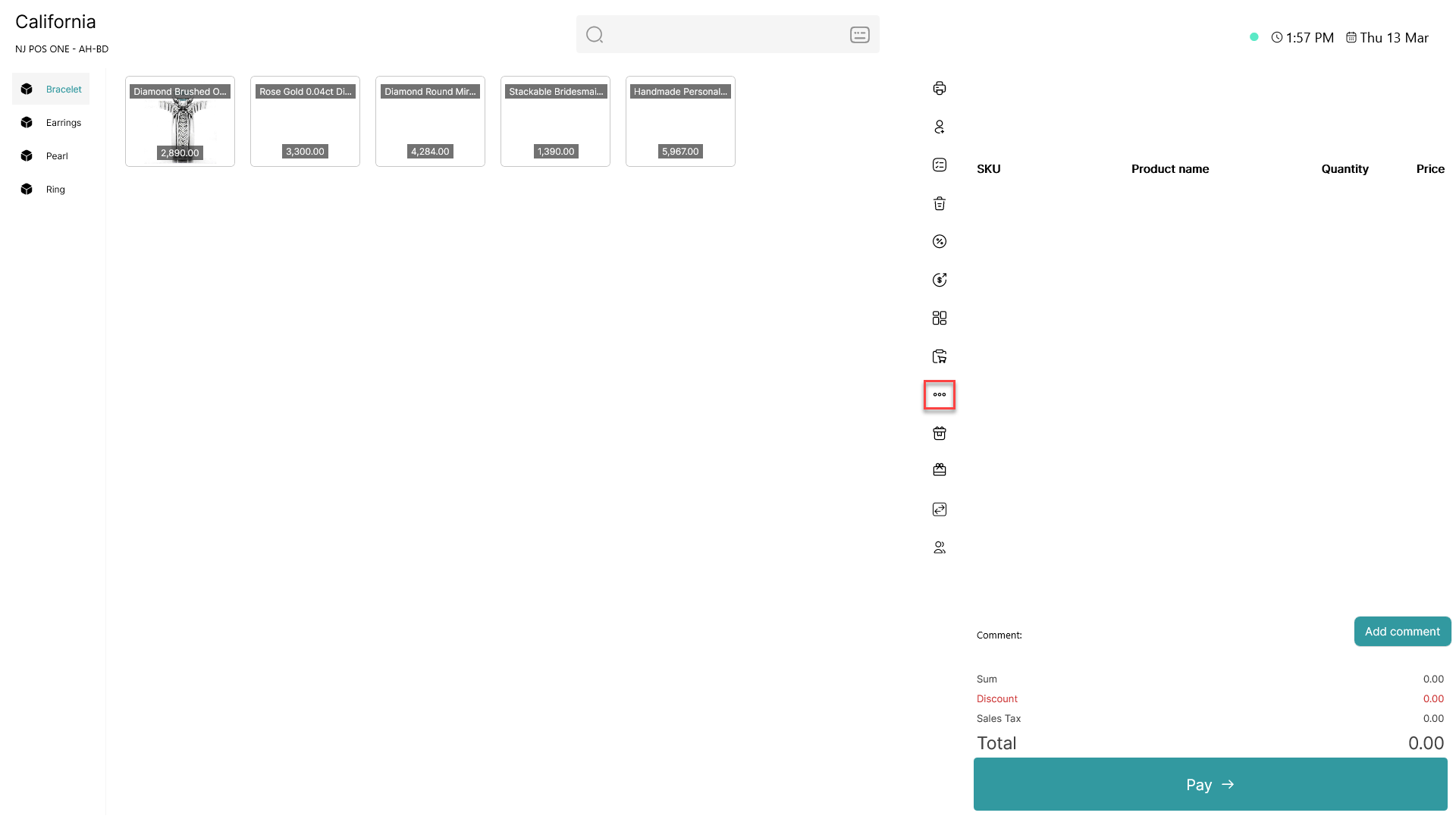
Click on the - button to access more options
Step 2:
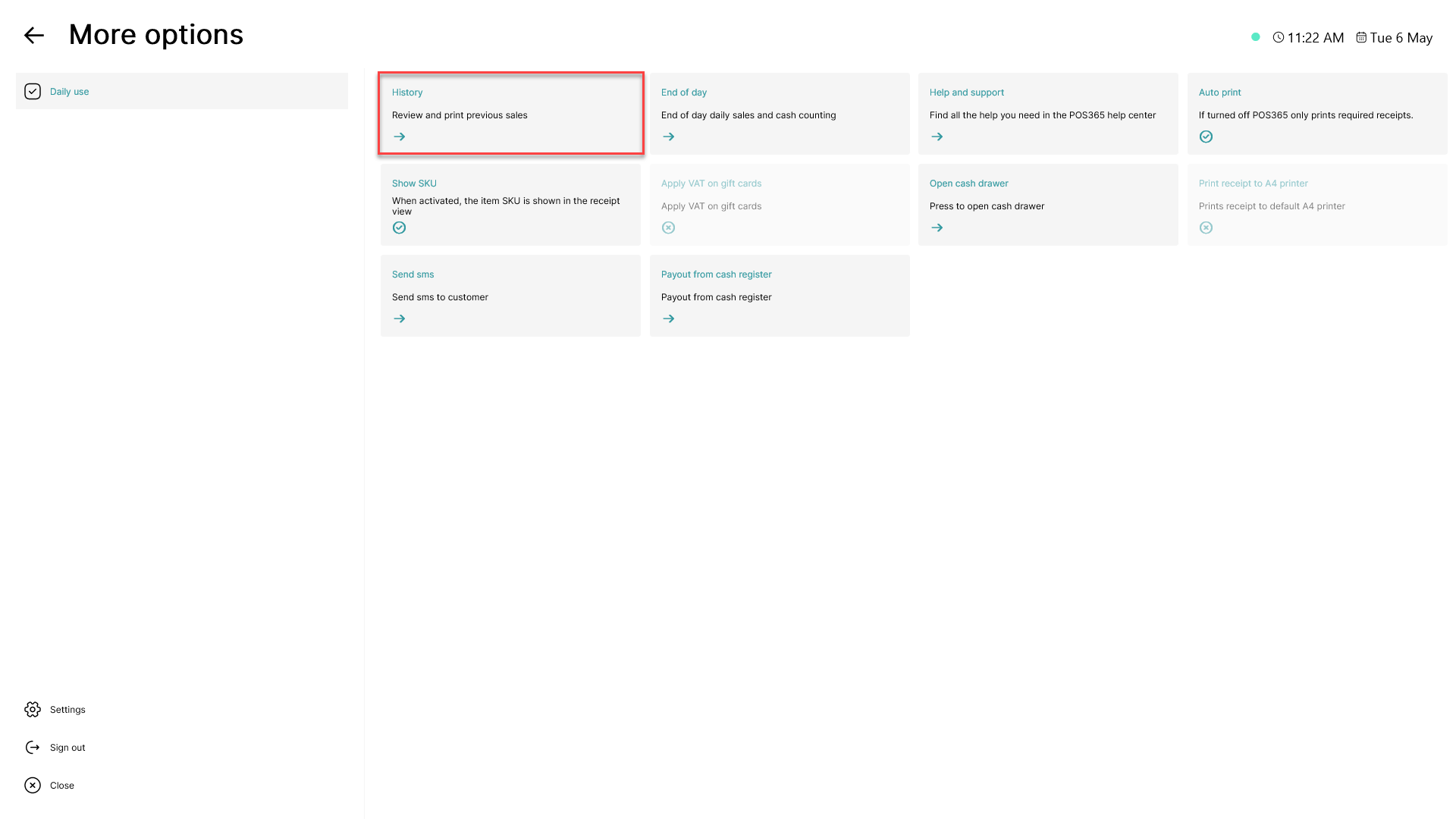
Click on 'History' to view your previous sales
Step 3:
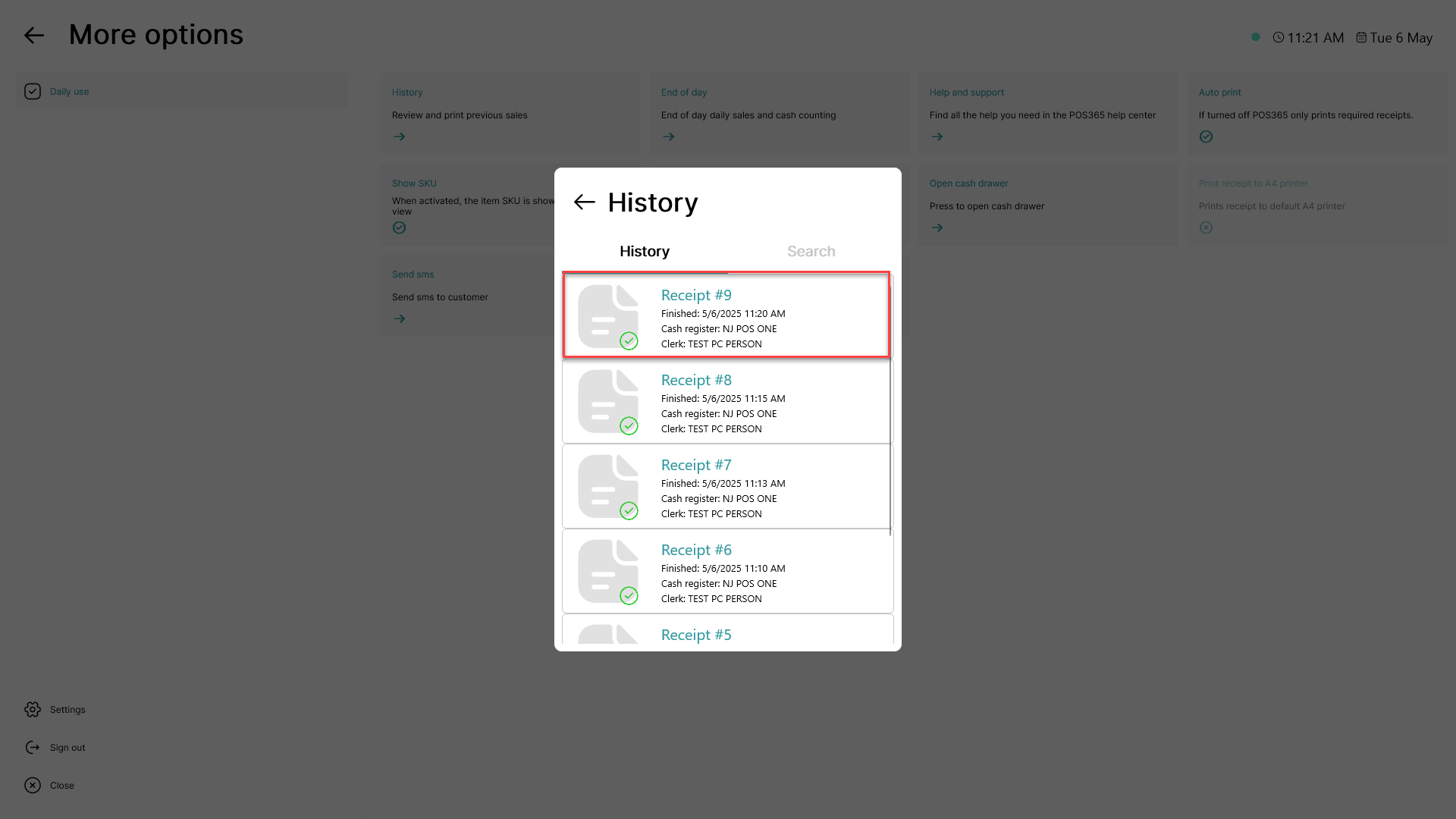
Click on the receipt of the order that you have just finished
Step 4:
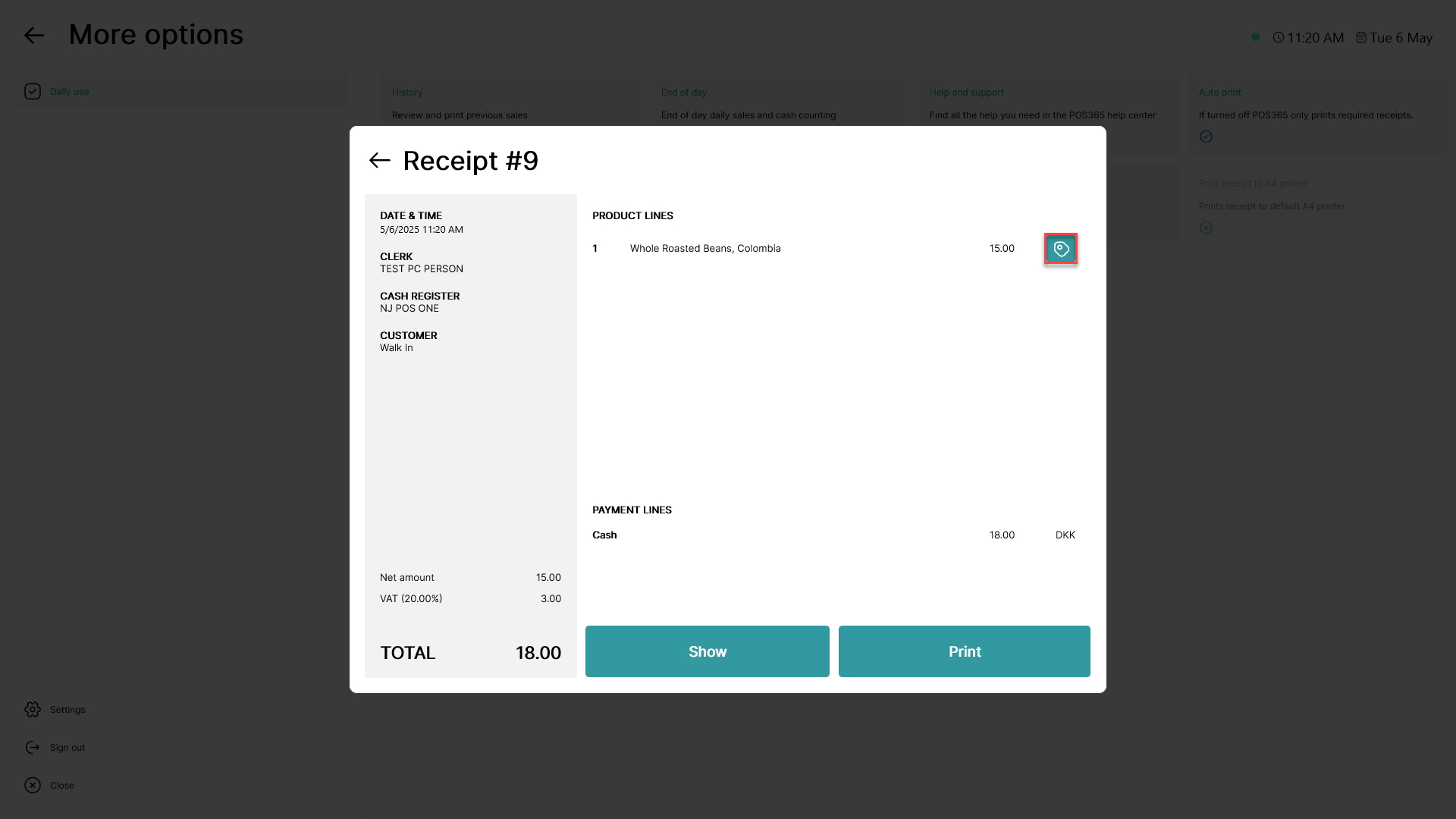
Click on the  - button
In here, you can print the return labels of specific items in the order instead of printing return labels of all items in the basket