This guide explains how to set up serial numbers in Business Central for both manual and automatic handling. The purpose is to ensure correct configuration of number series and item tracking.
Option 1: Manual serial numbers
Set up manual serial numbers where the number is created during the POS transaction. This includes creating a number series, configuring the item tracking code, and assigning it to the item.
For more information, see here:
Manual serial number setup
Step 1:
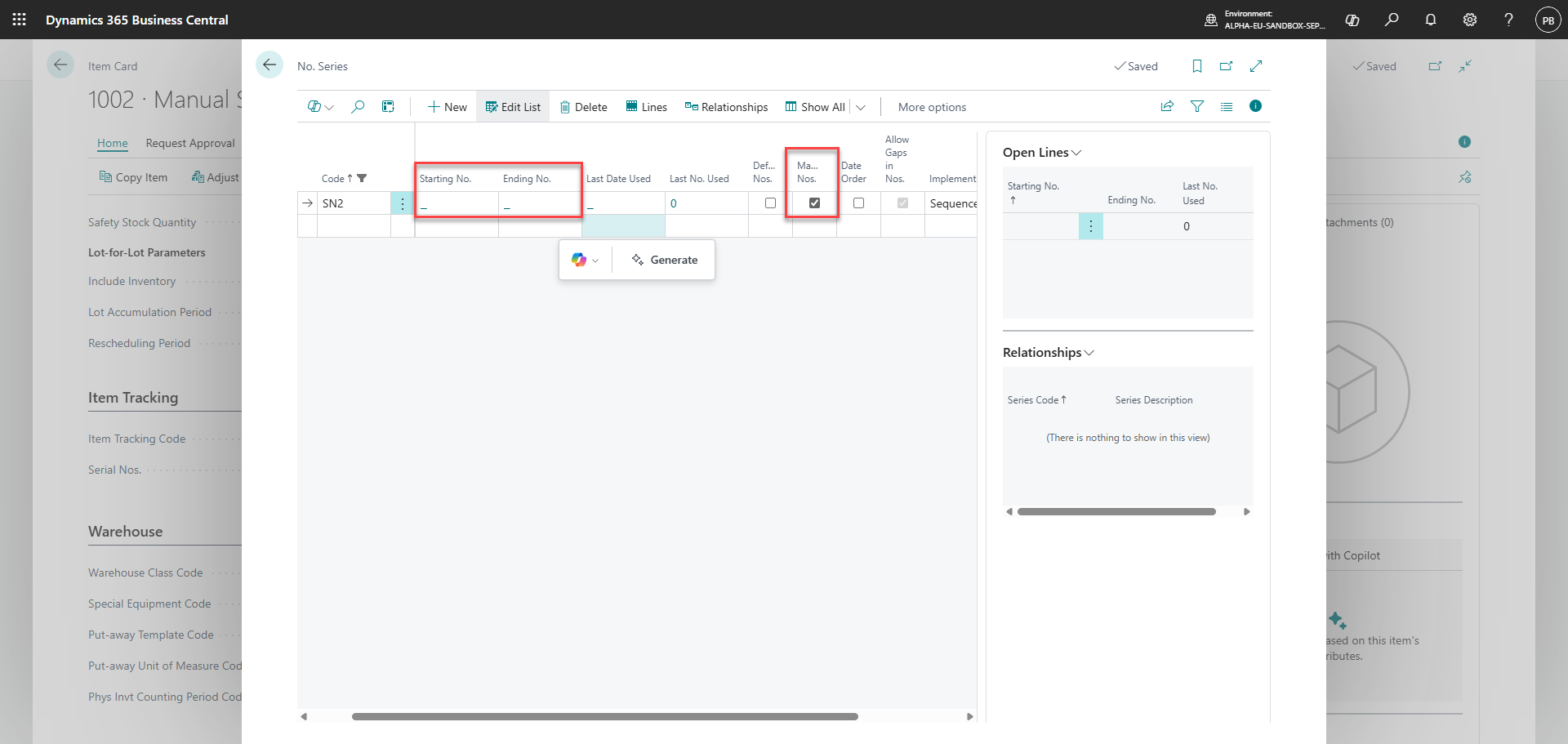
1) Go to 'No. Series'
2) Create a new series or edit an existing one
3) Define number format and ensure manual entry is allowed
Step 2:
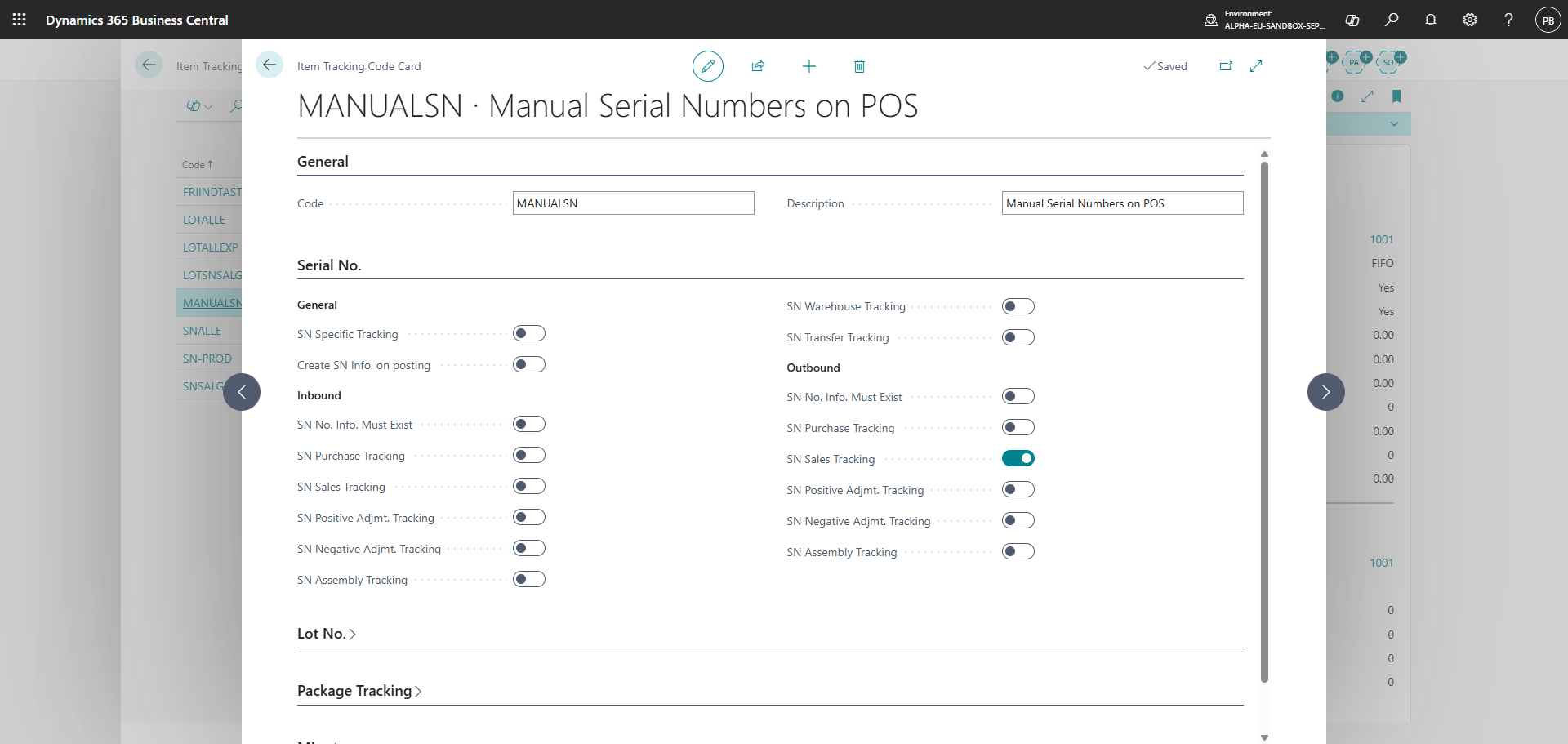
1) Go to 'Item Tracking Codes'
2) Create or edit a code
3) Ensure the setup is as stated above
Step 3:
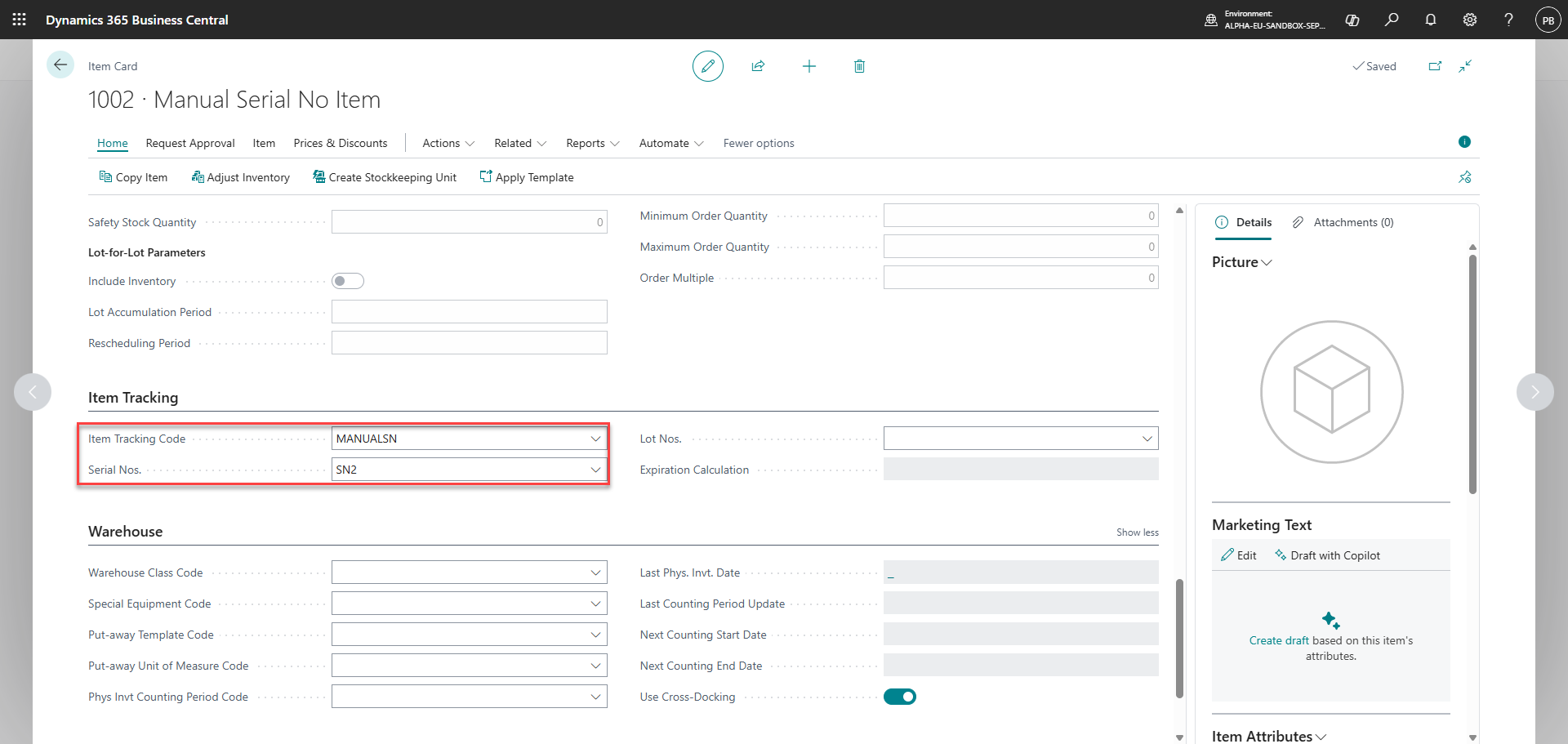
1) Open the relevant item card
2) Assign the created 'Item Tracking Code'
3) Assign the 'No. Series'
Note:
Manual serial numbers are entered at the POS during the transaction and are not pre-created in the system.
Option 2: Automatic serial numbers
Set up automatic serial numbers where serial numbers are created in advance as serial number information cards. This includes creating a number series, configuring the tracking code, and assigning it to the item.
For more information, see here:
Automatic serial number setup
Step 1:
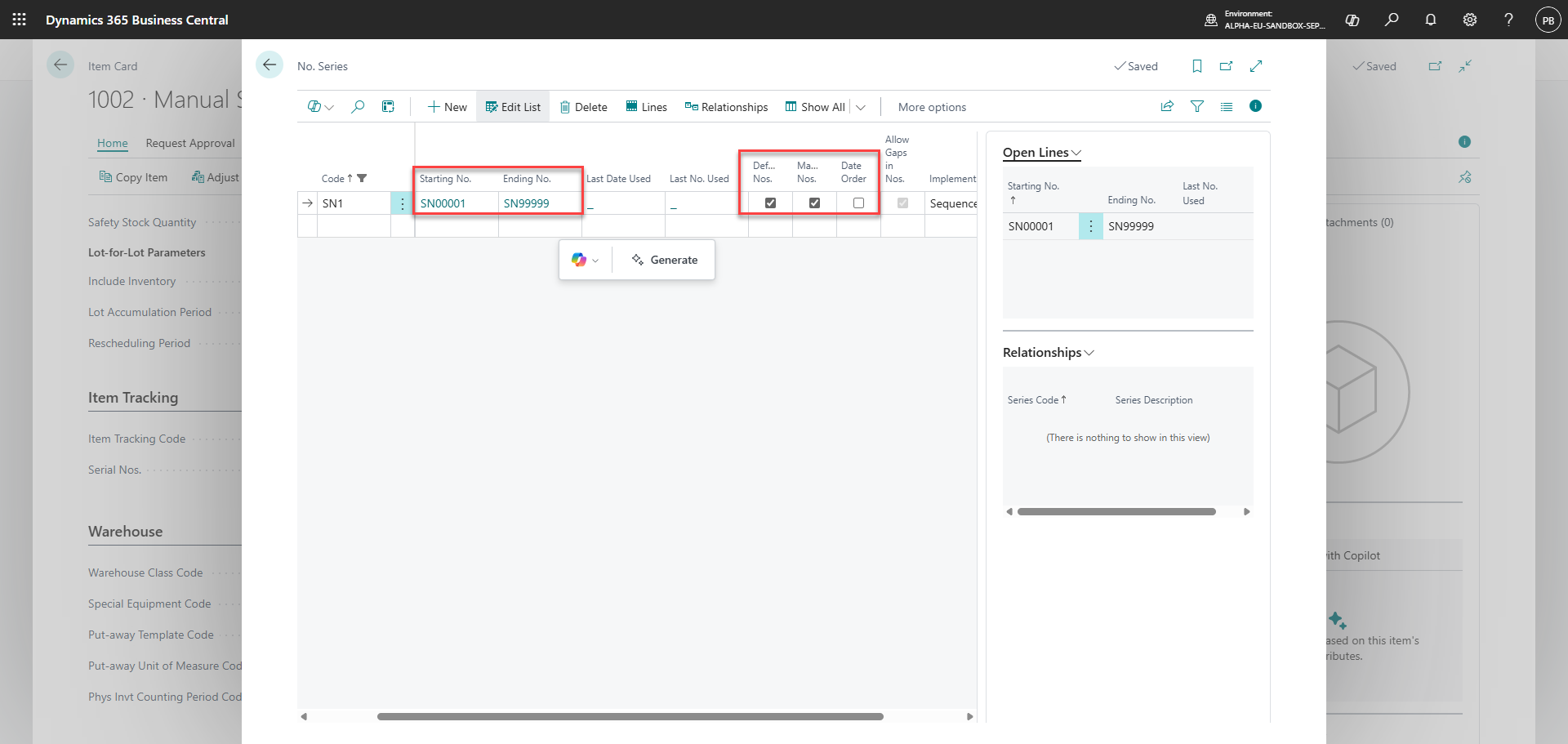
1) Go to 'No. Series'
2) Create a new series or edit an existing one
3) Ensure automatic numbering is configured and that a number series has been set up
Step 2:
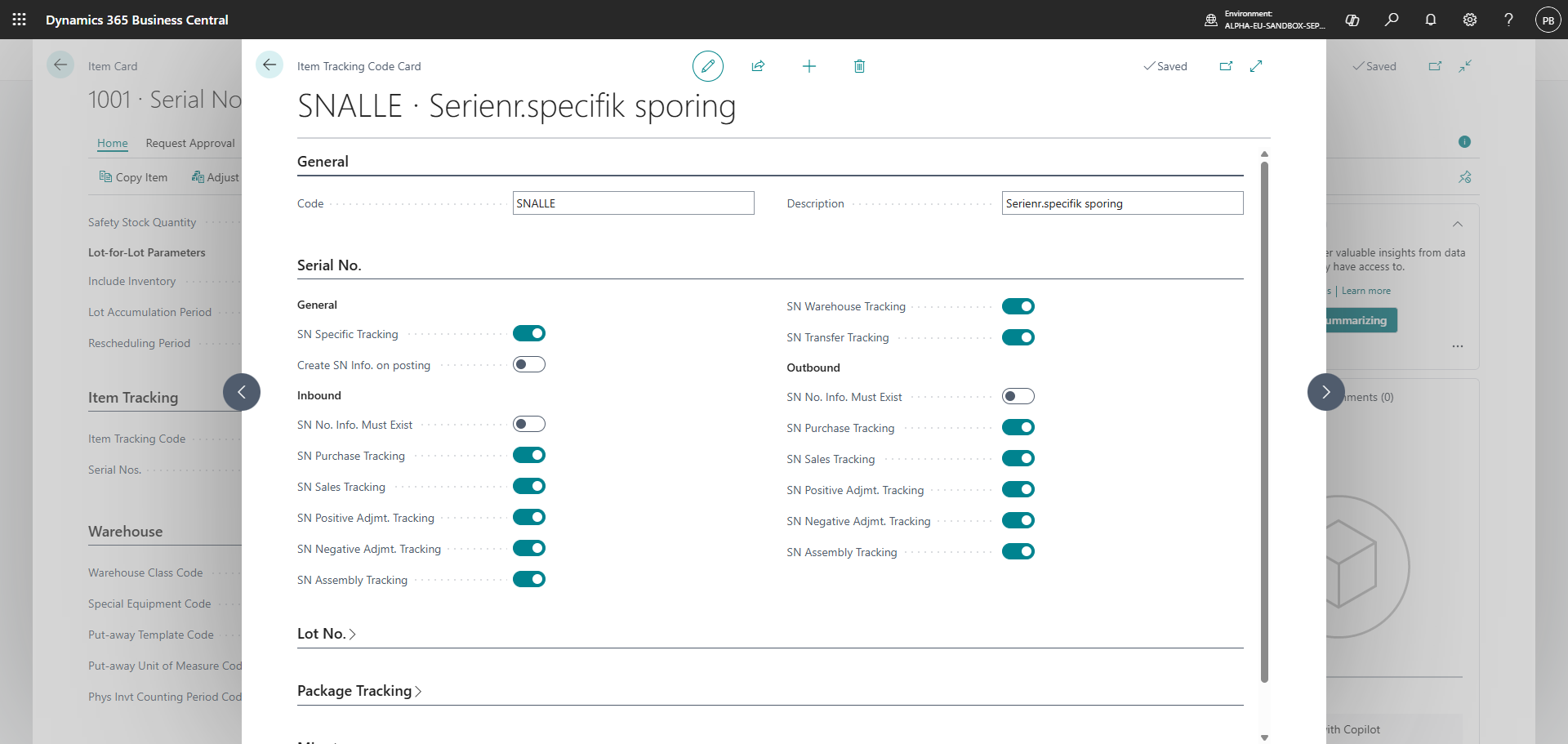
1) Go to 'Item Tracking Codes'
2) Create or edit a code
3) Enable 'SN Specific Tracking'
4) Set 'SN No. Info. Must Exist' to off
Step 3:
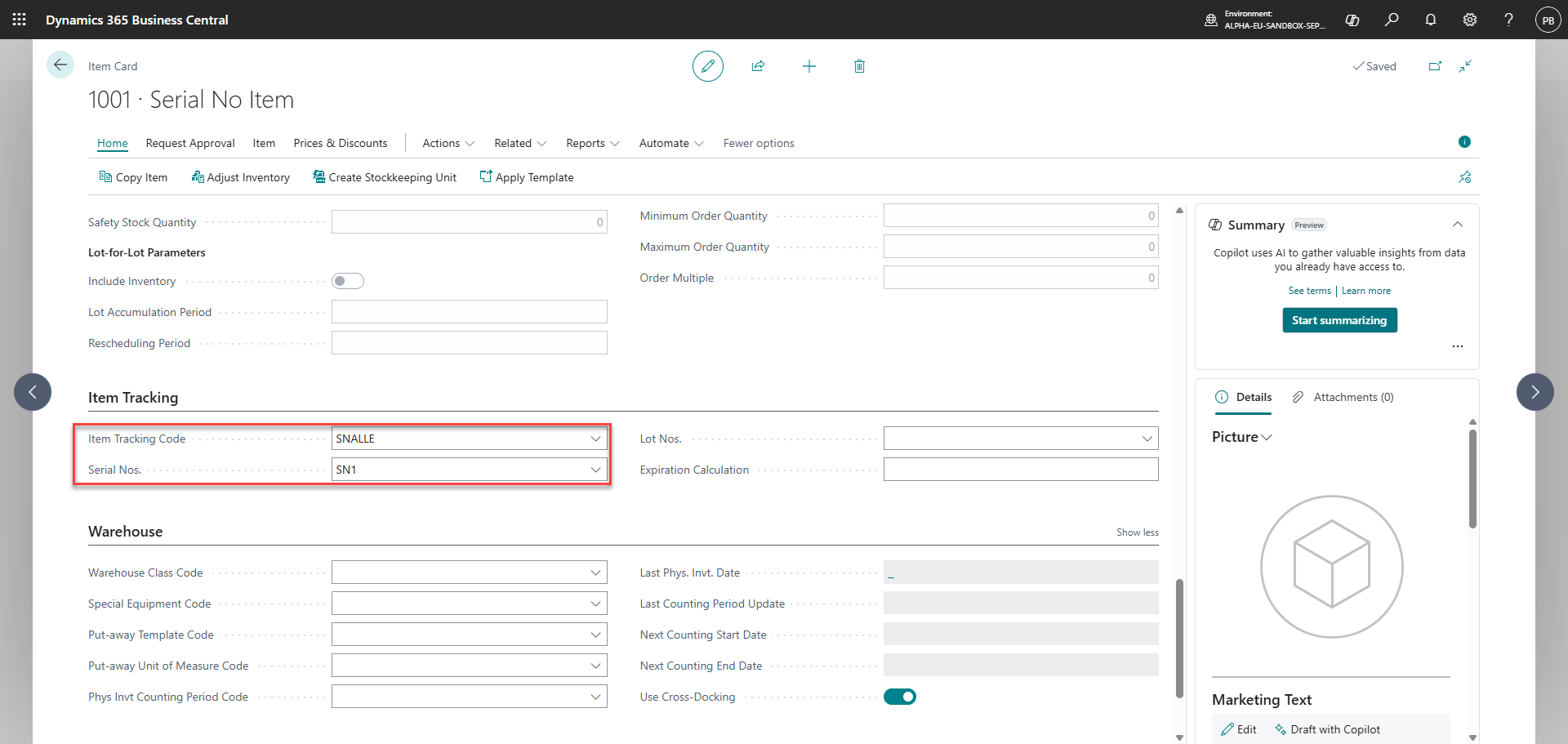
1) Open the relevant item card
2) Assign the created 'Item Tracking Code'
3) Assign the 'No. Series'
Step 4:
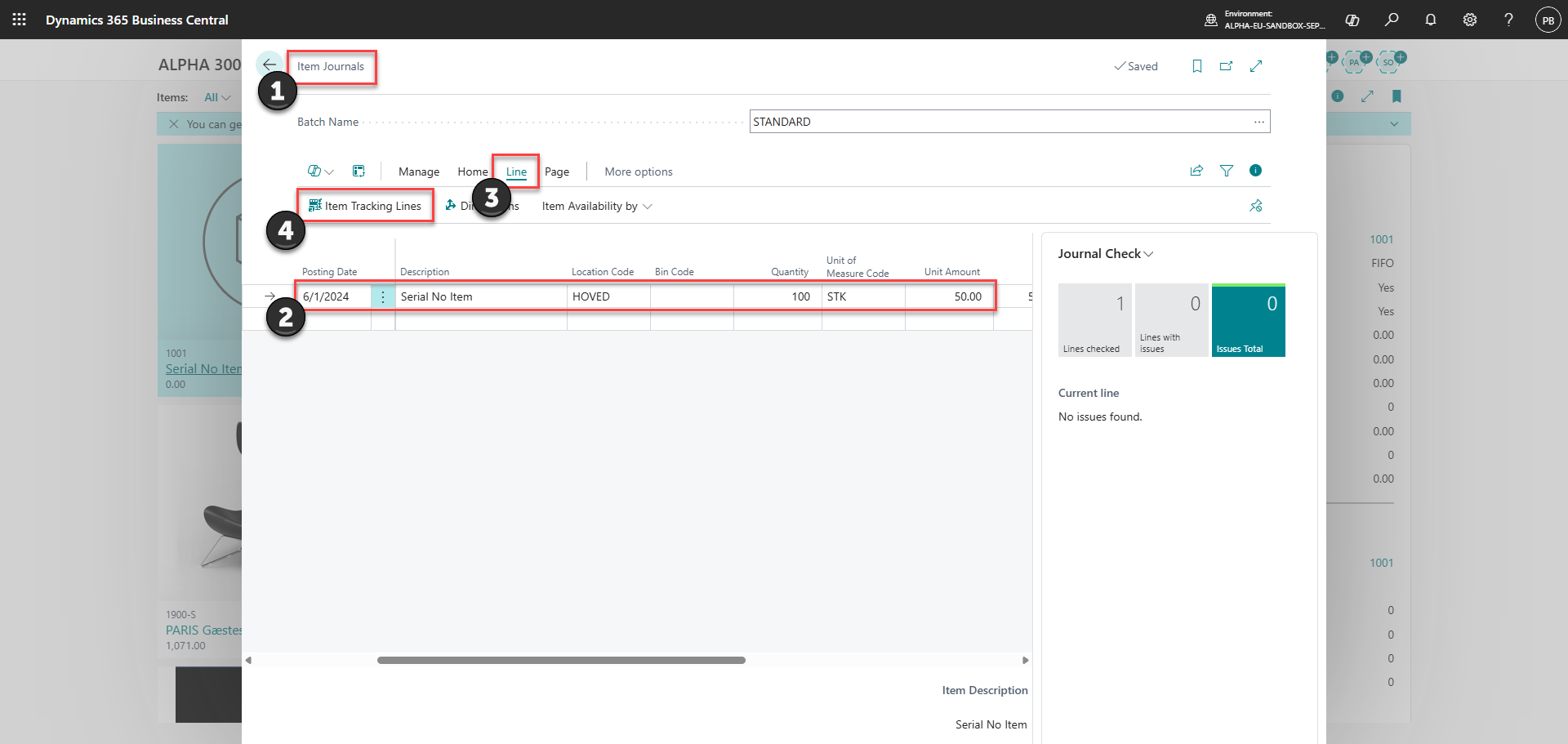
1) Go to 'Item Journals'
2) Fill in information regarding the positive inventory adjustment
3) Click on 'Line'
4) Go to 'Item Tracking Lines'
Step 5:
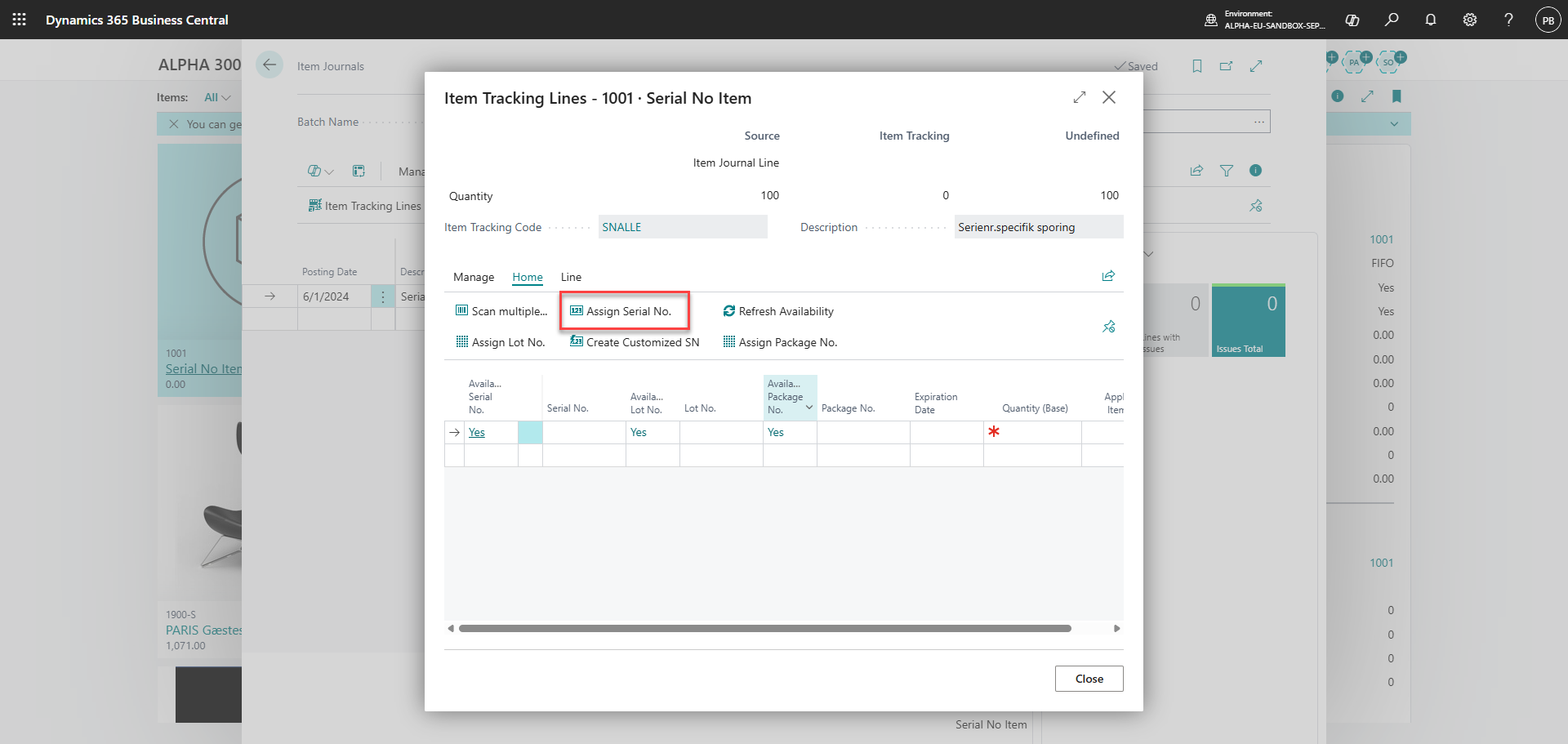
Click on 'Assign Serial No.'
Step 6:
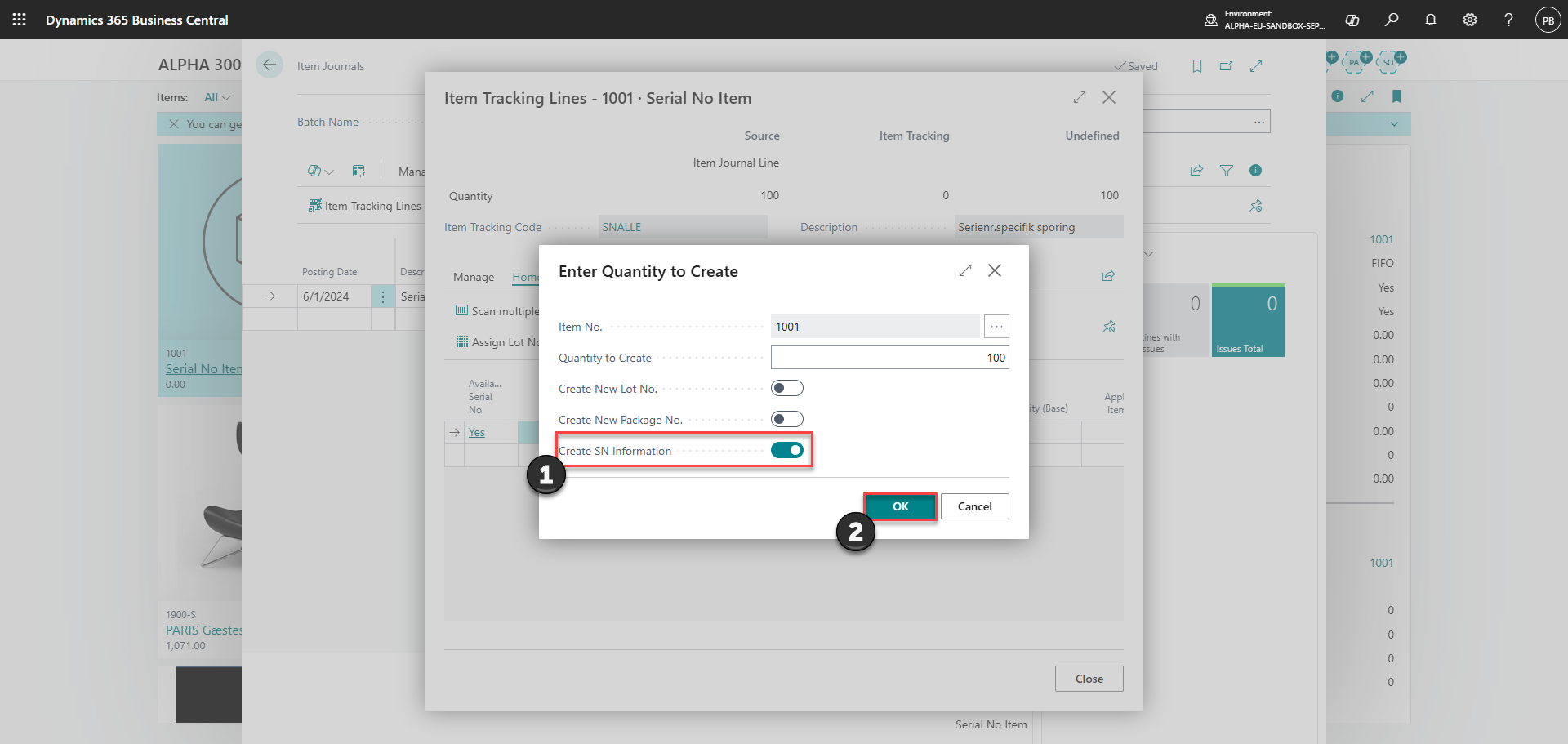
1) Ensure 'Create SN Information' is set to true
2) Click 'OK'
Note:
Automatic serial numbers must exist in the system before transactions and are managed through the serial number information list.