This guide explains how to renew a client secret in Azure that has expired, and how to update it in the Admin Center to ensure dataflow between Business Central and the Admin Center.
Prerequisites: You have access to the Azure Portal and the Admin Center.
Step 1:
Create a new client secret in Azure
For more information, see here:
Create new client secret for POS365 app registration in Azure
Step 1:
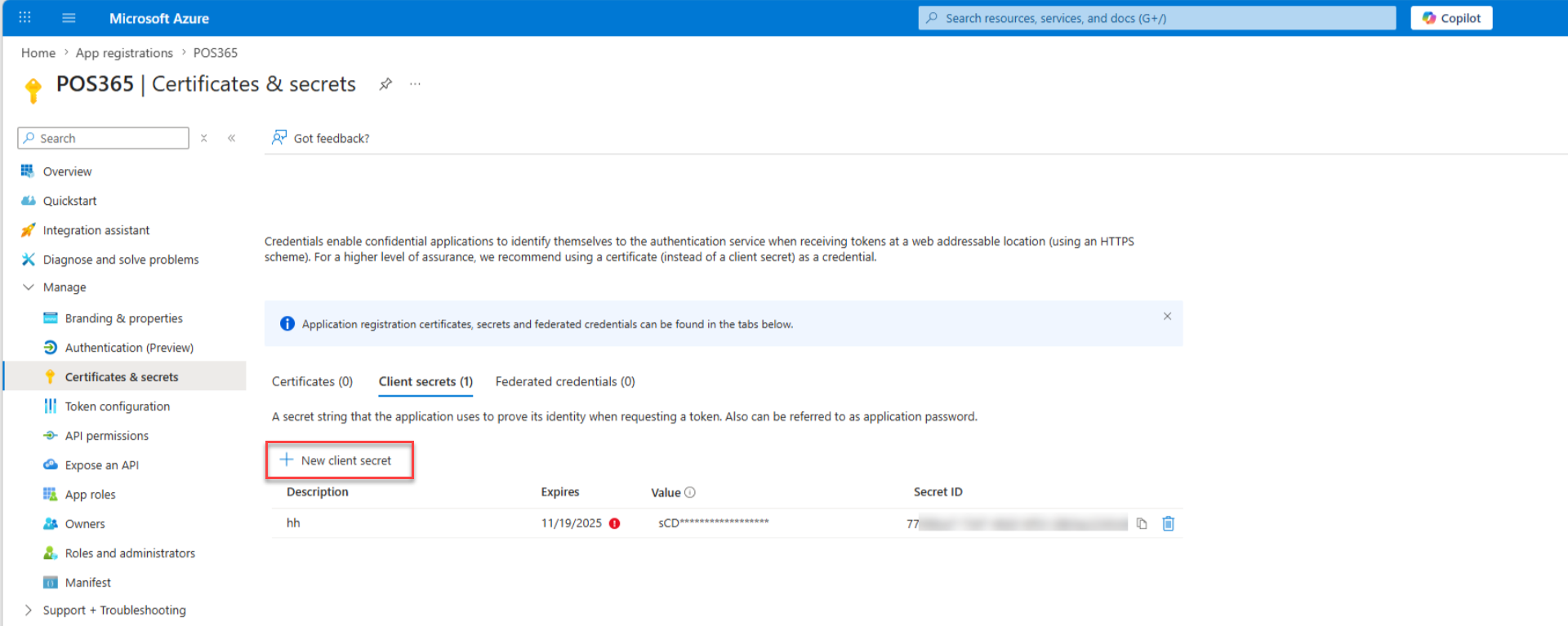
1) Go to Azure Portal
2) Click on 'App registrations'
3) Select your POS365 application
4) Click on 'Certificates & secrets'
5) Select 'New client secret'
Step 2:
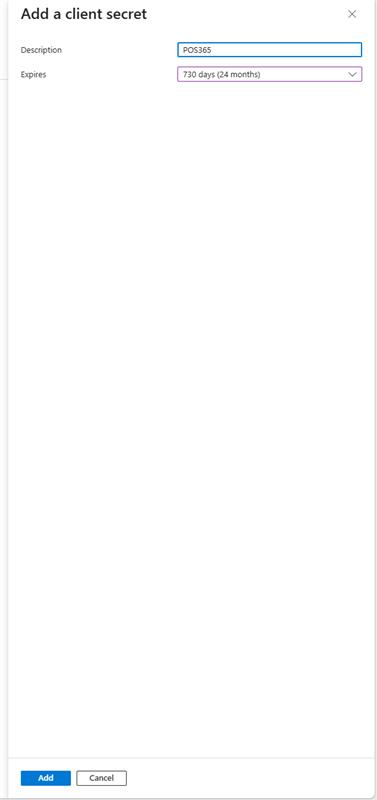
1) Enter a description
2) Select the maximum expiration (730 days)
3) Click 'Add'
Step 3:
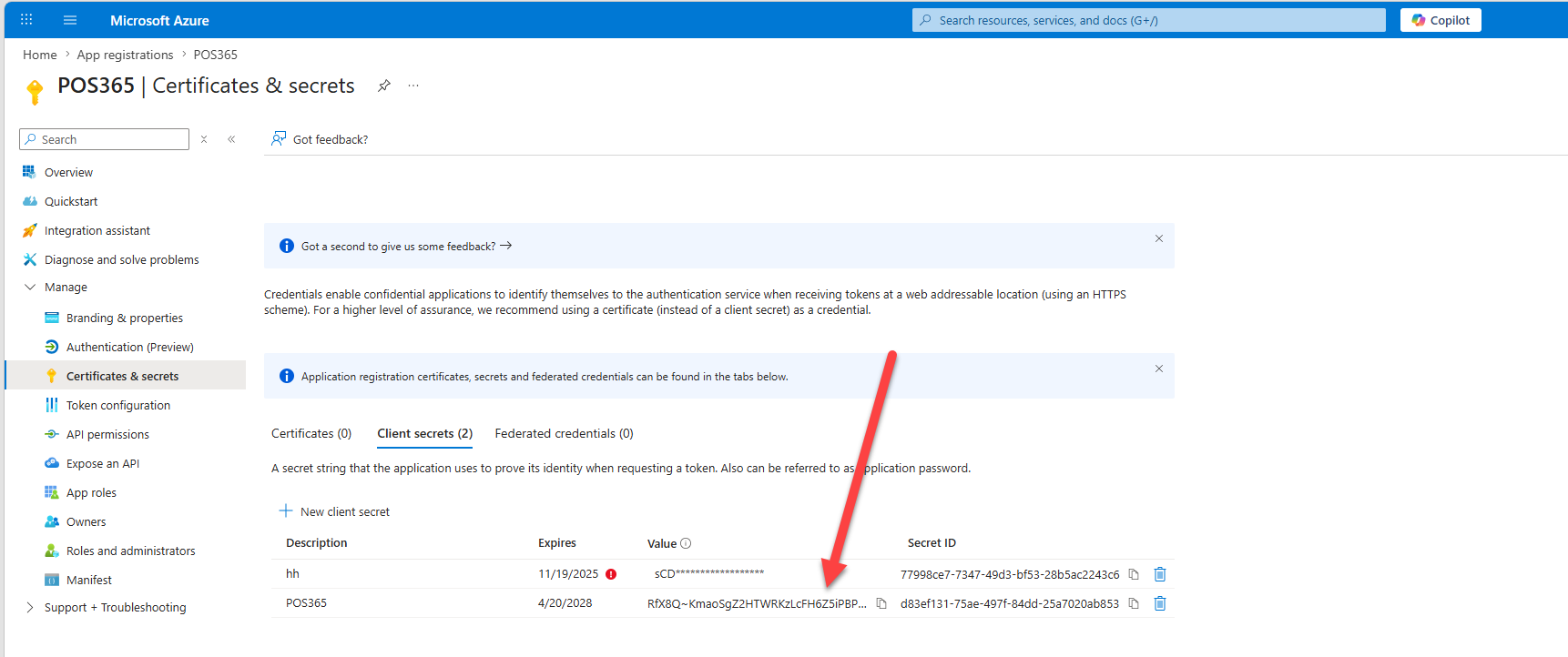
The new client secret will now appear alongside the expired one. Note that the secret value must be copied as this is used for the integration, and will not be visible once the page has been exited.
Step 2:
Insert the new client secret in the POS365 Admin Center integration tab
For more information, see here:
Insert the client secret from Azure in POS365 Admin Center integration tab
Step 1:
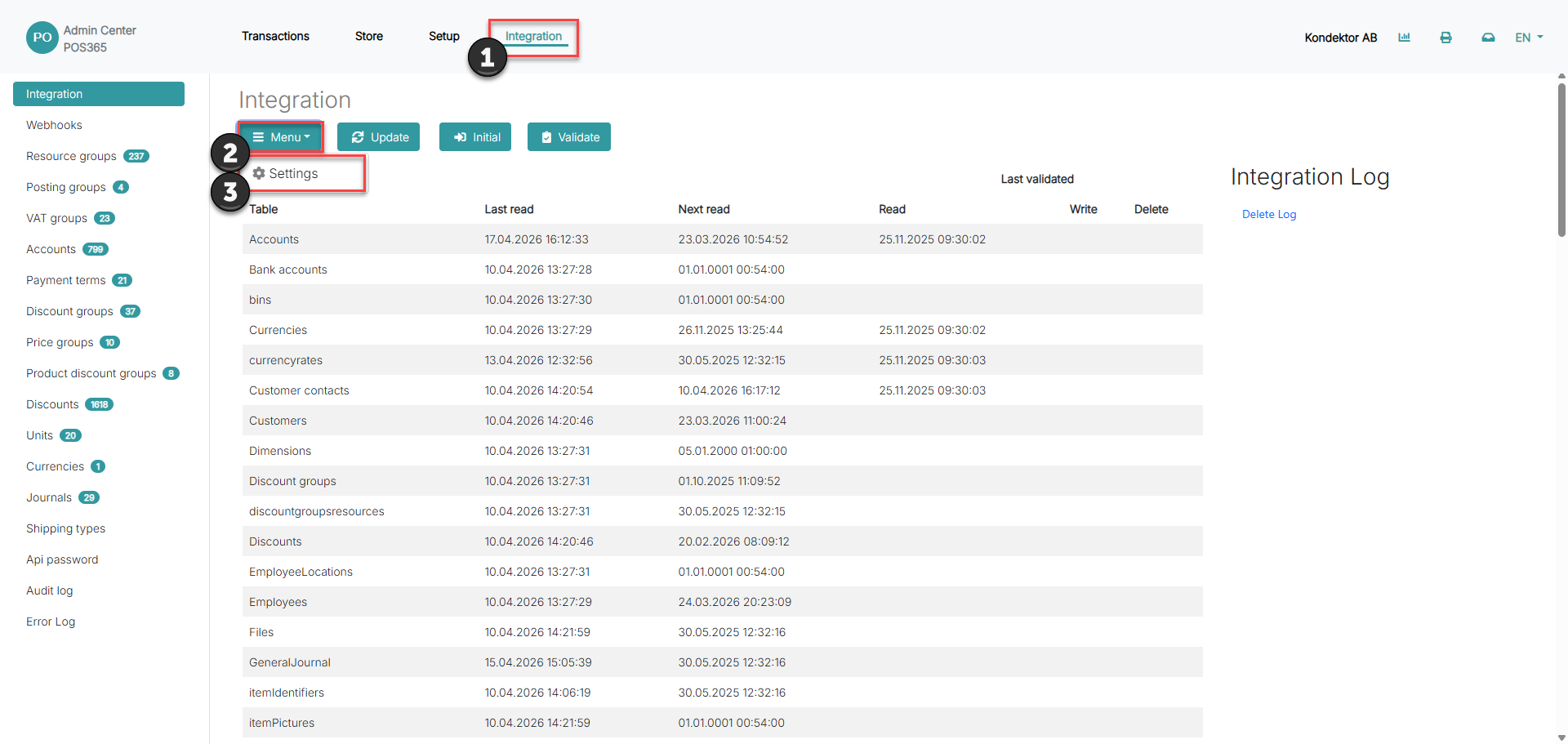
1) Go to 'Integration'
2) Click on 'Menu'
3) Open 'Settings'
Step 2:
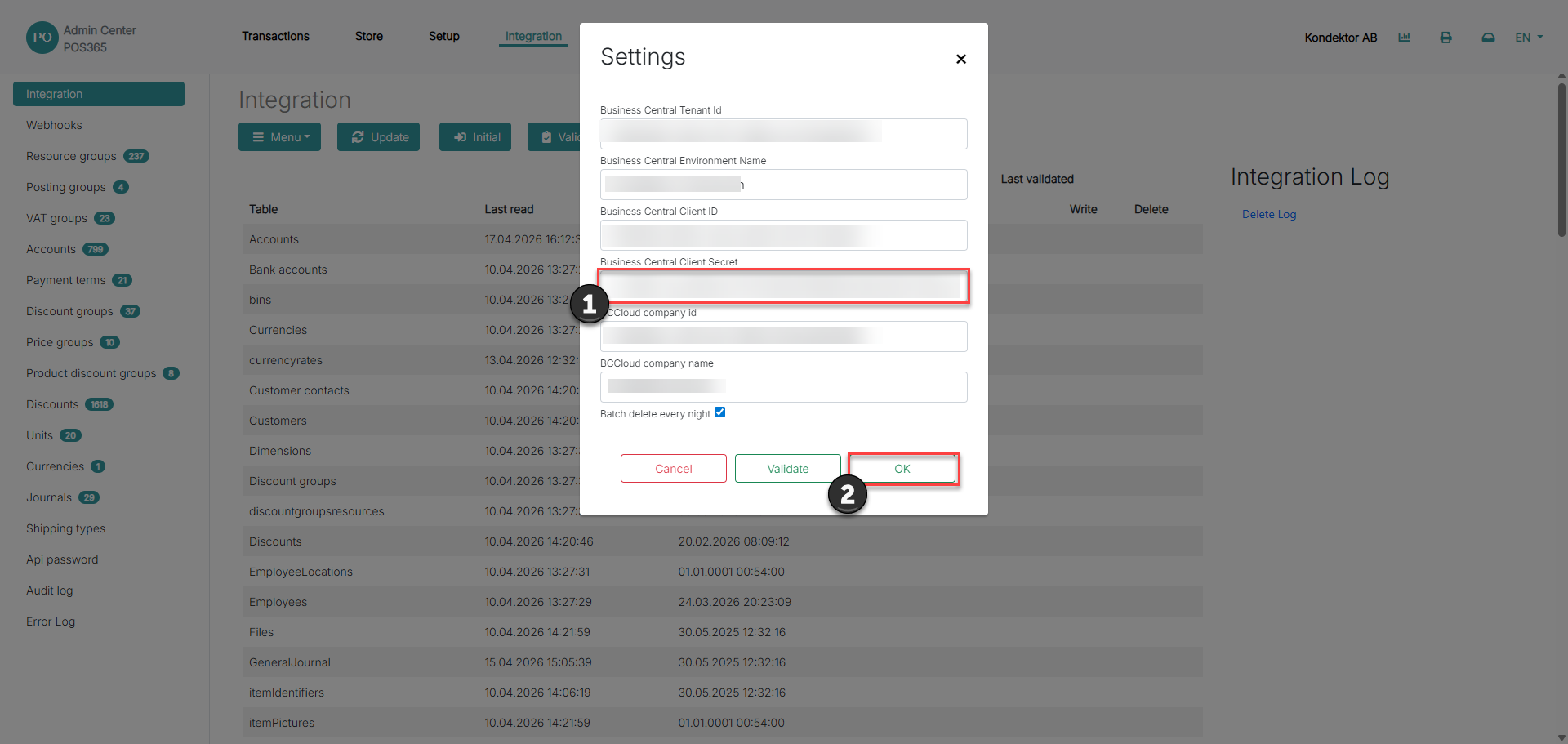
1) Insert the client secret from Zure in the 'Business Central Client Secret' field
2) Click 'OK'