This guide explains how to set up accounts in Business Central with the correct VAT configuration so it matches the setup in Admin Center. The purpose is to ensure VAT is settled automatically without being posted twice.
Step 1:
This step shows how to set up VAT on the account in Business Central and make sure it matches the setup in Admin Center by selecting the correct VAT posting group.
For more information, see here:
Set up VAT on the account
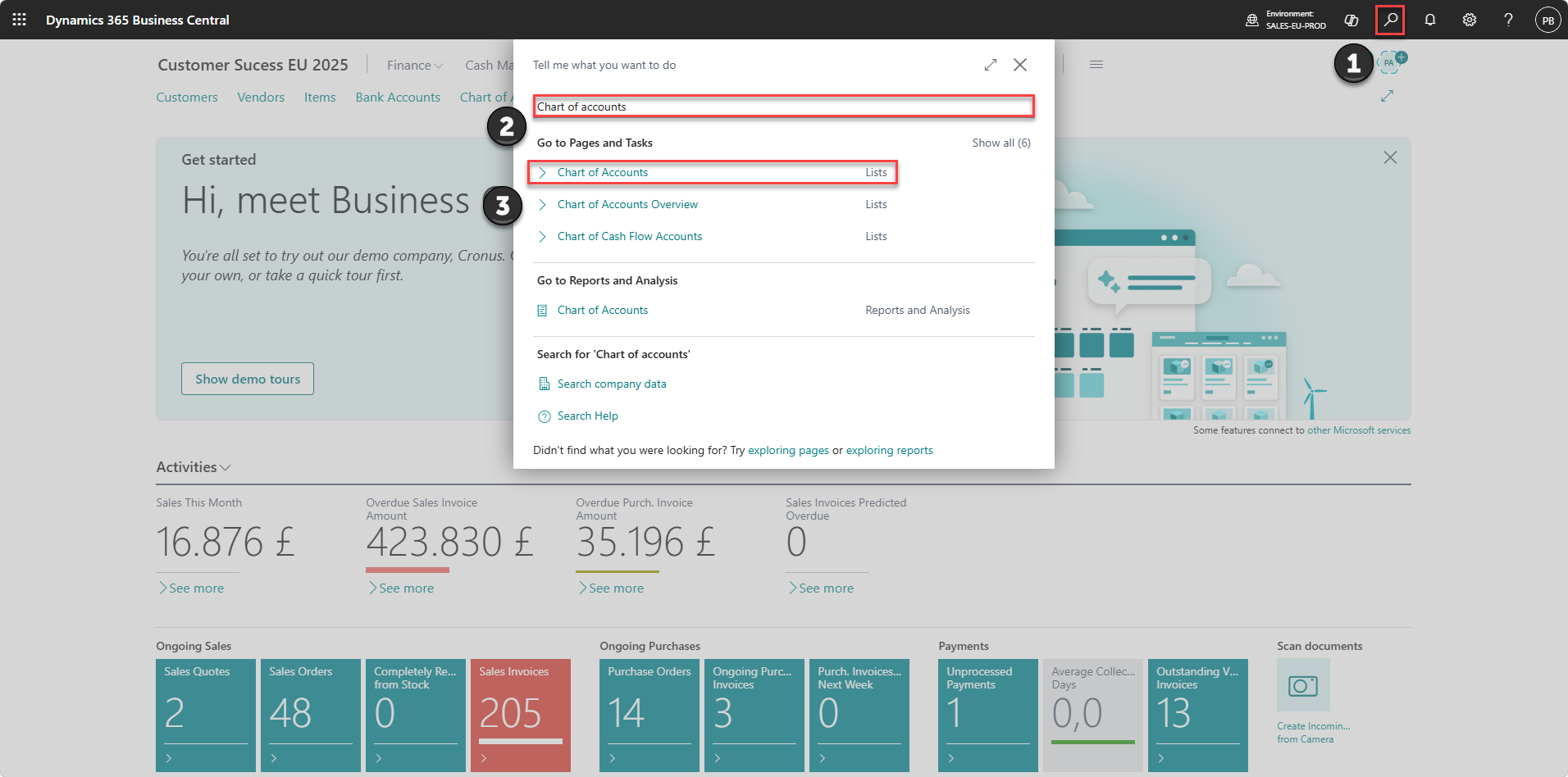
1) Click on the "search" icon
2) Search for 'Chart of Accounts'
3) Open "Chart of accounts"
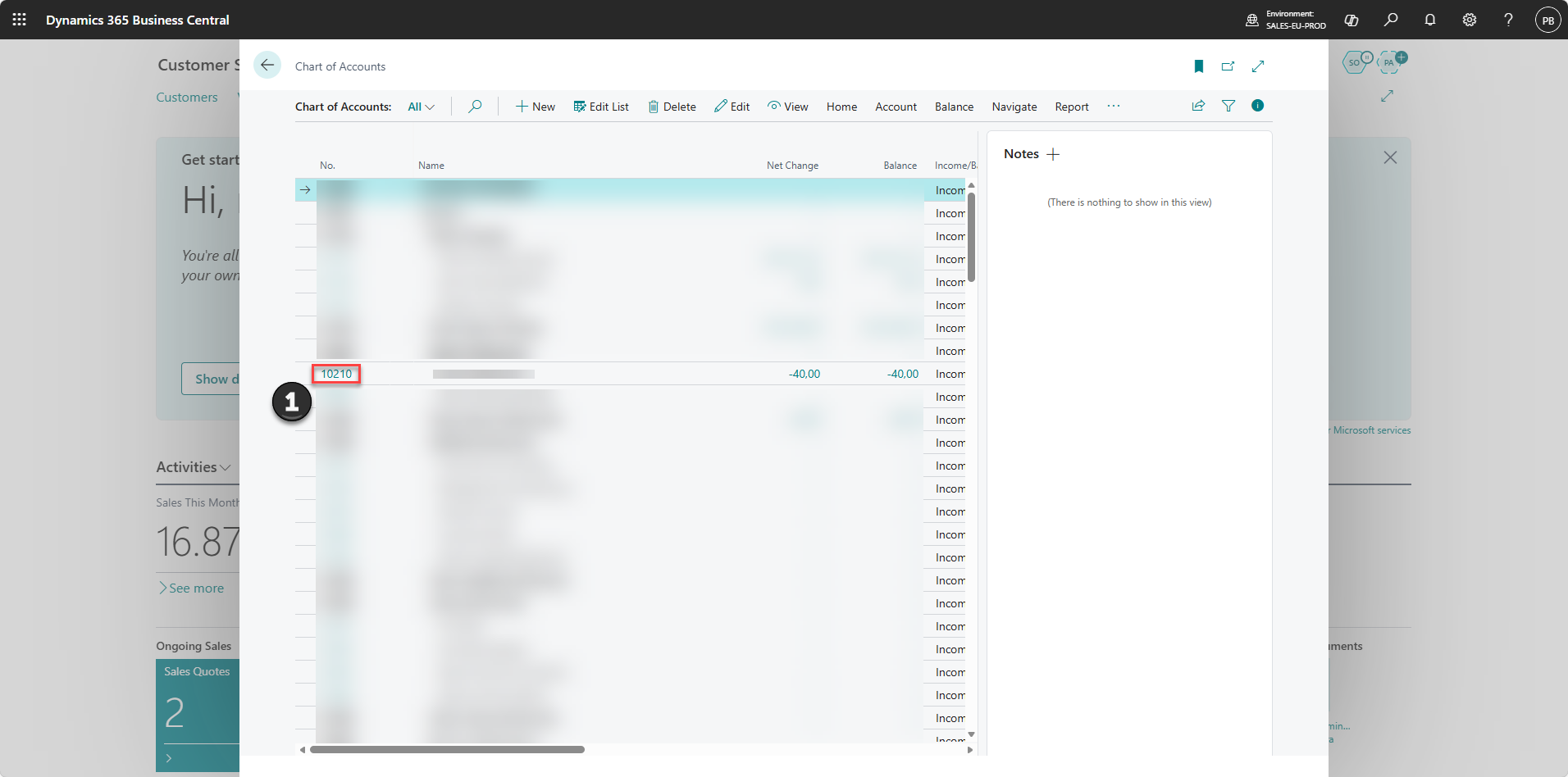
1) Open the account you want to use
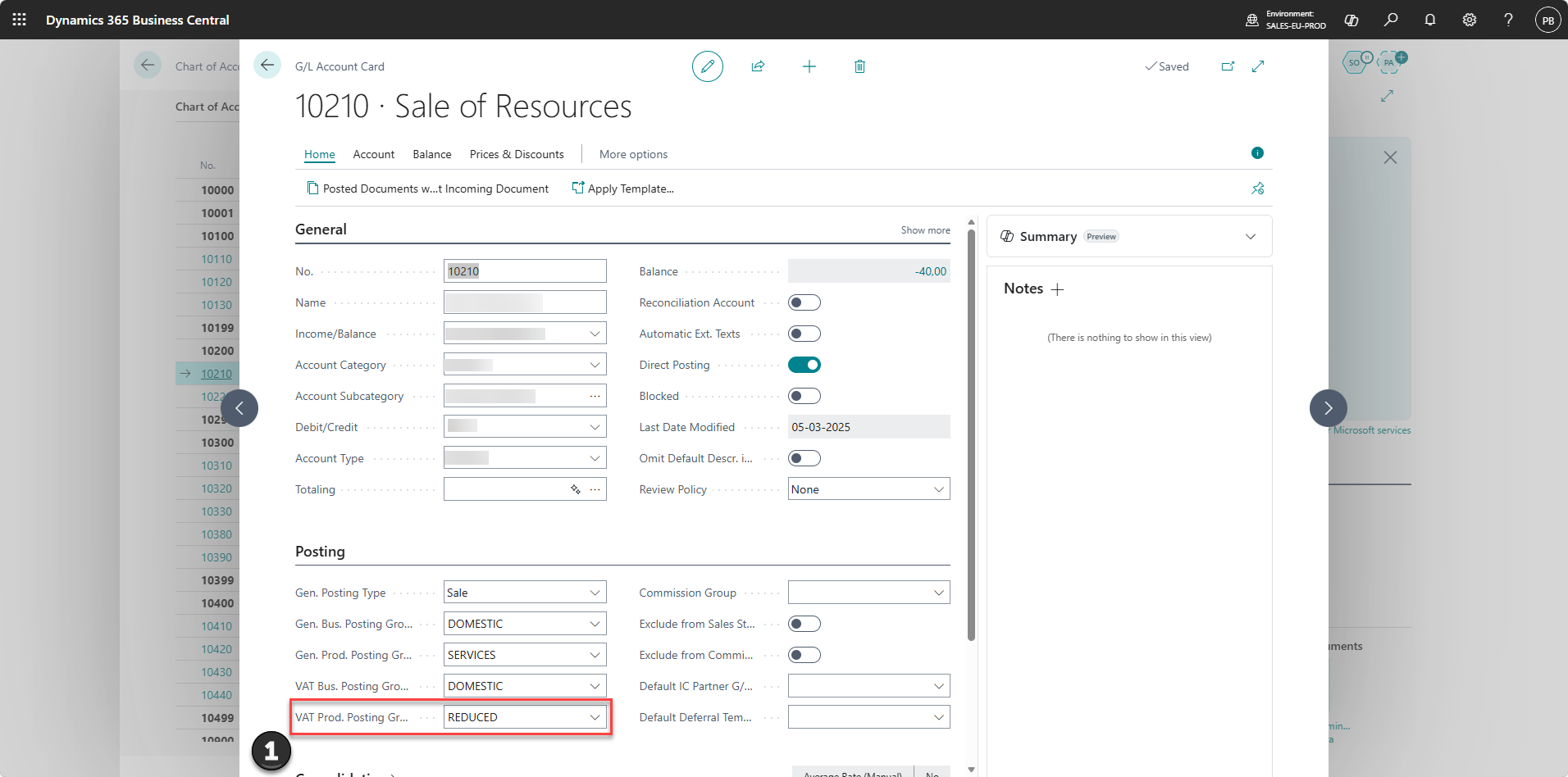
1) Fill in the field 'VAT Prod. Posting Group'
Make sure the selected group matches the setup in Admin Center
Note:
If the VAT posting group does not match Admin Center, VAT may be posted incorrectly or posted twice.
Step 2:
This step shows how to check the connection between Business Central and Admin Center so the VAT setup works correctly across the full flow.
For more information, see here:
Check the setup across systems
Step 1:
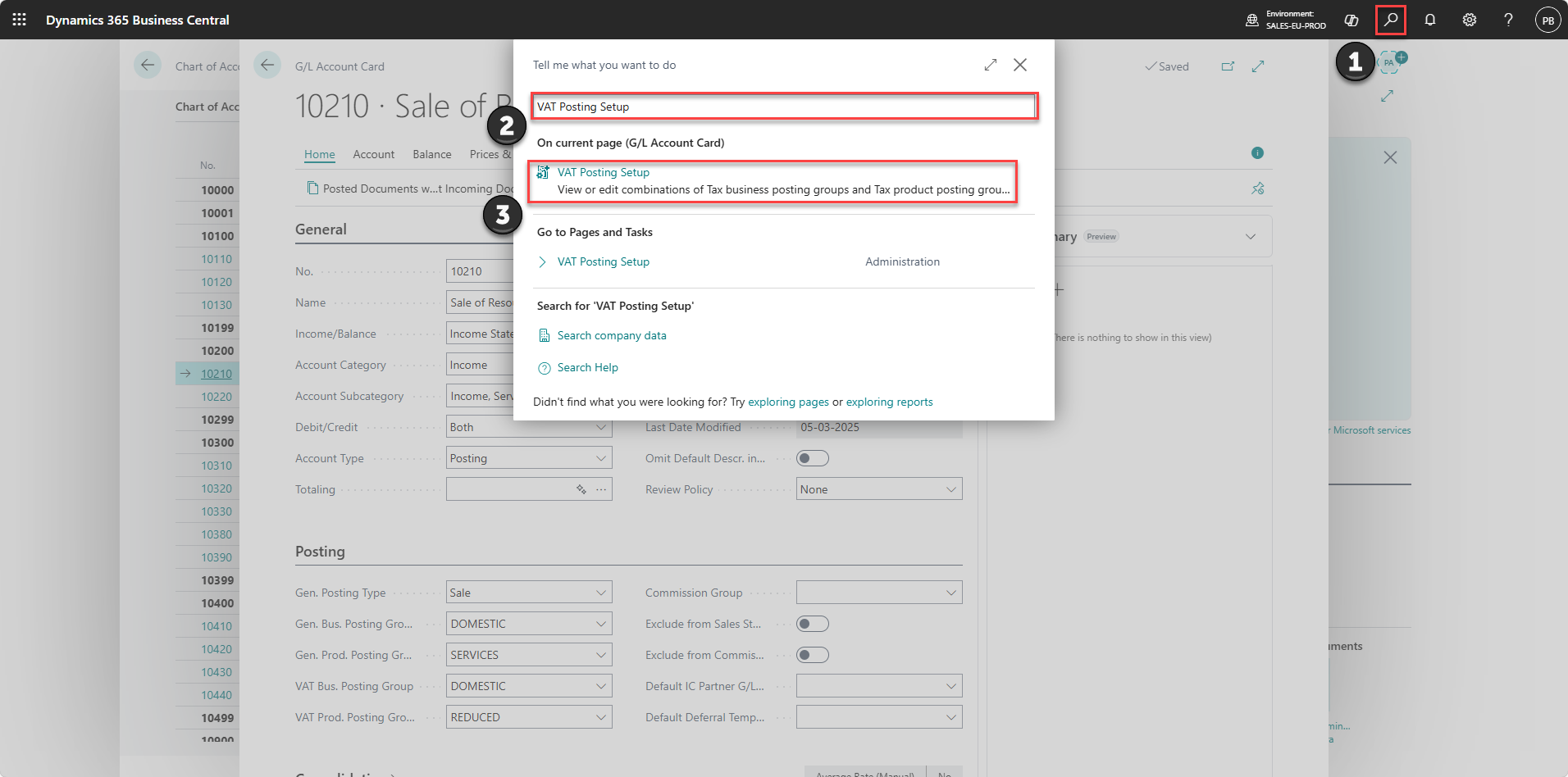
1)Click on the "Search" icon
2) Search for "VAT Posting Setup
3) Go to 'VAT Posting Setup'
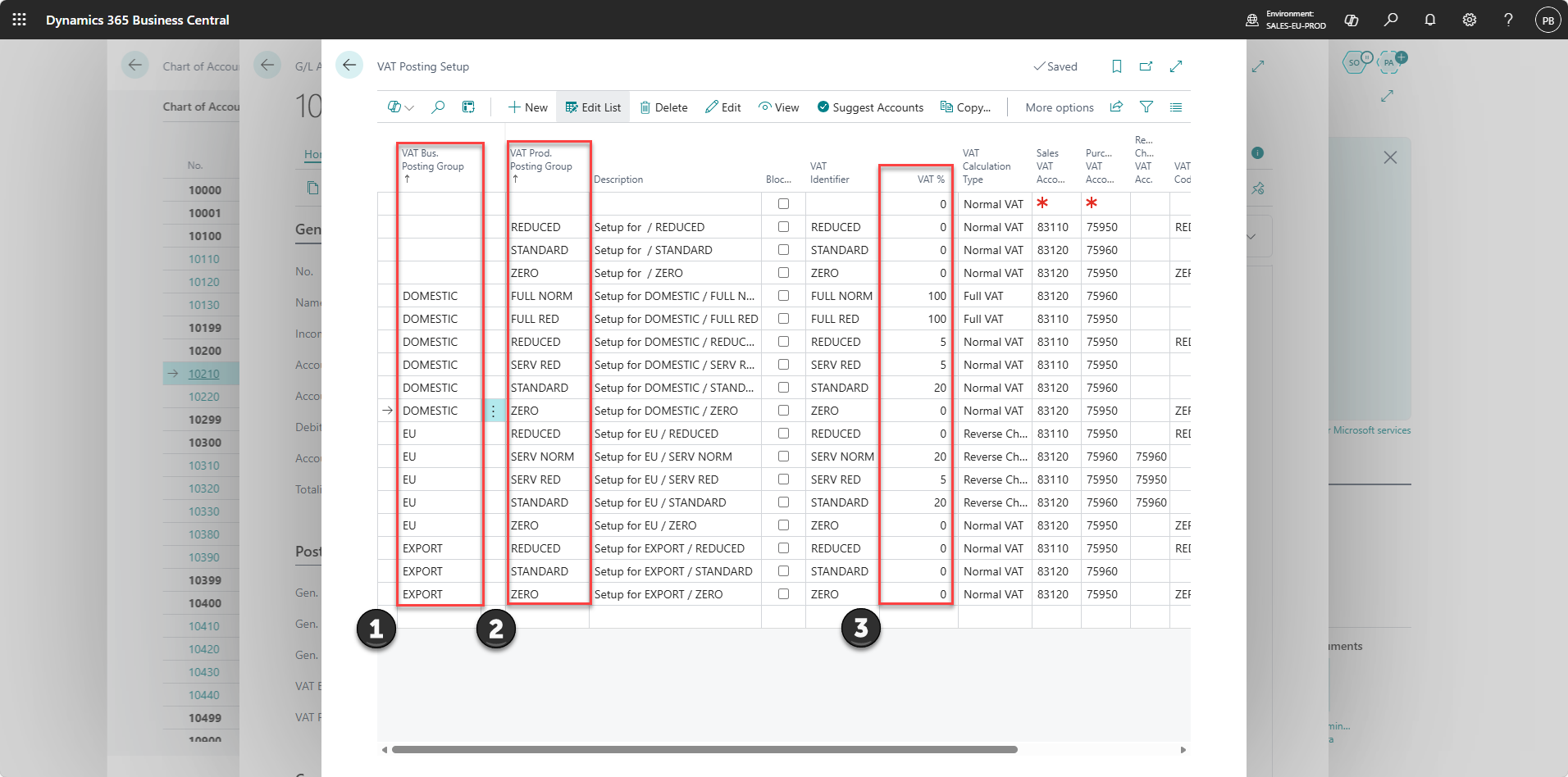
1) Locate the 'VAT Bus. Posting Group''
- Identify the customer or market type (e.g. 'DOMESTIC', 'EU', 'EXPORT').
2) Locate the 'VAT Prod. Posting Group'
- Identify the product or service type (e.g. 'STANDARD', 'REDUCED', 'ZERO').
3) Verify the VAT % for the combination
- Find the correct combination of the two posting groups and check that the VAT % matches the setup in Admin Center.
Note: The VAT is determined by the combination of these two posting groups, not by each field individually.
Step 2:
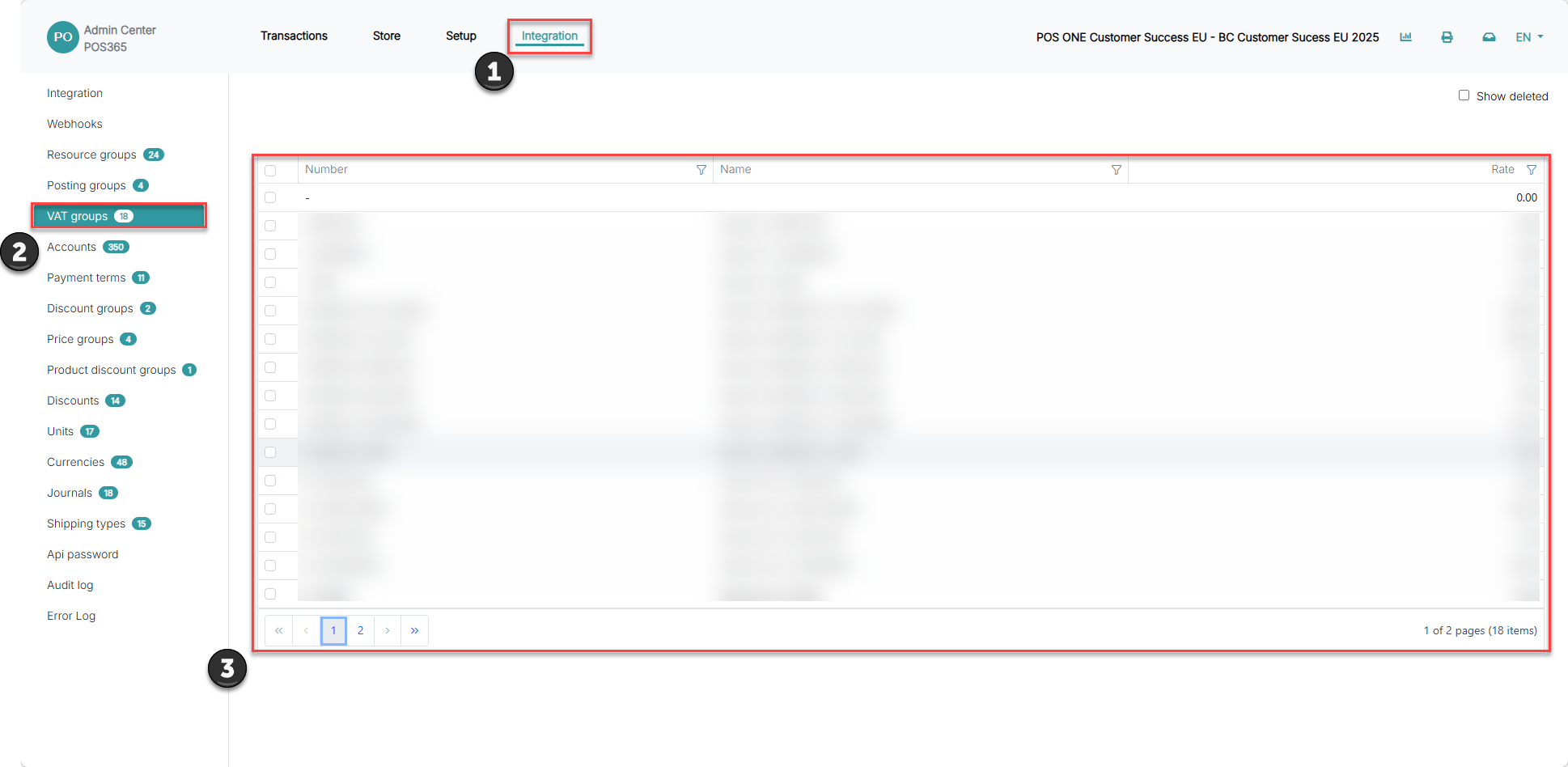
1) Go to the Integration Admin Center
2) Click on "VAT groups"
3) Make sure the rates and setup match
Note:
Differences between the two systems can lead to missing VAT settlement or double posting of VAT.