This guide explains how to manually redeem a gift card in the 'Admin Center'. The purpose is to set the gift card balance to '0' without creating a payment line or transaction in the POS.
Step 1:
In this step, you find the gift card overview in the 'Admin Center' and find the gift card you want to redeem. This lets you access the correct card before completing the redemption.
For more information, see here:
Find the gift card and prepare the redemption
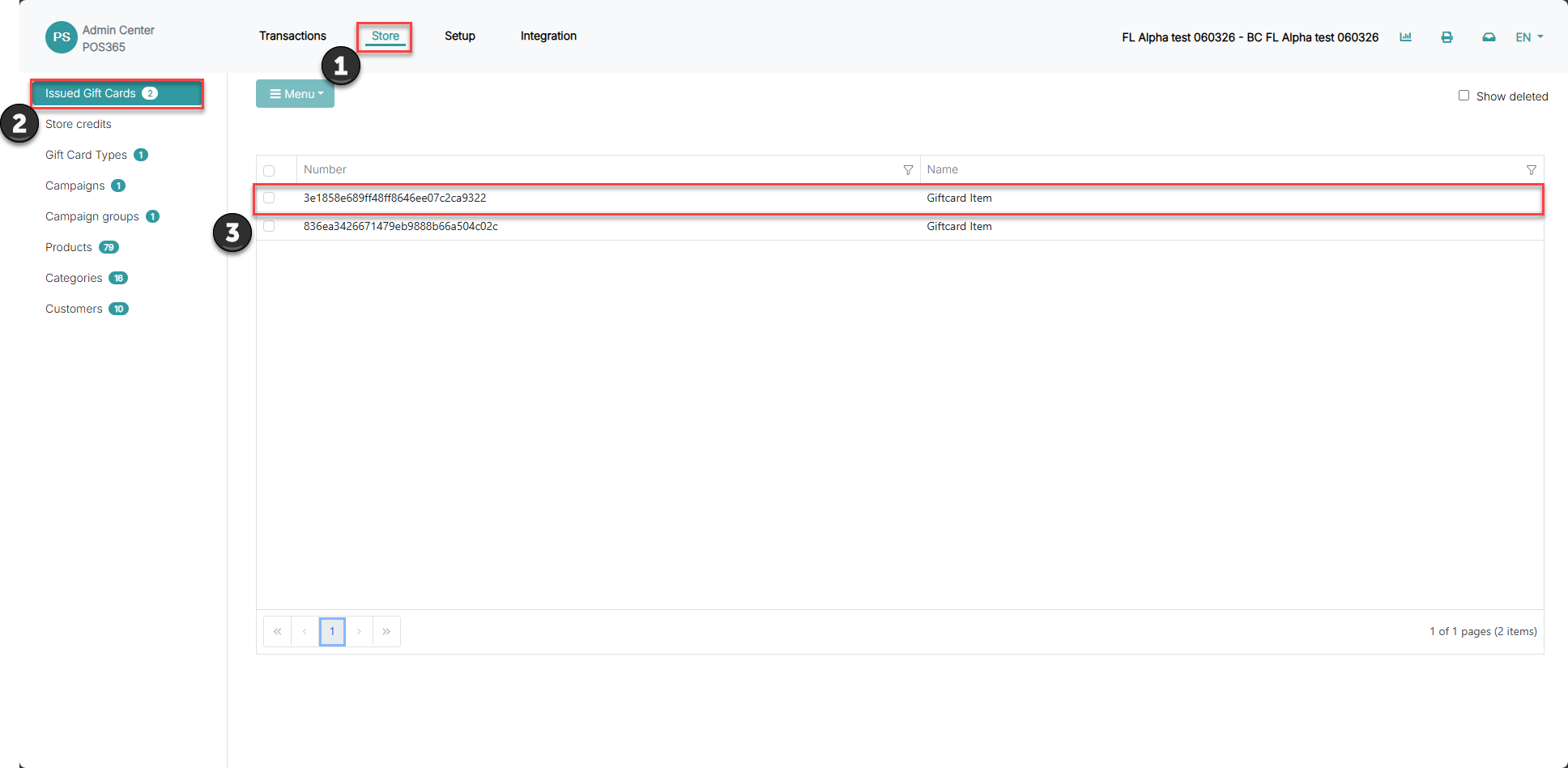
1) In the Admin Center select 'Store'
2) Click 'Issued Gift cards'
3) Find the gift card you want to redeem
Step 2:
In this step, you redeem the selected gift card from the menu. This will close the gift card by setting the remaining balance to '0'.
For more information, see here:
Redeem the gift card
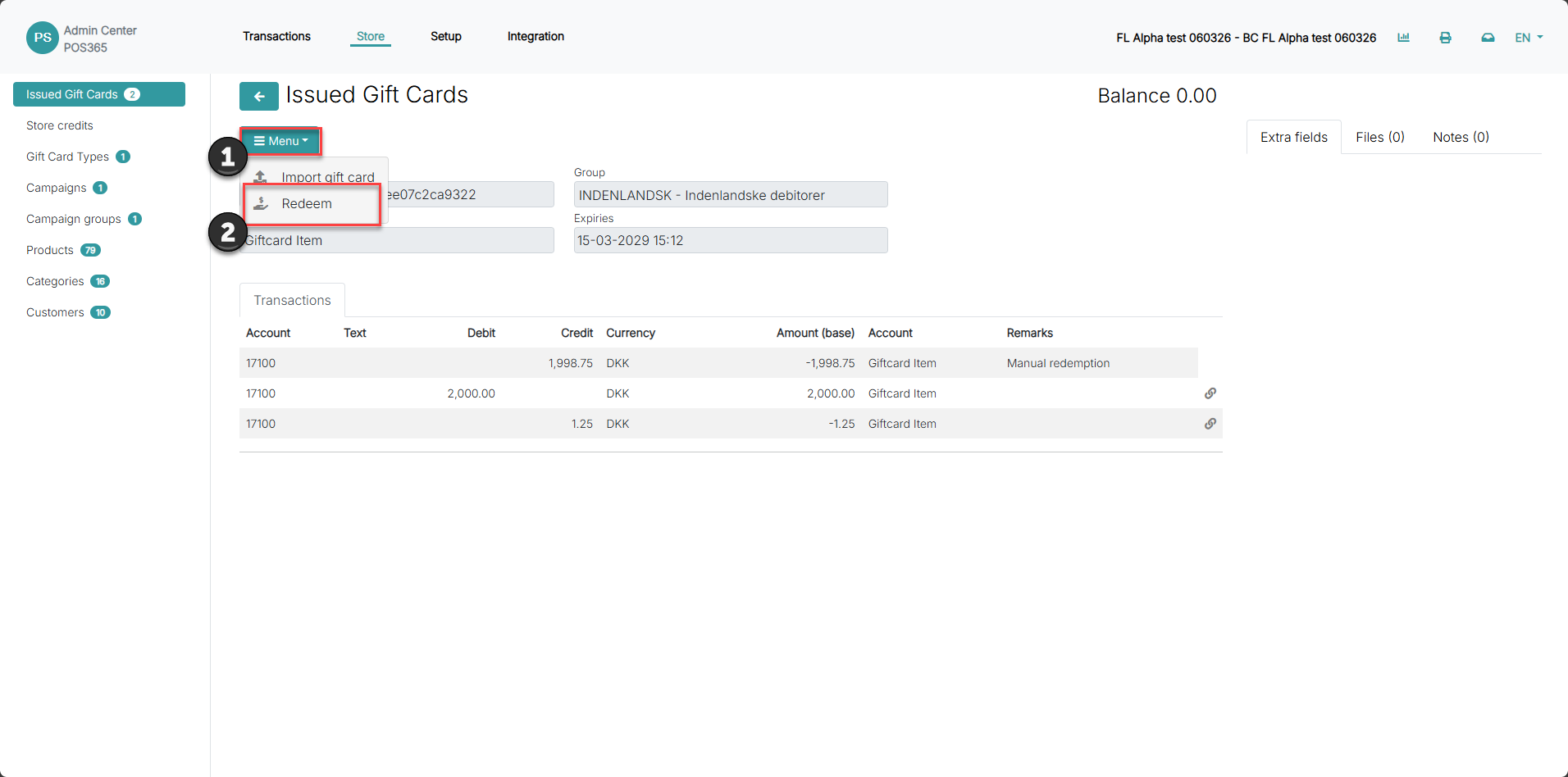
1) Click 'Menu'
2) Select 'Redeem'
Note:
Redeeming a gift card from the 'Admin Center' only sets the balance to '0'. No payment line is created, and no transaction is generated in the POS.
Extra information:
In this step, you review when manual redemption should be used. This helps you decide when it is appropriate to close or correct a gift card manually.
For more information, see here:
When to use manual gift card redemption
- Use it to close unused gift cards
- Use it to correct gift card balances
- Use it to remove invalid or test gift cards