This guide explains how to set up and use Bin locations in POS365 through Business Central. It also shows how to change the Bin directly on a sales line.
Step 1:
Set up a Default Bin on the Location in Business Central. This ensures POS365 automatically uses the correct Bin when selling items.
For more information, see here:
Set up Default Bin in Business Central
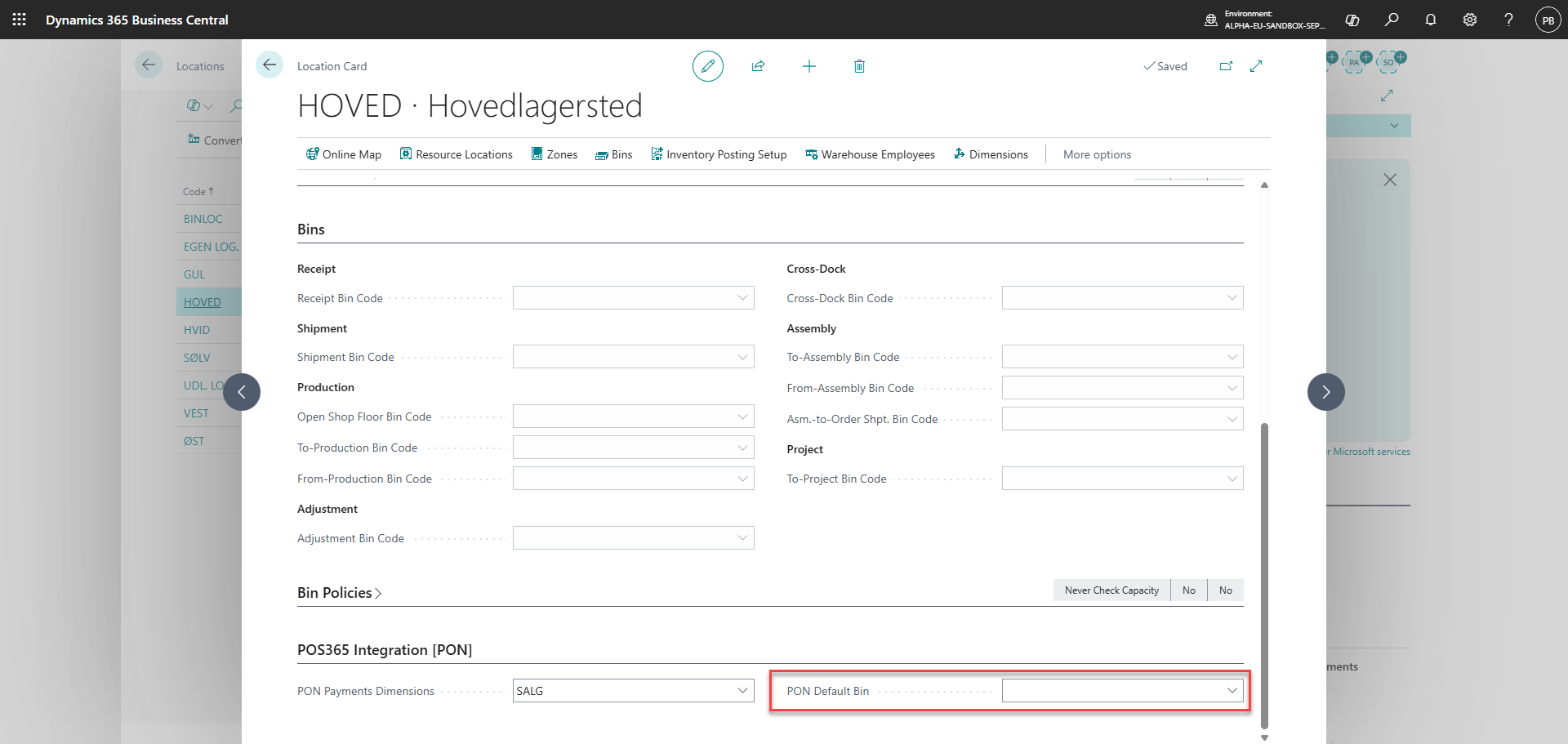
1) Open 'Business Central'
2) Go to 'Locations'
3) Select the Location connected to POS365
4) Set a 'Default Bin'
Note:
A bin must be created in Business Central beforehand to be selected as default bin on the location
The Default Bin will automatically be used in POS365 when items are sold.
Step 2:
Override the Bin directly on a sales line in POS365. This allows you to select a different Bin for a specific item.
For more information, see here:
Change Bin on item in POS
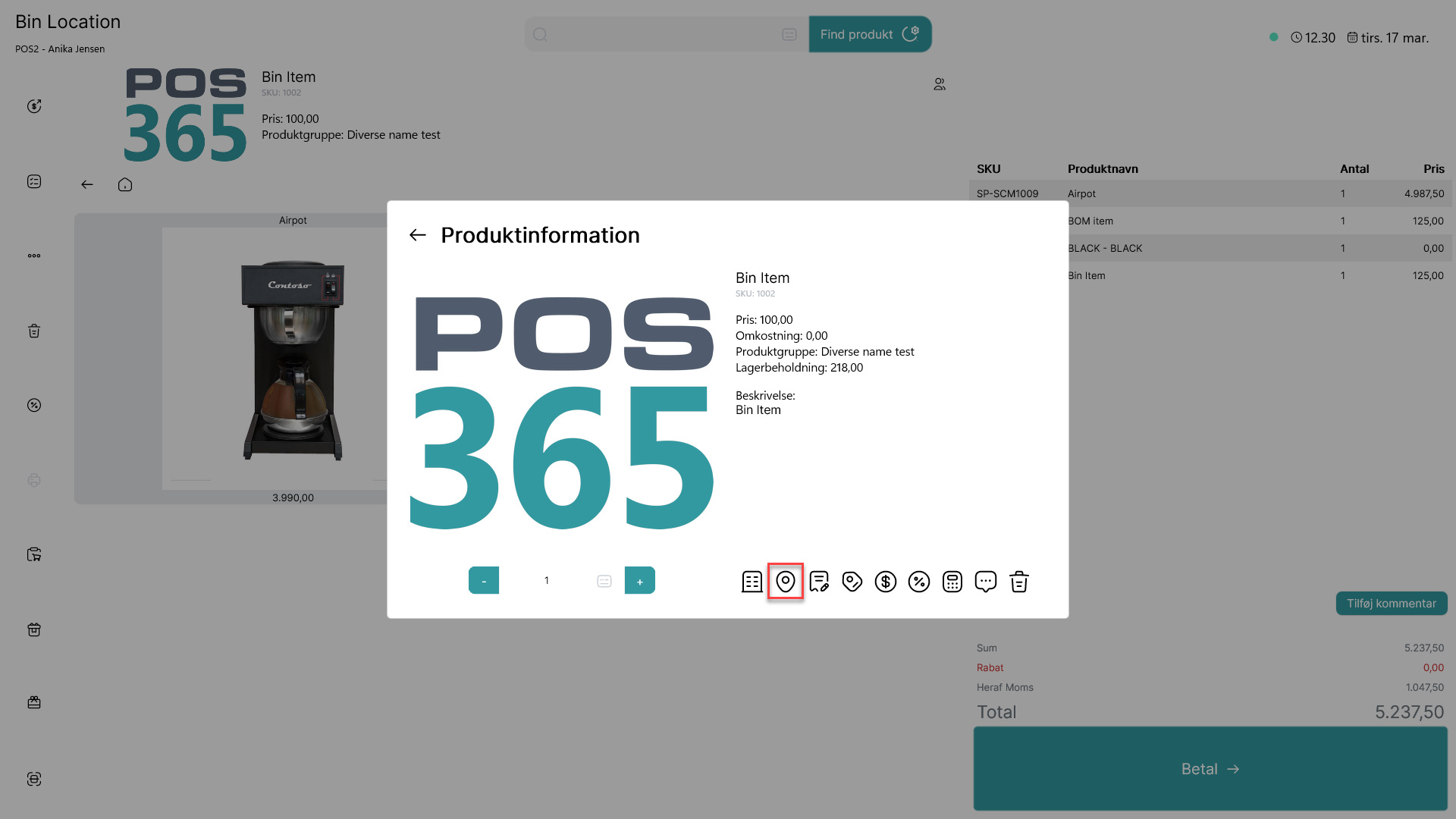
1) Add the item to the POS transaction
2) Open 'Product Information' on the item line
3) Select the 'Bin' icon
4) Choose the desired Bin
5) Confirm the selection
Note:
Use this when items are stored in multiple Bins, temporarily moved, or when picking from a specific location.
Extra information:
Understand how the Default Bin works in POS365. This ensures correct inventory posting and usage across terminals.
For more information, see here:
How Default Bin works
1) The Default Bin is used for all items with Bin handling
2) All POS365 terminals on the same Location use this Bin
3) Inventory is posted from this Bin during sales
Note:
The item must be configured to use Bin handling in Business Central