This guide explains how to configure how long the 'Transaction completed' window remains visible in POS365 after a payment. The setting determines when the window automatically closes and is configured per cash register in the 'Admin Center'.
Step 1:
In this step, you navigate to the selected cash register in the 'Admin Center'. This allows you to access the settings for the specific POS device.
For more information, see here:
Open the cash register setup
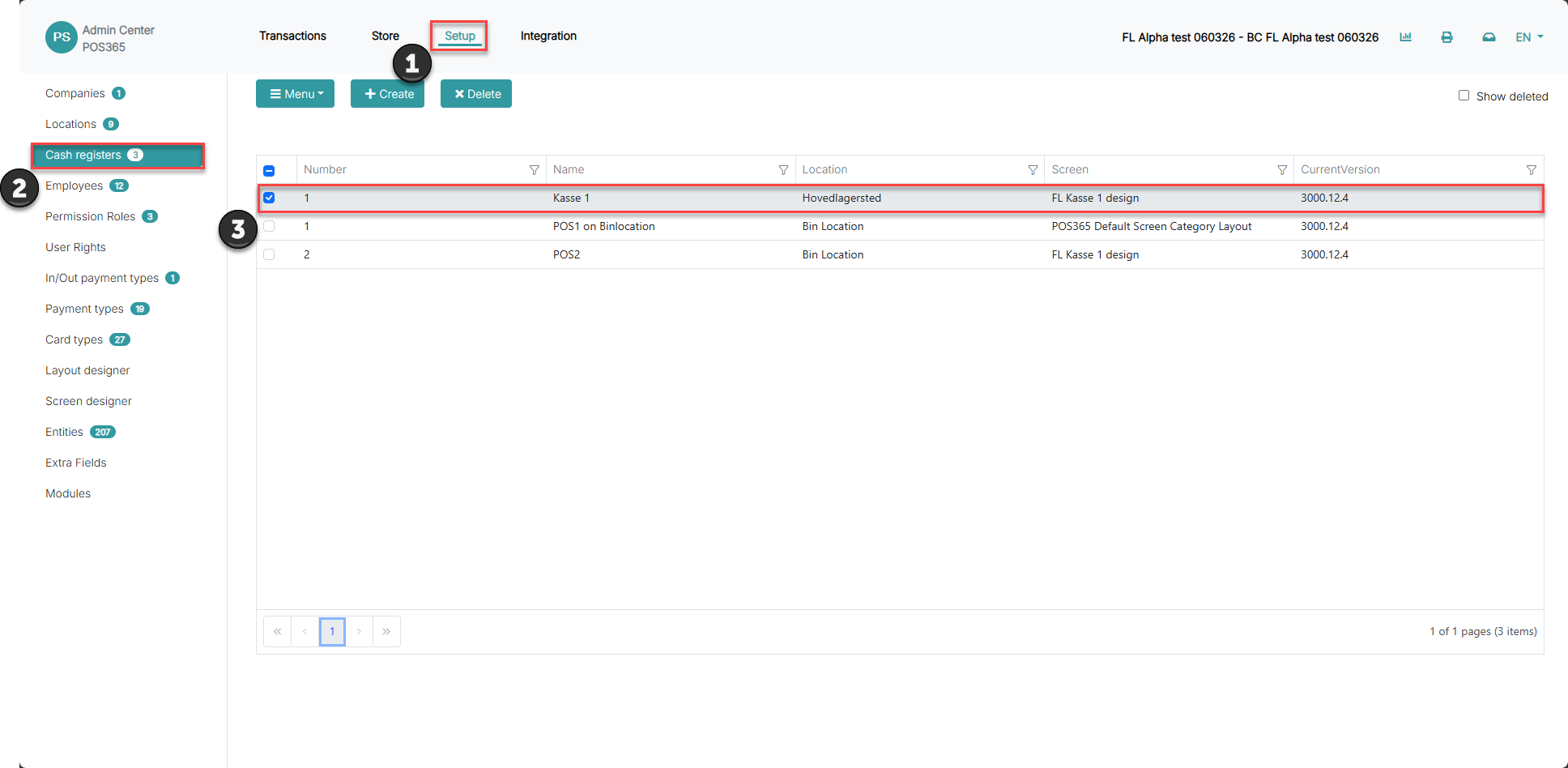
1) Go to 'Admin Center'
2) Select 'Setup'
3) Click 'Cash registers'
4) Select the cash register you want to modify
Step 2:
In this step, you open the settings menu for the selected cash register. This gives access to configuration options including the auto-close delay.
For more information, see here:
Open settings
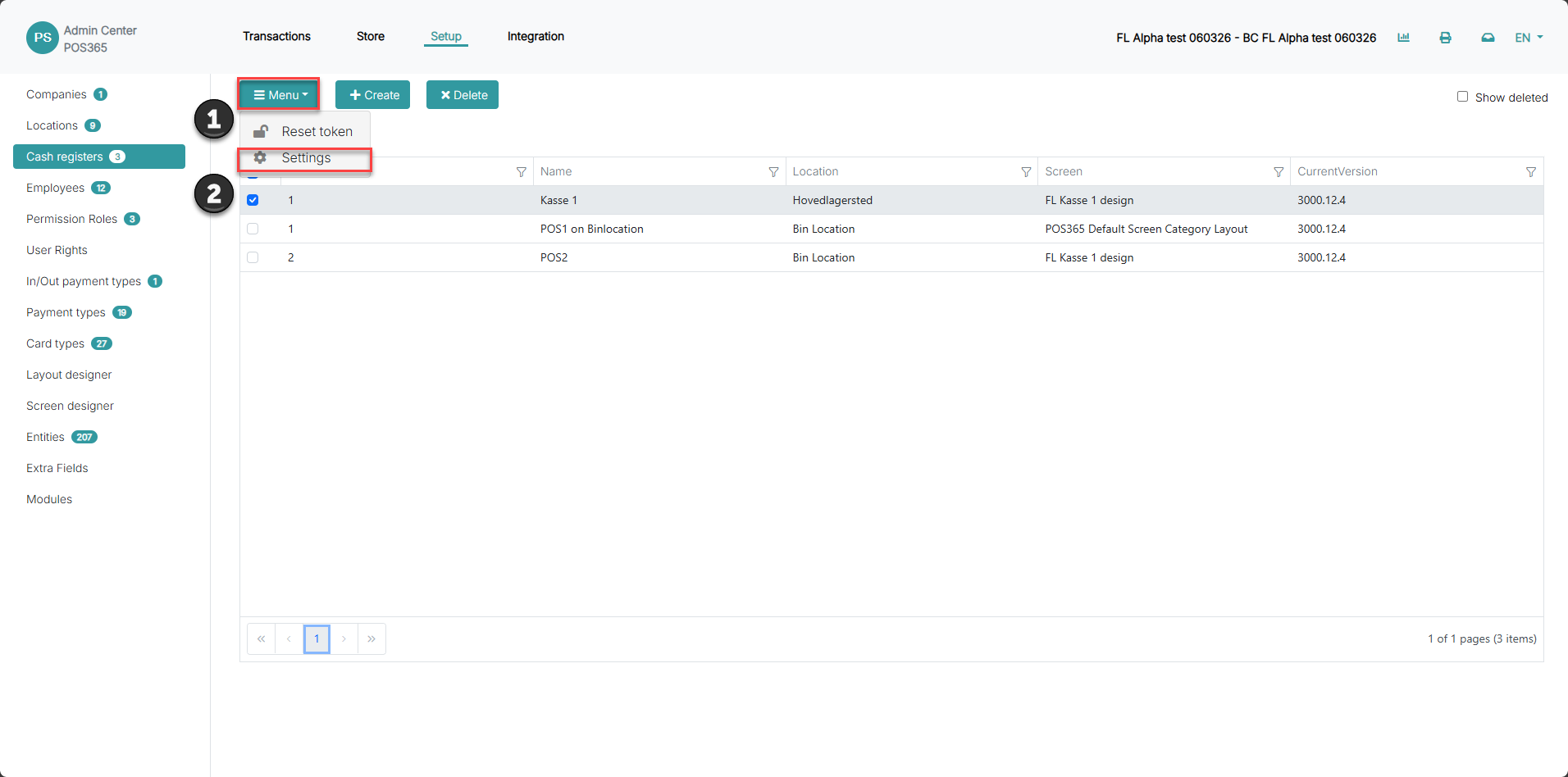
1) Click 'Menu'
2) Select 'Settings'
Step 3:
In this step, you configure how many seconds the receipt window should remain visible. This controls how long staff have to print or send the receipt before the window closes automatically.
For more information, see here:
Set auto-close delay
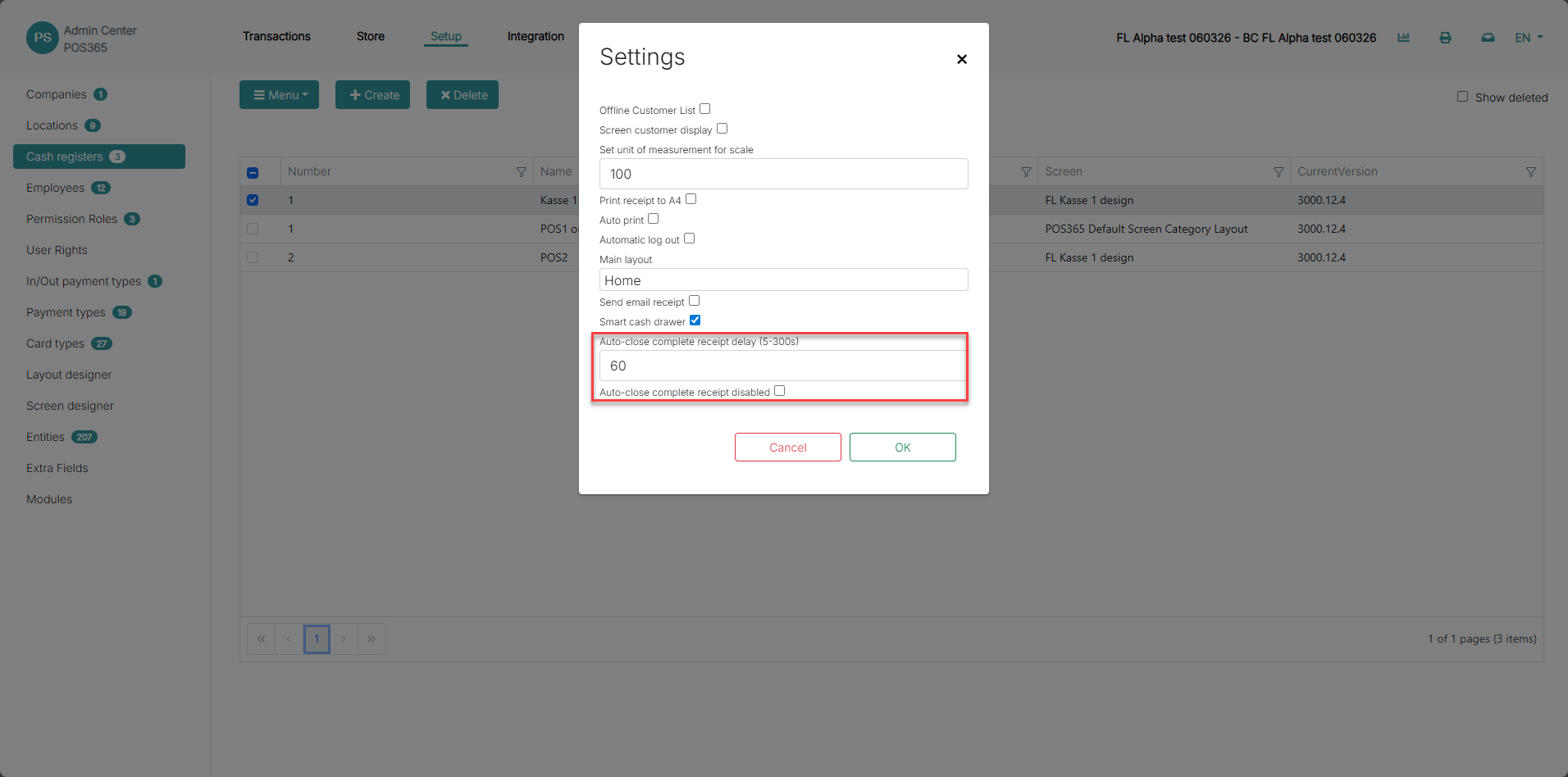
1) Locate the field 'Auto-close complete receipt delay (5–300s)'
2) Enter the desired number of seconds before the window closes automatically
3) Click 'OK' to save
Note:
Staff can manually close the window before the timer expires