This guide explains how to re-transfer multiple transactions from the 'Admin Center' to 'Business Central'. This can be useful if a transfer has previously failed and needs to be synchronized again.
You can re-transfer the following types of entries:
- Payments
- End of Day
- Invoices
- Credit notes
Step 1:
In this step, you open the transaction overview in the 'Admin Center' and navigate to the relevant transaction type. This ensures you are working with the correct entries before re-transferring.
For more information, see here:
Open transactions and select type
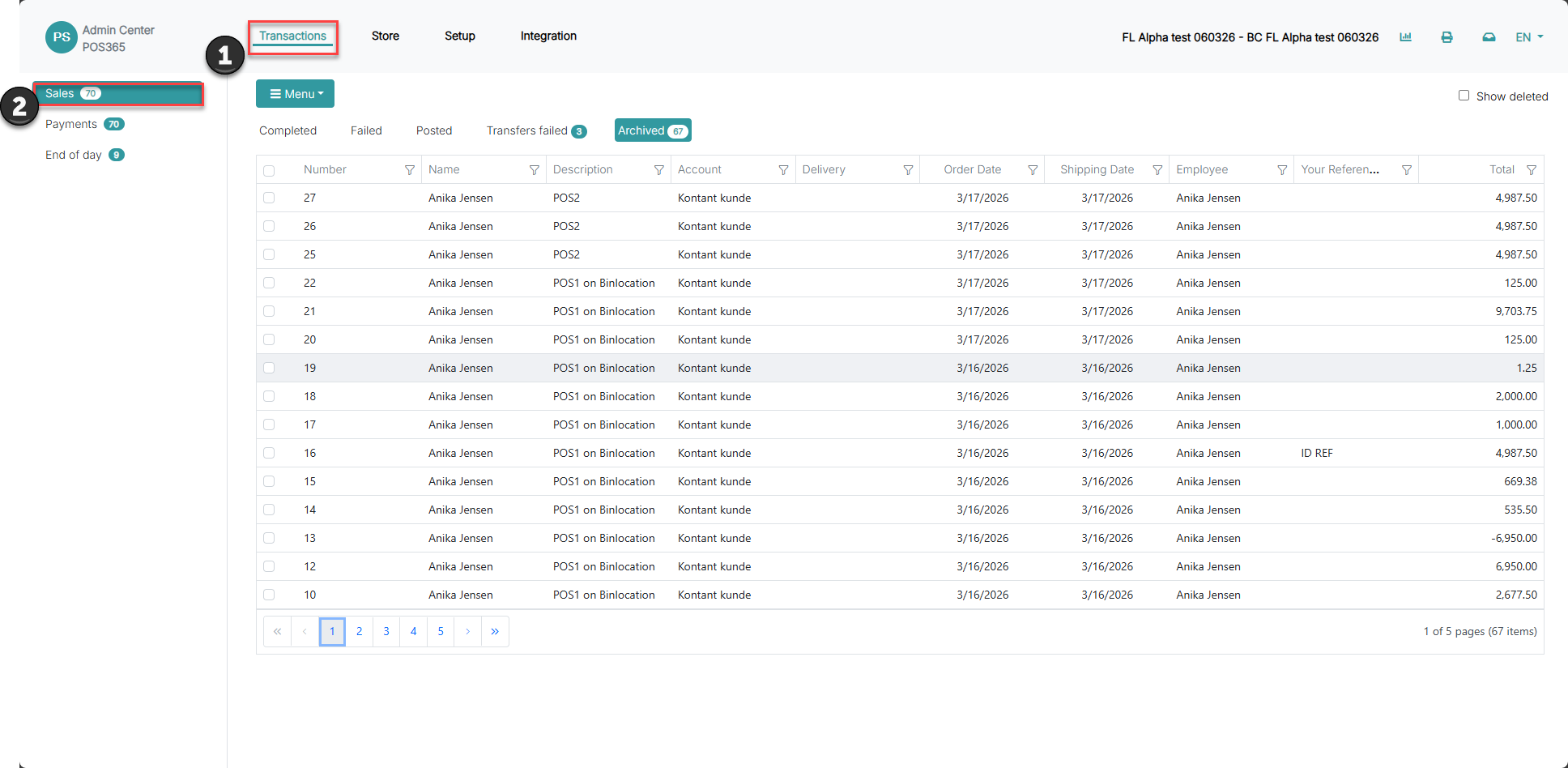
1) Go to 'Admin Center'
2) Select 'Transactions' in the top menu
3) Choose the relevant section in the left menu (e.g. 'Sales' or 'End of Day')
Step 2:
In this step, you select the entries you want to re-transfer and initiate the re-transfer action. This will send the selected data again to Business Central.
For more information, see here:
Select and re-transfer entries
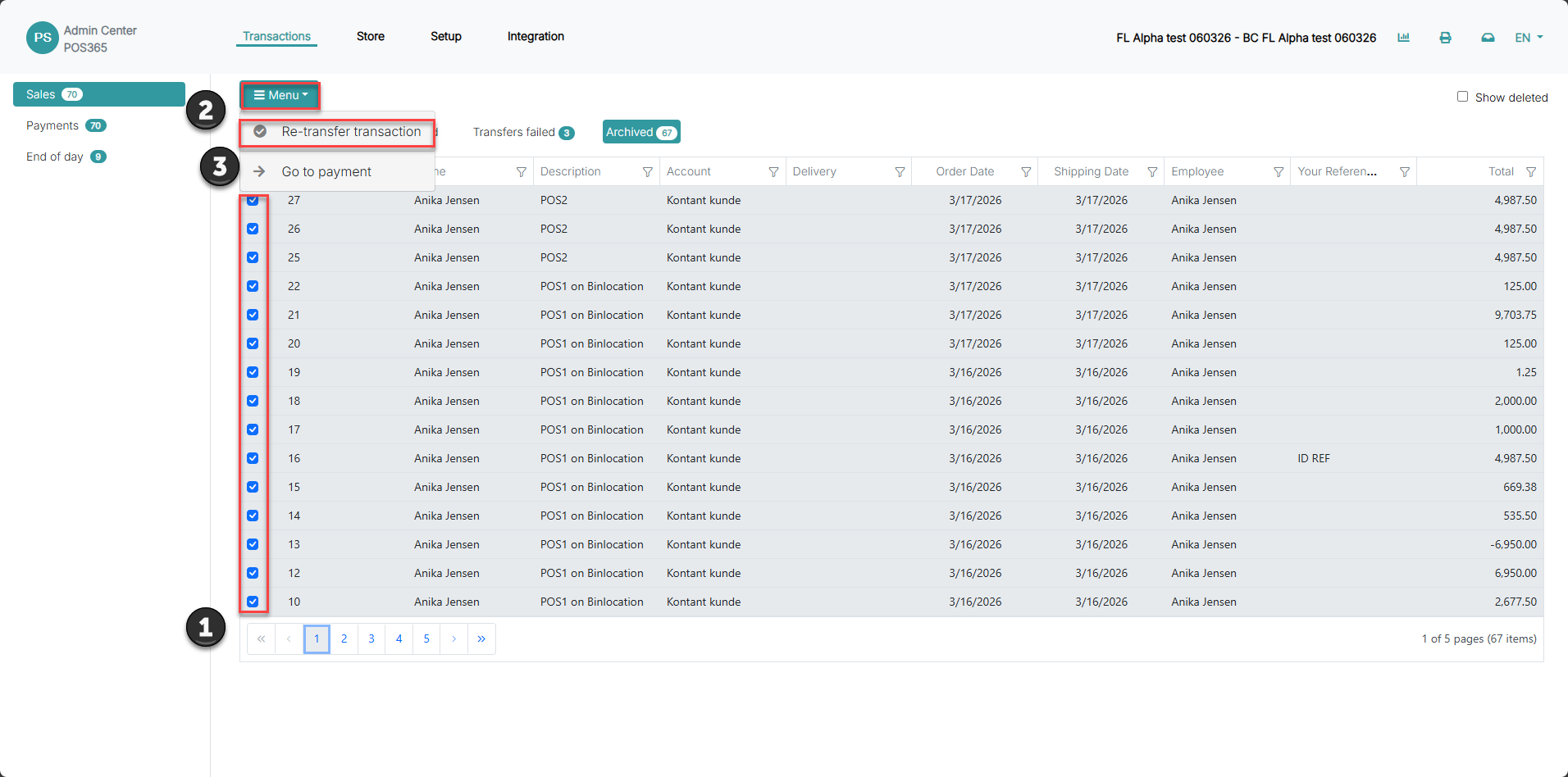
1) Select the entries by checking the boxes on the left side
2) Click 'Menu'
3) Select 'Re-transfer'
Note:
The system will now re-send the selected entries to Business Central.
Extra information:
Important considerations before performing a re-transfer as well as explanations regarding different types of re-transfers
For more information, see here:
Important information
1) If the entry already exists, the sale/payment will not be re-transferred
2) If the entry has already been posted, it will be sent again, which may create duplicate entries in Business Central
Recommendation:
Always check whether the entry already exists in Business Central before performing a re-transfer.
What happens during re-transfer
Payments → sent to the selected General Journal in Business Central as open payments
End of Day → sent to the selected General Journal in Business Central as an open post
Invoices → created as open sales invoices in Business Central
Credit notes → created as open sales credit memos in Business Central