This guide explains how variants in Business Central are set up and configured, how they are shown in the Admin Center, and how they are displayed in POS365.
Step 1:
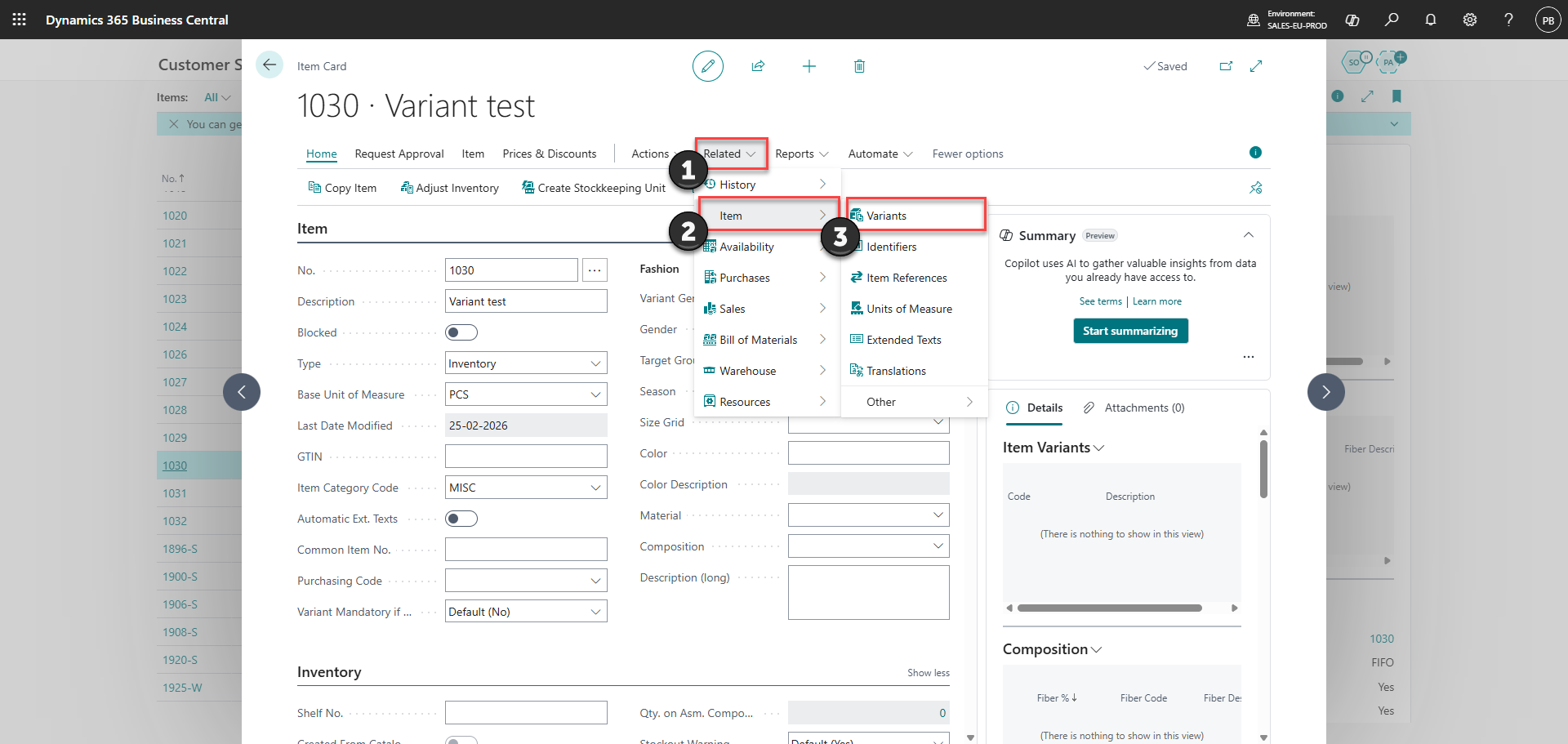
In Business Central, open the item card of the item you want to set up variants for
1) Go to 'Related'
2) Click 'Item'
3) Open 'Variants'
Step 2:
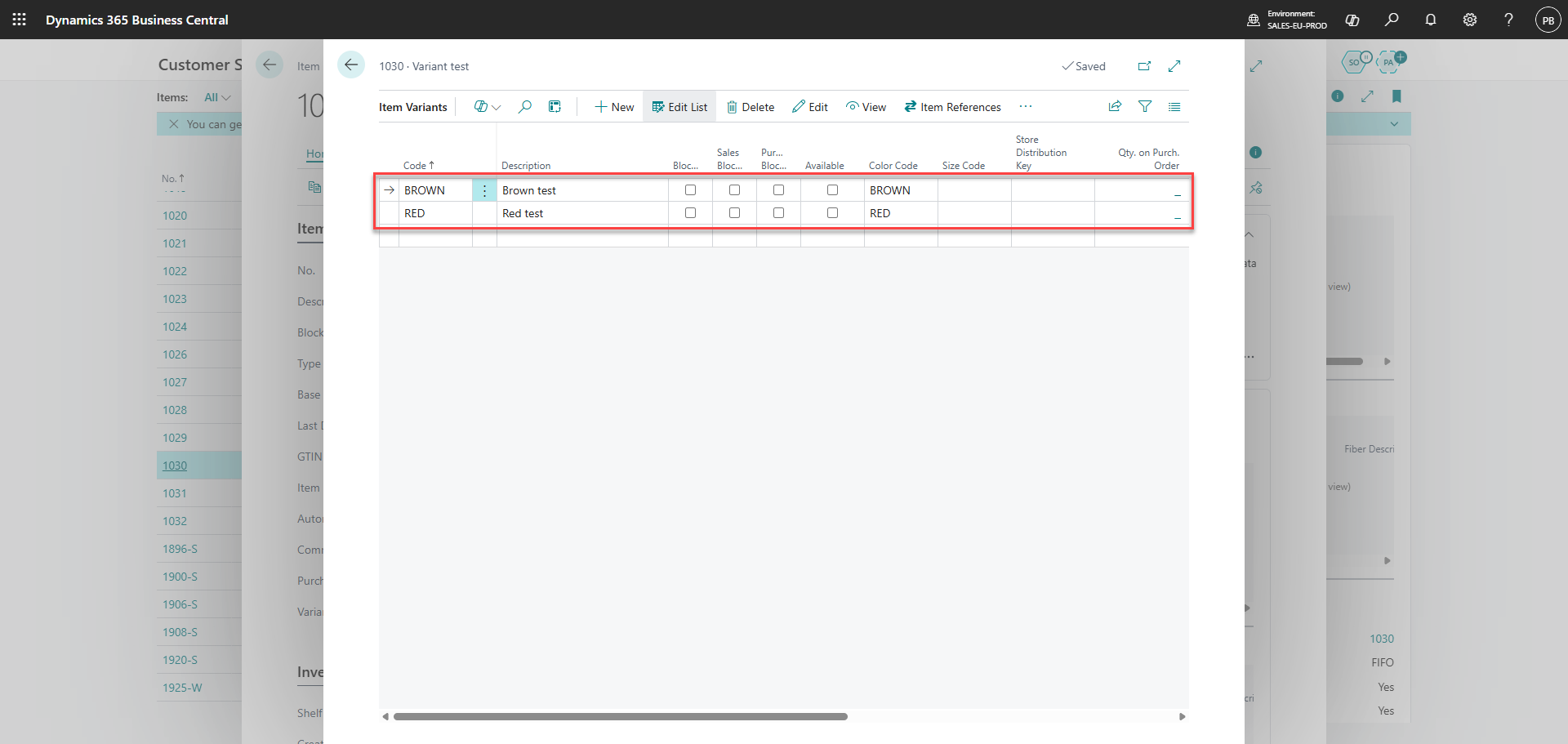
Create the variants needed for the item
After 1-6 minutes the changes will be synchronized to the Admin Center
Step 3:
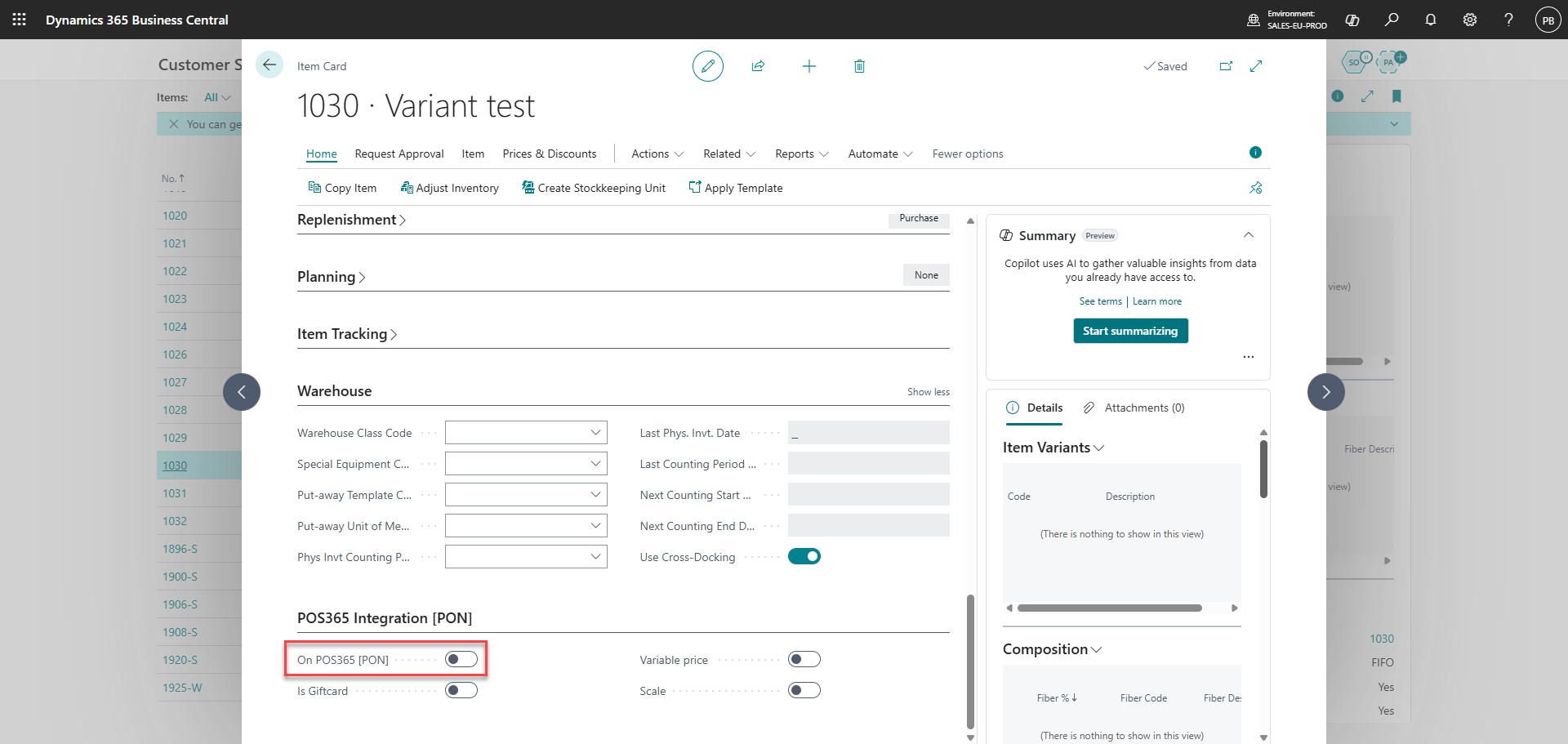
Scroll down to the bottom of the item card and open the POS365 Integration [PON] menu. Set 'On POS365 [PON]' to false (if set to true, the main item will be displayed alongside the variants in item categories on the POS)
Step 4:
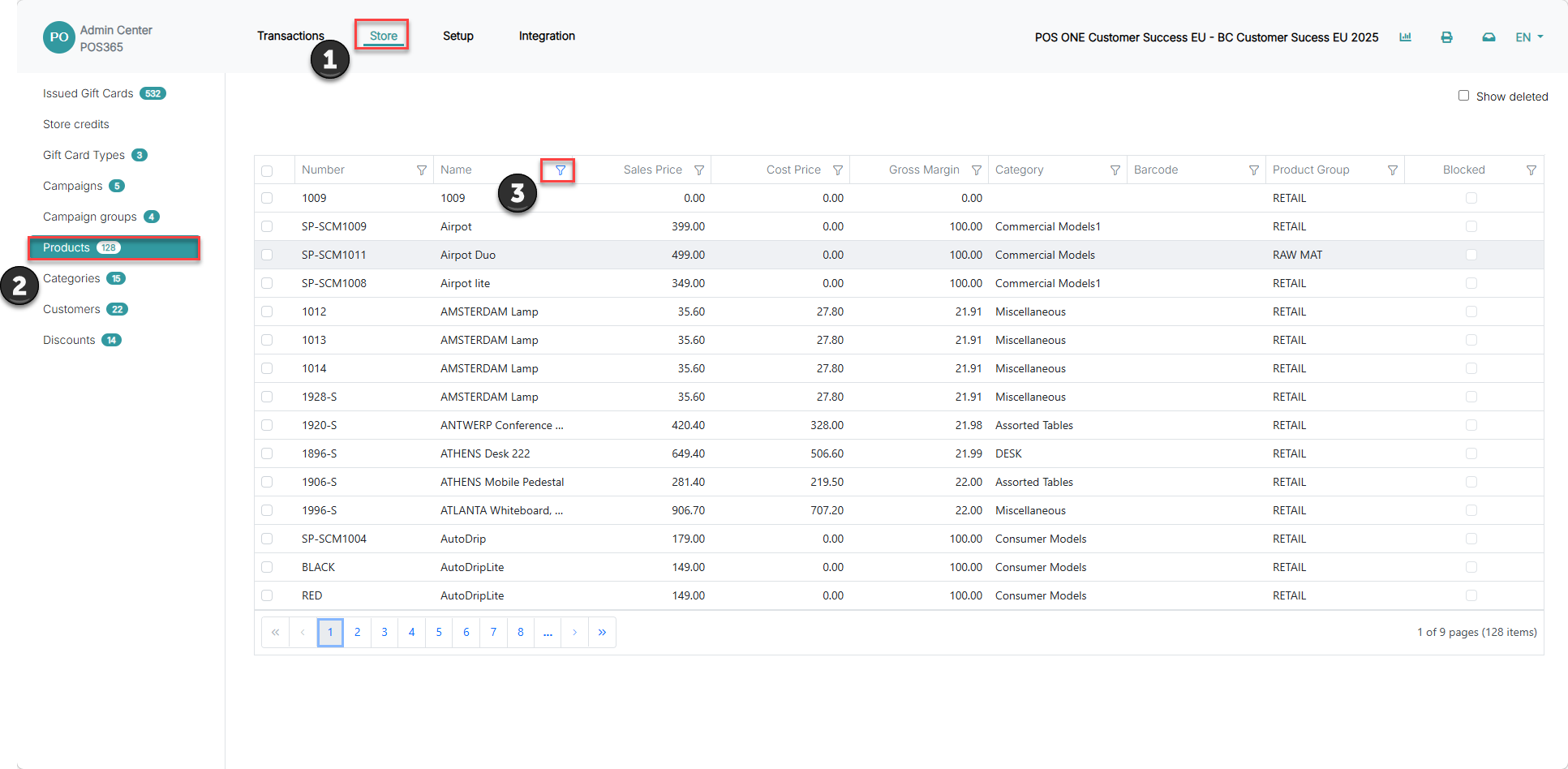
1) In the Admin Center, go to 'Store'
2) Open 'Products'
3) Click the filter icon, to search for the variants
Step 5:
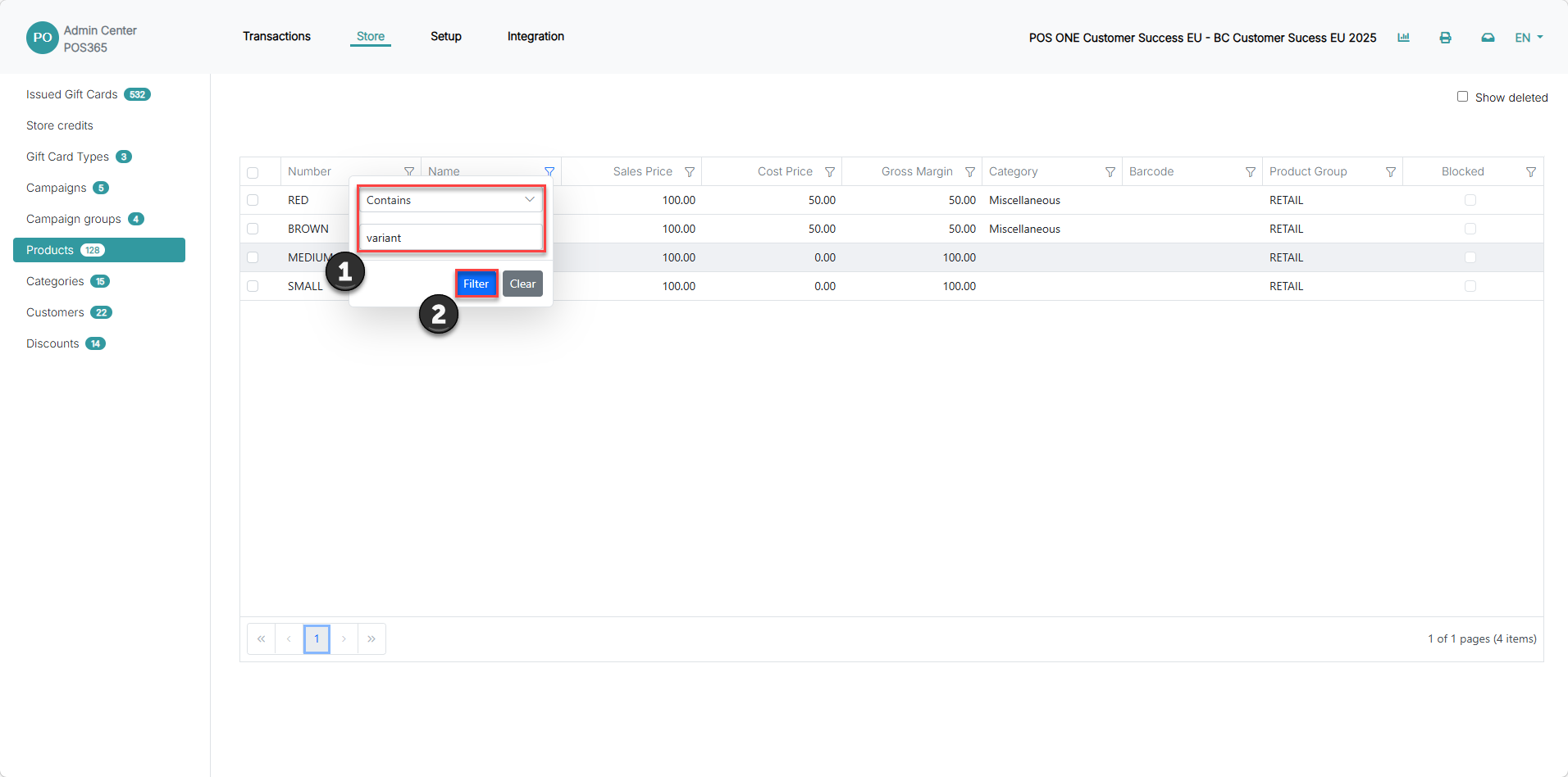
1) Search for "variant"
2) Click "filter"
You will now see a list of the items
Step 6:
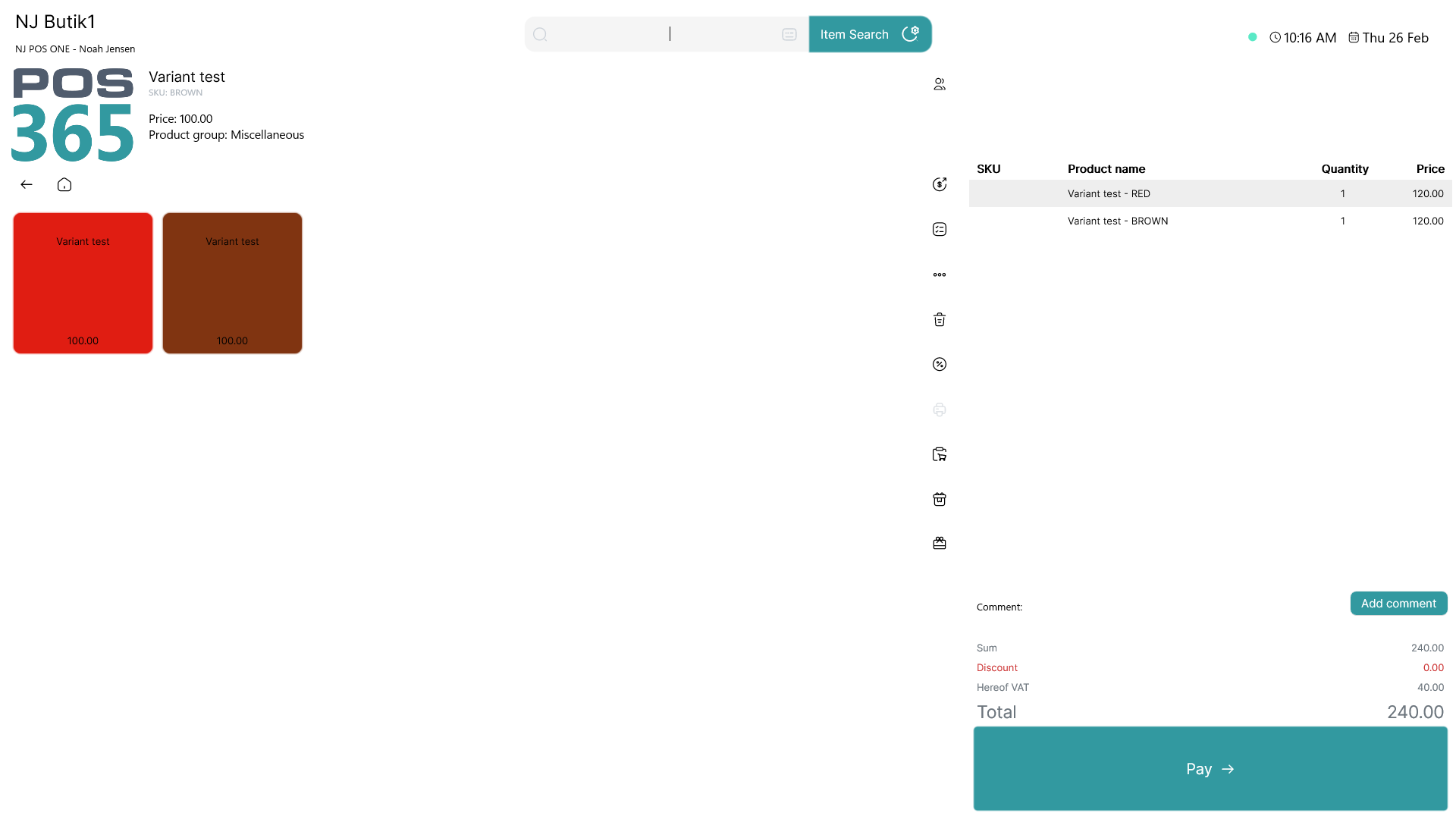
The variants can be added to a layout and displayed in POS365. Layouts can also be used to colour the buttons in POS365.
Note:
To set up layouts, follow this guide