This guide explains how to define whether an item from Business Central should use the scale function or not in POS365
Step 1:
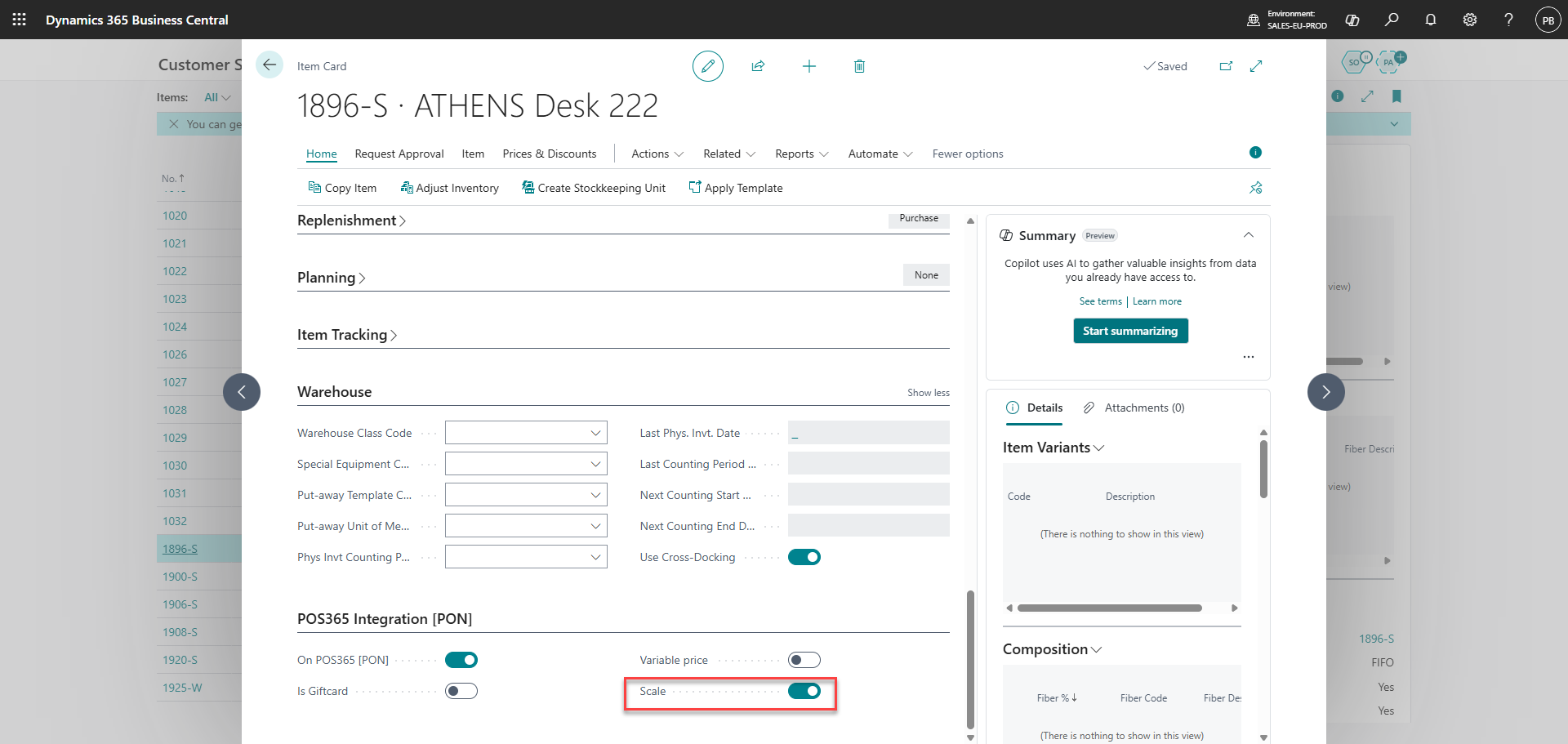
In Business Central, find the item card and scroll down to the bottom of it. Open the POS365 Integration [PON] menu and set 'Scale' to true
After 1-6 minutes, the change will be synchronized to the Admin Center. Once synchronized, the change will be displayed in the 'Scale' field on the item in the Admin Center. To identify this, do as follows:
Step 2:
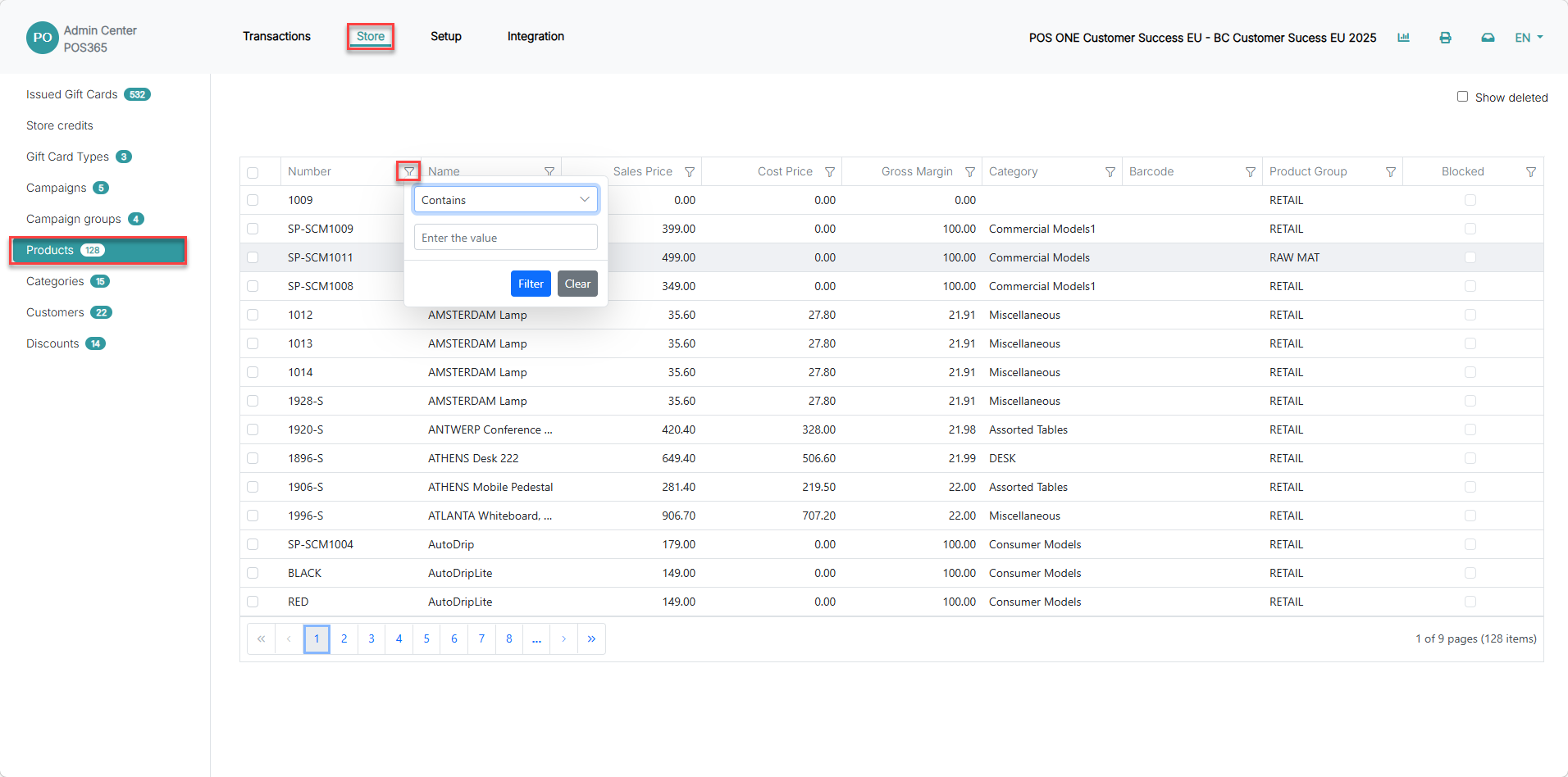
1) Click on 'Store'
2) Open 'Products'
3) Click on the filter icon
Step 3:
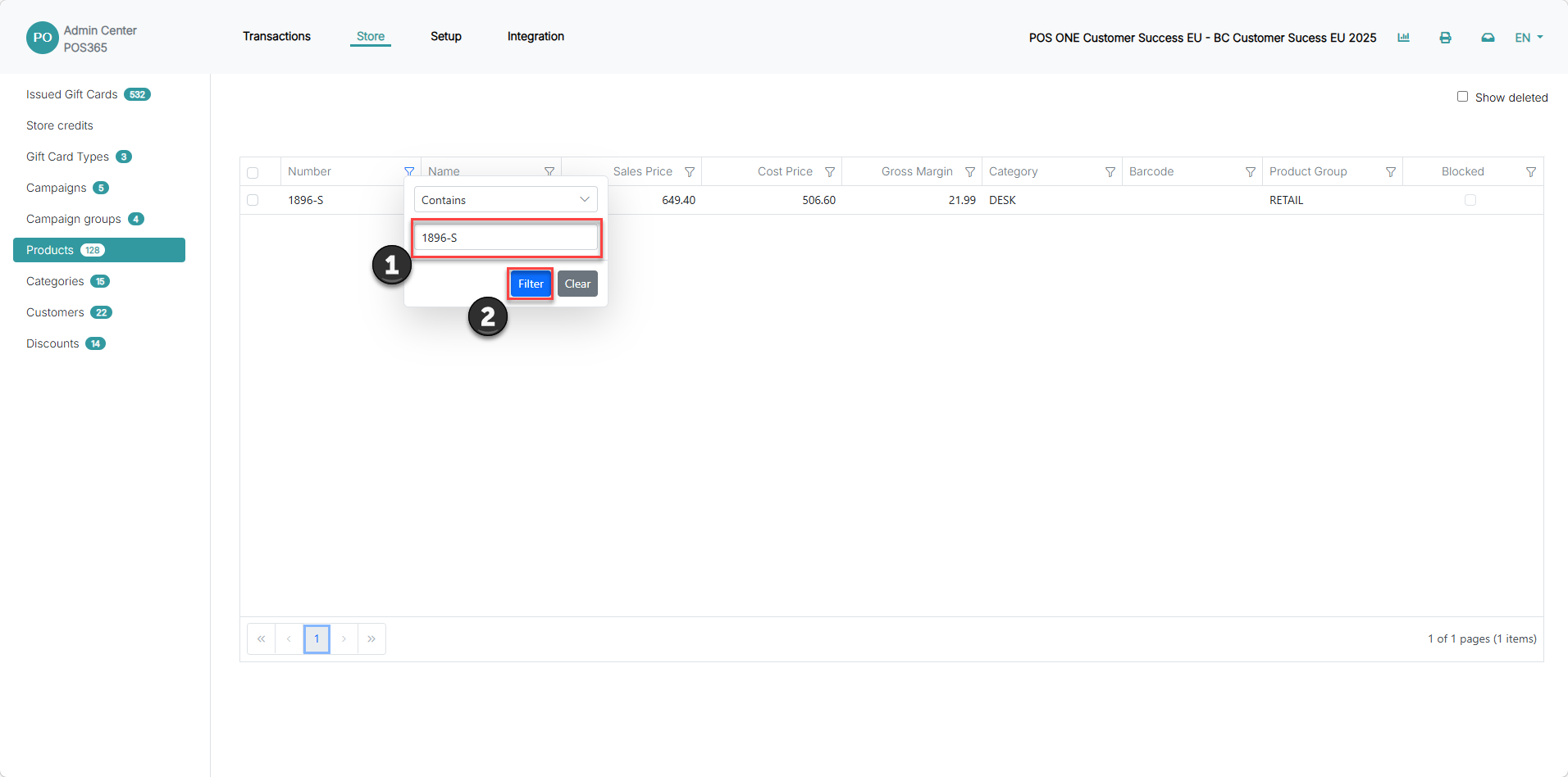
1) Search for the item number
2) Click 'Filter'
Step 4:
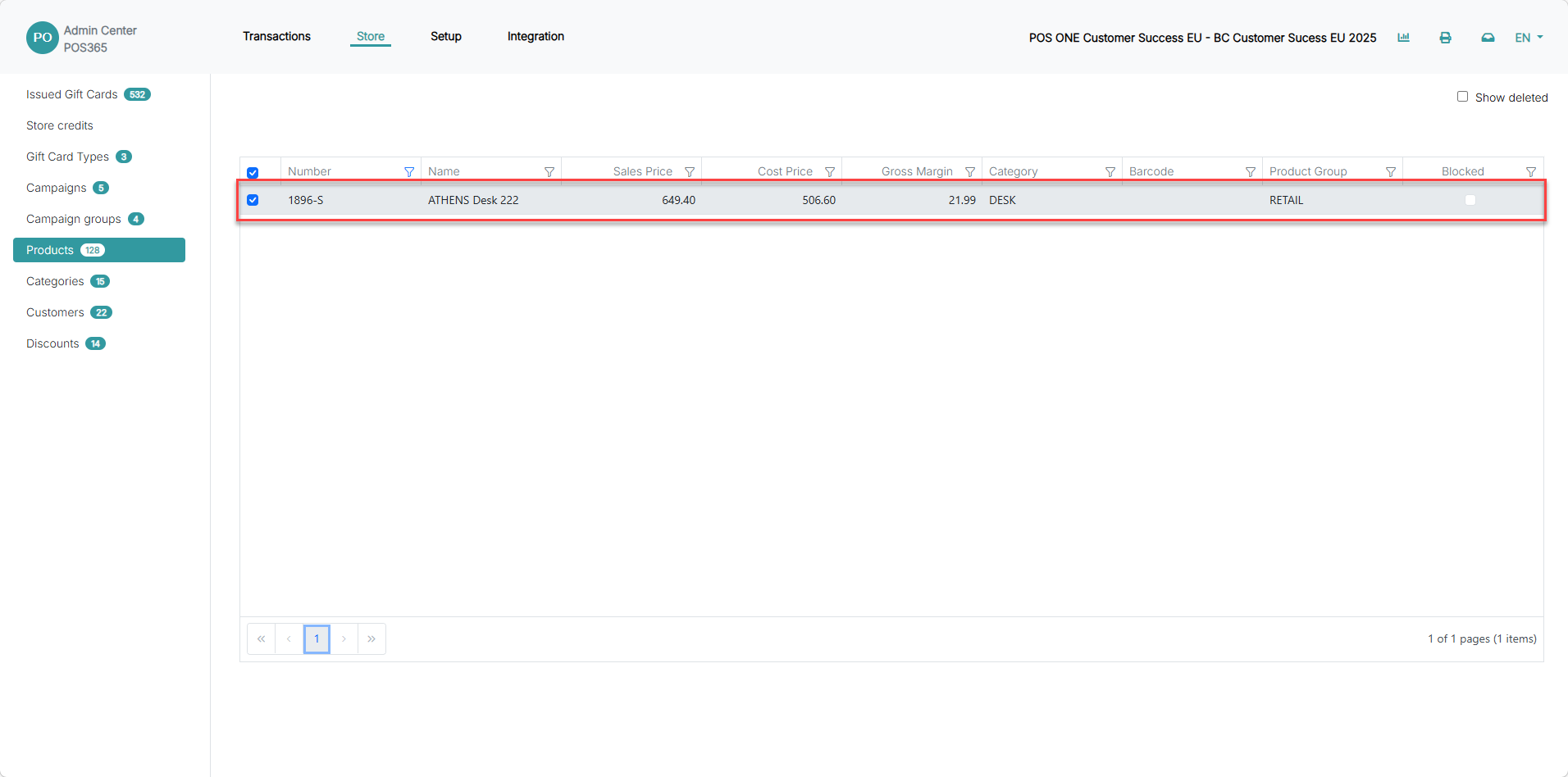
Select the correct item from the list by clicking on it
Step 5:
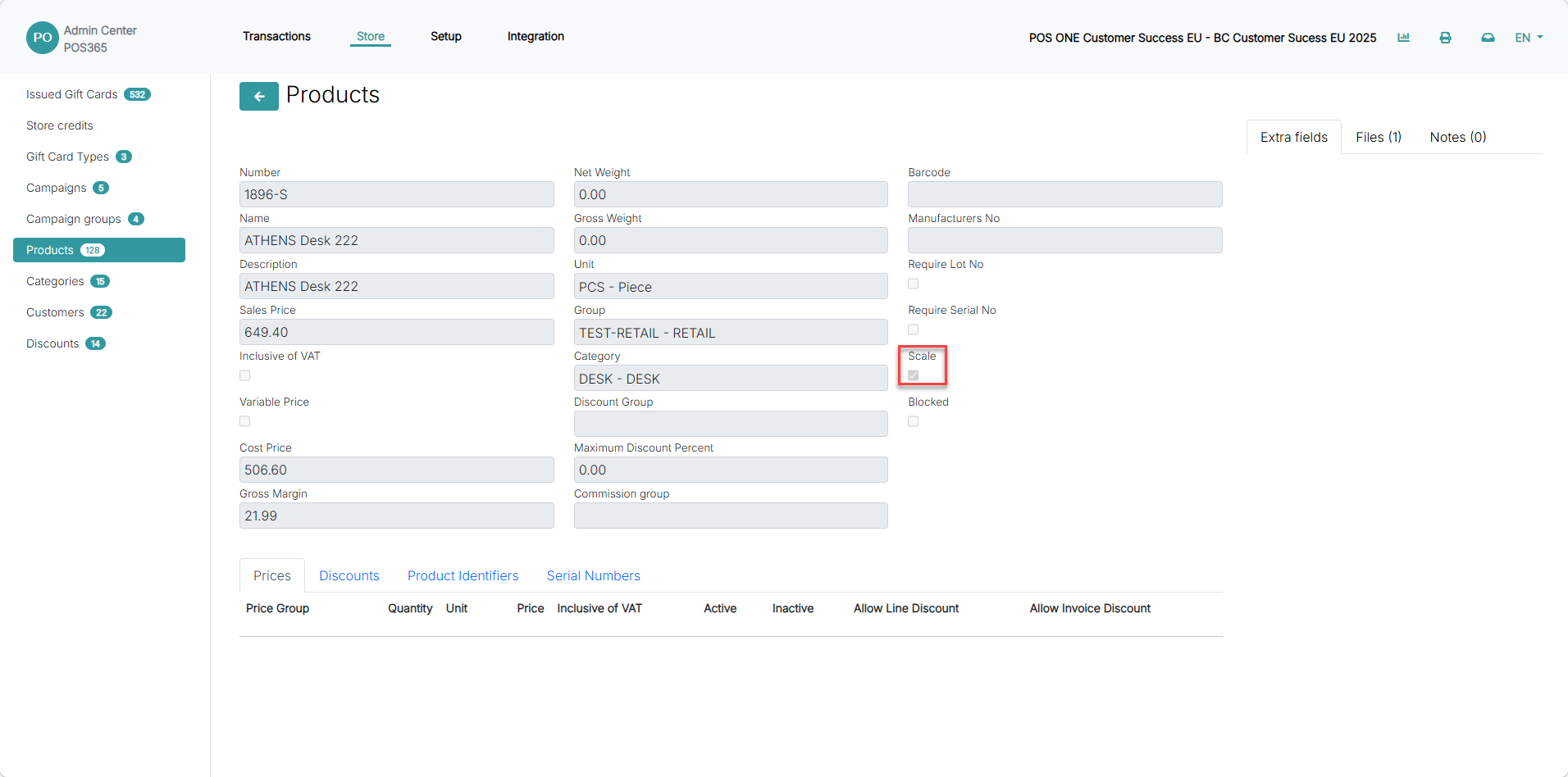
The 'Scale' field is now set to true
Note:
The change requires a restart of POS365. Close and open the app to implement the change
To connect your scale to POS365, follow this guide
To set unit of measure for scales, follow this guide