This guide explains the standard screens layouts in POS365 in depth. The standard screens can be used as templates for building your desired screen layout. Use the dropdowns to read more.
Three standard screens exist:
Category view:
Categories from Business Central are displayed as the main aspect of the screen.
Read more here:
POS365 Default Screen Category Layout
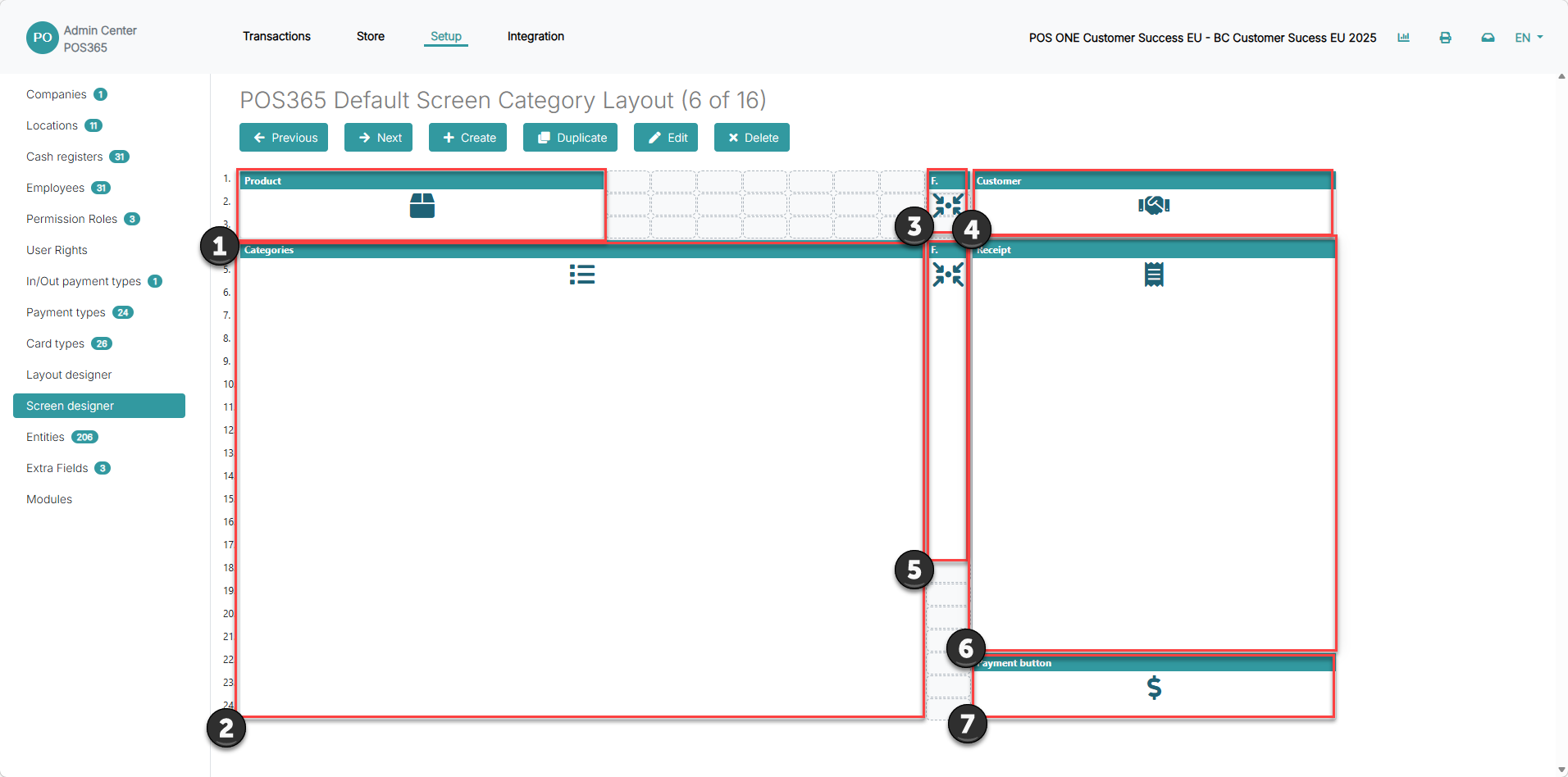
1) Displays information regarding the latest added product
2) Displays all categories synchronized from Business Central as well as the products from the selected category
3) Adds a customer to the receipt
4) Displays customer information of the customer added to the receipt
5) A list of functions available (can be configured by duplicating the standard screen)
6) Displays receipt information, e.g. the items added to the receipt, prices, discounts and more
7) Displays the 'Pay' button
Custom layout view:
Build your own layout for POS365 in the Admin Center and display as the main aspect of the screen.
Read more here:
POS365 Default Screen Custom Layout
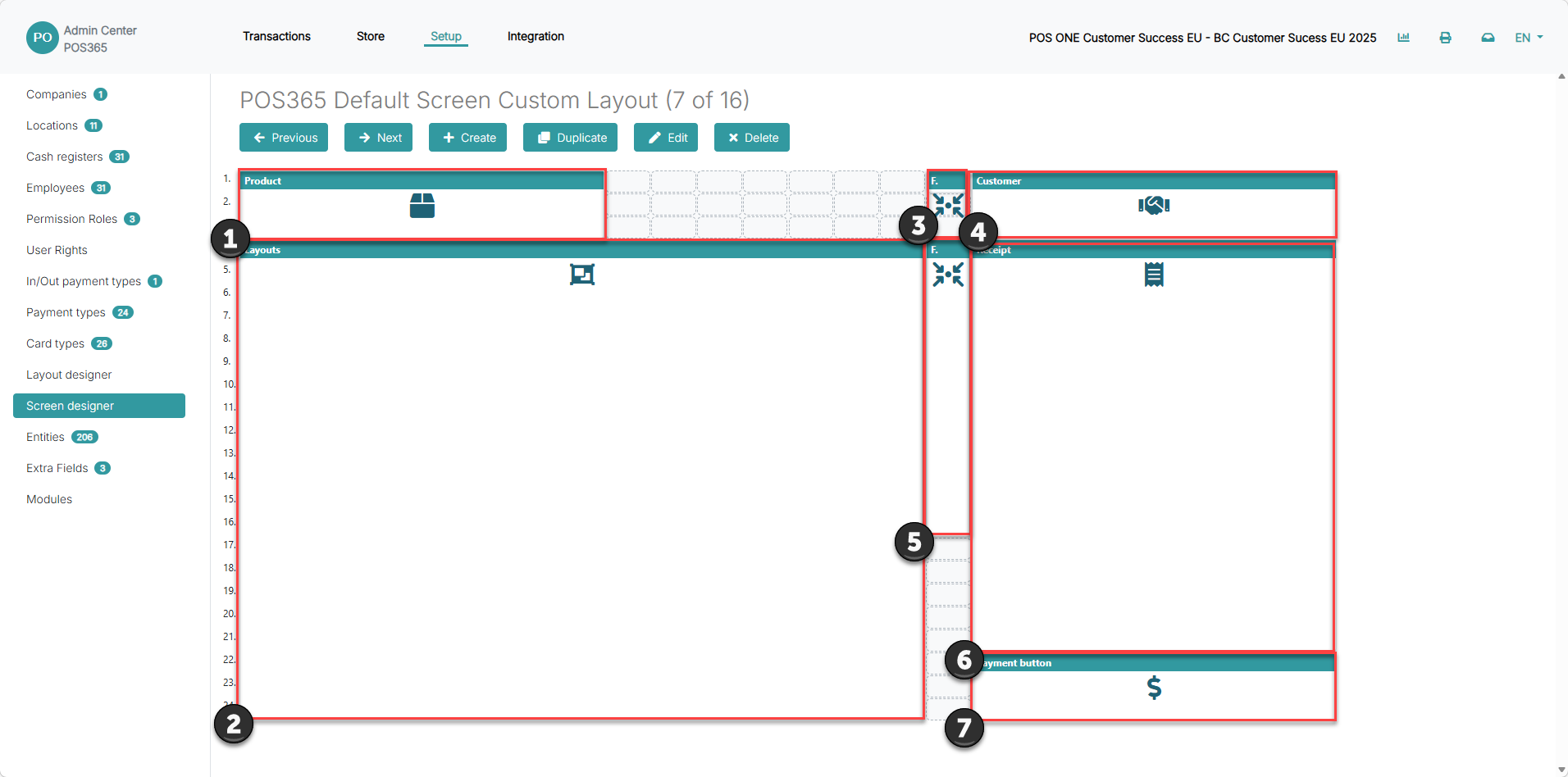
1) Displays information regarding the latest added product
2) Displays the layouts created in the layout designer in the Admin Center
3) Adds a customer to the receipt
4) Displays customer information of the customer added to the receipt
5) A list of functions available (can be configured by duplicating the standard screen)
6) Displays receipt information, e.g. the items added to the receipt, prices, discounts and more
7) Displays the 'Pay' button
Retail view:
The receipt information is displayed as the main aspect of the screen. Furthermore, the function buttons are bigger and the most selling products are displayed.
Read more here:
POS365 Default Screen Retail View
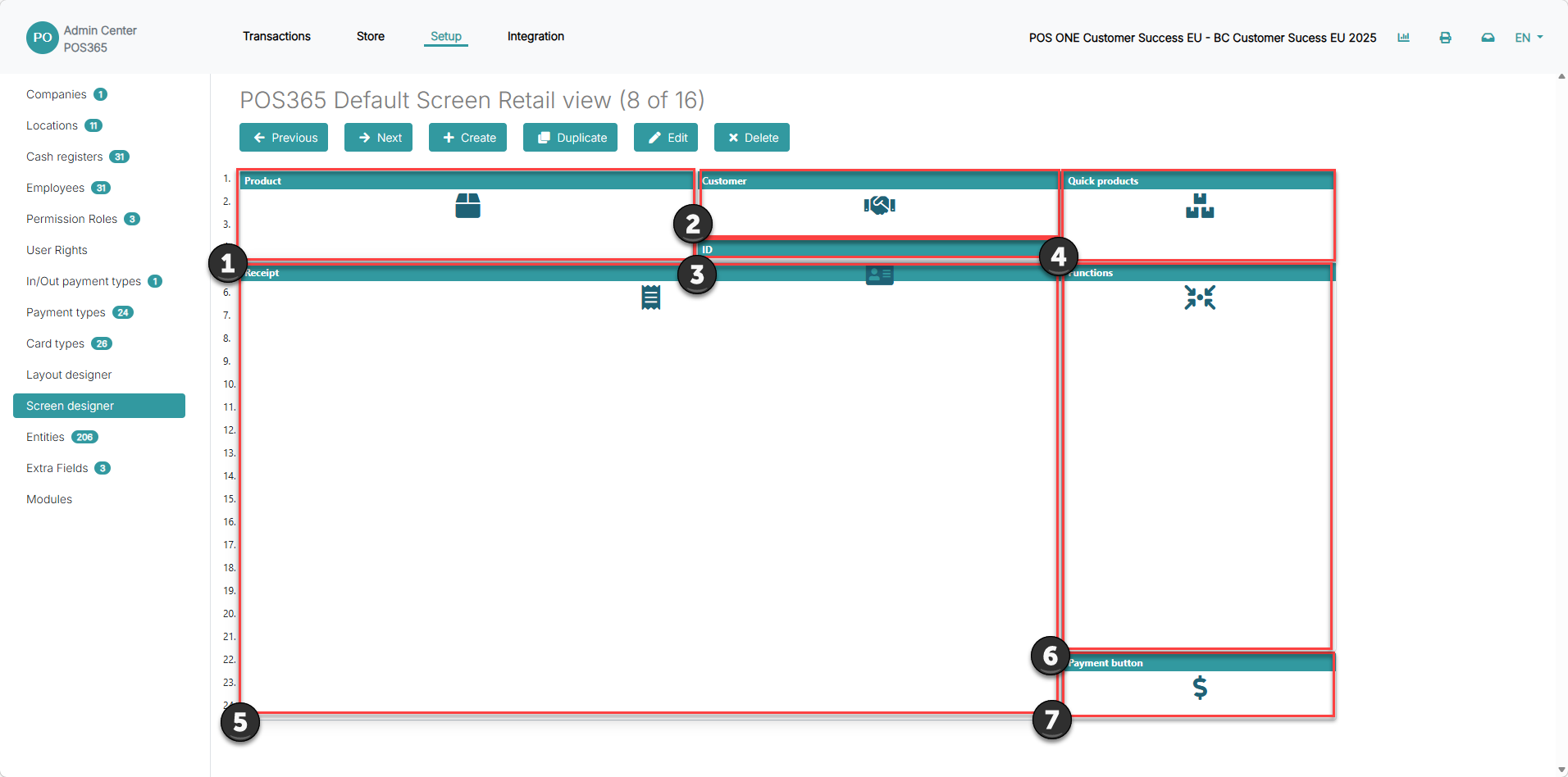
1) Displays information regarding the latest added product
2) Displays customer information of the customer added to the receipt
3) Adds customer reference on transaction
4) Displays most selling products (can be configured by duplicating the standard screen)
5) Displays receipt information, e.g. the items added to the receipt, prices, discounts and more
6) A list of functions available (can be configured by duplicating the standard screen)
7) Displays the 'Pay' button