This guide explains how to set up new currencies for POS365 in Business Central, and how to add them to the cash register, ensuring that you can handle multiple currencies through POS365
Note that exchange rates are used actively and payments are transferred in the base currency.
Step 1:
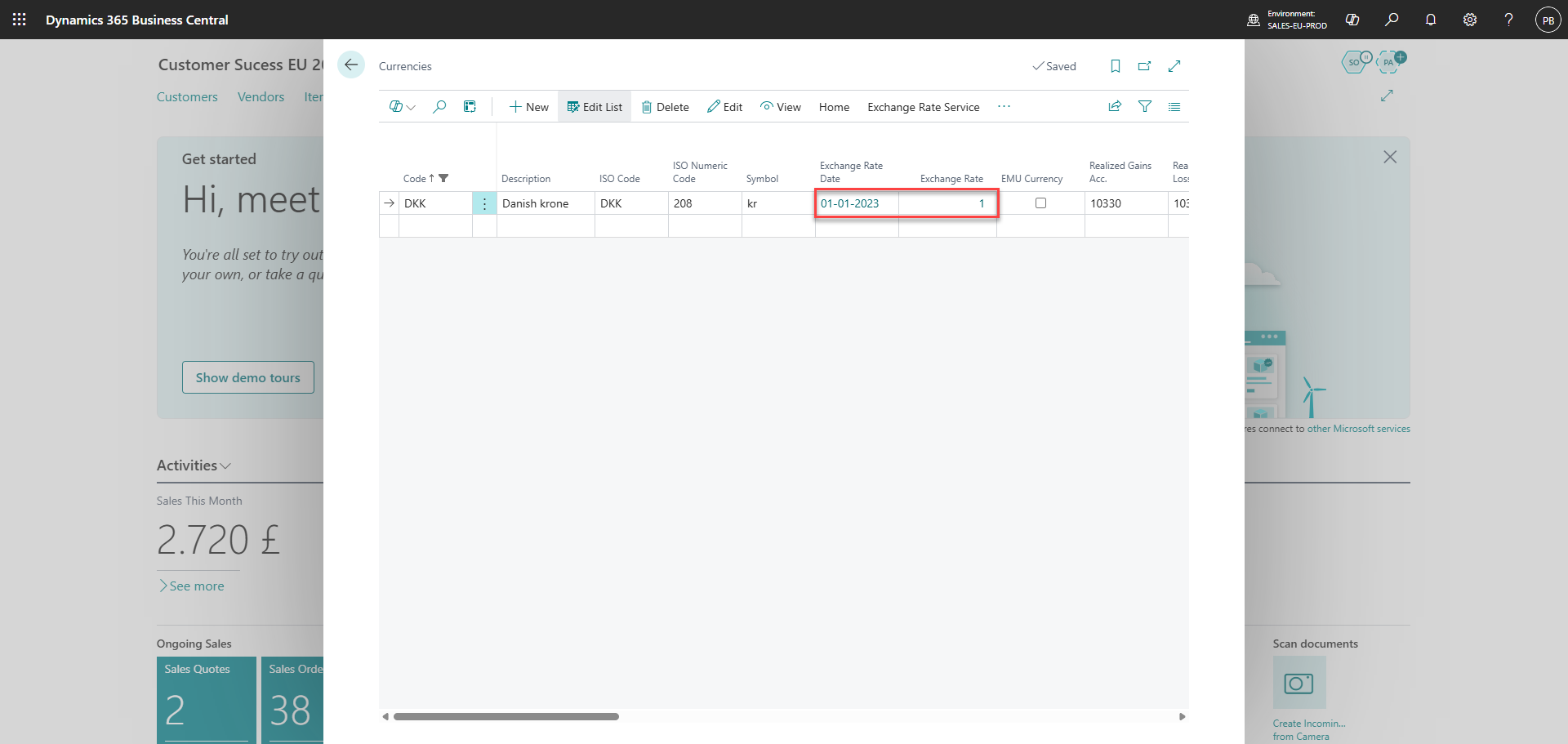
Open 'Currencies' in Business Central and ensure that the currency you wish to add has an 'exchange rate date' and an 'exchange rate'
Step 2:
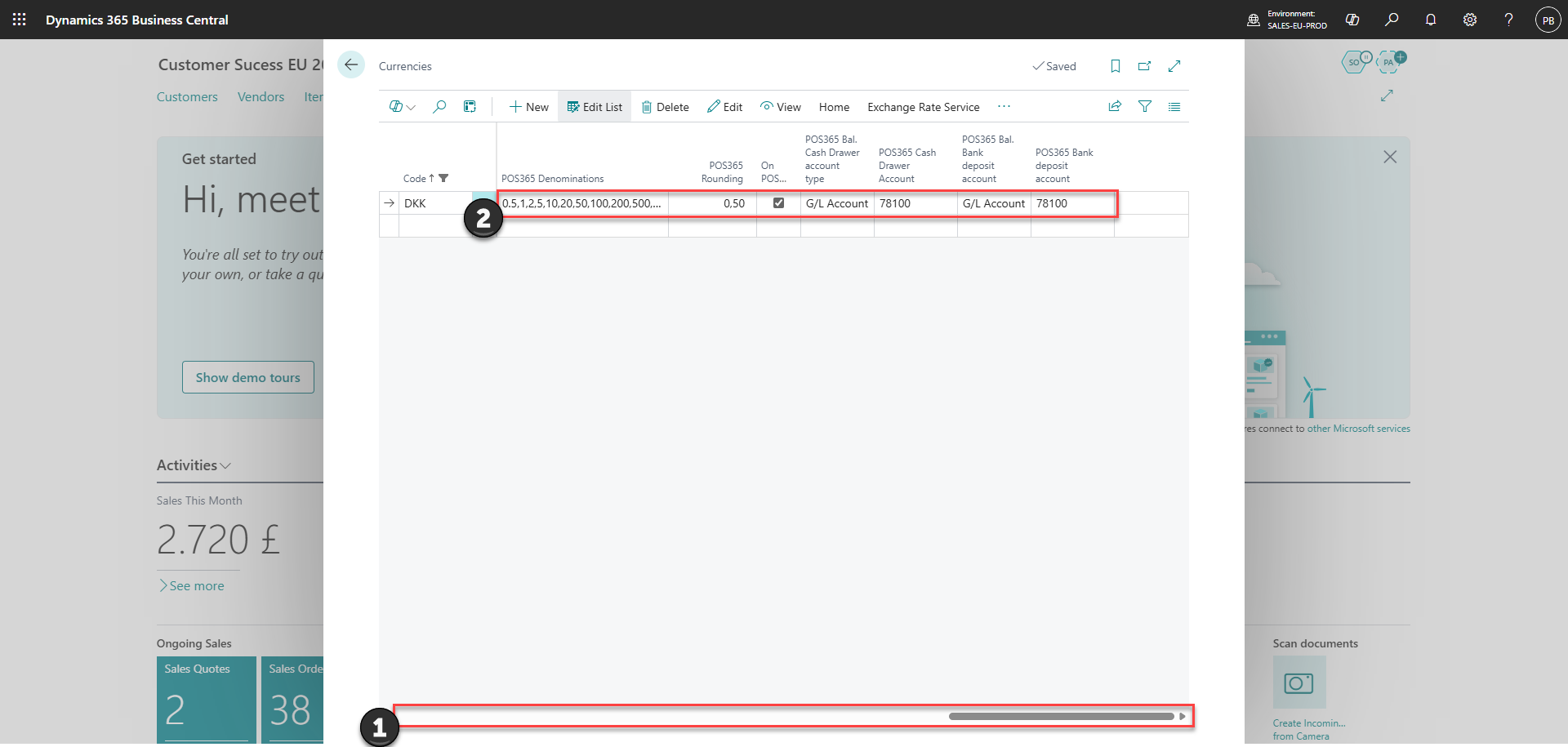
1) Scroll all the way to the right
2) Set up POS365 denominations, rounding, 'On POS', cash drawer account and bank deposit account for the currency
Denominations = All values of cash
Rounding = Set to the lowest denomination
On POS = Ensures that the currency will be synchronized to the Admin Center
Cash account = The account corresponding to your cash register
Bank account = The account corresponding to where you deposit your money after they have been taken from the cash register. This can be a safe or alike
Step 3:
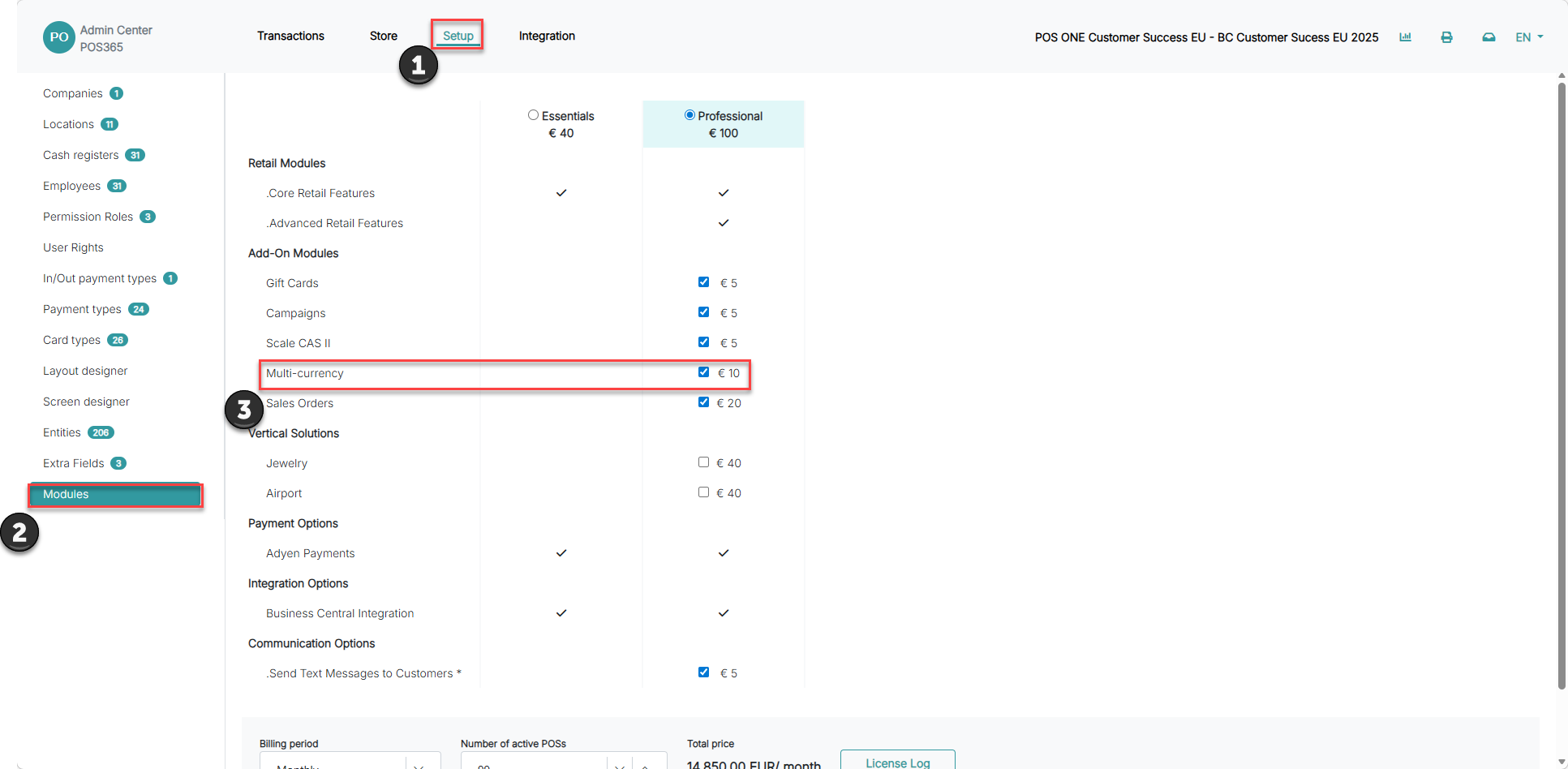
1) Go to 'Setup'
2) Click on 'Modules'
3) Turn on 'Multi-currency'
Step 4:
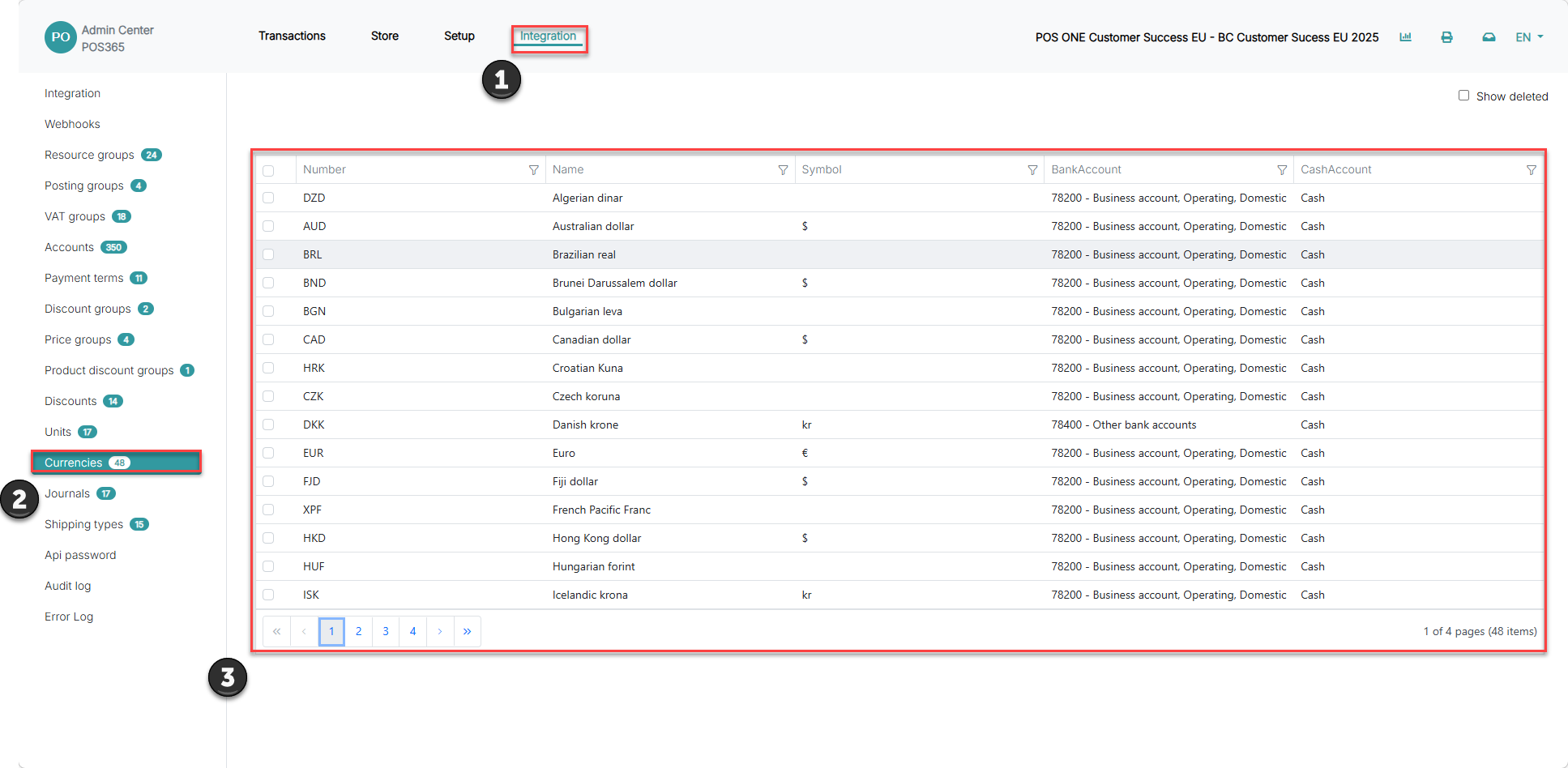
After approximately 5 minutes, the currency has been synchronized to the Admin Center
1) Go to 'Integration'
2) Click on 'Currencies'
3) You can now navigate through all synchronized currencies
Note:
If you want to change the exchange rate used in POS365, update it in Business Central on the currency under 'Exchange Rates'.
For more information, see here:
Update the exchange rate
Step 1:
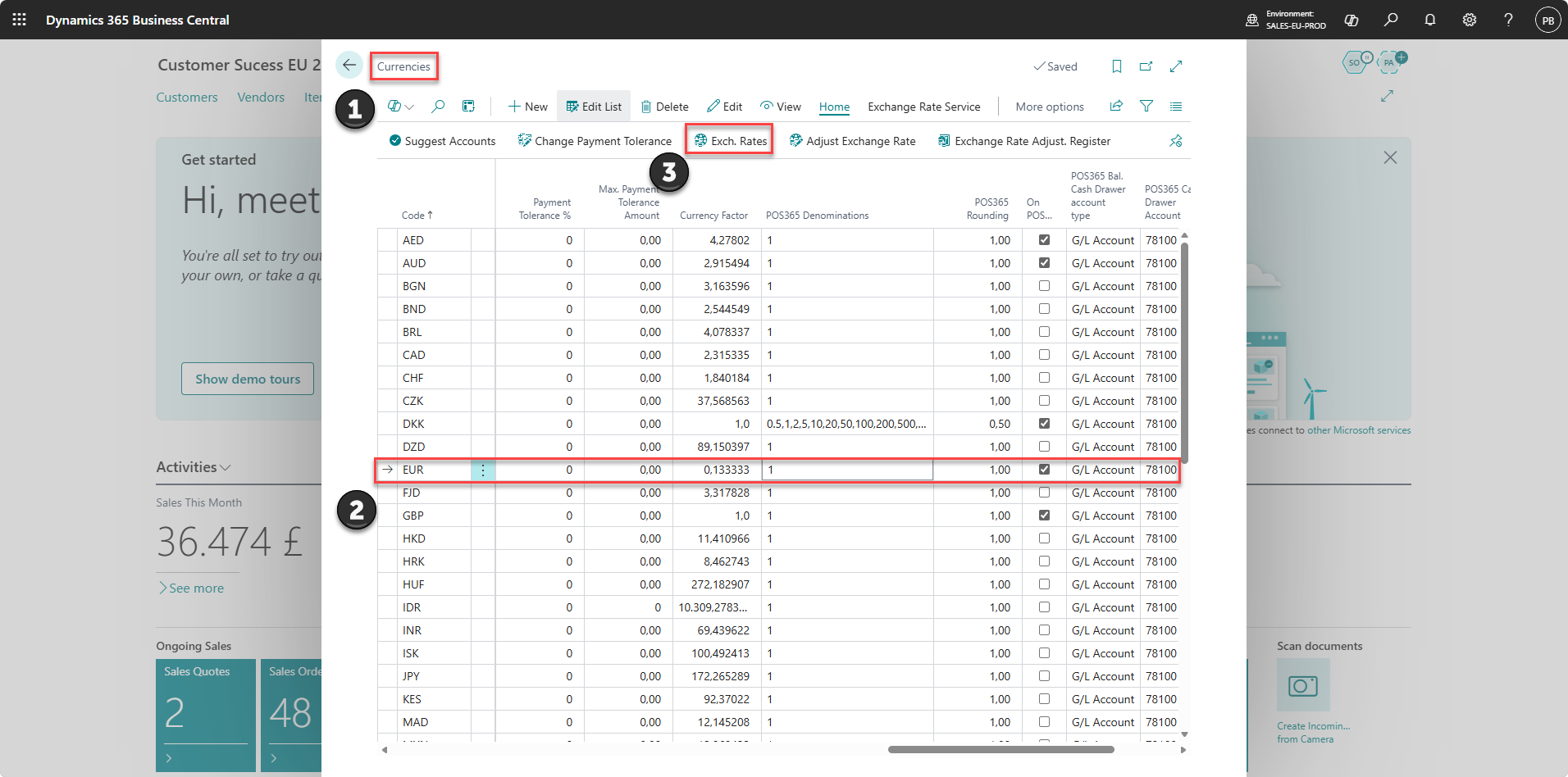
1) Open 'Currencies' in Business Central.
2) Open the relevant currency.
3) Click 'Exchange Rates'.
Step 2:
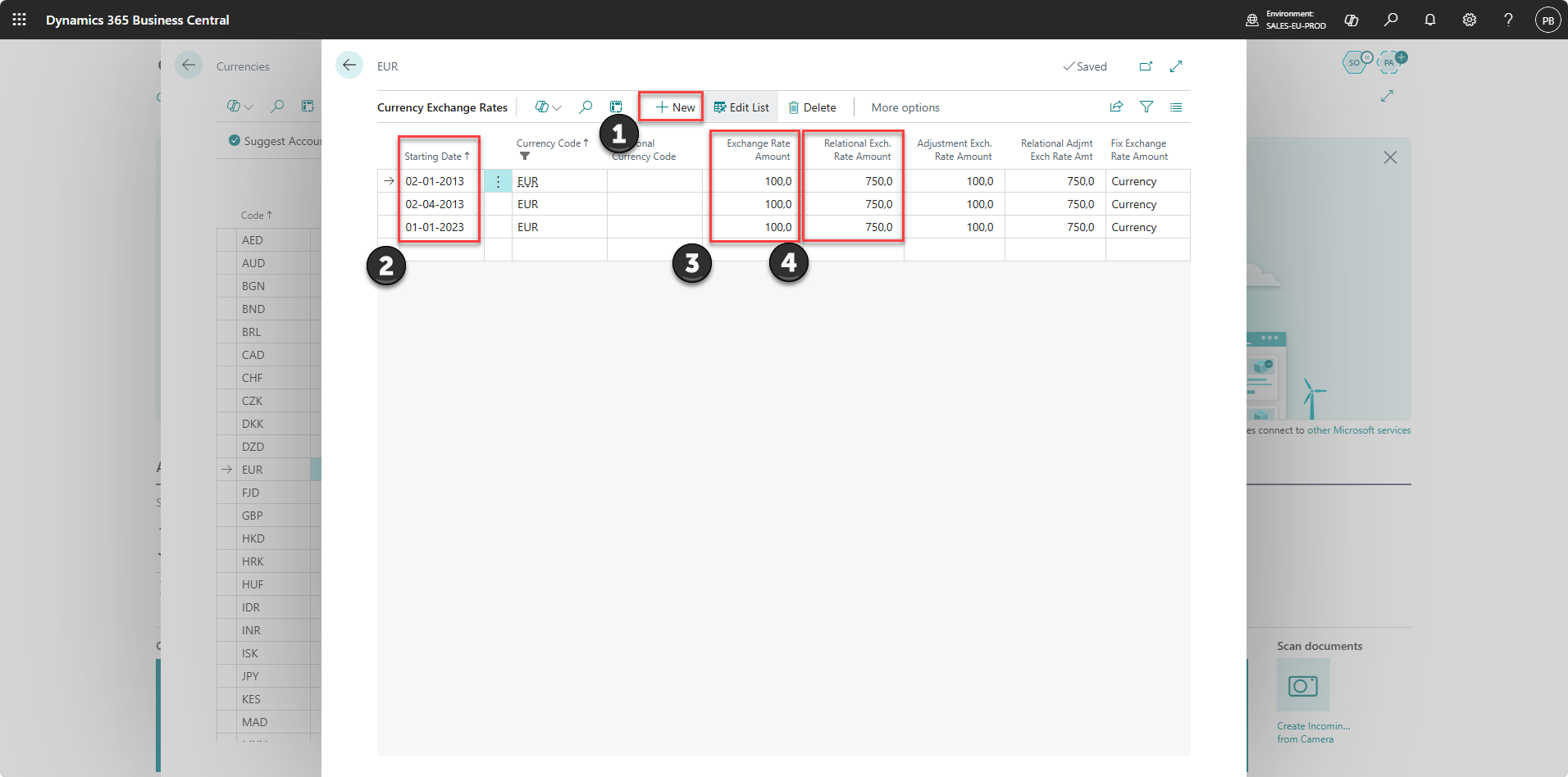
1) Create a new line or edit an existing line.
2) Fill in 'Starting Date'.
- This is the date from which the exchange rate becomes valid.
3) Fill in 'Exchange Rate Amount'.
- This defines how many units of the foreign currency the rate is based on.
4) Fill in 'Relational Exch. Rate Amount'.
- This is the equivalent amount in local currency (LCY) for the Exchange Rate Amount.
Note:
Only the top line is synchronized. Ensure that the correct line is displayed here.