This guide explains how to download and start up the POS365 app, including how to sign in to the cash register for the first time.
Step 1:
Download and install the POS365 app from Microsoft Store
For more information, see here:
Open Microsoft Store and install POS365
Step 1: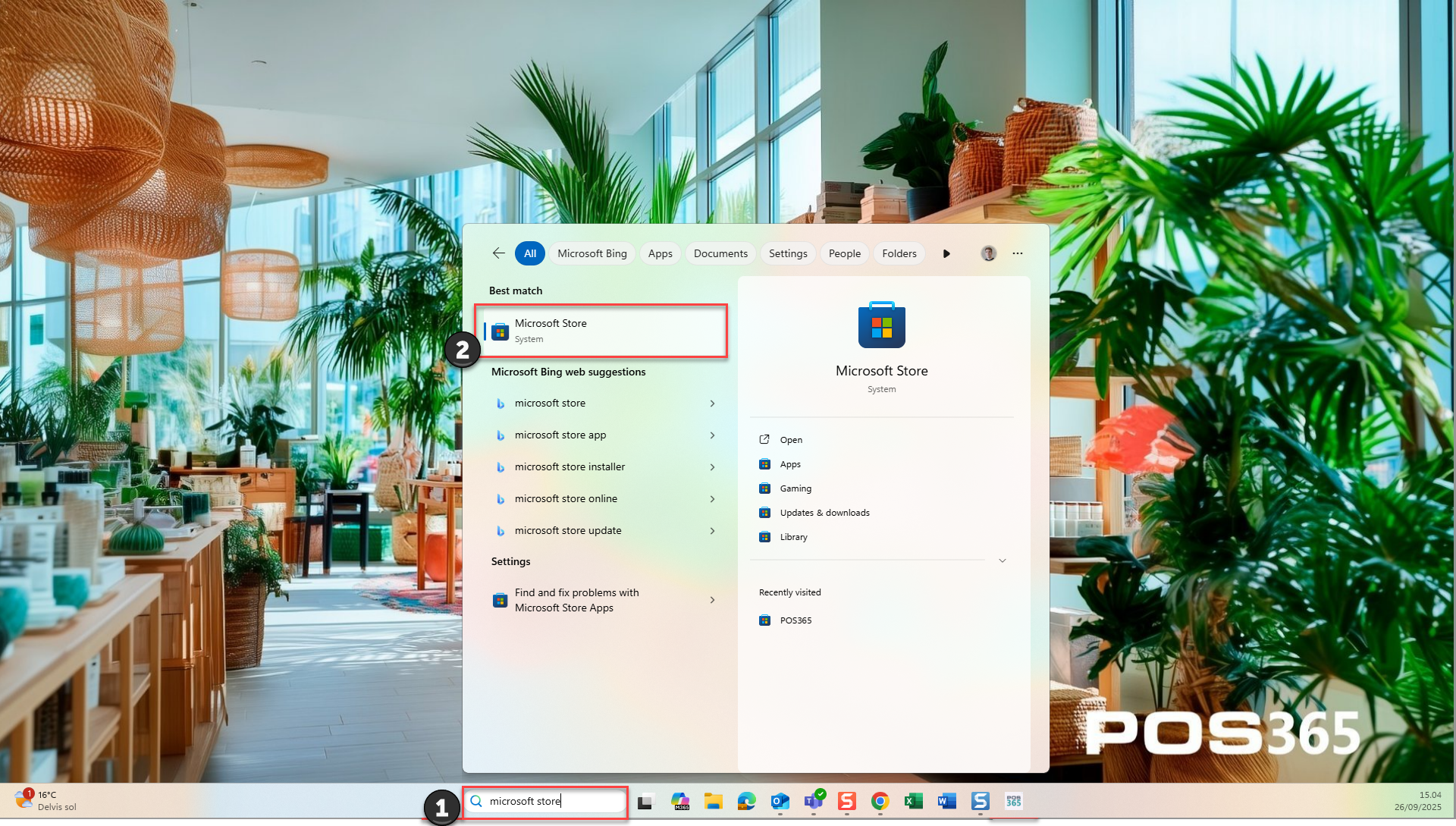
1) Search for "Microsoft Store" in the windows search bar
2) Select the 'Microsoft Store' app
Step 2:
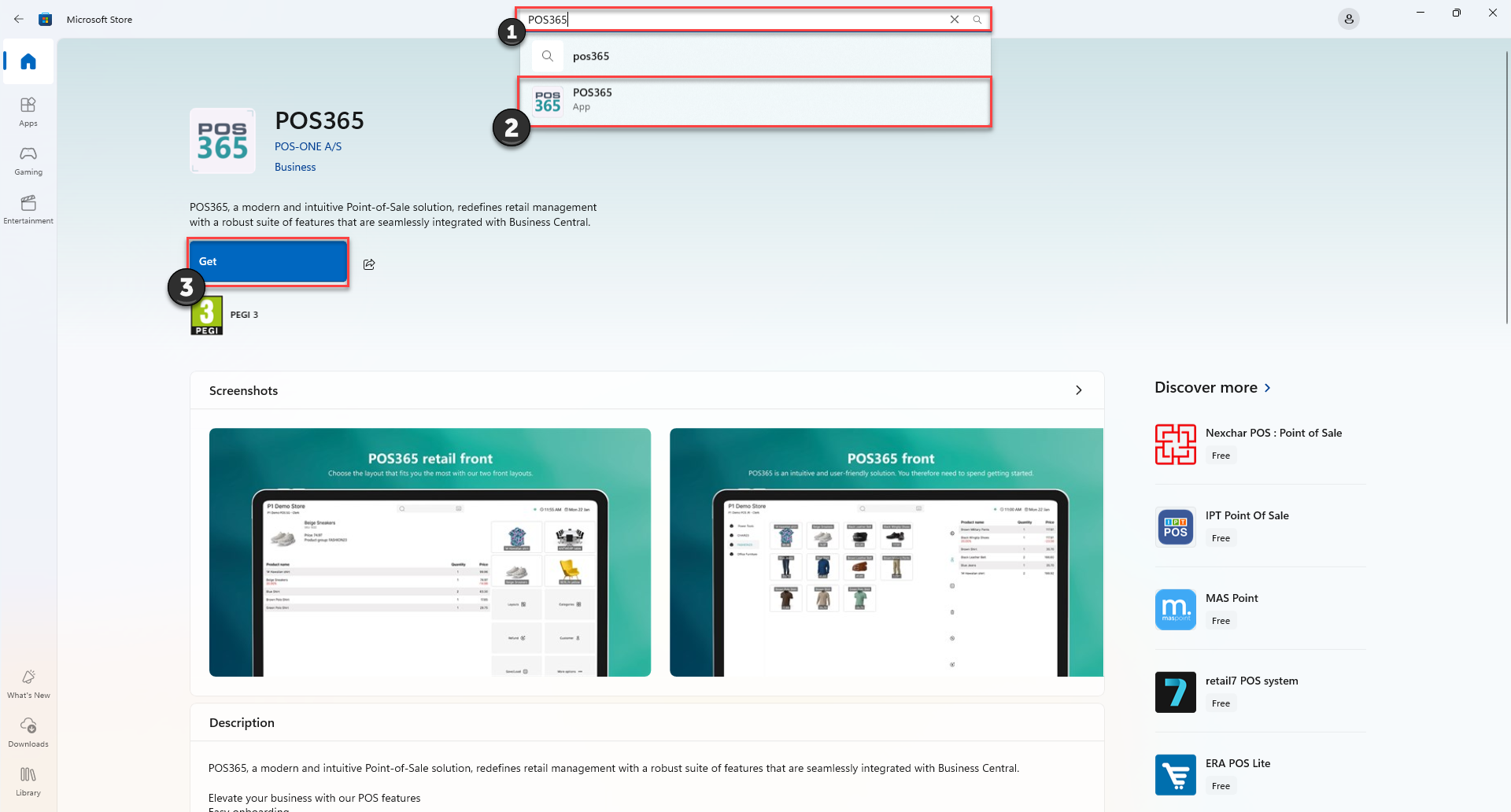
1) Search for 'POS365'
2) Select the POS365 app
3) Click 'Get'
Step 2:
Open the POS365 app
For more information, see here:
Find and start the app
Step 1:
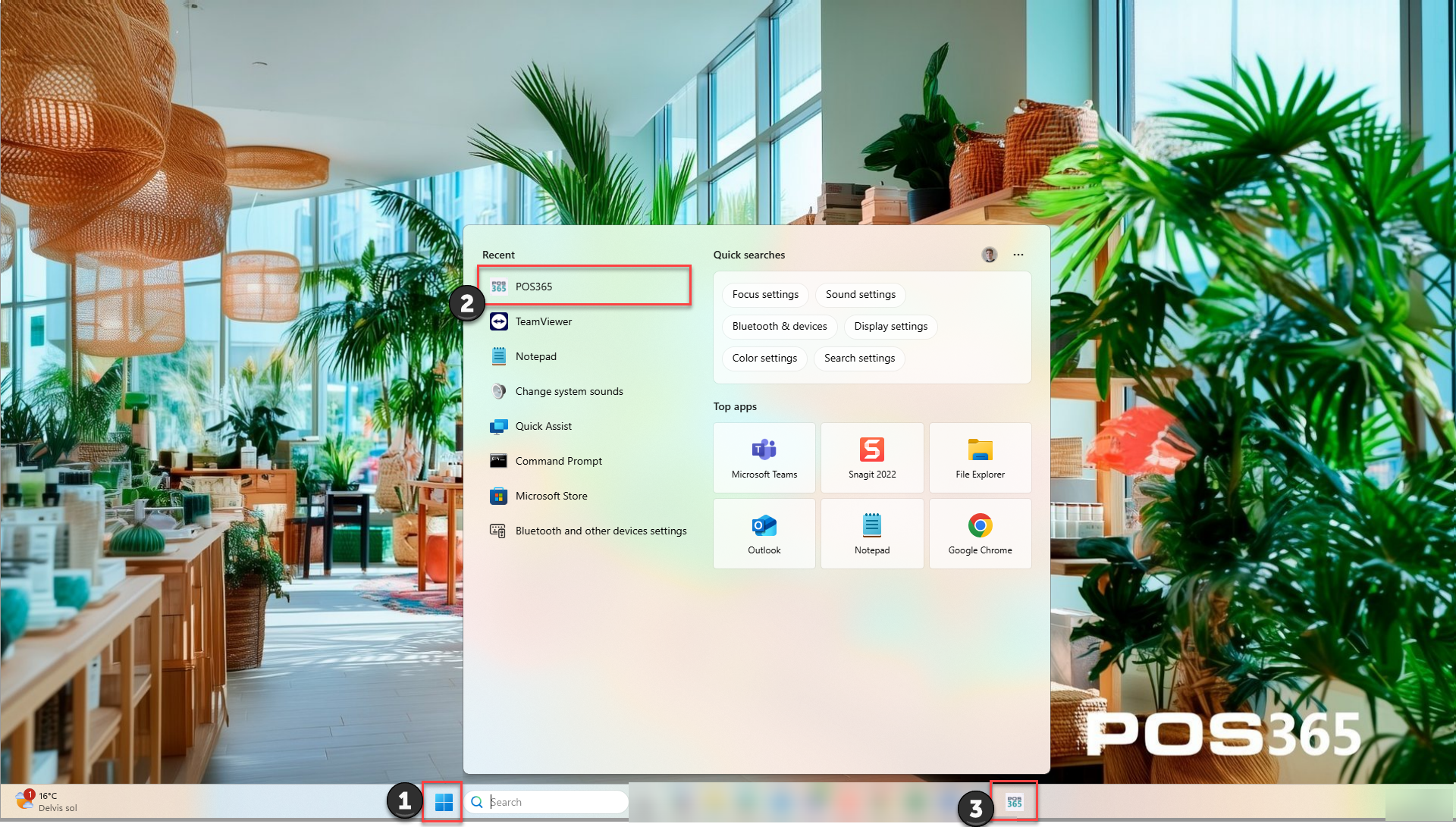
1) Select the Windows menu
2) Search for 'POS365' and open the app. The login screen below will appear
3) If you pinned the application to the taskbar, you can start it from there (right click on the app to pin to taskbar)
Note:
If the app does not start, right-click the application and select Run as administrator. This may be required if a Windows update removed app permissions.
Step 3:
Sign in to POS365 using an email who has access to the Admin Center & a 6-digit PIN code that will be sent to your email
For more information, see here:
Select hosting region and sign in with a PIN
Step 1:

Select the hosting region closest to you.
Step 2:

Enter your e-mail associated with the POS365 Admin Center and click Send PIN. You will receive a temporary 6-digit PIN via email.
Step 3:
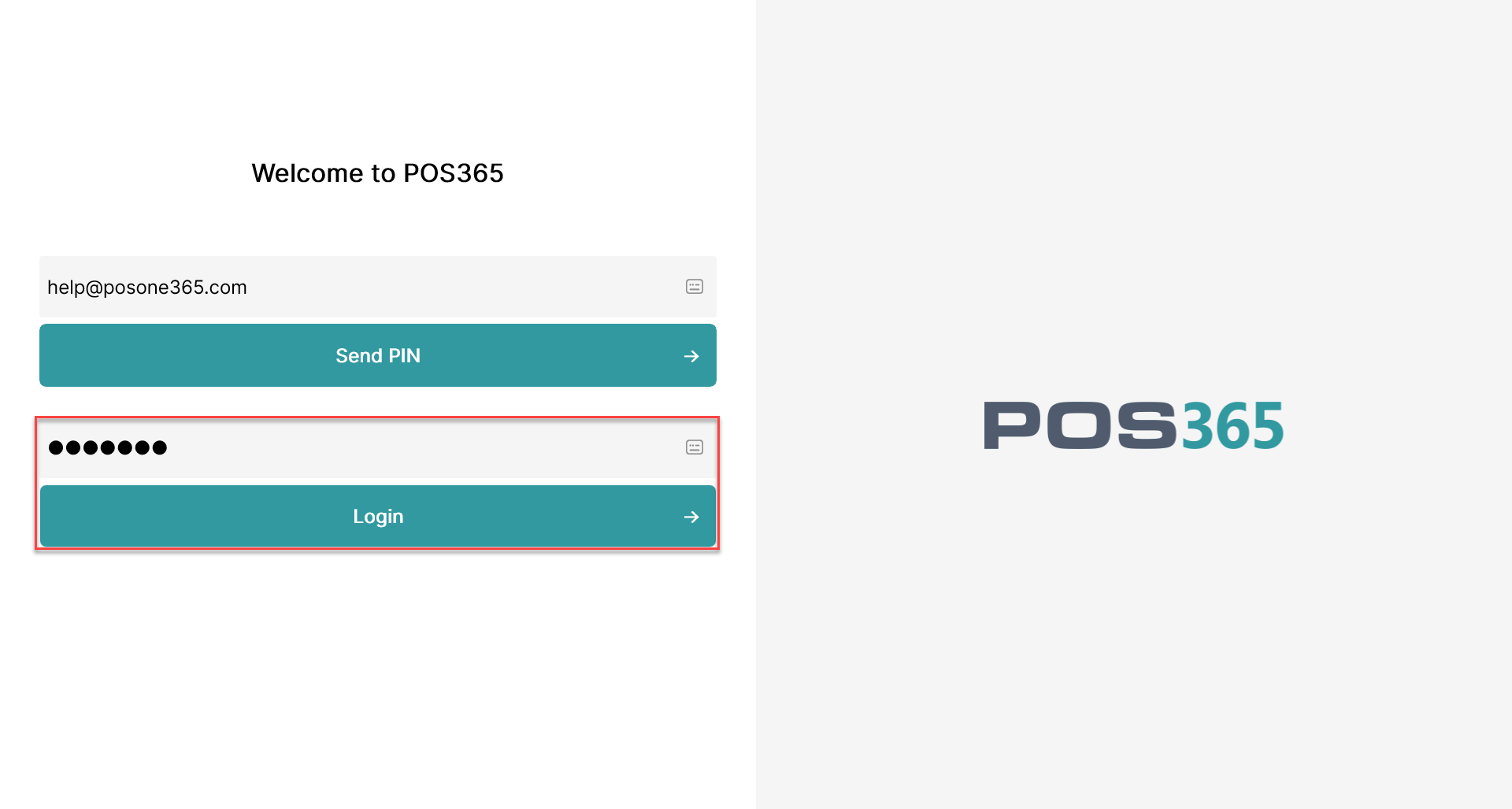
Enter the temporary PIN and click Login.
Step 4:
Select company, location, and cash
For more information, see here:
Choose where to sign in
Step 1:
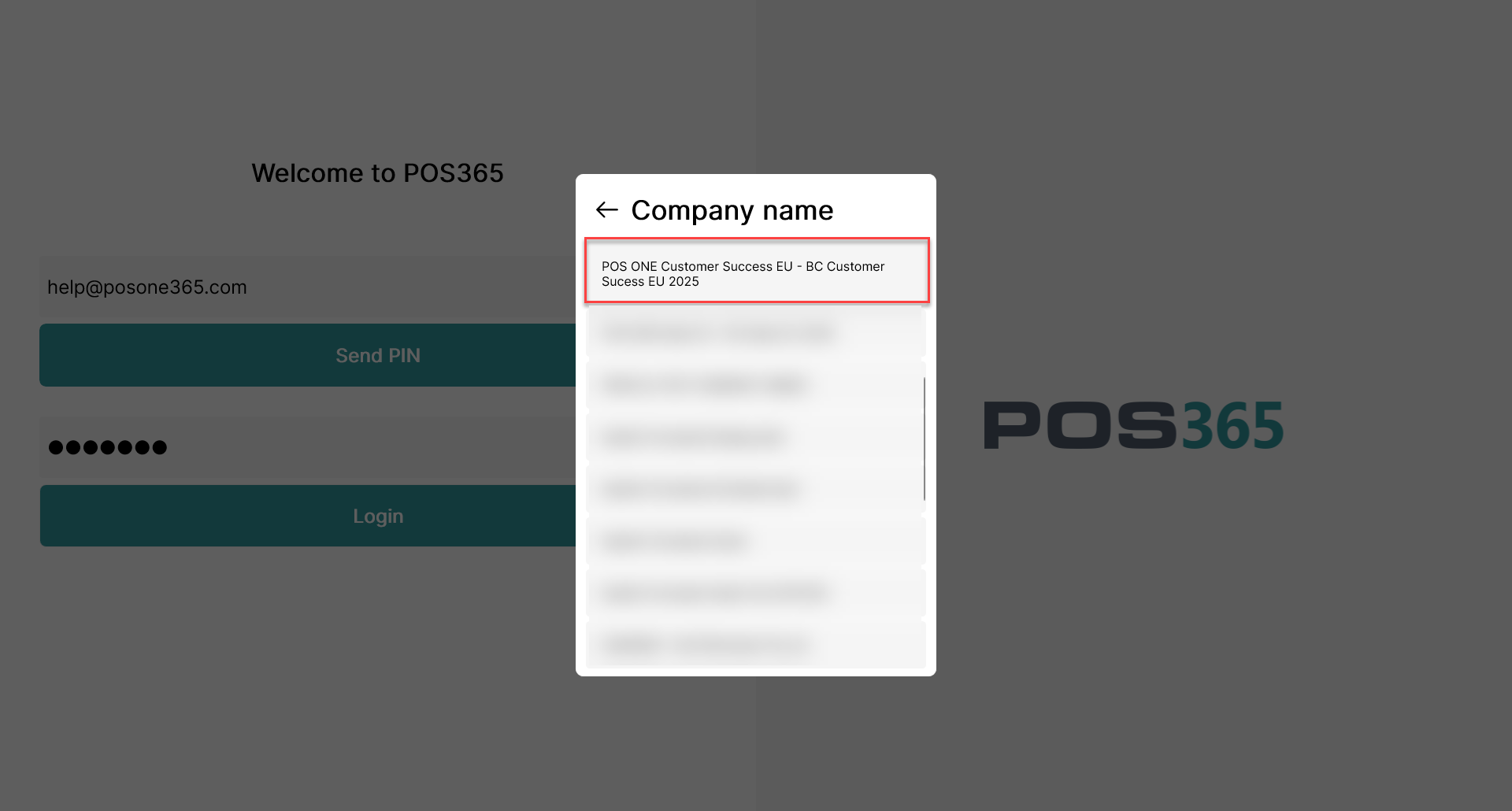
Select your company from the list of companies linked to your email.
Step 2:
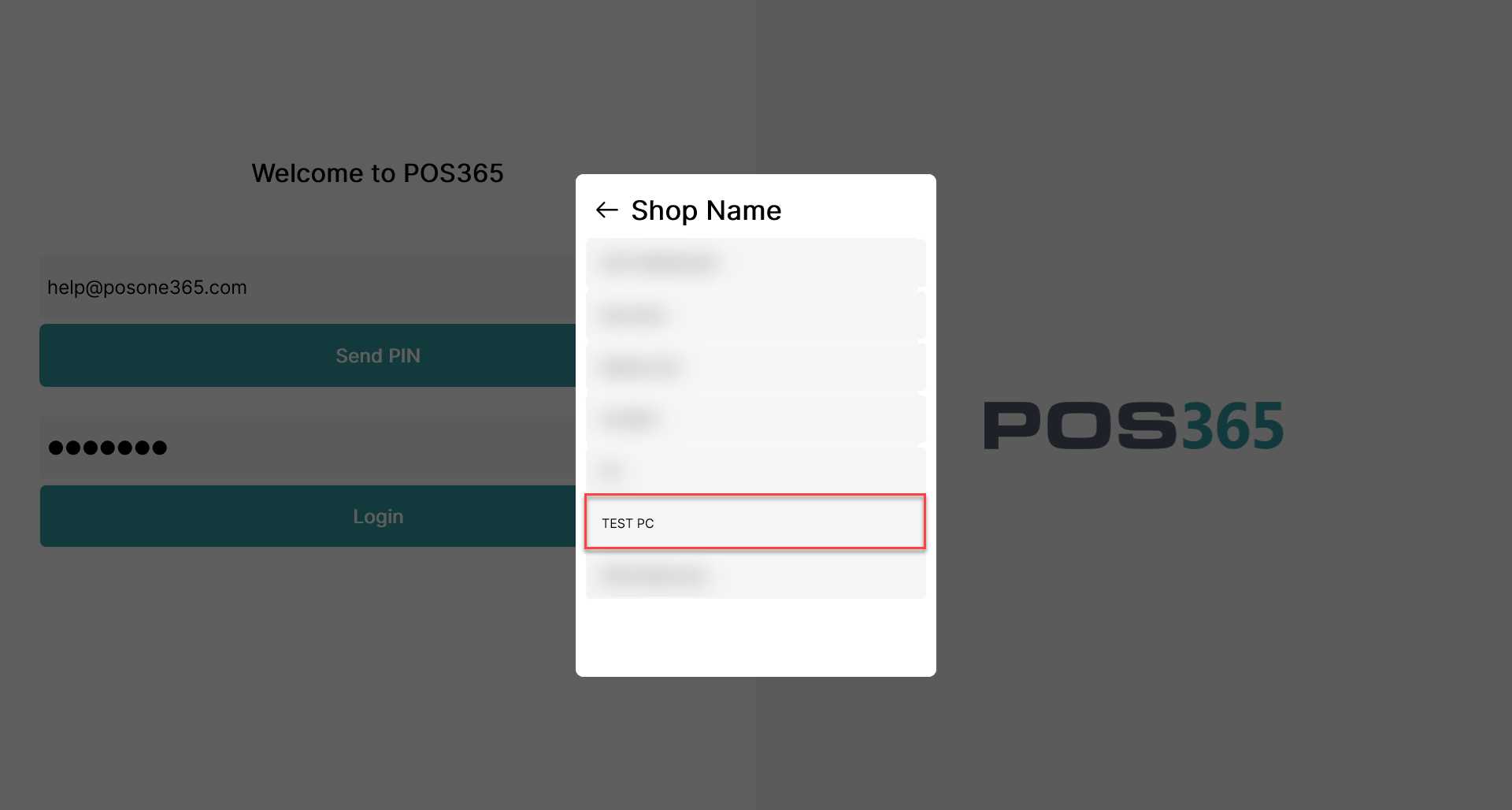
Choose the correct POS location
Step 3:
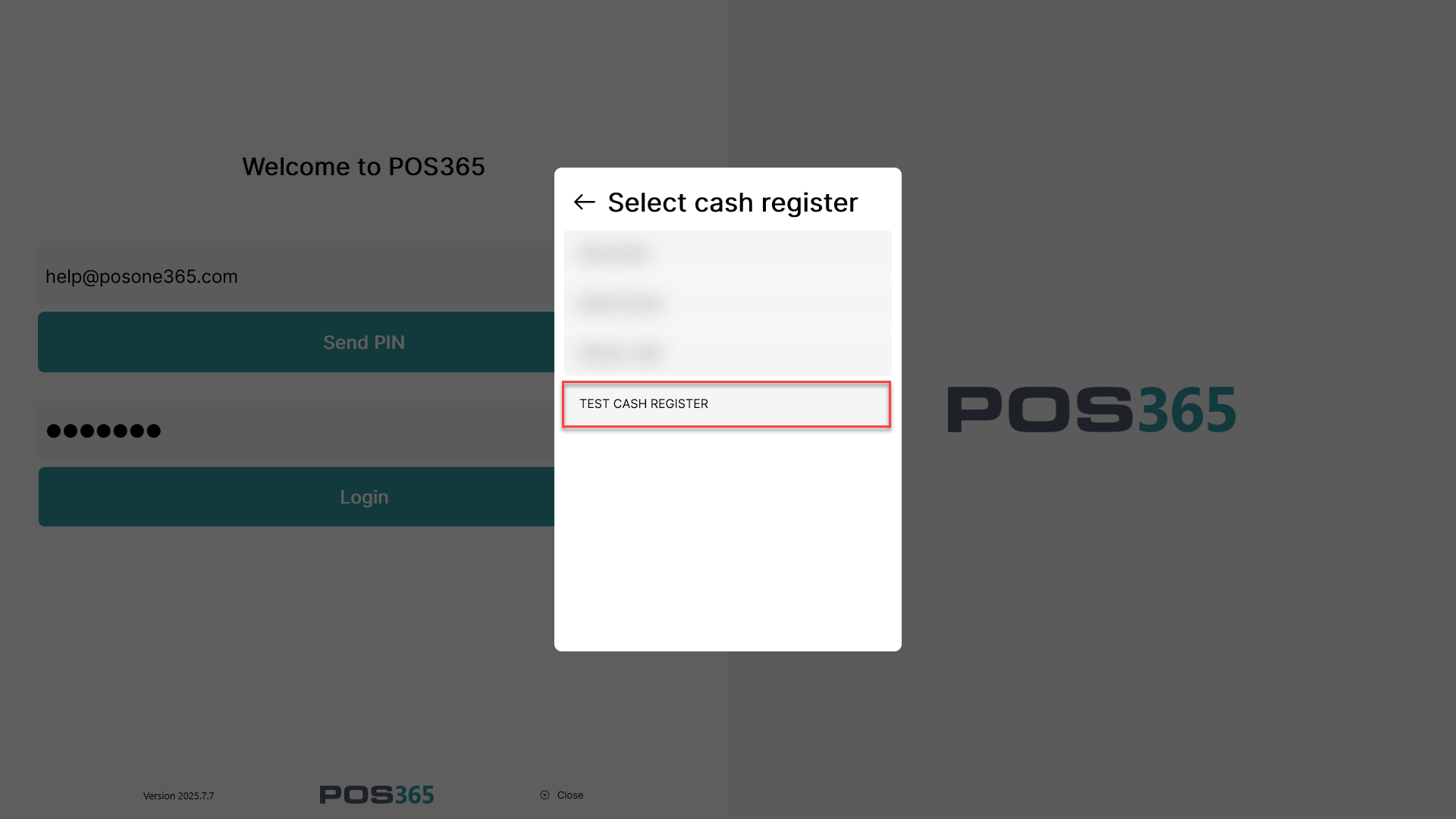
Select the appropriate cash register for that location
Step 5:
Log in as an employee. The employee password is set in the Admin Center
For more information, see here:
Complete the login process
Step 1:

Find the employee you wish to sign in as from the list.
Step 2:
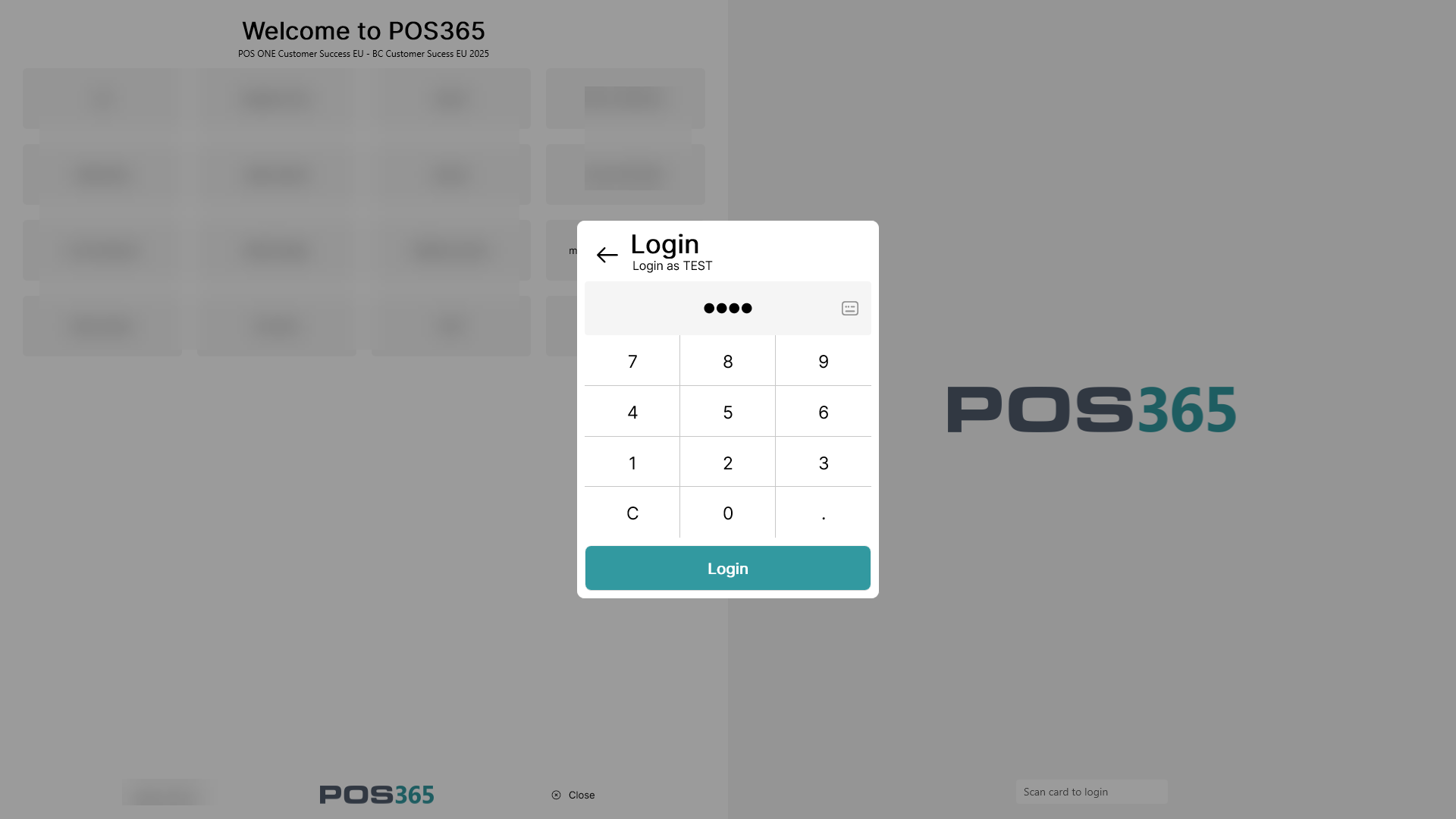
Enter the employee password and click Login.
Note:
The employee password is set in the Admin Center. To update it, go to the employee profile in the Admin Center, click menu → change password.