This guide explains how to view and update the order status in Business Central through POS365, making you able to post orders automatically in Business Central once an order has been fully paid.
Step 1:
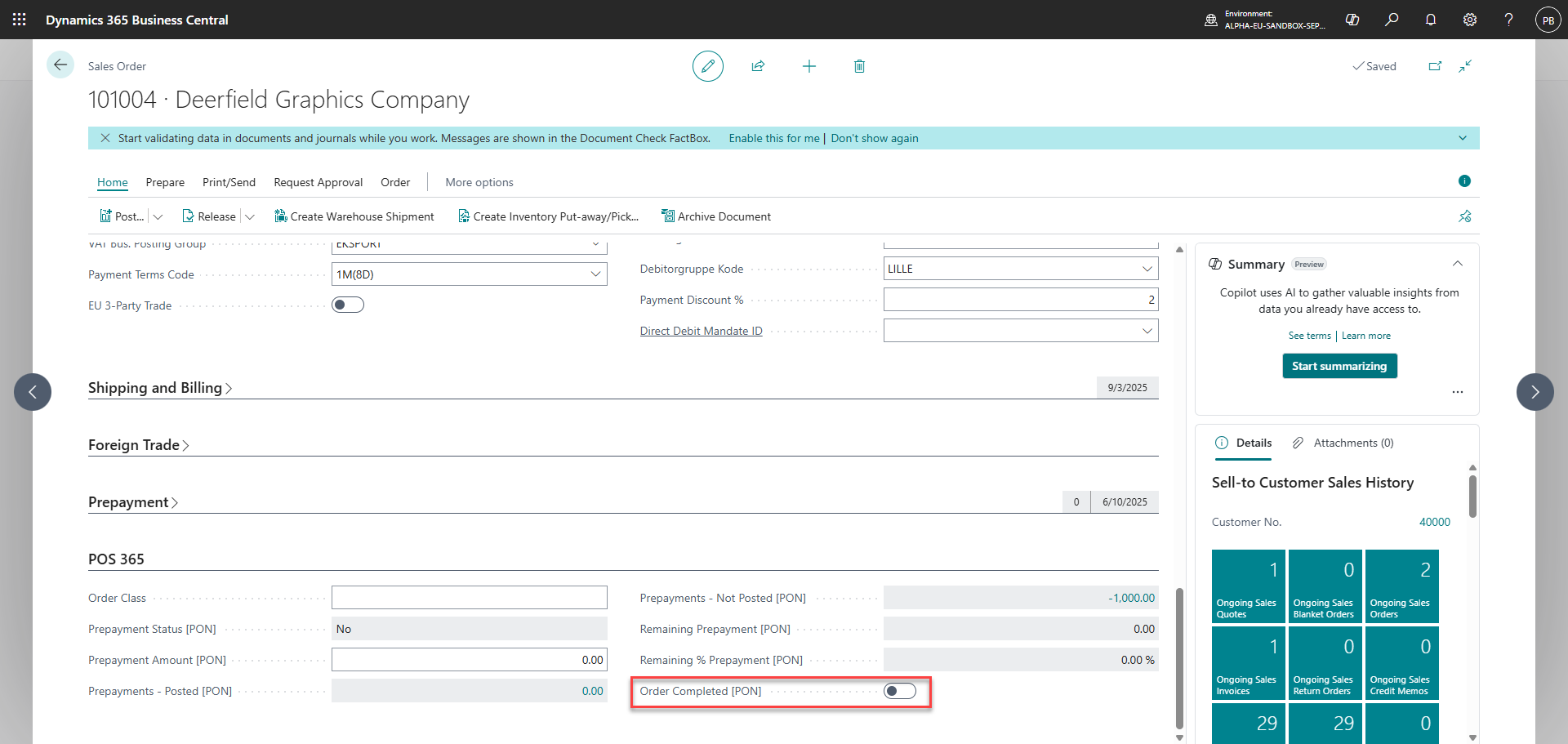
On an order that has not been fully paid, the field 'Order Completed [PON]' on the Sales Order, will not be checked
Step 2:
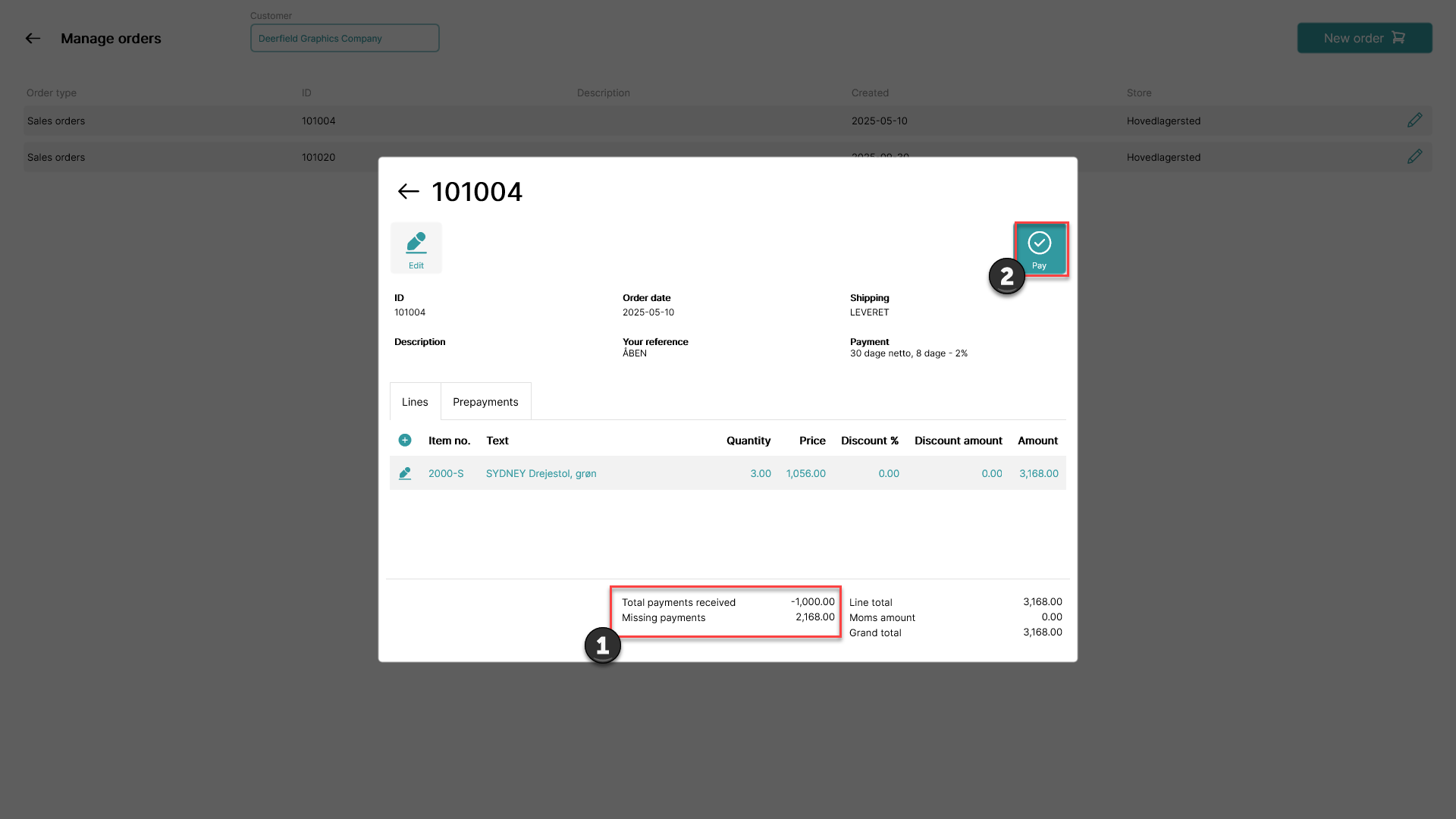
1) If that order is found in POS365, the missing payments as well as total payments received will be shown on the order
2) If you wish to pay for the order, click 'Pay'
Step 3:
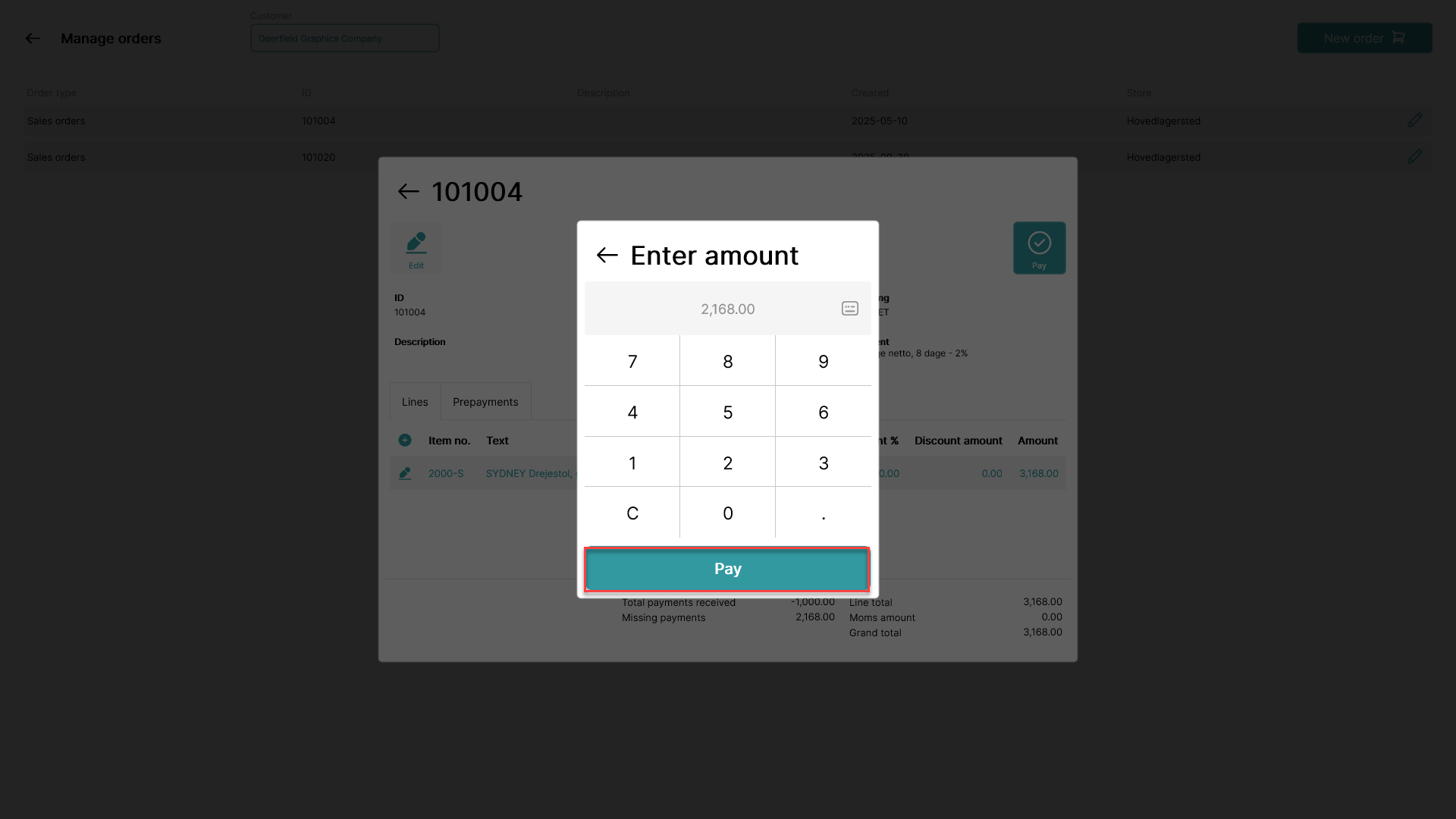
Click 'Pay' if you want to complete the order
Step 4:
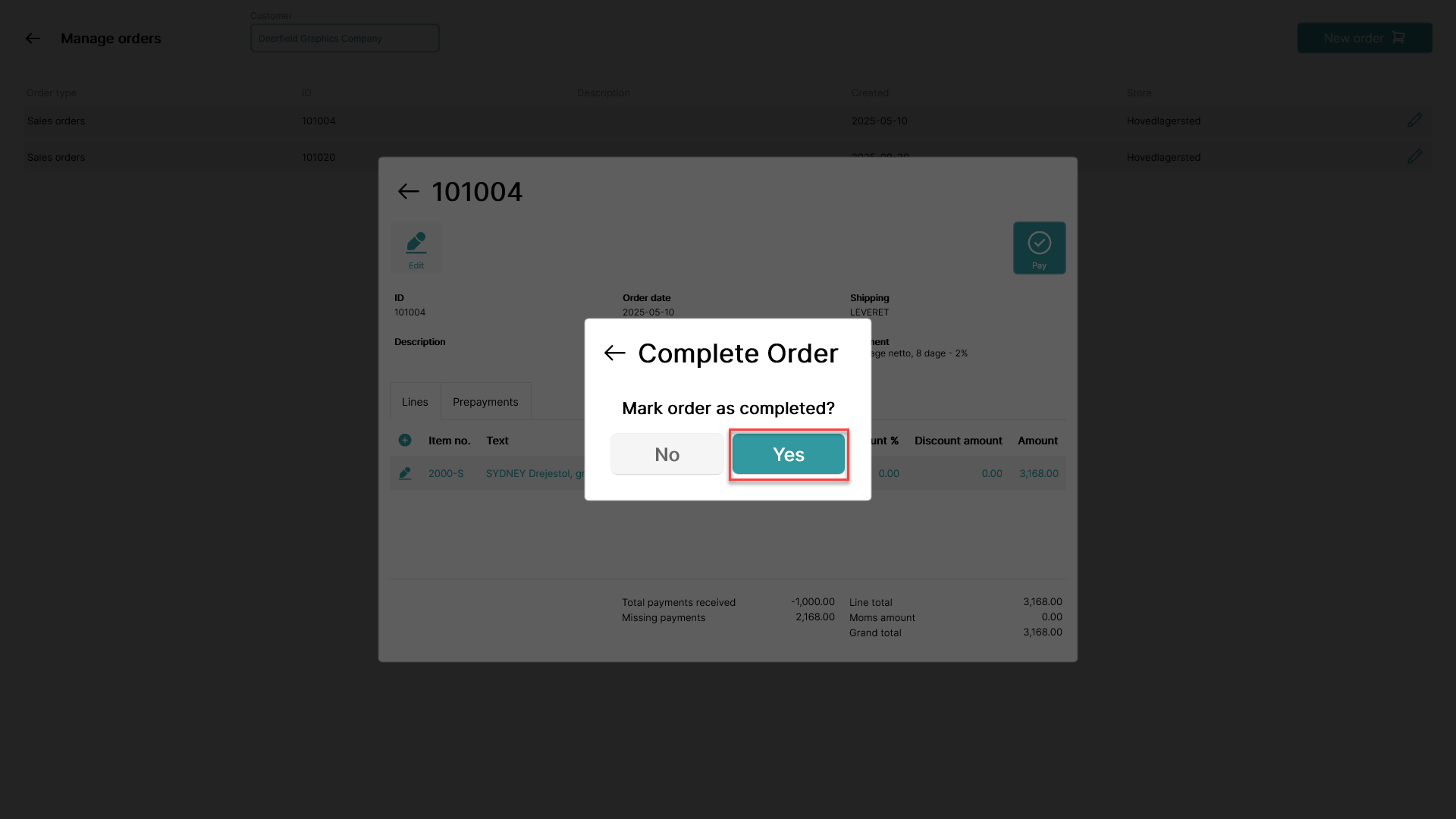
Click 'Yes' to mark the order as completed in Business Central
Step 5:
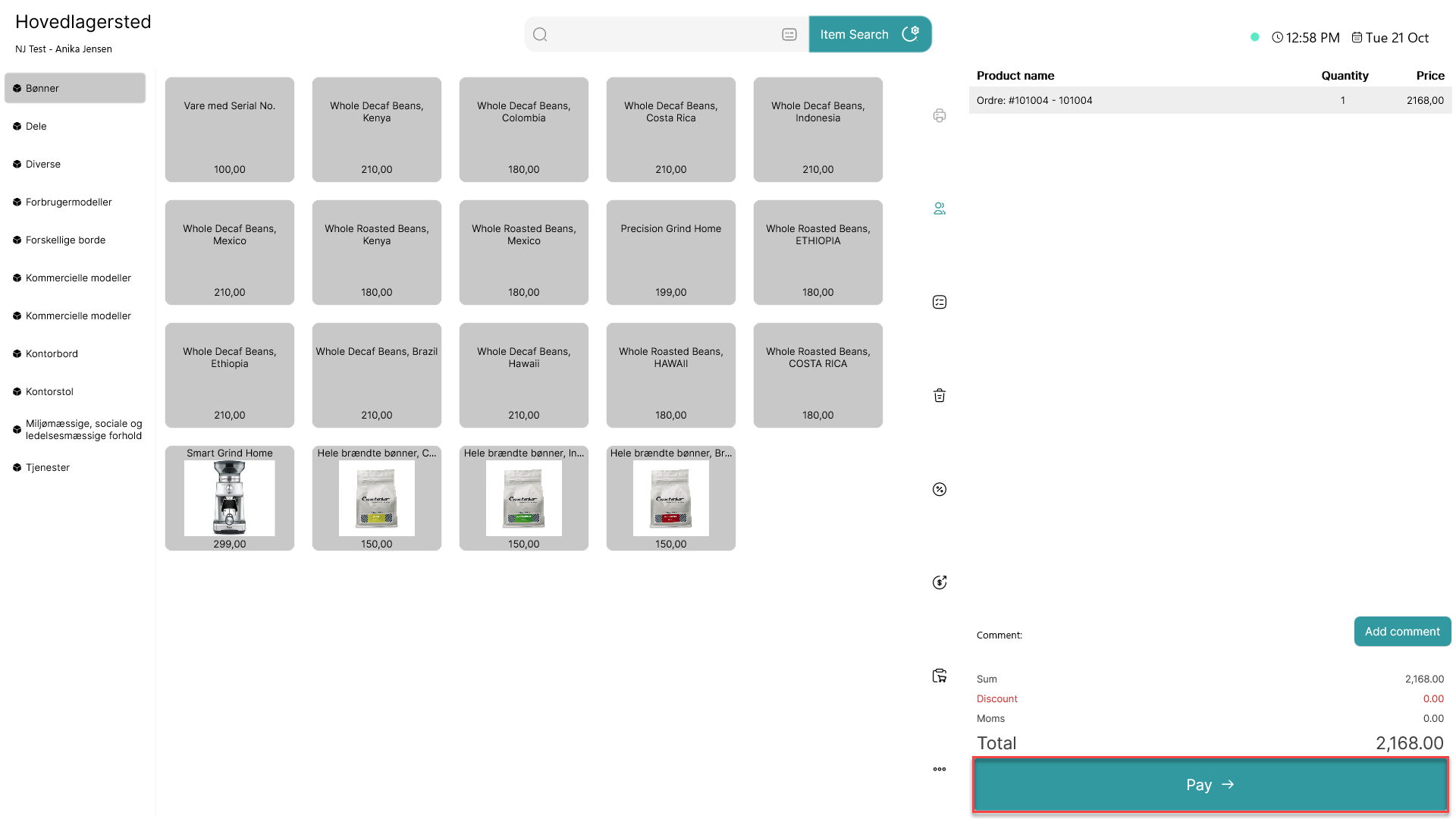
Pay for the order
Step 6:
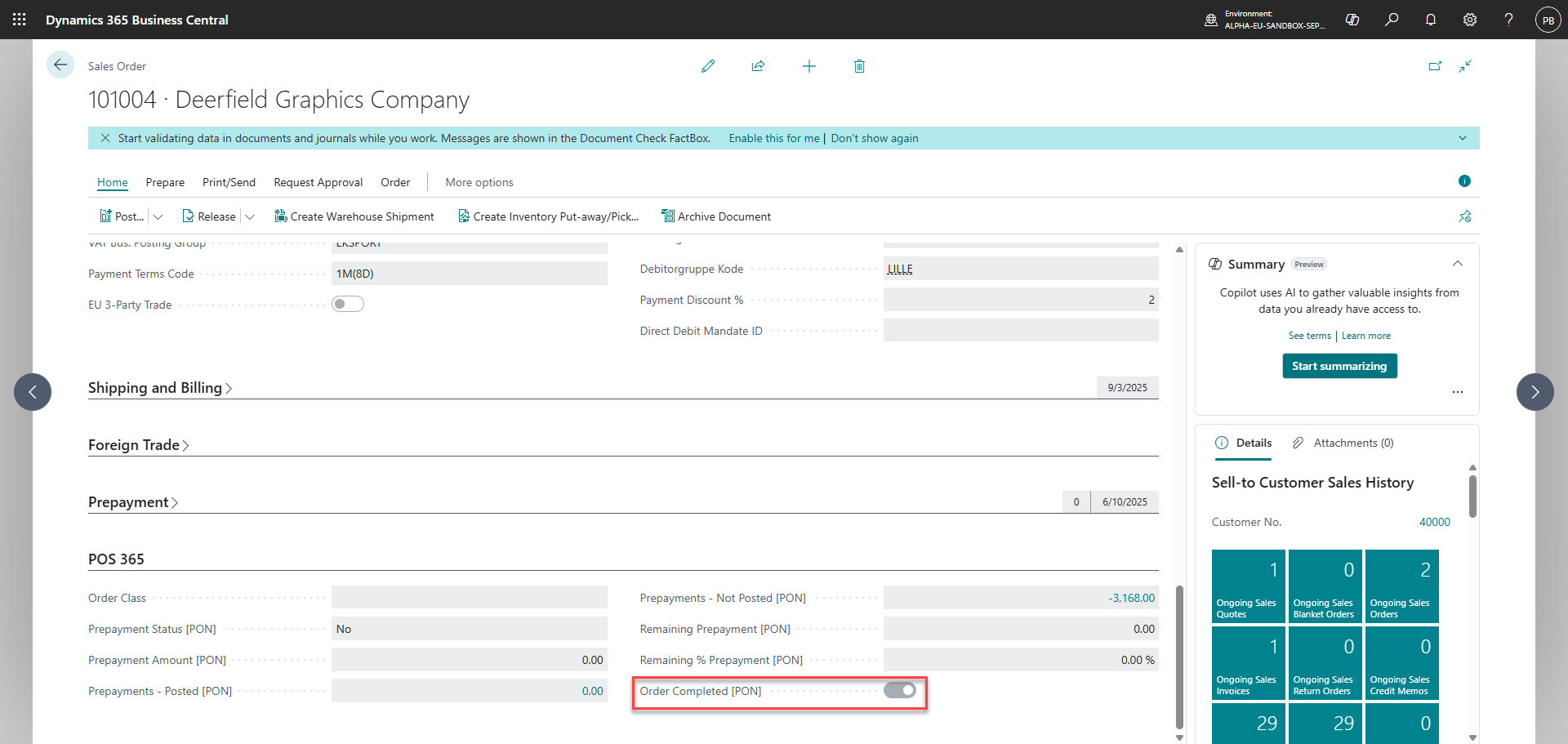
After the sale has synchronized to Business Central (typically 1-6 minutes), the sales order will be marked as completed in the 'Order Completed [PON]' field.
This can be used to automatically post orders once they have been completed