This guide explains how to pay active invoices from Business Central directly in POS365. This can both be done for singular invoice payments and multiple invoice payments on the same receipt.
Step 1:
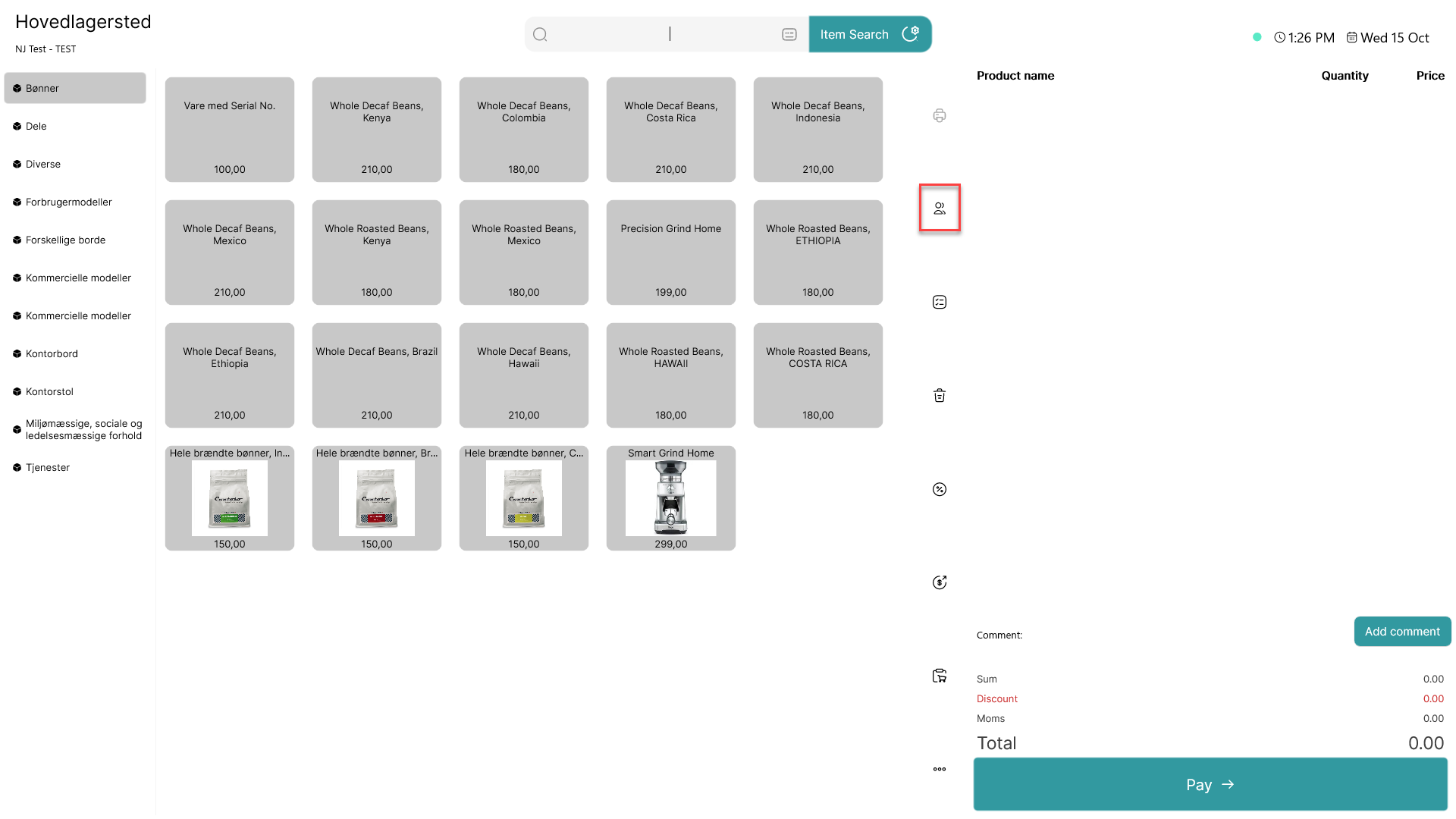
Click on the  - button
Step 2:
A list of all customers is shown
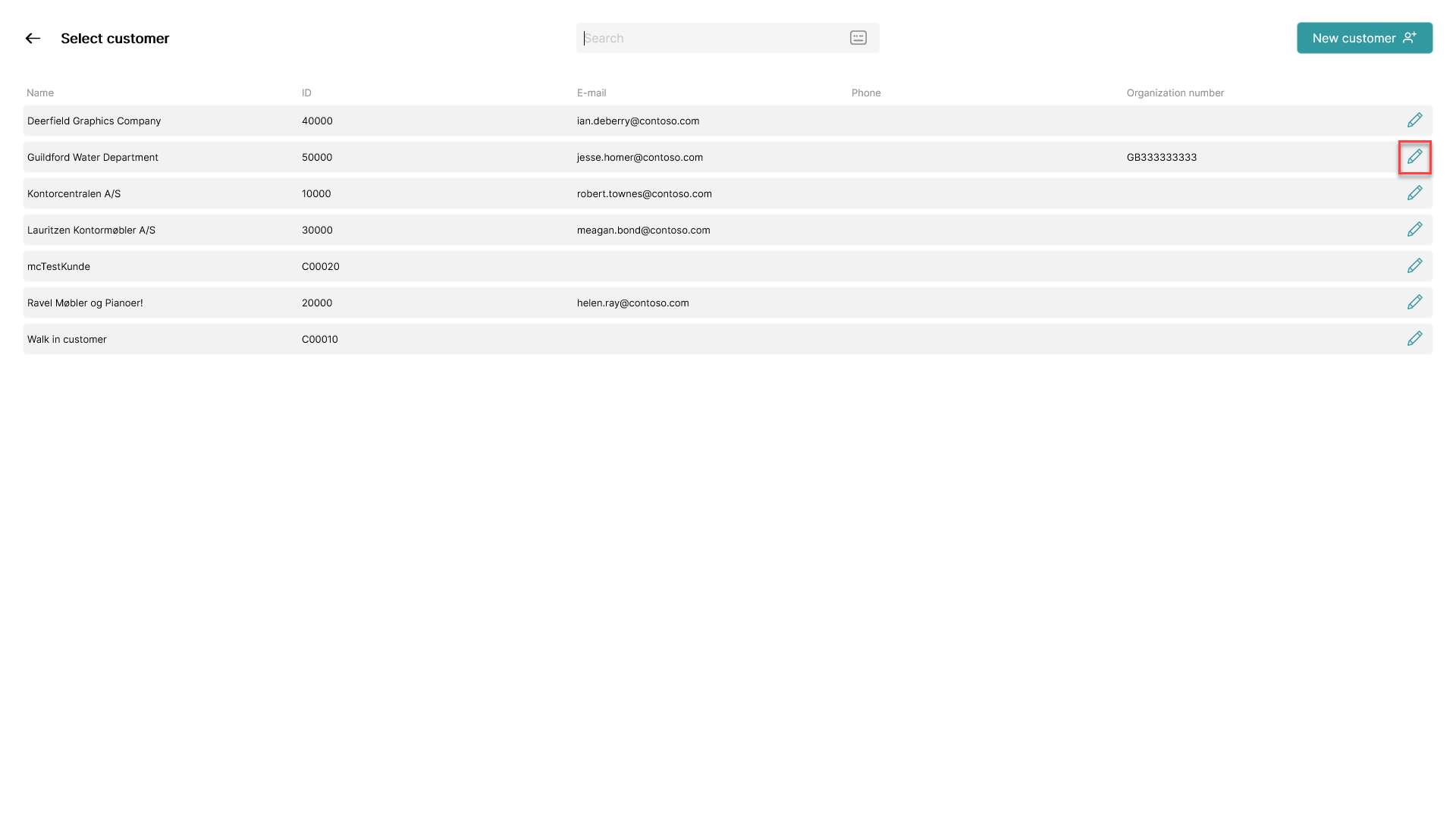
Click on the  - icon on the line of the customer whose invoice you want to edit
Step 3:
A pop-up with customer information appears
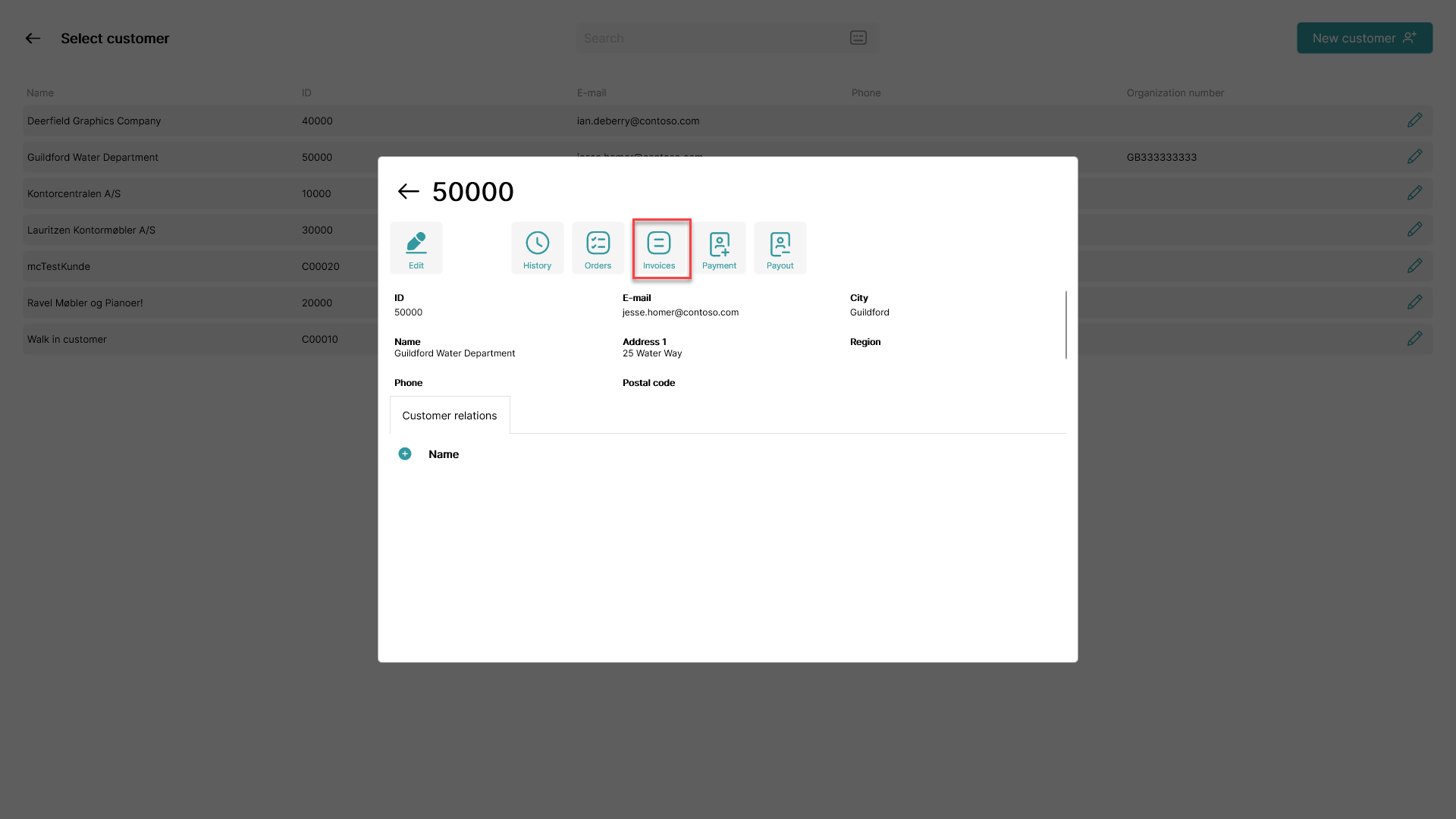
Click on 'Invoices'
Step 4:
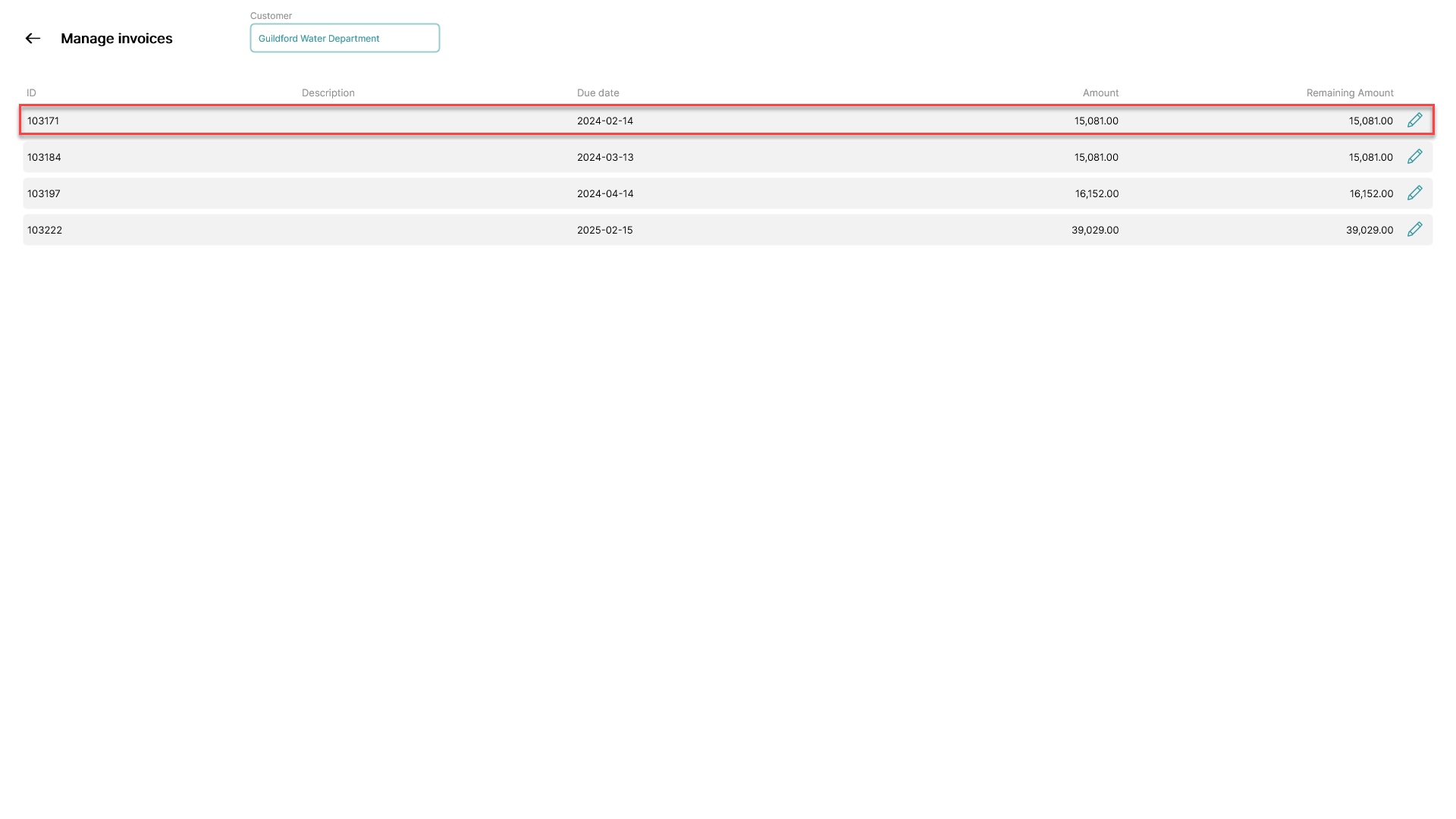
Find the invoice you want to edit and click on it
Step 5:
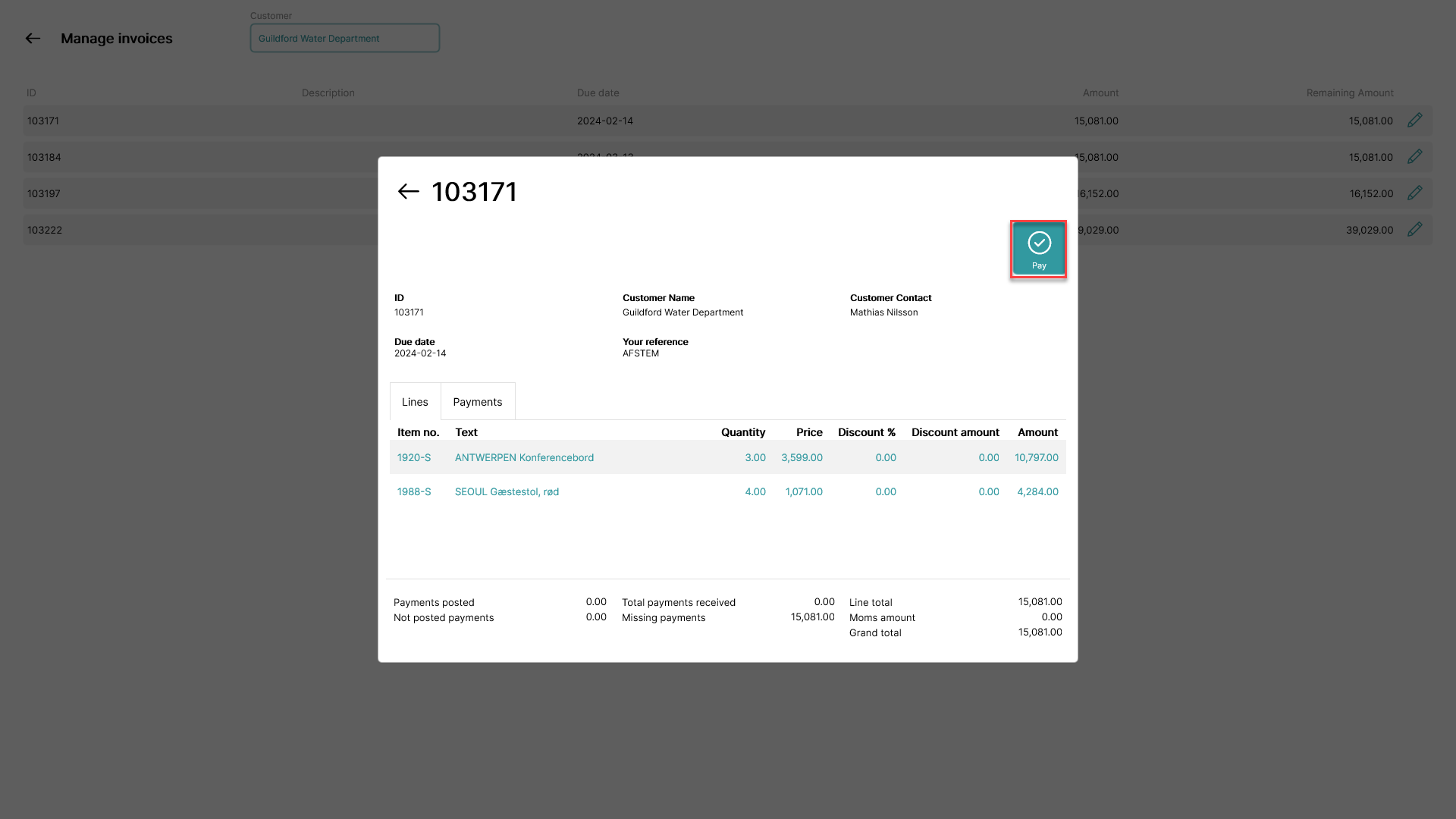
Click 'Pay'
Step 6:
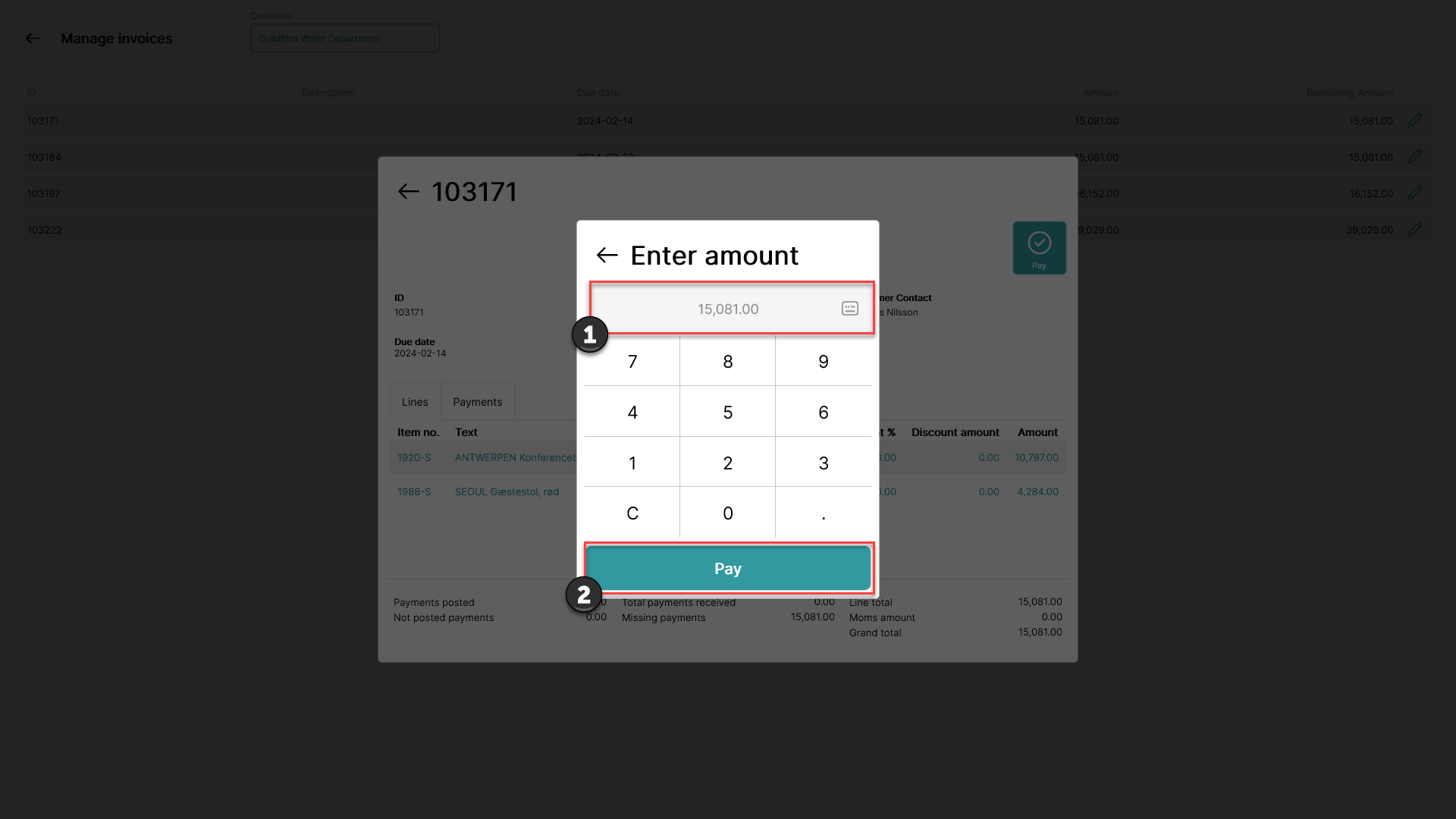
1) Enter the amount you want to pay
2) Click 'Pay'
Step 7:
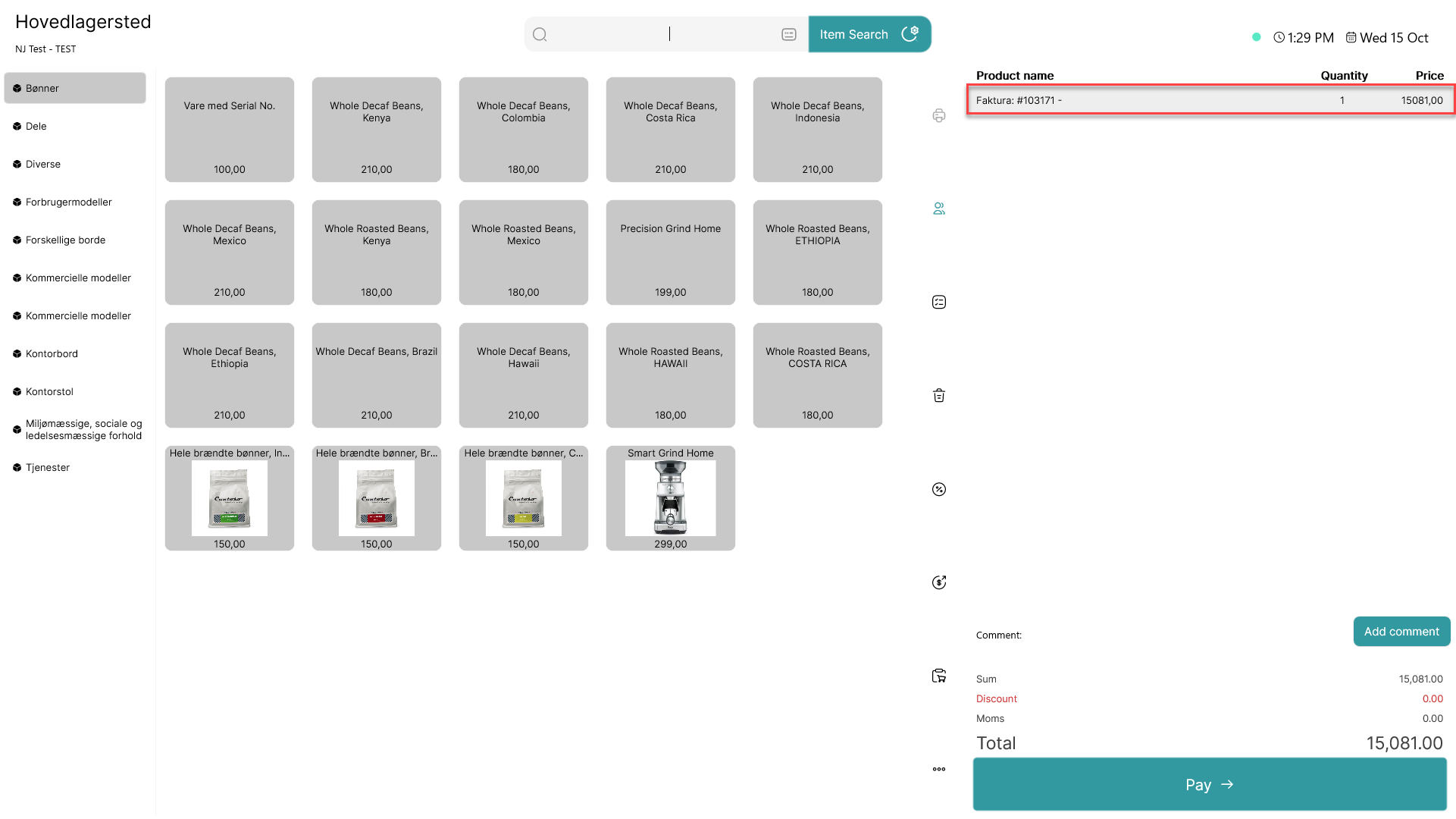
The selected amount will be added to the basket of the POS to be paid
Note:
Follow the same procedure before checkout to add multiple invoice payments to the same receipt