This guide explains how to install and set up the Business Central extension for POS365. We recommend going through all steps to ensure that all synchronization necessary for POS365 to operate has been set up correctly.
Step 1:
Download and install extension 'POS ONE - POS365 BC Integration'
For more information, see here:
Download Business Central extension called 'POS ONE - POS365 BC Integration'
Step 1:
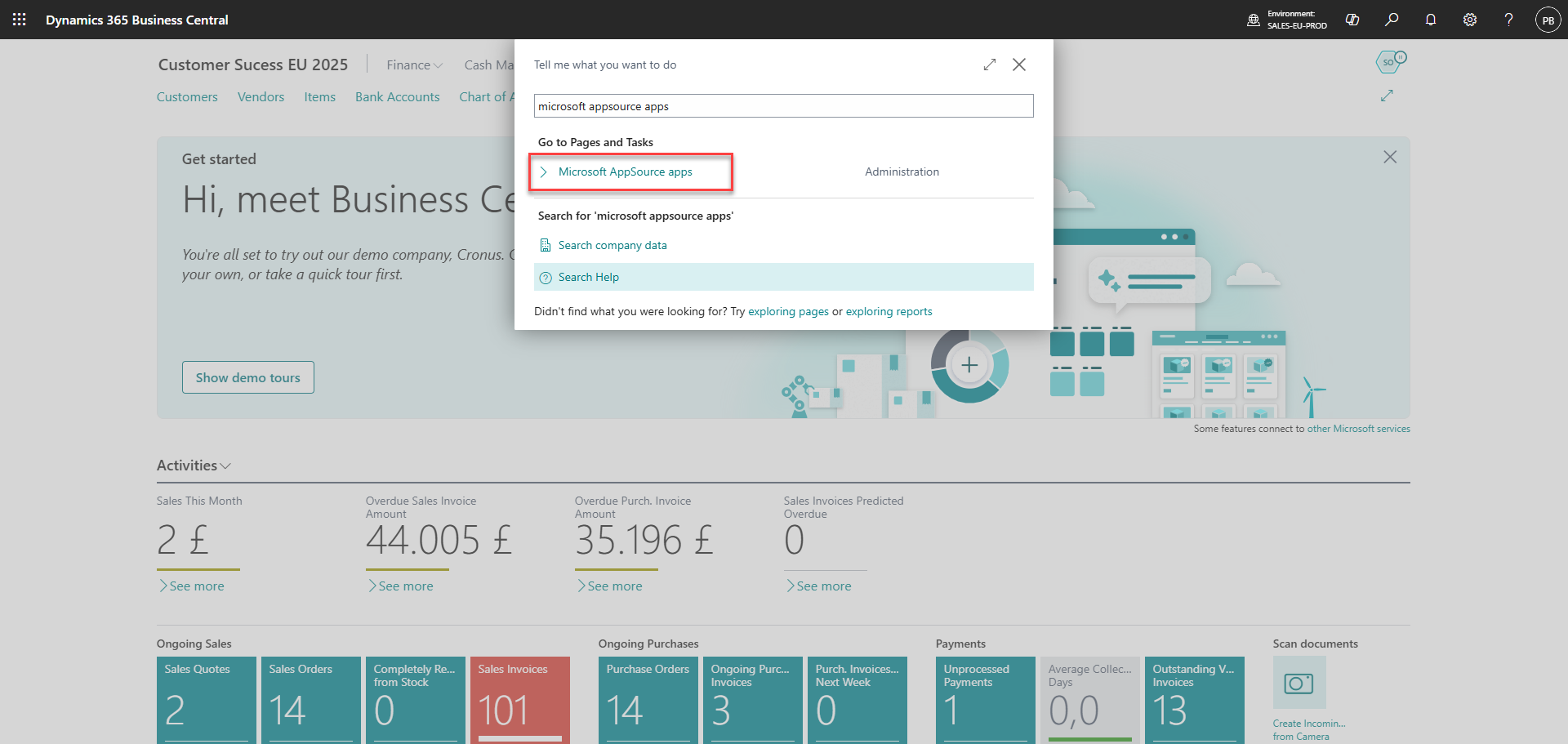
1) Click on 'Search'
2) Search for 'AppSource'
3) Click on 'Microsoft AppSource apps'
Step 2:
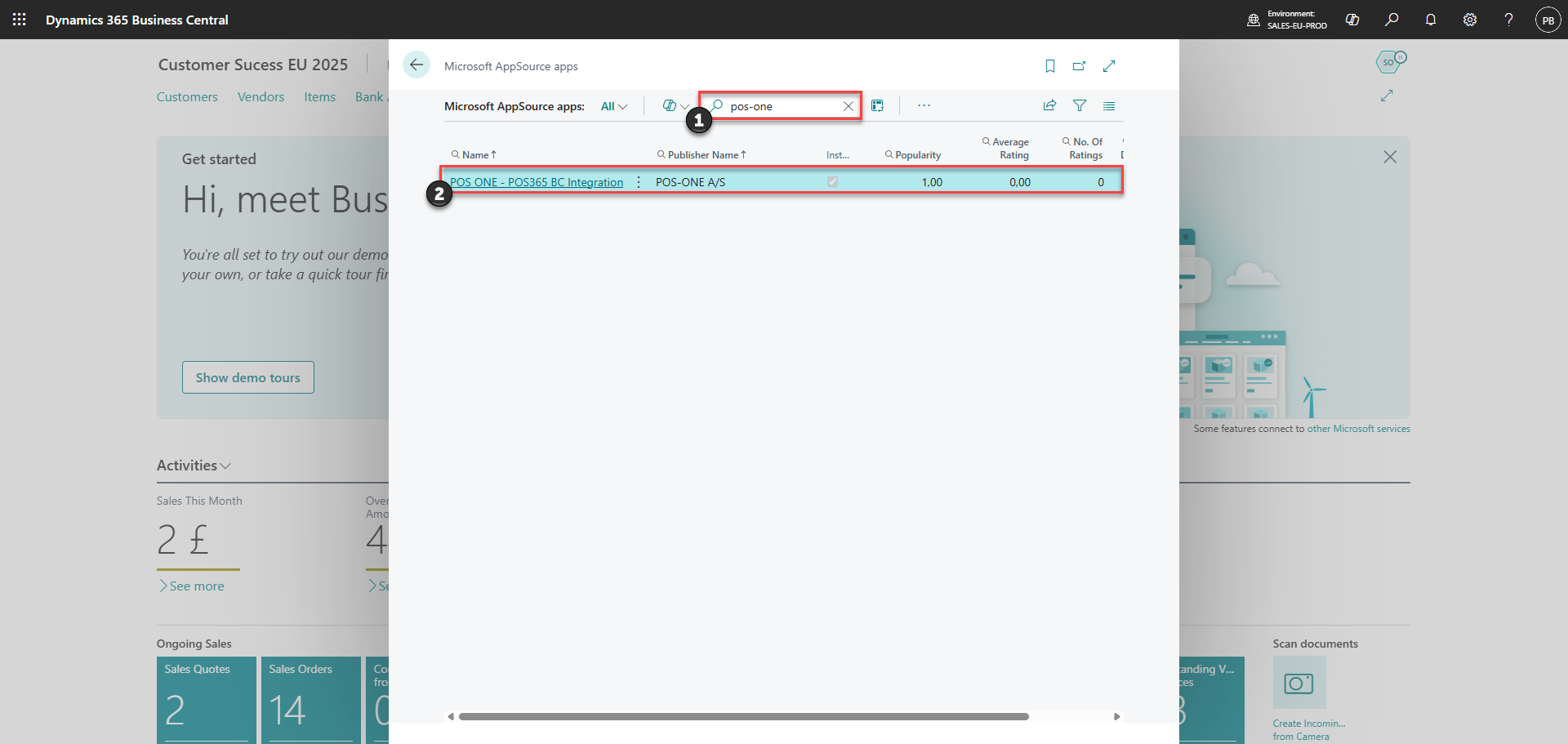
1) Search for 'POS-ONE'
2) Choose the extension called 'POS ONE - POS365 BC Integration'
Step 3:
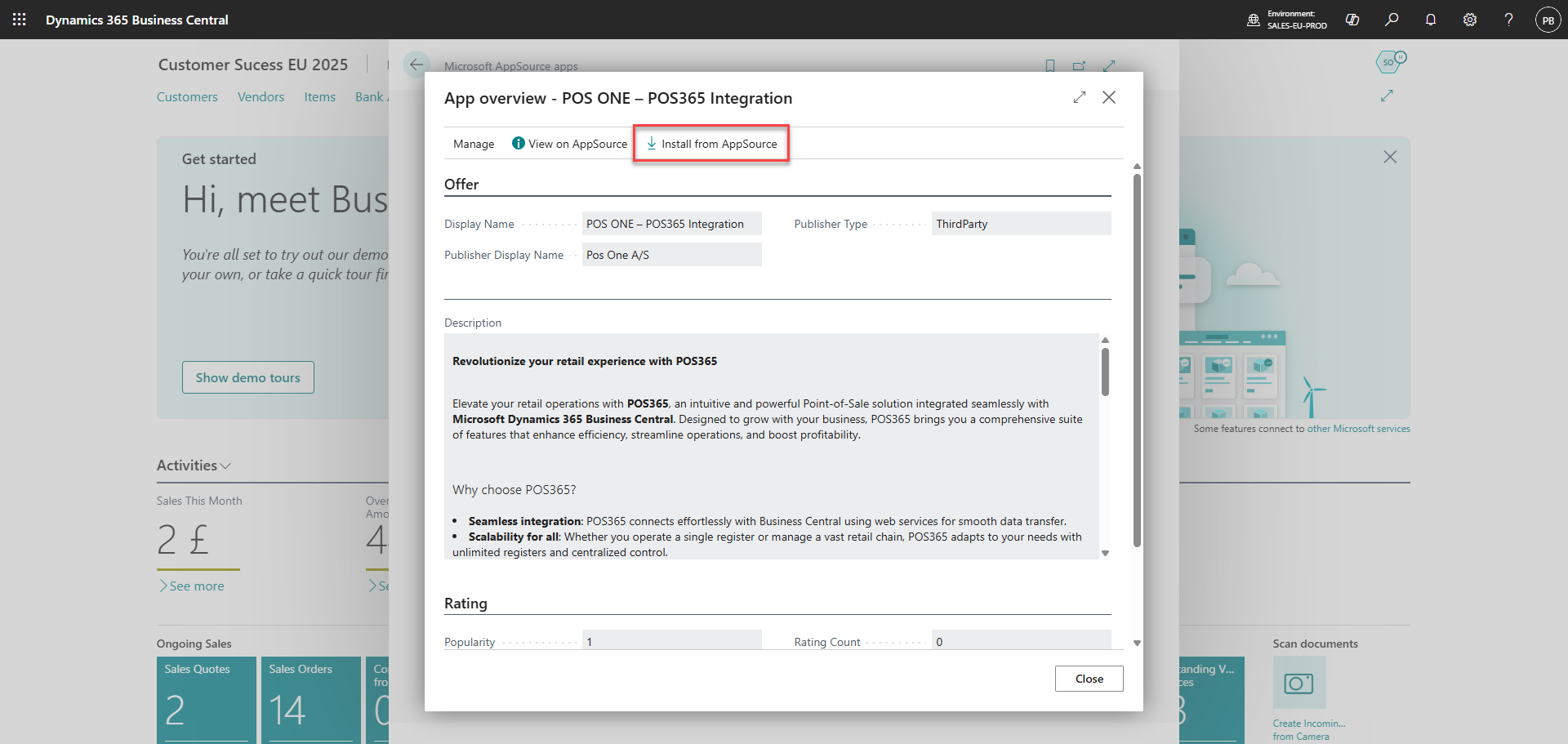
Click 'Install from AppSource'
Step 2:
Set 'Allow HttpClient Request' to true.
For more information, see here:
Allow HttpClient requests for 'POS ONE - POS365 BC Integration' in the extension management
Step 1:
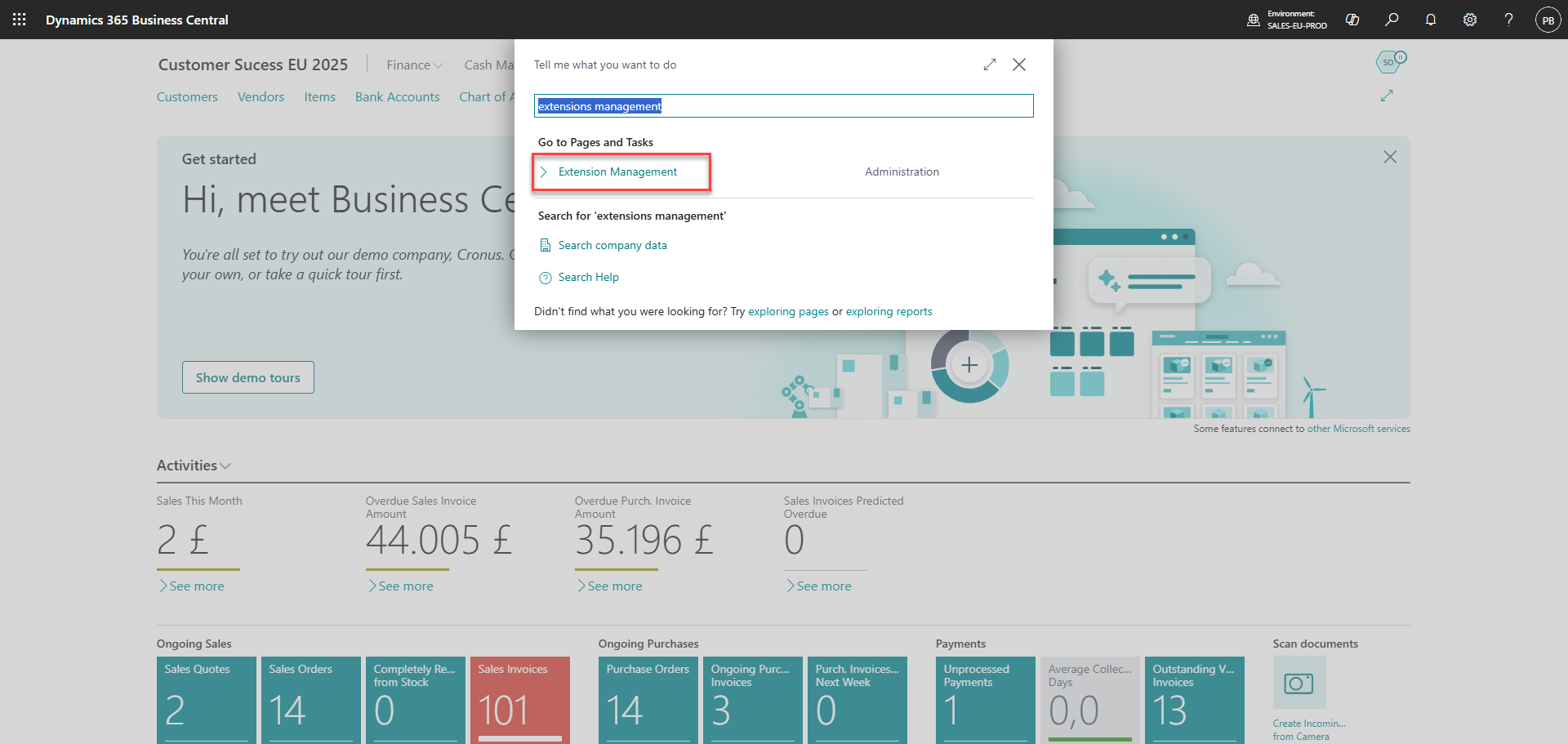
1) Click on 'Search'
2) Go to 'Extension Management'
Step 2:
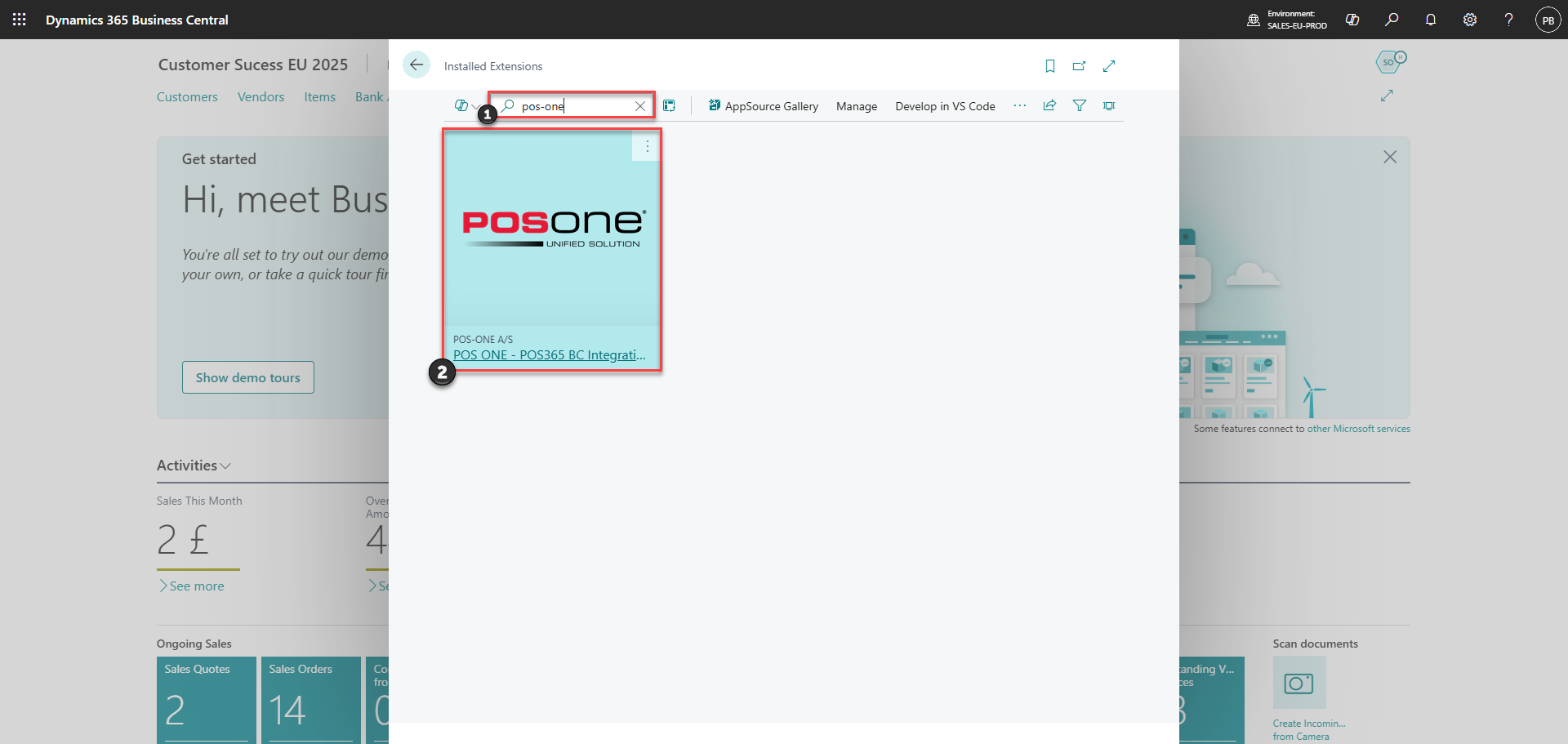
1) Search for 'POS-ONE'
2) Choose 'POS ONE - POS365 BC Integration'
Step 3:
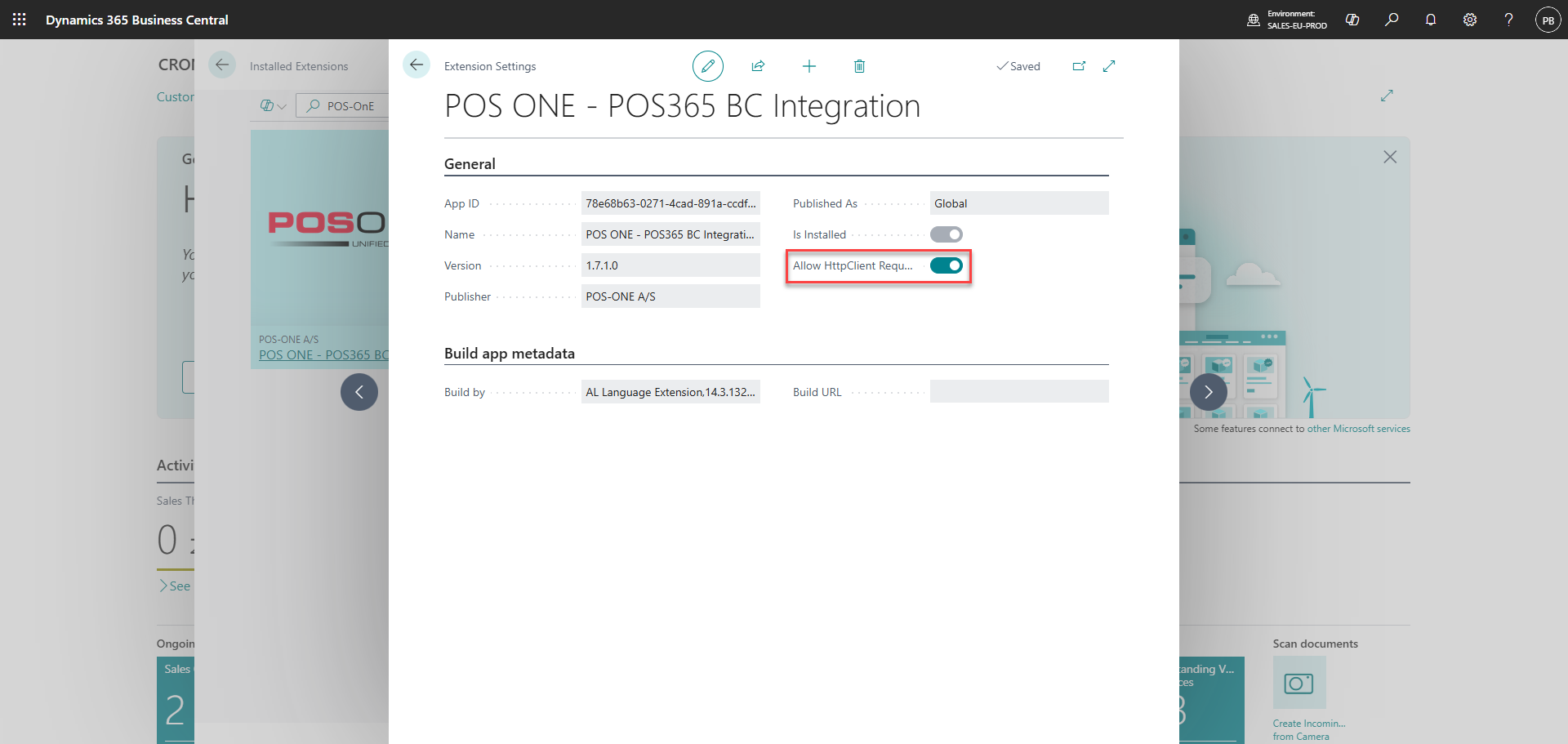 Toggle on 'allow HttpClient Requests' on
Step 3:
Create a new 'Microsoft Entra Application' with the 'Client ID' from Azure, set state=enabled, and insert user permission sets 'PON ALL PERMISSIONS' and 'D365 FULL ACCESS'
For more information, see here:
Setup 'Microsoft Entra Application' for POS365.
Step 1:
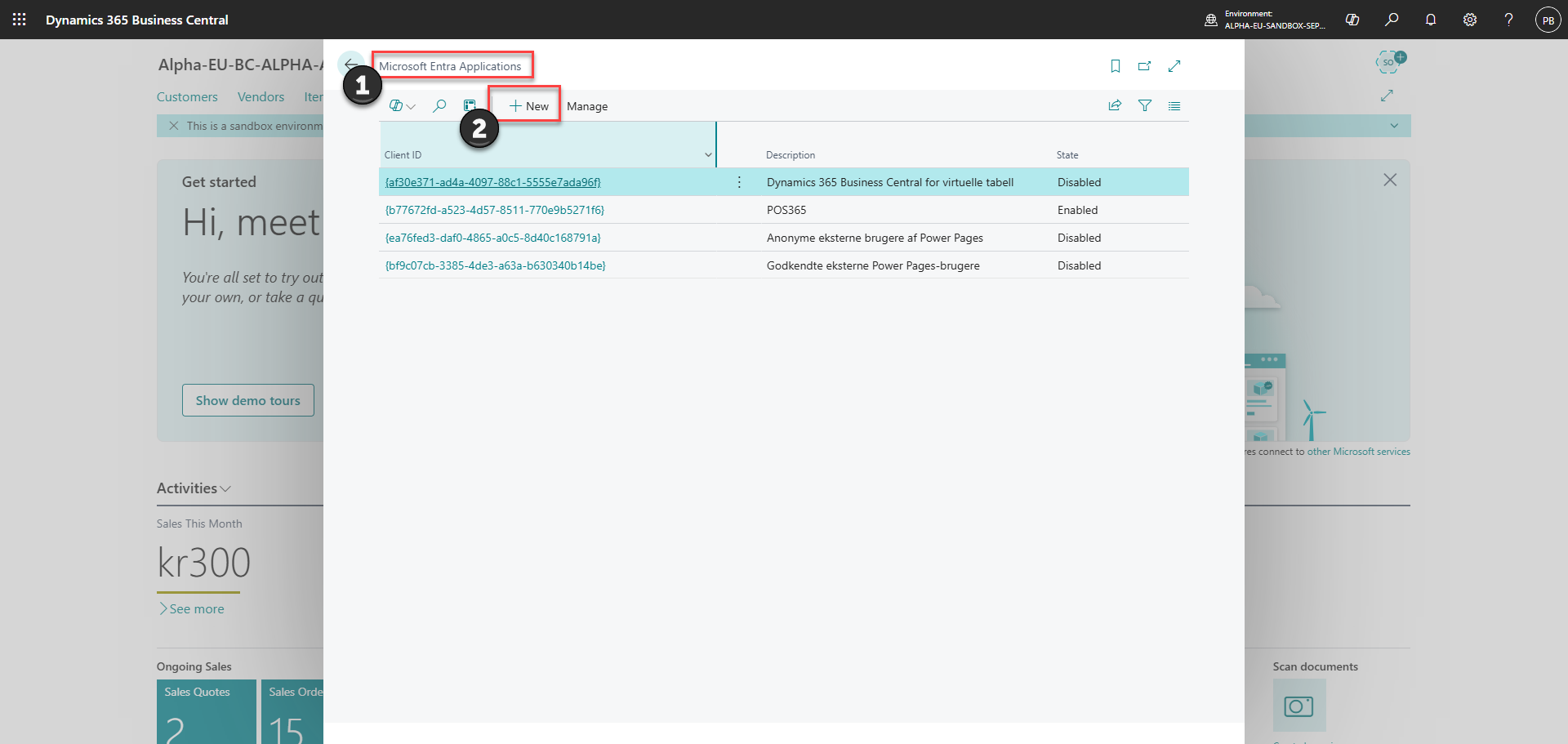
1) Go to 'Microsoft Entra Applications'
2) Click 'New'
Step 2:
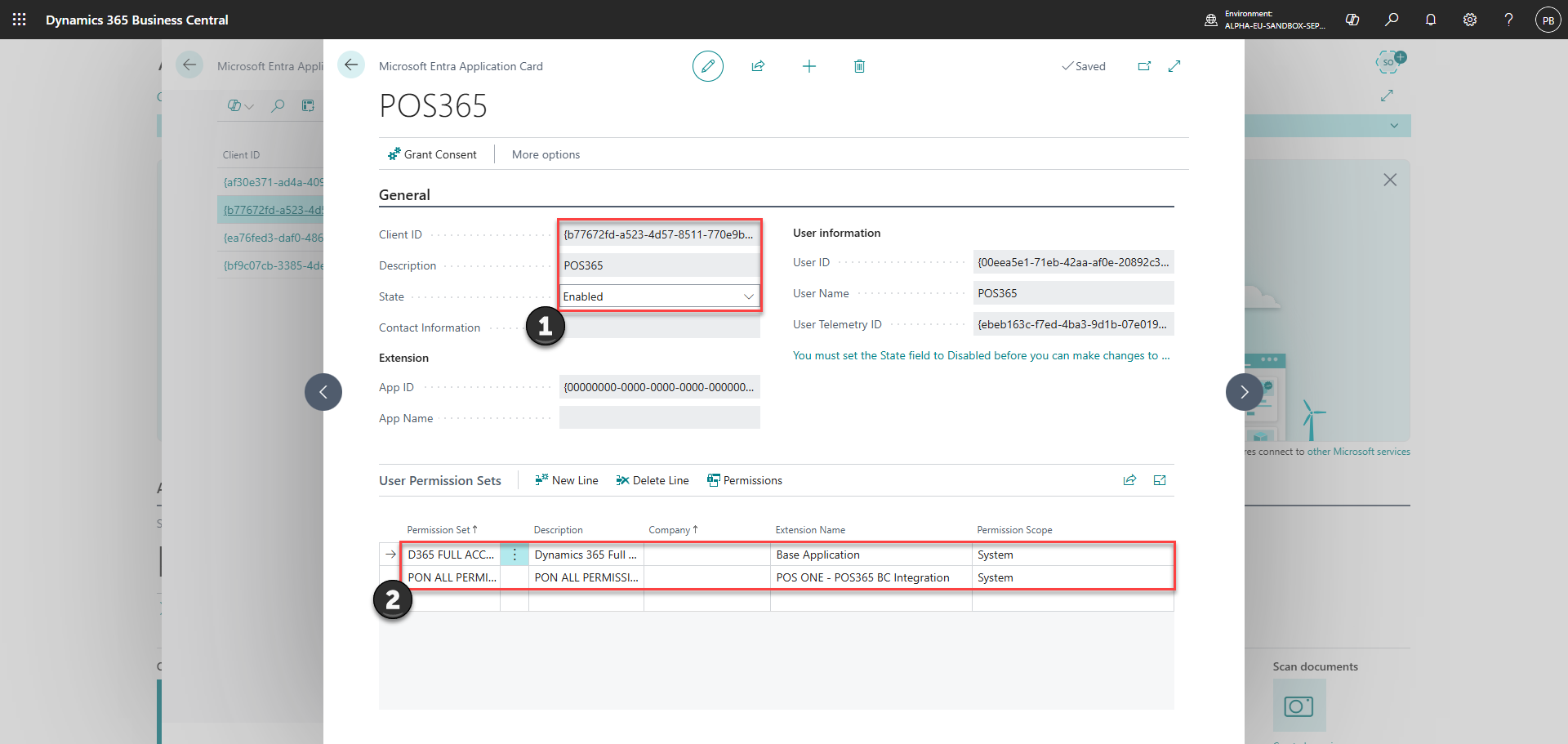
1) Fill in information
- Add Client ID from Azure
- Set description to 'POS365'
- Set 'State = Enabled'
2) Set 'User Permission Sets'
- PON ALL PERMISSIONS
- D365 FULL ACCESS
Step 4:
Go to 'POS365 Integration Setup [PON]' and set the 'API Hosting Region' to the server closest to you and the 'Domestic Gen. Bus. Posting Group' to either 'DOMESTIC', 'INDLAND' or 'INRIKES'
For more information, see here:
Setup 'API Hosting Region' and 'Domestic Gen. Bus. Posting Group' in 'POS365 Integration Setup [PON]'
Step 1:
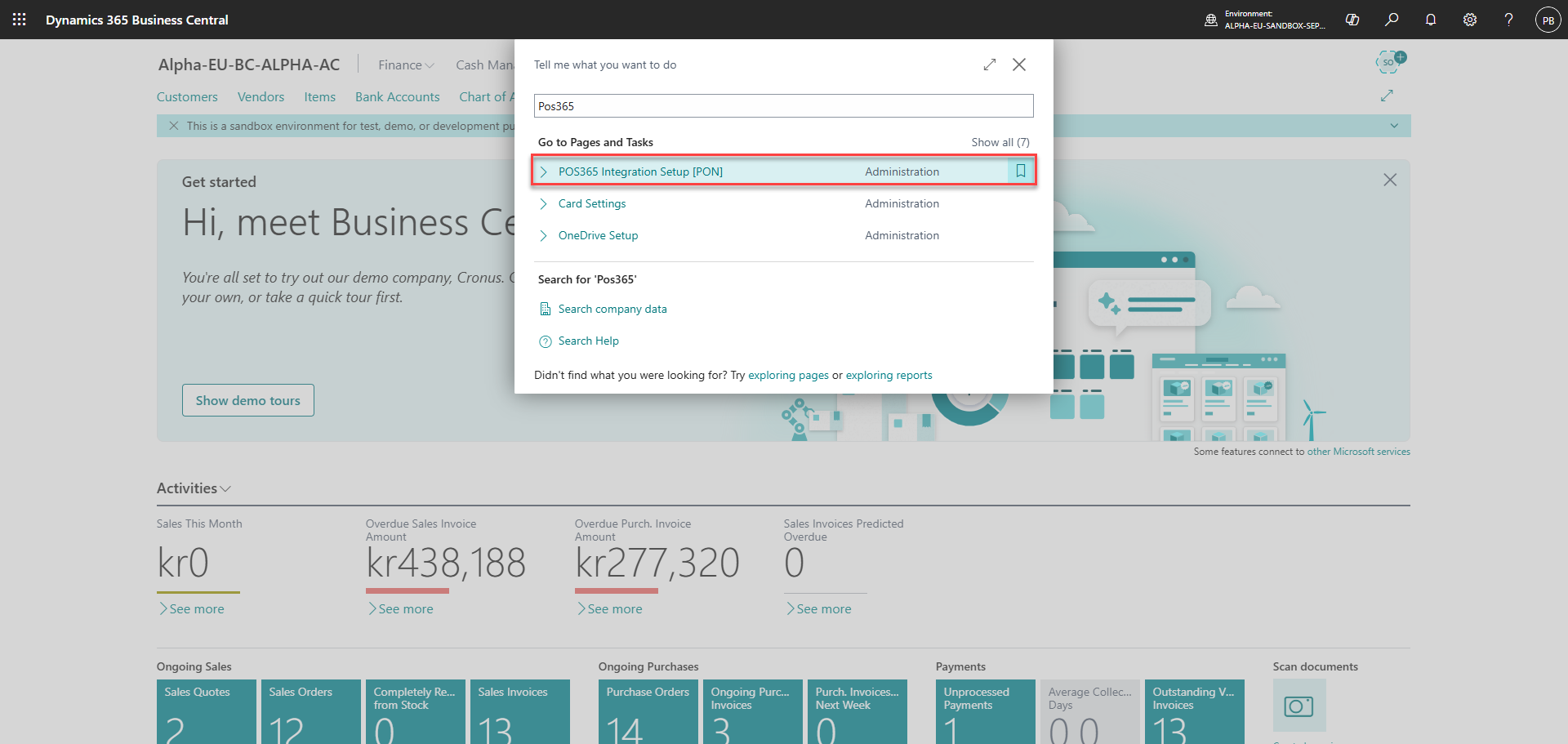
Search for 'POS365 Integration Setup [PON]' and open the page
Step 2:
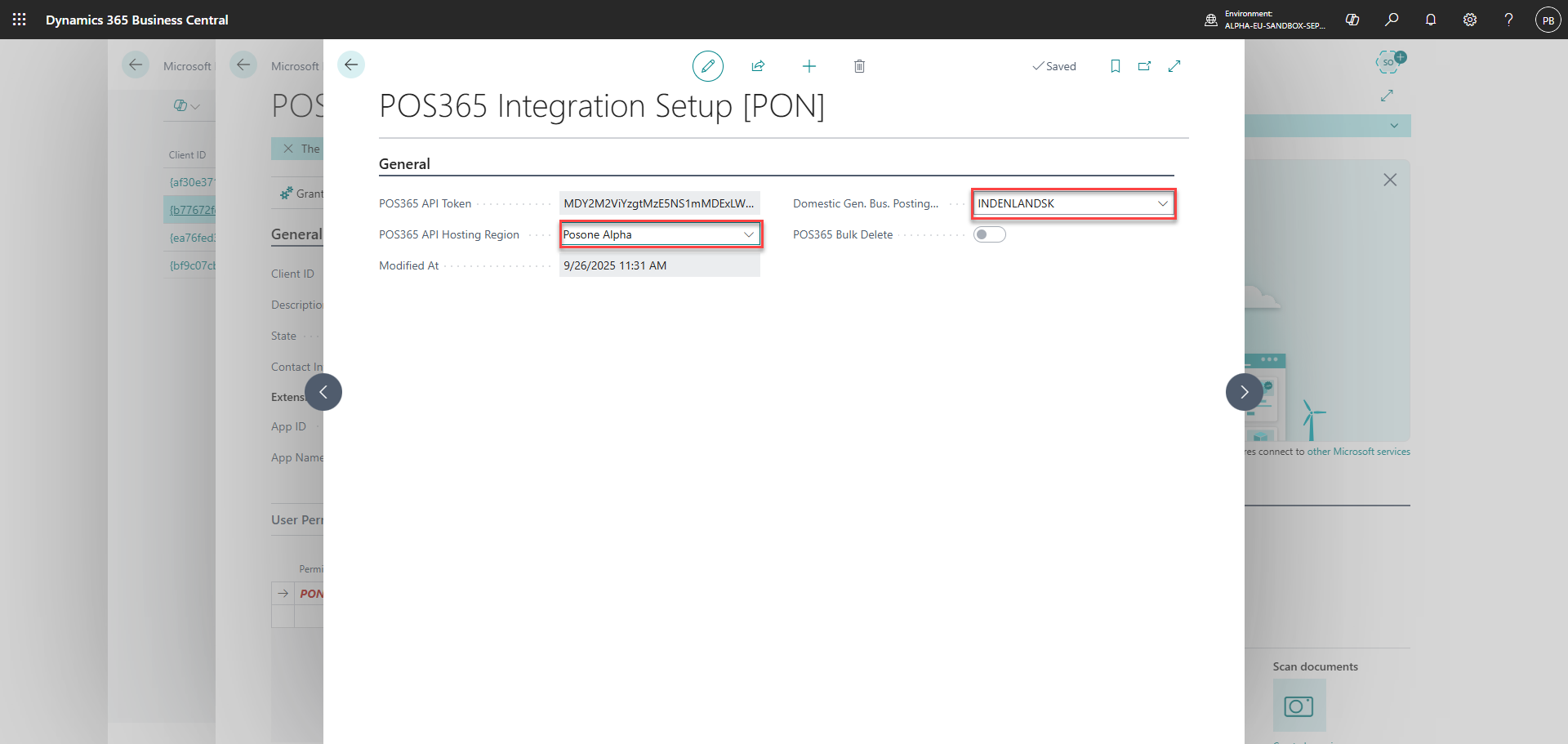
1) Set 'POS365 API Hosting Region' to either 'East US' or 'West Europe' depending on your location
2) Set 'Domestic Gen. Bus. Posting Group' to either 'DOMESTIC', 'INDENLANDSK' or 'INRIKES'
Step 5:
Open 'item categories' and mark the checkbox 'On POS' for the item categories you want to be displayed on the POS
For more information, see here:
Select 'On POS' for item categories
Step 1:
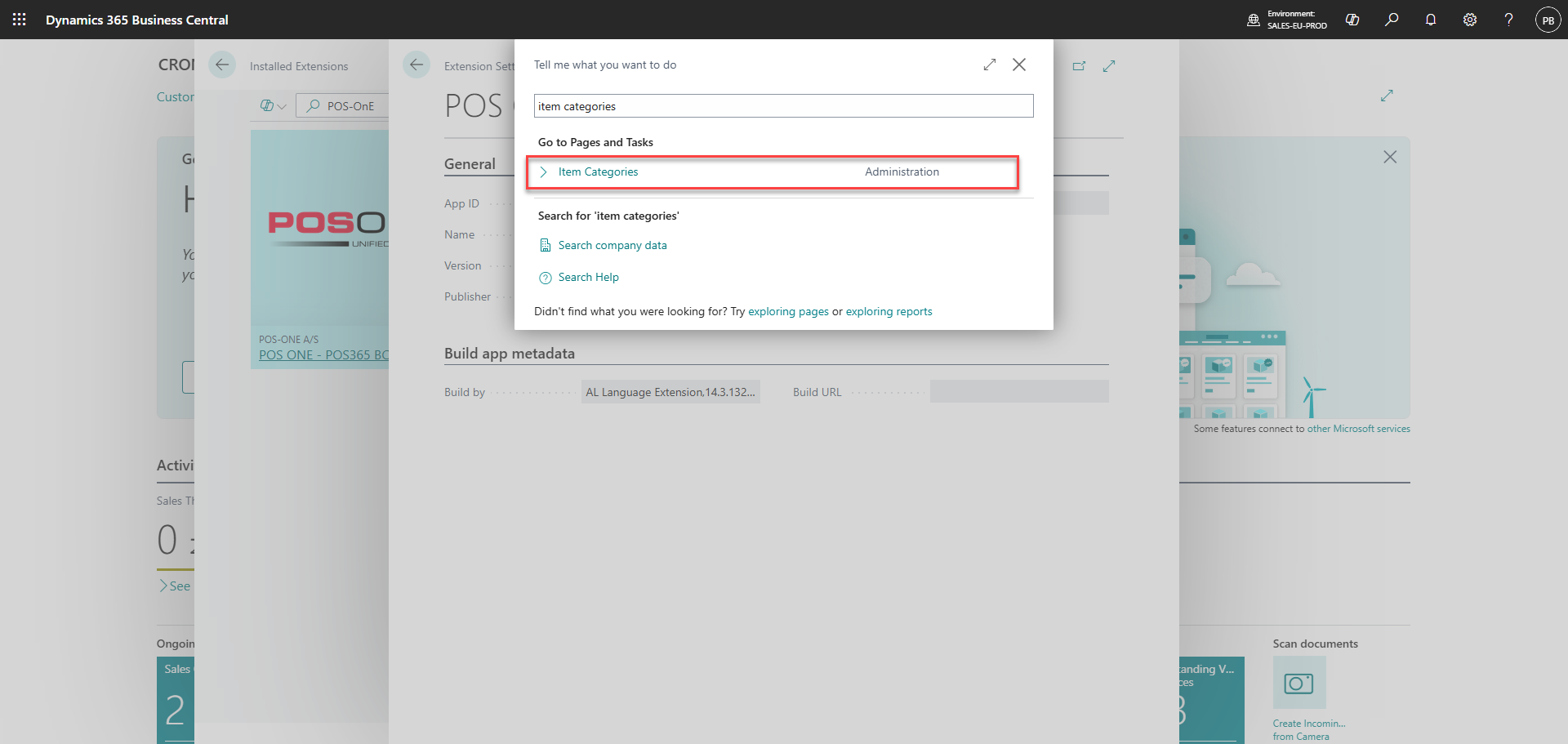
Search for 'Item categories'
Step 2:
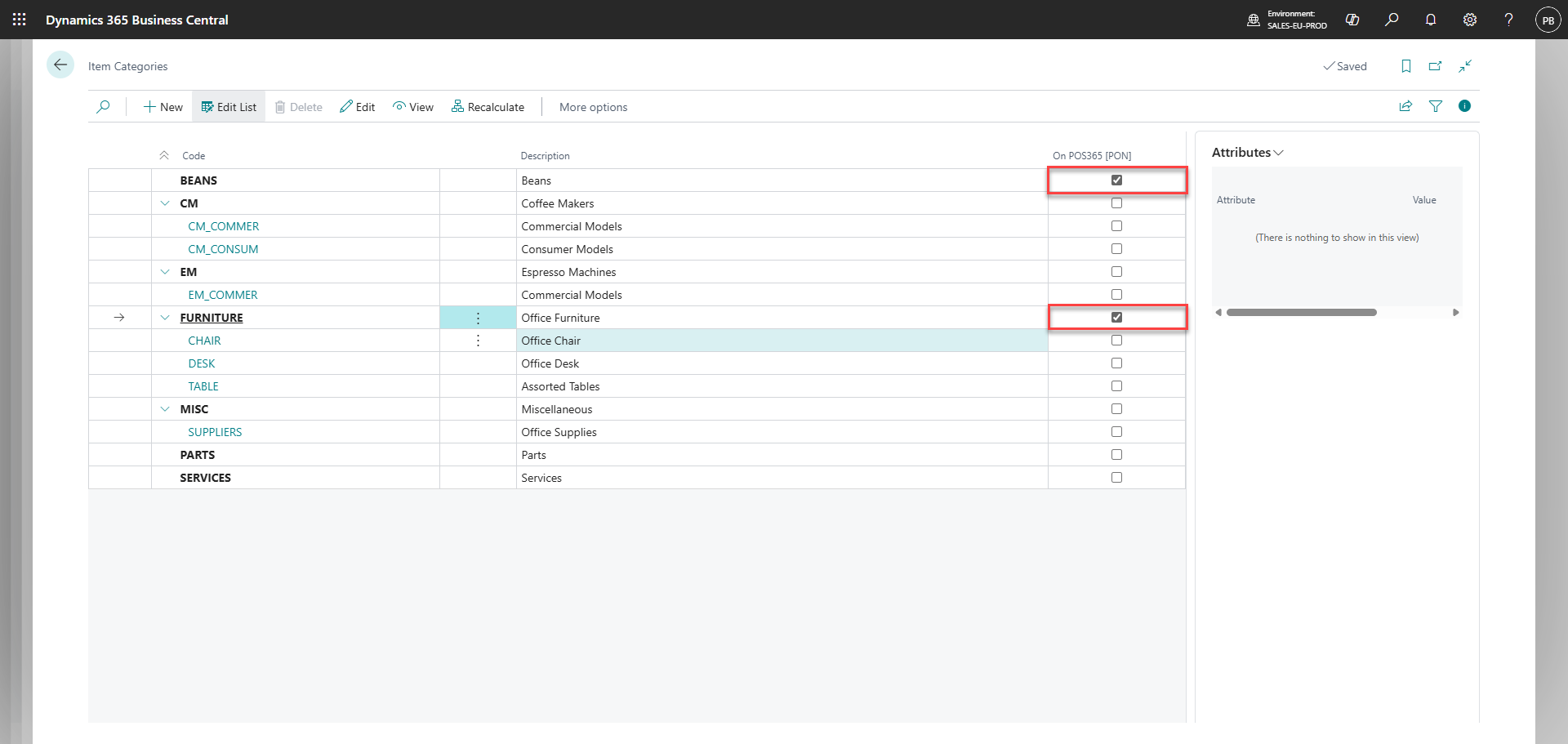
Set 'On POS365 [PON]' to true for the item categories you want to show on the POS
Step 6:
Go to 'Customer Posting Groups', scroll all the way to the right and check the checkbox 'On POS' to true for all groups
For more information, see here:
Select 'On POS' for all customer posting groups
Step 1:
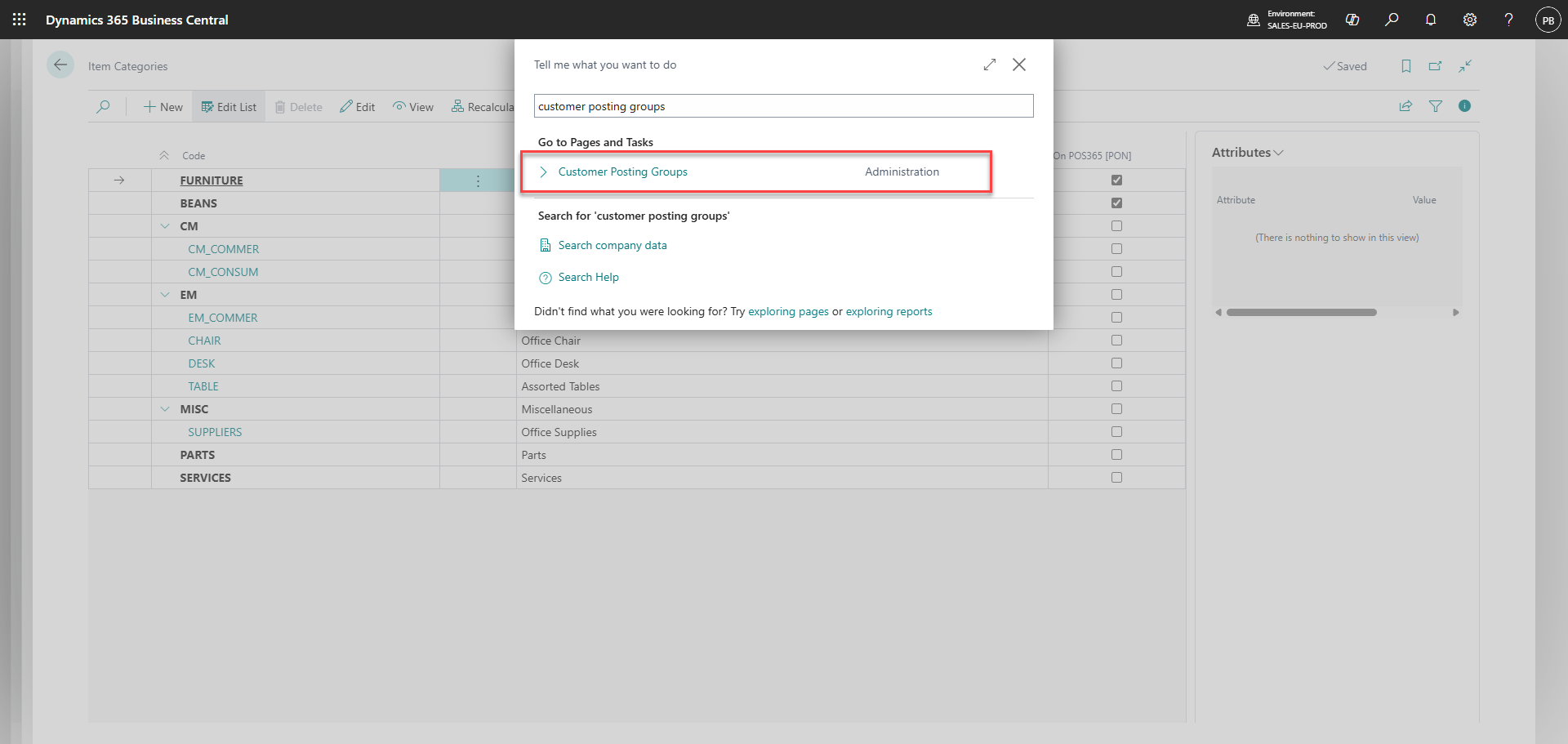
Search for 'Customer posting groups'
Step 2:
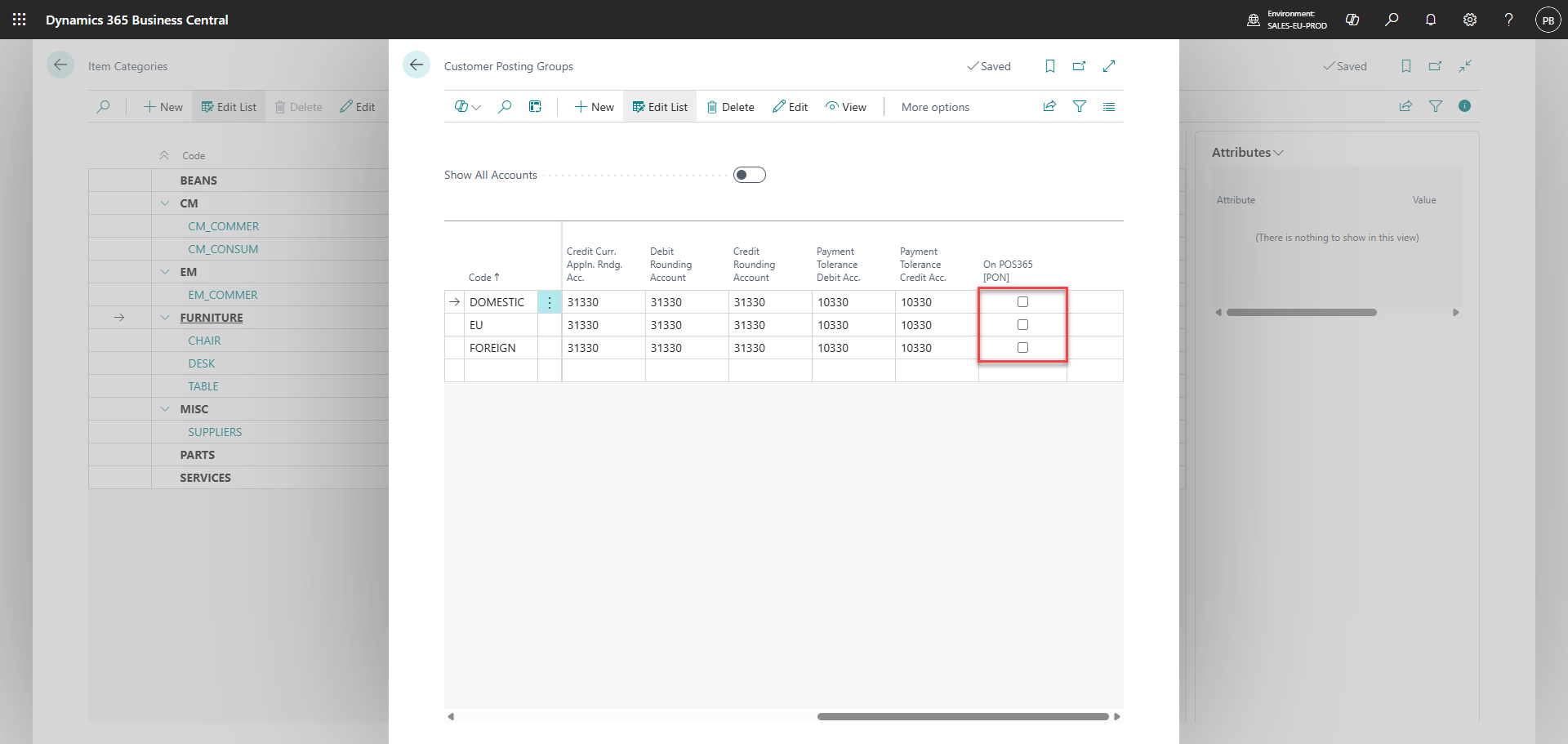
Set 'On POS365 [PON]' to true for all customer posting groups
Step 7:
Create a new customer, which will be used on the POS as default customer if no other customer has been selected. Ensure that posting details have been set and no 'payment method code' has been set
For more information, see here:
Set up default customer
Step 1:
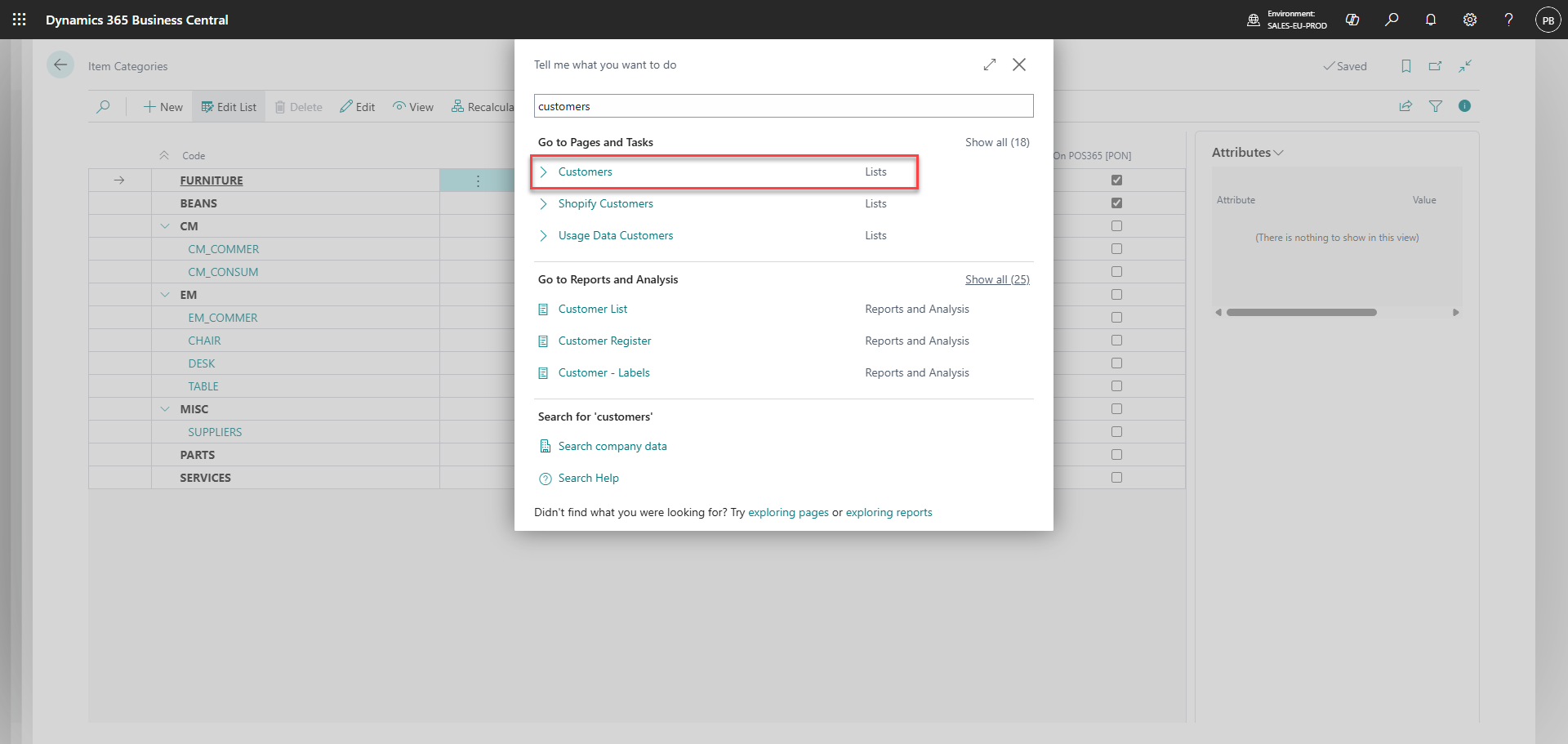
Go to 'Customers'
Step 2:
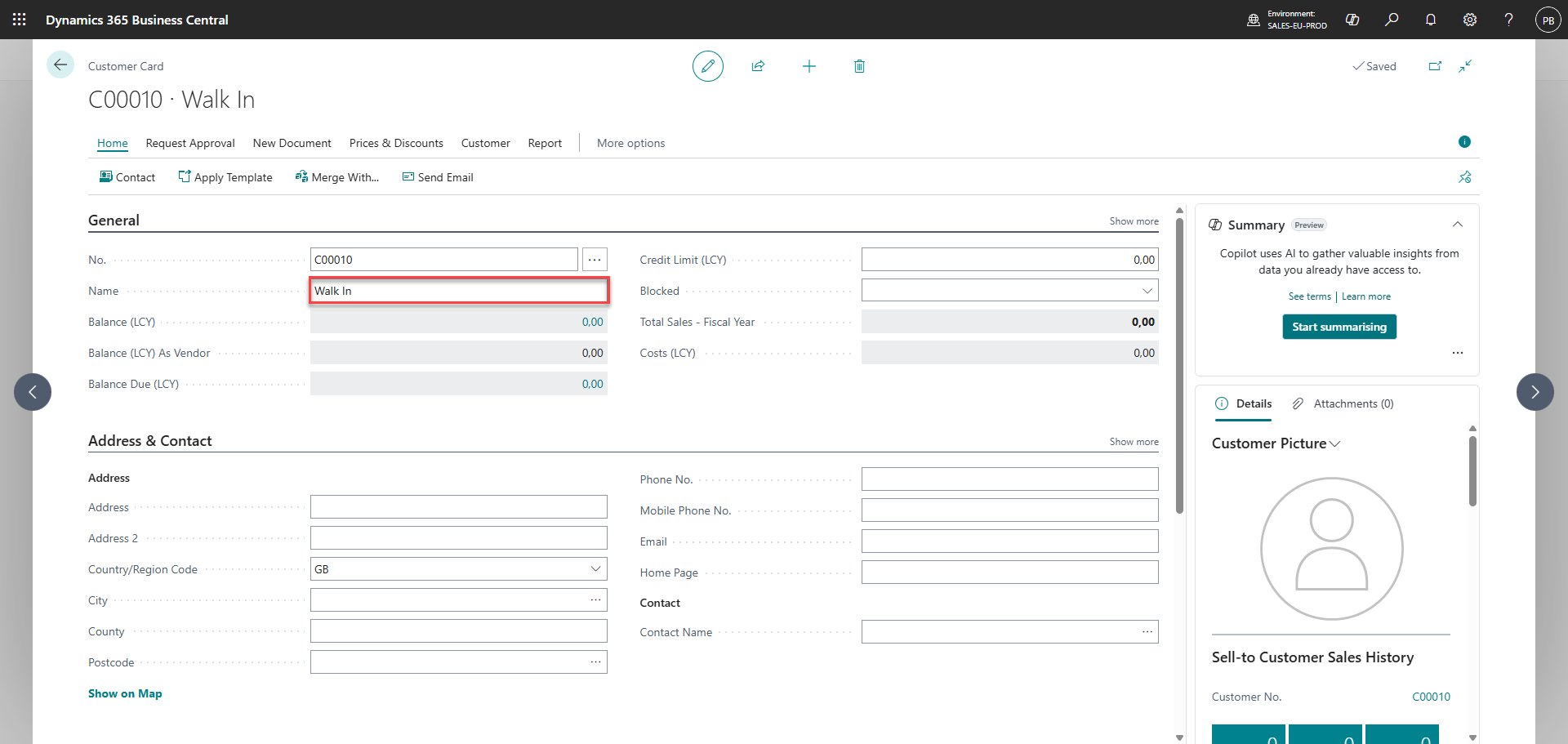
Create a new customer called 'Walk in'
Step 3:
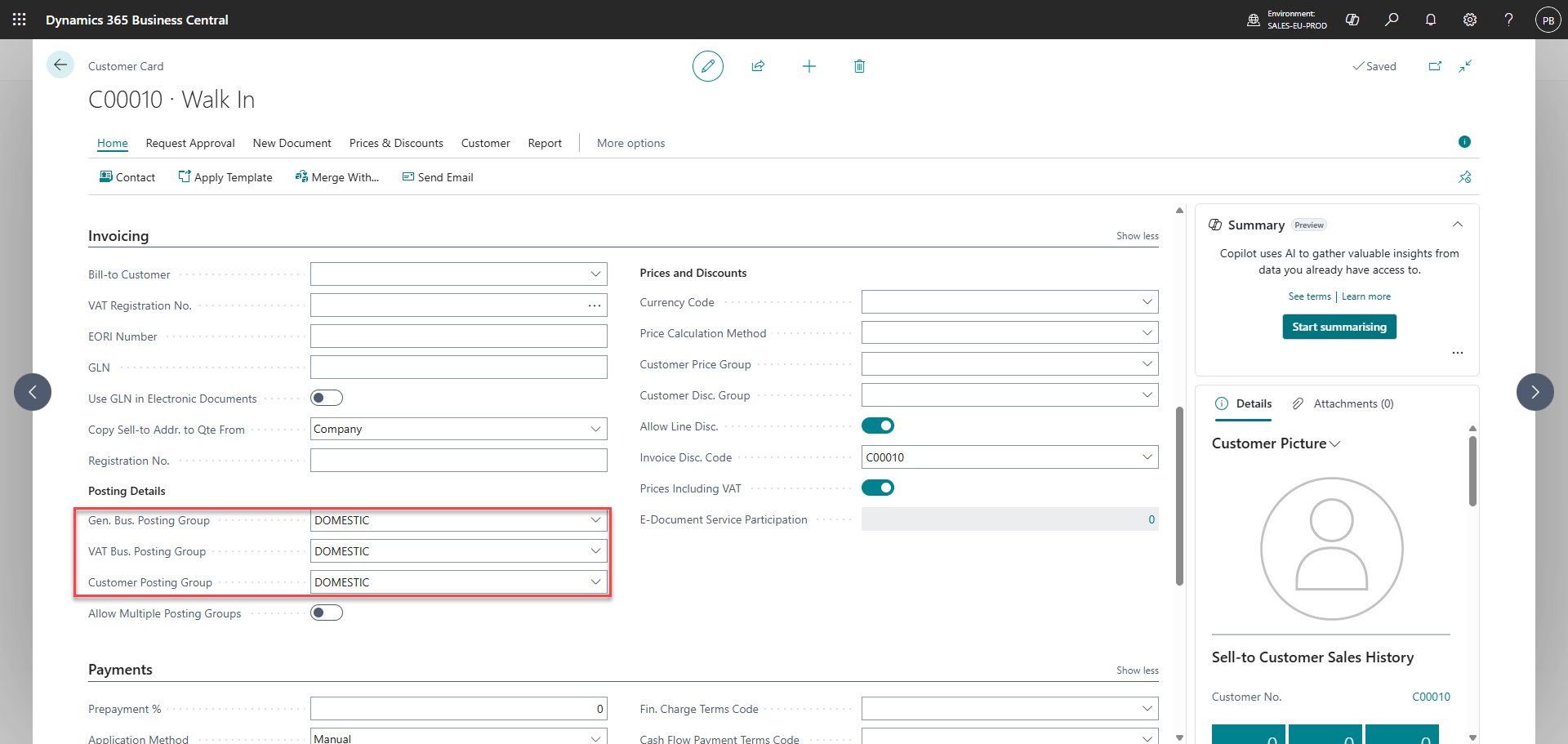
Set posting details for the customer to DOMESTIC
Step 4:
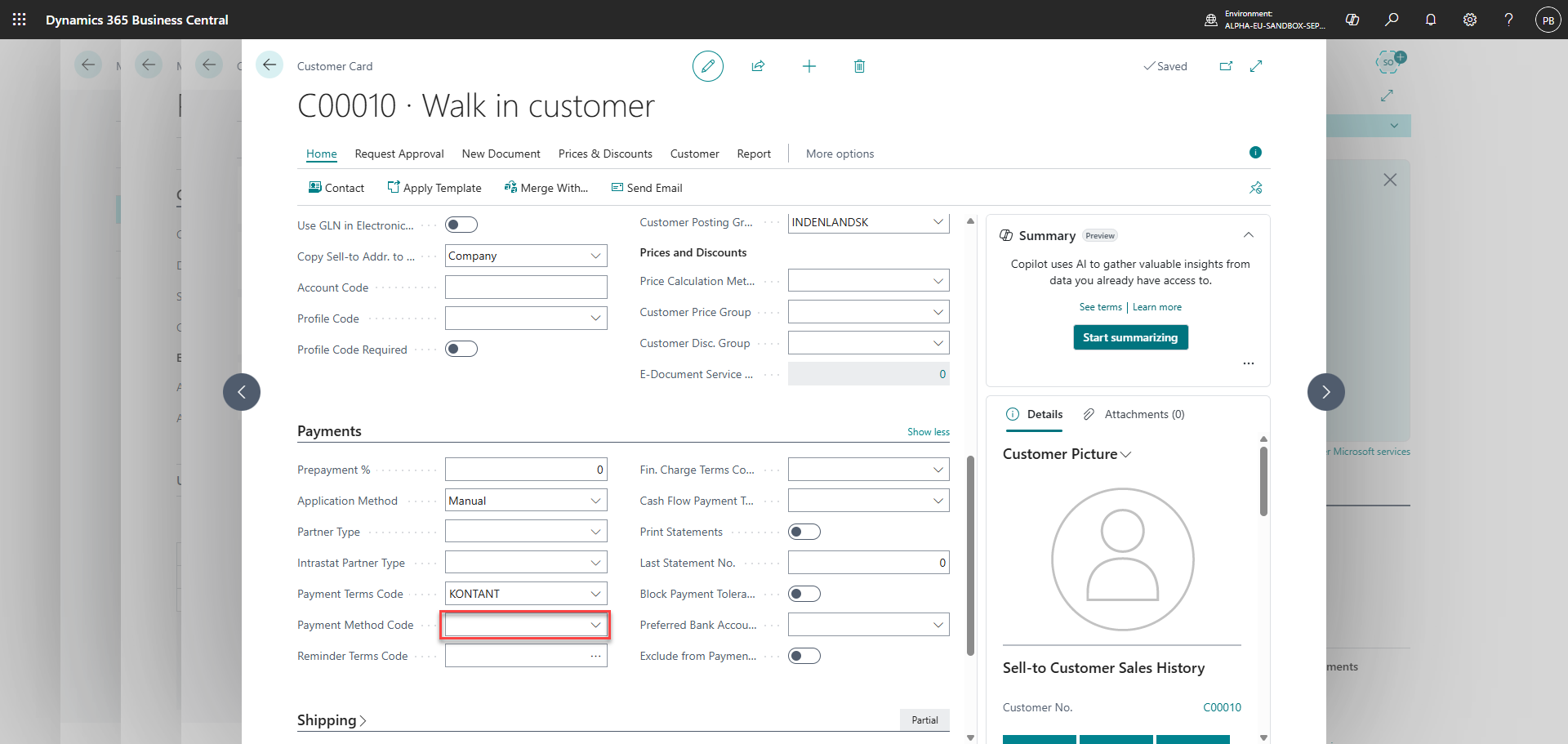
Ensure that 'Payment method code' is empty
Step 5:
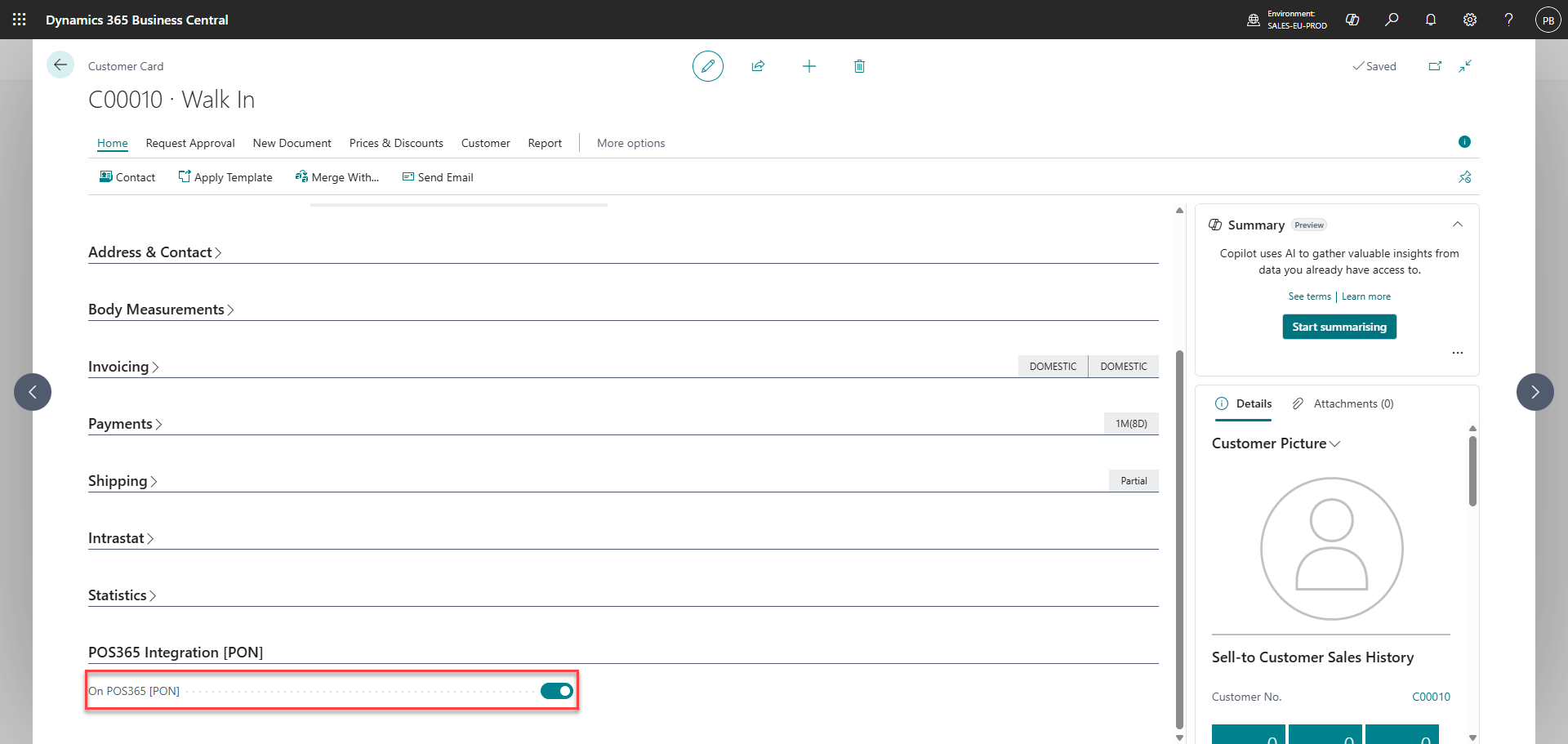
Set 'On POS365 [PON]' to true
Step 8:
Create a POS currency and set a starting date. Set the 'exchange rate amount' and 'relational exchange rate amount' to 100. Scroll to the right and set up 'denominations', 'rounding', 'cash account' and 'bank account'. Check the 'On POS' checkbox.
For more information, see here:
Set up POS currency and ensure synchronization
Step 1:
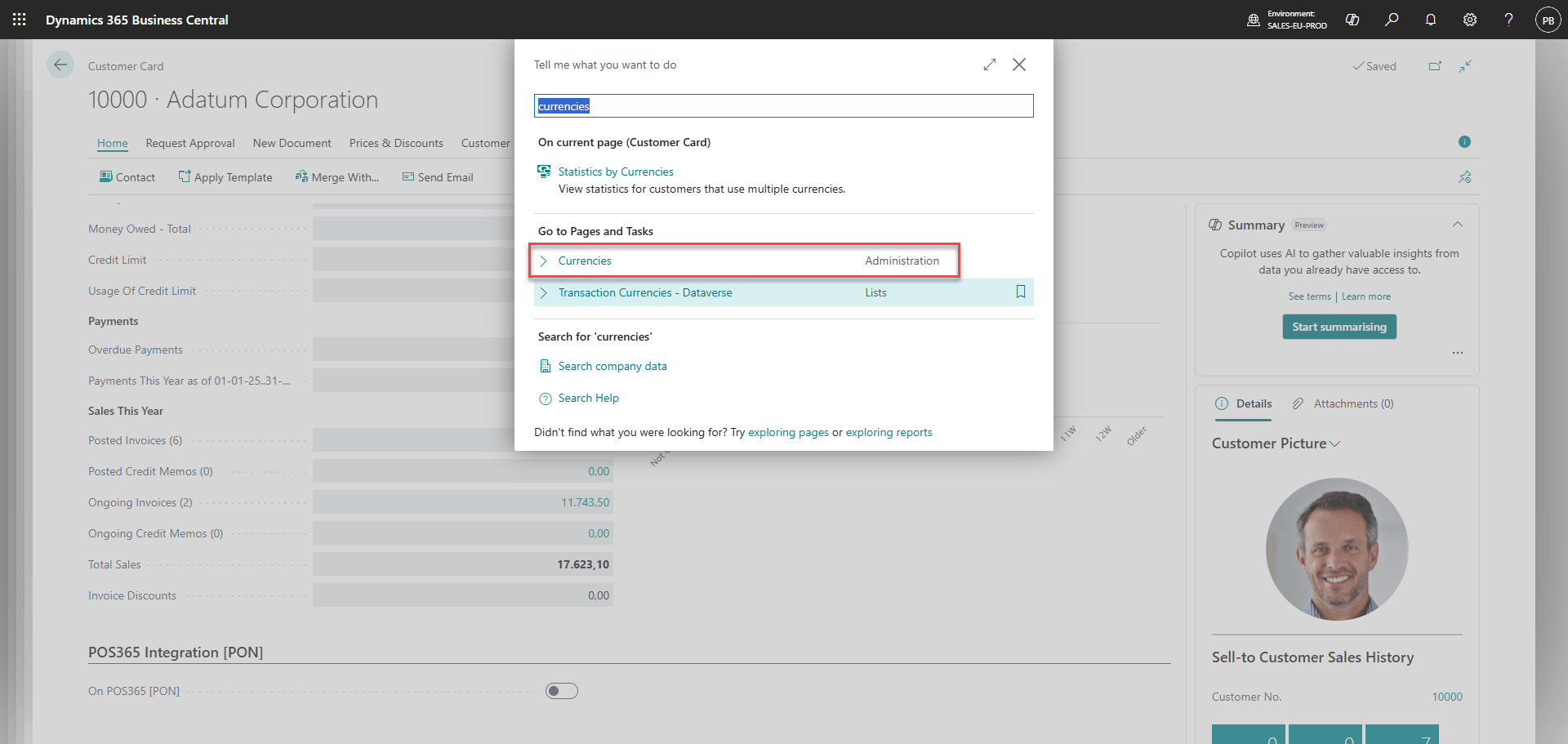
Search for 'Currencies'
Step 2:
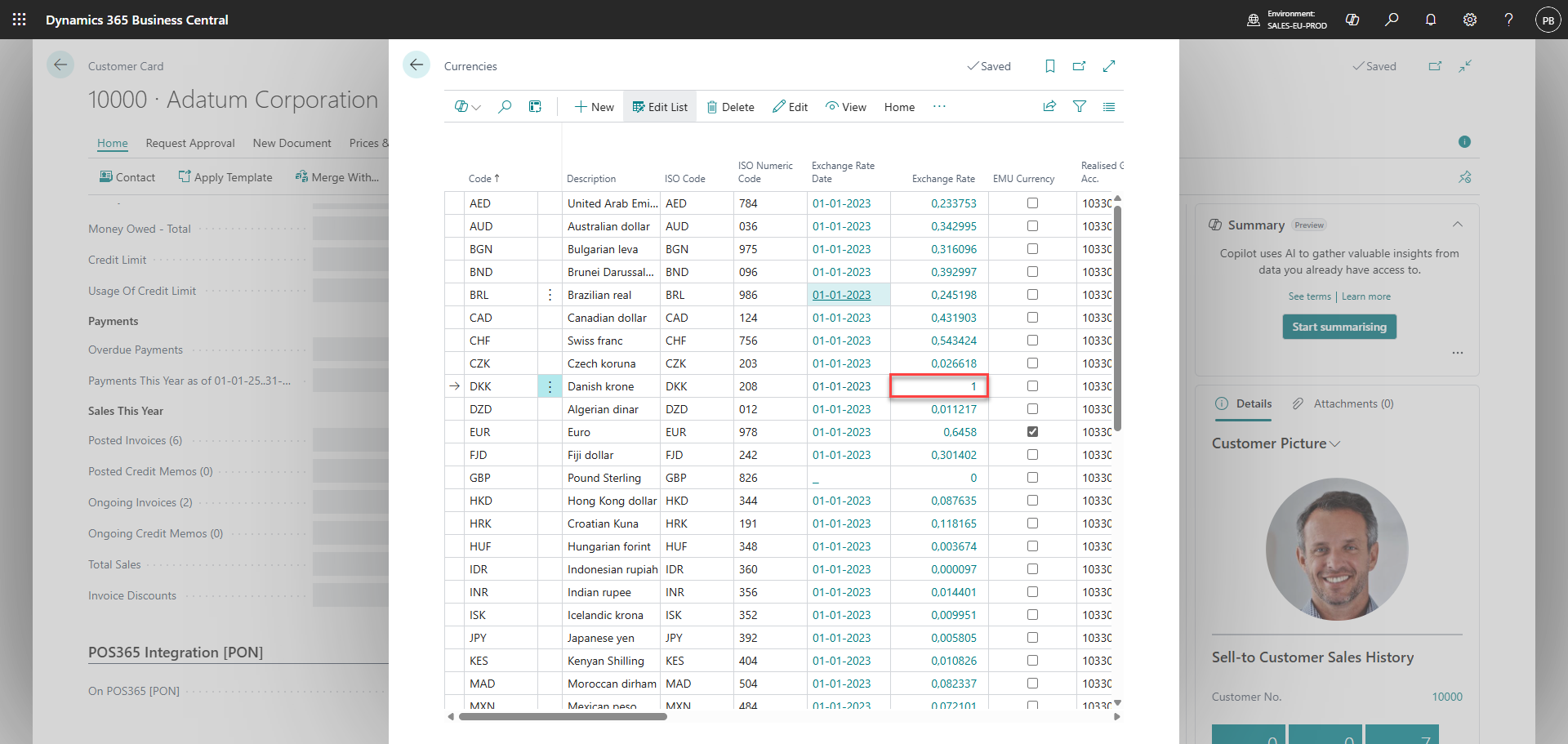
Create a POS currency. This is used for POS365 to be able to set a currency on the payments.
Click on the exchange rate to edit it
Note:
The name of the currency will be displayed on the receipt from the cash register.
Step 3:
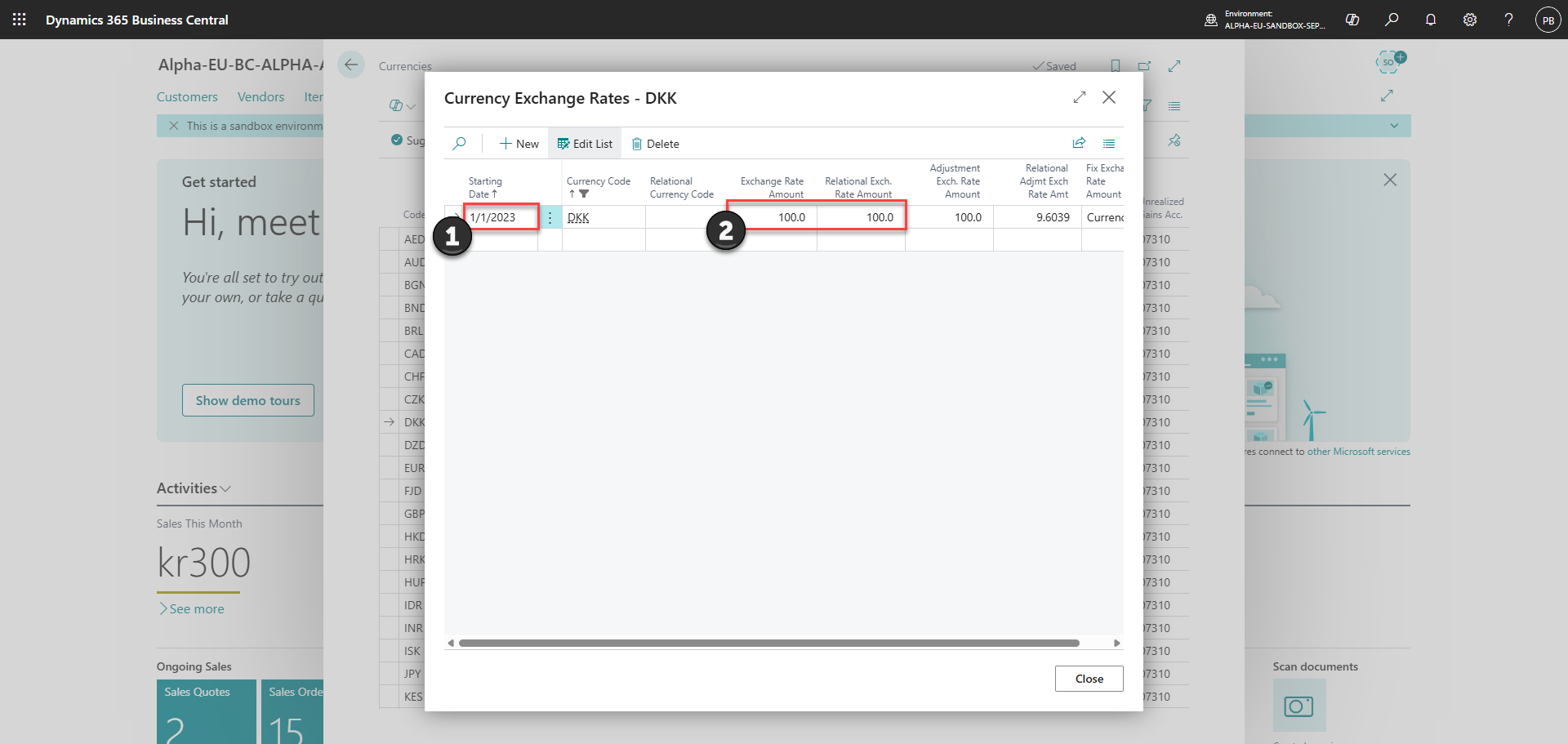
1) Set 'Starting date'
2) Set 'Exchange rate amount' and 'Relational exch. rate amount' to 100
Note:
Ensure that the exchange rate with this setup is first on the list of exchange rates for the currency
Step 4:
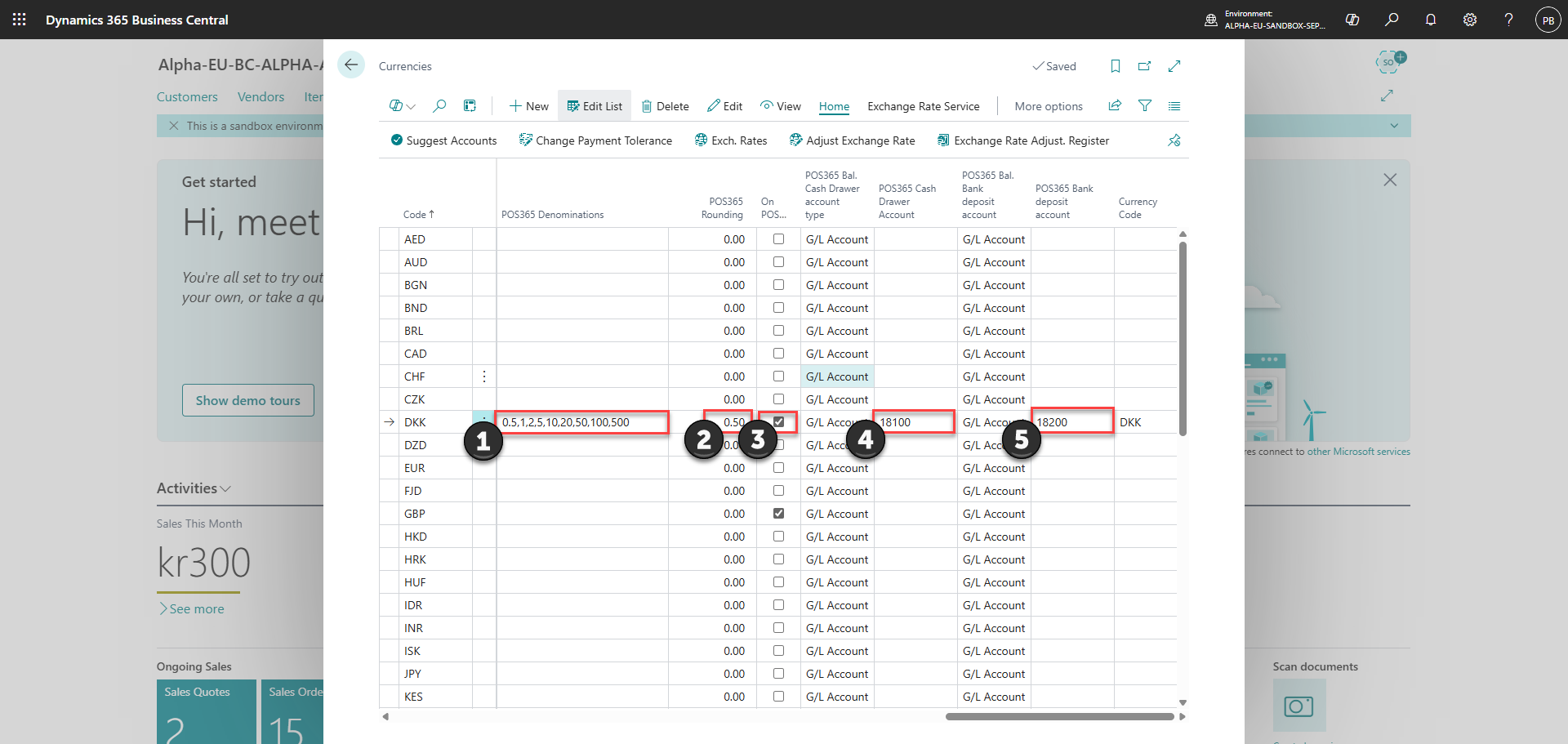
Ensure that the following has been set
Denominations = All values of physical cash
Rounding = Set to the lowest denomination
On POS = Ensures that the currency will be synchronized to the Admin Center
Cash account = The account corresponding to your cash register
Bank account = The account corresponding to where you deposit your money after they have been taken from the cash register. This can be a safe or alike
Note:
Denominations for DKK: 0.5,1,2,5,10,20,50,100,200,500
Denominations for USD: 0.01,0.05,0.1,0.25,0.5,1,2,5,10,20,50,100
Denominations for GBP: 0.01,0.02,0.05,0.1,0.2,0.5,1,2,5,10,20,50
For next step, press "here"