This guide explains how to set up sales price lists in Business Central, where they can be found in the Admin Center, and how they show in the POS365 app.
Step 1: Creating a sales price list
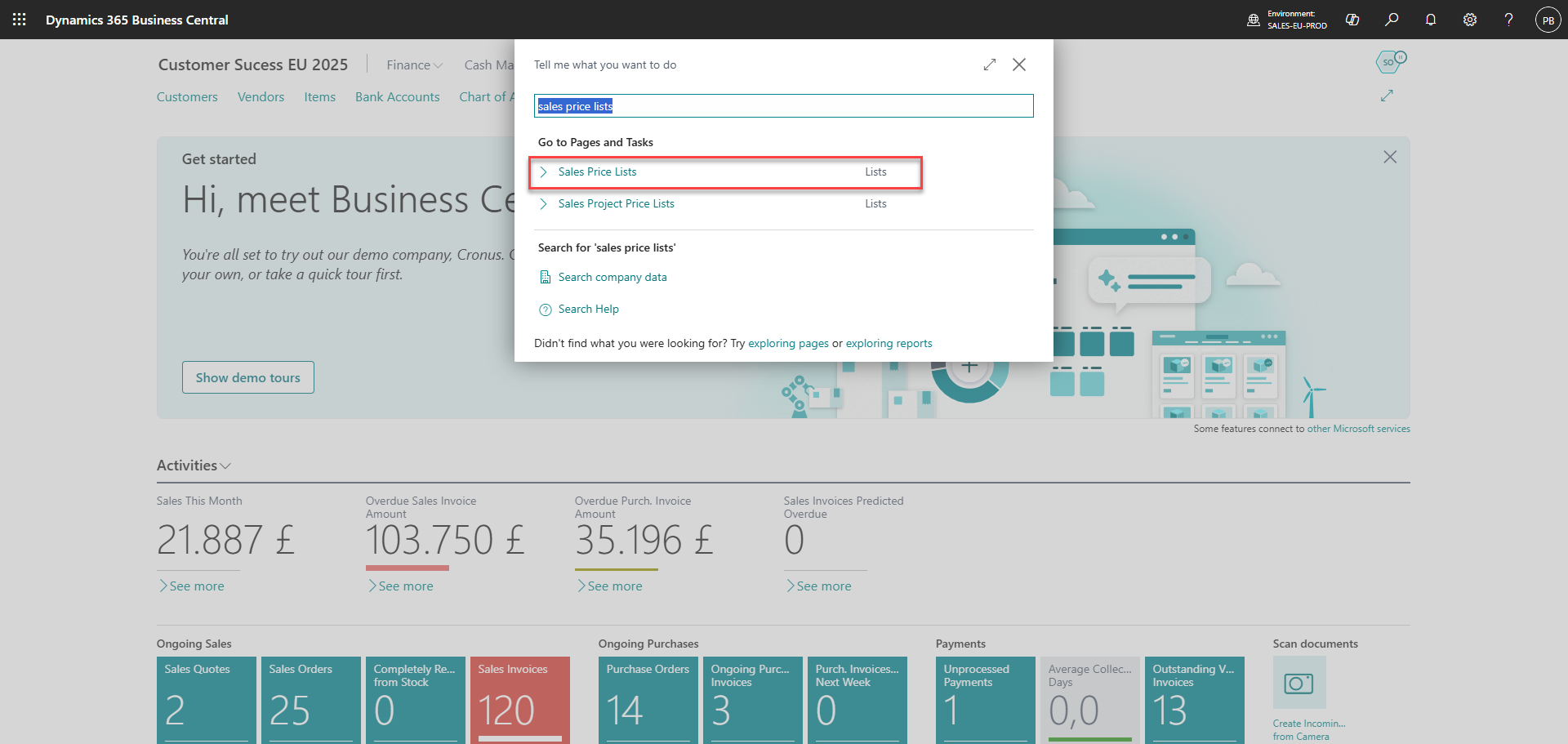
In Business Central, search for 'Sales Price Lists' and select the corresponding list
Step 2:
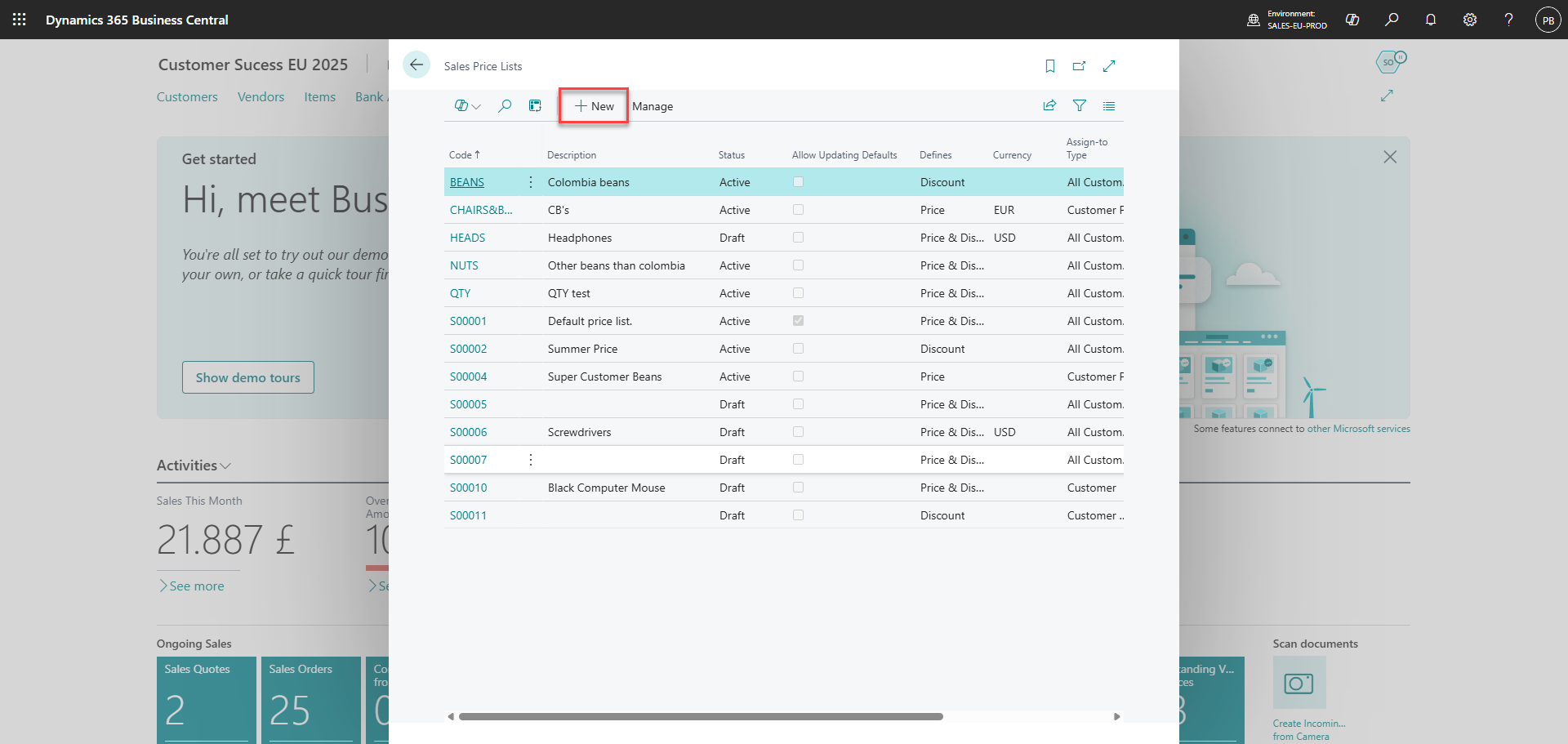
To create a new list, click on 'New'
Step 3:
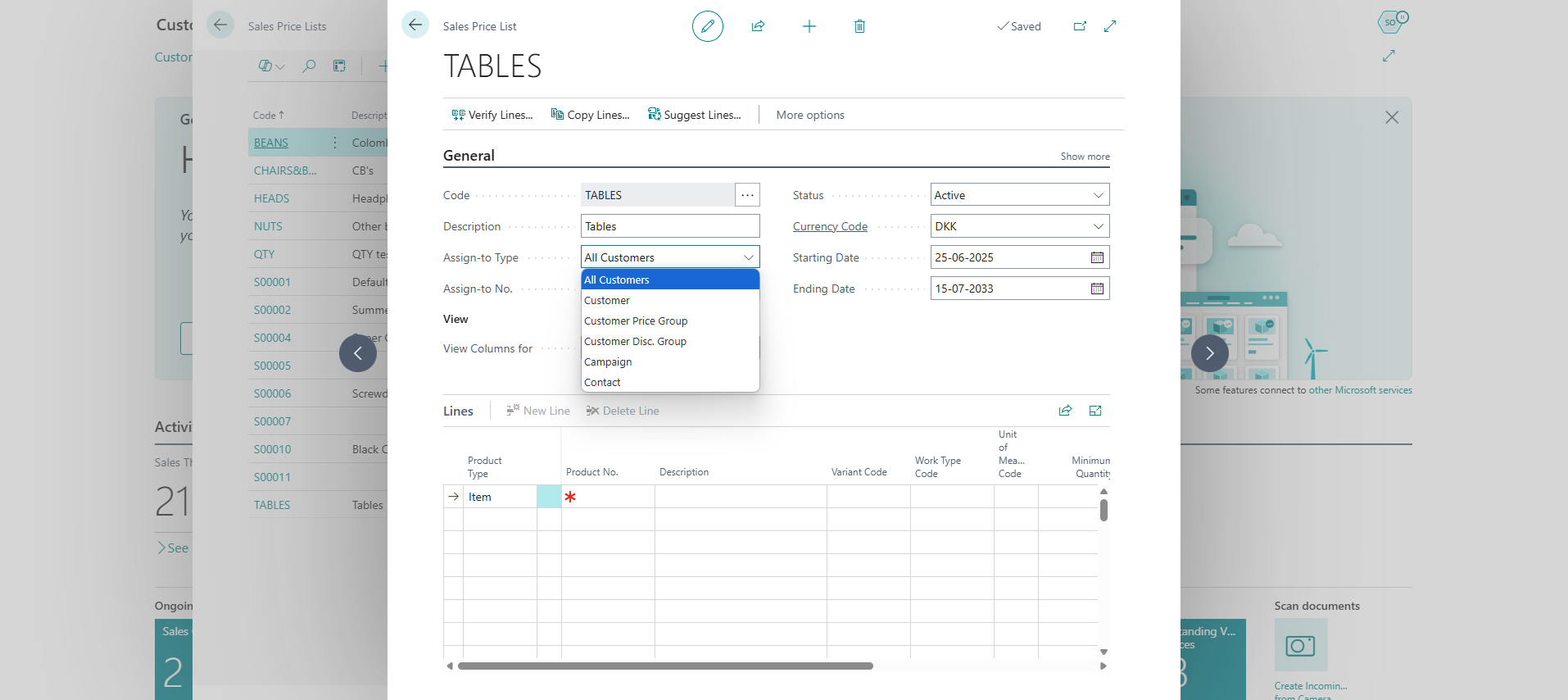
Fill in the header first with all relevant information. This can't be edited when items are added to the sales price list.
Under the 'Assign-to' tab, you can select the desired target of the sales price list.
Note: If 'assign-to type' has not been set to 'all customers', the sales price list must be added manually to the desired customers.
Step 4:
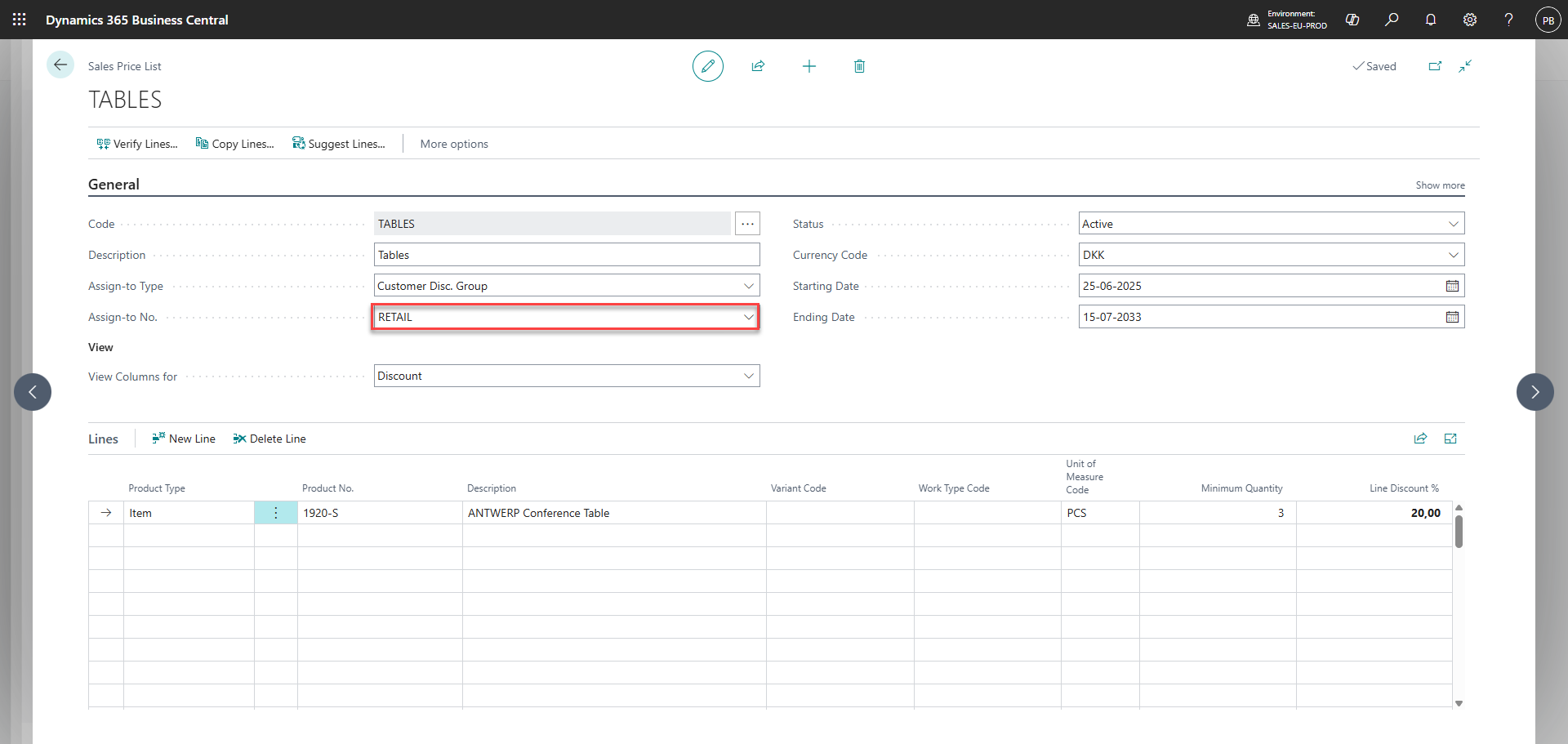
Set 'Assign-to No.' to a desired Customer Disc. Group
Step 5:
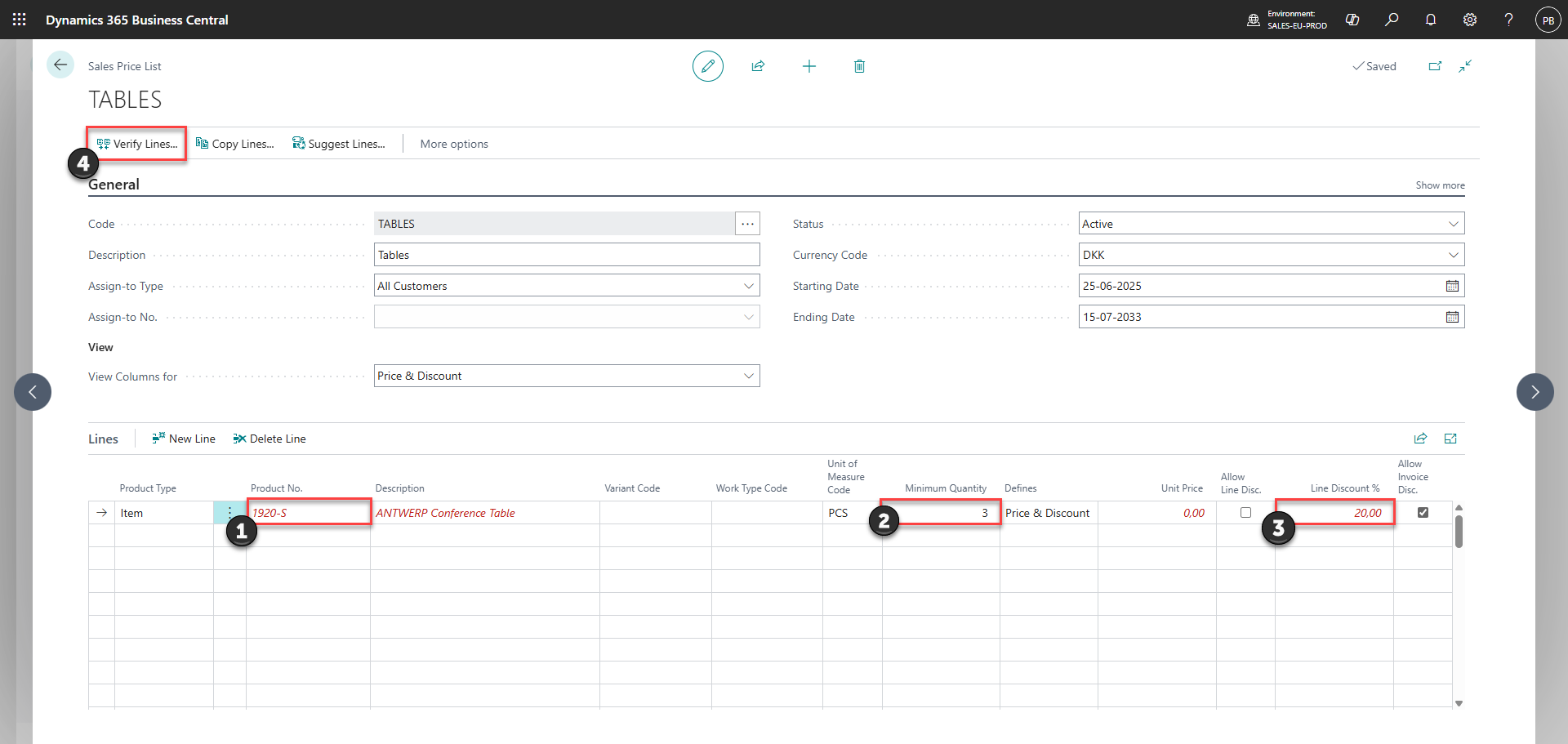
1) Add item(s) to the sales price list
2) Set required quantity for the sales price list to activate
3) Set the desired discount percentage (Note that it is also possible to set a specific unit price rather than a discount by typing in the price value under 'Unit Price')
4) Once all lines has been completed, click 'Verify Lines'
Step 6: (Only necessary if 'Assign-to Type' is NOT equal to 'All Customers')
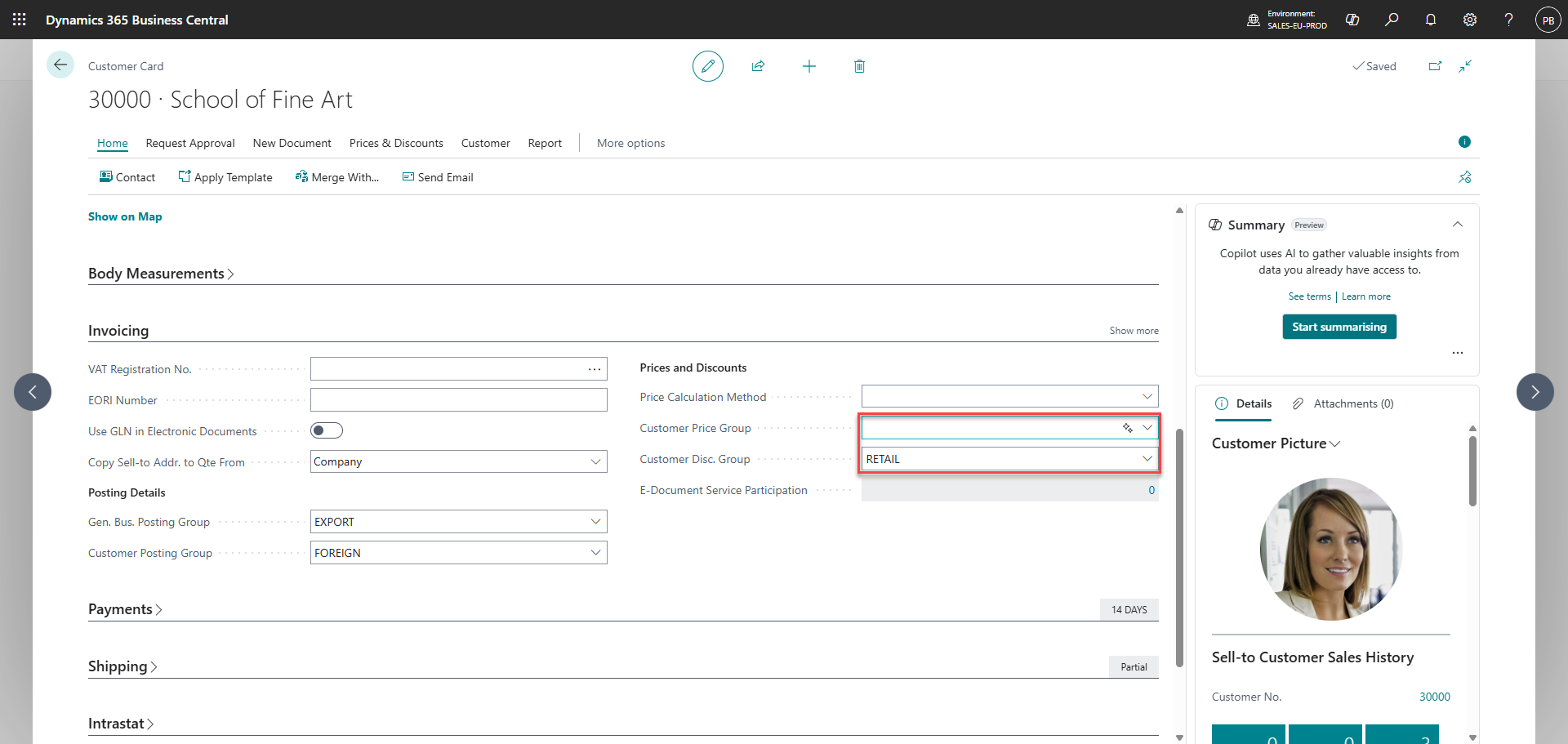
Open the customer card which you want to assign the sales price list to. Go to invoicing and add the 'Customer Disc. Group' selected in step 4
Note: The field used is defined by step 3
Step 7:
1) Go to 'Store'
2) Click on 'Products'
3) Find the product from the sales price list created
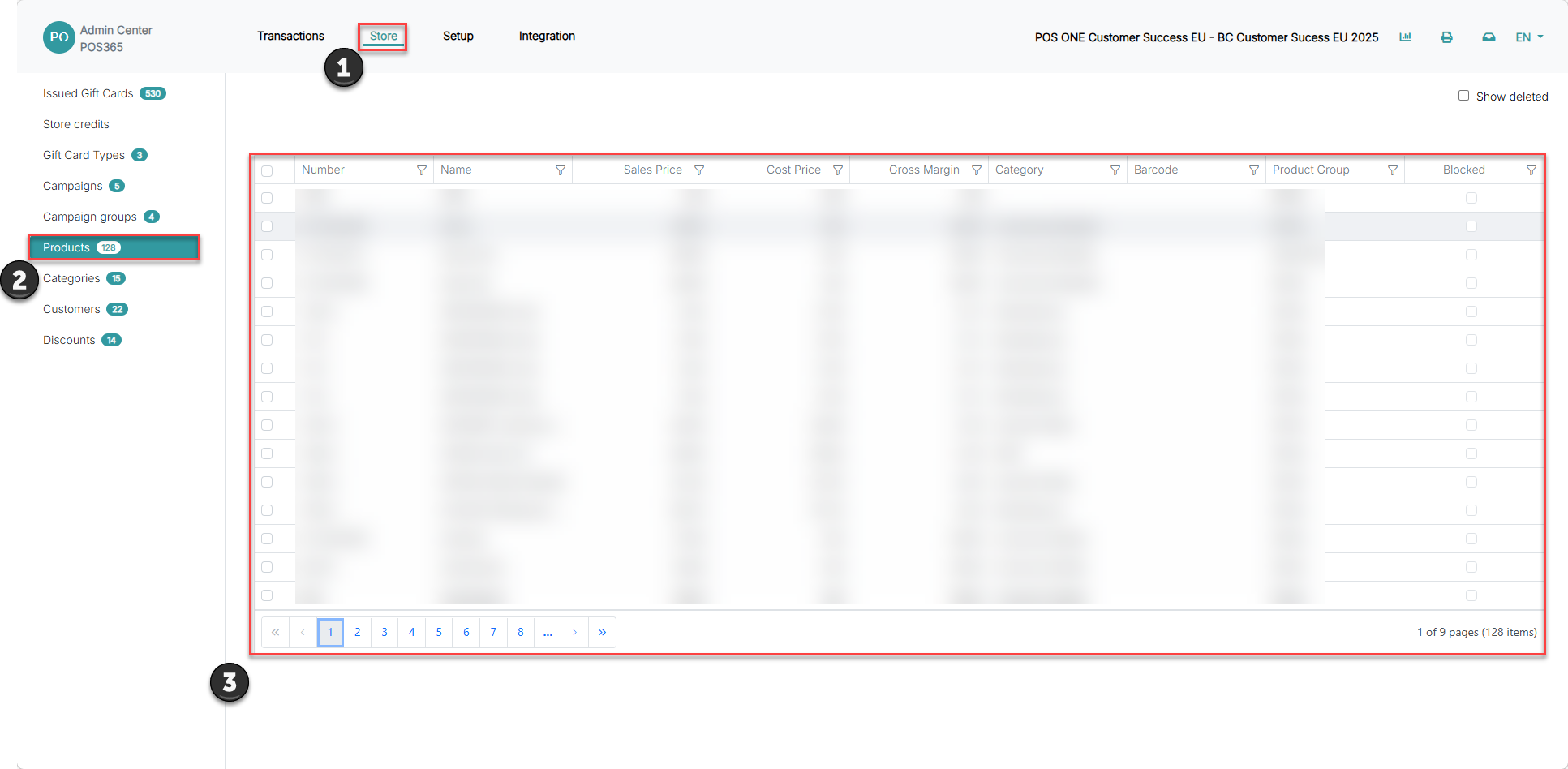
Step 7: Discounts shown in the Admin Center
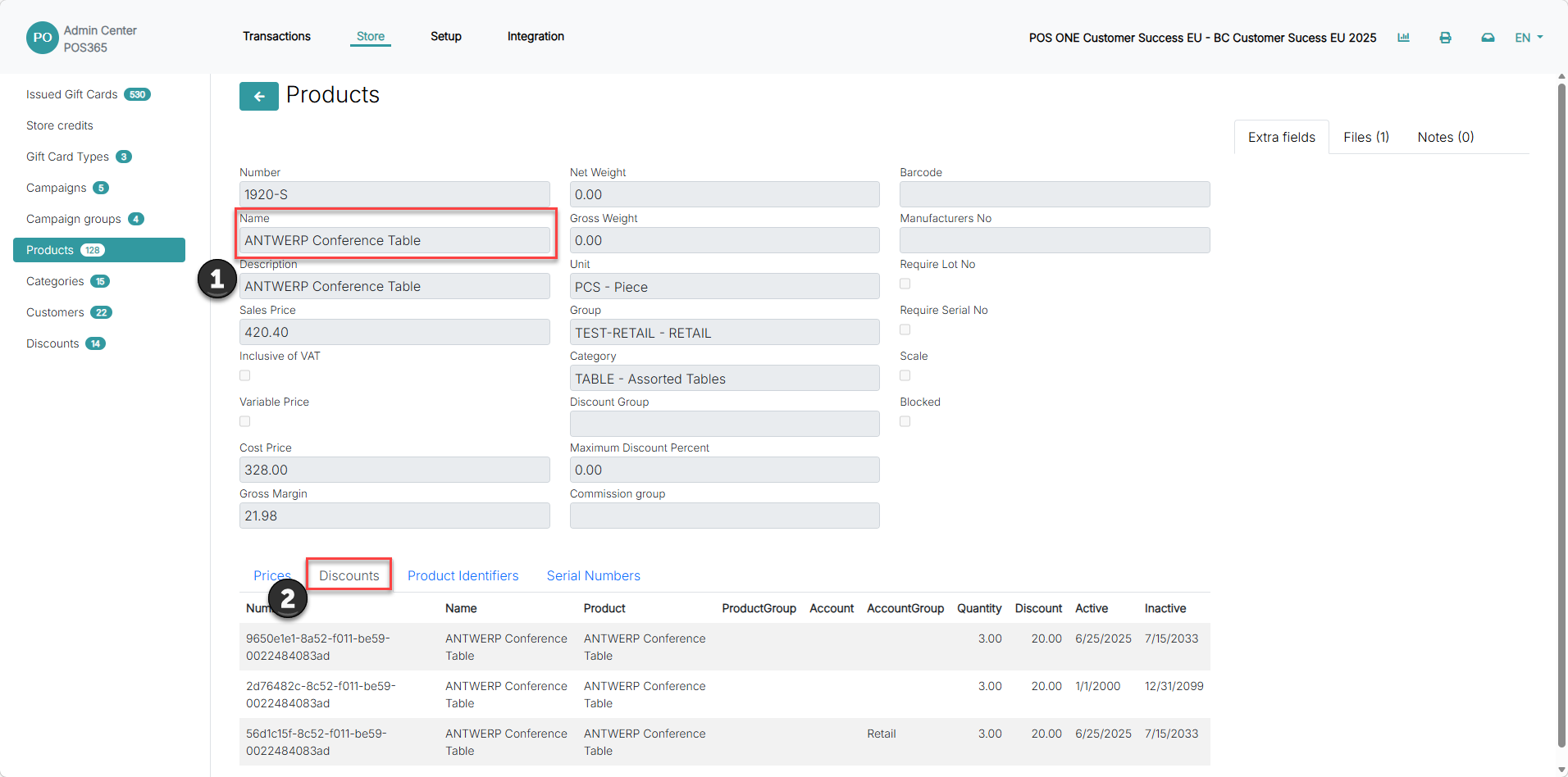
1) Click on the specific product
4) Go to 'Discounts'
Step 8:
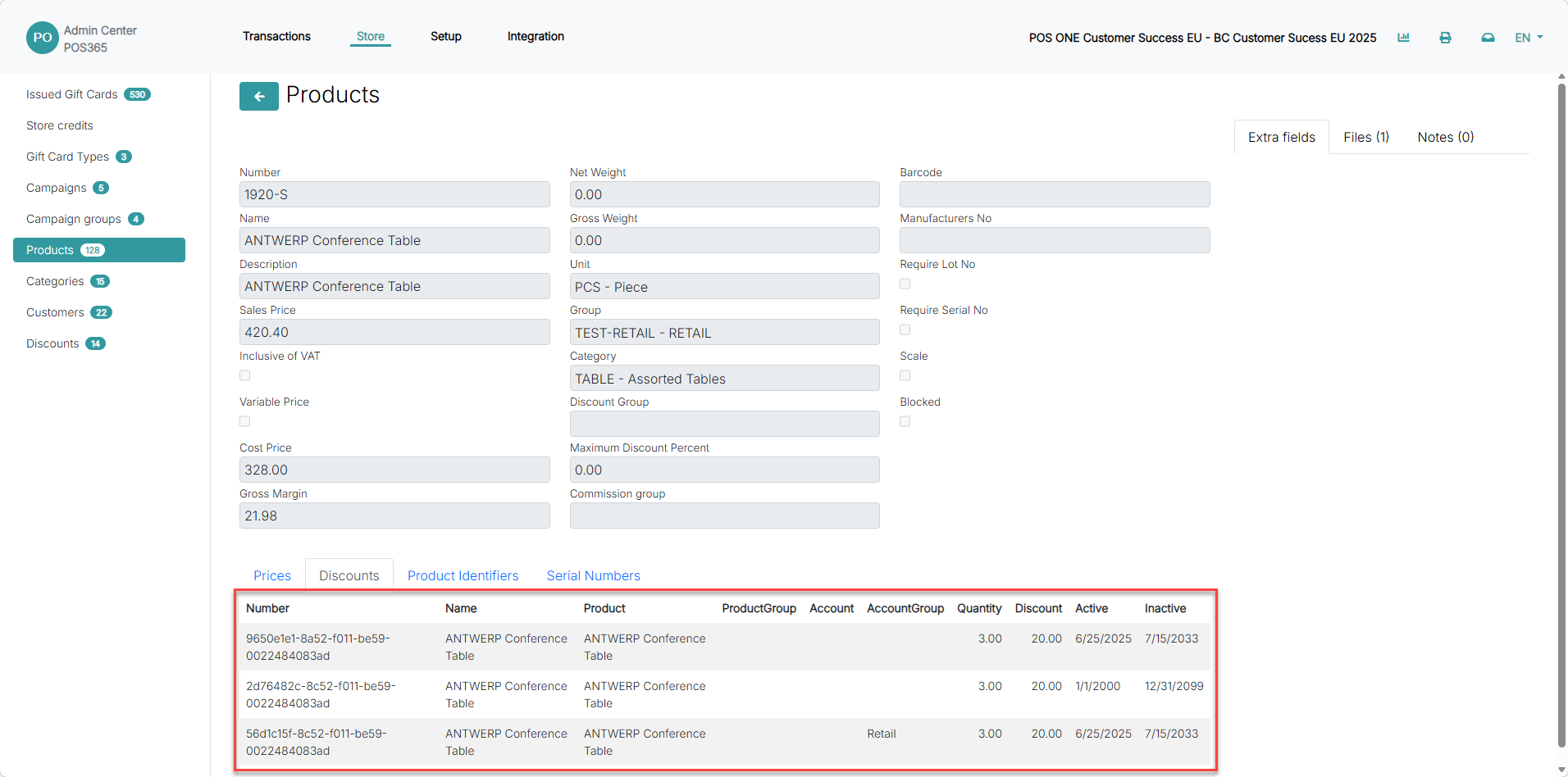
All existing discounts for the specific product is shown
Note: If multiple discounts are triggered, the selected price is the lowest
Step 9: Discounts in the POS
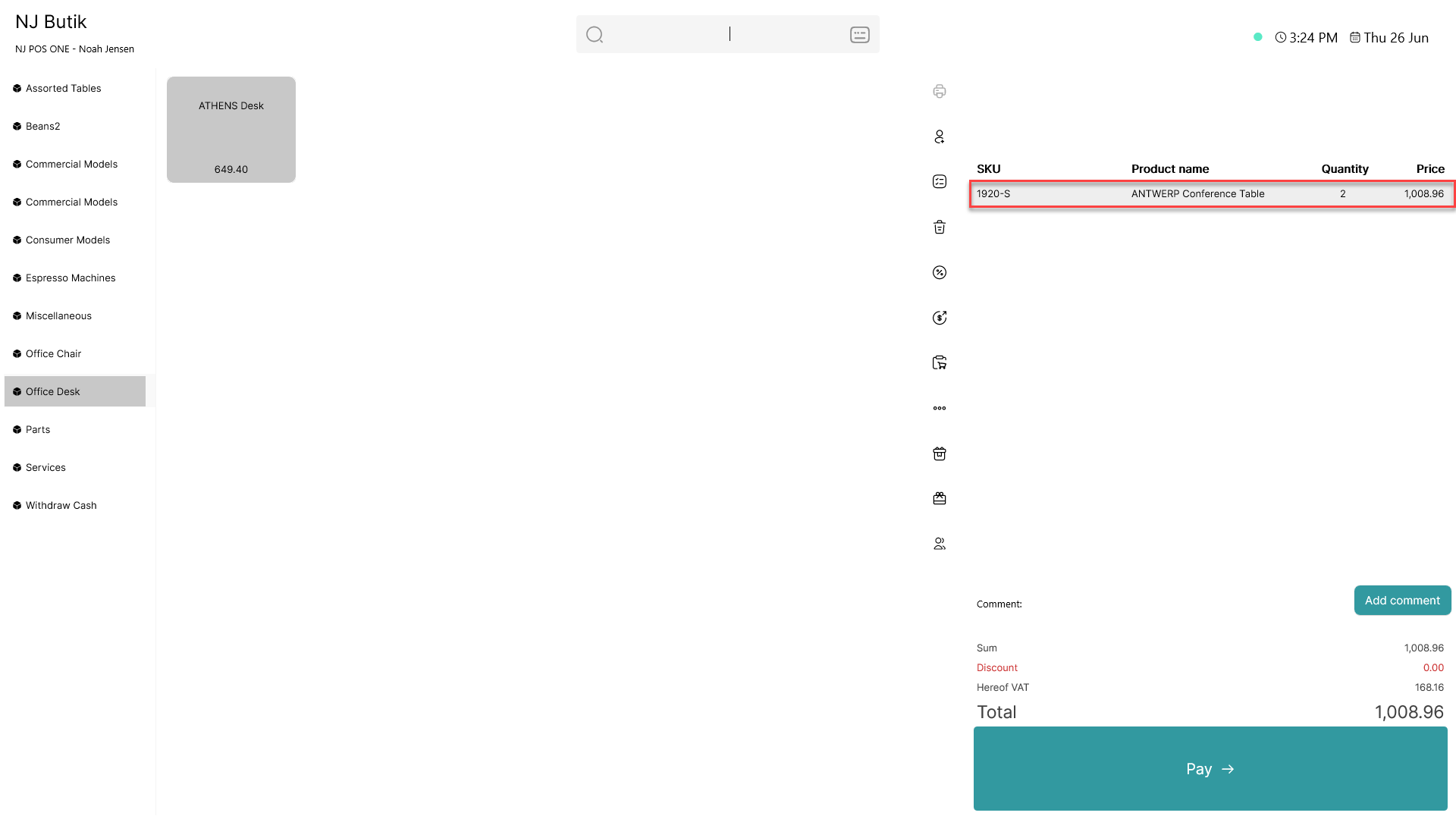
If the requirements of the sales price list created in Business Central are not met, the discount will not apply. In this case, the quantity is not met.
Note: For other 'Assign-to types' in Business Central, other requirements are also needed (step 6).
Step 10:
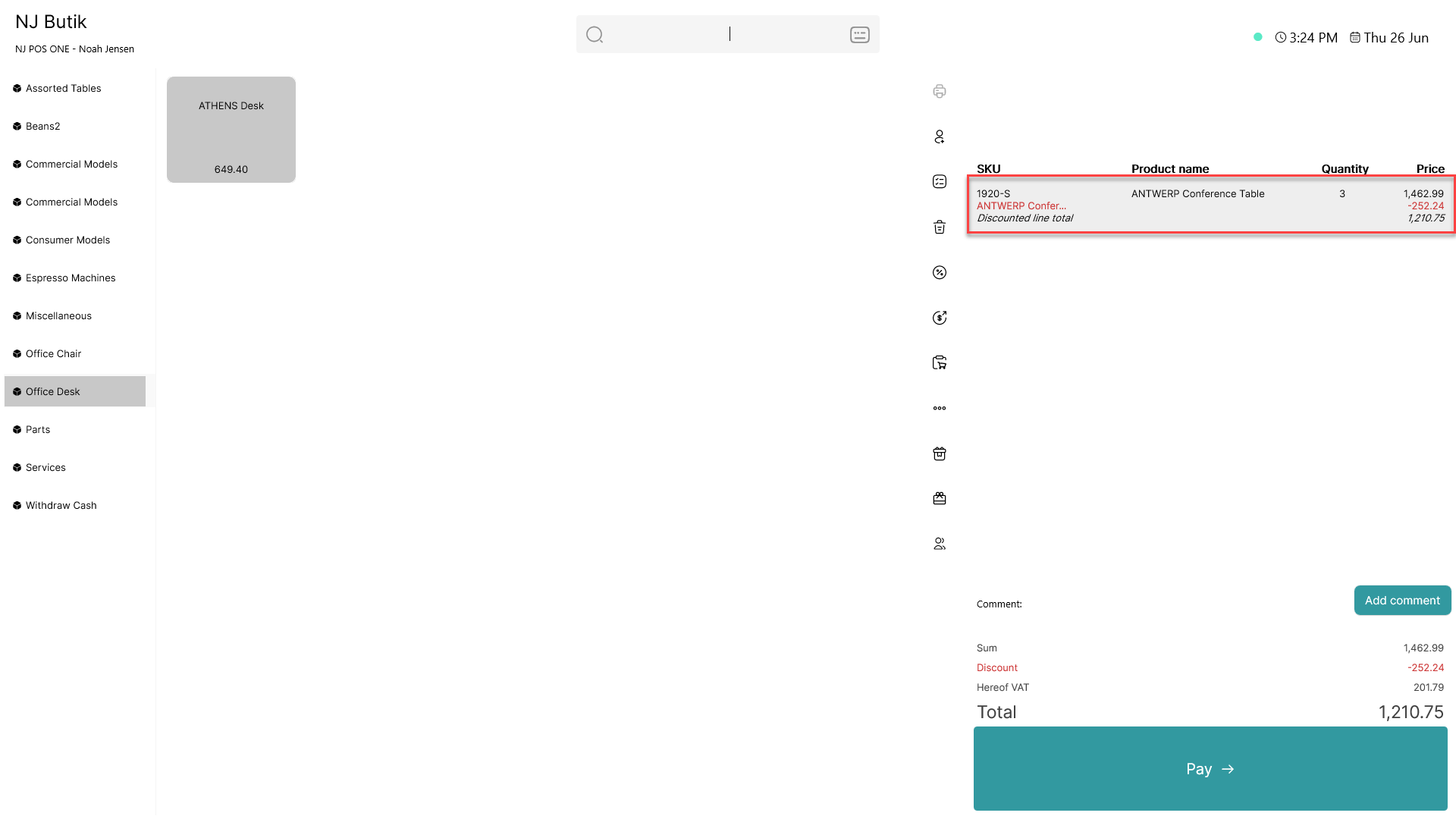
If the requirements of the sales price list are met, the discount will be displayed at the product line