BC error: JSON token
BC Error: The data does not represent a valid JSON token
To solve this error, please reach out to POS365
BC error: 14052734
BC Error: The supplied field number '14052734' cannot be found in the 'Sales Header' table.
Problem: E-Jewelry extension is not installed on the Business Central environment
Solution: Either remove the e-Jewelry module in the Admin Center or install the e-Jewelry extension in the Business Central environment
Windows Store error: 0x80073CF3
This guide explains how to bypass error code 0x80073CF3 when downloading and installing POS365 from the Microsoft store. To troubleshoot this error, a few actions need to be performed.
Step 1: Run the Microsoft Store App Troubleshooter
Press Windows Key + I to open Settings.
Go to Update & Security.
In the left-hand pane, click Troubleshoot.
Select Additional troubleshooters.
Scroll down, find Microsoft Store Apps, and click it.
Click Run the troubleshooter.
-
Follow the on-screen instructions until the process completes.
Tip: Restart your computer after this and try downloading the POS365 app again.
Step 2: Check and Correct Date & Time Settings
Incorrect system date/time can cause download failures.
Open Settings (
Windows Key + I).Go to Time & Language.
Make sure Set time automatically is enabled.
Verify the Time zone is correct for your region.
Step 3: Clear Temporary Files in the DataStore Folder
Press Windows Key + E to open File Explorer.
-
Navigate to the following folders:
C:\Windows\SoftwareDistribution\DataStoreC:\Windows\SoftwareDistribution\Download
-
Delete all contents inside both folders.
-
These contain temporary logs/files that may interrupt downloads.
You may need administrative privileges to delete some files.
-
Step 4: Reset the Microsoft Store App
Open Settings (
Windows Key + I).Click on Apps.
Under Apps & Features, scroll and find Microsoft Store.
Click Microsoft Store, then select Advanced Options.
Scroll down and click Reset.
Wait until the reset process completes, then close Settings.
Step 5: Reinstall Microsoft Store via PowerShell
If the issue persists, reinstall the Microsoft Store app:
Right-click the Start Menu, select Windows PowerShell (Admin).
-
Paste the following command and press Enter:
rubypowershell -ExecutionPolicy Unrestricted Add-AppxPackage -DisableDevelopmentMode -Register $Env:SystemRoot\WinStore\AppxManifest.xml Wait for the process to complete.
Close PowerShell.
After completing these steps, relaunch Microsoft Store and attempt to download the POS365 app again.
If you continue facing issues, feel free to contact POS365 support for further assistance.
AC error: Wrong language used in the Admin Center
Problem: The language displayed along the Admin Center is incorrect (e.g. Inventory being displayed as Lagerøl)
Solution: Go to the 'Windows Defender Firewall with Advanced Security' app on the computer. Open the inbound rules, and grant full access to the browser you are using. After that, open the Admin Center, click CTRL + F5, and reload the company.
BC error: Inventory Posting Group is empty
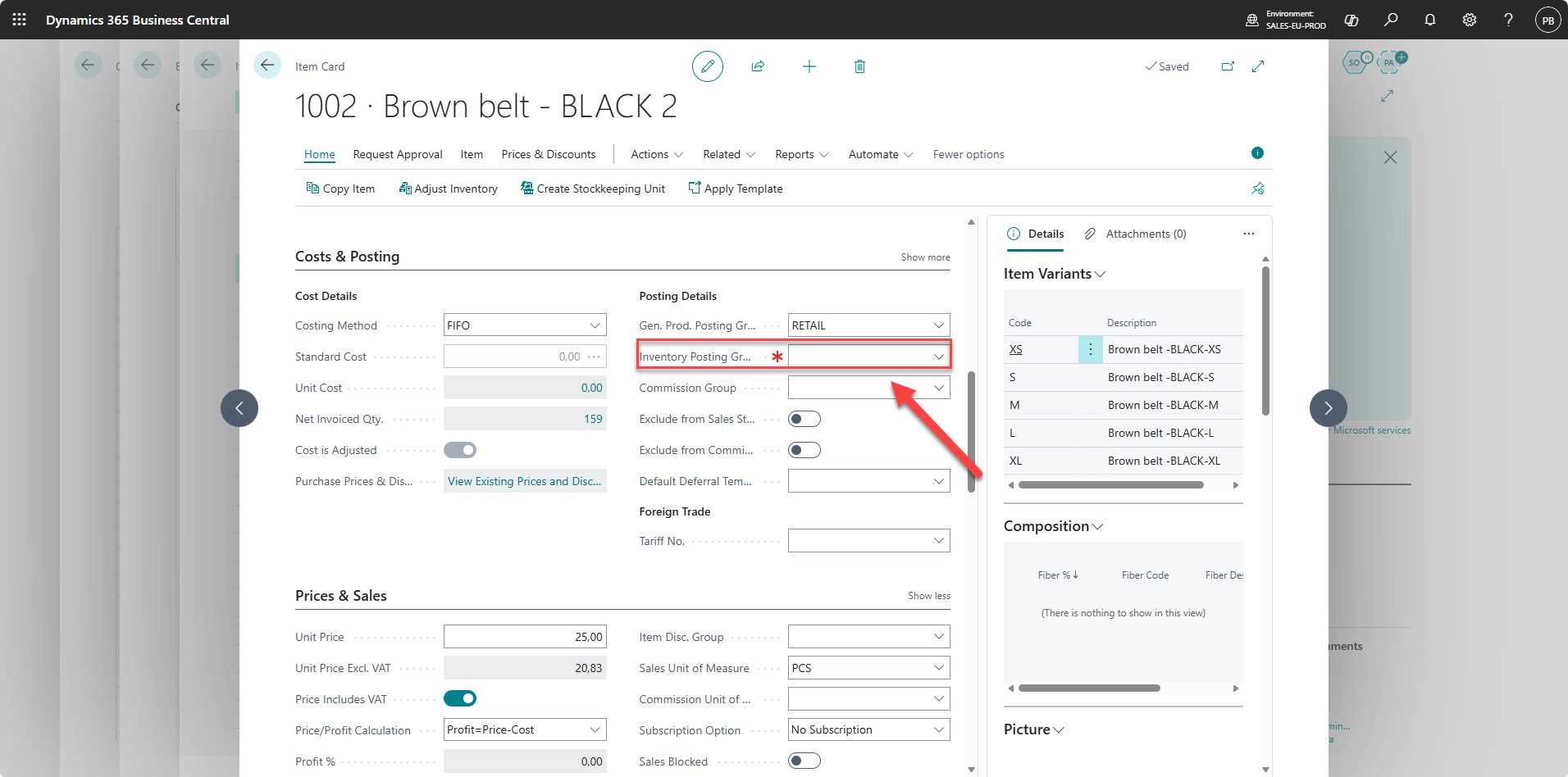
BC Error: Inventory Posting Group must have a value in Item no.= XXXX. It cannot be zero or empty.
Problem: The item in Business Central does not have a value in the field 'Inventory Posting Group'.
Solution: Open the item in Business Central, fill in the field 'Inventory Posting Group', and try again.
BC Error: AADSTS7000222: The provided client secret keys for app "" are expired
BC Error: AADSTS7000222: The provided client secret keys for app "" are expired. Visit the Azure portal to create new keys for your app: https://aka.ms/NewClientSecret, or consider using certificate credentials for added security: https://aka.ms/certCreds.
To solve this error, follow this guide