This guide explains how to make a sale using either the payment type 'Credit Sale' or 'Credit Check', which will open up for the possibility to print a delivery note
Step 1:
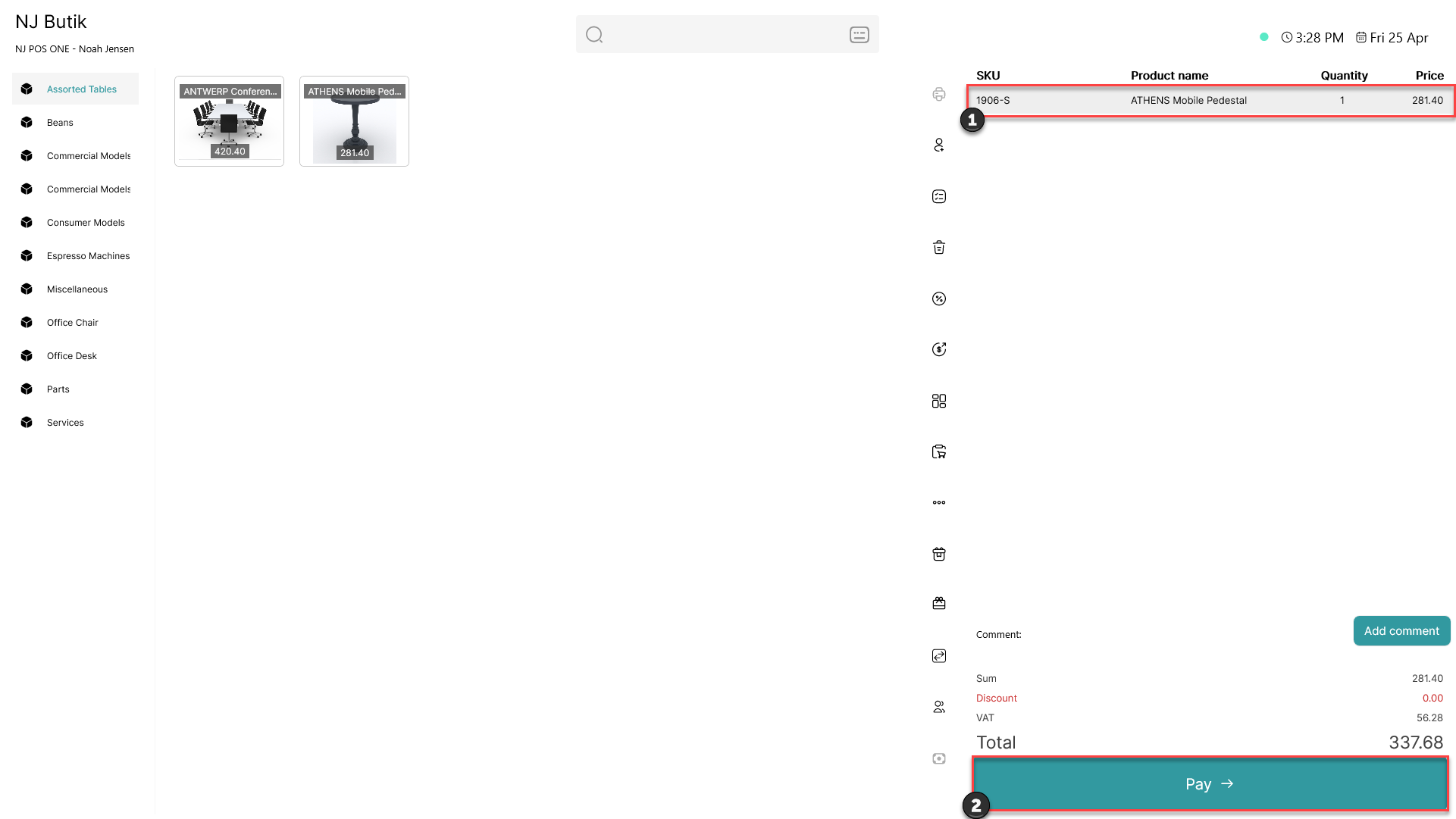
1) Add item(s) to the basket
2) Click 'Pay'
Step 2:
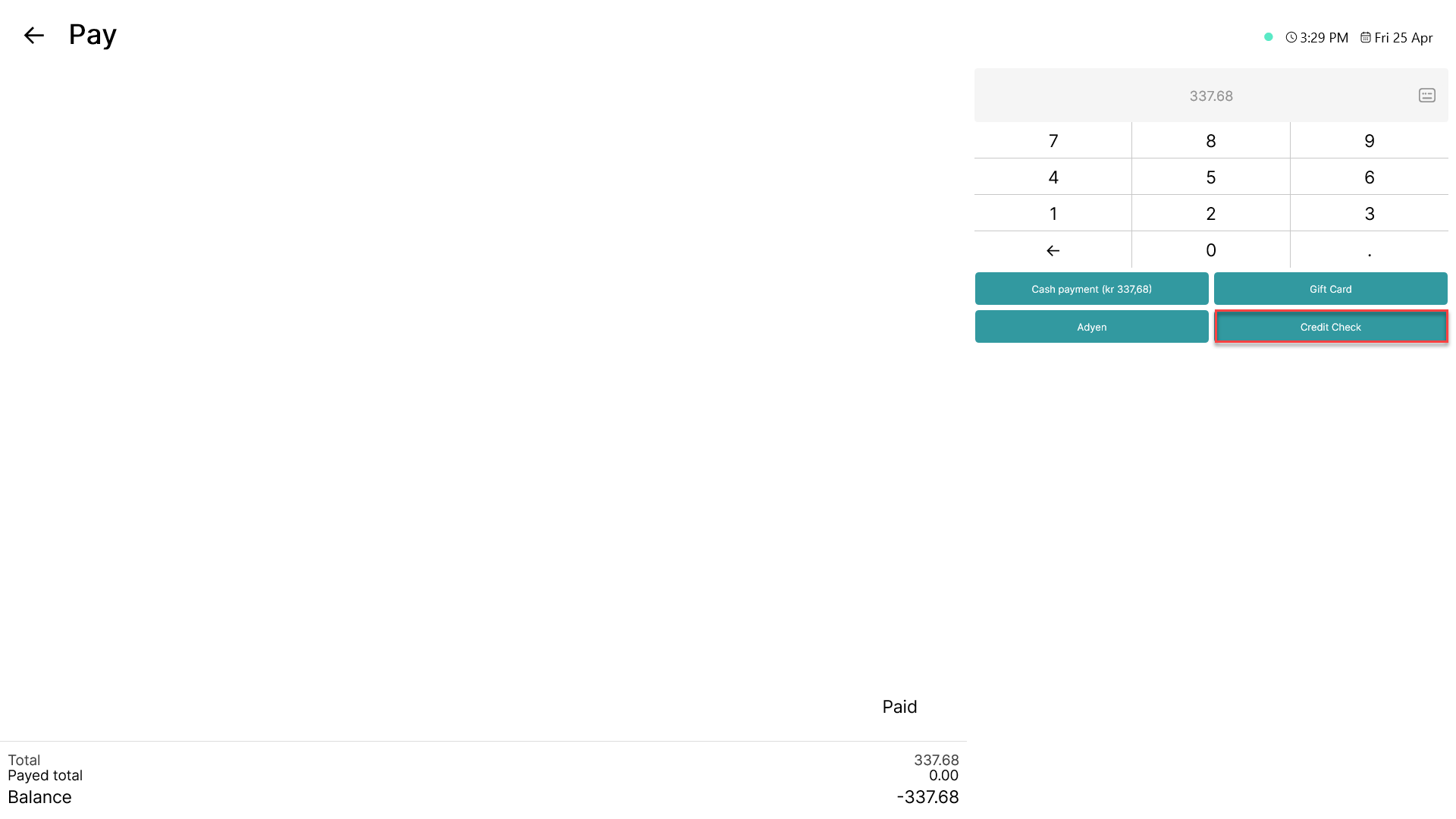
Choose either the 'Credit' or 'Credit Check' payment type
Step 3:
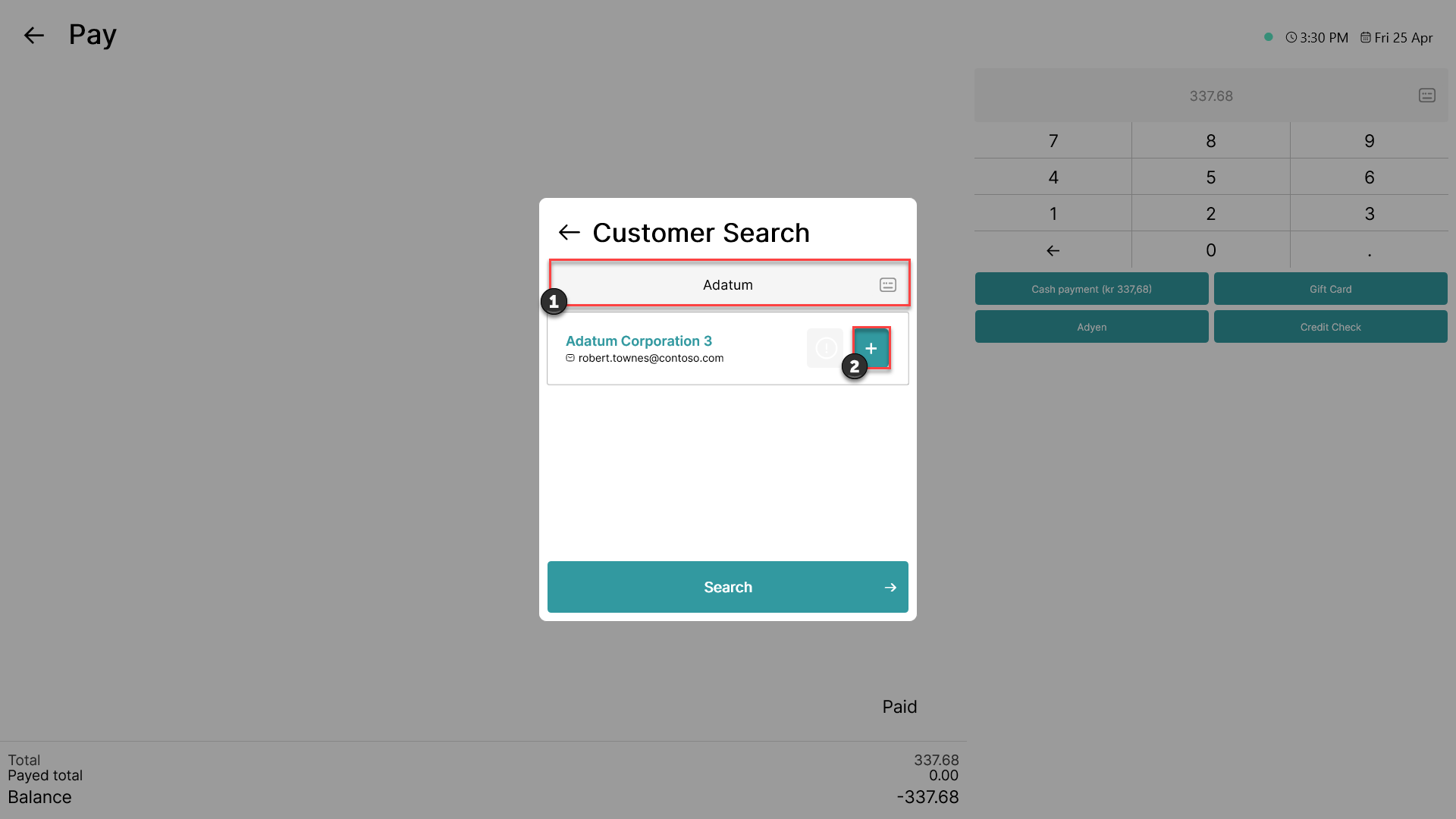
1) Search for the customer you want to add to the order
2) Add the customer
Step 4:
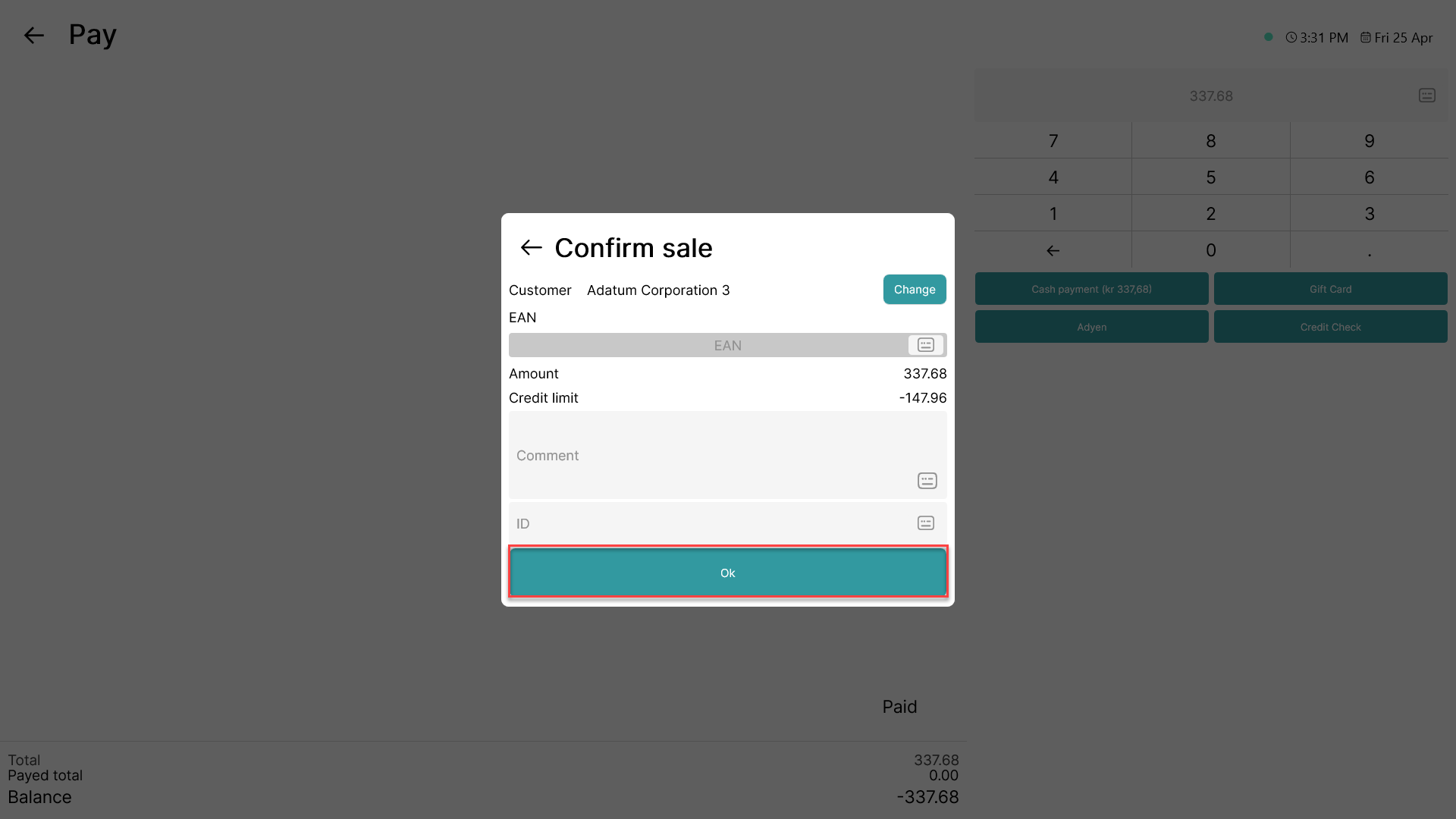
Make sure that the information is correct and click 'Ok'
Step 5:
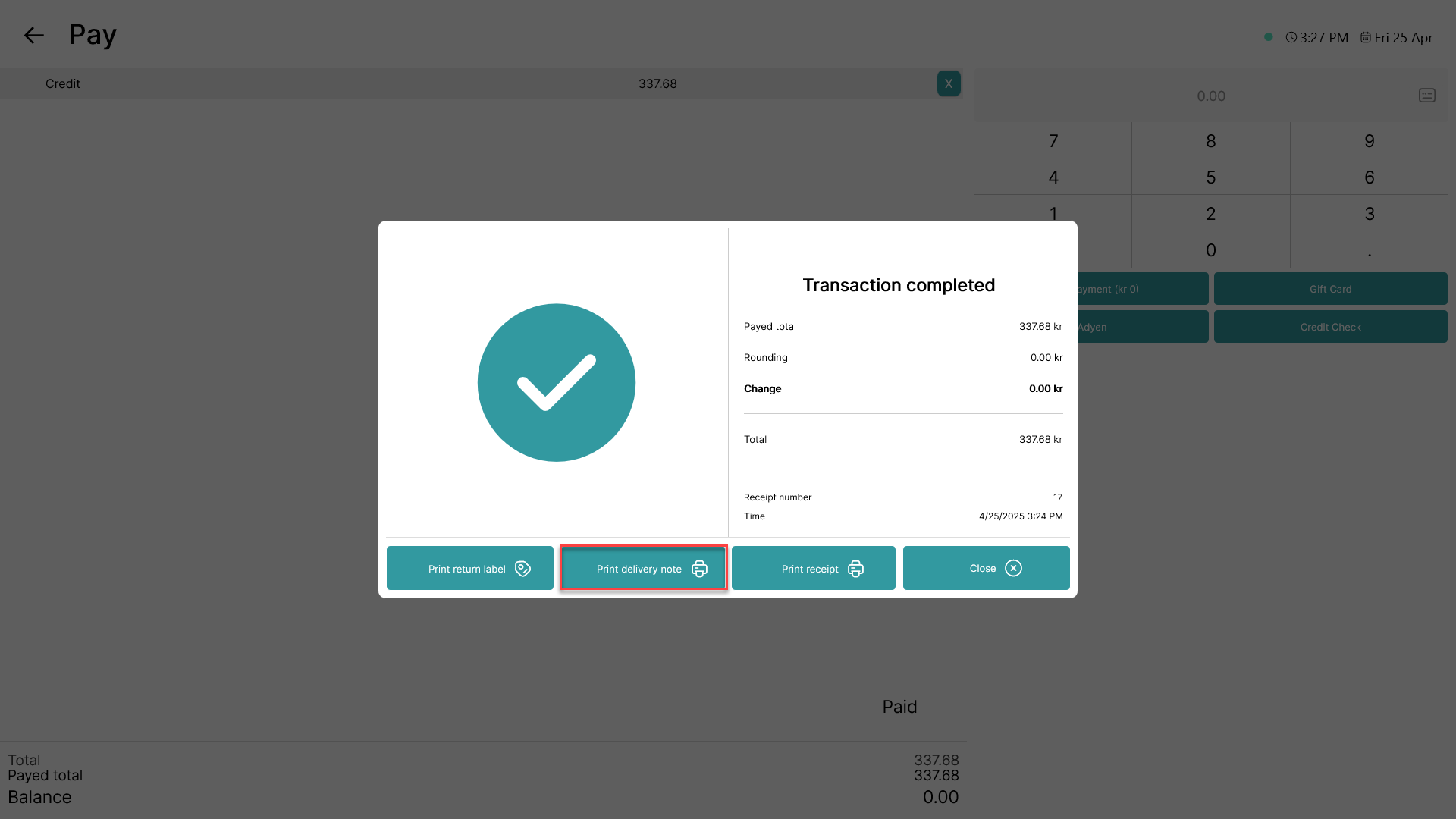
Click 'Print delivery note'
Note:
The delivery note will be attached as a file under the transaction in the Admin Center
The delivery note does not contain prices of products