This guide explains how to create a campaign. This can both be done for item categories and specific products. Furthermore, a campaign can be created based on a percentage discount or a cash discount.
The setup must be performed in the Admin Center.
Step 1:
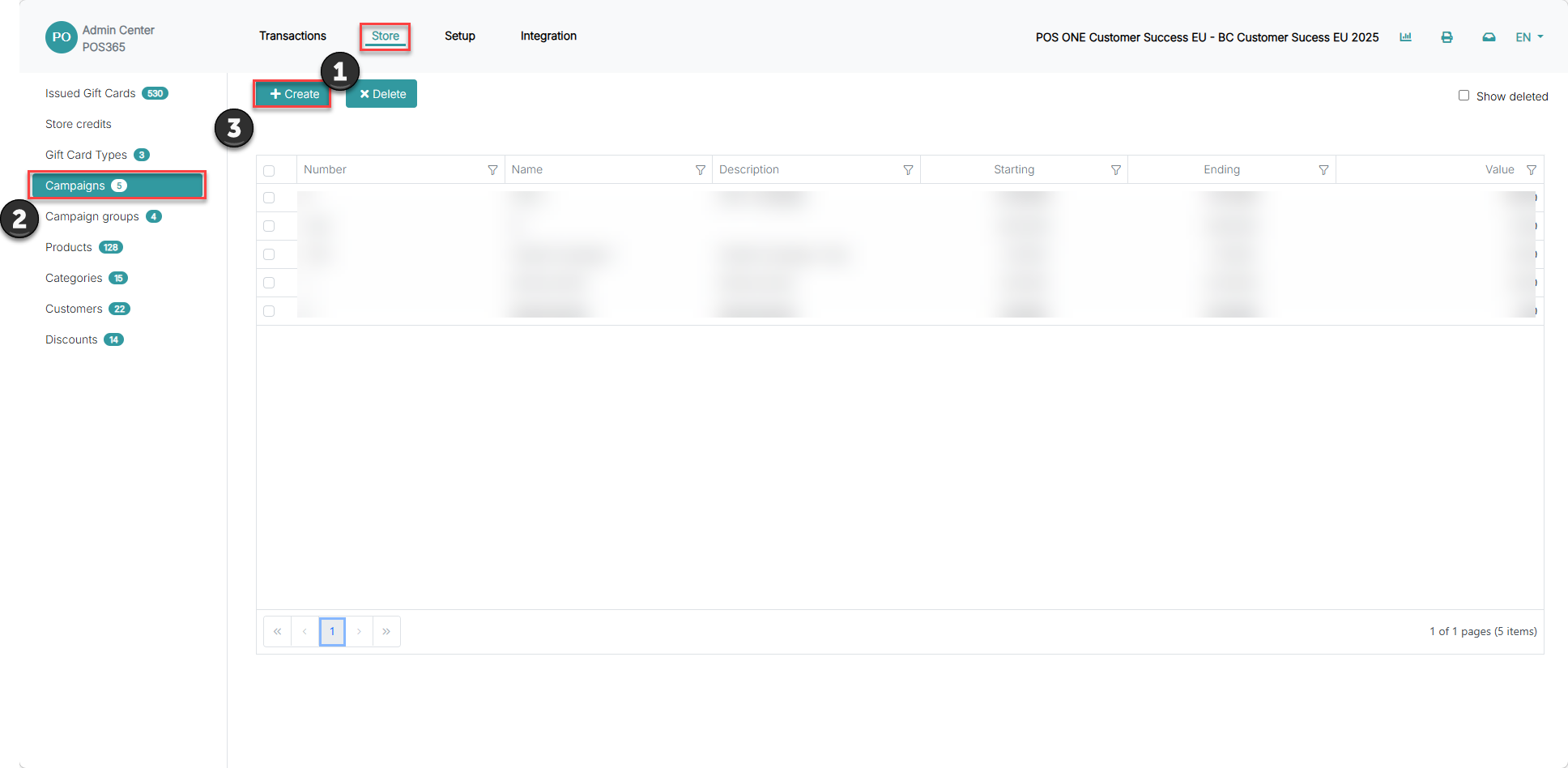
1) Click on 'Store'
2) Go to 'Campaigns'
3) Click 'Create'
Step 2:
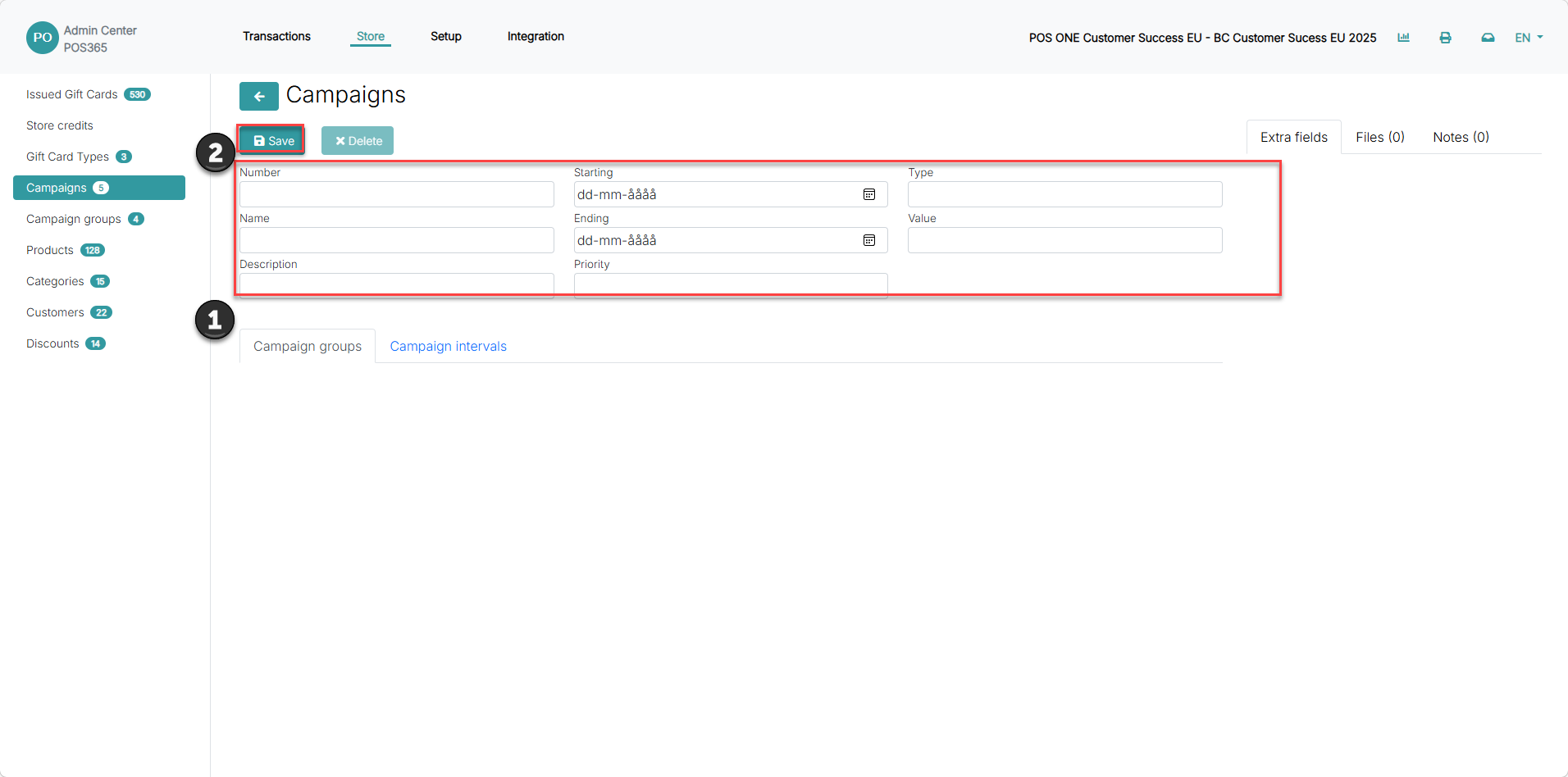
1) Fill in the empty text fields (Explainer of text fields is listed below)
2) Click 'Save'
Number = A number assigned to the campaign
Name = The name of the campaign
Description = A short description of the campaign
Starting = The starting date of the campaign
Ending = The ending date of the campaign
Priority = The order, which campaigns are prioritized if the same product is a part of multiple campaigns
Type = Choose between percentage discount or cash discount
Value = The discount value. Uses information from 'Type' to define whether the number in 'Value' is based on a percentage or a numeric value
Step 3:
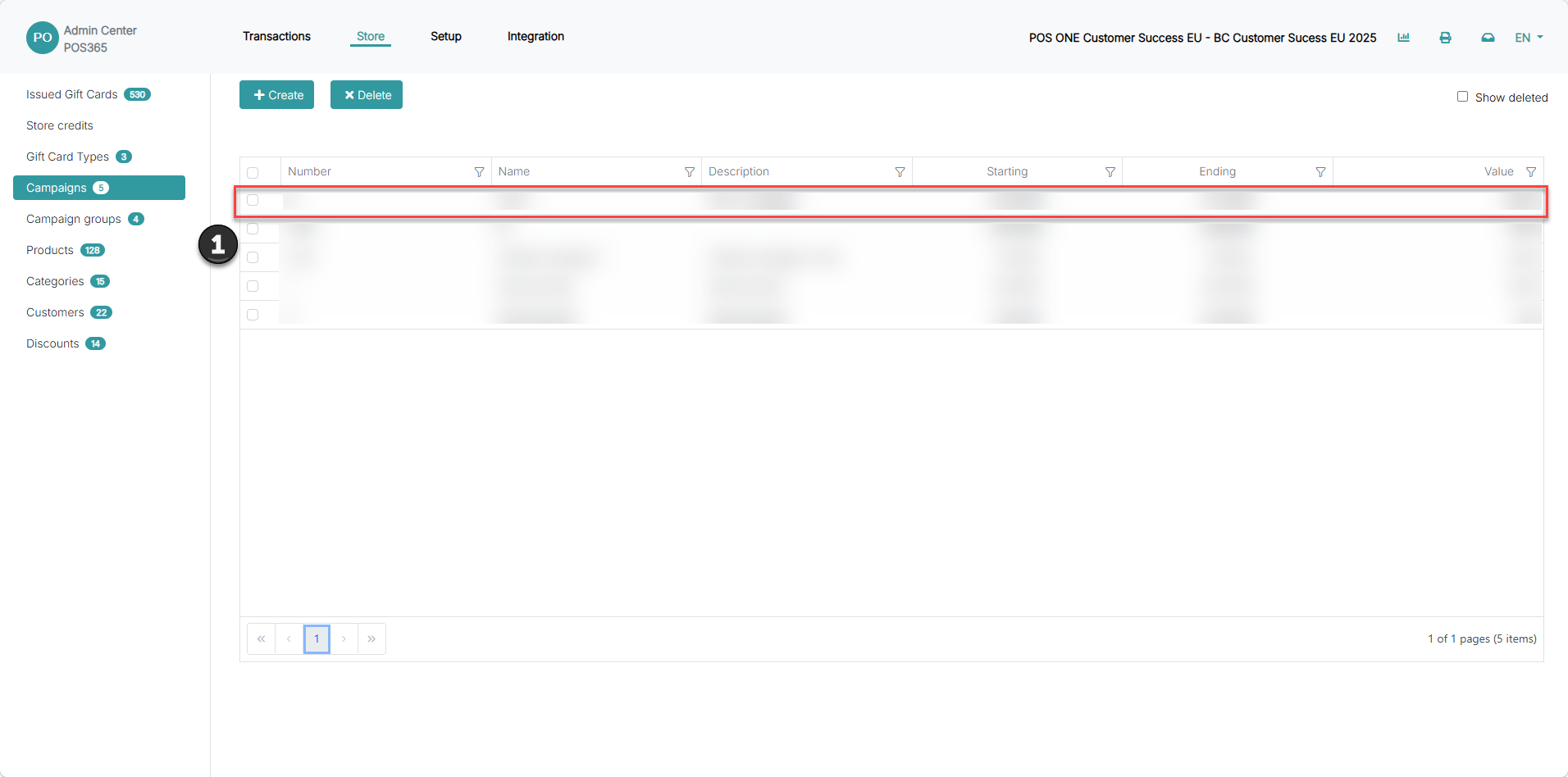
Click on the campaign
Step 4:
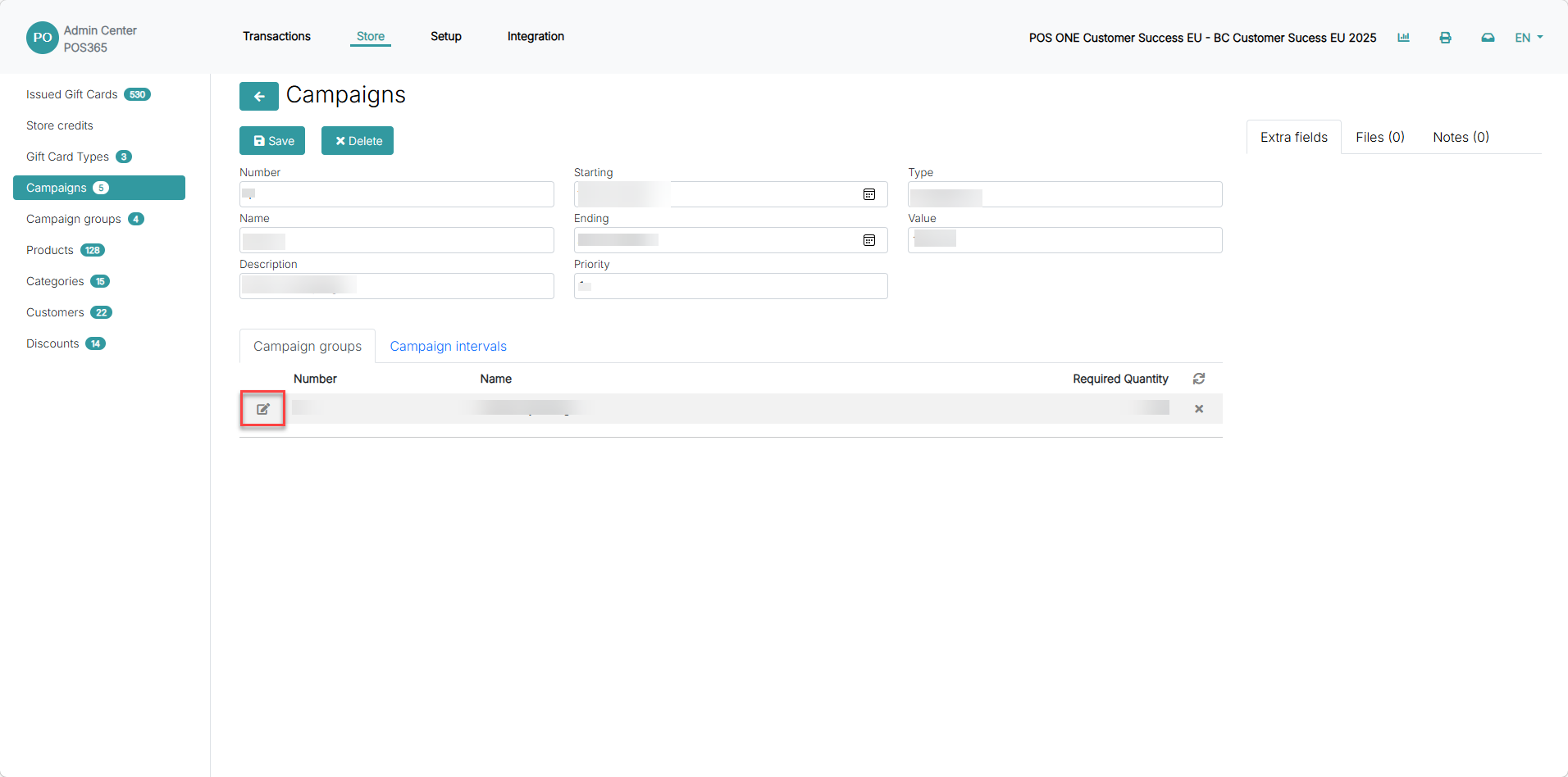
Click on 'edit'
Step 5:
This pop-up window will appear:
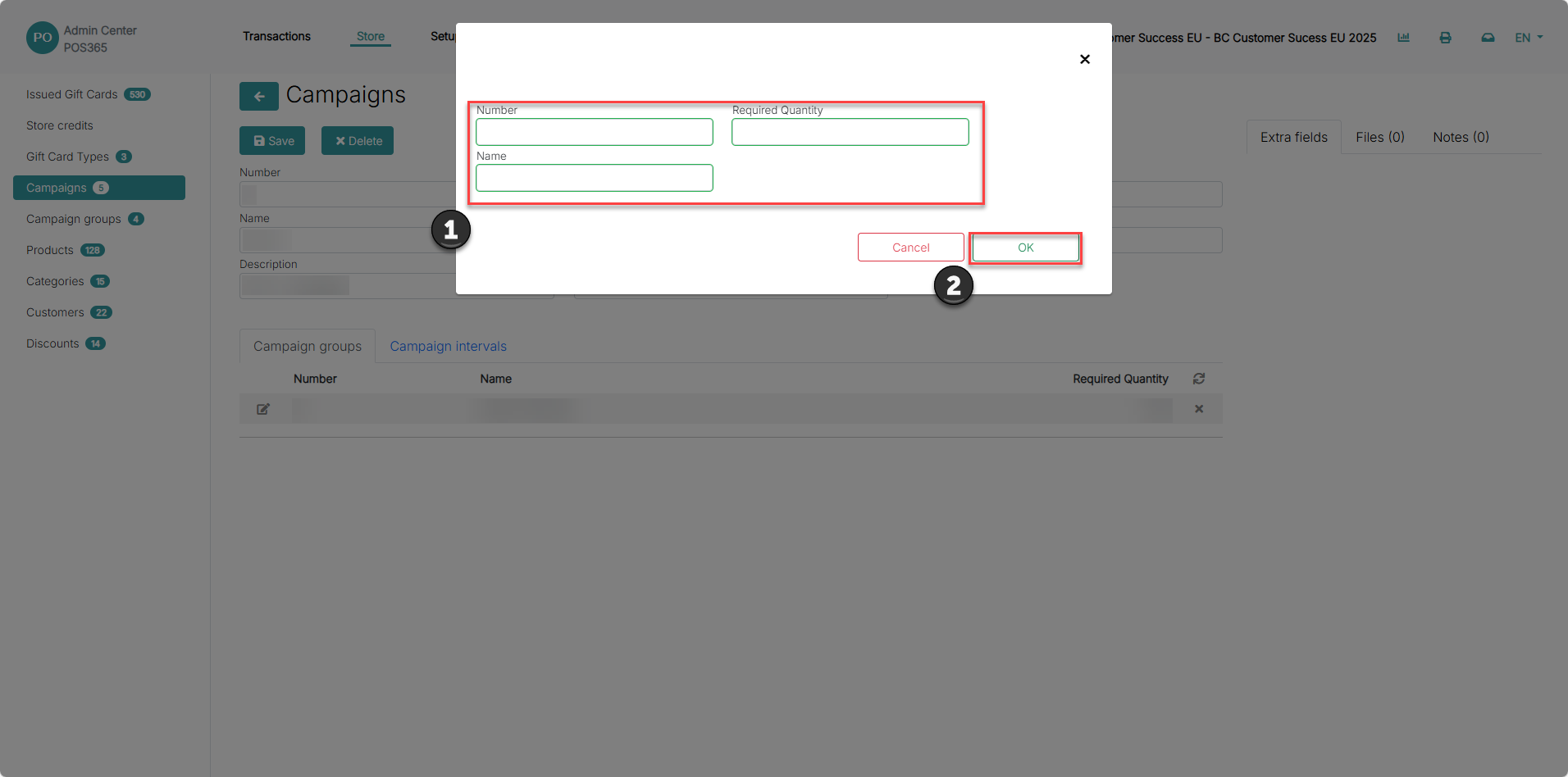
1) Fill in the empty text fields (Explainer of the text fields is shown below)
2) Click 'OK'
Number = The number of the campaign group. To numerate correctly, type in the same number as the amount of campaigns. In this case, type in '5'
Name = Give the campaign group a name. This name is displayed on the POS when the campaign discount is implemented
Required Quantity = The amount of items needed for the discount to be implemented
Step 6:
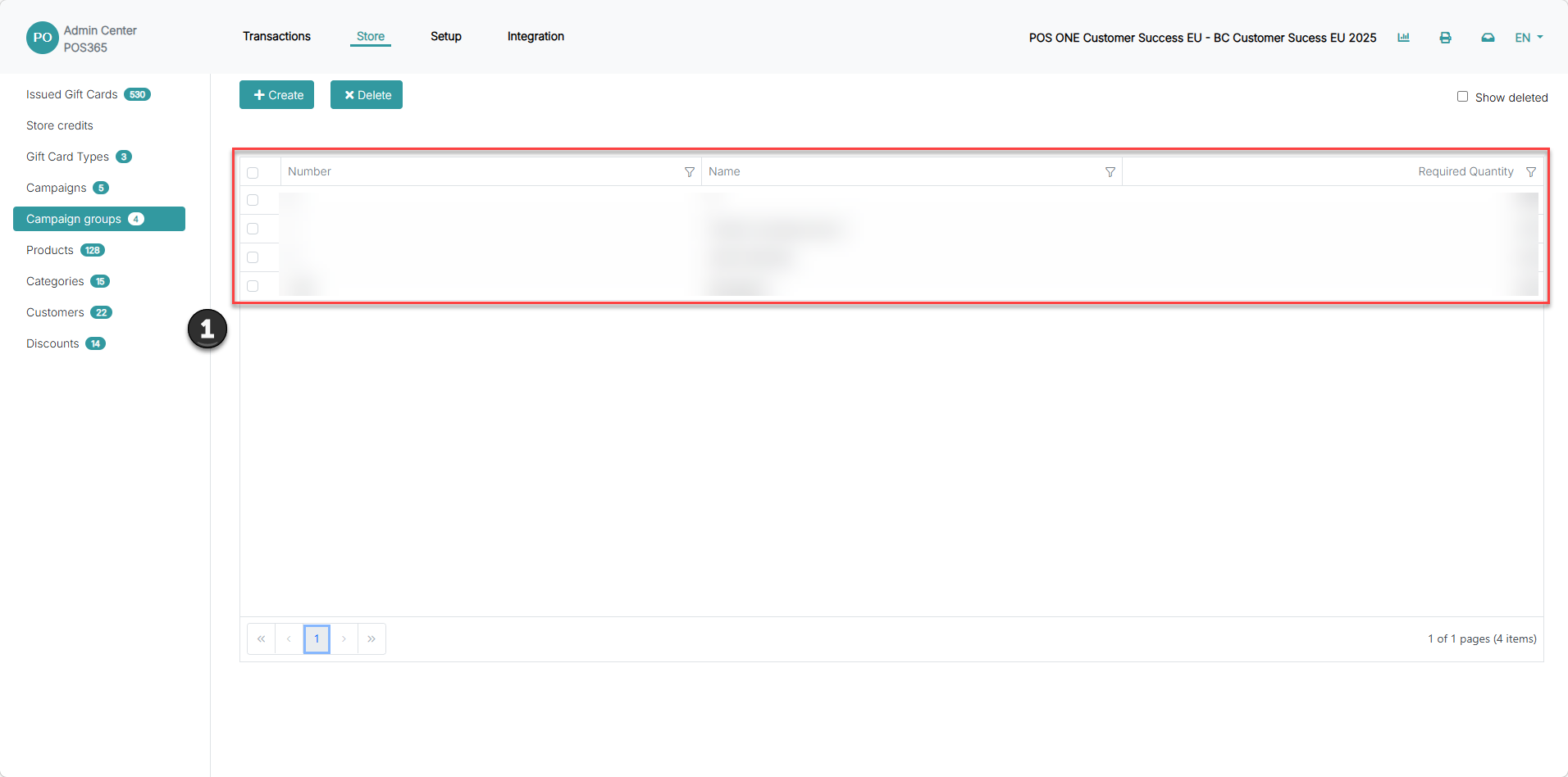
1) Go to campaign groups
2) Find the campaign group created in step 5 by either searching or using the arrows to navigate between all campaign groups
Step 7:
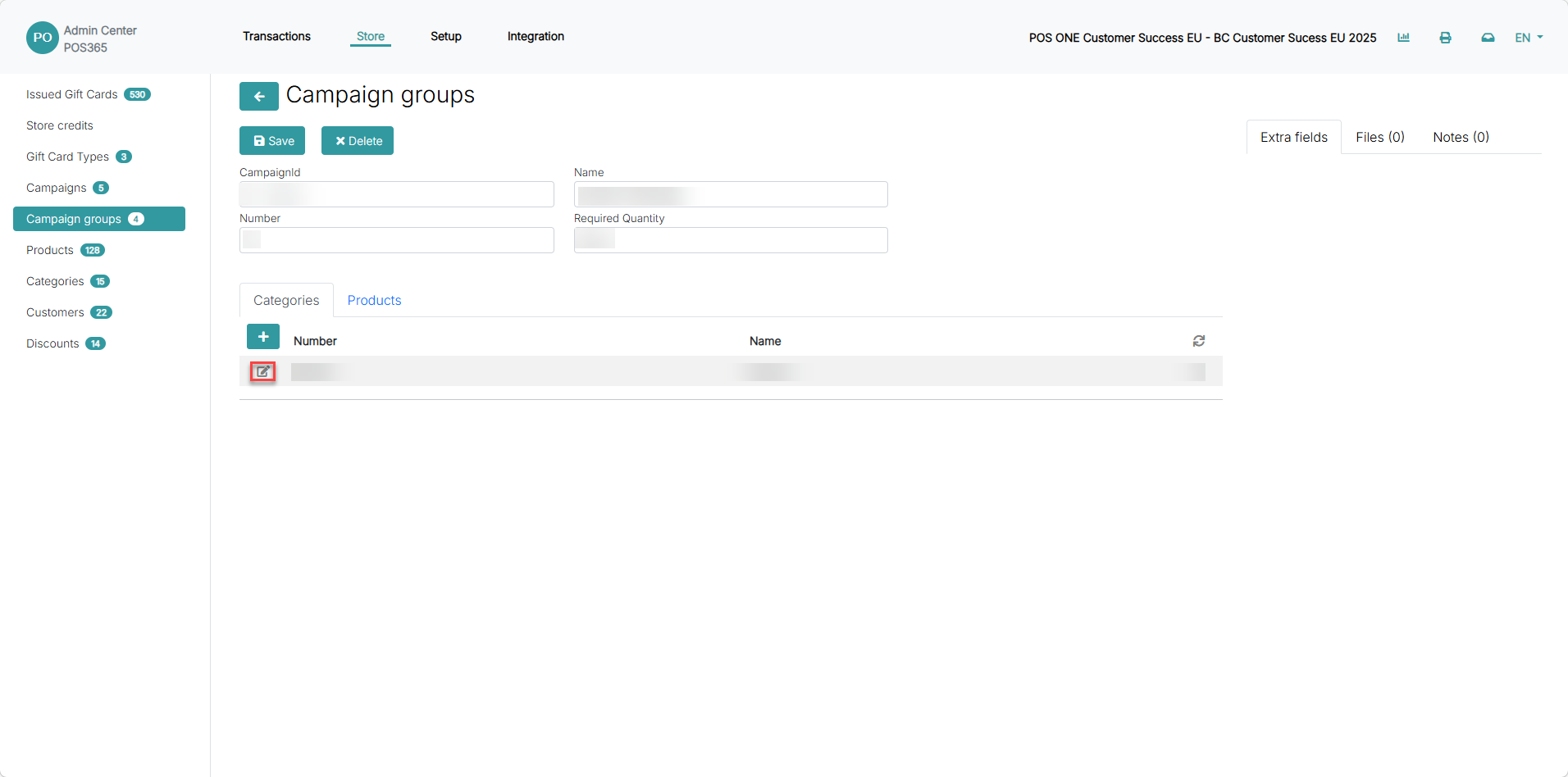
Click on the campaign and click 'Edit'
Step 8:
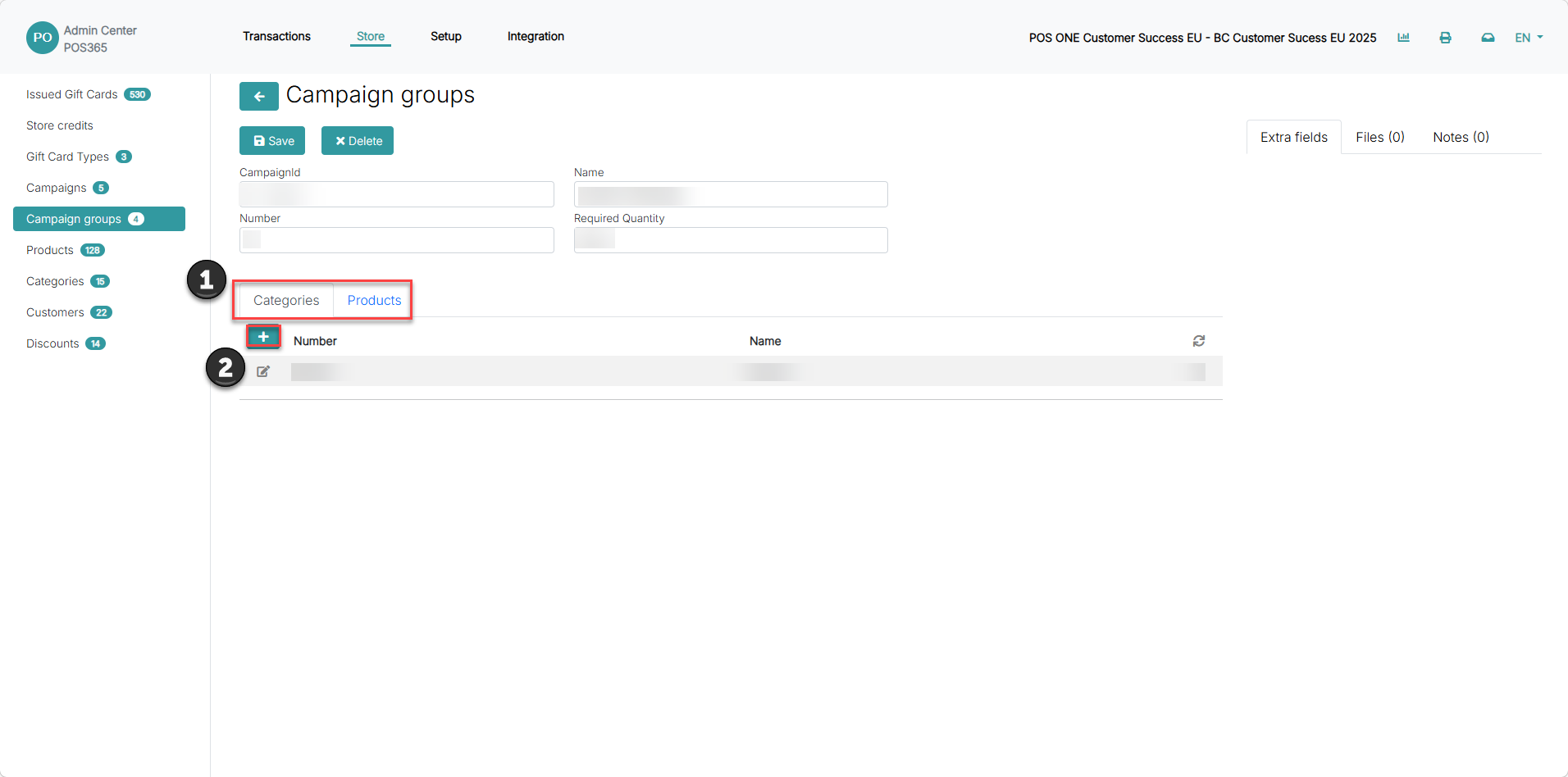
1) Choose between a campaign based on categories or a campaign based on specific products
2) Click '+'
Step 9a: Add item category discount
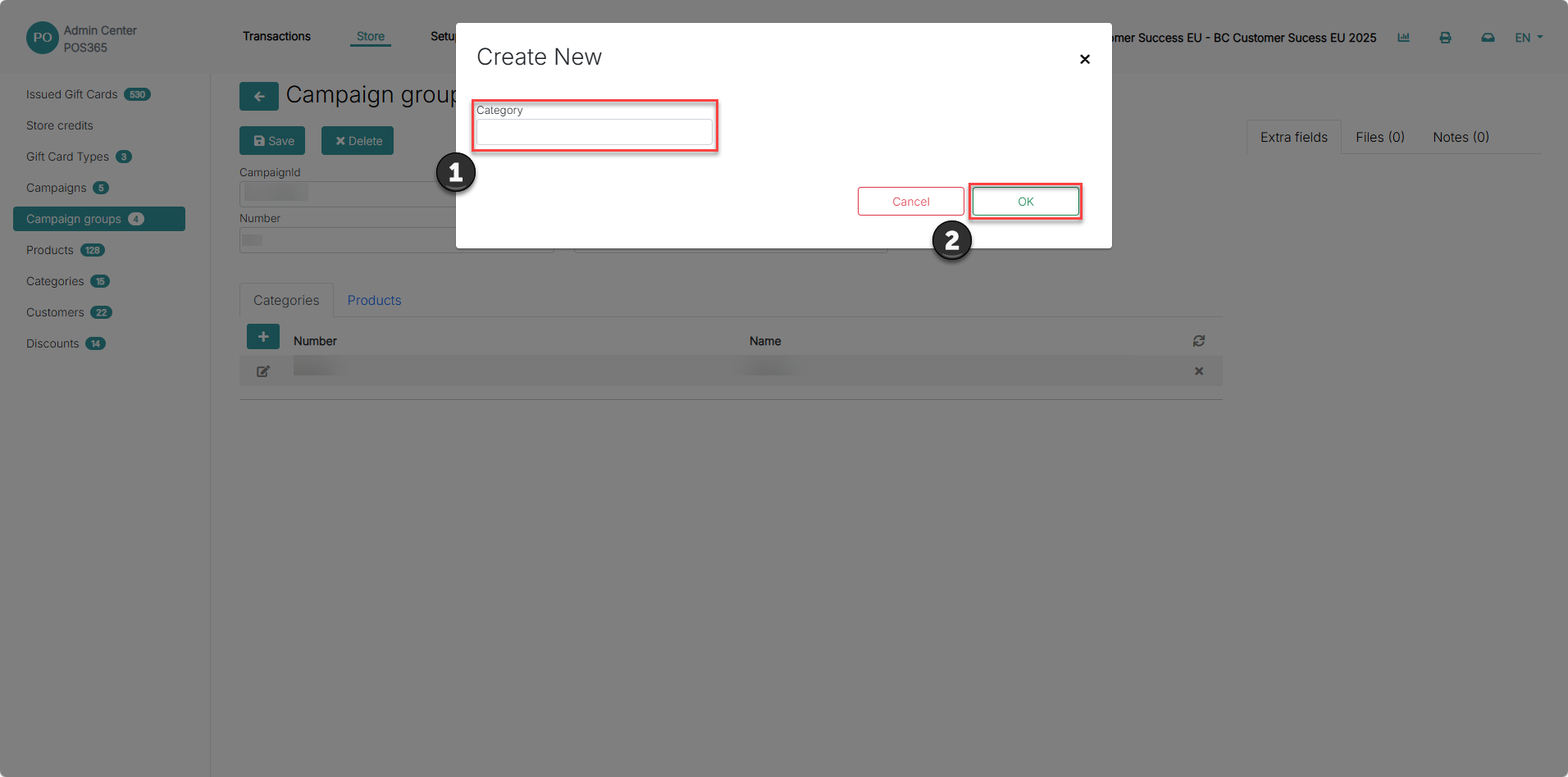
1) Click on the empty bar and choose the item category from the drop down menu (The item categories are synchronized from Business Central)
2) Click 'OK'
Step 9b: Add specific product discount
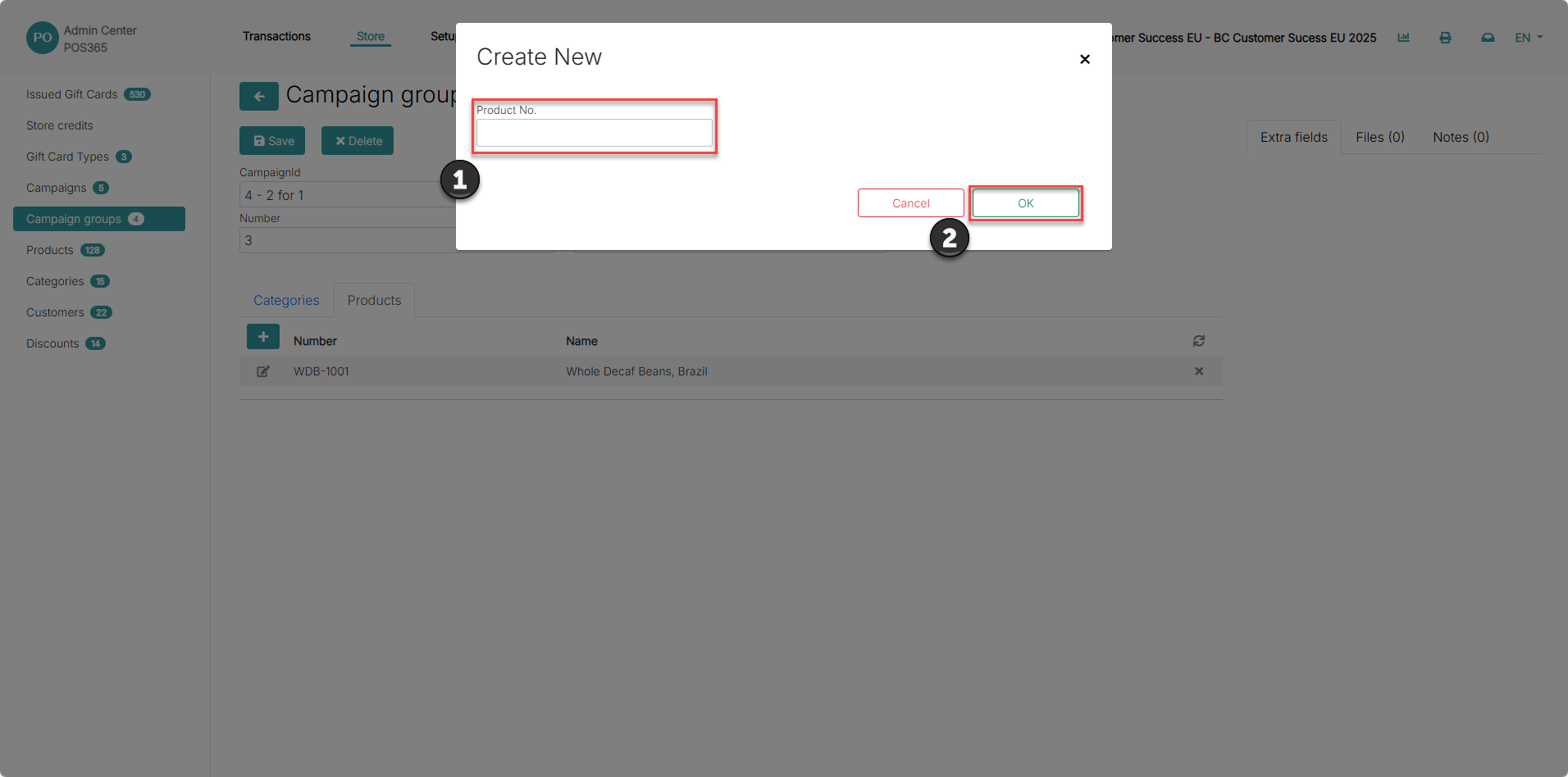
1) Type in the name or number of the product you want to add and pick it from the list
2) Click 'OK'
Note: Multiple products can be added
Step 10:
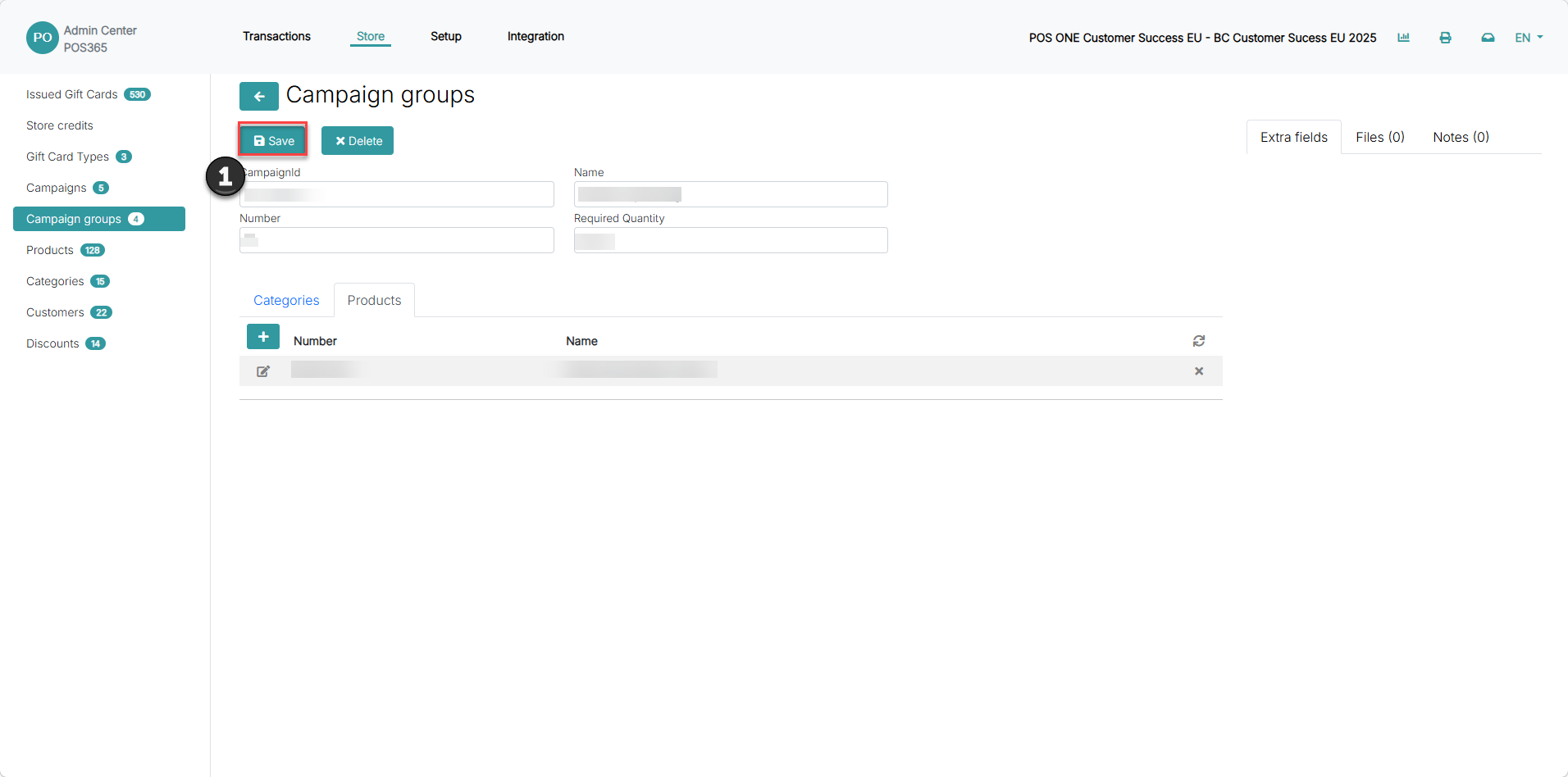
Once the desired products or categories has been added, click 'Save'
Step 11:
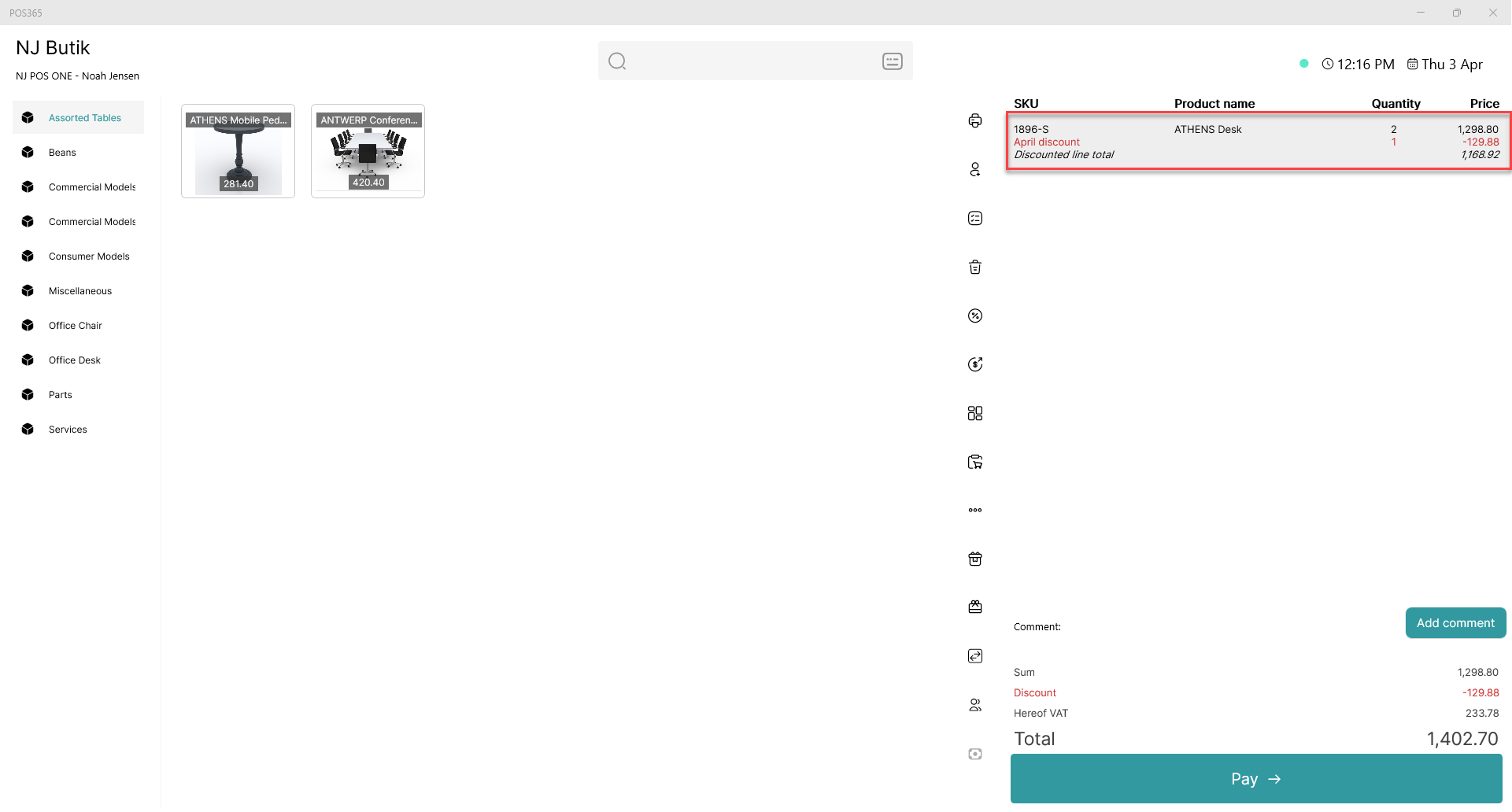
Once the required settings of quantity and product has been met in the POS365 app, the discount will apply. The name of the discount will also be displayed.