This guide explains how to search for a product in the POS365 app. This ensures that you can easily find the correct products by either scanning or typing the input manually.
2 search functions exist:
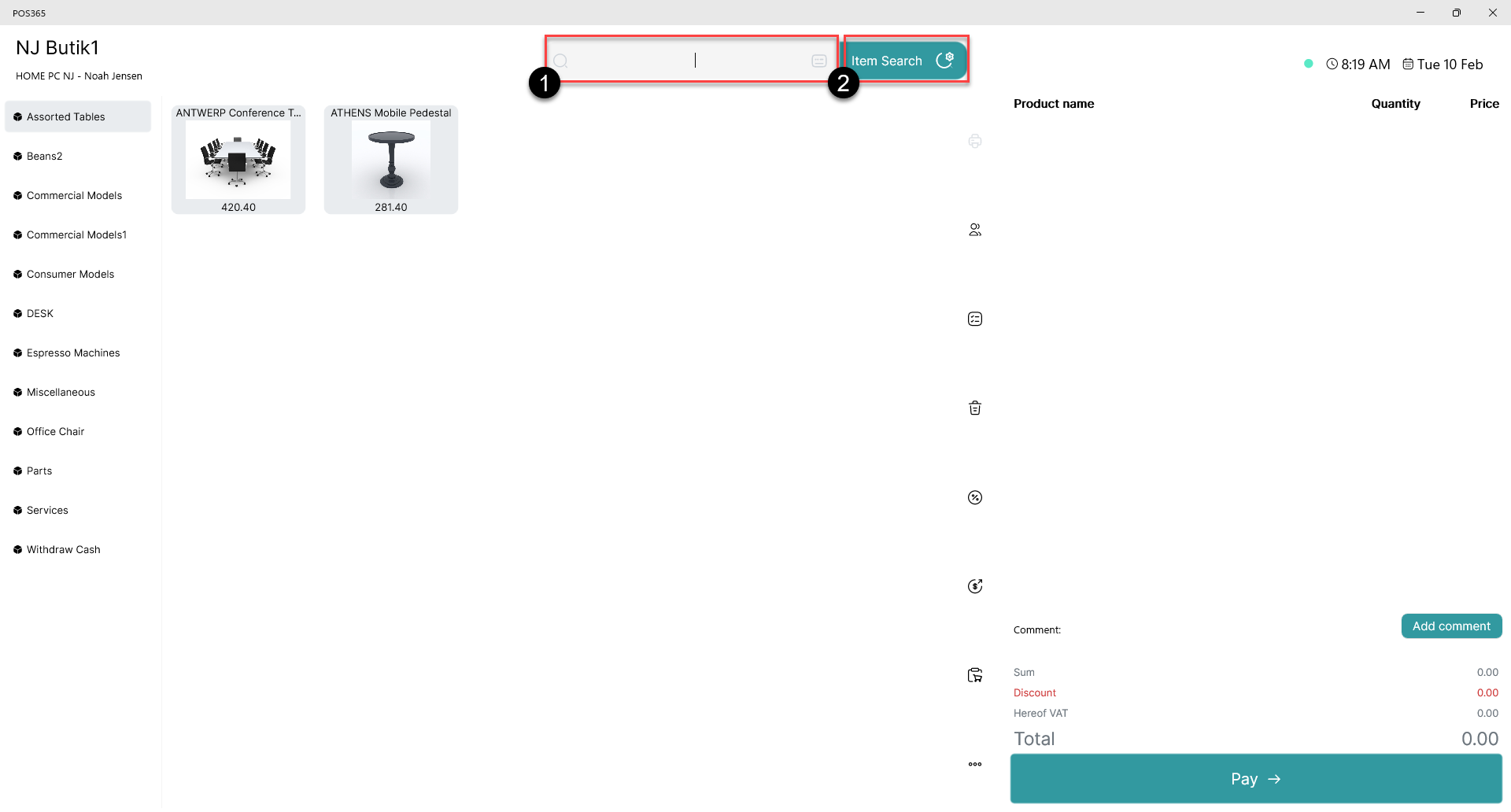
1) Searches in SKUs and barcodes only
2) Opens a window, where you can filter between search inputs, e.g. item name, category, serial number etc.
Option 1:
Search in SKUs and barcodes only
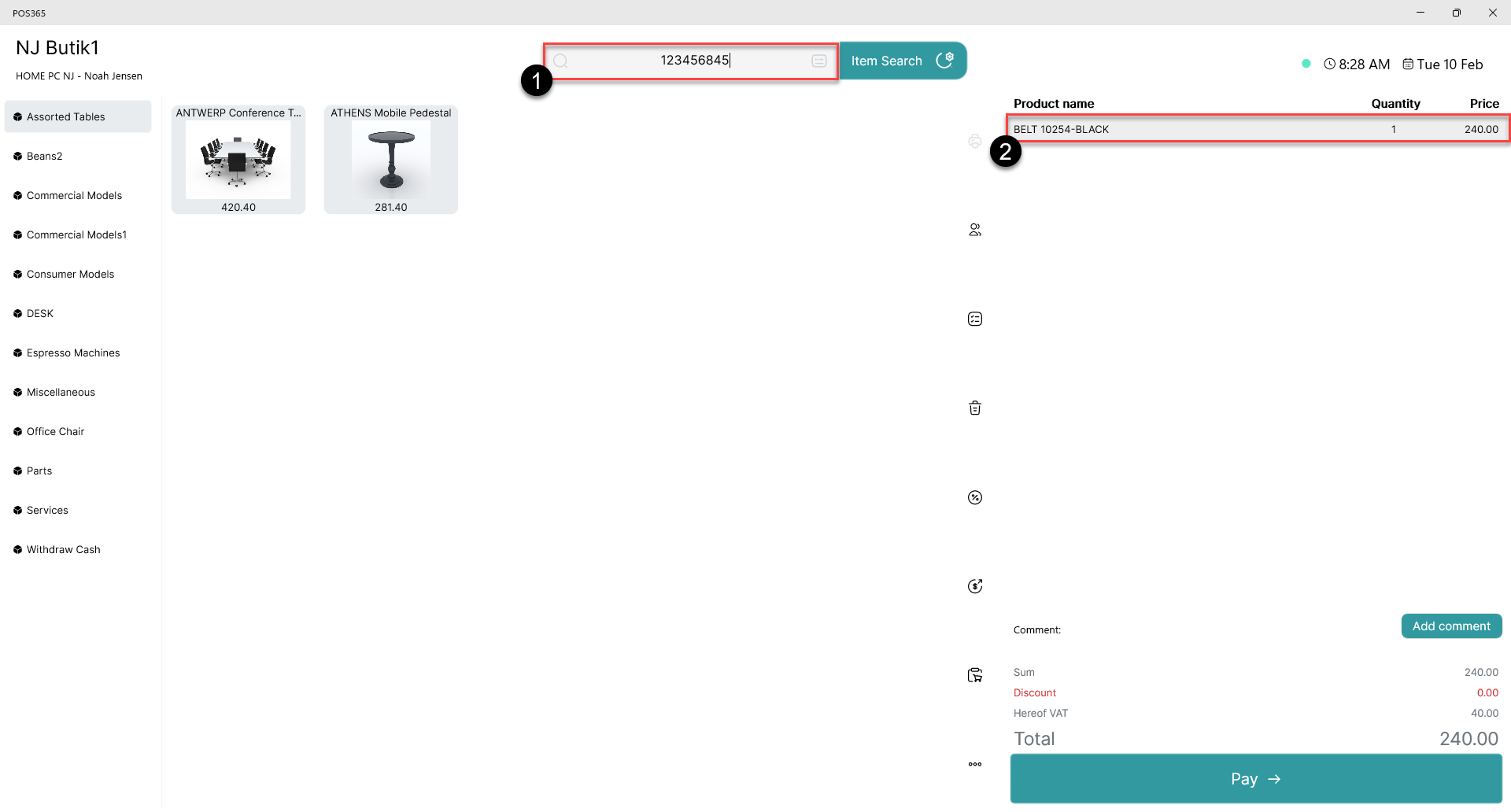
1) Scan a barcode/SKU or type it manually and click enter
2) The item is added to the basket
Note:
The search field is auto selected, ensuring that barcodes can always be scanned
Option 2:
Filter input search
Step 1:
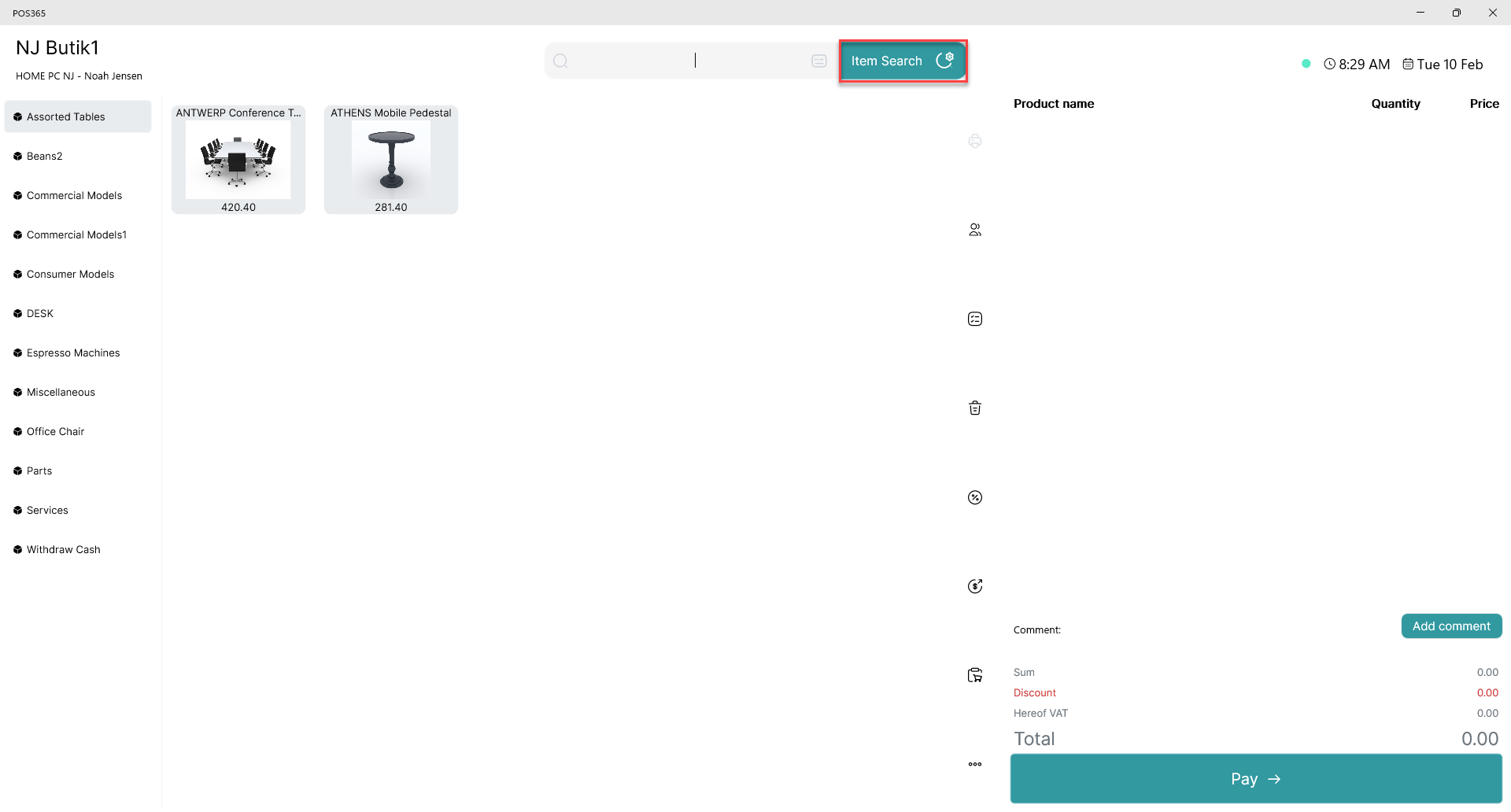
Click on 'Item Search'
Step 2:
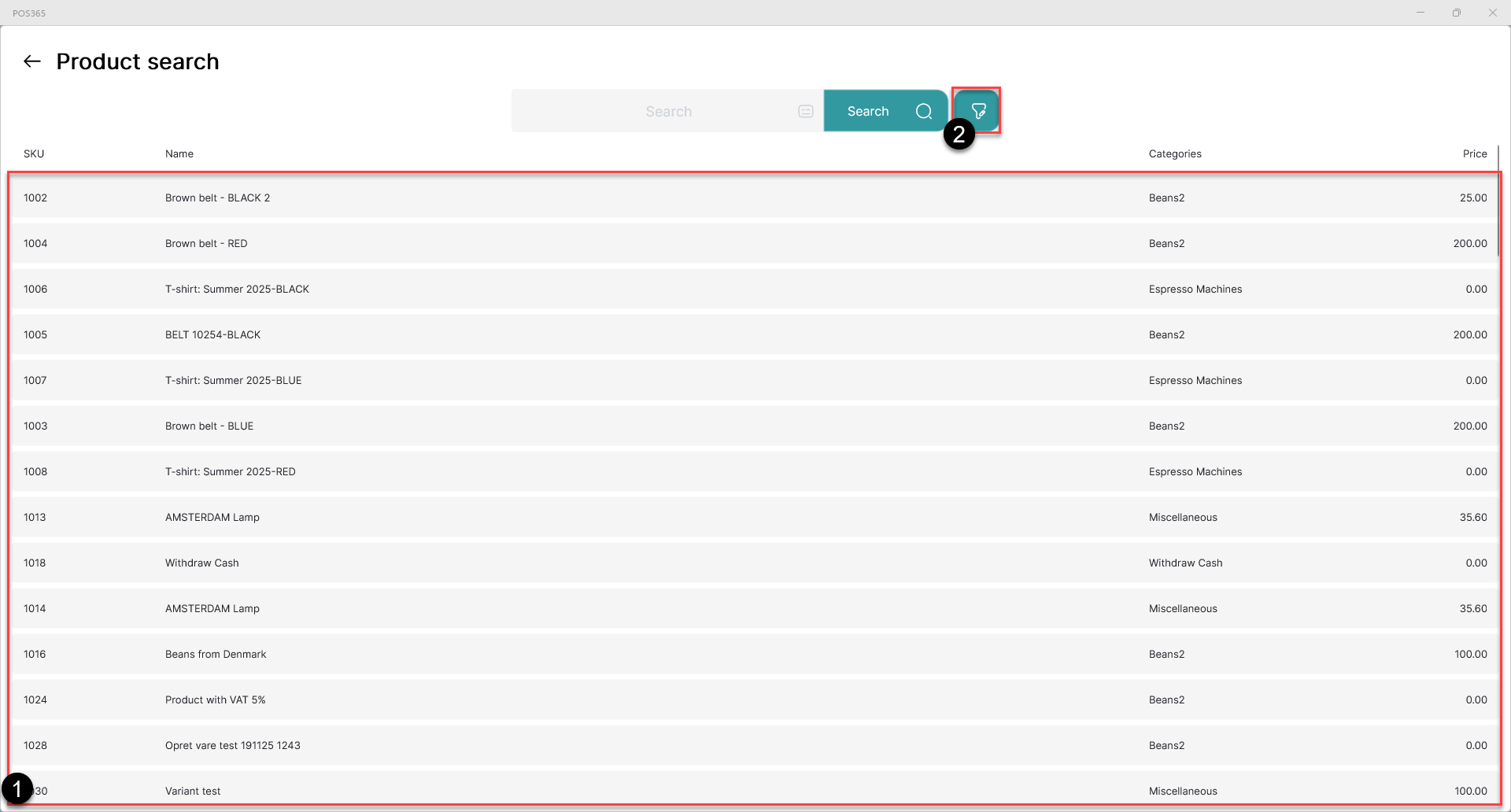
1) A list of all items available is shown
2) Use the filter button to add/remove filters to your search
Note:
As standard, all filters are turned on
Step 3:
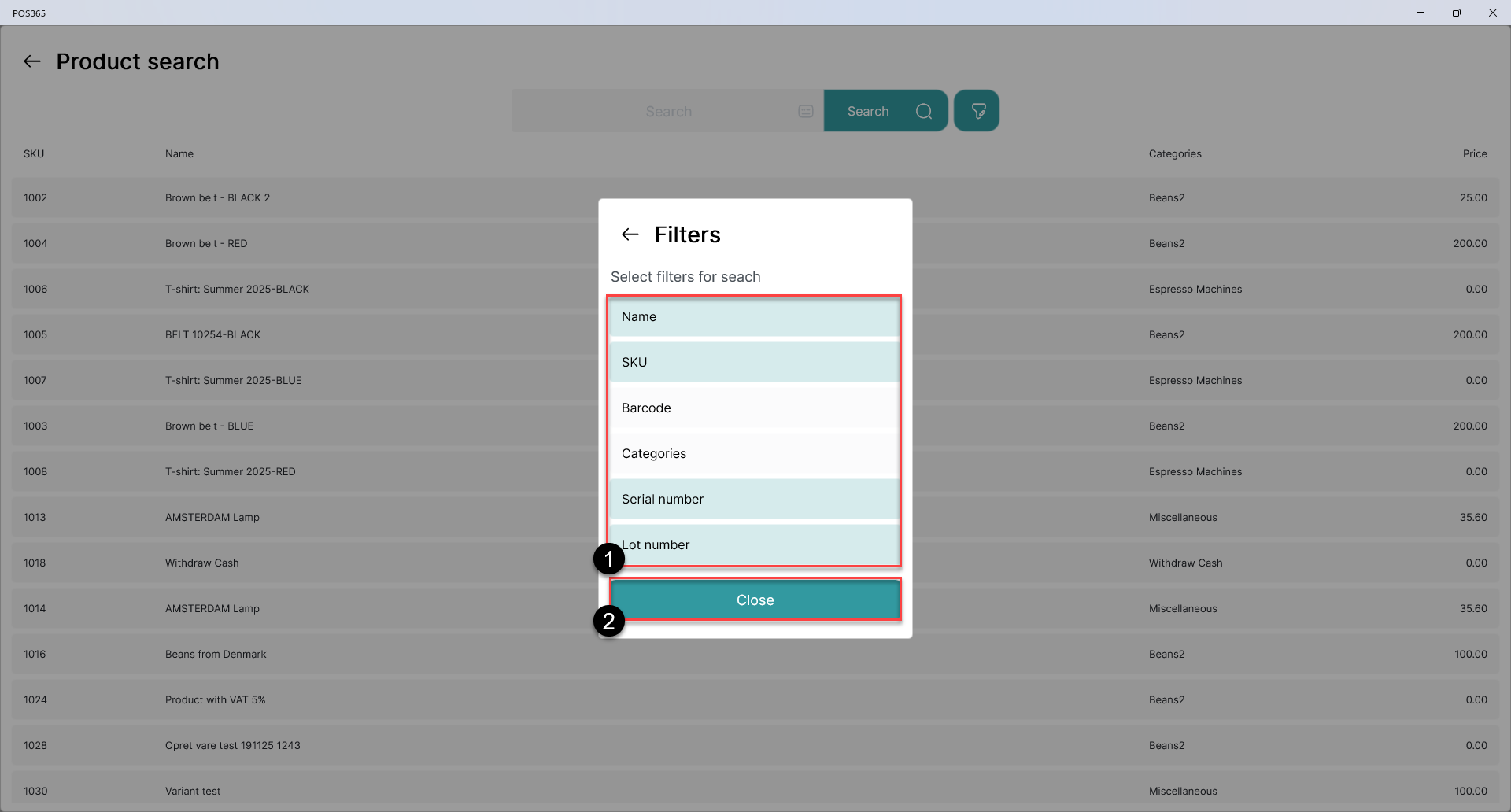
1) A list of available filters is shown. When marked with blue, the filter is on. Click the buttons to toggle the filters.
2) When ready, click 'Close'
Note:
When multiple filters are active, the search function will search for the search words in all columns
Step 4:
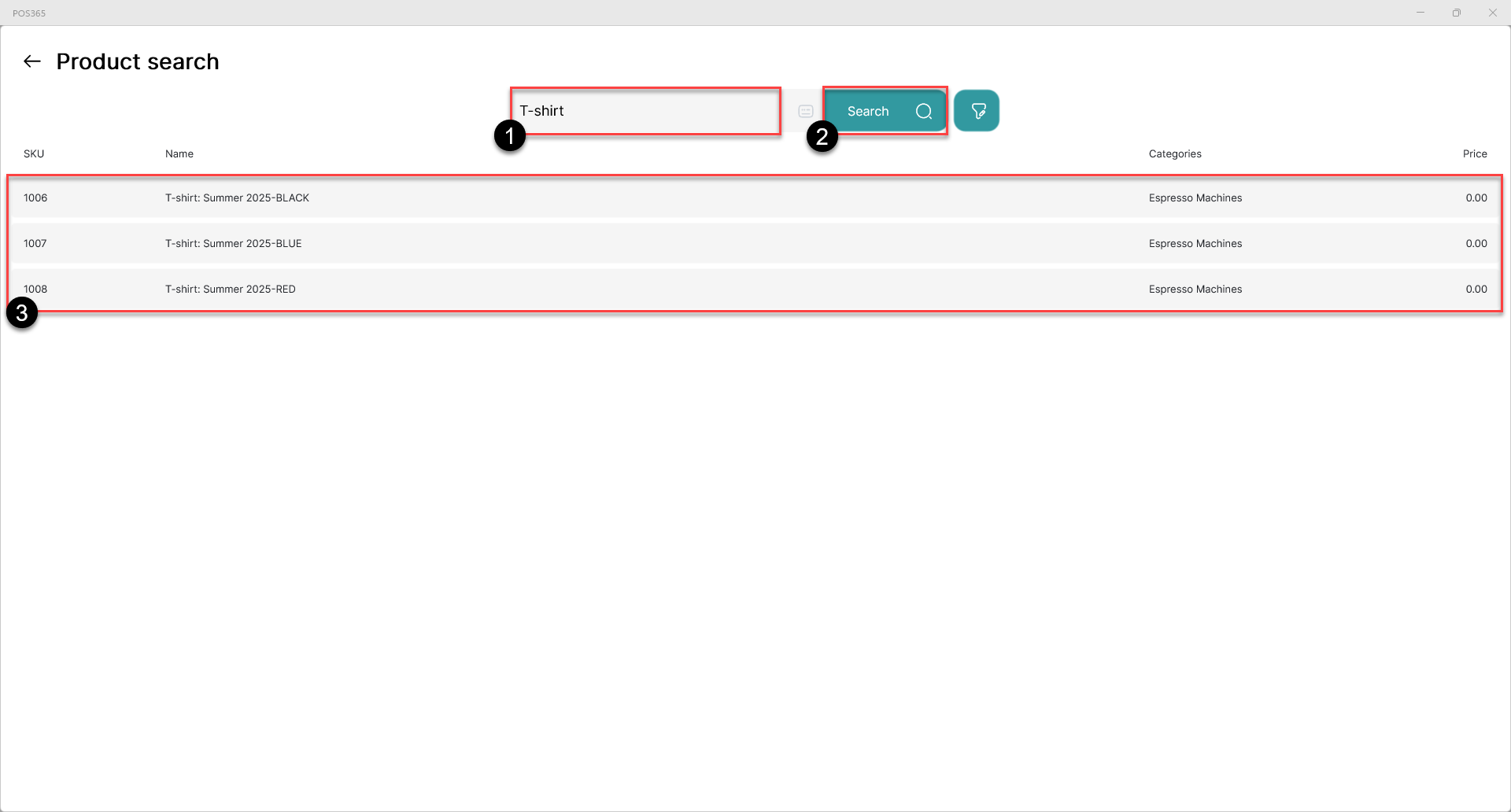
1) Enter the input you want to search for
2) Click 'Search' or enter
3) A list of items containing the search input is shown. Click the item to add it to the basket.
Note:
If the product contains variants these can be selected from a pop-up afterwards