This guide explains how to enable A4 receipt printing for a specific cash register in Admin Center. Use it to make sure receipts are printed on the connected A4 printer.
Step 1:
This section shows how to make sure an A4 printer is connected to the POS365 app before you enable A4 receipt printing for a cash register.
For more information, see here:
Connect the A4 printer
1) Make sure an A4 printer is connected to the POS365 app.
2) If the printer is not connected, follow this guide: Connect A4 printer to POS365.
Note:
You must connect the A4 printer before you enable 'Print receipt to A4'.
Step 2:
This section shows how to open the cash register area in Admin Center so you can continue with the setup.
For more information, see here:
Open 'Cash registers'
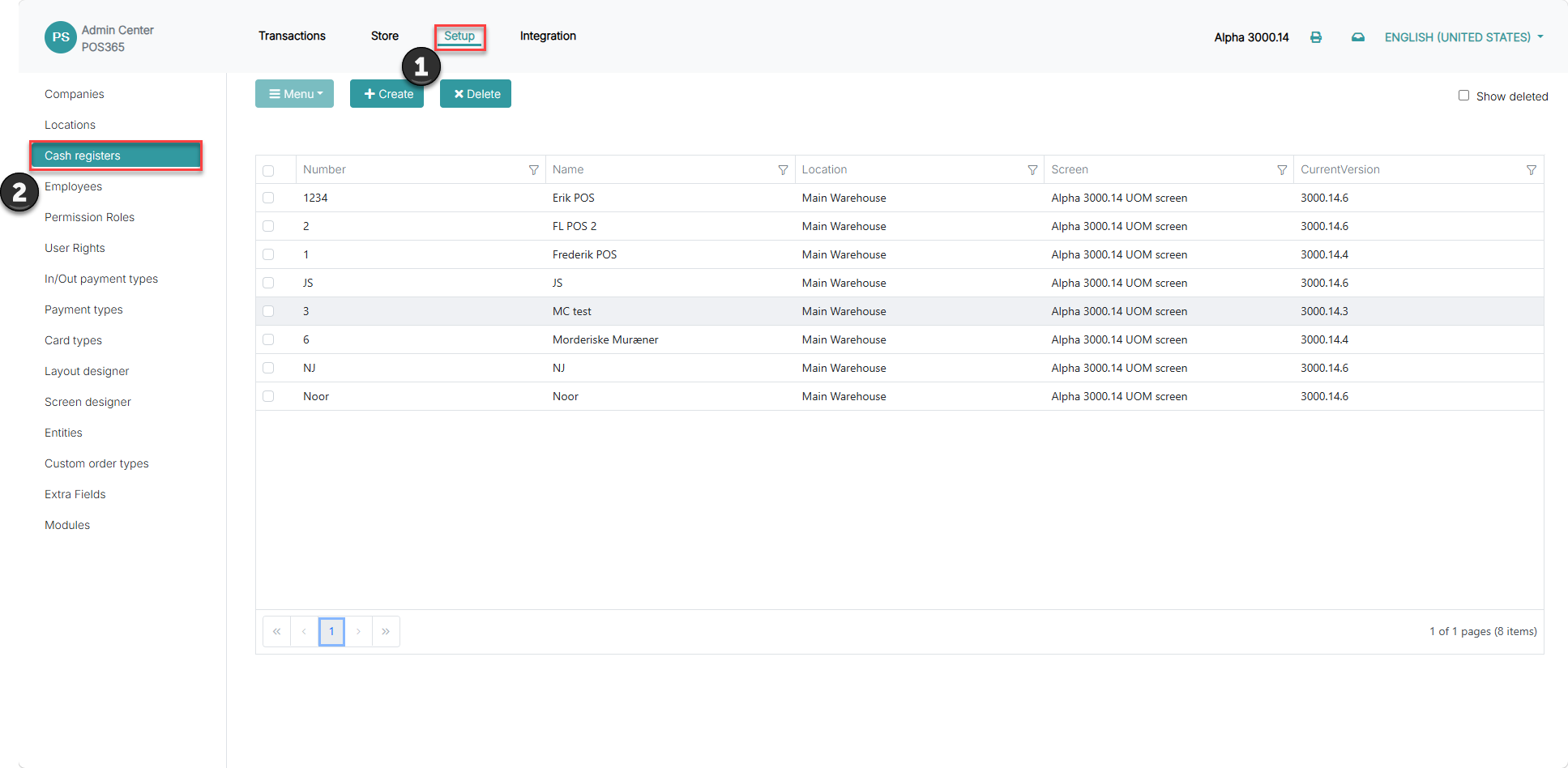
1) Go to 'Setup'.
2) Click on 'Cash registers'.
Step 3:
This section shows how to choose the specific cash register that should use A4 receipt printing. Select the correct cash register before opening its settings.
For more information, see here:
Choose the specific cash register
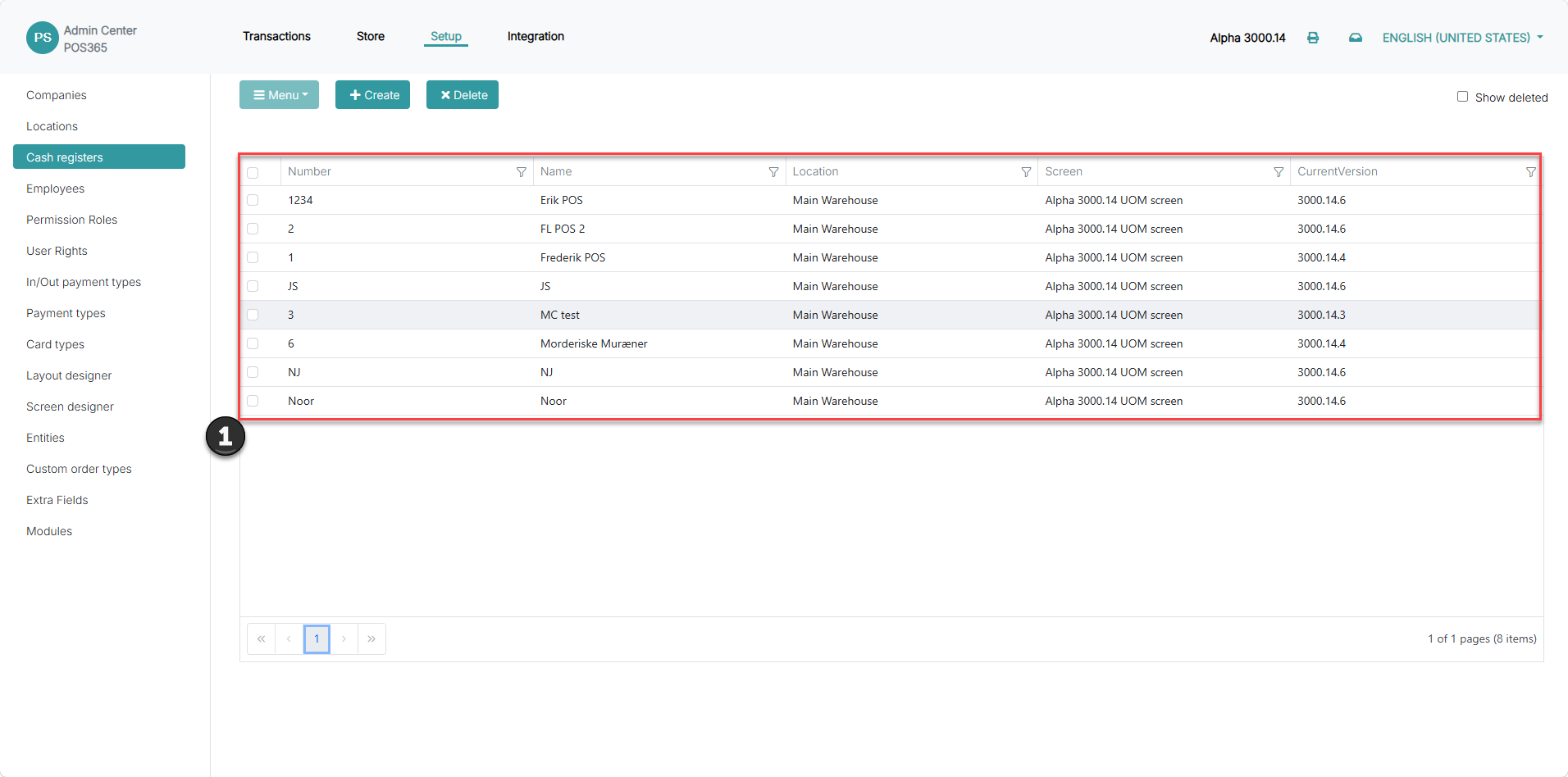
1) In the list of cash registers, click the cash register you want to update.
2) Make sure the correct cash register is selected before you continue.
Step 4:
This section shows how to enable A4 receipt printing for the selected cash register and save the setup.
For more information, see here:
Enable 'Print receipt to A4'
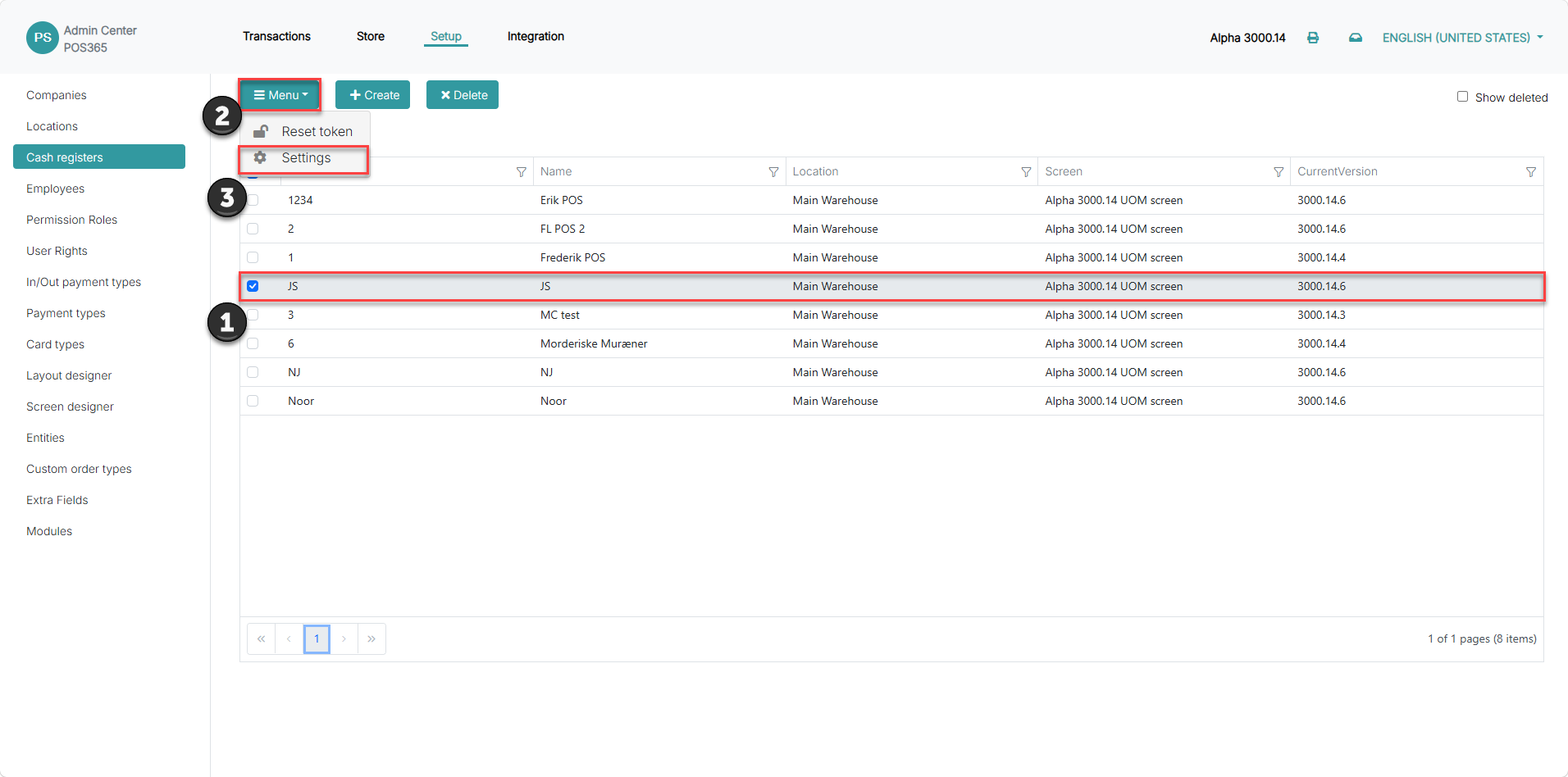
1) Select the specific cash register.
2) Click on 'Menu'.
3) Click on 'Settings'
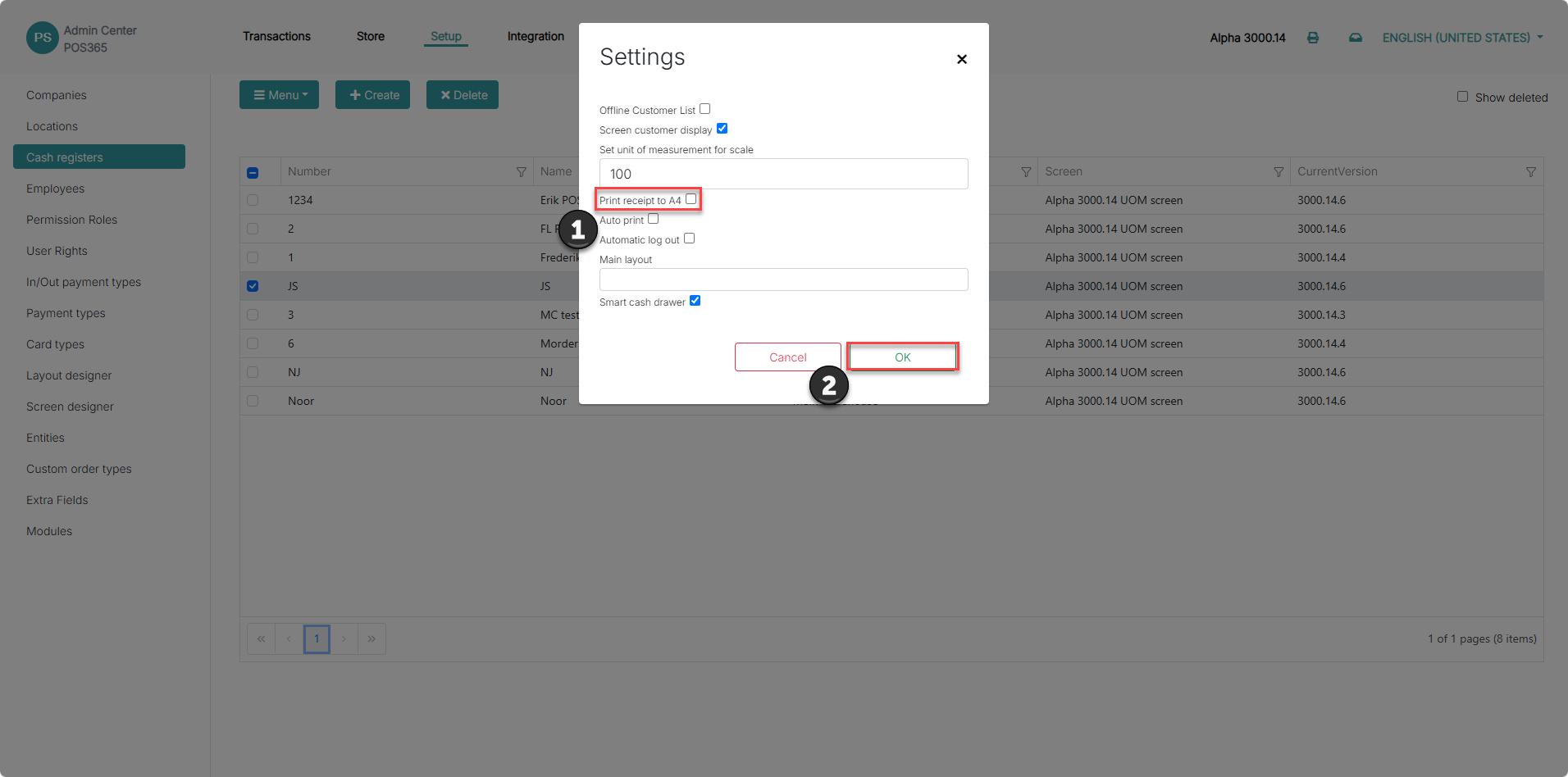
1) Check 'Print receipt to A4'.
2) Click 'OK'.
Note:
The selected cash register will now use A4 receipt printing when an A4 printer is connected to the POS365 app.