This guide explains how to add the desired printer for labels in the POS365 app.
Note:
Make sure your label printer is set up correctly by following this guide: How to - Set up the Zebra GK420d Label printer
Step 1:
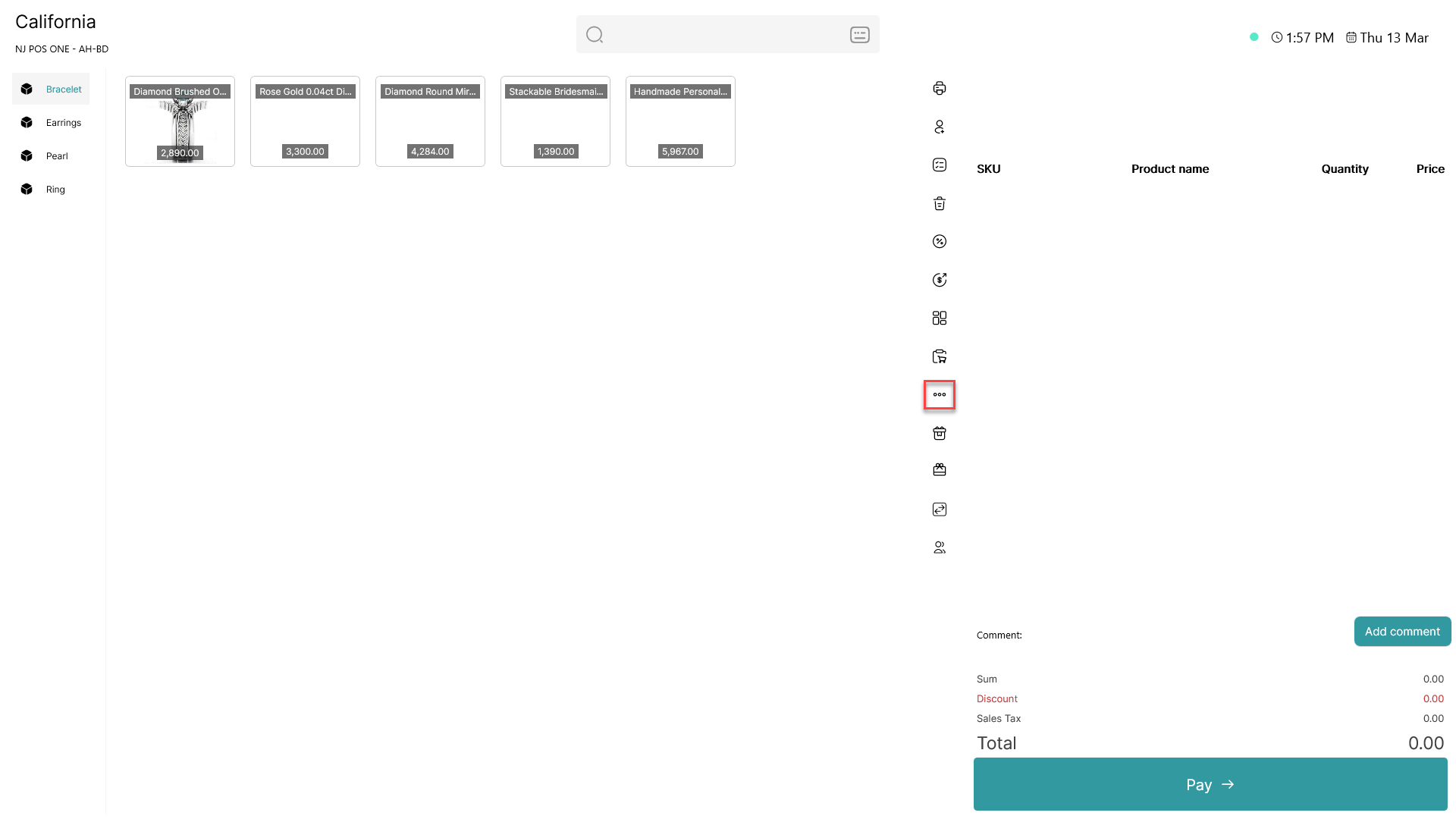
Click on the three dots ( - button) to access more options
Step 2:
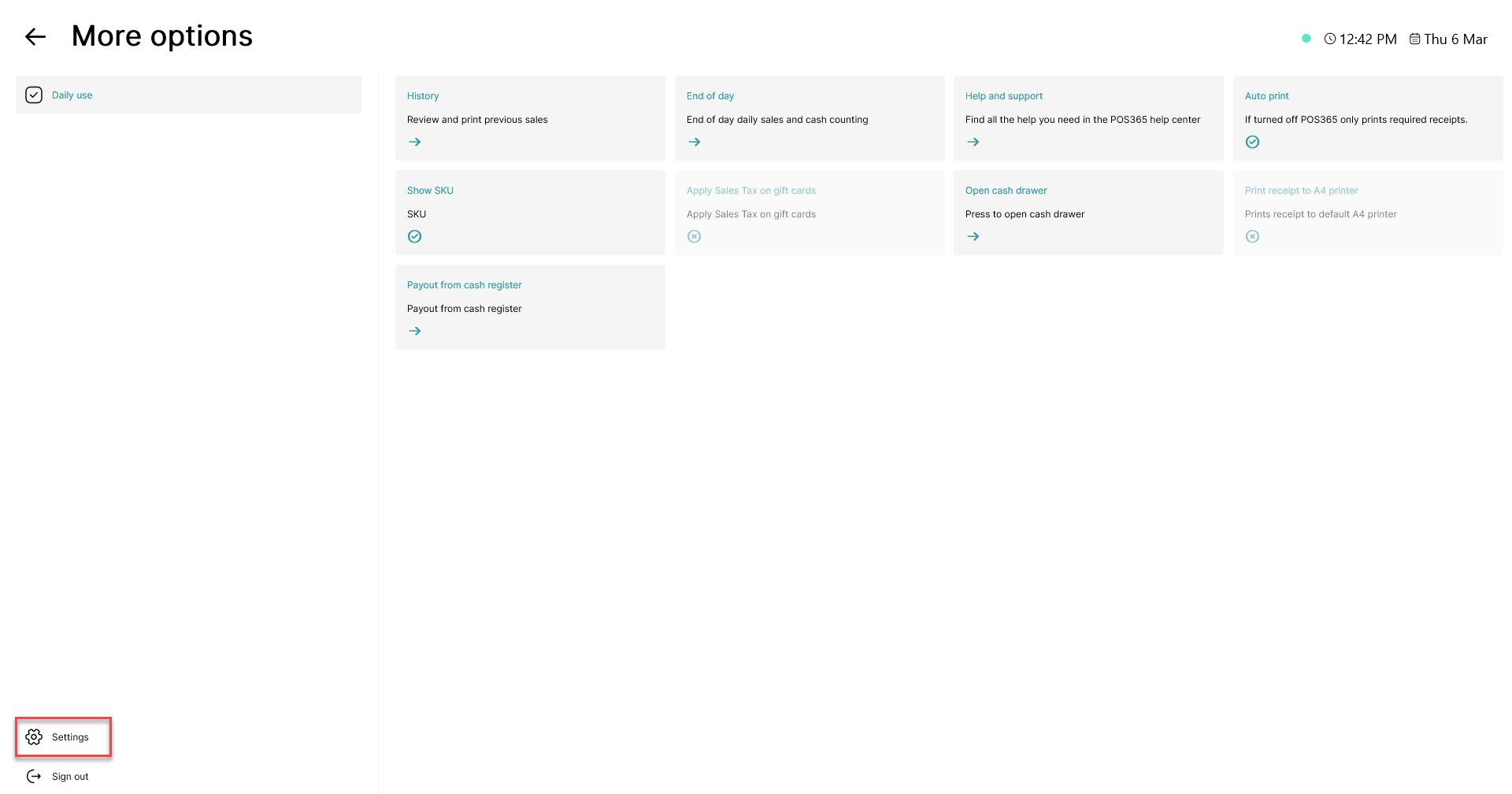
Click on the 'Settings' button in the bottom, left corner
Step 3:
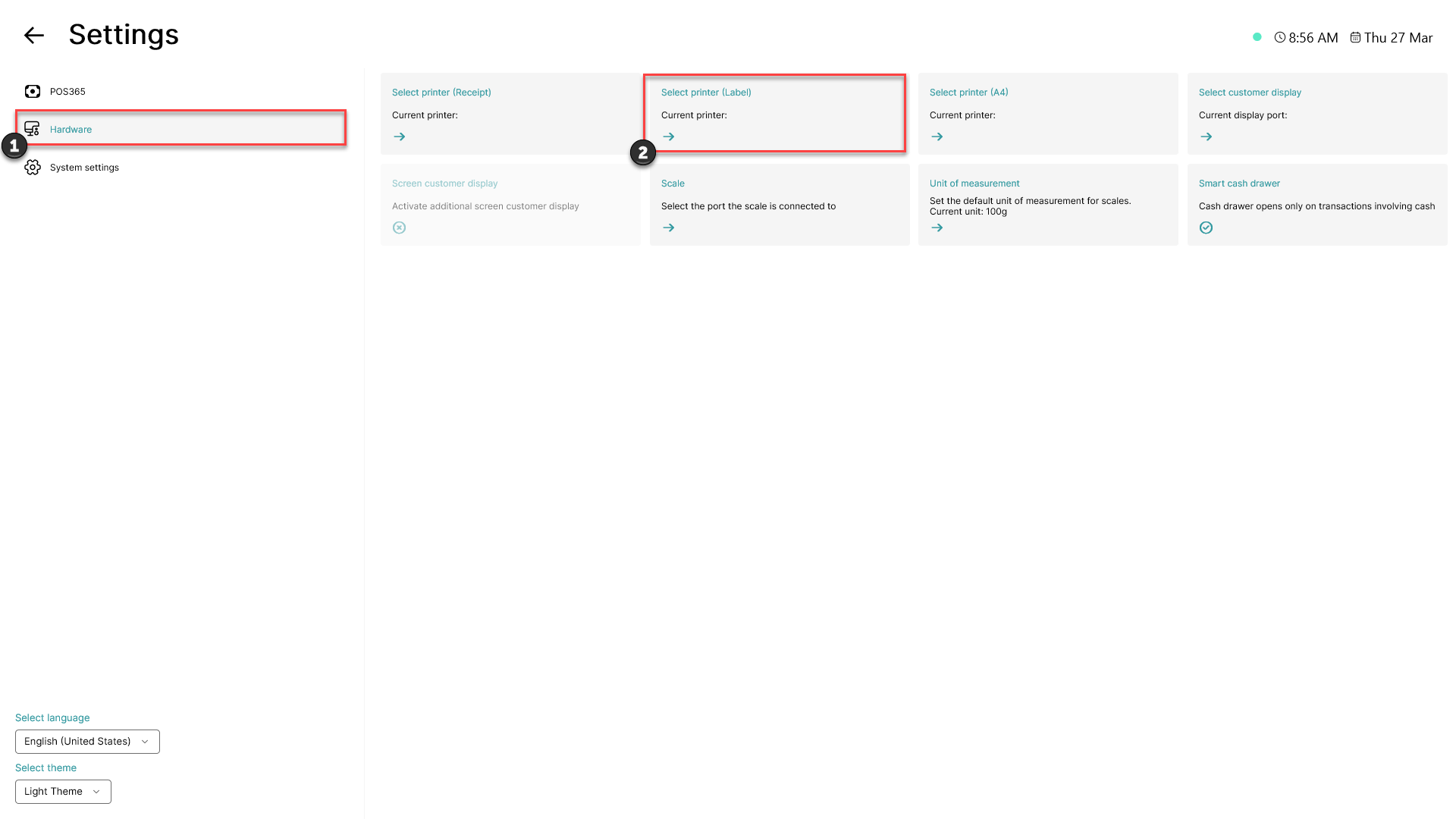
1) Click on the 'Hardware' button
2) Click on 'Select printer (Label)'
Step 4:
A list of all available printers will show
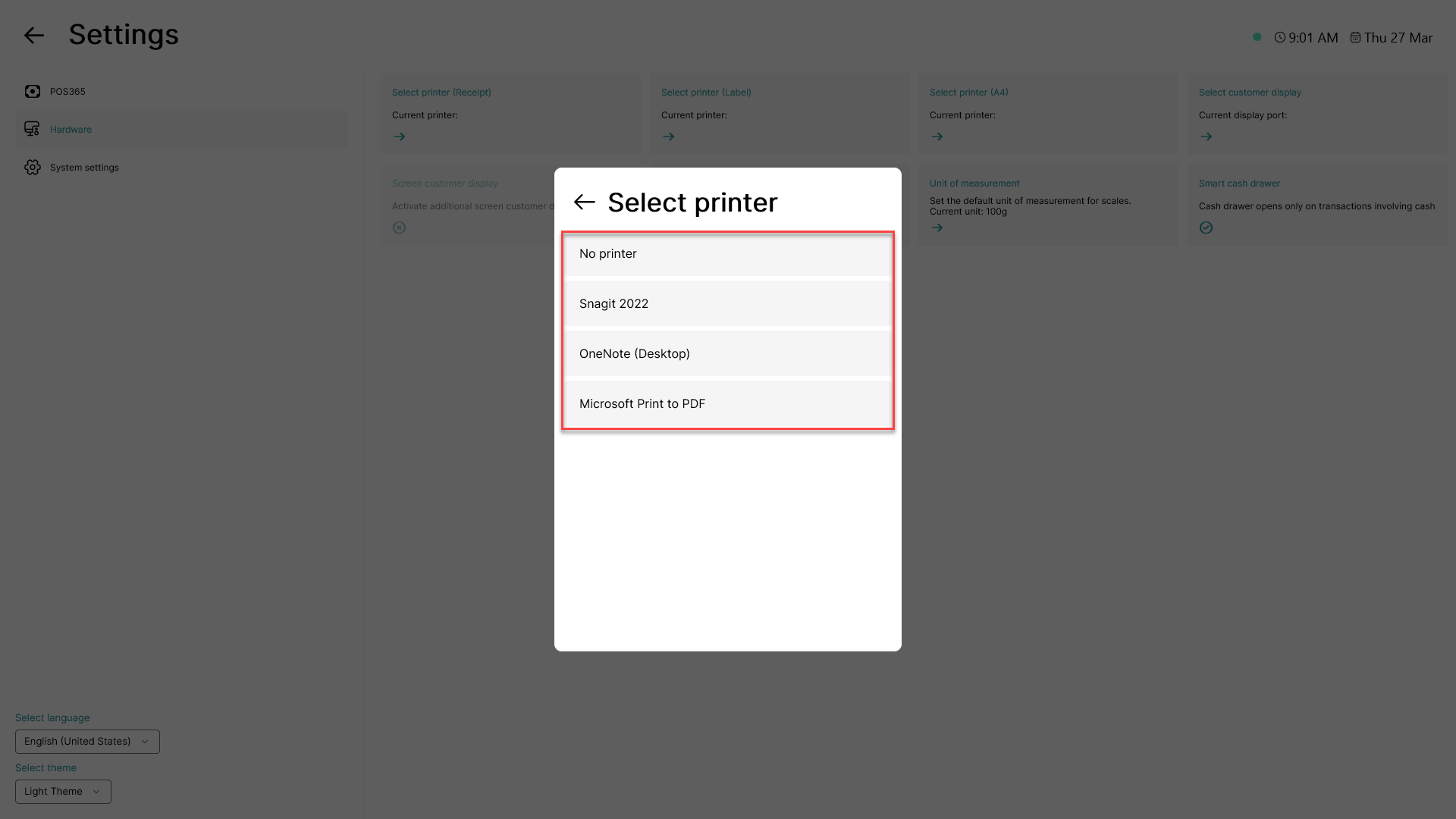
Click on the printer you want to use
Step 5:
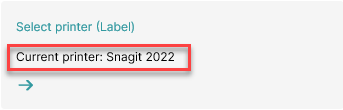
Once a printer has been selected successfully, it will be shown on the 'Select printer (Label)' button