This guide explains how to access and edit an existing order in the order manager. It is possible to edit items used, shipping terms, payment terms, account, location and much more.
Furthermore, you can delete the order or pay for the order through the order manager.
Step 1:
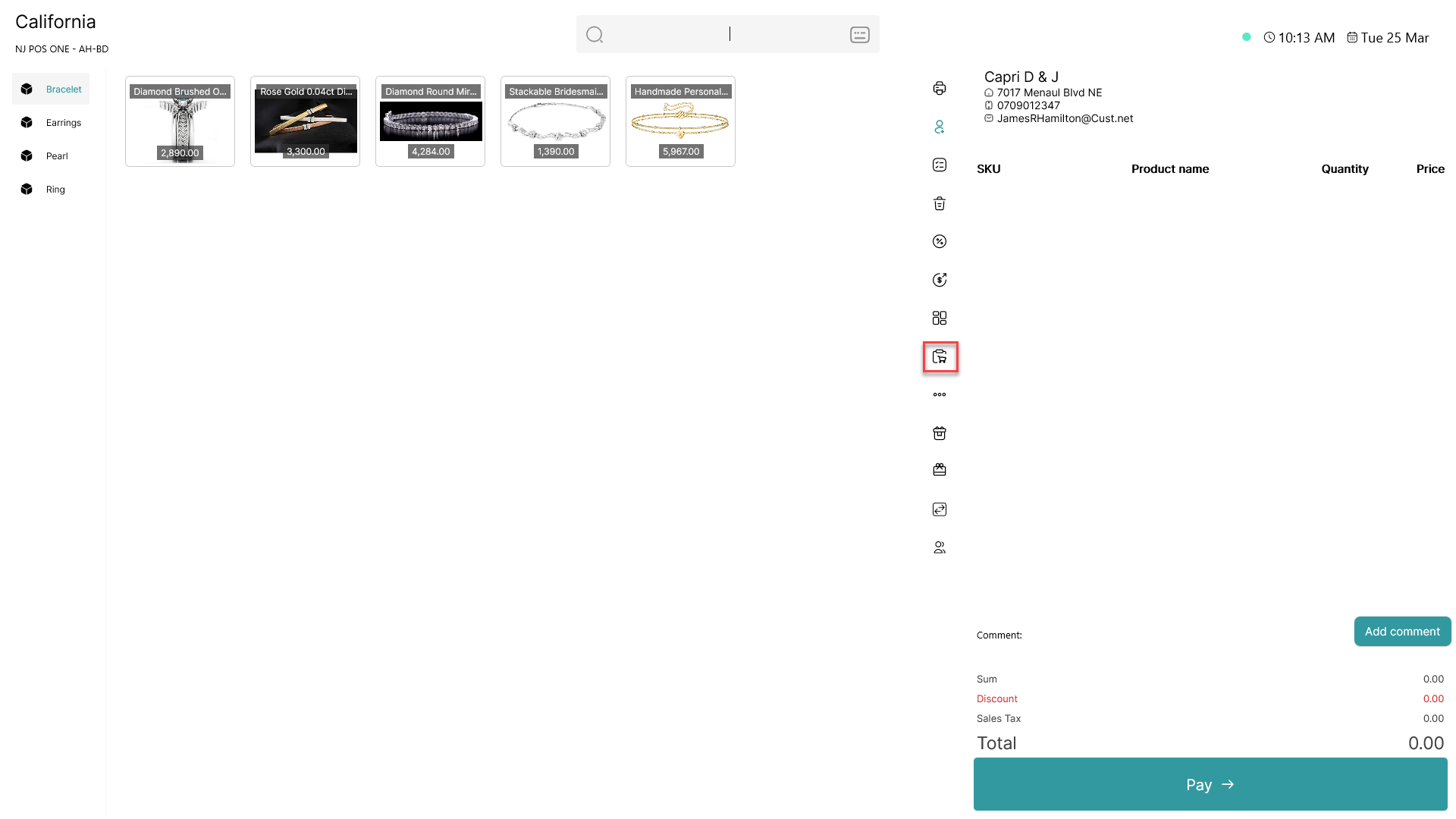
Click on the  -button
Step 2:
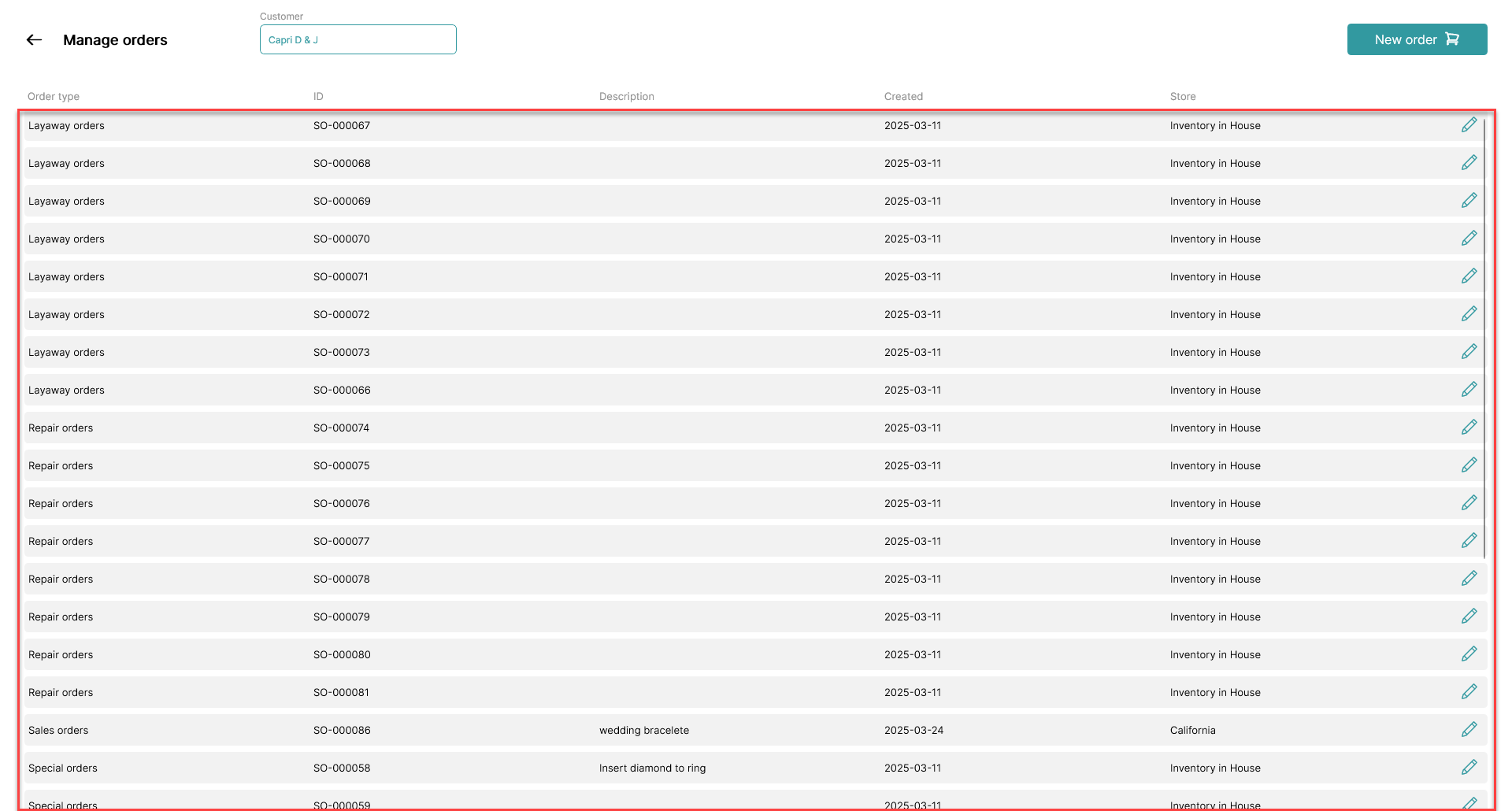
Select the order you want to edit from the list by clicking on the order
Step 3:
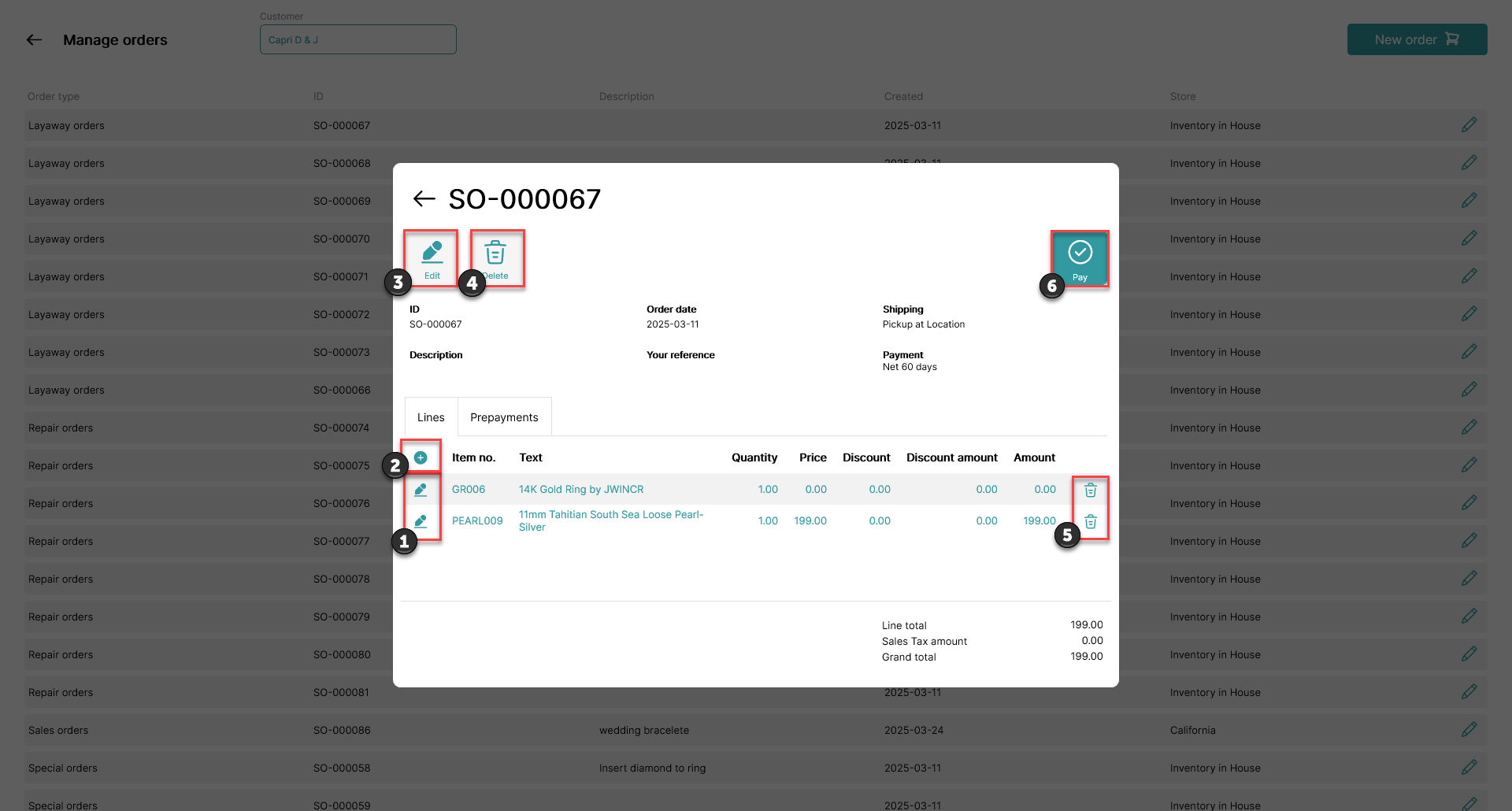
1) Edit items used in the order
2) Add more items to the order
3) Edit information regarding the order such as shipping terms, payment terms, account and location
4) Delete the entire order
5) Delete specific item from the order
6) Pay for the entire order or parts of it
Step 4:
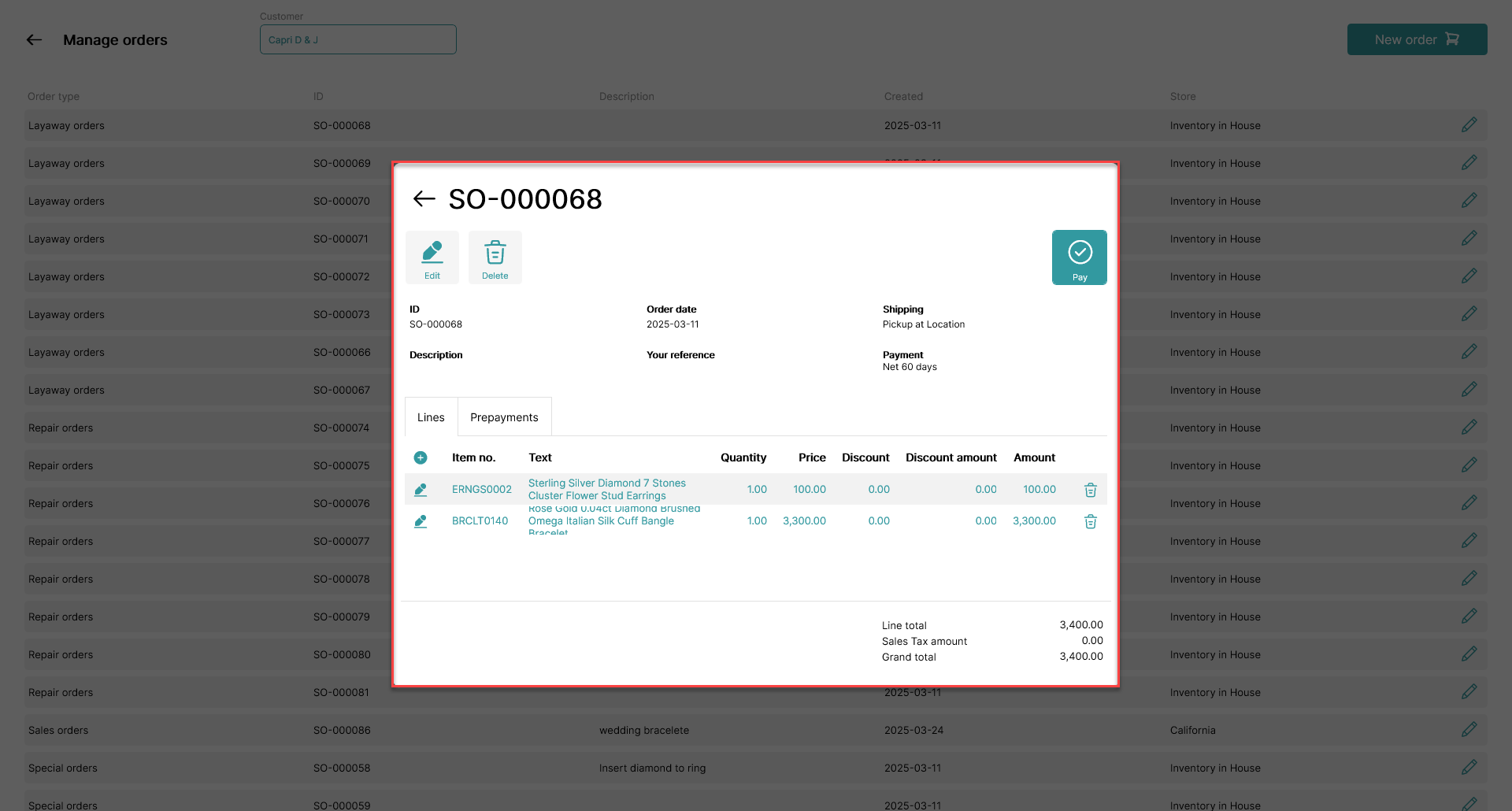
To exit the pop-up window and save the information, click outside of the pop-up window in the darker area
Note:
To create an order, follow this guide: How to - Create an order in the order manager