This guide explains how to create an order or a sales quote in Business Central through the order manager in POS365.
Step 1:
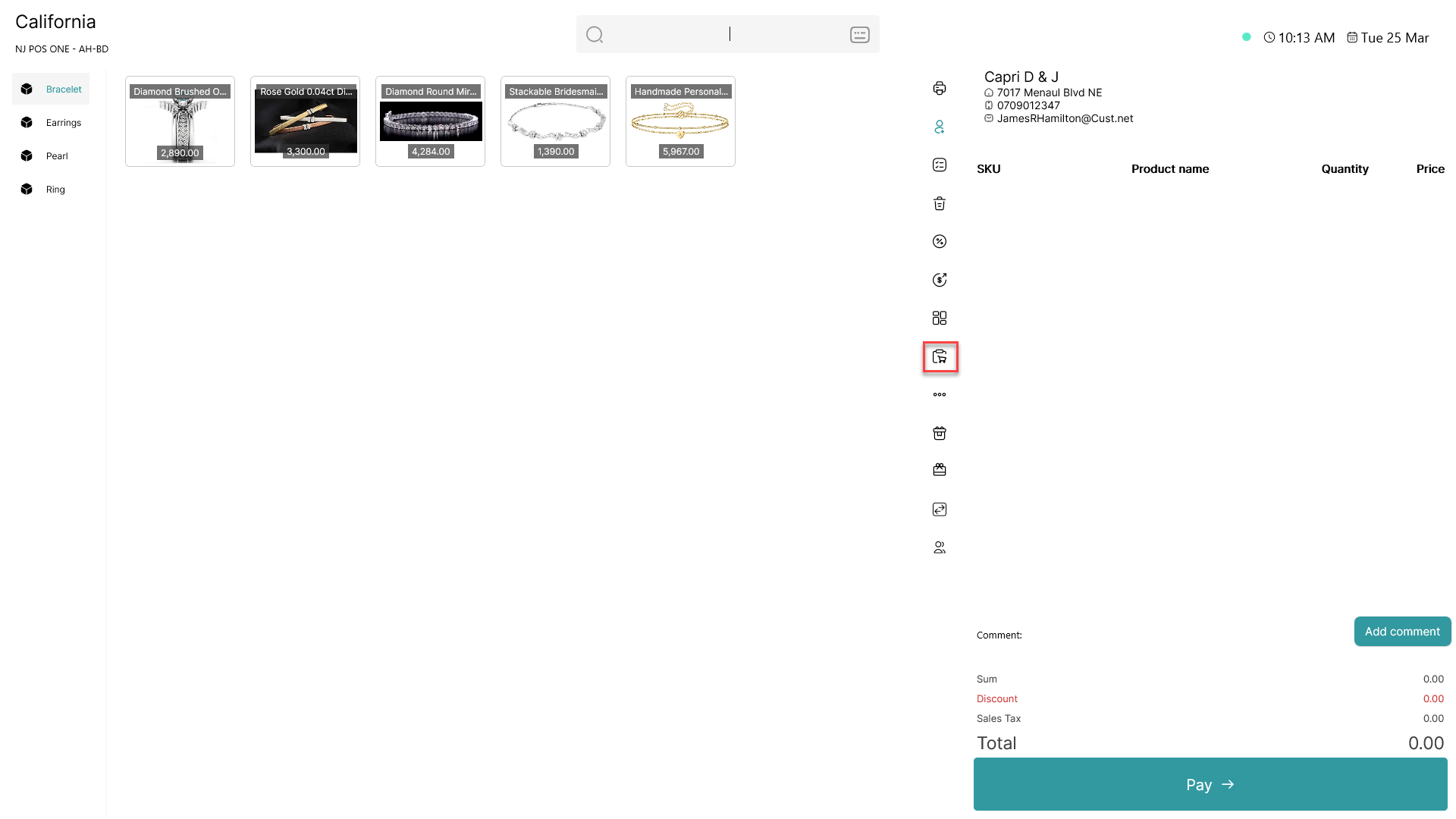
Click on the  -button
Step 2:
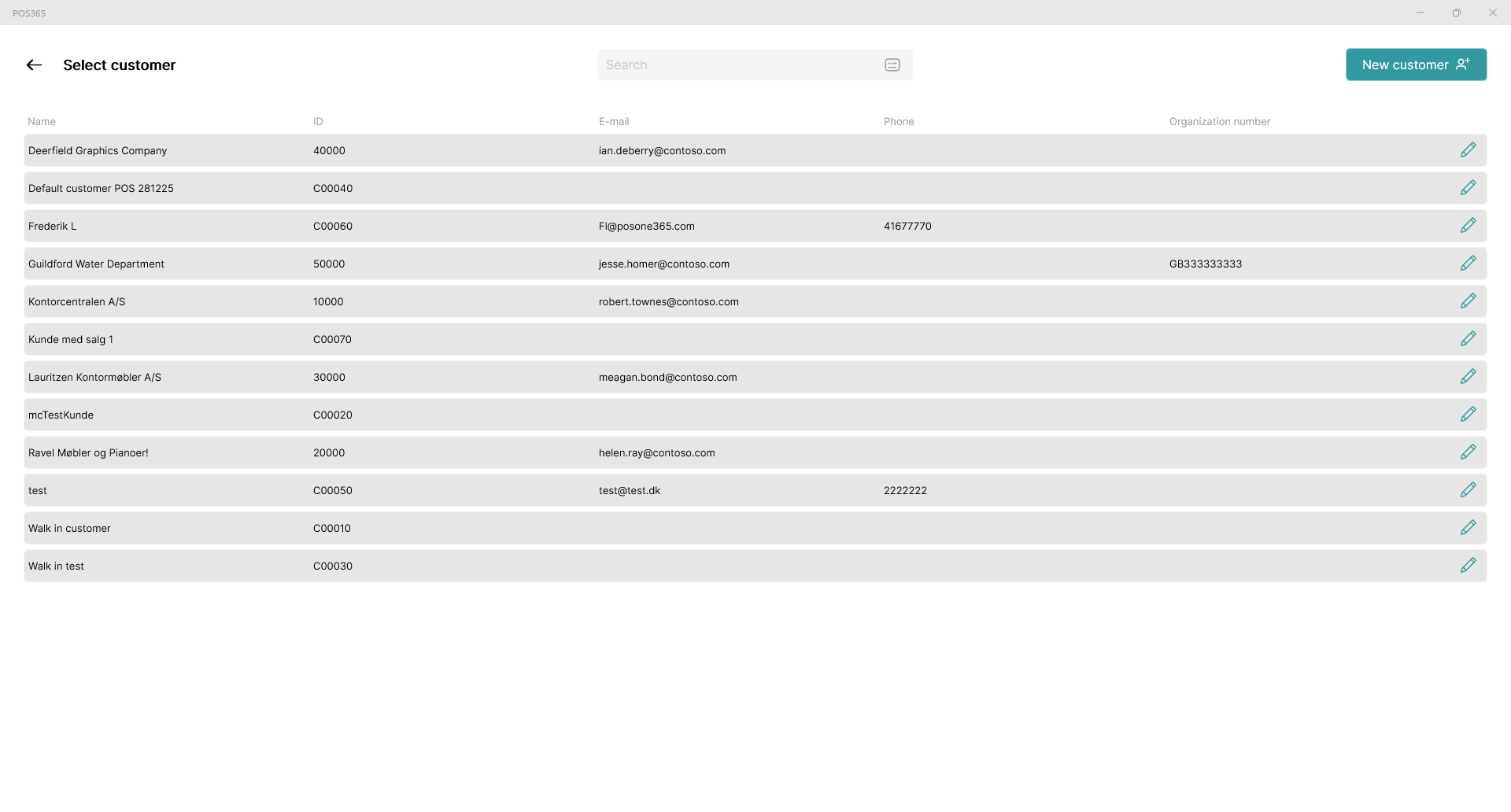
Select the customer you want to create an order or a sales quote for
Step 3:
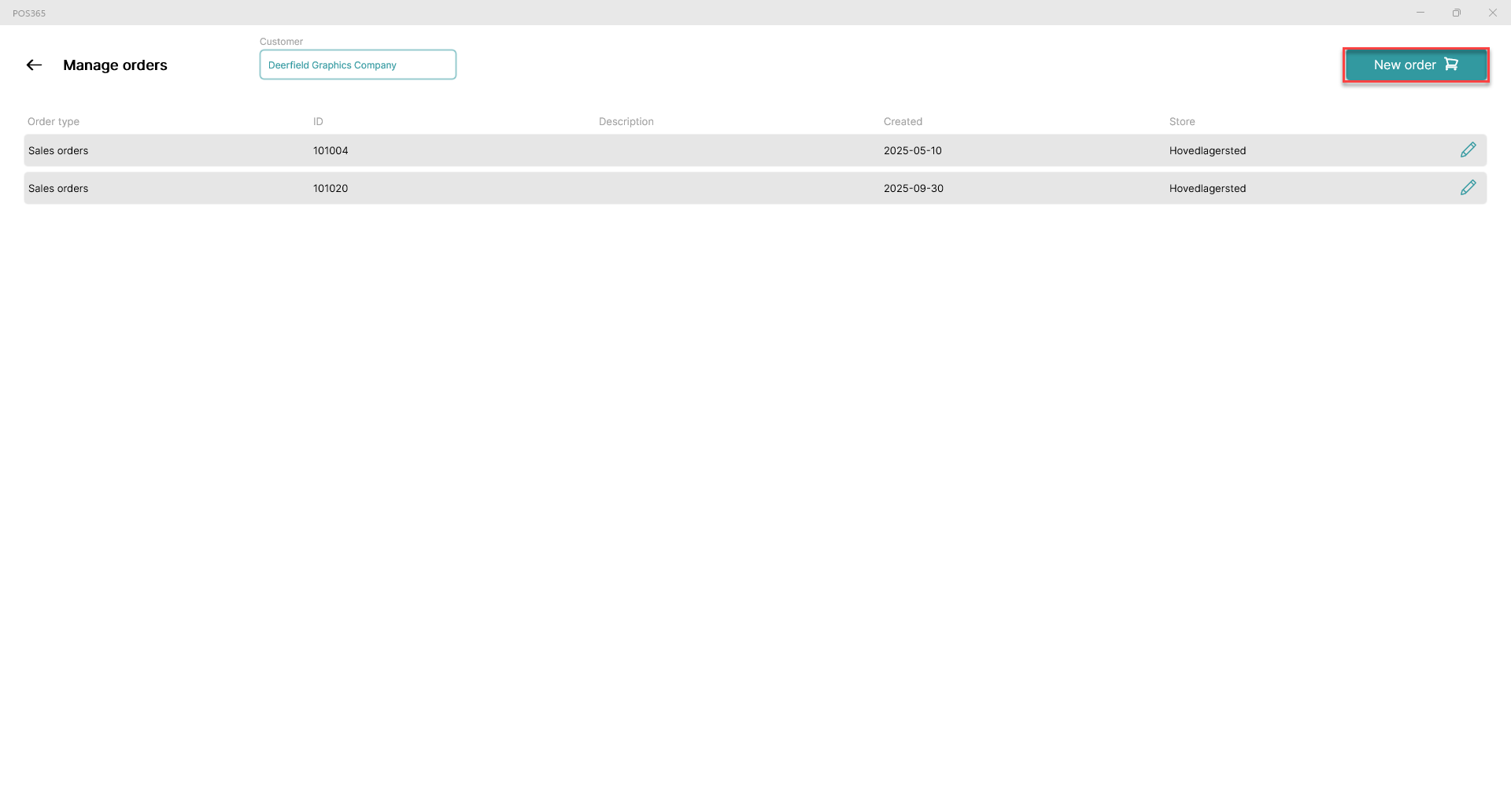
Press the 'New order' button in the top, right corner
Step 3:
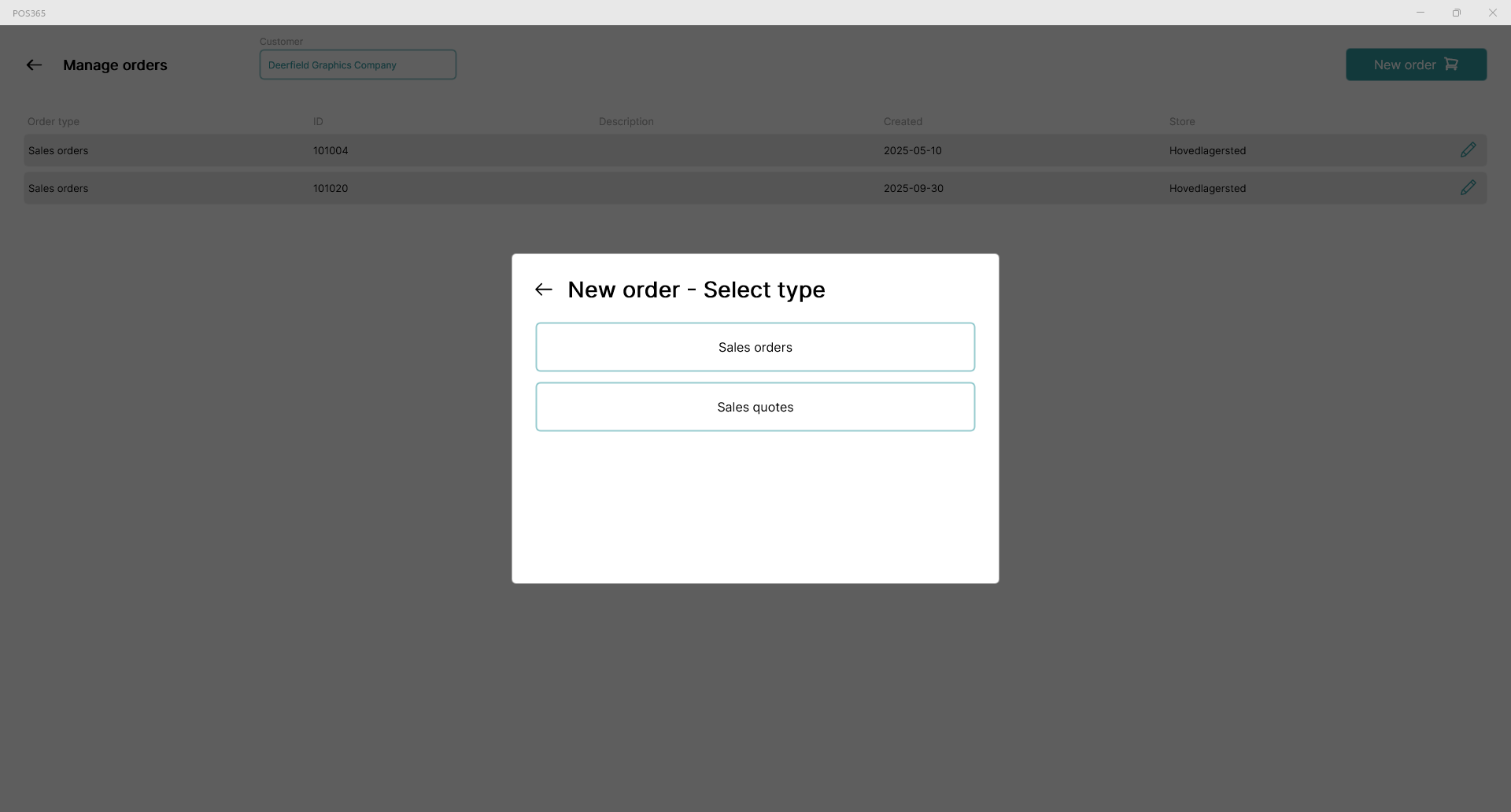
Pick the order type you want to create.
Step 4:
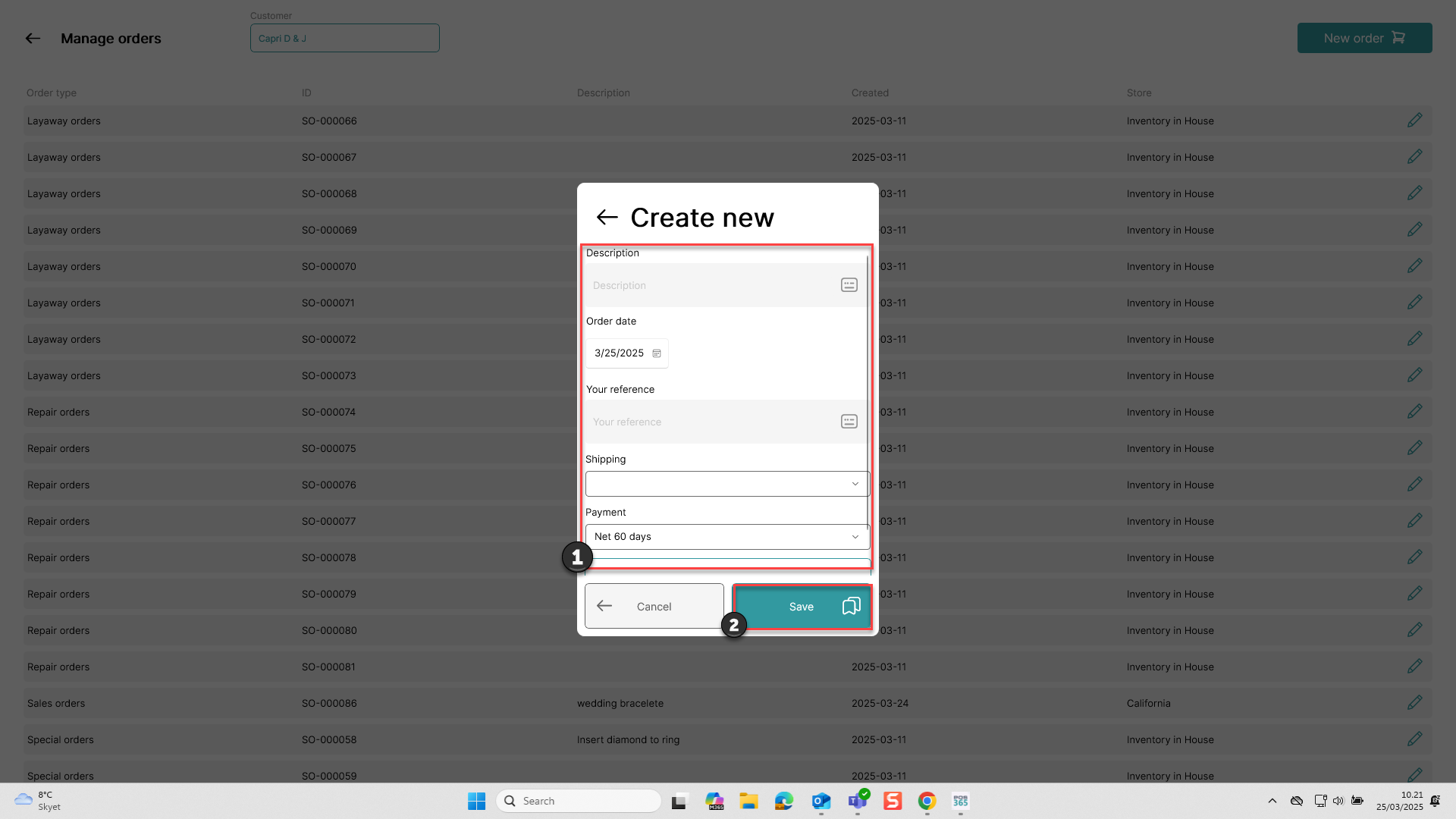
1) Fill in the information boxes (scroll down for more boxes)
2) Press 'Save'
Step 5:
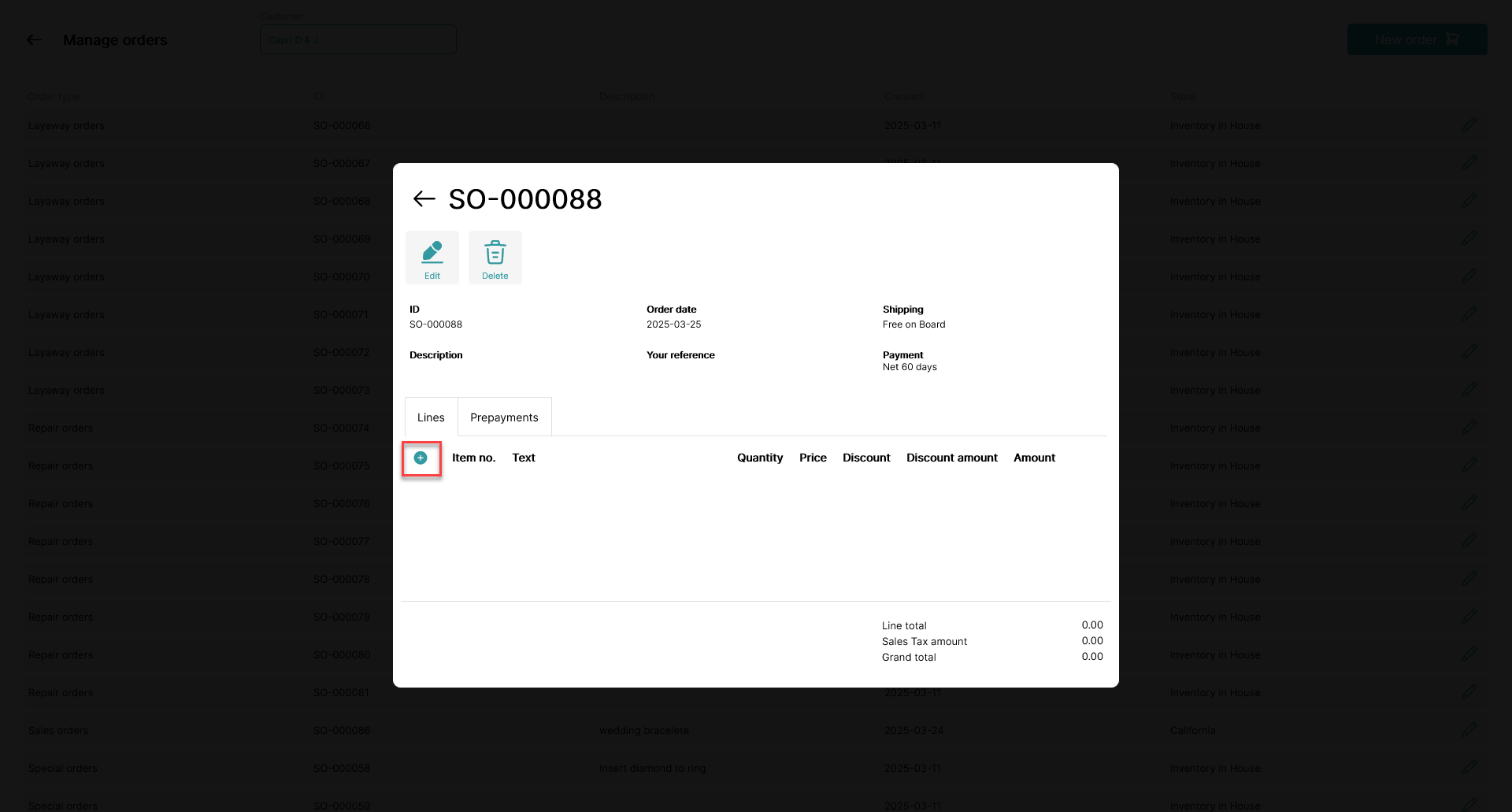
Click on the  -button to add items to the order
Note:
If you need to edit the informations from step 4, click edit
If you want to delete the order completely, click delete
Step 6:
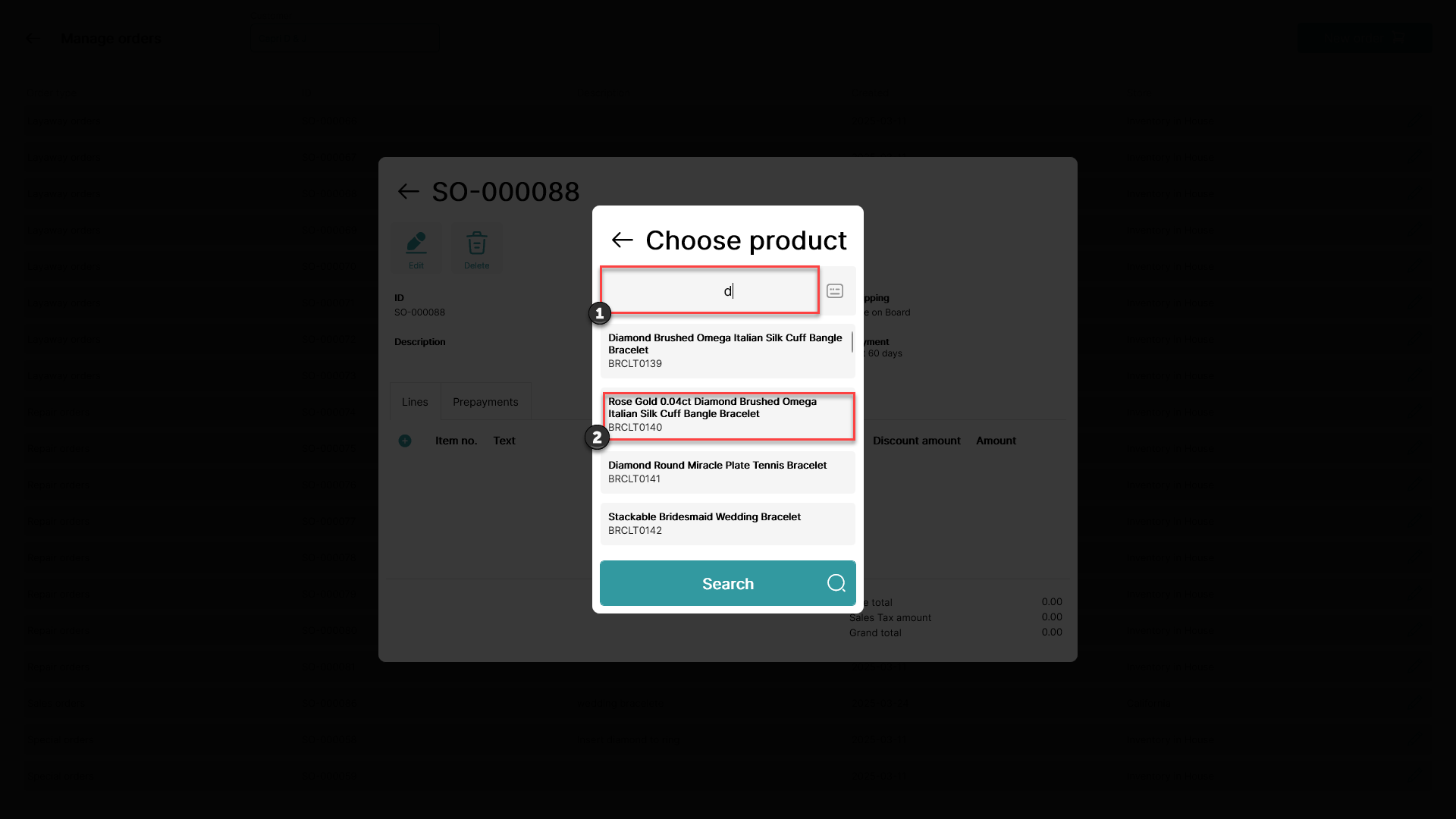
1) Type the name of the items used for the order
2) Click on the item on the list
Step 7:
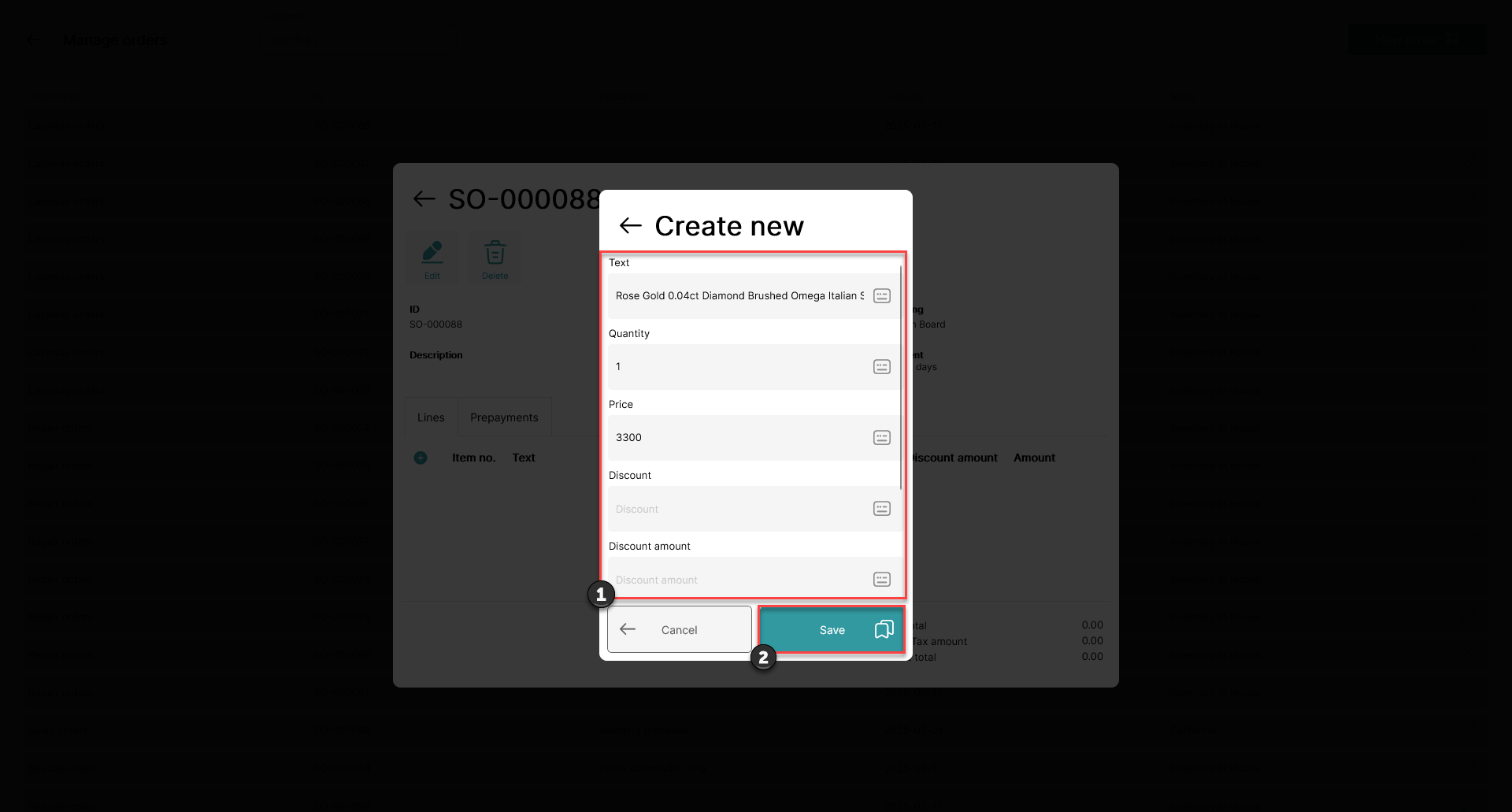
1) Fill in the information boxes (scroll down for more boxes)
2) Press 'Save'
Note: If more items need to be added to the order, go back to step 5
Step 8:
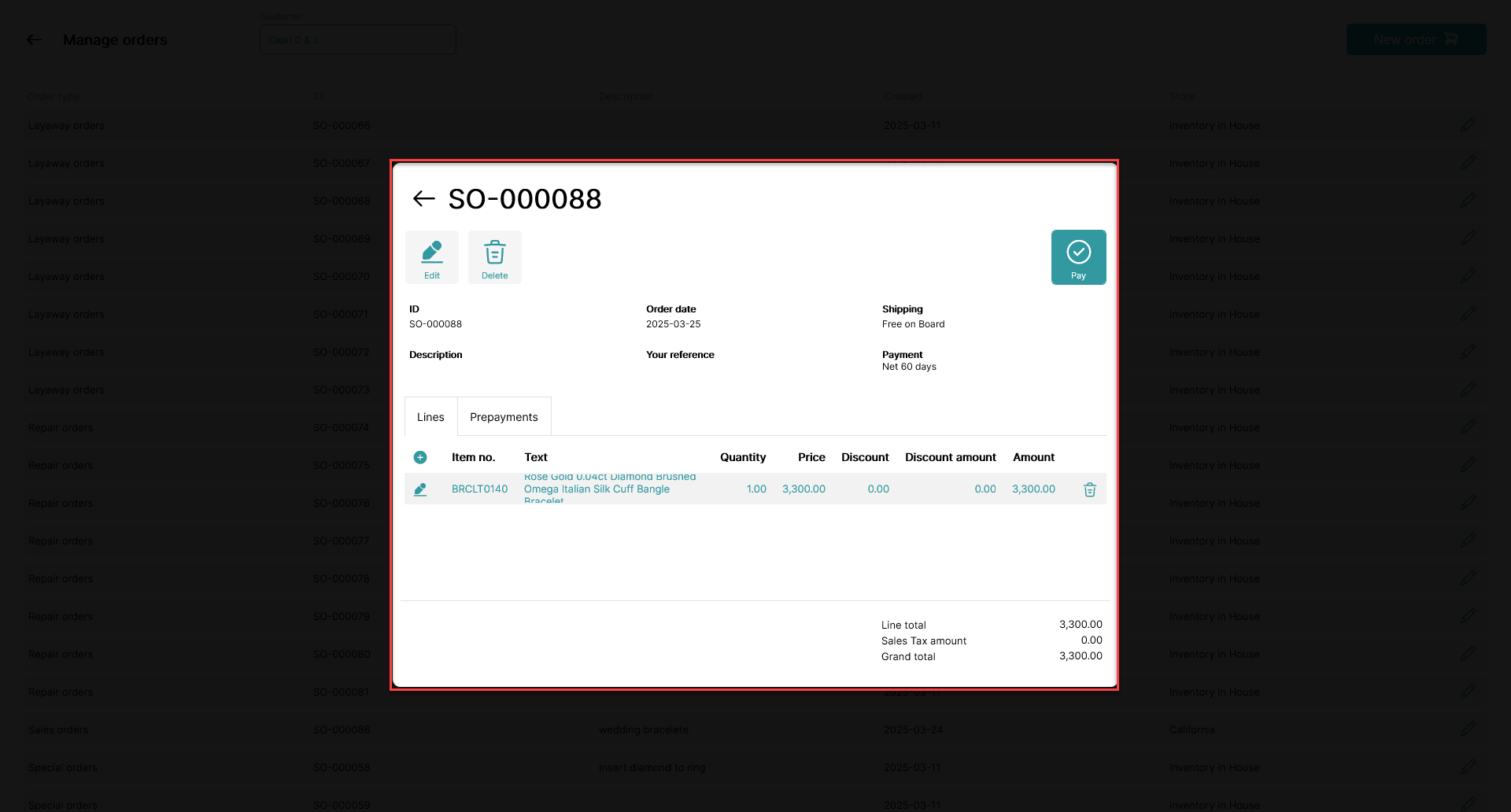
To close the pop-up window, click outside of the white box in the dark area
Note:
To edit an existing order, follow this guide: How to - Edit an existing order in the order manager