This guide explains how to activate or deactive the fullscreen mode in the POS365 app.
To implement the function, a system restart must be performed at the end.
Step 1:
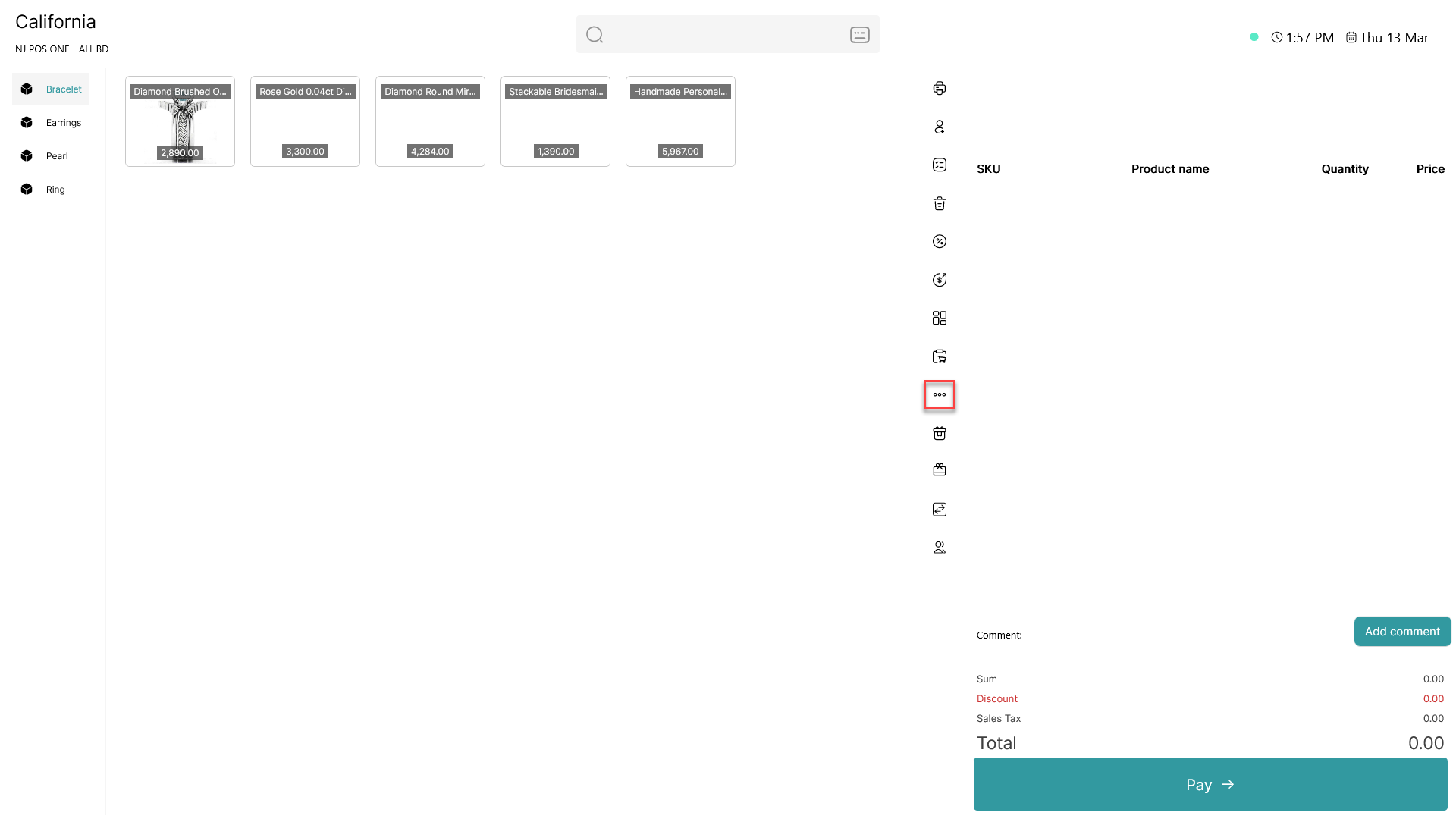
Click on the three dots ( - button) to access more options
Step 2:
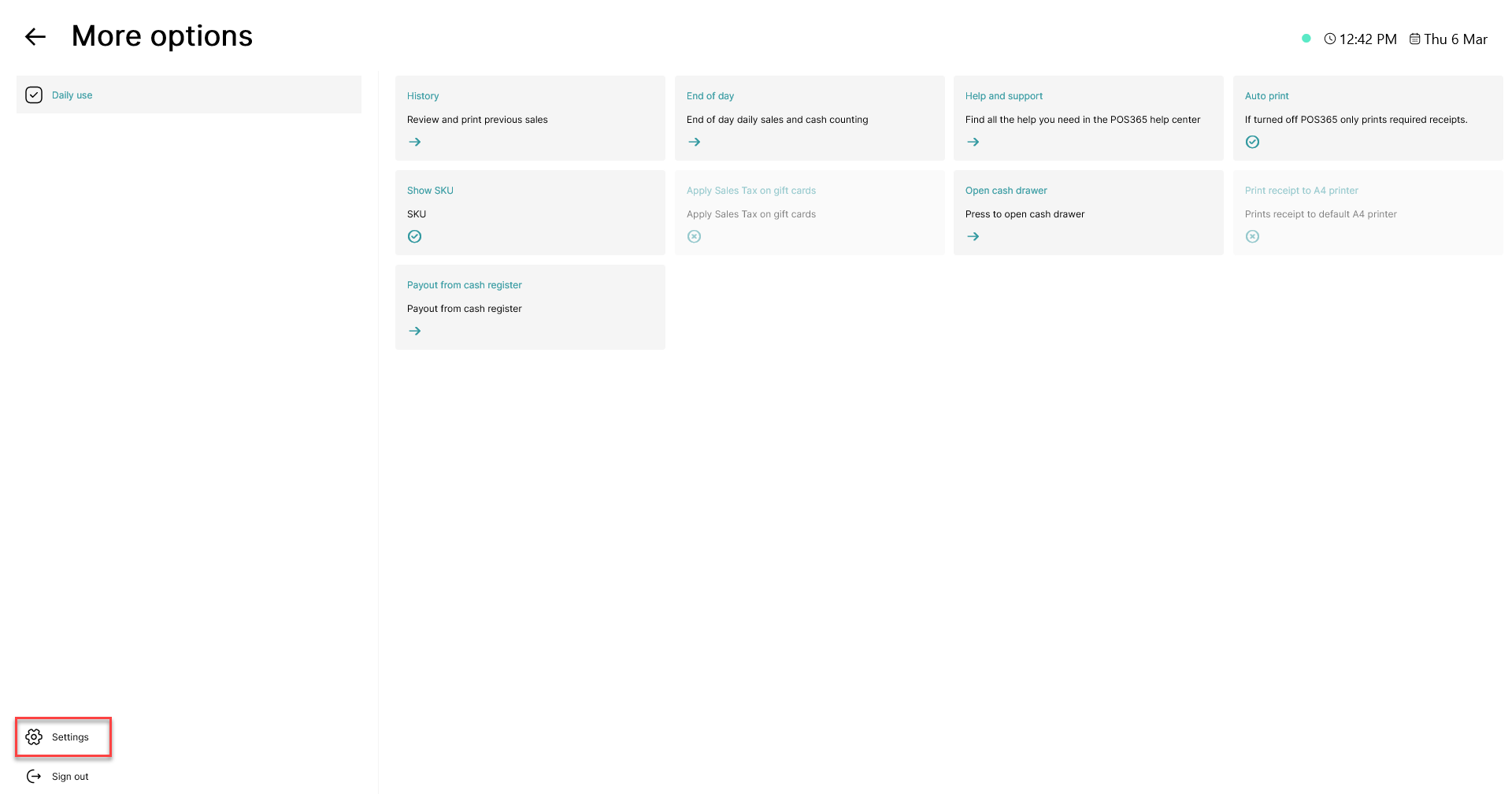
Click on the 'Settings' button in the bottom, left corner
Step 3:
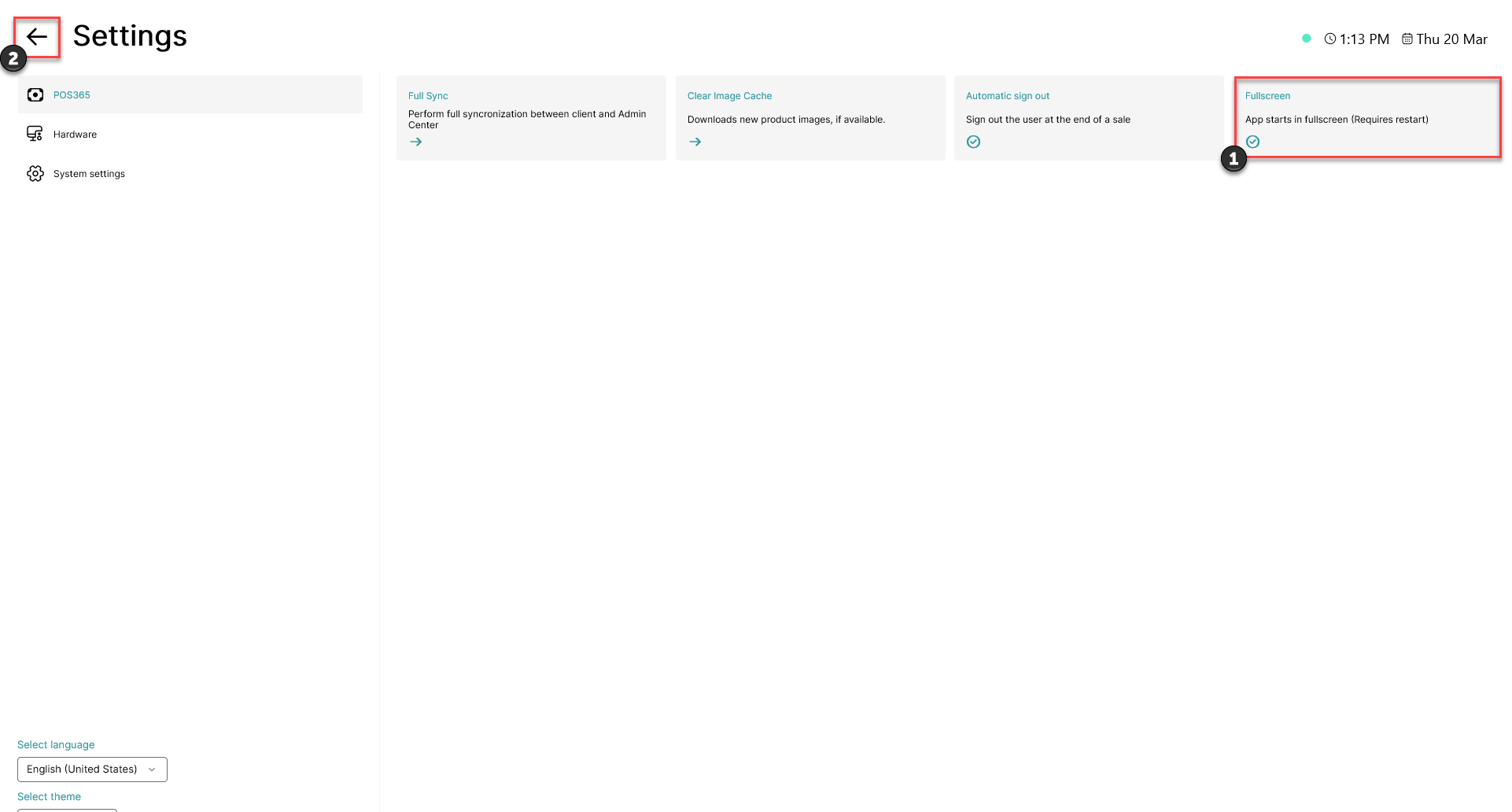
1) Click on the 'Fullscreen' button.
2) Go back by pressing the arrow back in the top, left corner
Step 4:
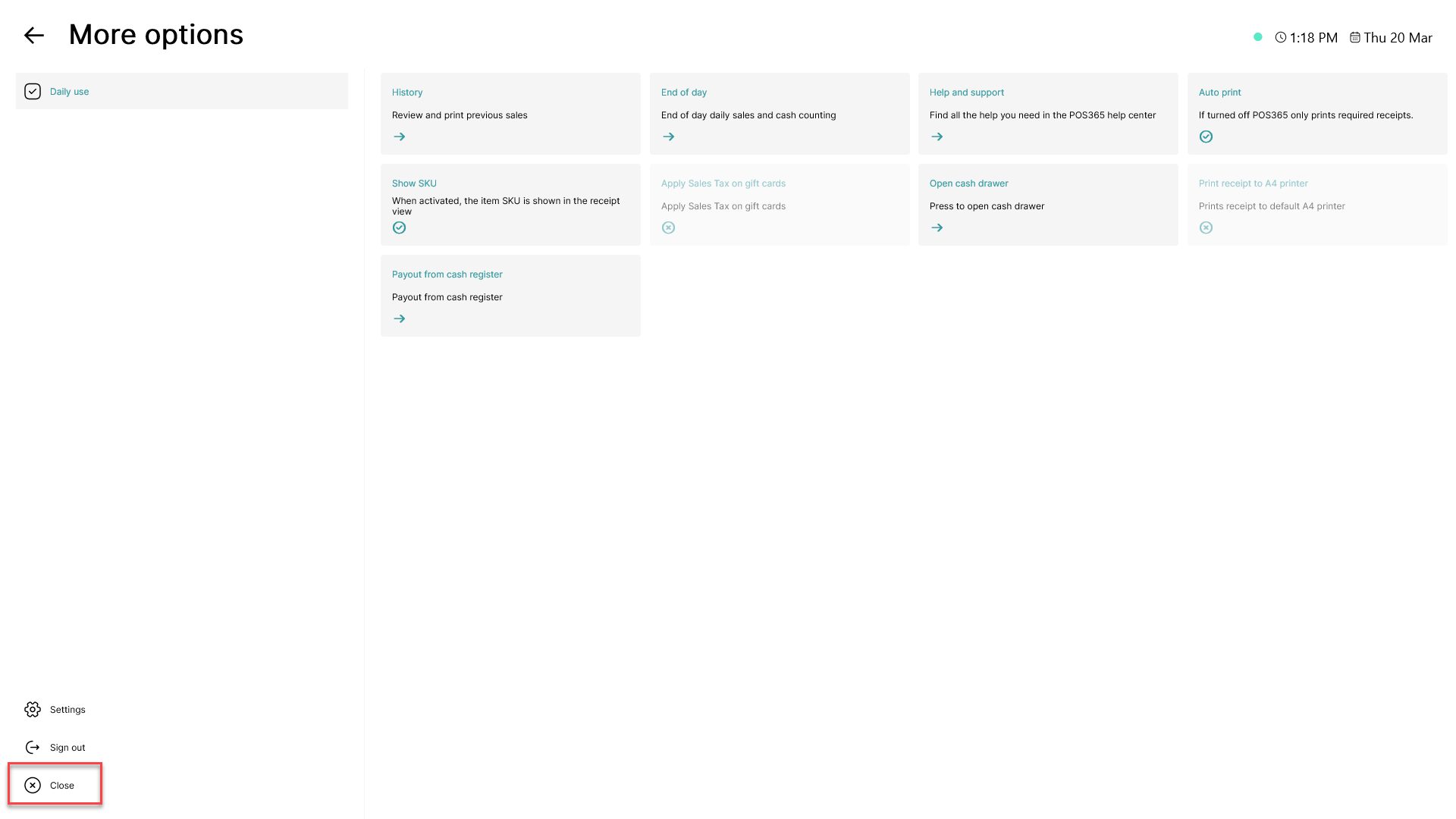
Close the POS365 app by pressing 'Close' in the bottom, left corner
Step 5:
Open the POS365 again.
This can be done in three ways:

1) Select the Windows menu and find the POS365 application.
2) Use the search bar by typing POS365.
3) If you've pinned the application to the taskbar, you can access it from there.
Step 6:
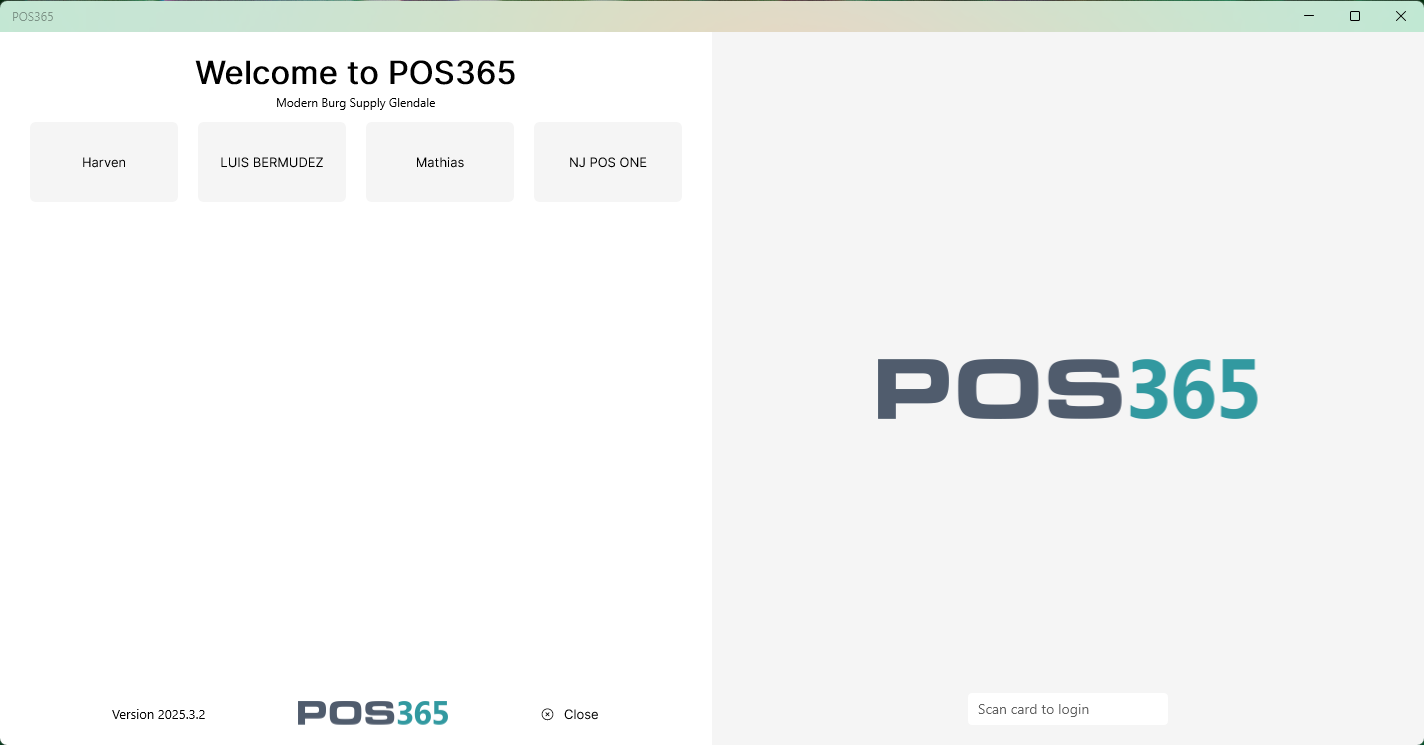
POS365 will now open in window mode
Note: To enable fullscreen mode, the same procedure can be performed