This guide explains how to access an old receipt in the POS365 app by scanning a physical receipt, typing in the receipt number or finding the receipt manually in the receipt history list
Step 1:
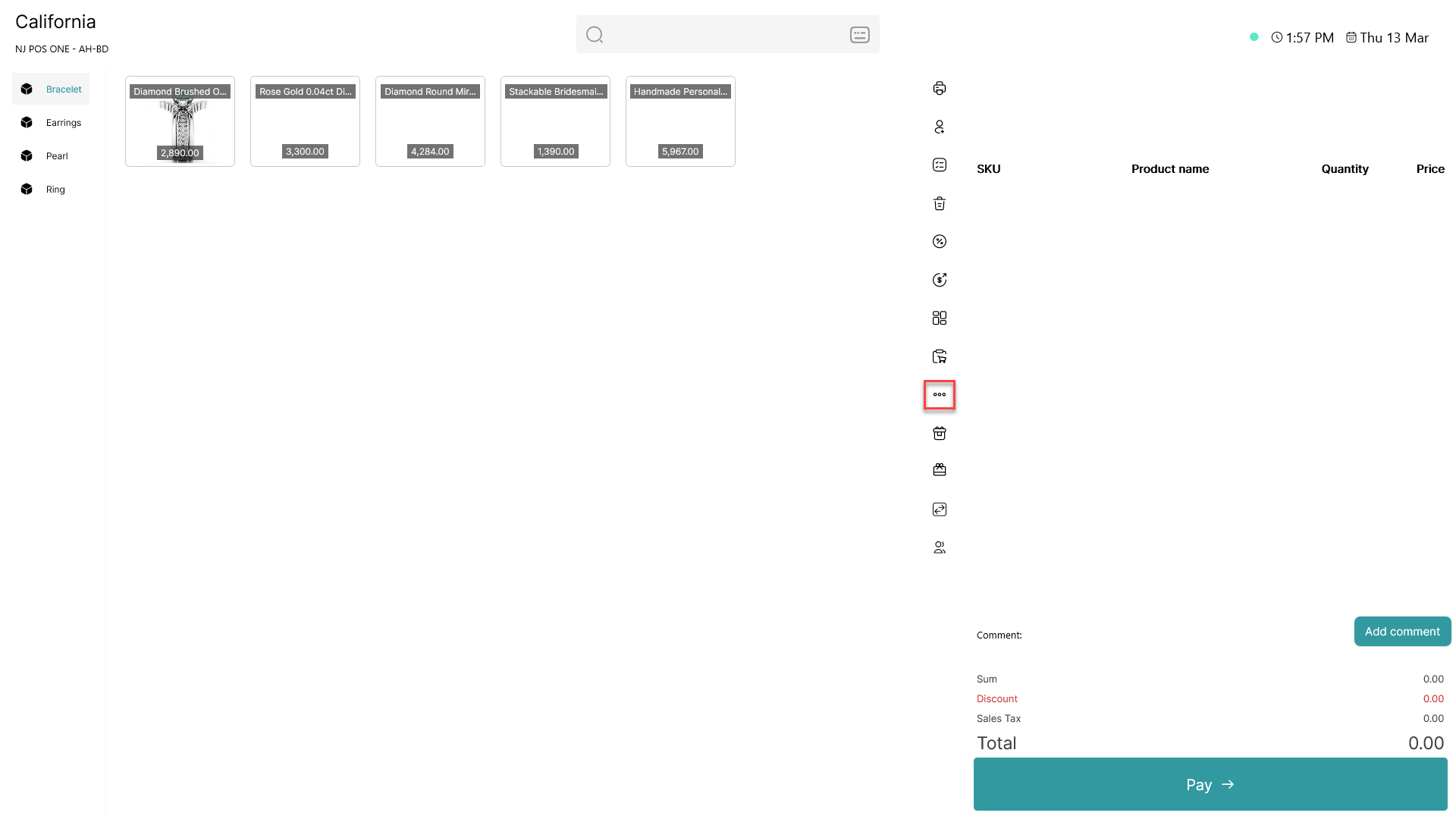
Click on the three dots ( - button) to access more options
Step 2:
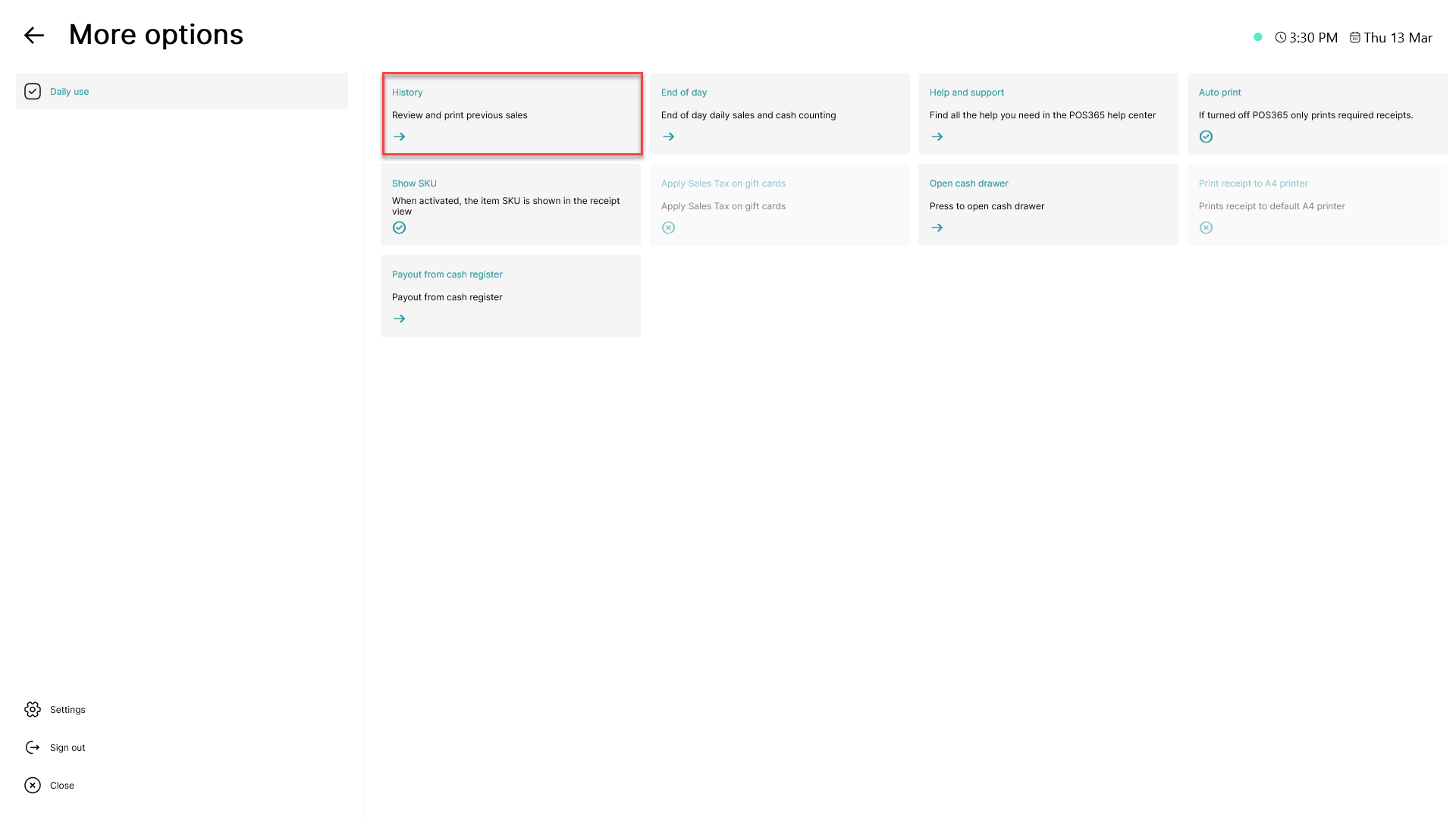
Click on history
Step 3:
An old receipt can be accessed in 2 ways
First method:
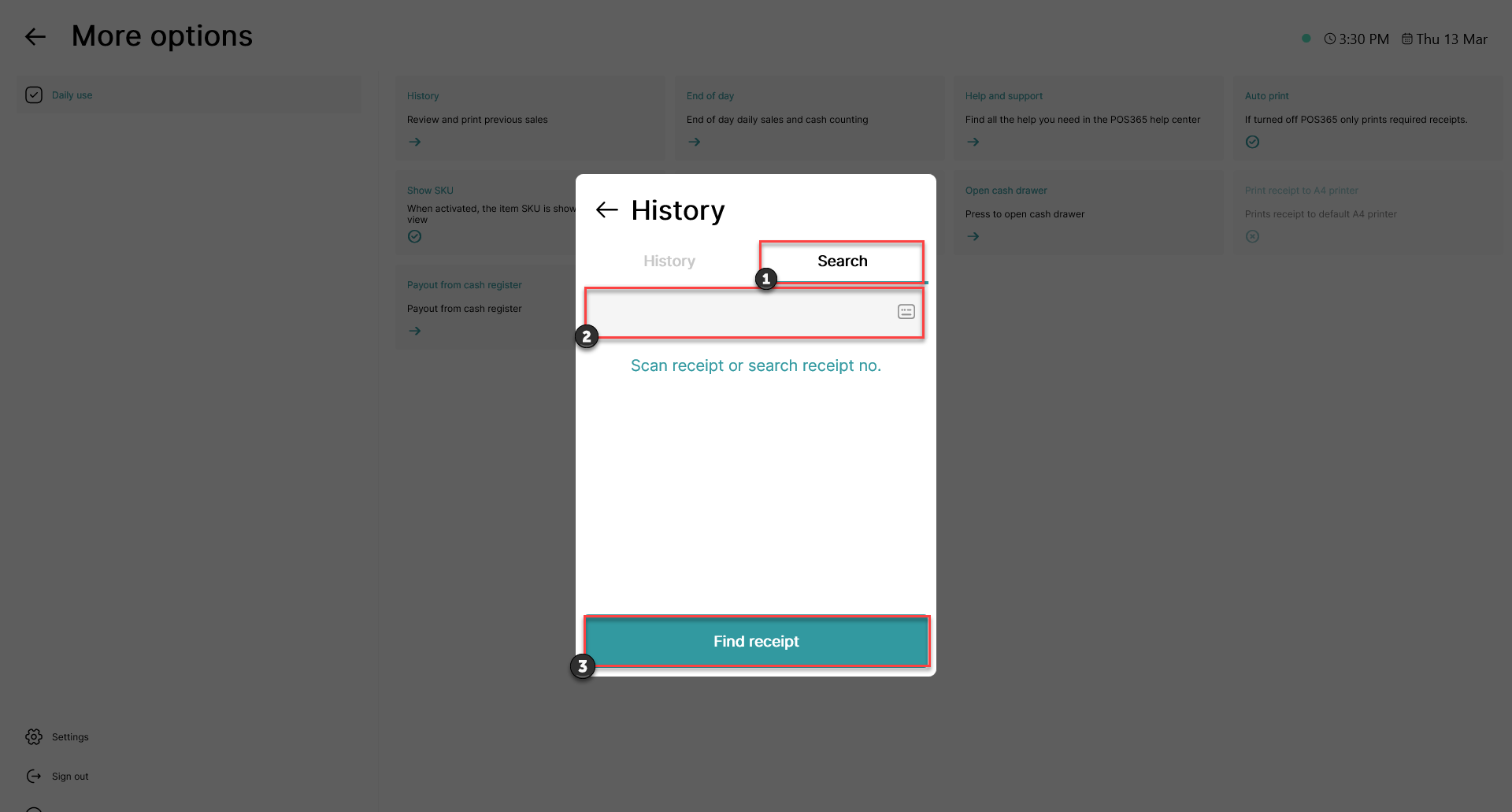
1) Click 'Search'
2) Scan OR type the desired receipt number manually
3) Click 'Find receipt'
Second method:
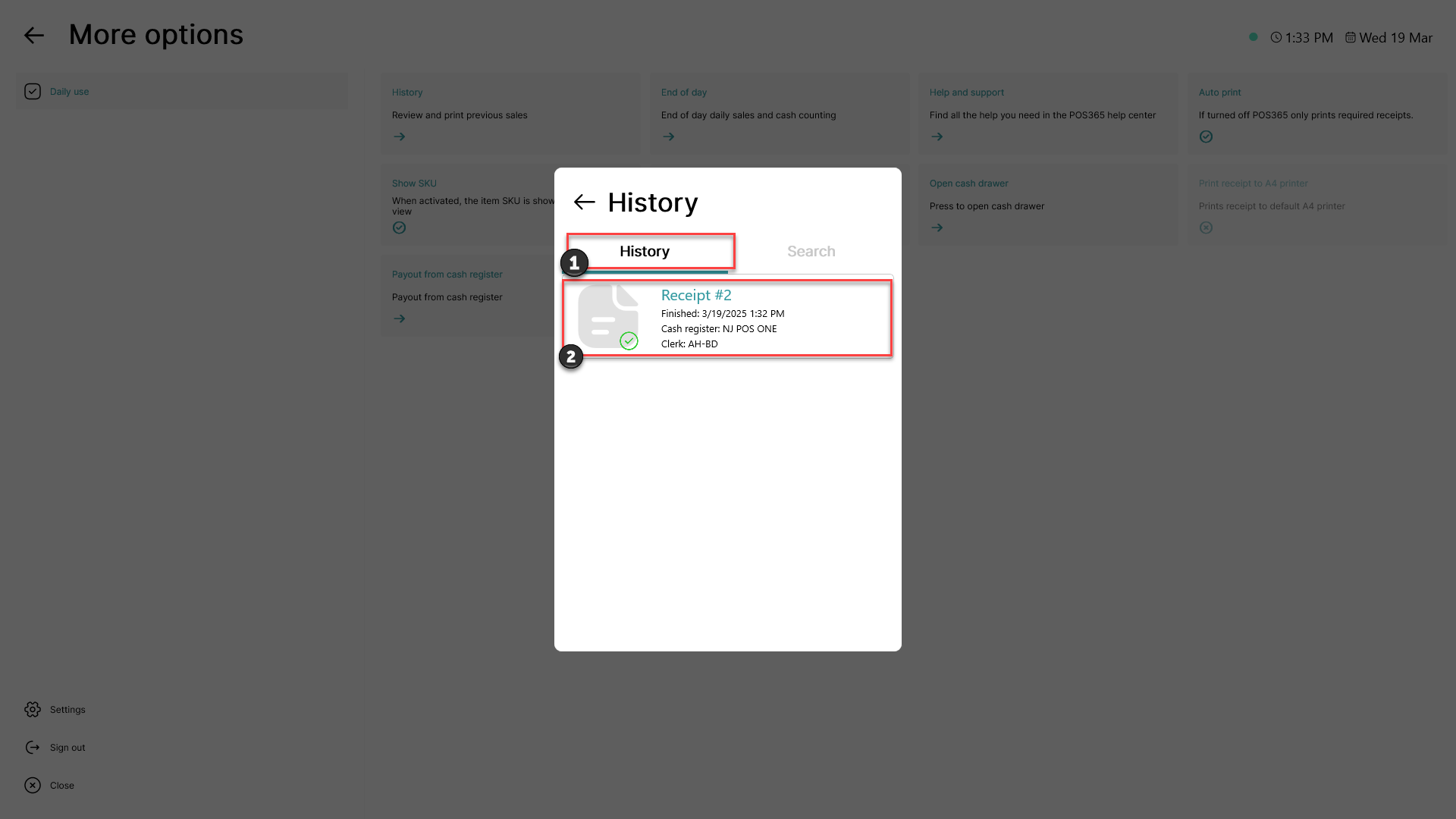
1) Click 'History' (As standard, the system opens this tab)
2) Click on the desired receipt (You can scroll down if there are multiple receipts)
Step 4:
The receipts from different clerks with same receipt number will show:
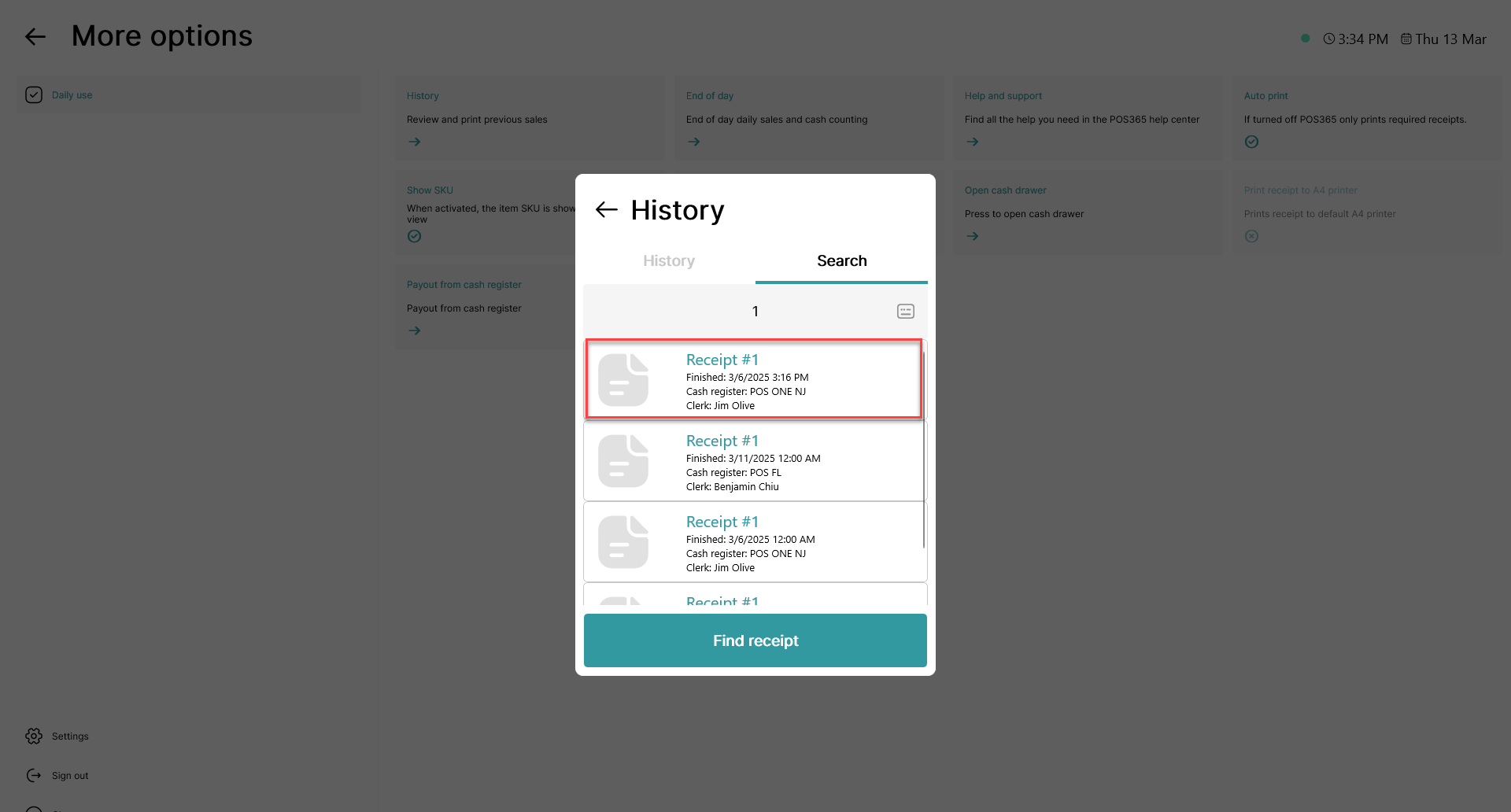
Click on the desired receipt (You can scroll down if there are multiple receipts)
Step 5:
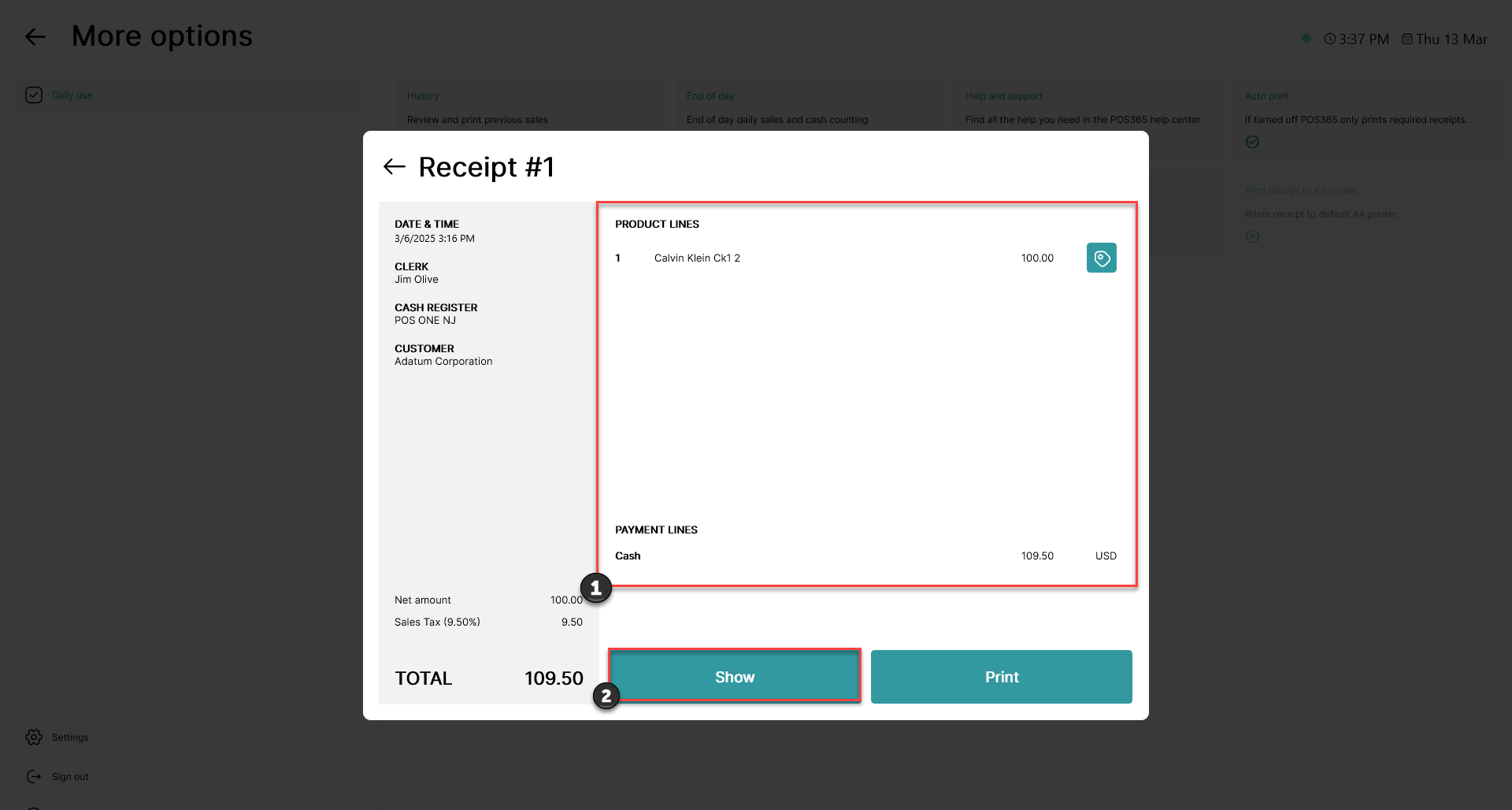
1) The receipt is shown in digital mode
2) For a physical receipt preview, click 'Show'
Step 6:
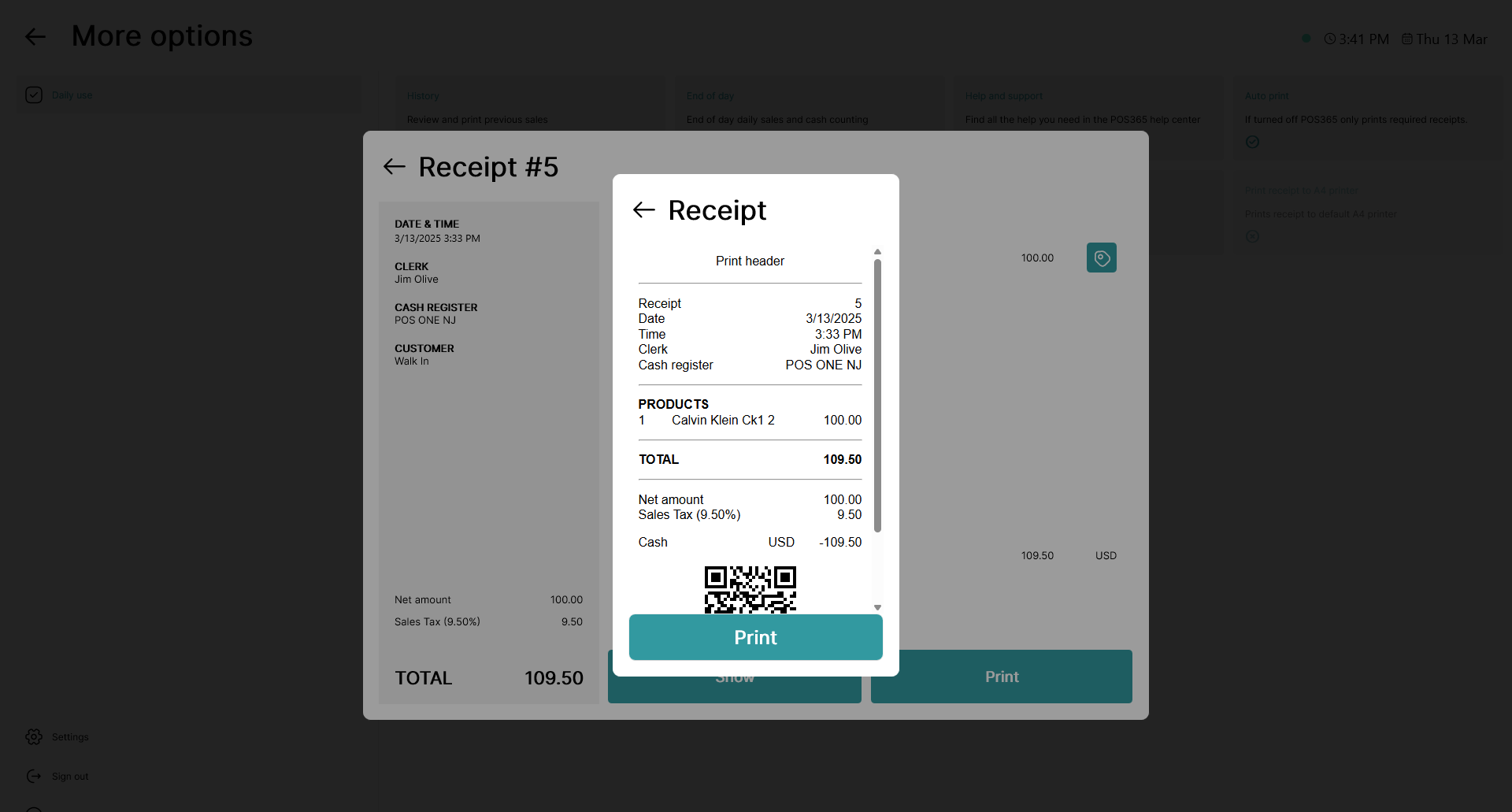
The physical receipt preview is shown