This guide explains how to make a refund based on the name of an item in the POS365 app.
Step 1:
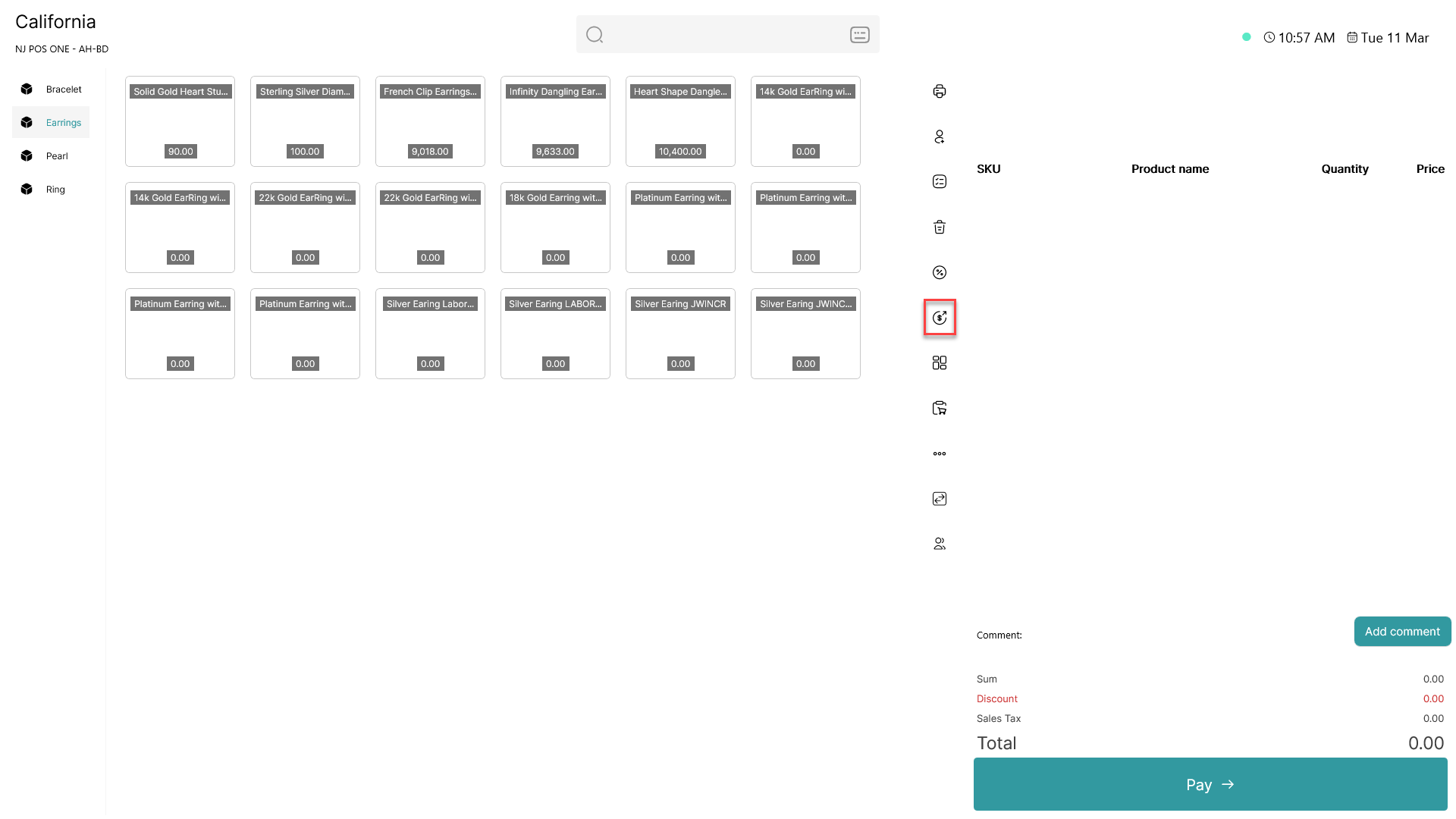
Open the refund tab marked with 
Step 2:
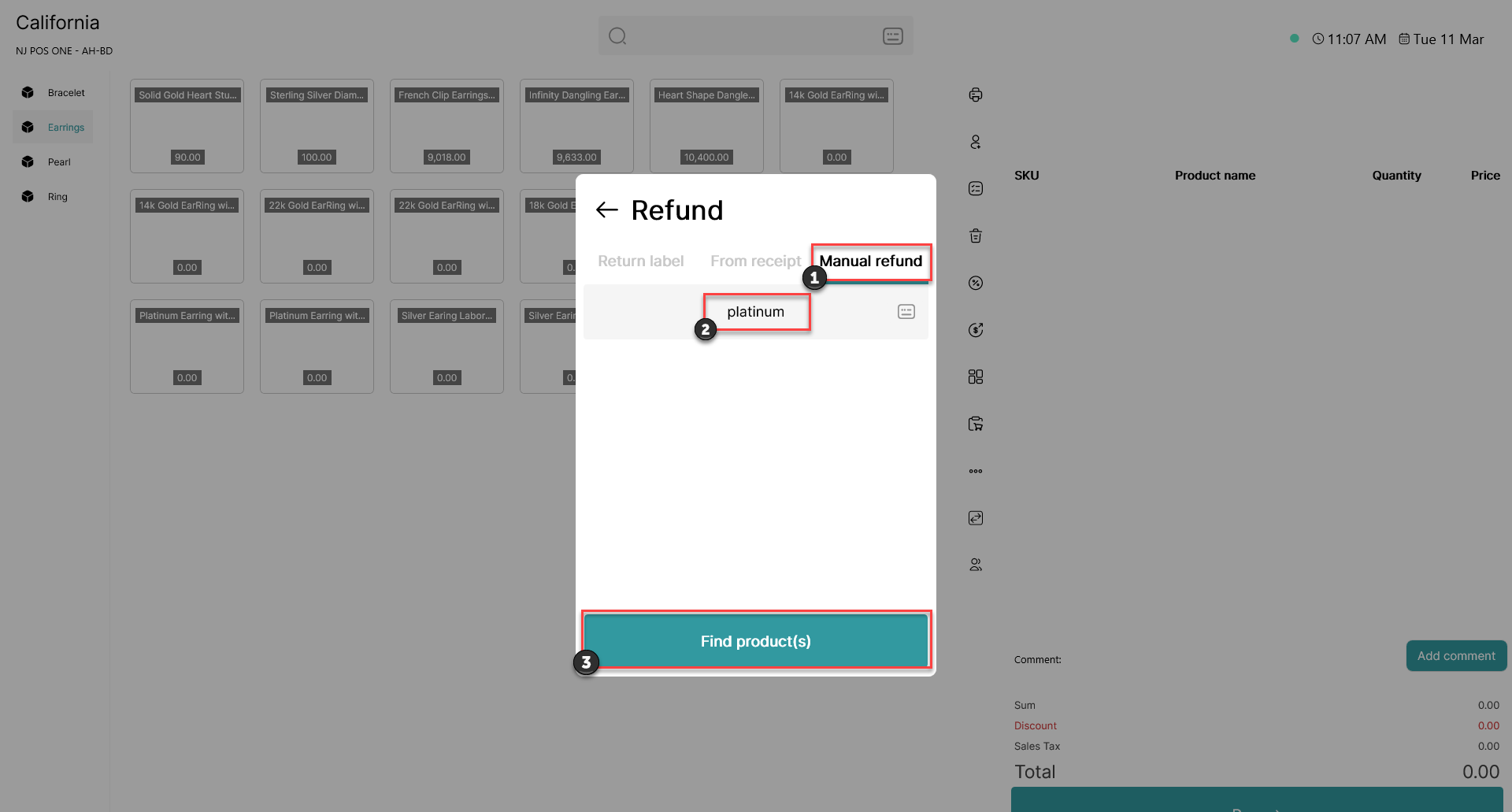
1) Click on 'Manual refund'
2) Type in the name of the item you want to refund
3) Click on 'Find product(s)'
Step 3:
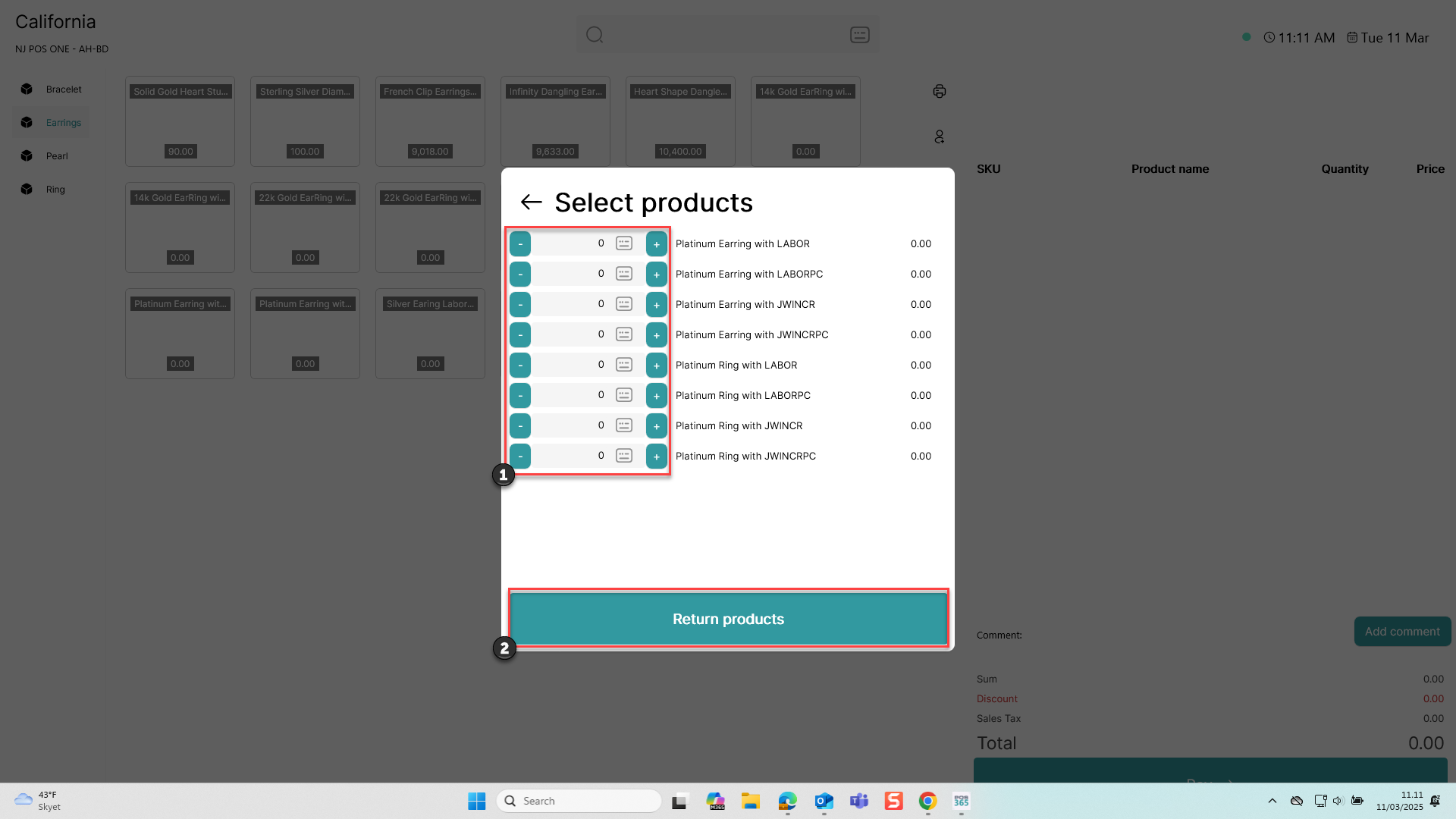
1) By using plus (+) and minus (-), you can select or deselect specific items from the return order. If you need to return larger amounts, click on the field between plus (+) and minus (-)
2) Once you have selected all the items you need to refund, click 'Return products'
Step 4:
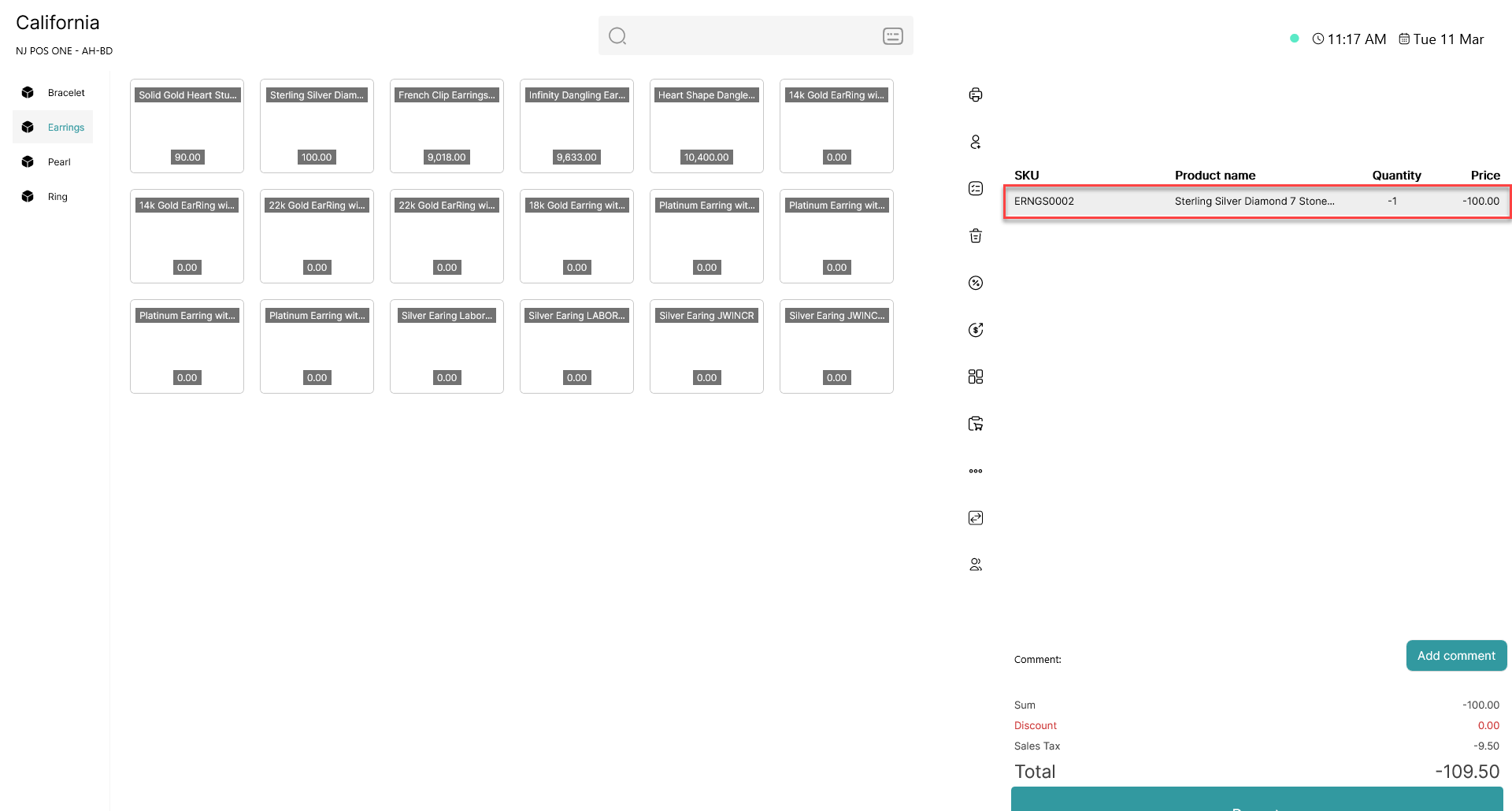
The selected item(s) will now be shown in the basket as a deduction from the receipt