This guide explains how to set up cash registers using the POS365 Admin Center and assign them to their specific locations.
Before you proceed, ensure that a POS location and a payment type have been created.
Step 1:
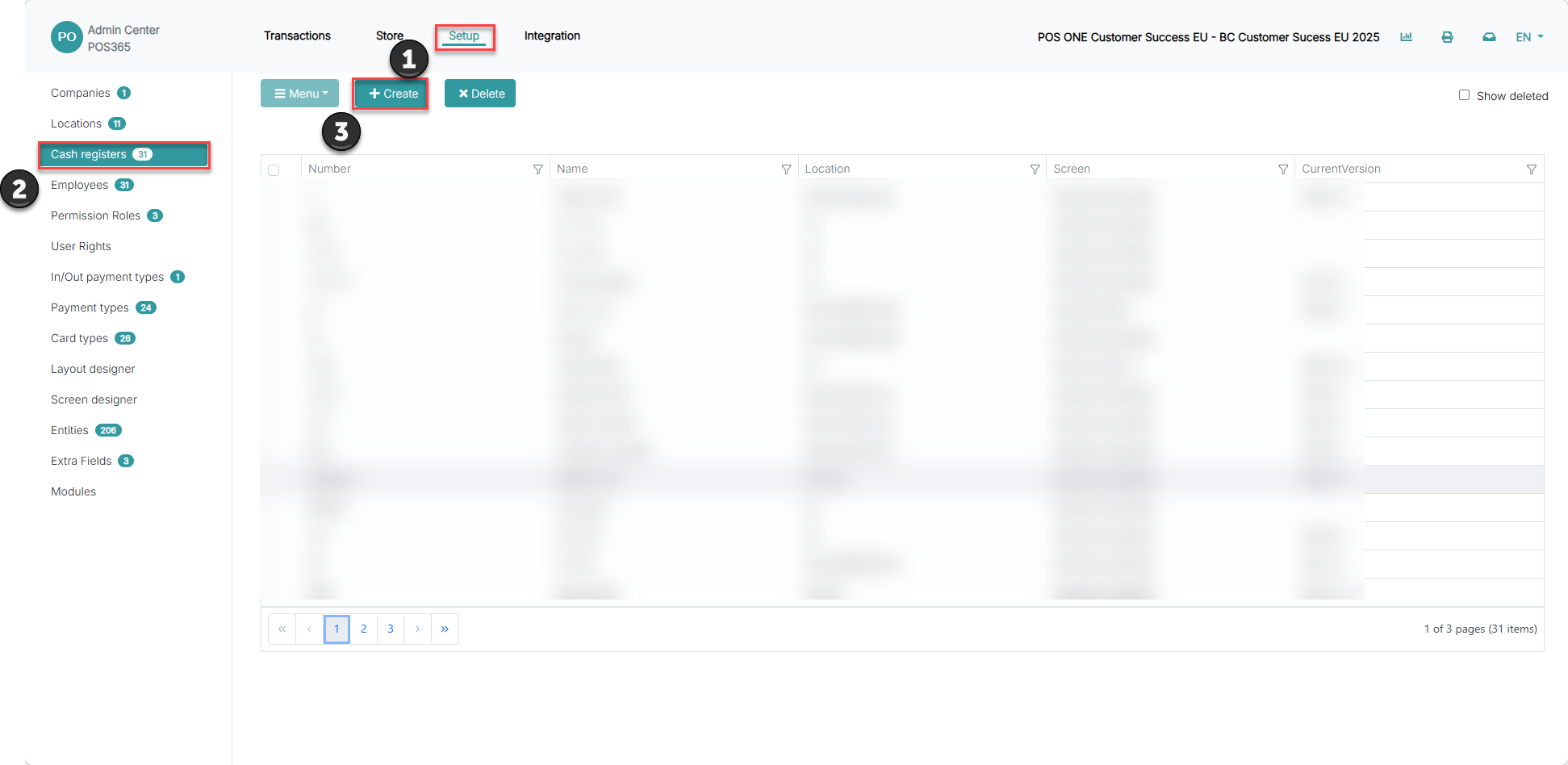 1) Go to 'Setup'
2) Go to 'Cash Registers'
3) Click 'Create'
Step 2:
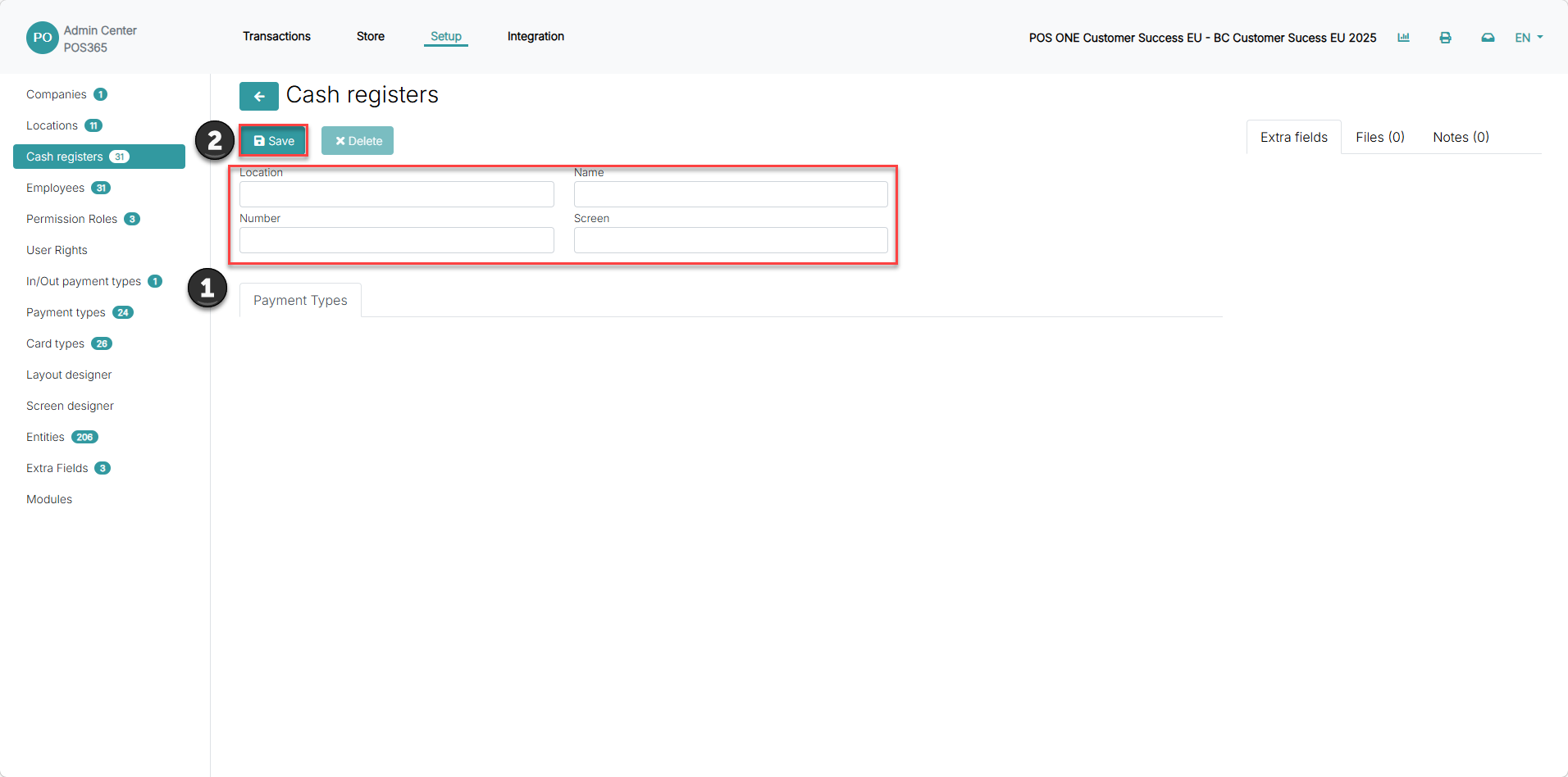
1) Insert information regarding the cash register
2) Click 'Save'
Location: Defines the location of the cash register. To set up POS locations, follow this guide.
Number: Used to sort cash registers on the POS
Name: Gives the cash register a name, so you can easily distinguish between them
Screen: Defines the UI of the POS screen. You can select between existing standard screen layouts or create your own one through the screen designer
Step 3:
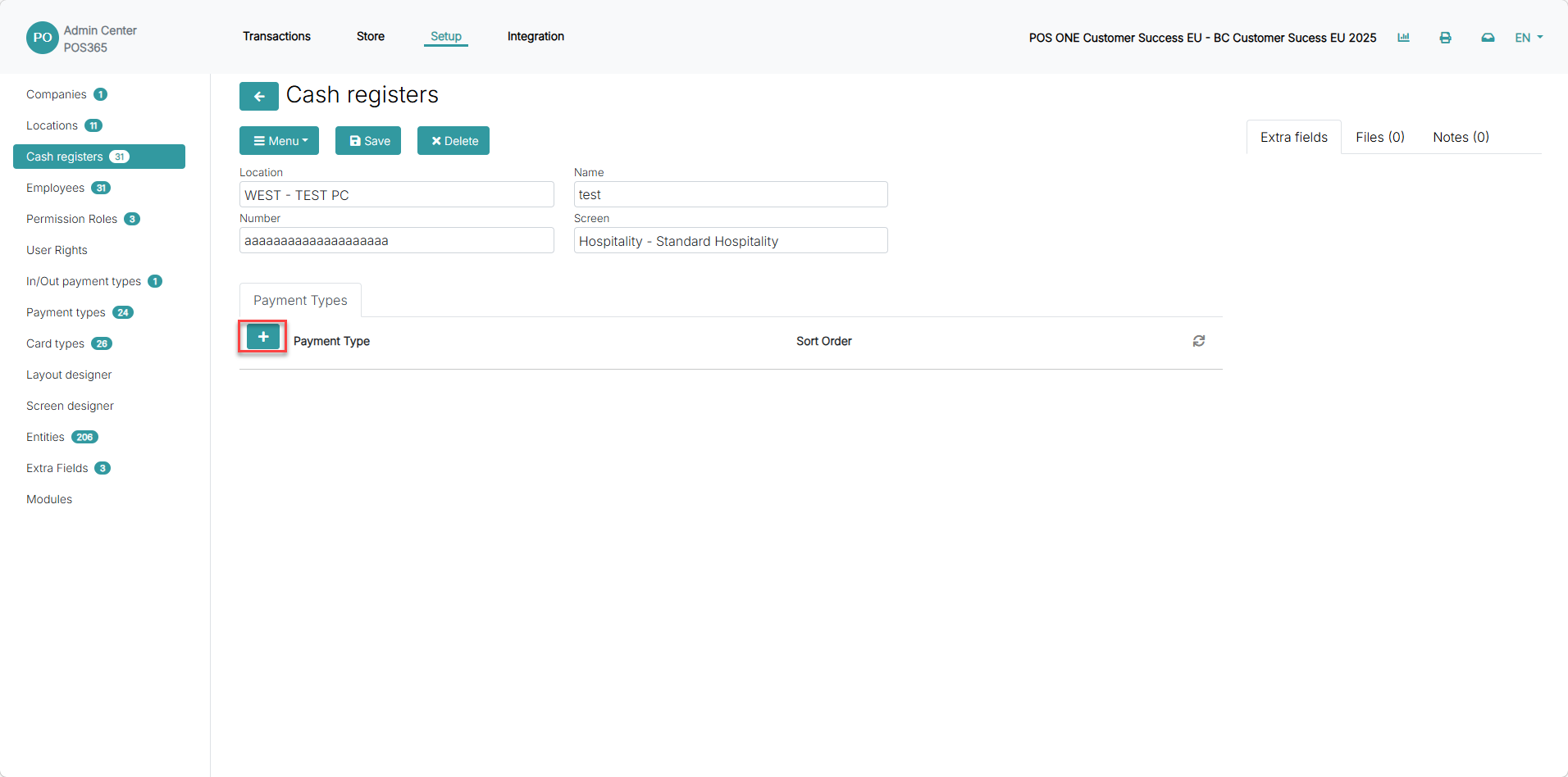
Click '+' to add a payment type to the cash register
Step 4:
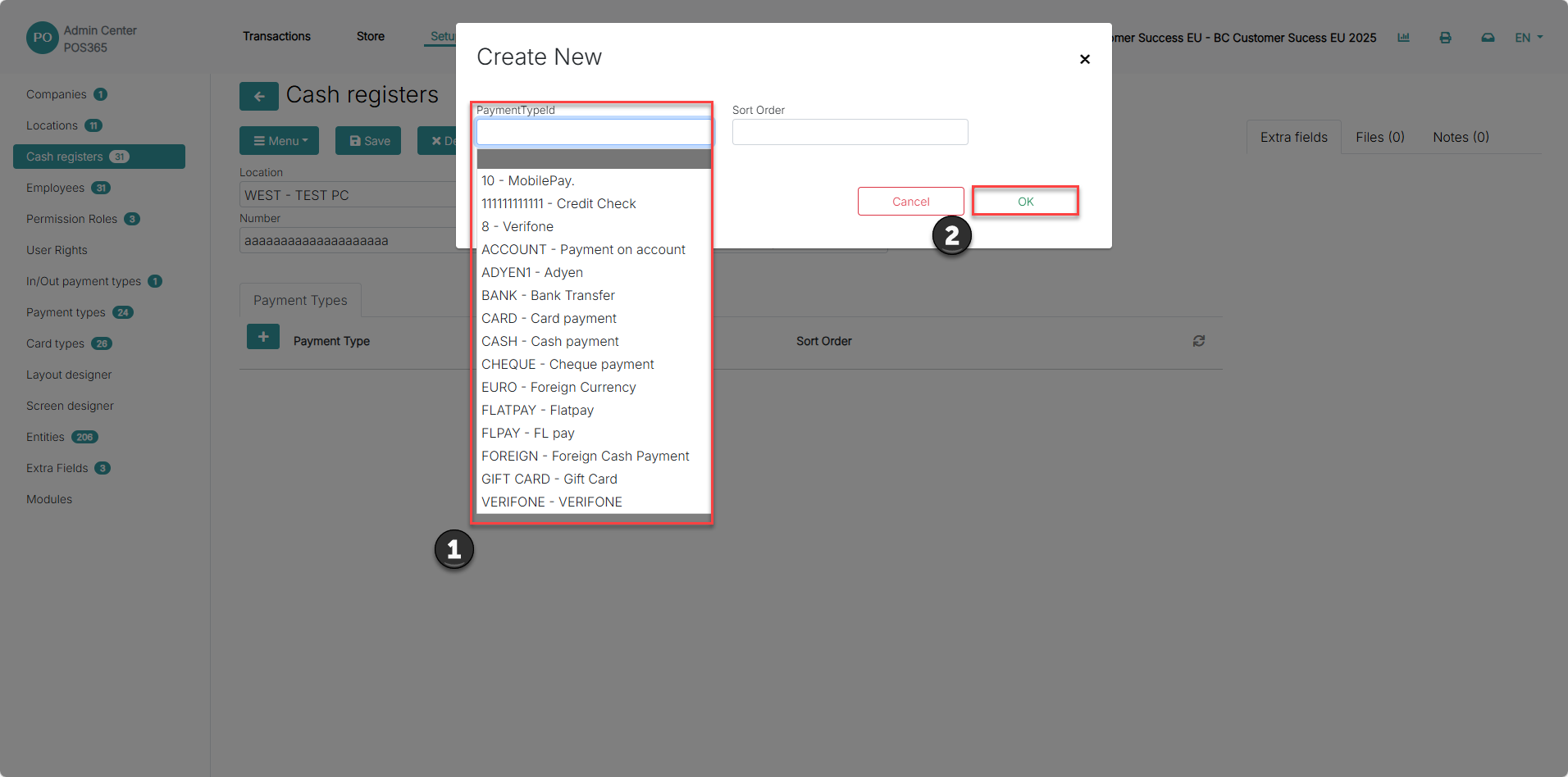
1) Select the desired payment type from the dropdown menu
2) Click 'OK'
PaymentTypeId: A dropdown of all payment types that have been enabled as POS payment types
Sort Order: Defines the sort order of the payment buttons in POS365. If two payment types have the same sorting, the system will choose their order randomly.
Step 5:
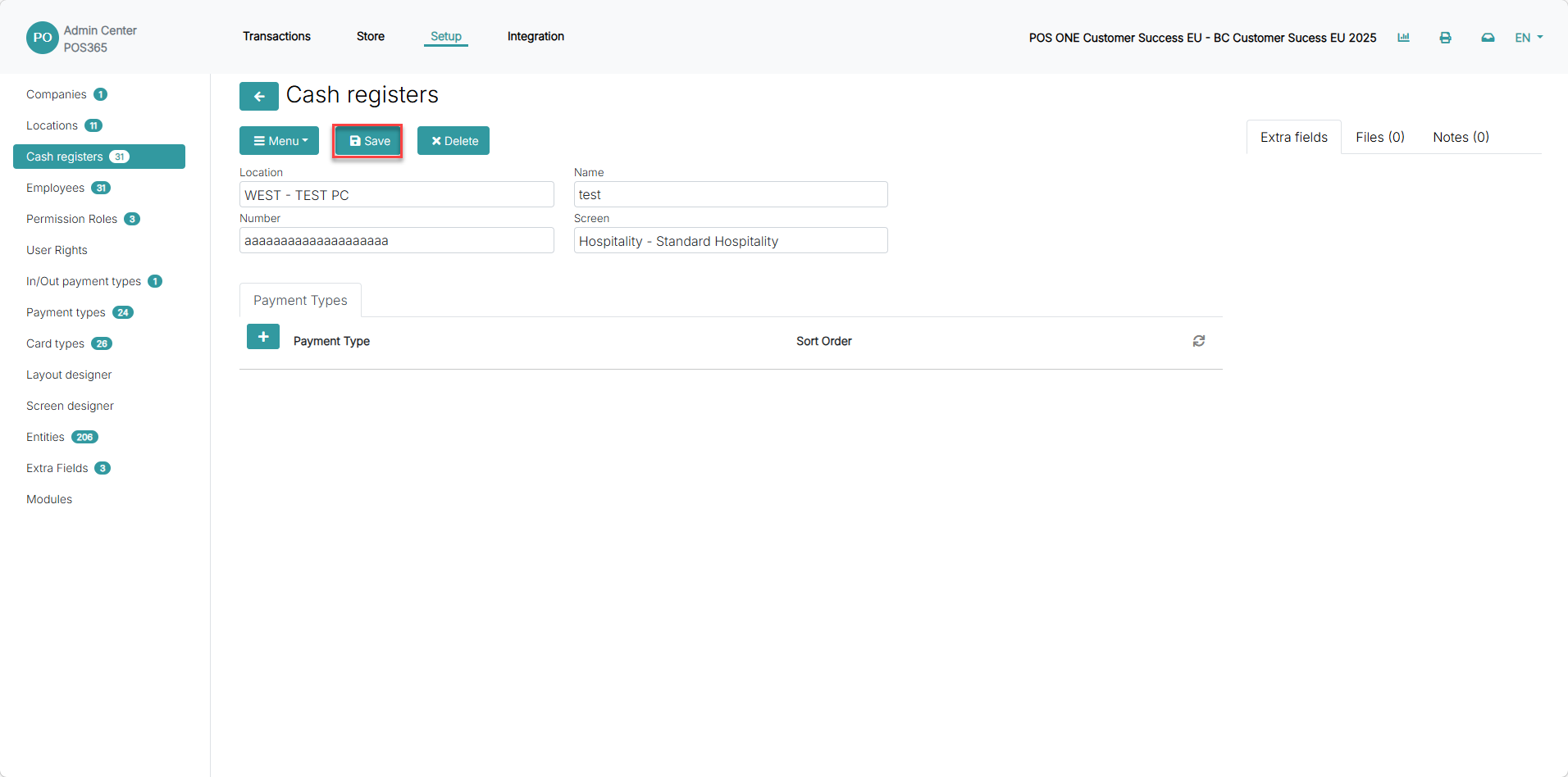
When you have added all payment types needed for the cash register, click 'Save'
Notes:
If the POS365 app is open, it needs to be restarted before you'll be able to see the new payment type on the cash register.