Adjust rights for predefined user groups
This guide explains how to create new user rights and edit existing permissions for users on the POS365 app.
This guide explains how to create new user rights and edit existing permissions for users on the POS365 app. This can be used to give different users access to different functionalities within the POS.
The setup must be made in the Admin Center.
Step 1:
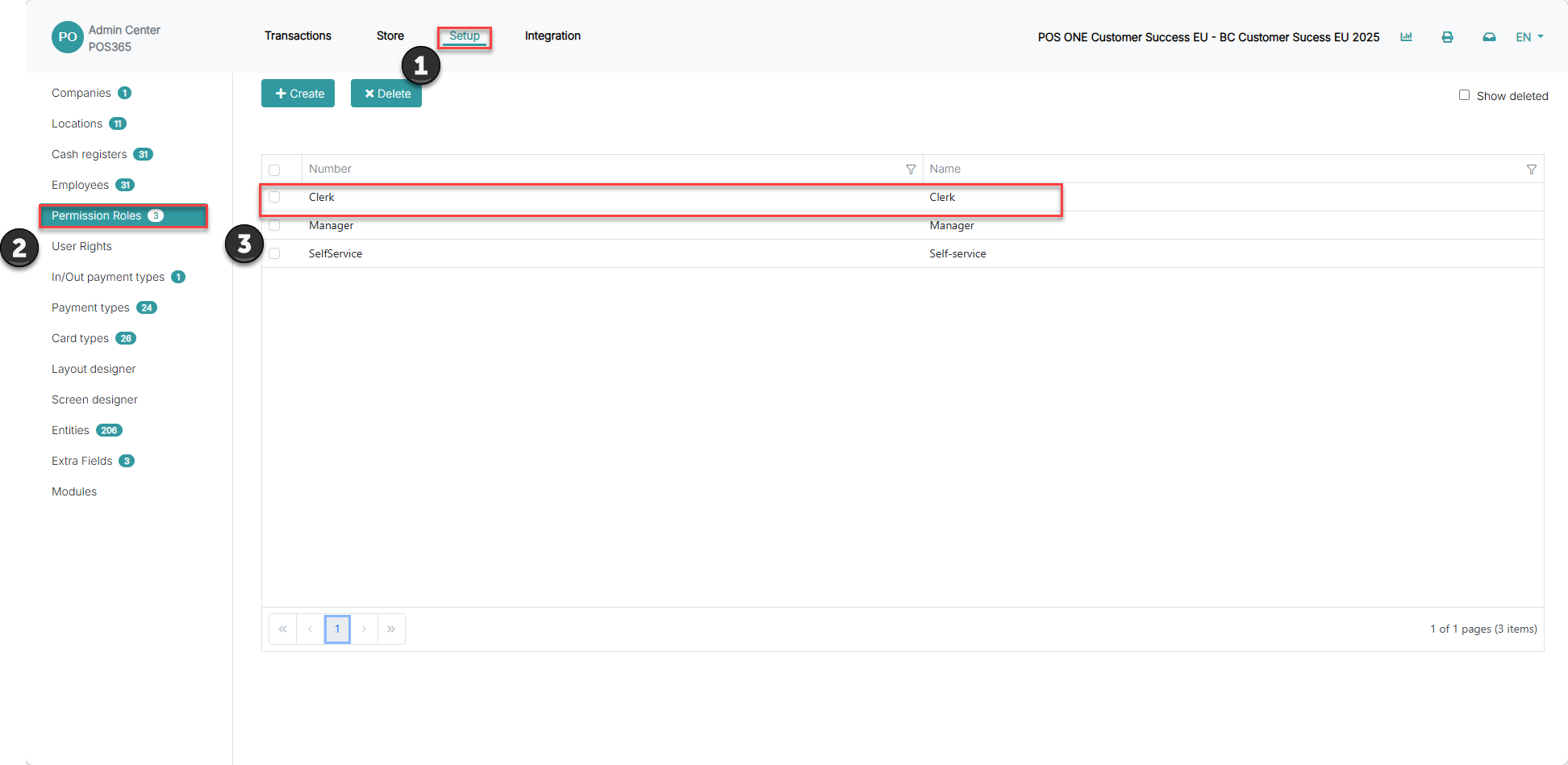
1) Go to 'Setup'
2) Go to 'Permission Roles'
3) Select a role
Step 2:
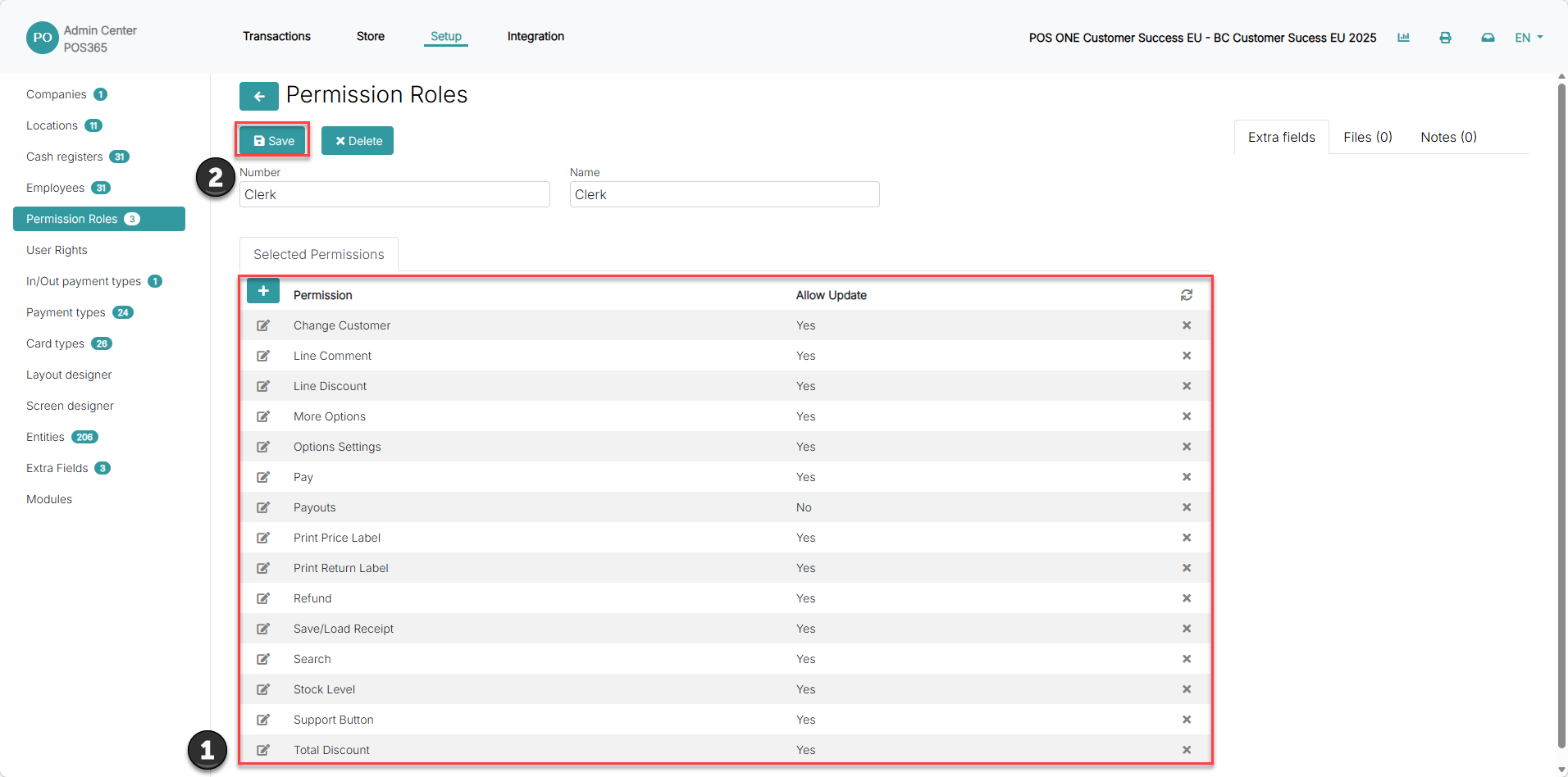
1) Now you can add or edit permissions for the chosen role
2) When done, click 'Save'
Step 3:
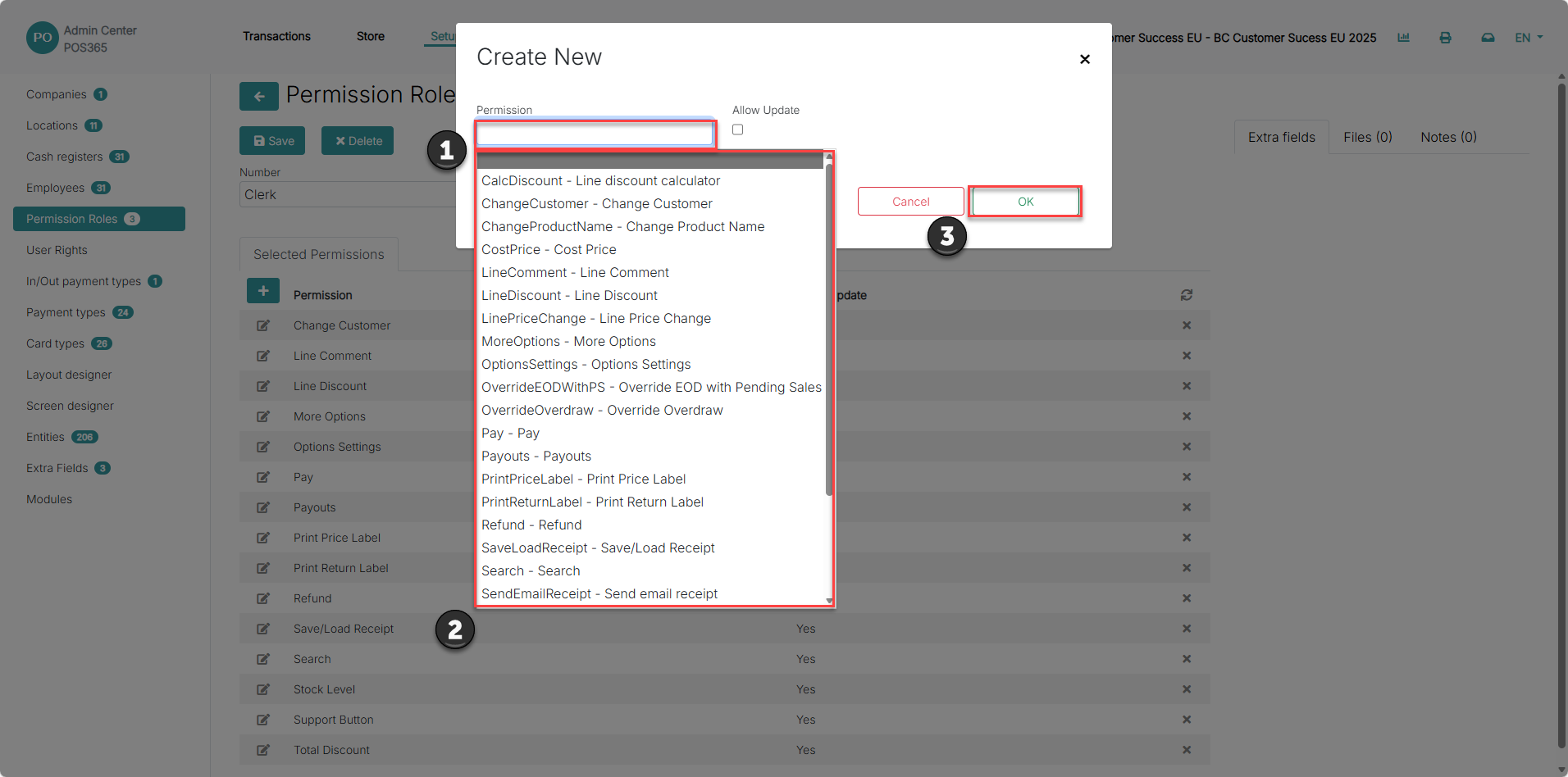
1) Click on the bar to open a drop down menu
2) Choose the permission from the list that you want to assign to the role.
3) Click 'Ok'
Note:
POS365 will either restrict access to a function or hide it entirely if the user does not have the necessary permissions.
The 'Allow Update' button defines whether the employee has access to change an input or needs a supervisor to do the change
To add a new user category, follow this guide: How to - Create a new permission role