This guide explains how to upload a product attachment in the Admin Center and later view it in POS365.
Step 1:
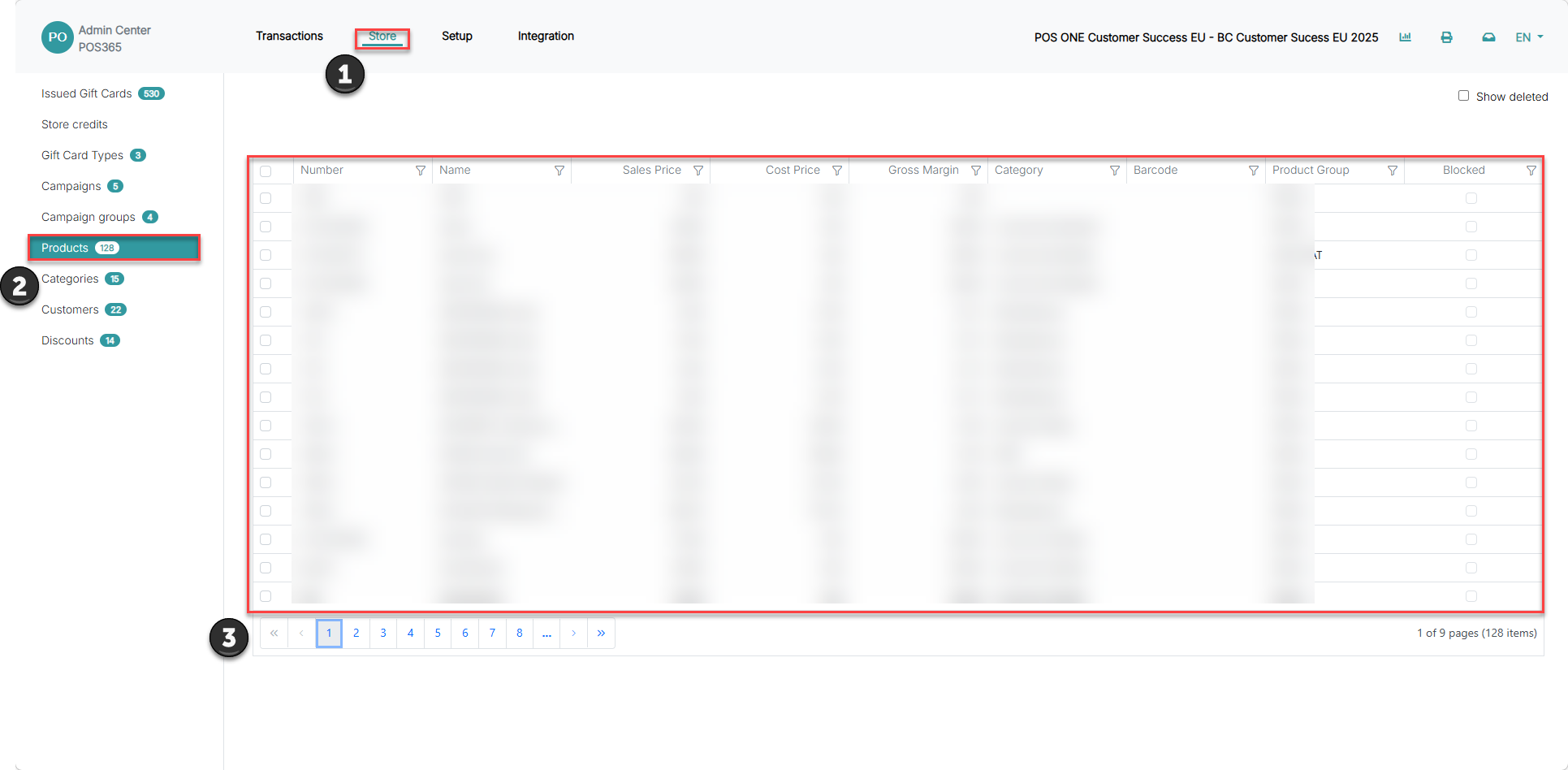
1) Go to 'Store'
2) Go to 'Products'
3) Find the product on which you want to add a certificate (PDF file), by using the search function or navigate through the 'previous' and 'next' buttons
4) Click on the specific procut
Step 2:
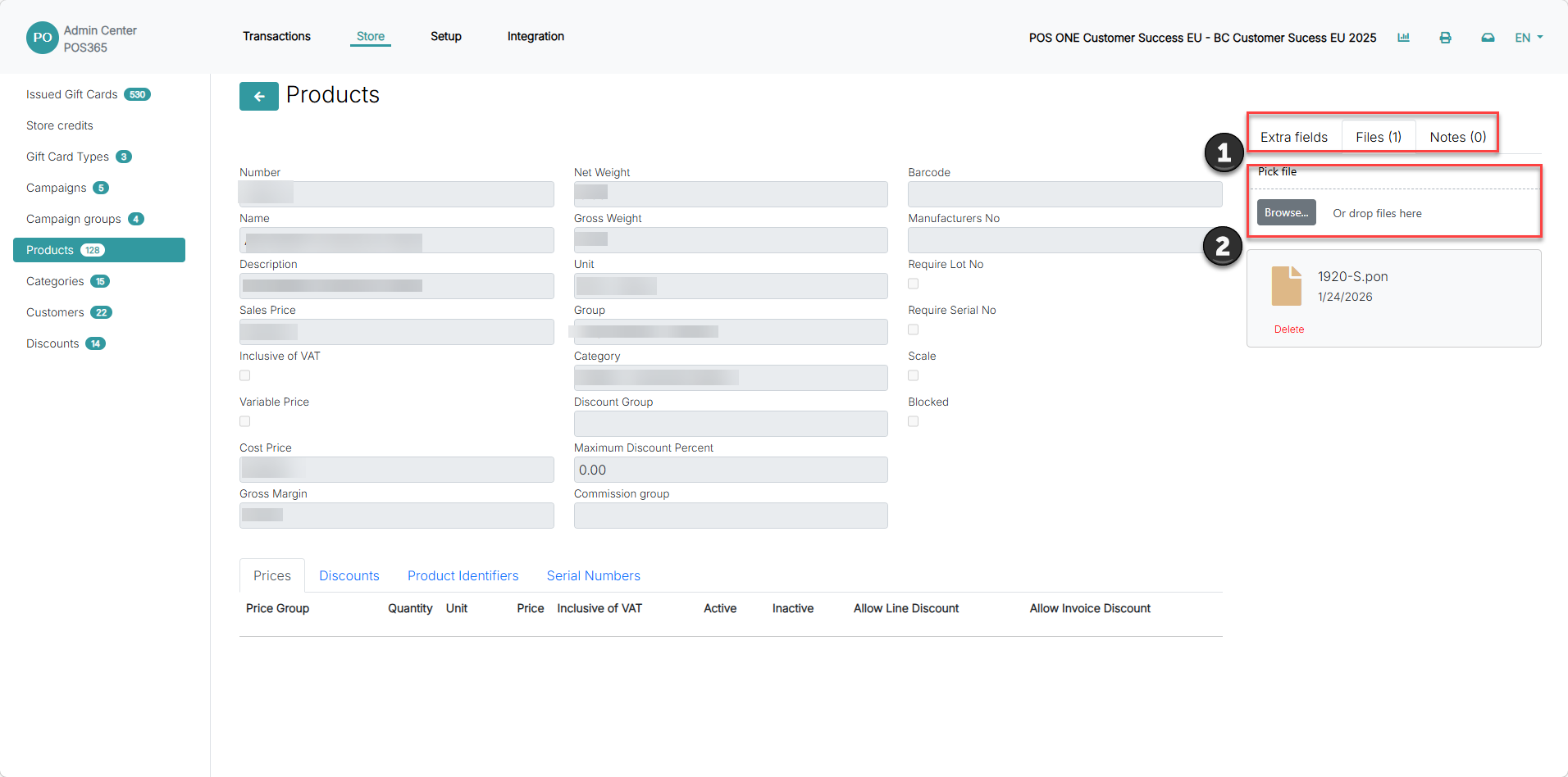
1) Choose 'Files' and 'Pick file' to upload the file
Step 3:
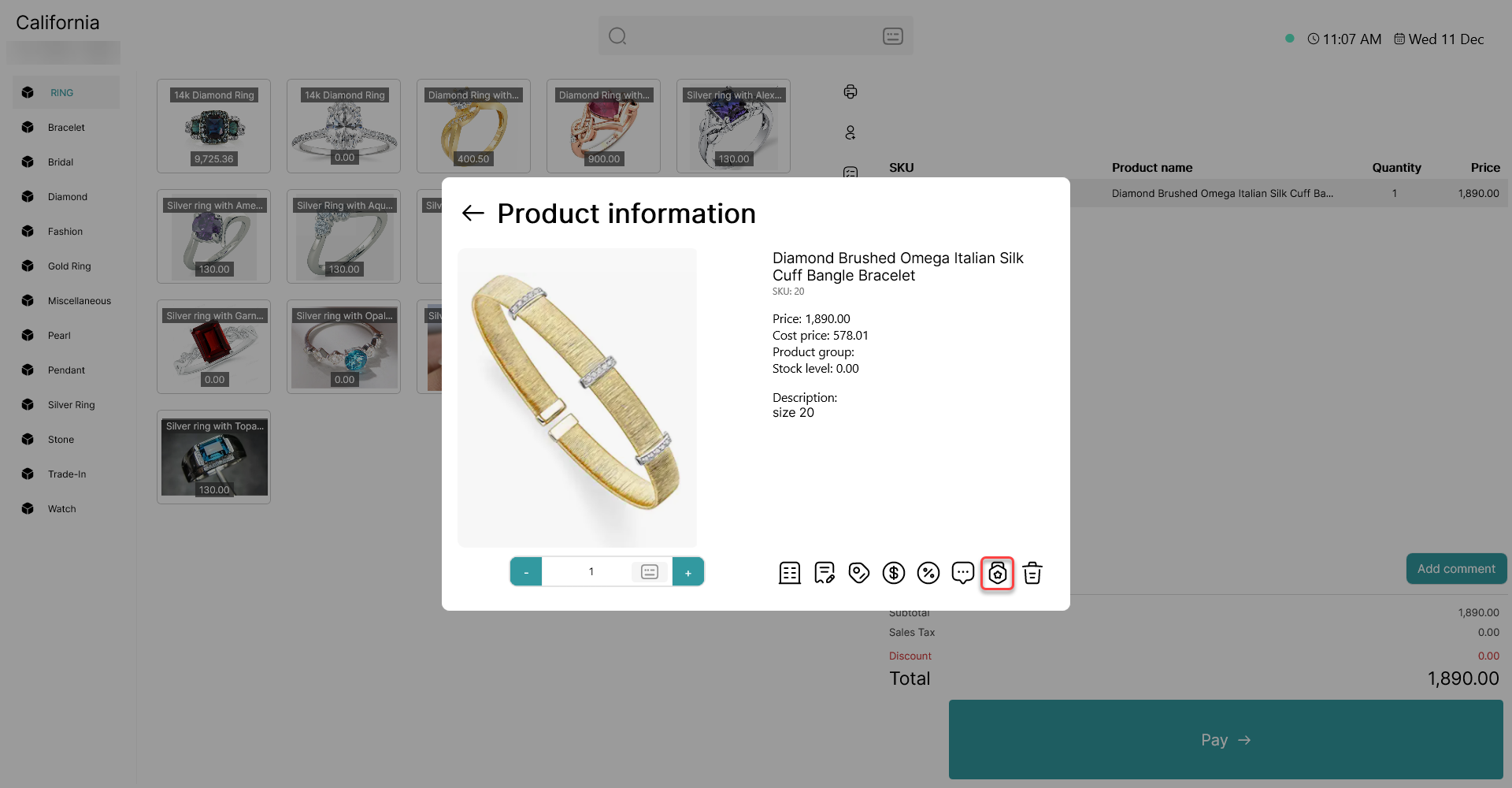 Find the product on POS365, and open "Product information" by clicking the product line.
Now click the product attachment symbol as shown on the picture above.
Step 4:
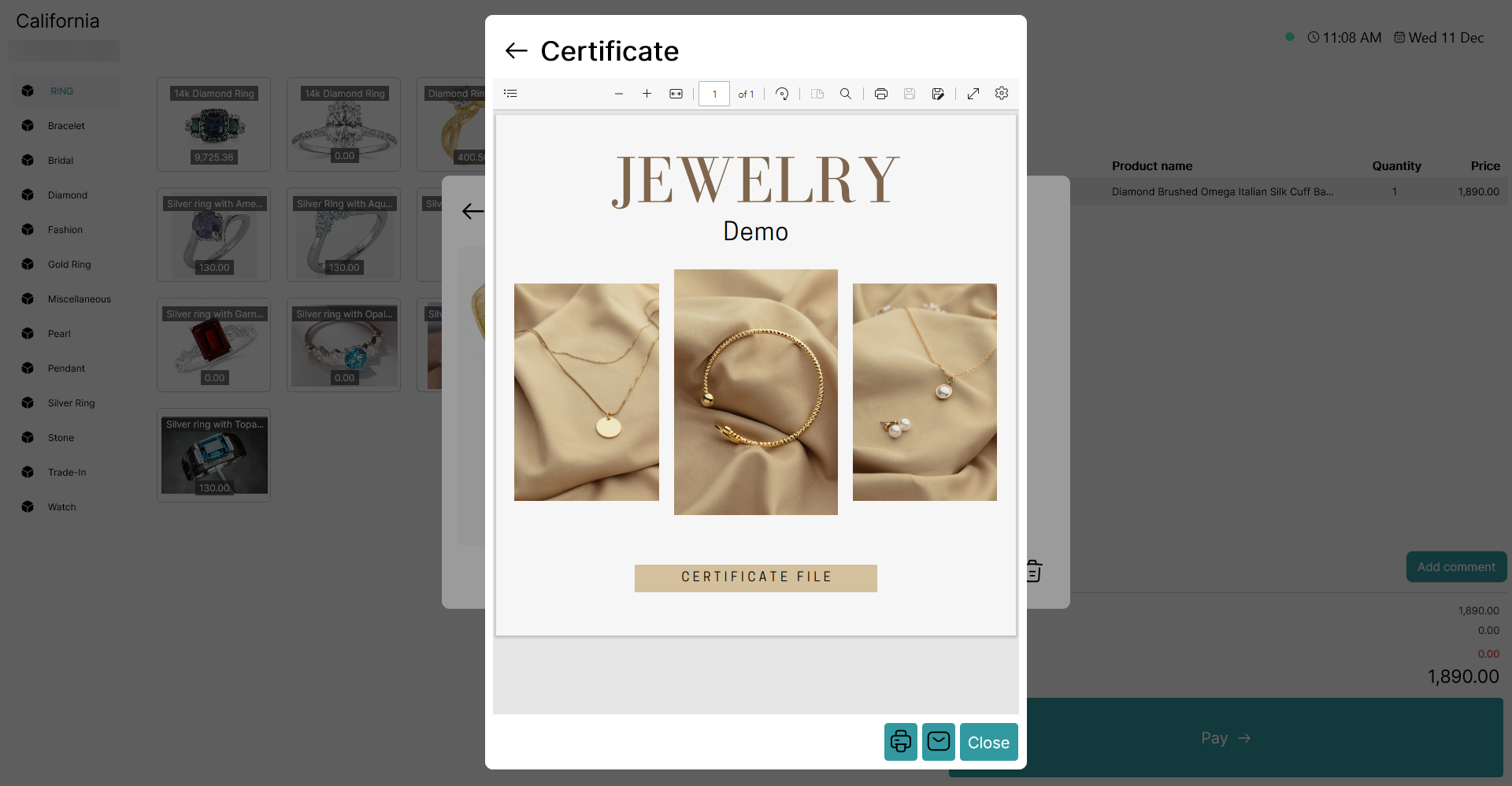
The certificate will appear, and you have the option to either send it via mail, or print it.
(Optional) Step 5:
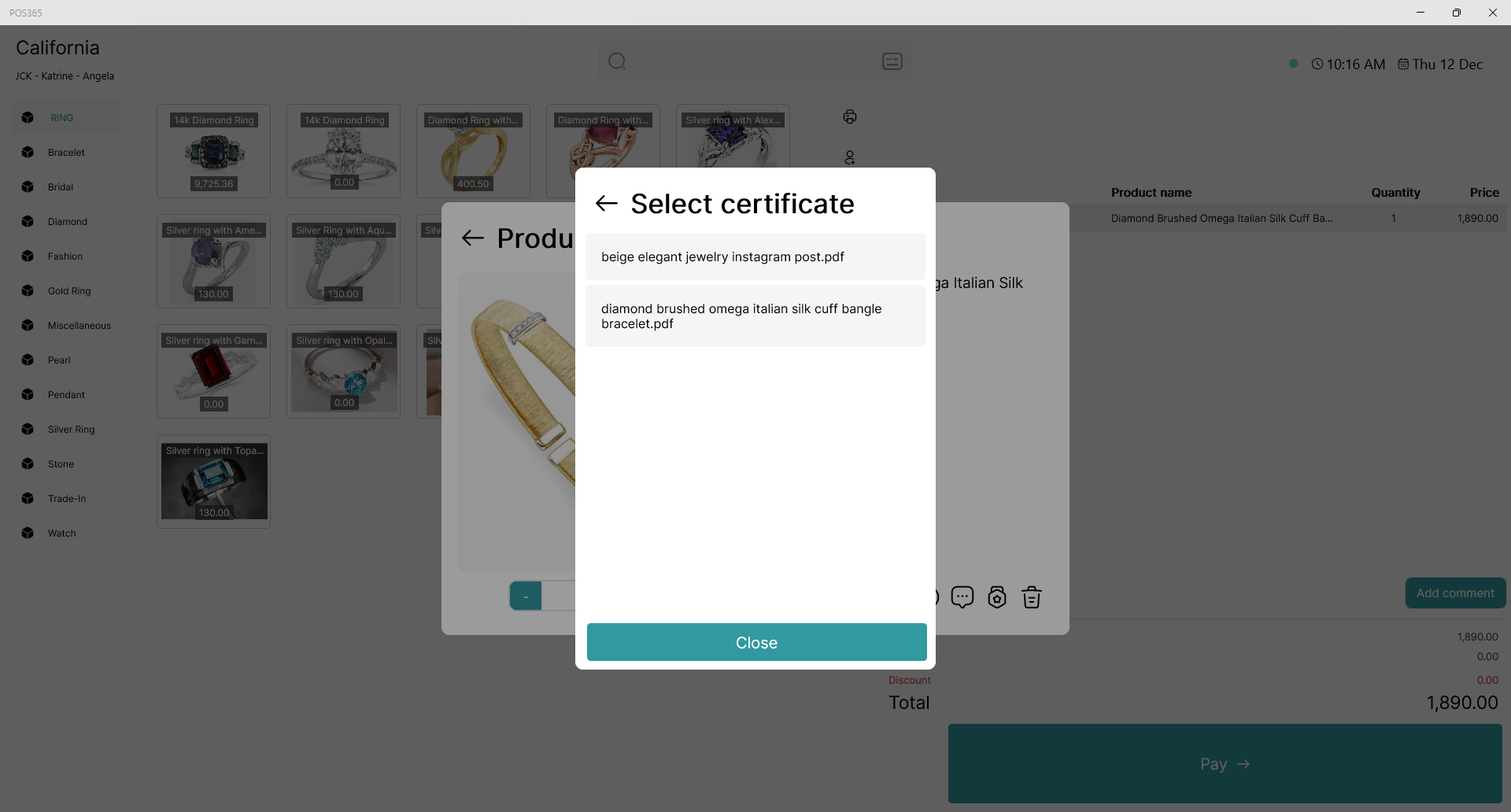
If multiple PDF files are available, the POS will display options, allowing you to select the certificate you wish to use.
Note:
- This function is only available for customers with the jewelry module.
- This function only works with PDF files.
- You need to make a full sync in POS365 before the certificate symbol appears in the product information.