This guide explains how to set up the different payment types you want to use on POS365.
The initial setup is made in Business Central and the configuration of the payment type is made in the Admin Center.
Step 1:
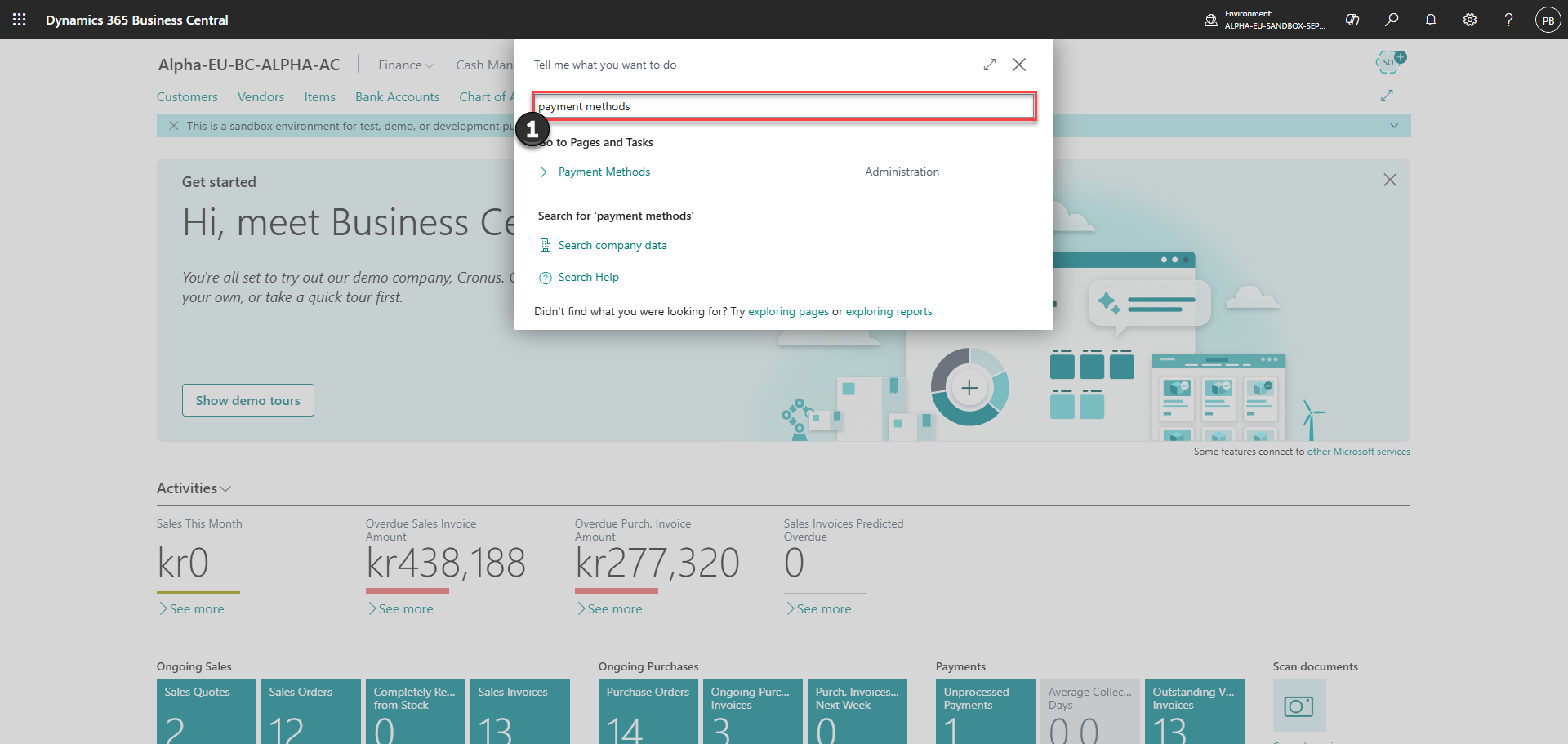
1) In Business Central, open the search box and search for 'Payment Methods'
Step 2:
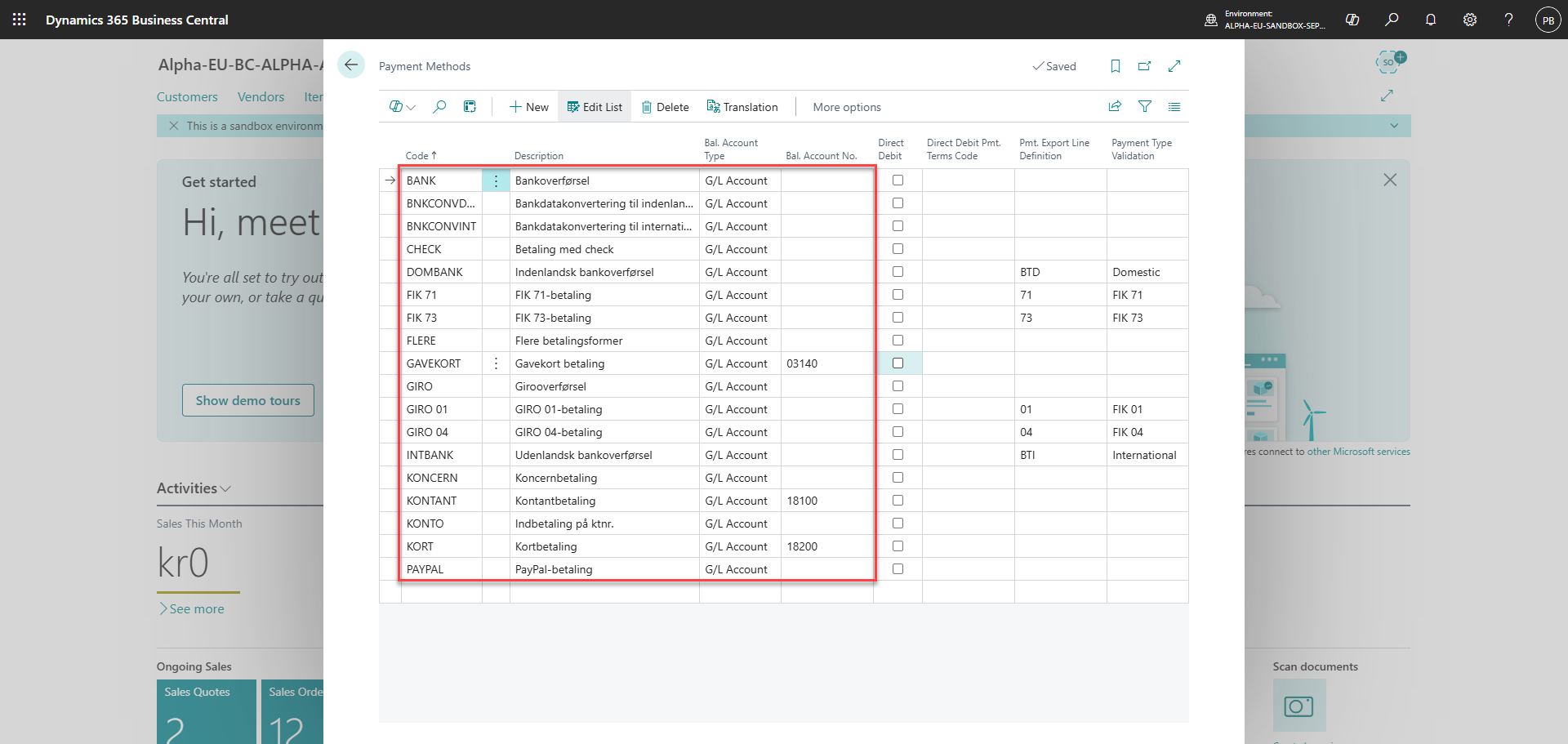
Make the setup for the payment types you want to use on the POS. Here you will need to give the payment method in Business Central a 'code' and a 'description', which will be displayed on the POS payment button. Furthermore, you will need to select the 'balance account type' and 'balance account number' that the payment needs to be connected to.
Step 3:
Once the setup in Business Central has been made, wait up to 6 minutes for the synchronization between Business Central and the Admin Center happens
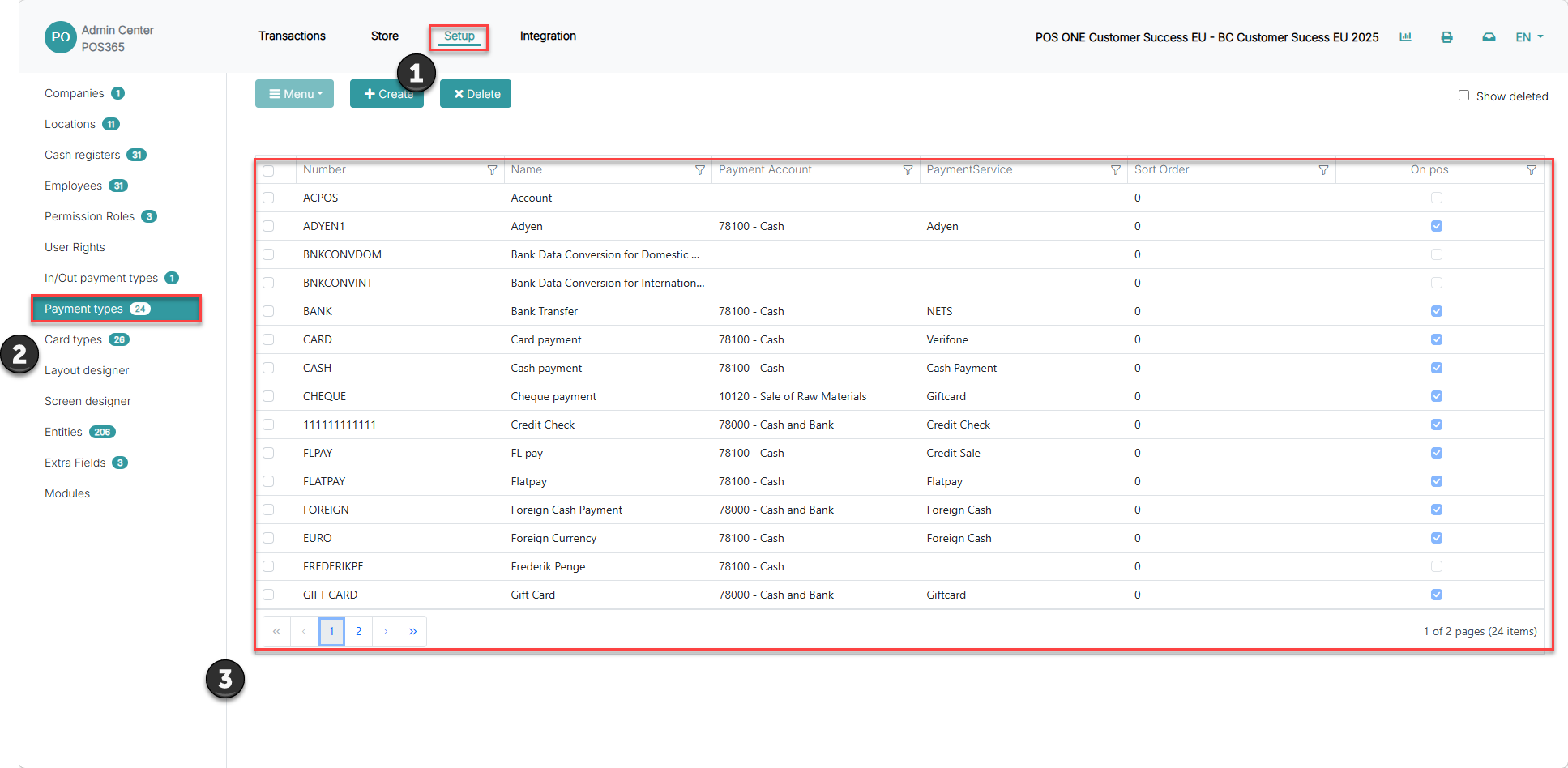
1) Head to the Admin Center and locate 'Setup'
2) Click on 'Payment types'
3) Locate the payment type that you need to set up
Step 4:
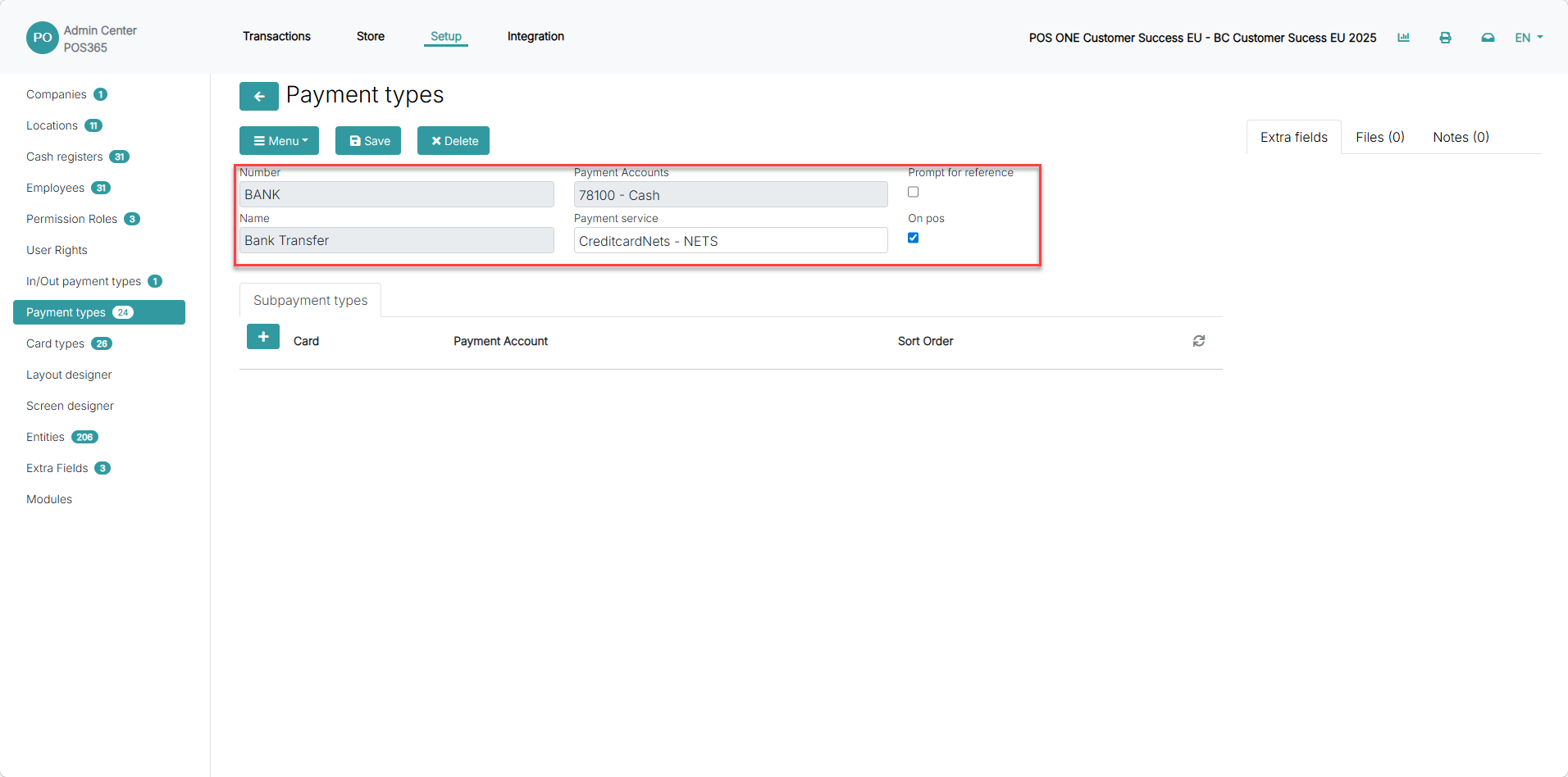
1) The information from Business Central is displayed here
Step 5:
Depending on your payment type, find the specific setup for the payment service in the dropdowns below:
Cash payment
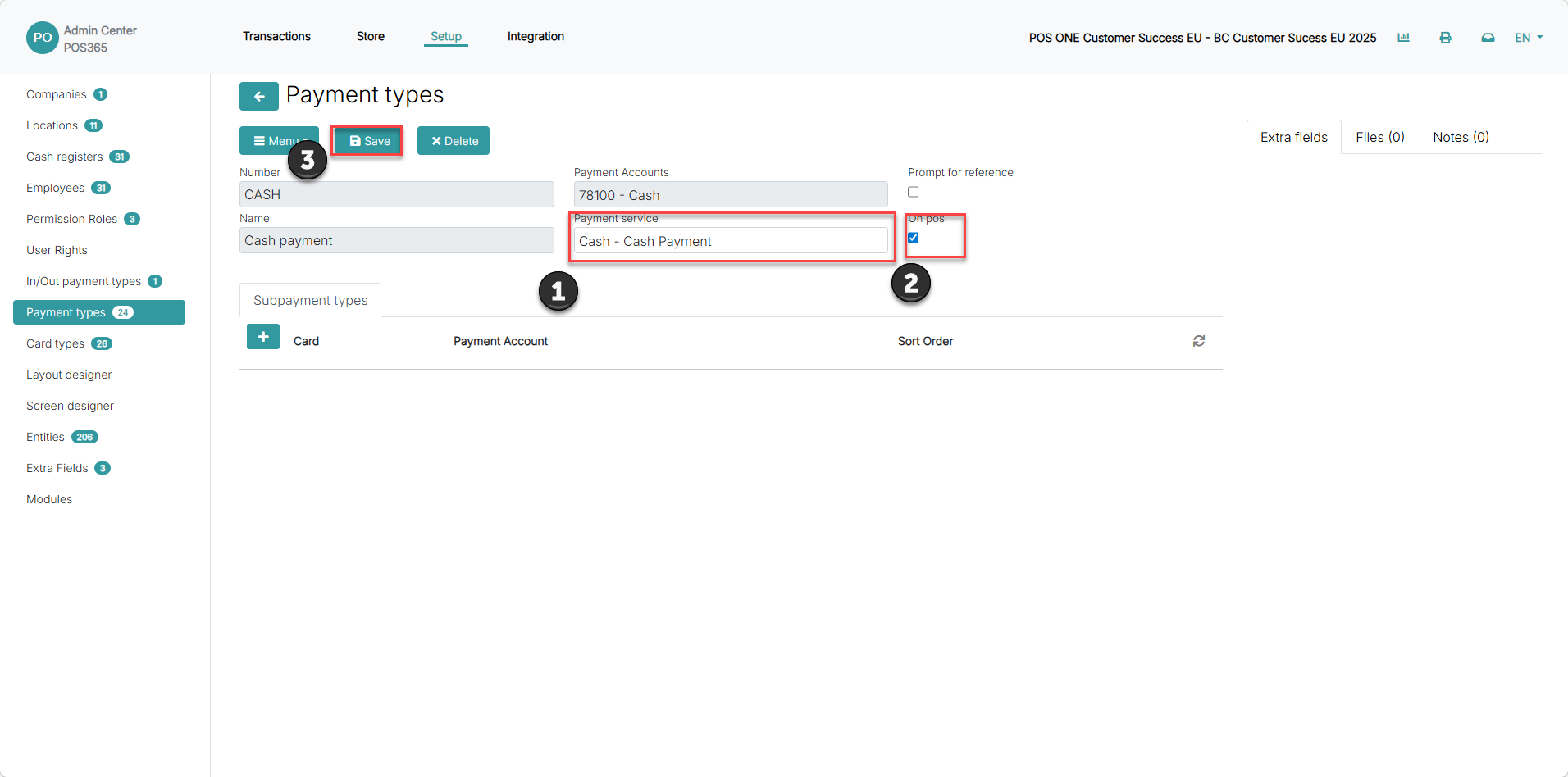
1) Set the 'Payment service' to 'Cash - Cash Payment'
2) Check the 'On pos' field
3) Click 'Save'
Adyen terminal
Step 1:
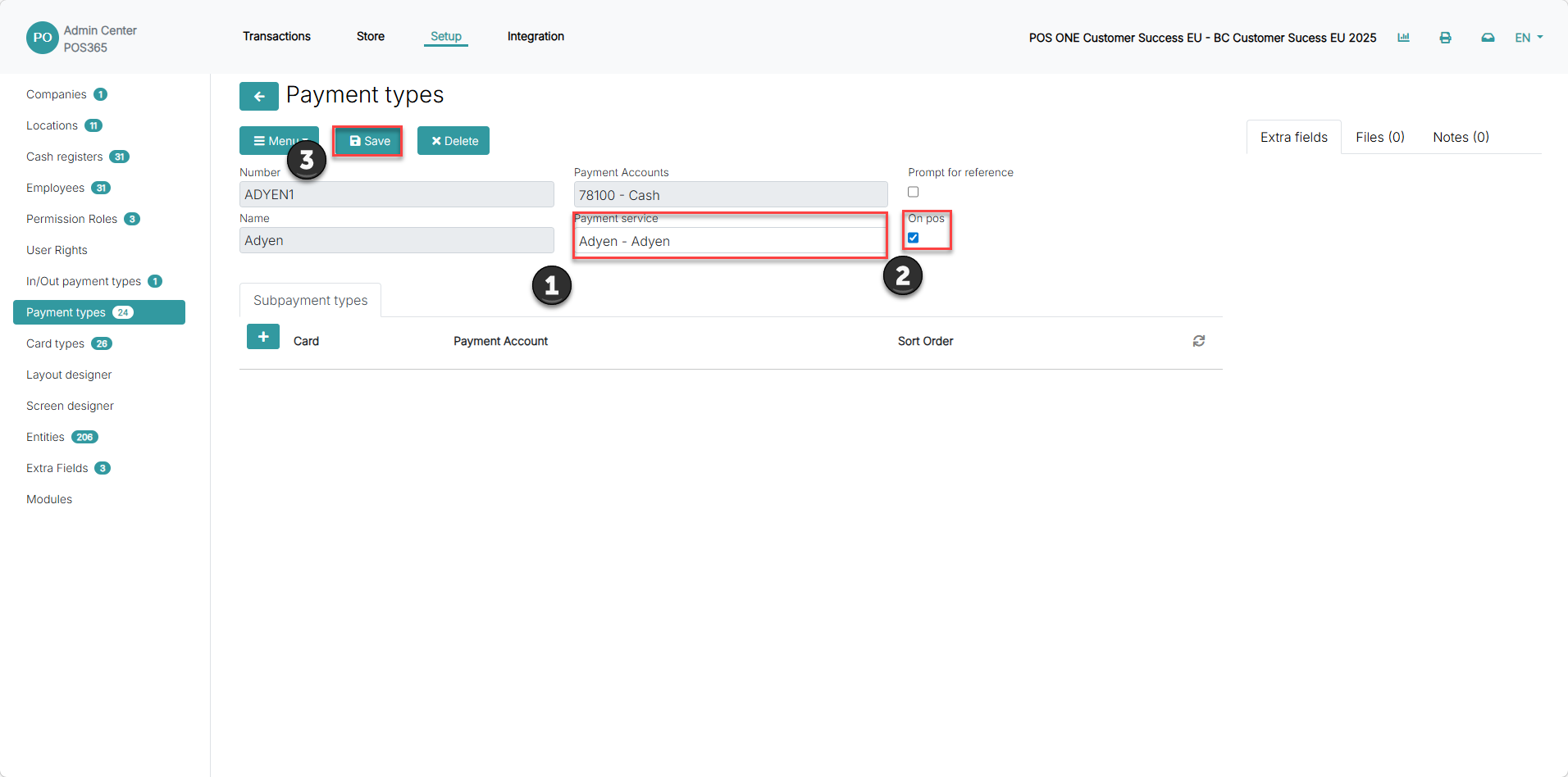
1) Set the 'Payment service' to 'Adyen - Adyen'
2) Check the 'On pos' field
3) Click 'Save'
Step 2:
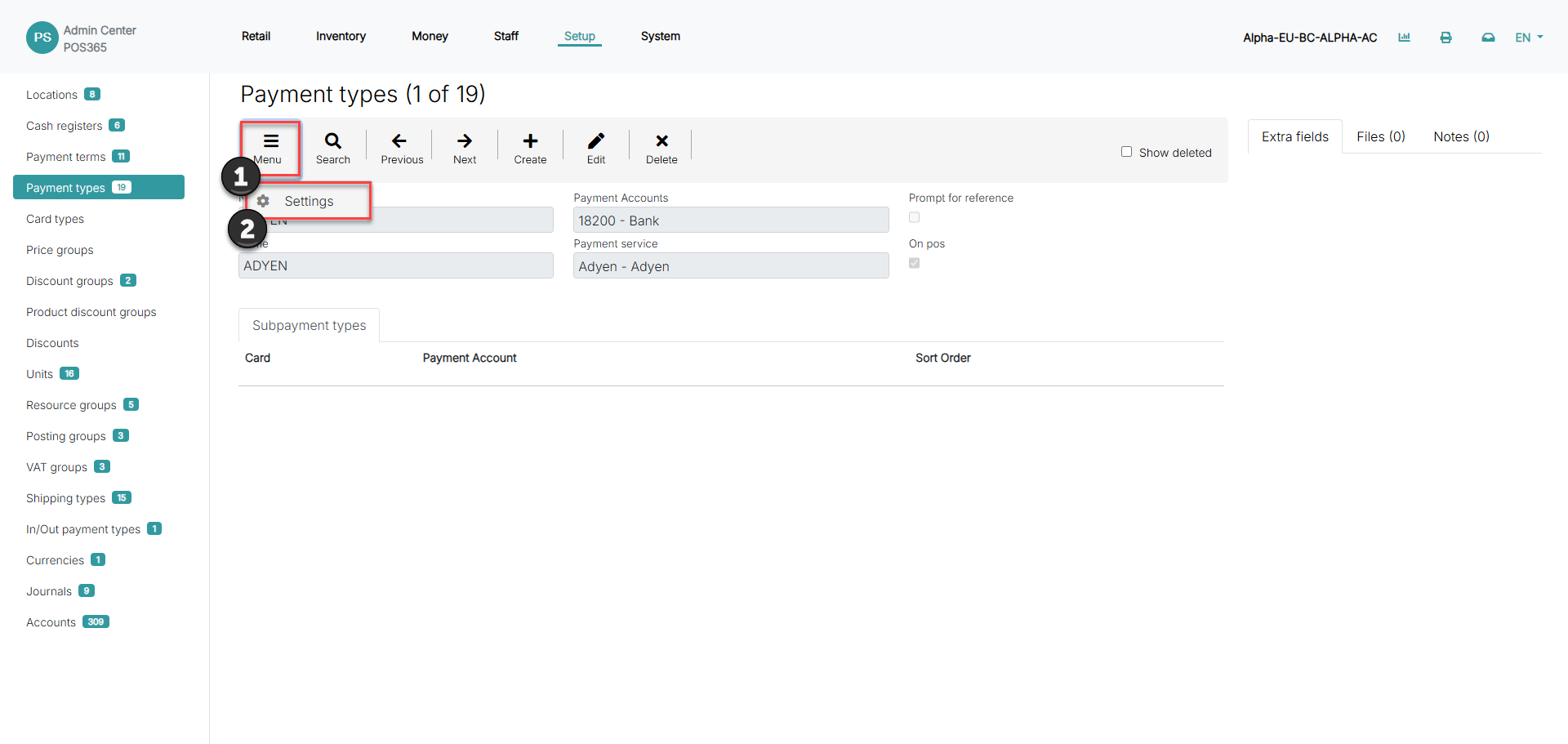
1) Click on 'Menu'
2) Go to 'Settings'
Step 3:
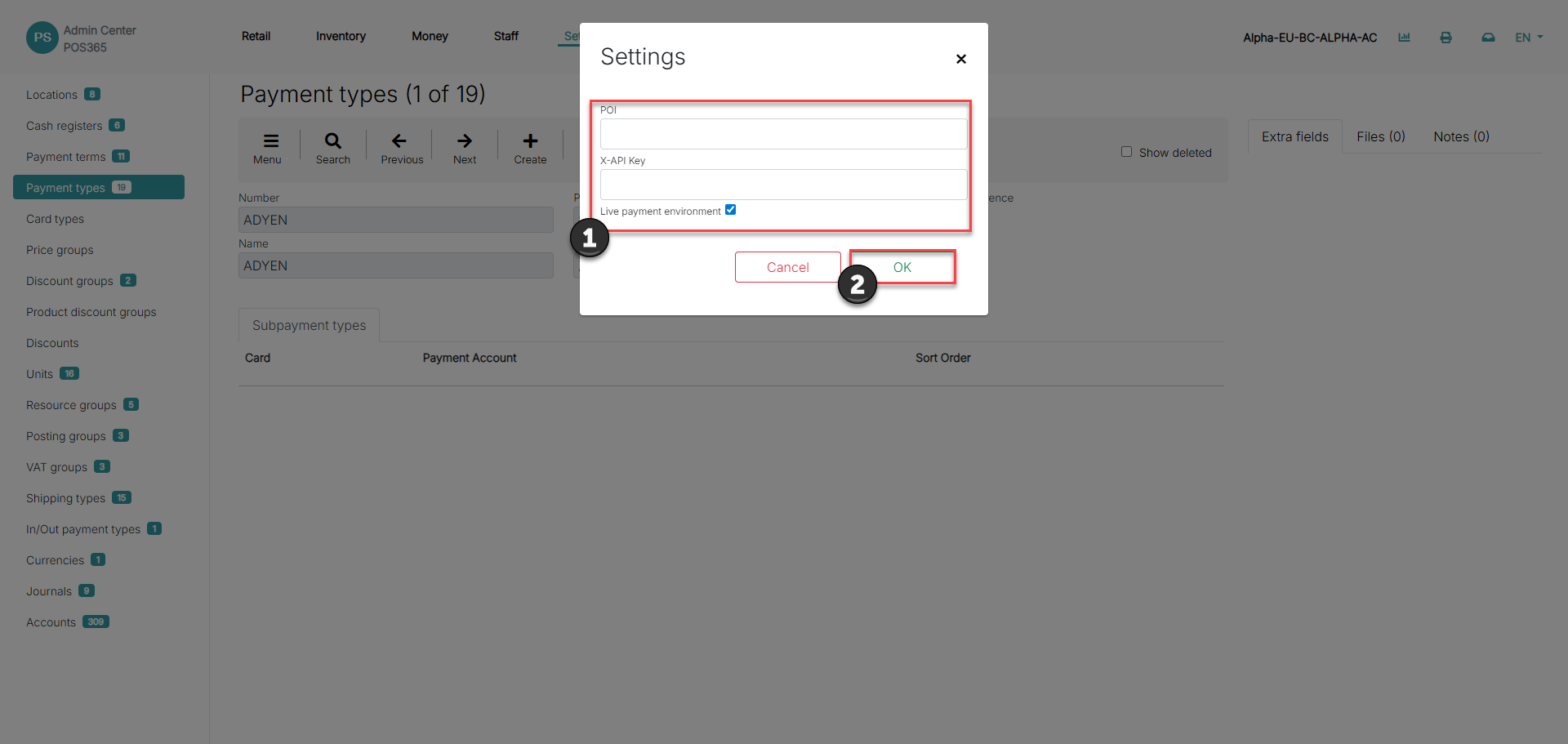
1) Fill in information regarding the Adyen terminal
2) Click 'OK'
POI: The POI (Point of Interaction) ID on an Adyen terminal can typically be found on a sticker on the back or bottom of the device, or retrieved programmatically via the terminal’s settings or Adyen’s Terminal Management System (TMS) under the label 'POIID'
X-API Key: The X-API Key can be generated and retrieved from the Adyen Customer Area under Developers > API credentials
Live payment environment: Checks whether or not the payment environment used is a live environment
Credit Sale
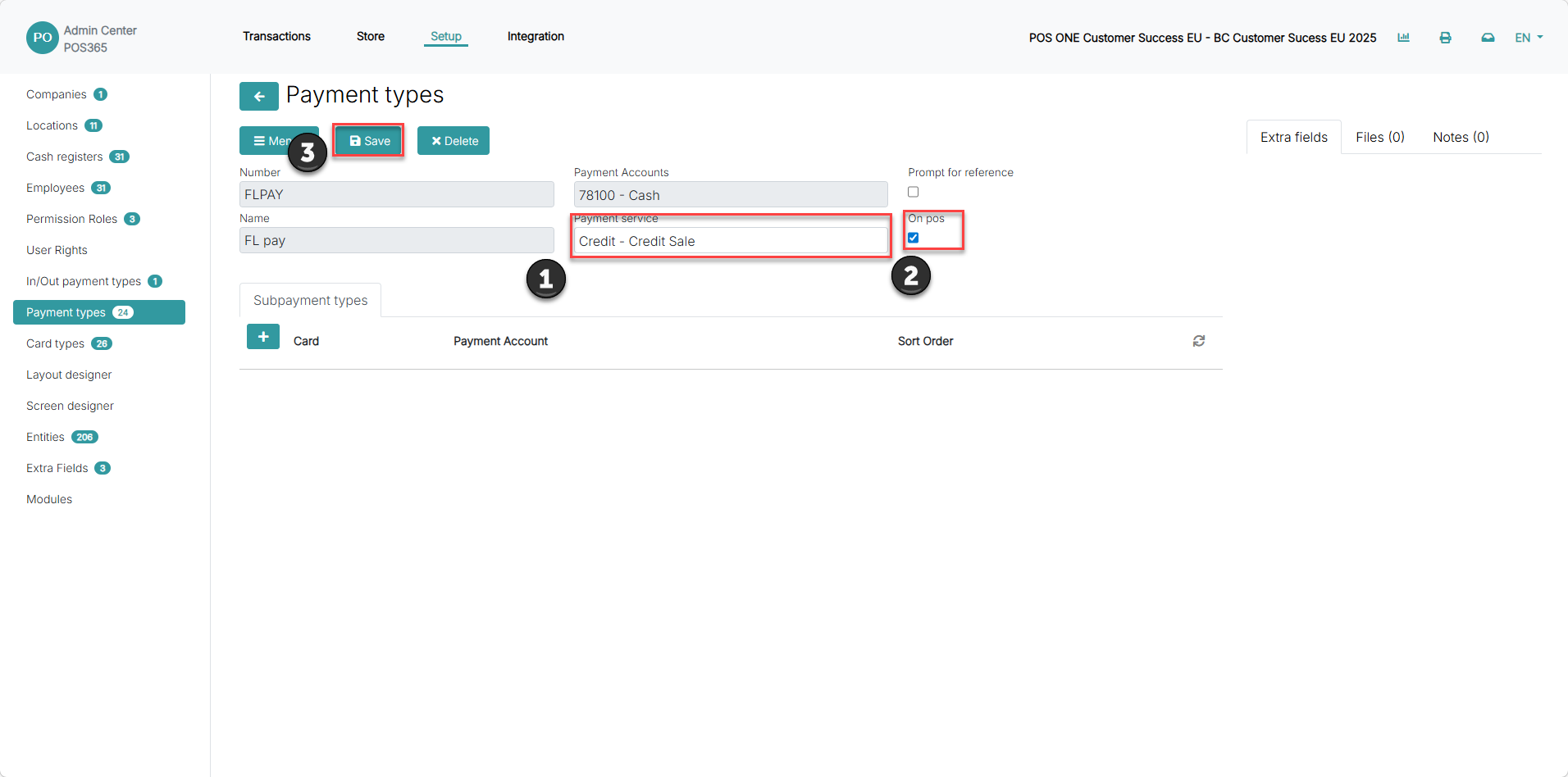
1) Set 'Payment service' to 'Credit - Credit Sale'
2) Check the 'On pos' field
3) Click 'Save'
Note:
This payment method works both online and offline but can't read limitations from Business Central, e.g. credit limits on customers
Credit Online
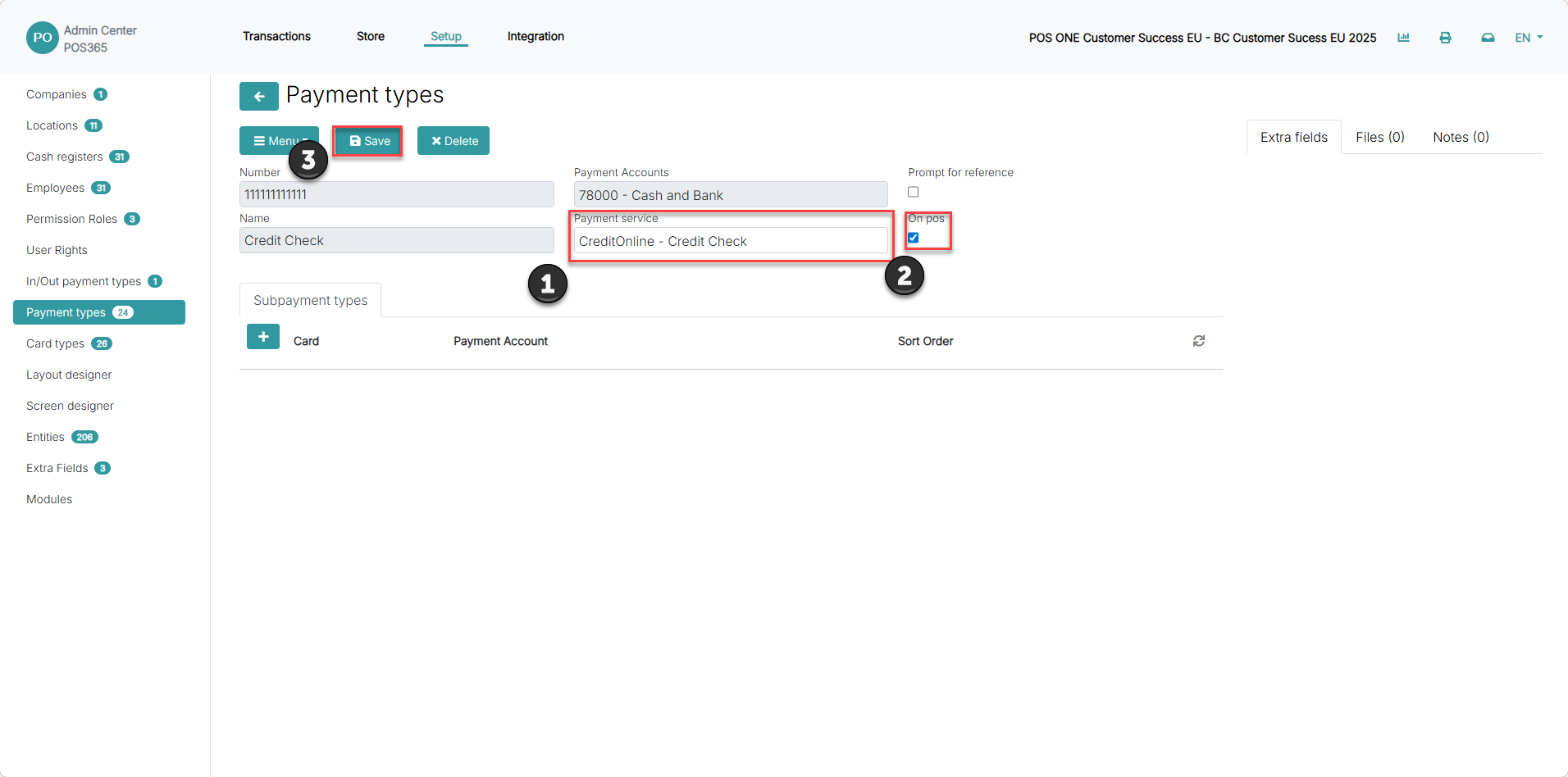
1) Set 'Payment service' to 'CreditOnline - Credit Check'
2) Check the 'On pos' field
3) Click 'Save'
Note:
This payment method only works online but can read Business Central limitations e.g. credit limits on customers
Non-integrated credit card terminal
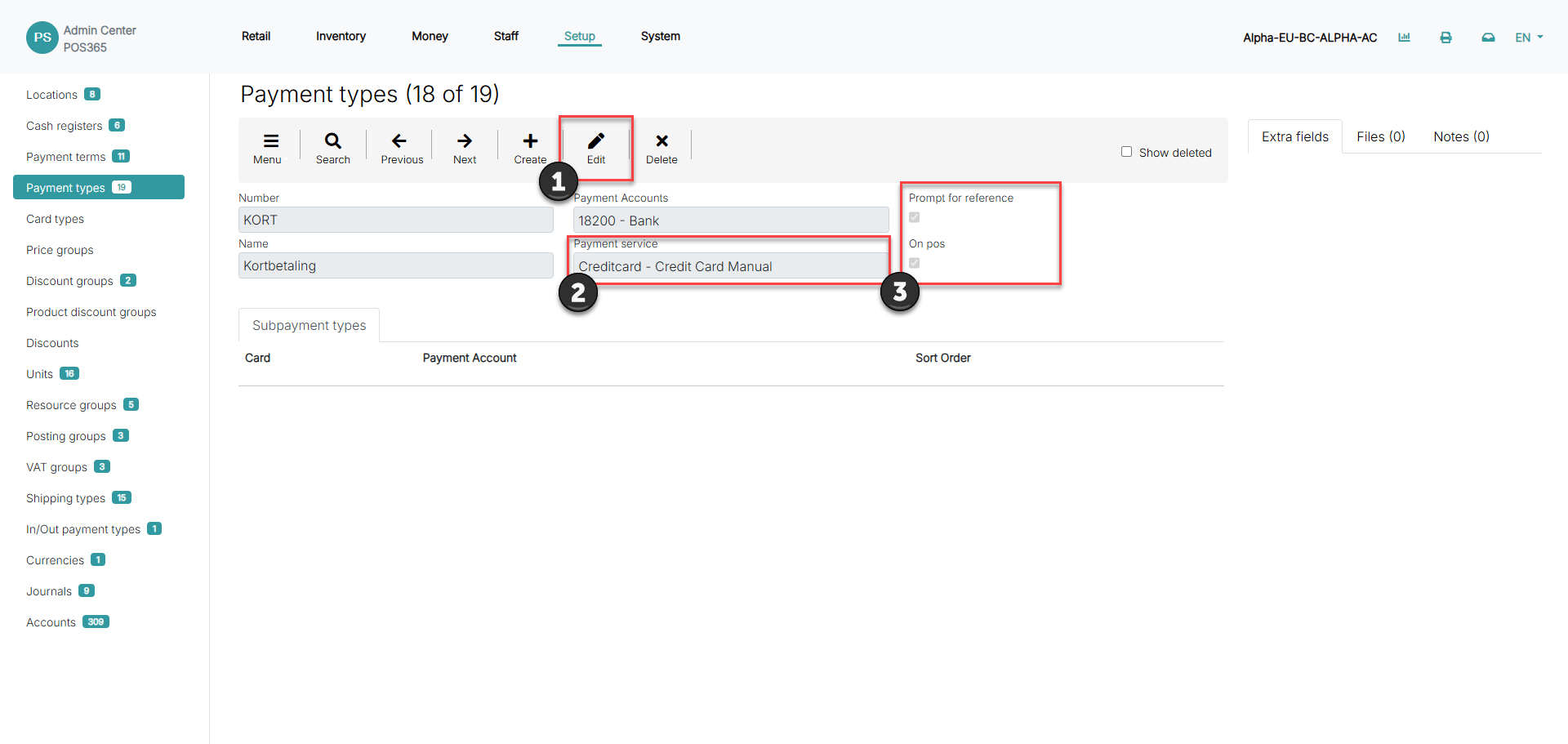
1) Click 'Edit'
2) Set 'Payment service' to 'Creditcard - Credit Card Manual'
3) Check the 'On pos' and the 'Prompt for reference' field
4) Click 'Save'
Note:
The 'Prompt for reference' field ensures that a pop-up will show on the POS when a payment is made. This is used to add a reference to the payment as the credit card terminal is not integrated with the POS.
When making a payment with this payment type, the credit card reference data inserted in the pop-up will be sent to Business Central and is displayed in 'external document no. (77, Code [35])' at the payment line in the general journal
NETS terminal
Step 1:
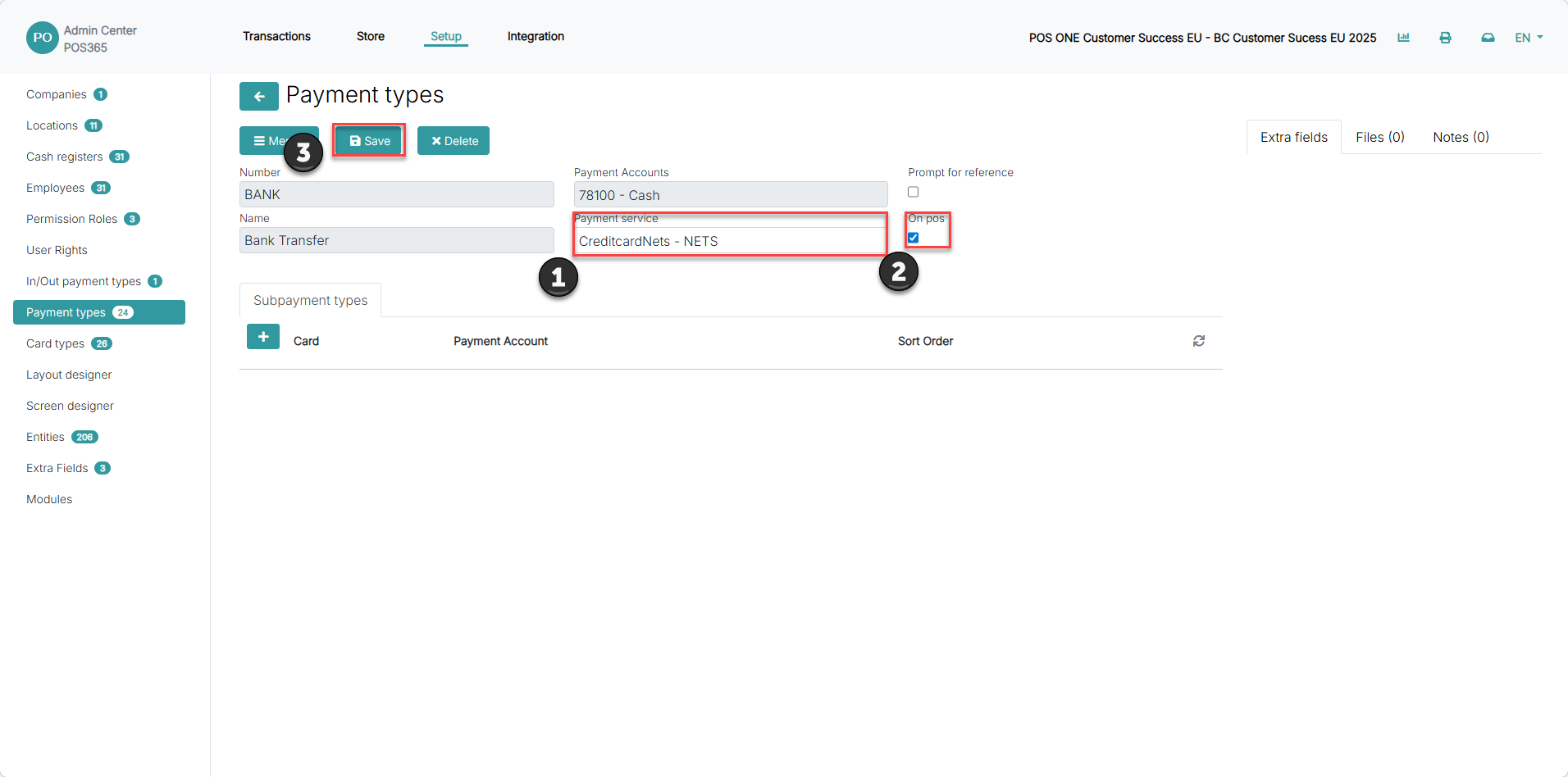
1) Set 'Payment service' to 'CreditcardNets - NETS'
2) Check the 'On pos' field
3) Click 'Save'
Step 2:
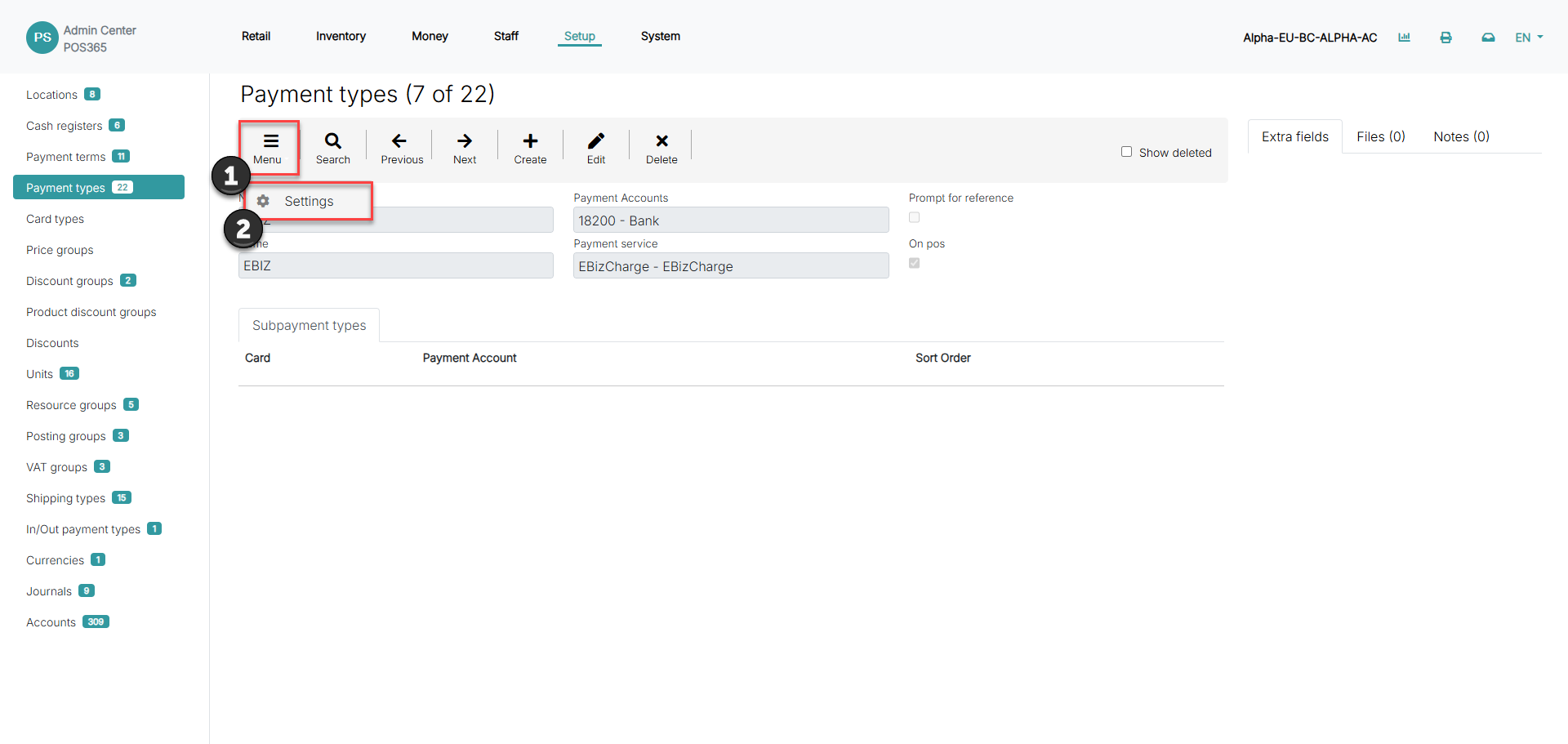
1) Click on 'Menu'
2) Go to 'Settings'
Step 3:
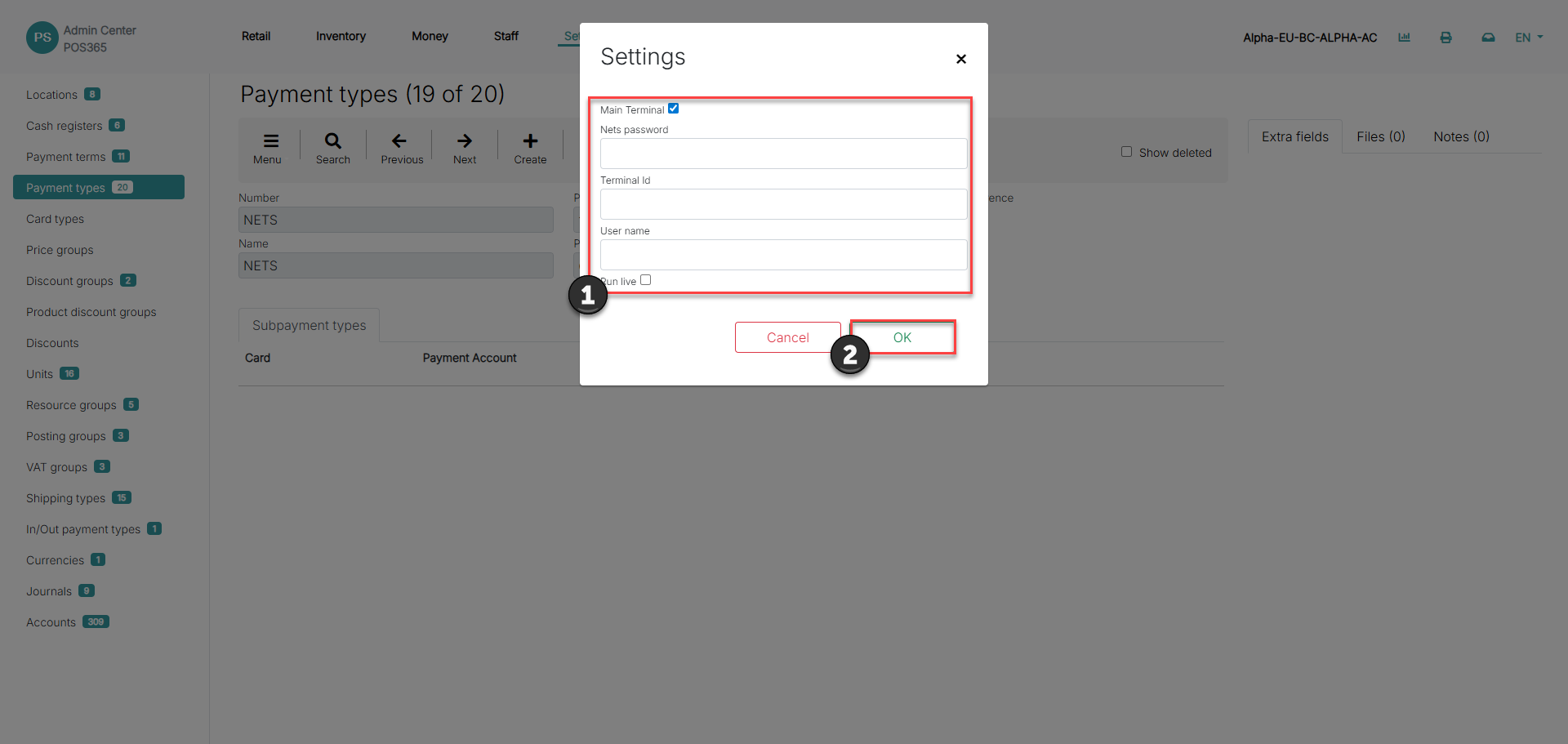
1) Fill in information regarding the NETS terminal
2) Click 'OK'
Main Terminal: Must be set for the terminal to be able to make a reconciliation
Nets password: The password you use to log in to the NETS administration panel
Terminal Id: The ID of the terminal. This can be found either in the NETS terminal settings under payments (TID) or by contacting NETS customer support
User name: The username you use to log in to the NETS administration panel
Run live: Defines whether the terminal is used at a live or test environment
EBiz Charge
Step 1:
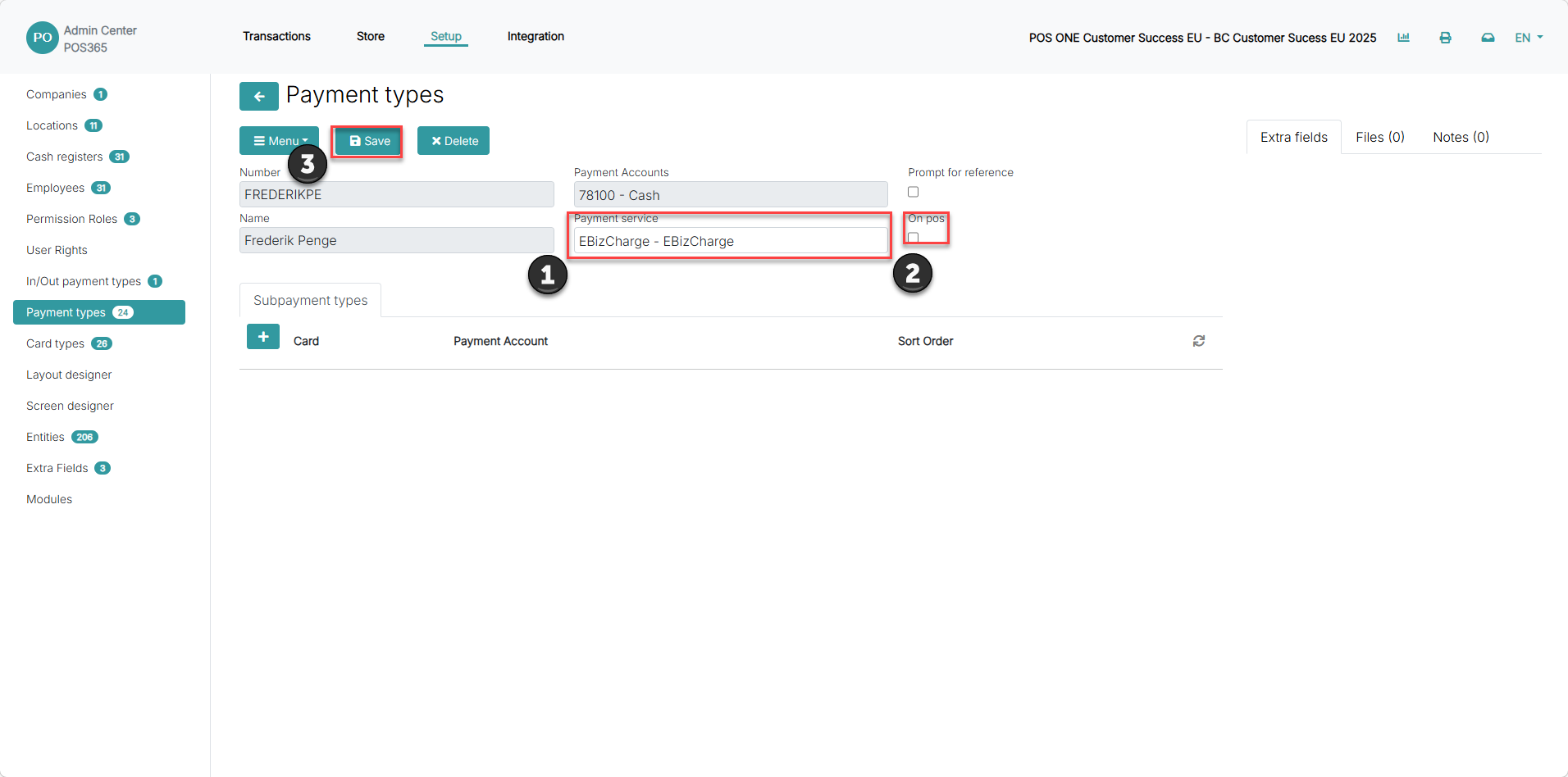
1) Set 'Payment service' to 'EBizCharge - EBizCharge'
2) Check the 'On pos' field
3) Click 'Save'
Step 2:
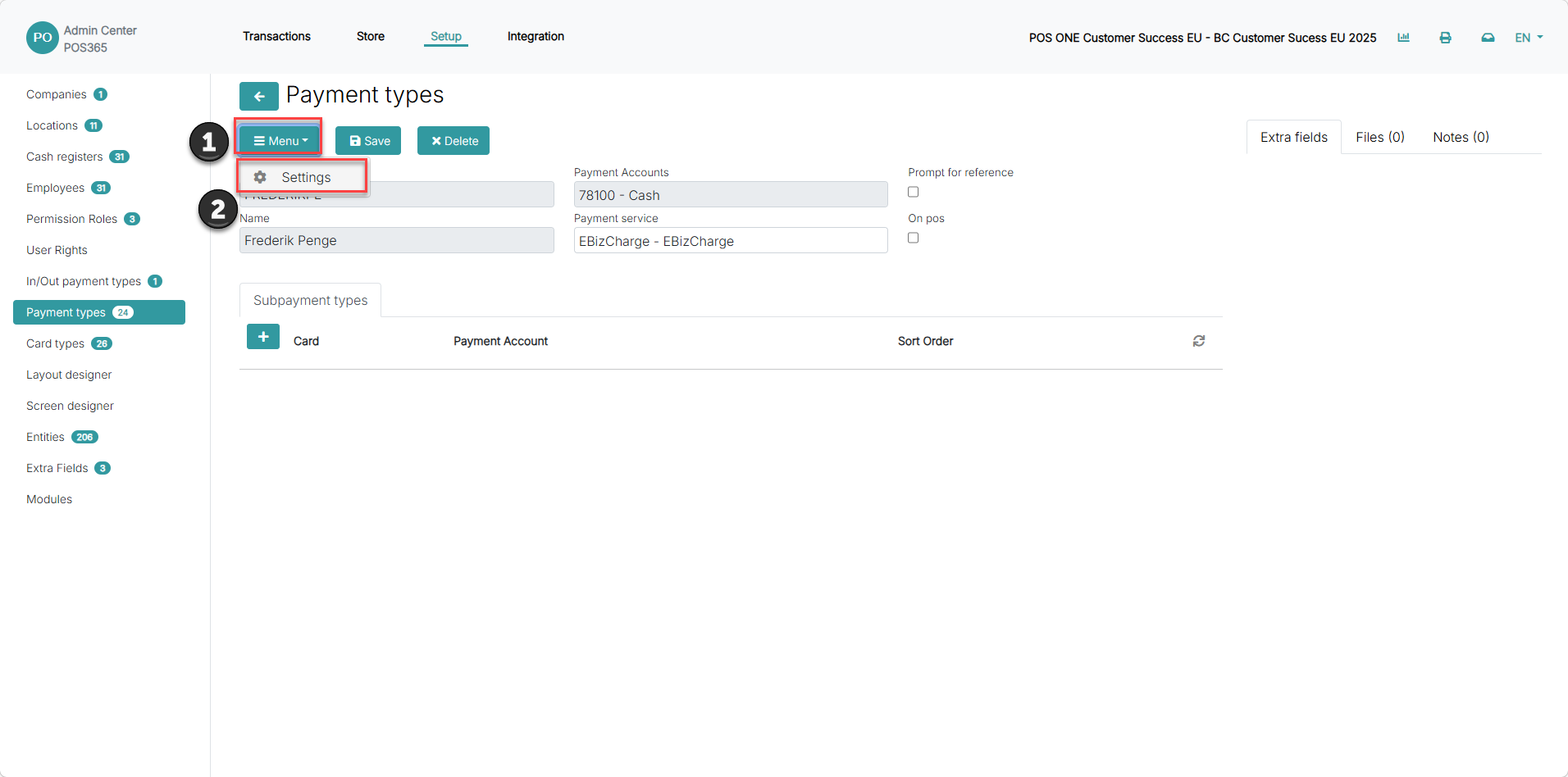
1) Click on 'Menu'
2) Go to 'Settings'
Step 3:
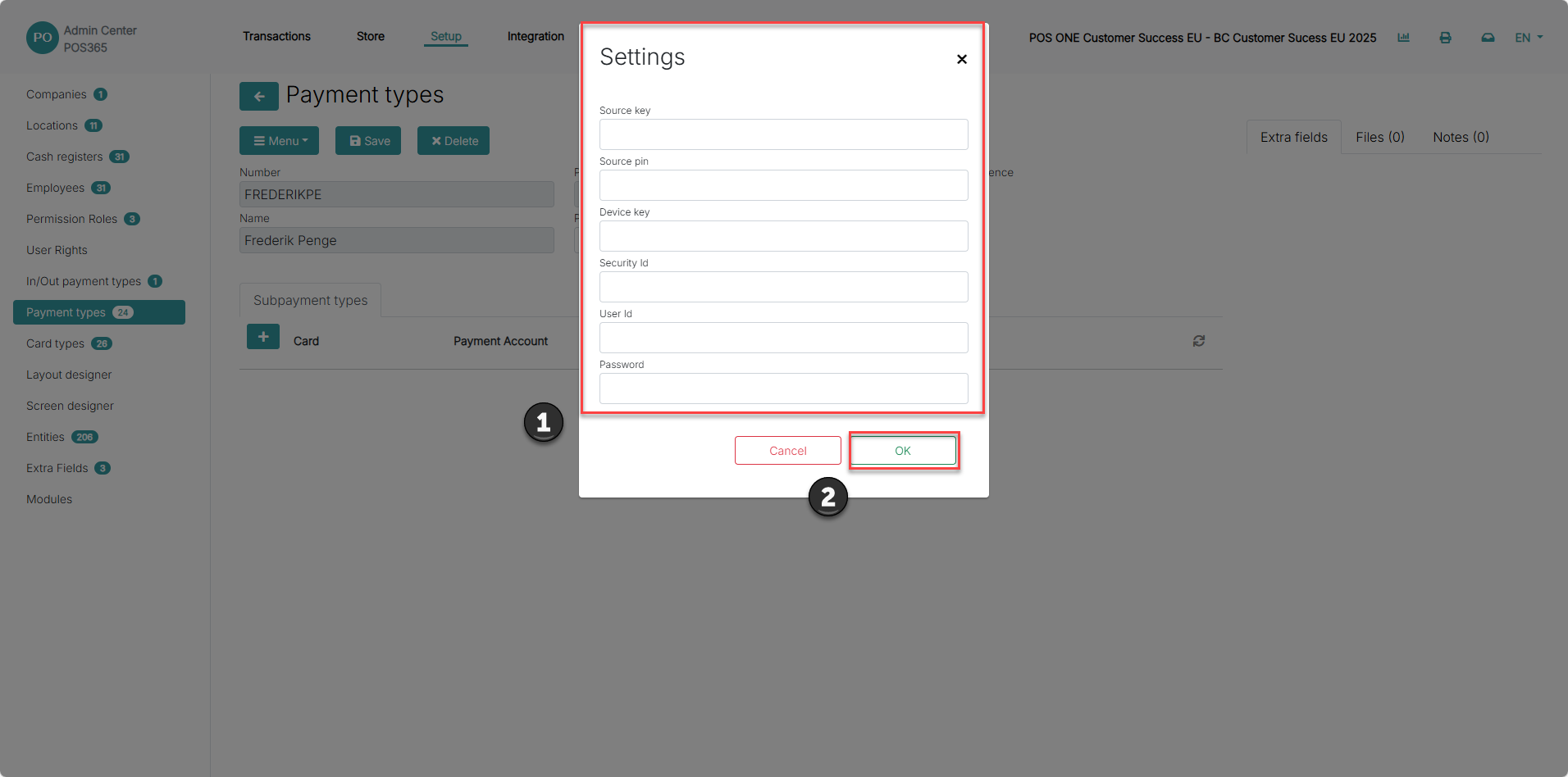
1) Fill in the information regarding the EBiz Charge
2) Click 'OK'
Source key:
Source pin:
Device key:
Security Id:
User Id:
Password:
Flatpay
Step 1:
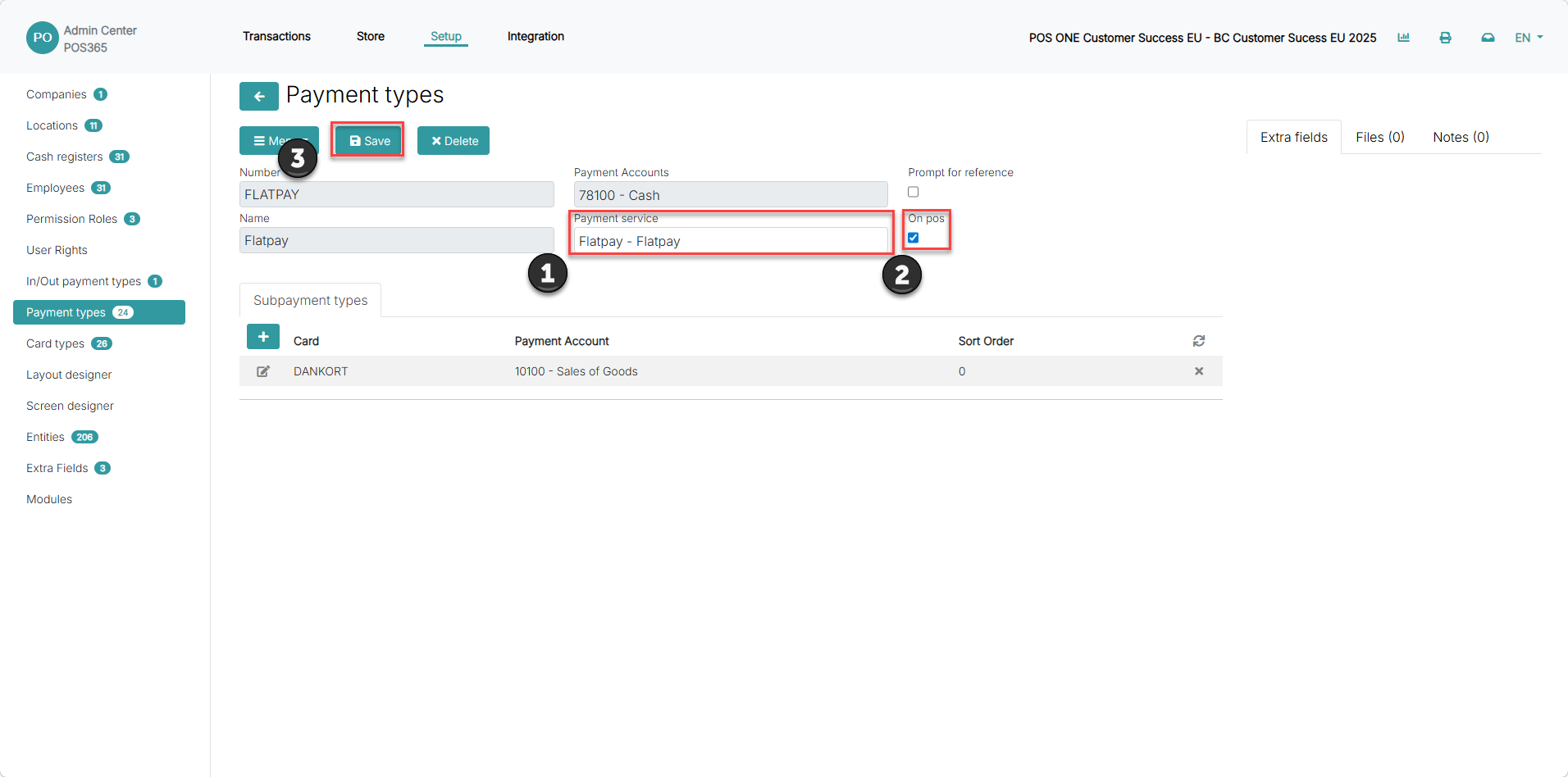
1) Set the 'Payment service' to 'Flatpay - Flatpay'
2) Check the 'On pos' field
3) Click 'Save'
Step 2:
1) Click on 'Menu'
2) Go to 'Settings'
Step 3:
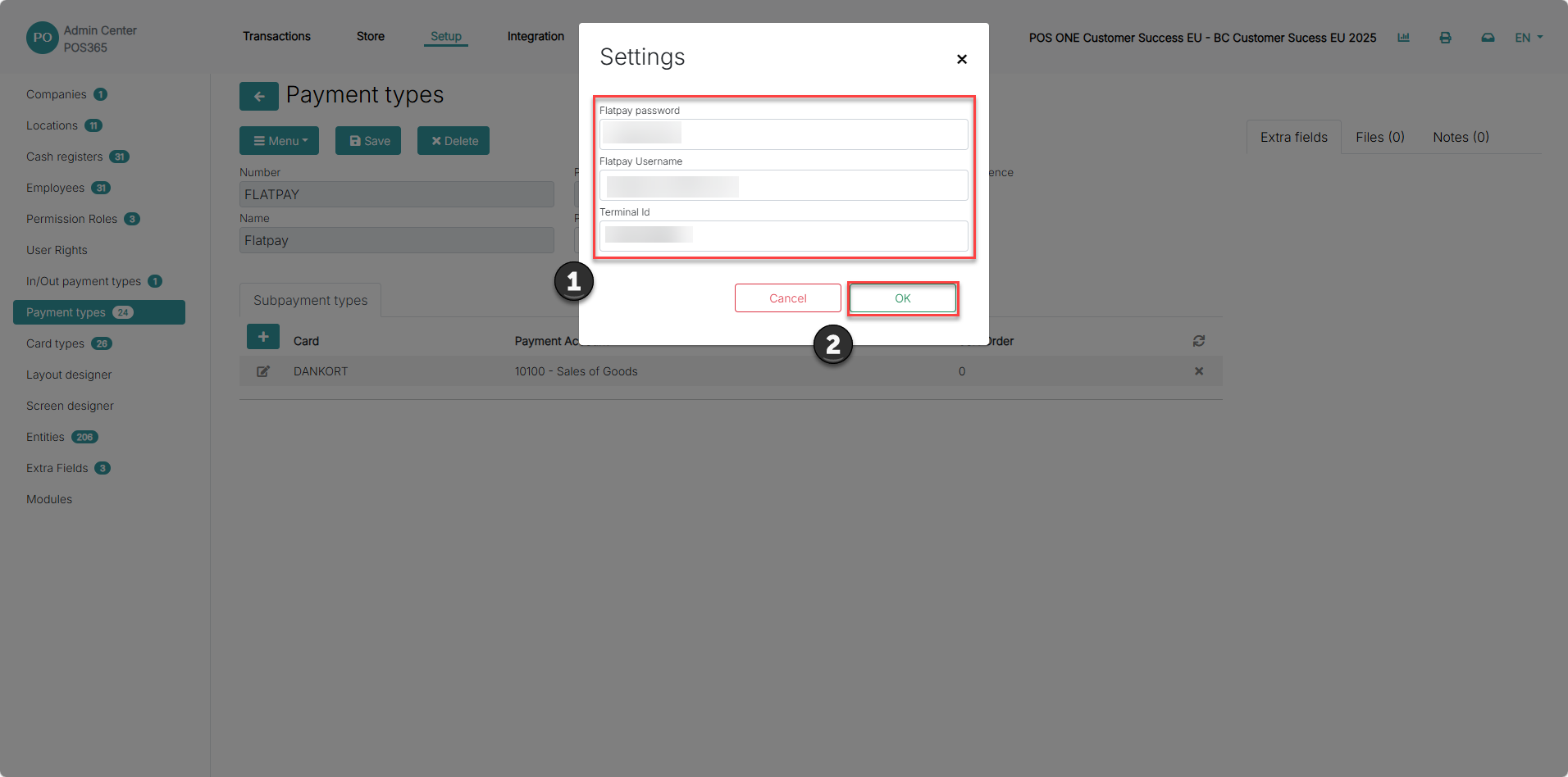
1) Fill in the information regarding the Flatpay terminal
2) Click 'OK'
Flatpay password: The password for the Flatpay Customer Portal
Flatpay username: The username for the Flatpay Customer Portal
Terminal Id: The ID of the flatpay terminal. You can find it via the Flatpay Customer Portal under the "Devices" tab or on the physical label on the back of your terminal.
Terminal prints: Toggles whether you want the terminal to print or not
Foreign Cash
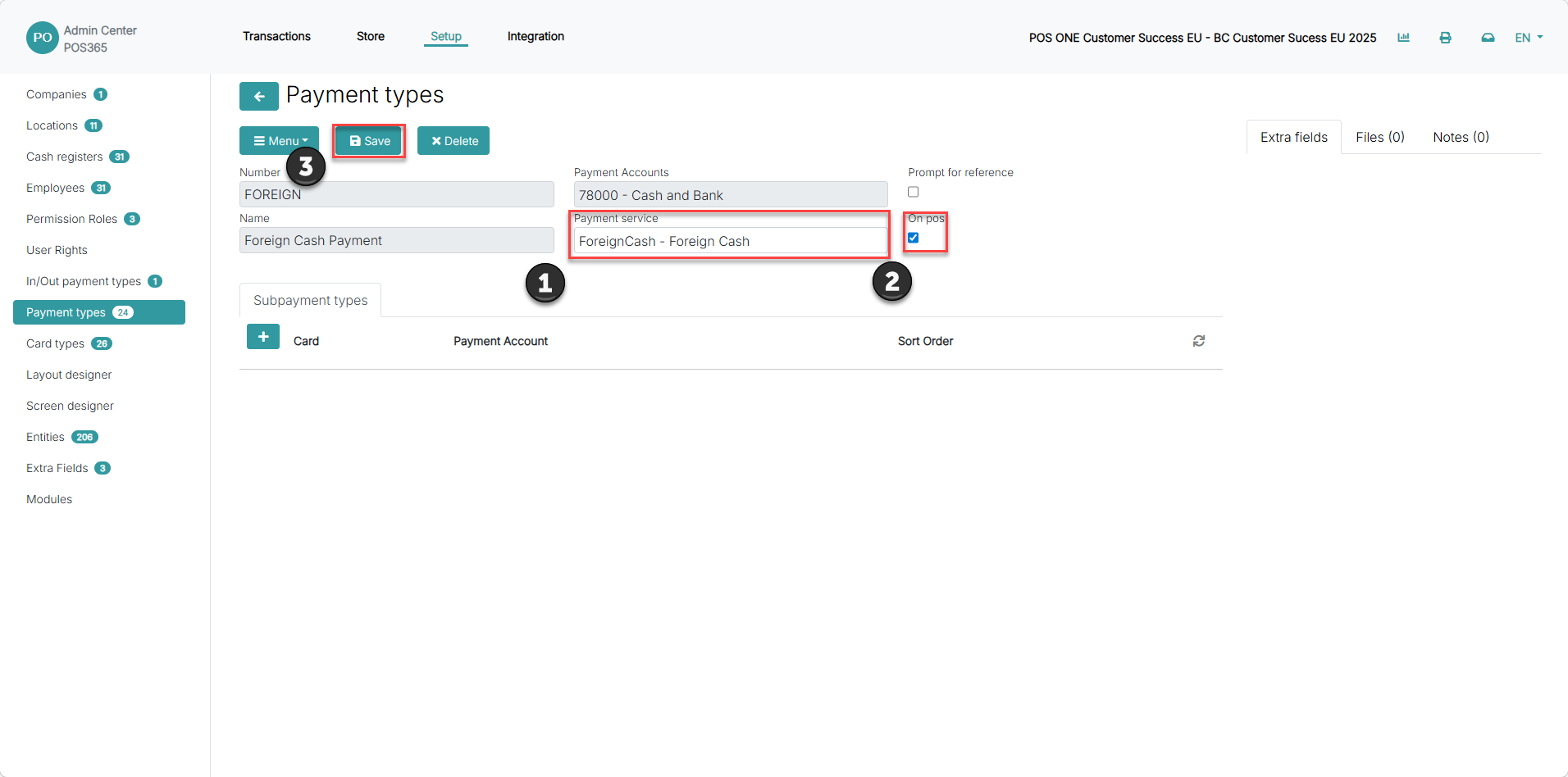
1) Set 'Payment service' to 'ForeignCash - Foreign Cash'
2) Check the 'On pos' field
3) Click 'Save'
Gift card
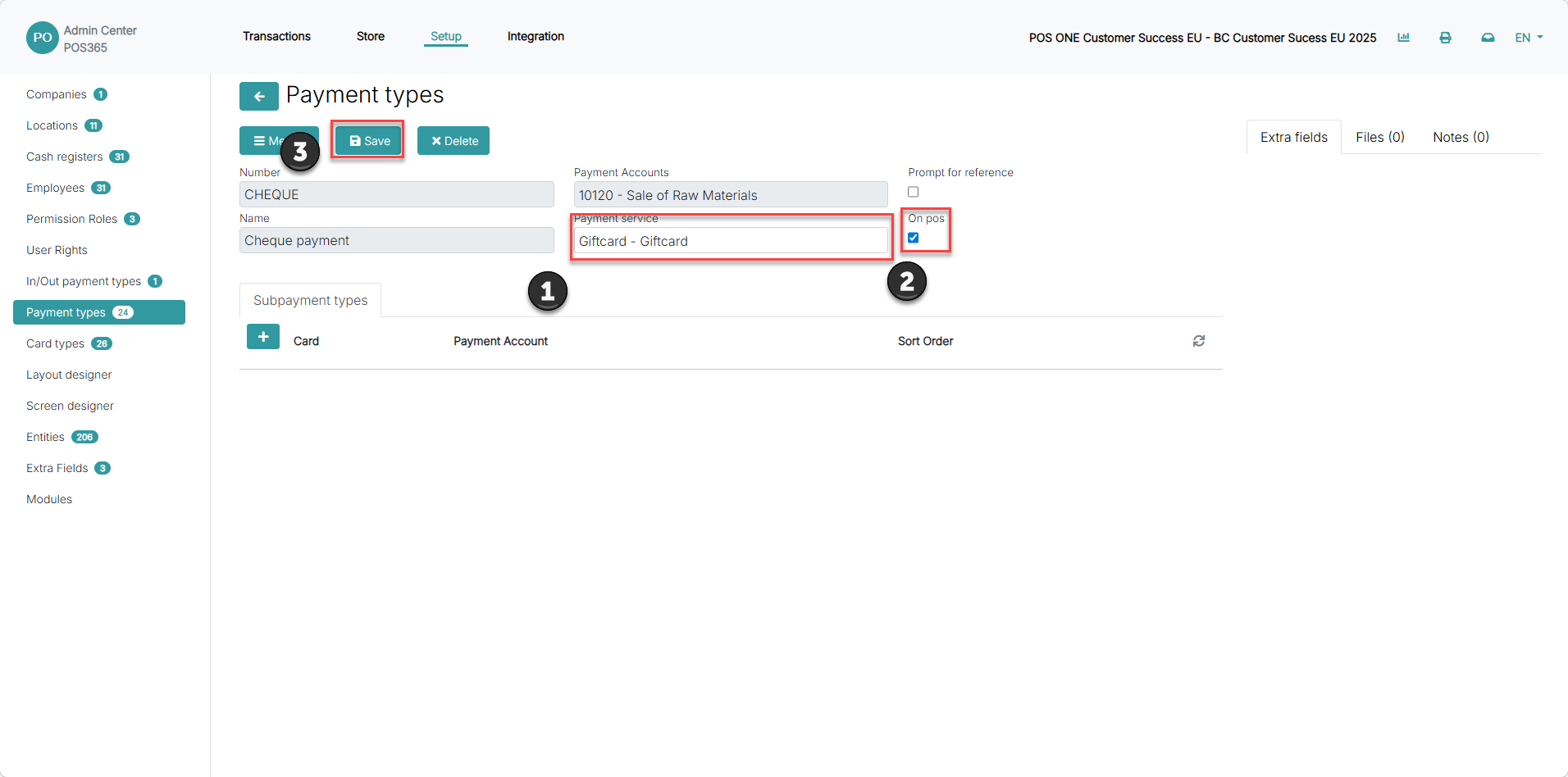
1) Set 'Payment service' to 'Giftcard - Giftcard'
2) Check the 'On pos' field
3) Click 'Save'
Hobex terminal
Step 1:
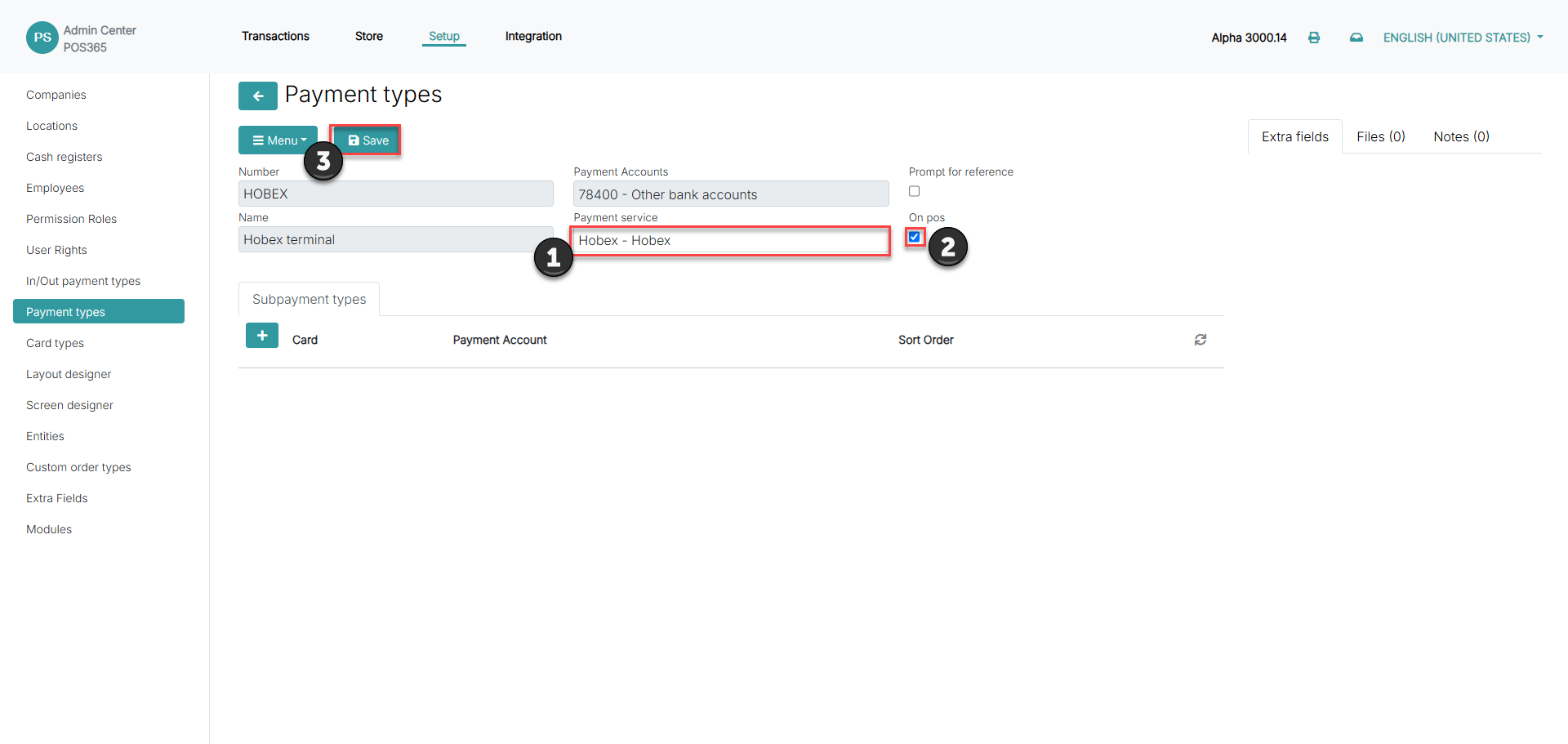
1) Set the 'Payment service' to 'Hobex - Hobex'
2) Check the 'On pos' field
3) Click 'Save'
Step 2:
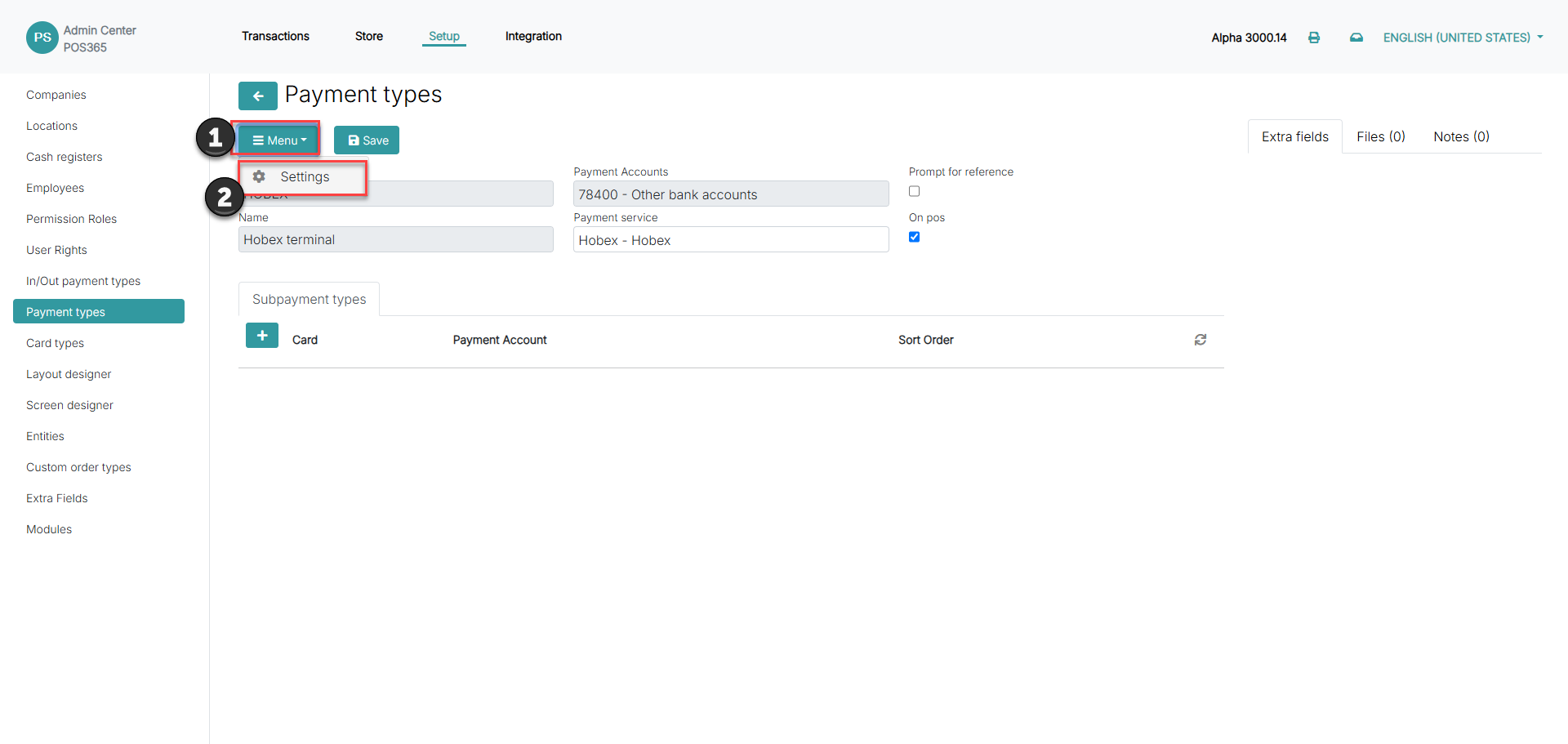
1) Click on 'Menu'
2) Go to 'Settings'
Step 3: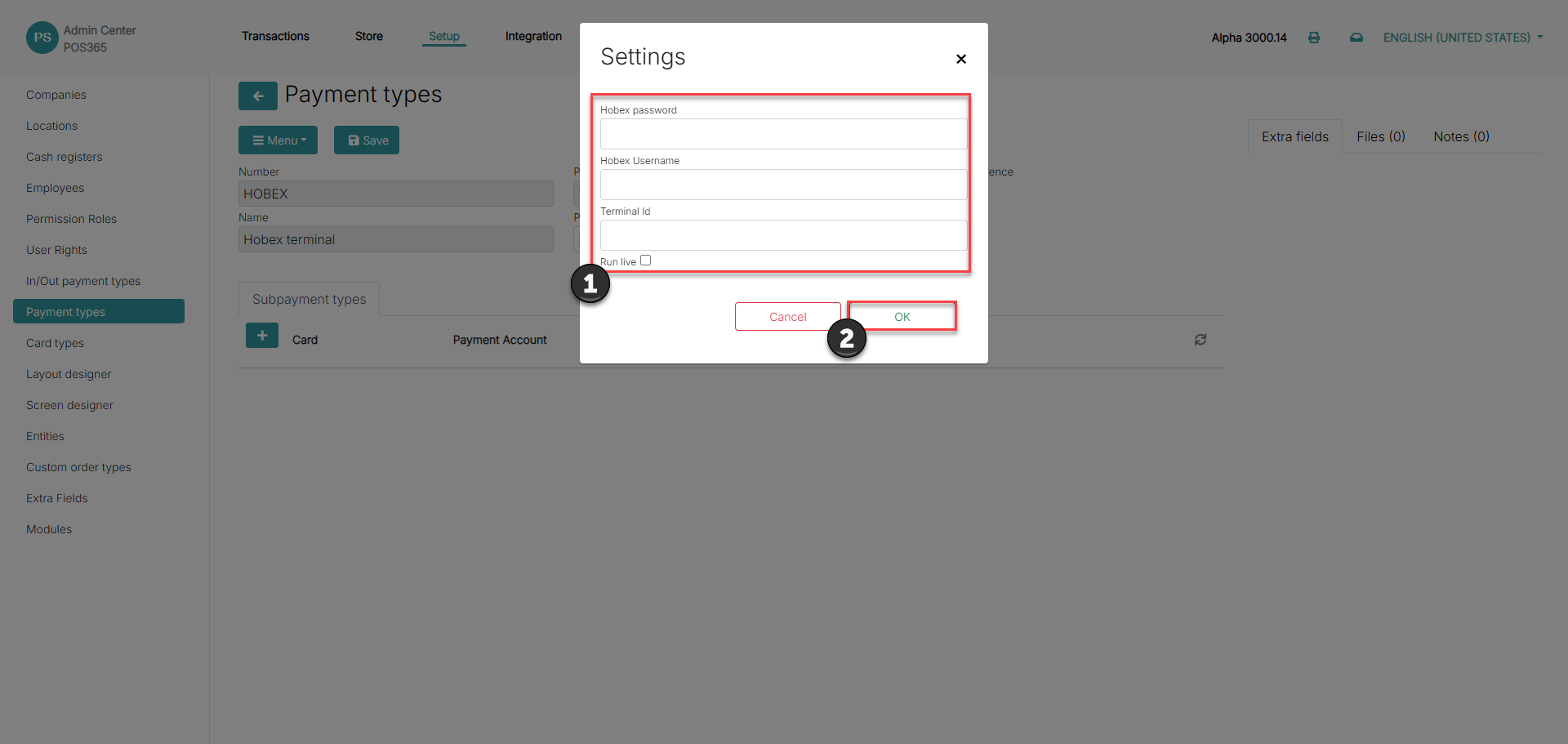
1) Insert the terminal credentials provided by Hobex
2) Click 'OK'
Verifone terminal
Step 1:
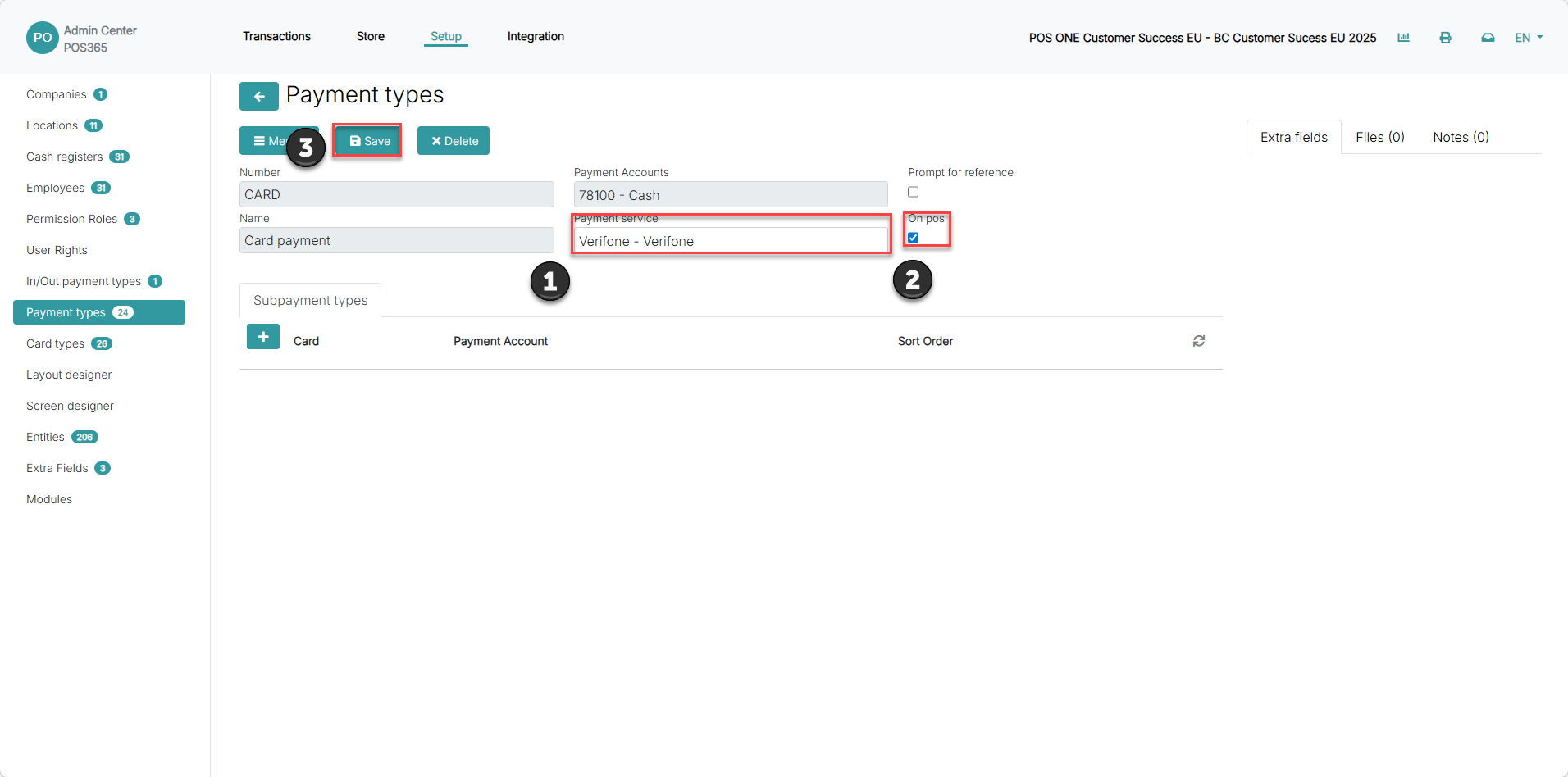
1) Set the 'Payment service' to 'Verifone - Verifone'
2) Check the 'On pos' field
3) Click 'Save'
Step 2:
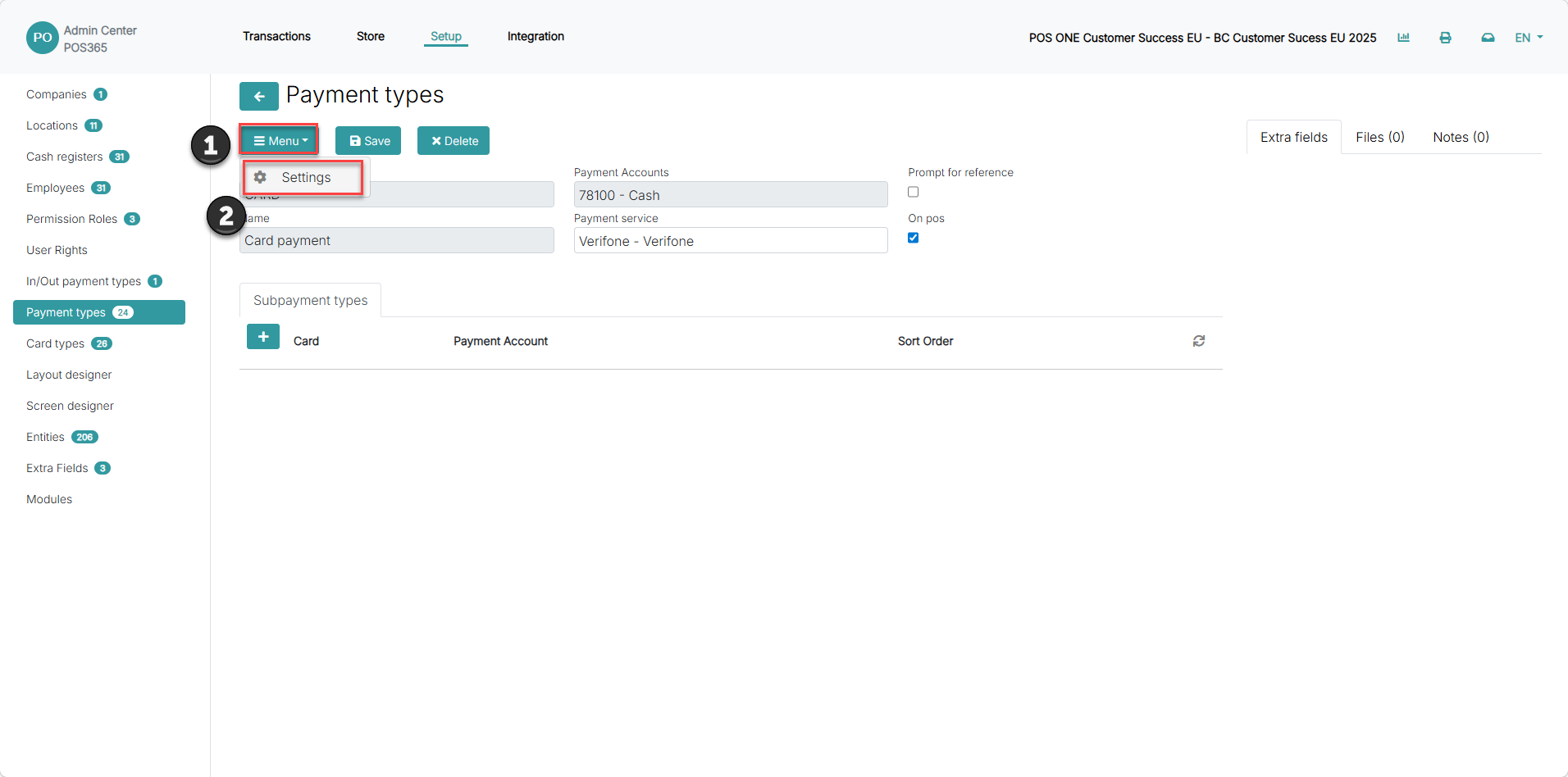
1) Click on 'Menu'
2) Go to 'Settings'
Step 3: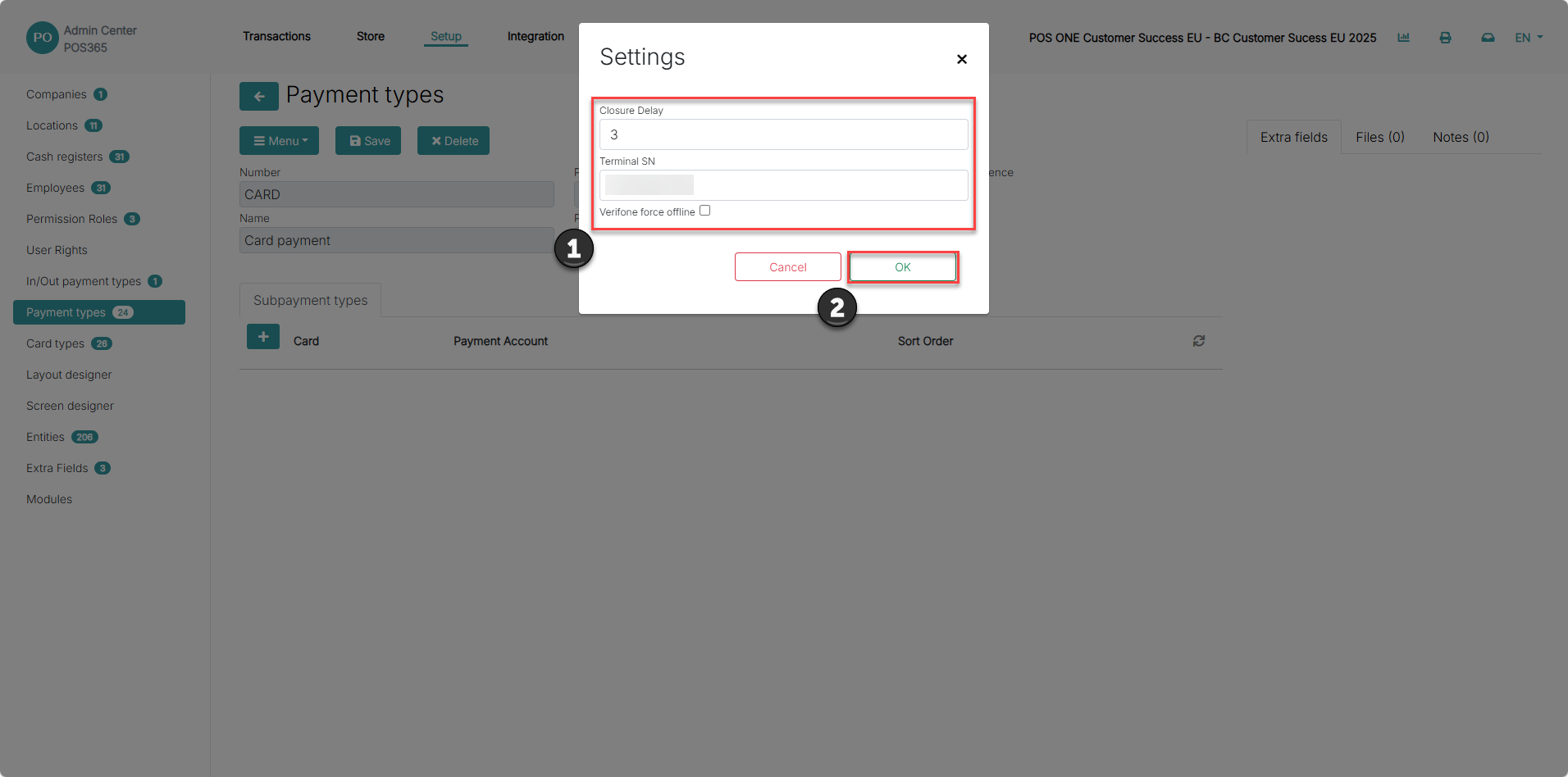
1) Set 'Closure delay' to 3 and insert the 'terminals SN'.
2) Click 'OK'
Closure delay: The delay between transactions being made and processed. We recommend setting the delay to 3 to ensure proper handling on the terminal
Terminal SN: The serial number of the Verifone terminal. To locate the terminal SN, either look at the backside of the terminal or contact Verifone
Verifone force offline: Forces the terminal to always operate offline. We do not recommend to use this setting
Note:
- This guide can only be used for Verifone Denmark customers.
Supported devices:
Verifone P400
Verifone V400M
Ports:
These ports need to be opened in the firewall: 6001, 9600 and 9680
Vipps MobilePay
Step 1:
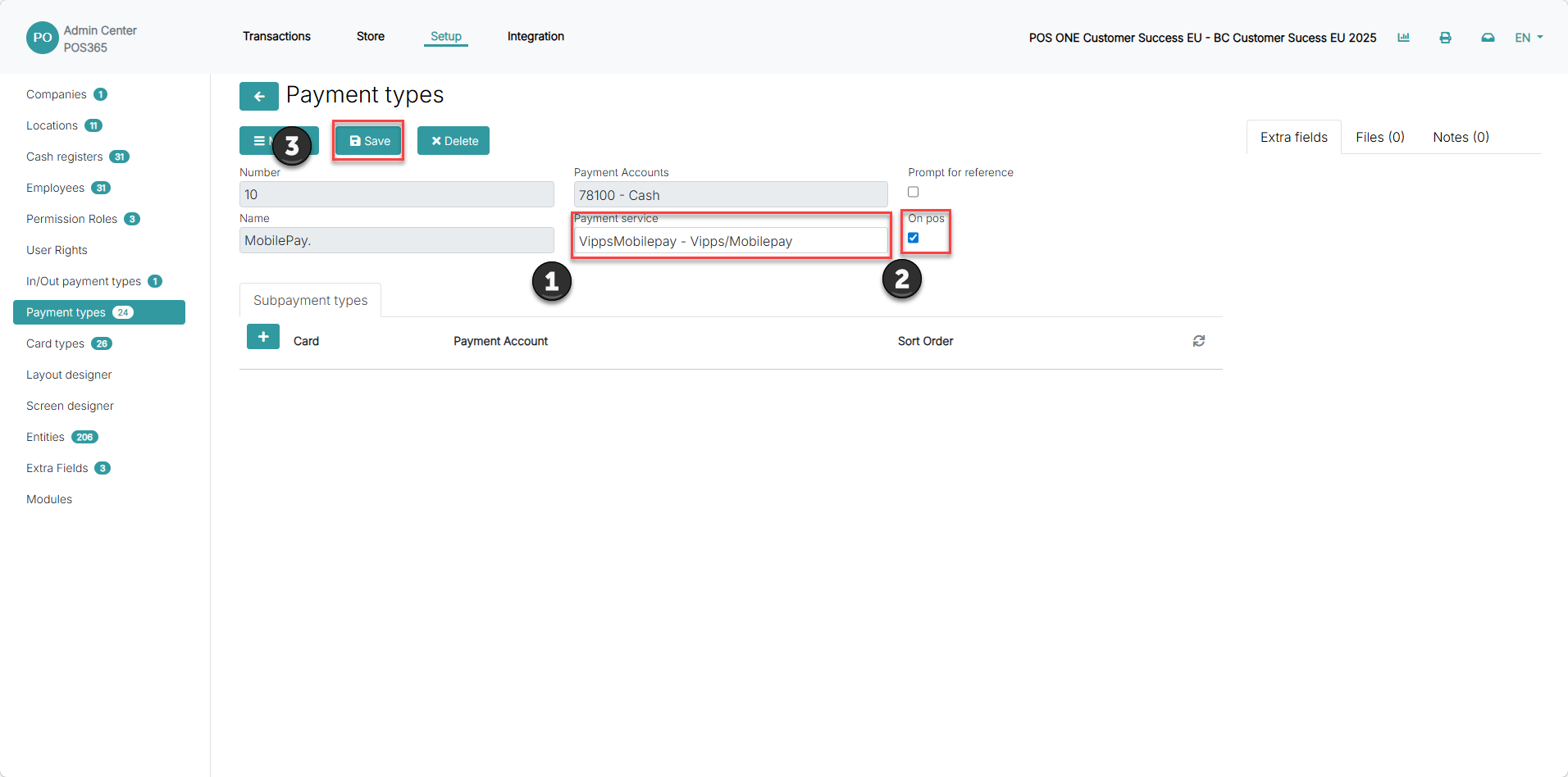
1) Set 'Payment service' to 'VippsMobilepay - Vipps/Mobilepay'
2) Check the 'On pos' field
3) Click 'Save'
Step 2:
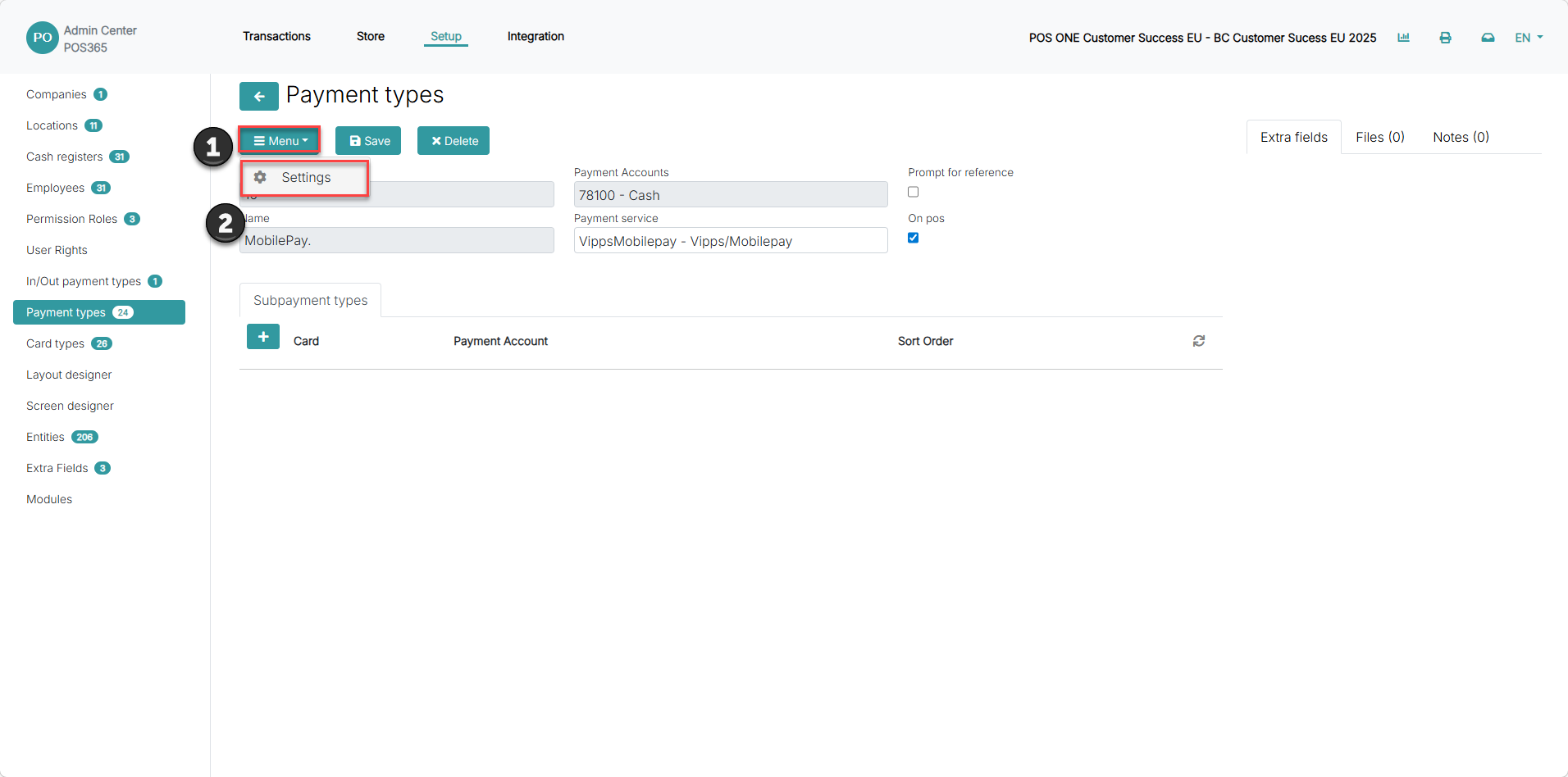
1) Click "Menu"
2) Click "Settings"
Step 3:
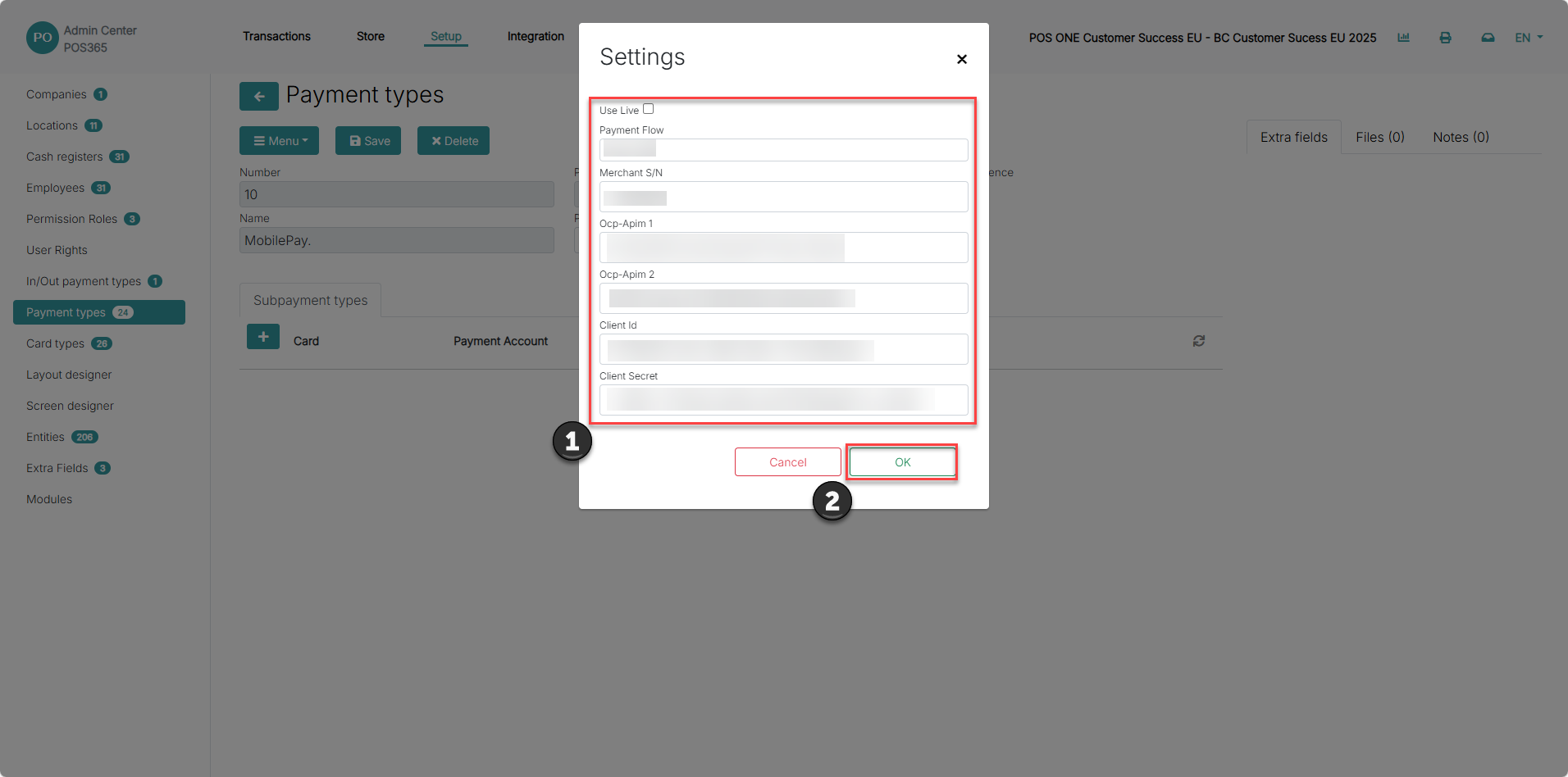
1) Fill in information regarding the payment type
2) Click 'OK'
Use Live: Defines whether the payment method is used in a live environment or test environment
Payment Flow: Defines how the payment function should work
- UserQR: A QR-code is shown on the customers phone to be scanned
- DynamicQR: A QR-code is shown on the POS, which the customer needs to scan
- UserPhone: A pop-up asking for the customers phone number is shown
Merchant S/N: The serial number of the terminal
Ocp-Apim 1: The primary Ocp-Apim-Subscription-Key, which is your access key to the API of your MobilePay integration
Ocp-Apim 2: The secondary Ocp-Apim-Subscription-Key, which is your access key to the API of your MobilePay integration
Client Id: The client ID provided by Vipps/MobilePay
Client Secret: The client secret provided by Vipps/MobilePay
Voucher
Needs testing
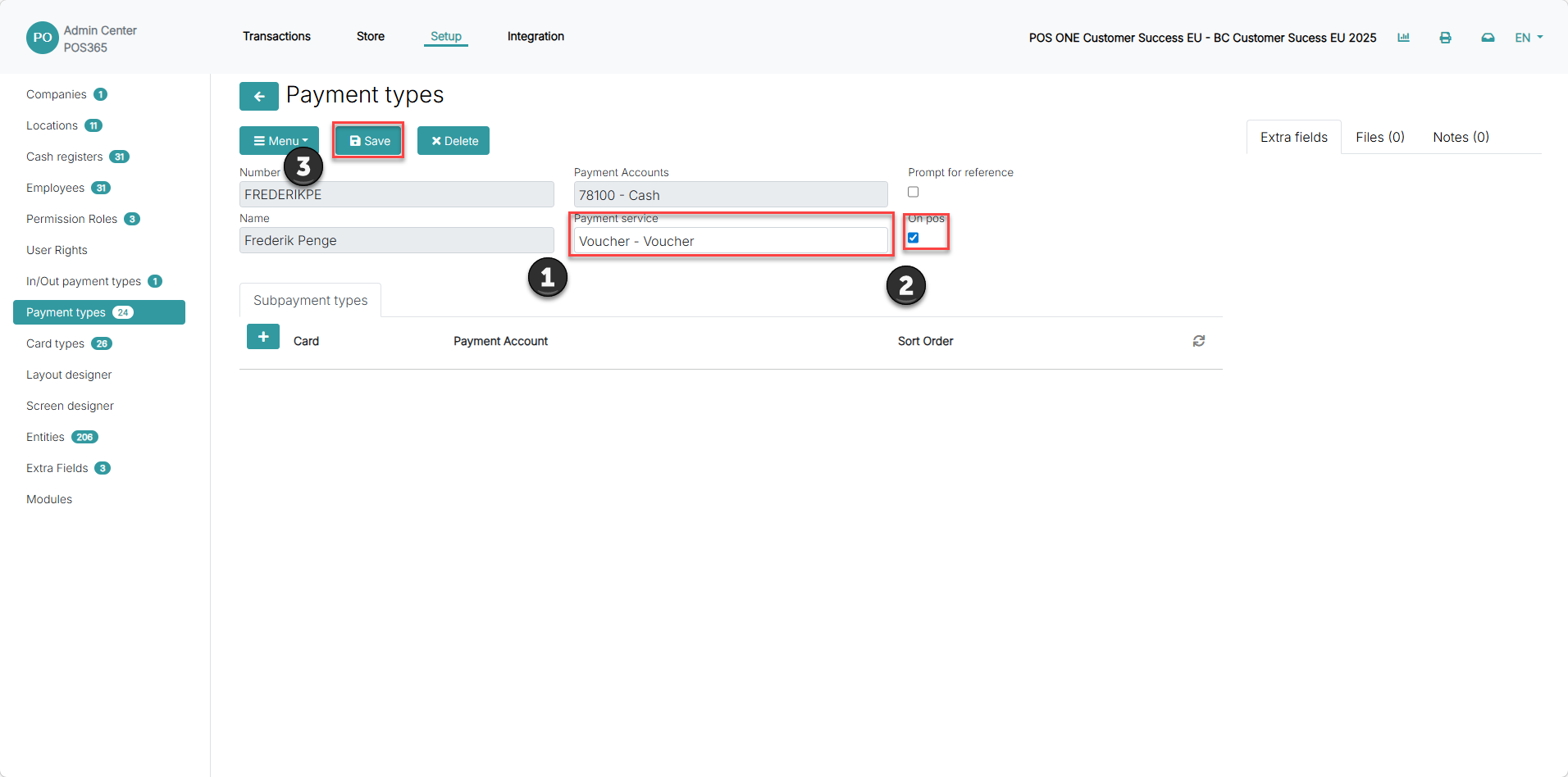
1) Set 'Payment service' to 'Voucher - Voucher'
2) Check the 'On pos' field
3) Click 'Save'
Step 6:
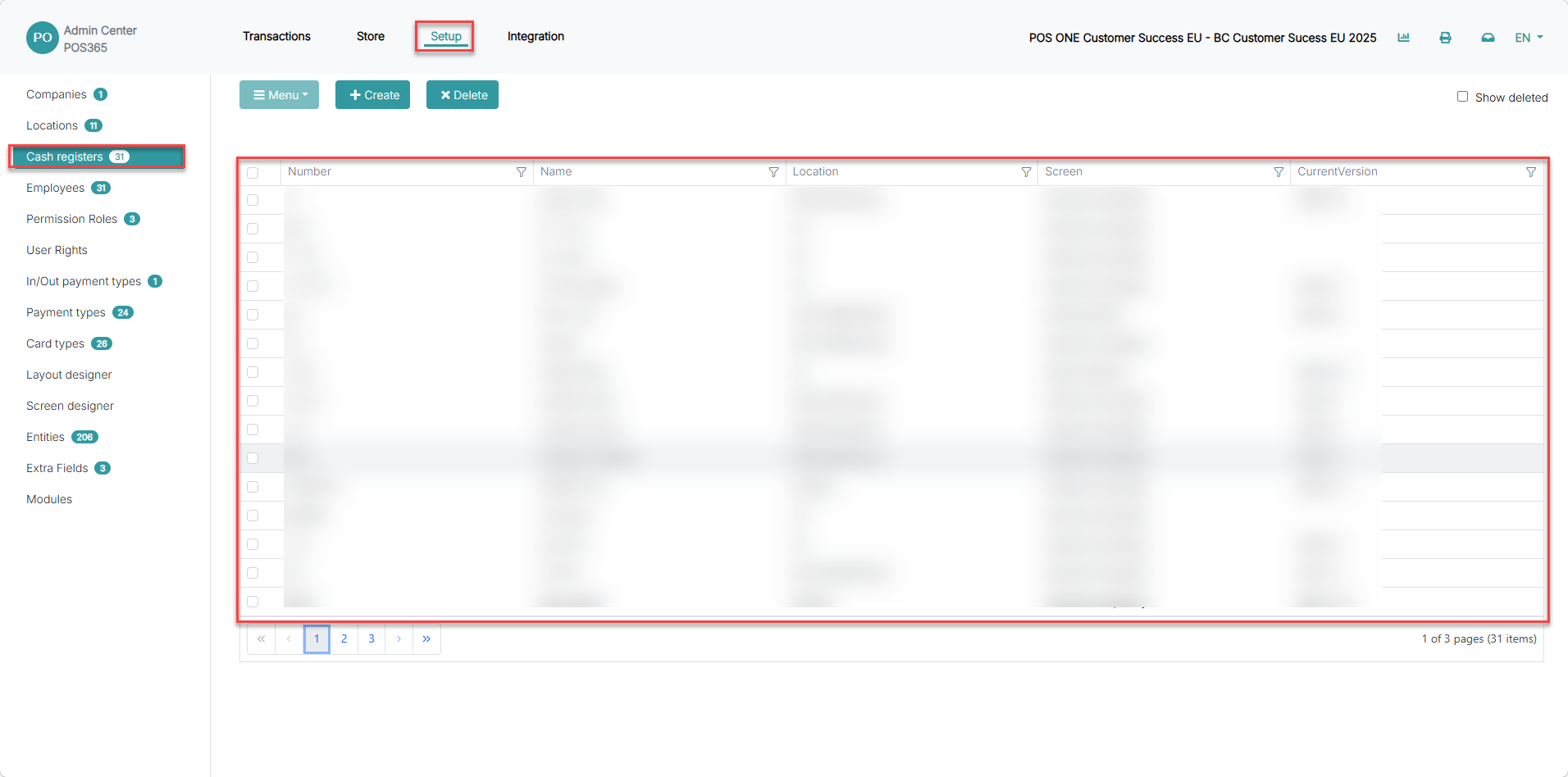
1) Go to 'Setup'
2) Click on 'Cash registers'
3) Find the cash register that you need to assign your new payment type to and click on it
Step 7:
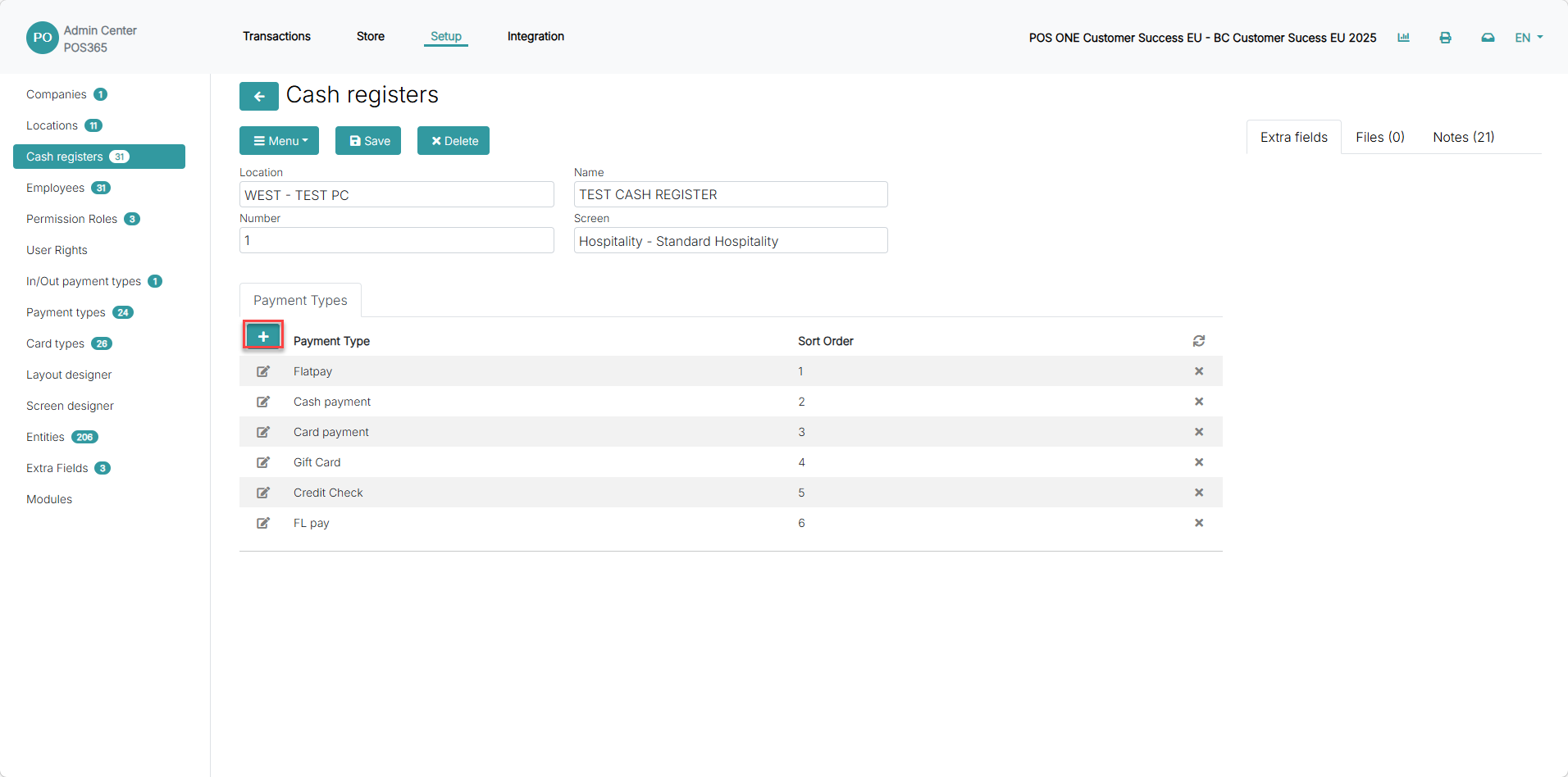
Click "+" to add payment type to the cash register
Step 8:
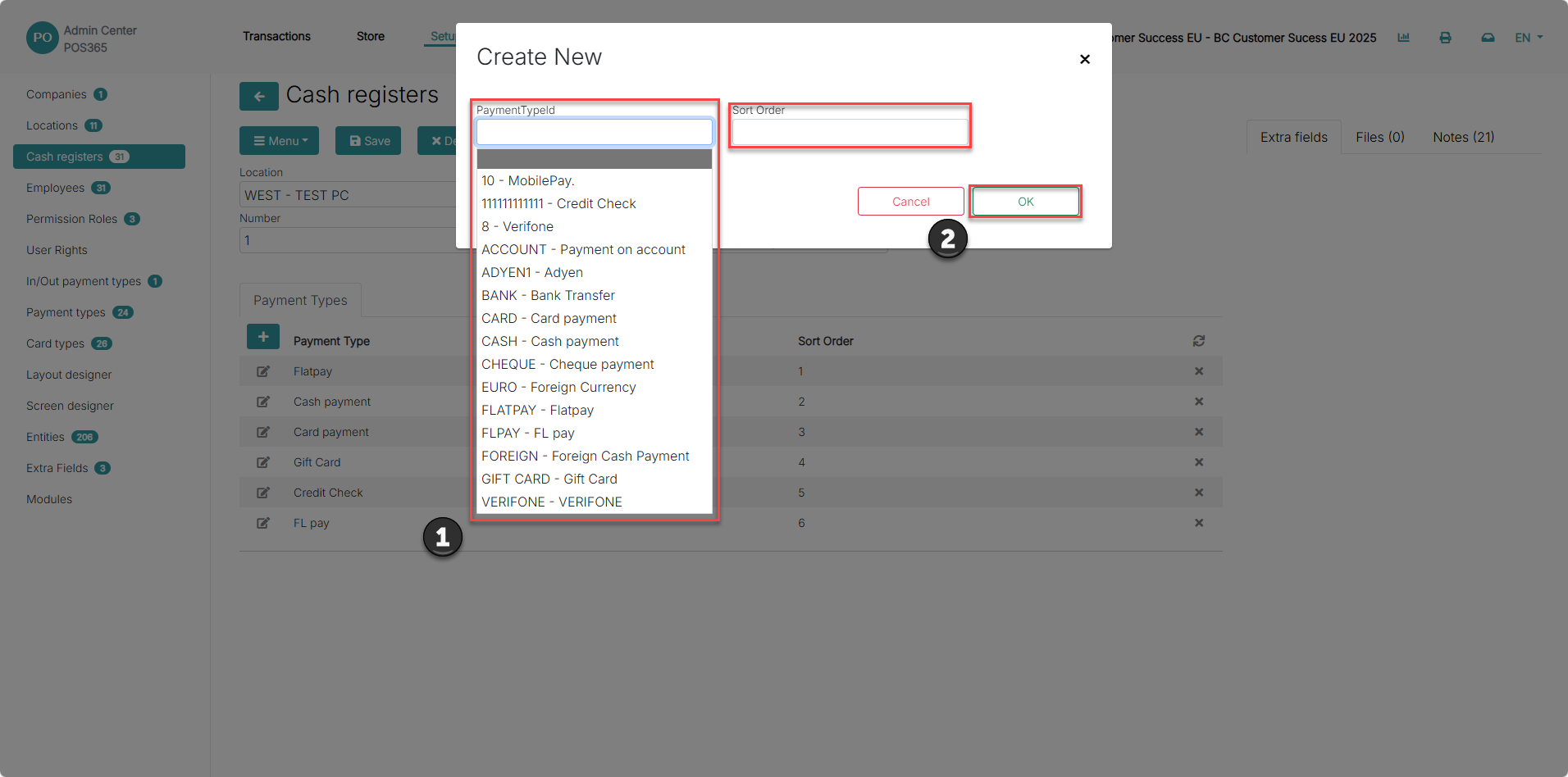
1) Select the desired payment type from the dropdown menu
2) Click 'OK'
Notes:
- If the POS365 app is open, it needs to be restarted before you'll be able to see the new payment type.
- If two payment types have the same sorting, the system will choose their order randomly.