When clicking an item in an active sale, you will see the item information, including the possibility to configure the selected item. In this explainer, we will look at what the different functionalities do.
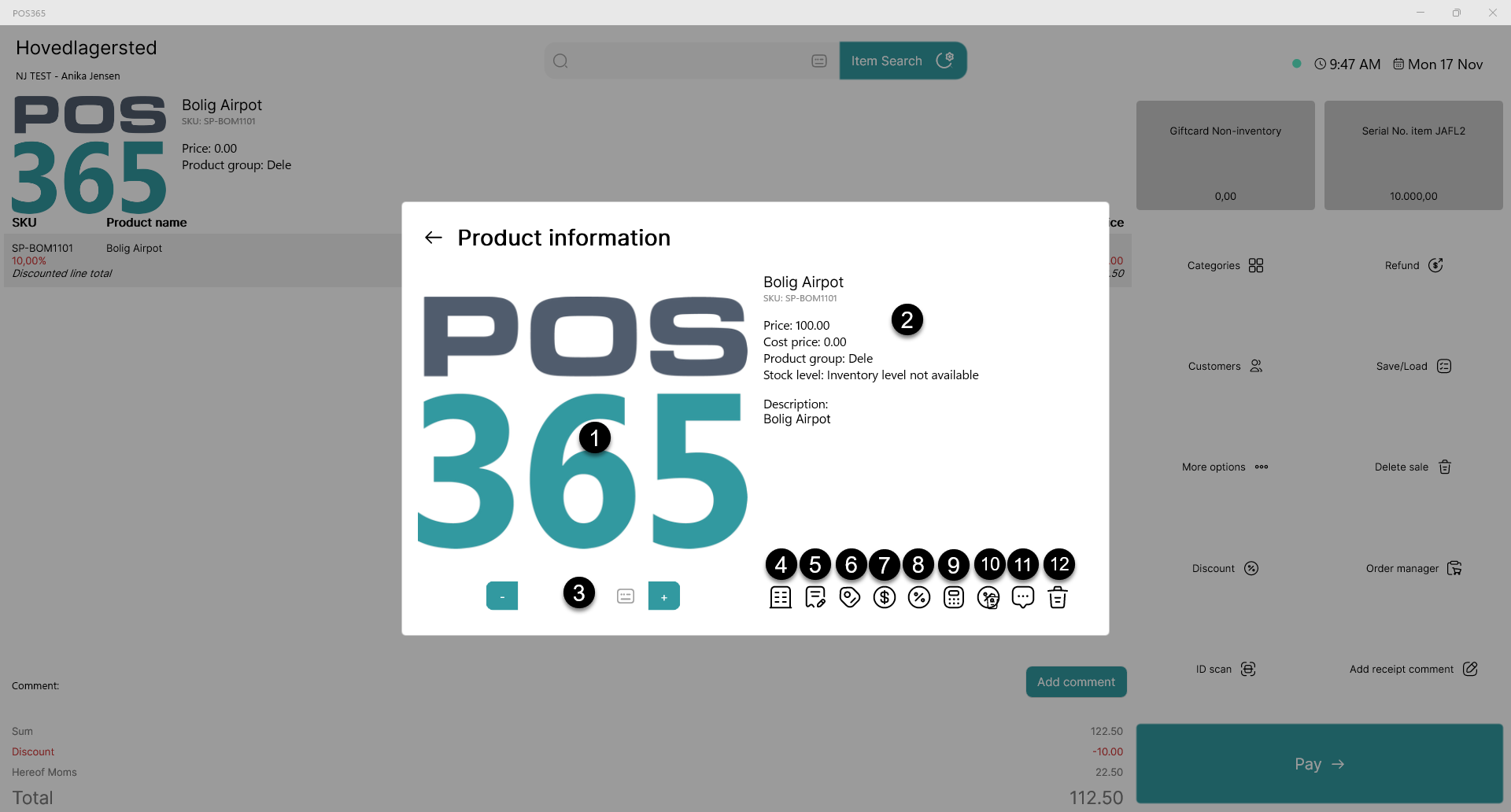
- Item picture
If the item holds an image, it will be displayed here. - Basic item information
Item information regarding the selected item is displayed here. - Quantity
1) Displays the current quantity of the selected product.
2) Increase/decrease the quantity of the selected product. - Stock level
Displays the stock levels across multiple locations. This information is synchronized directly from Business Central and will therefore not work when offline - Change product name
The product name displayed on the order can be changed. It will only apply for this order. - Print price labels
Enter the desired number of price labels and print on the label printer. - Define price
Enter and re-define the price of an item. - Discount
Enter a product/line-specific discount via cash or percentage. - Discount calculator
Opens a pop-up to easily configure the desired discount. - Remove discount
Removes the given product/line discount. - Add comment
Enter a product/line-specific note. - Delete
Deletes the product from the sales line.